How to understand your Gmail compliance status in Flodesk
Overview
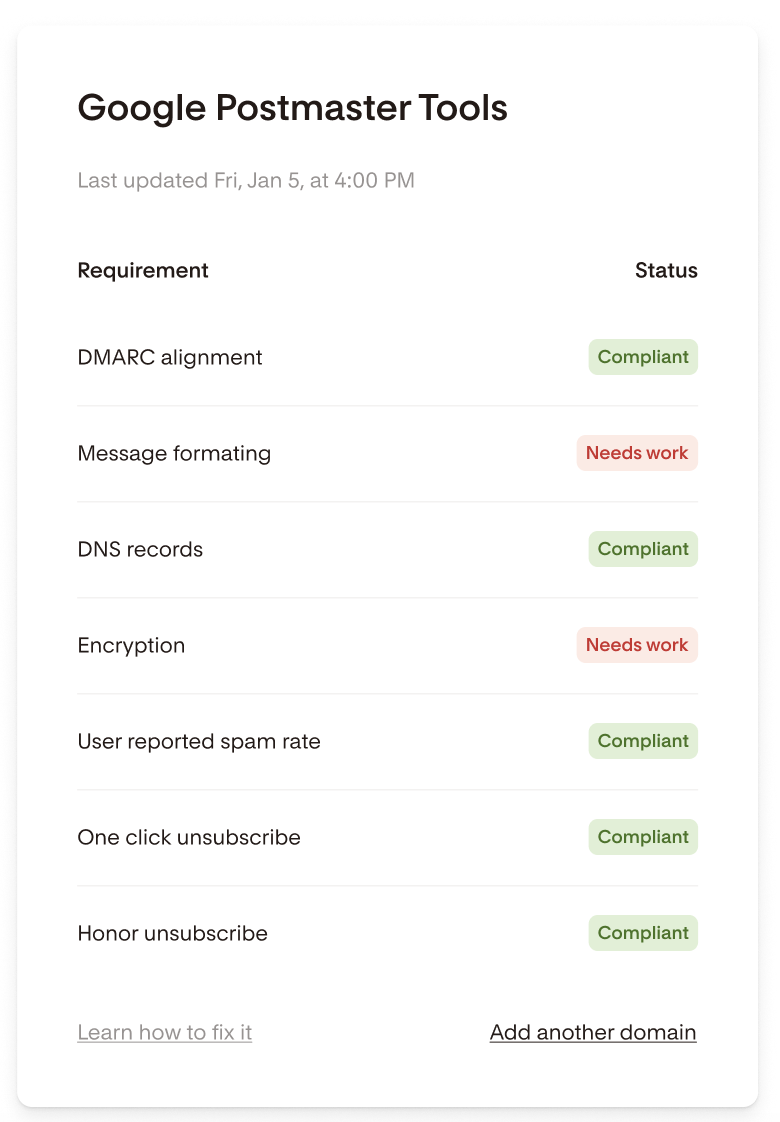
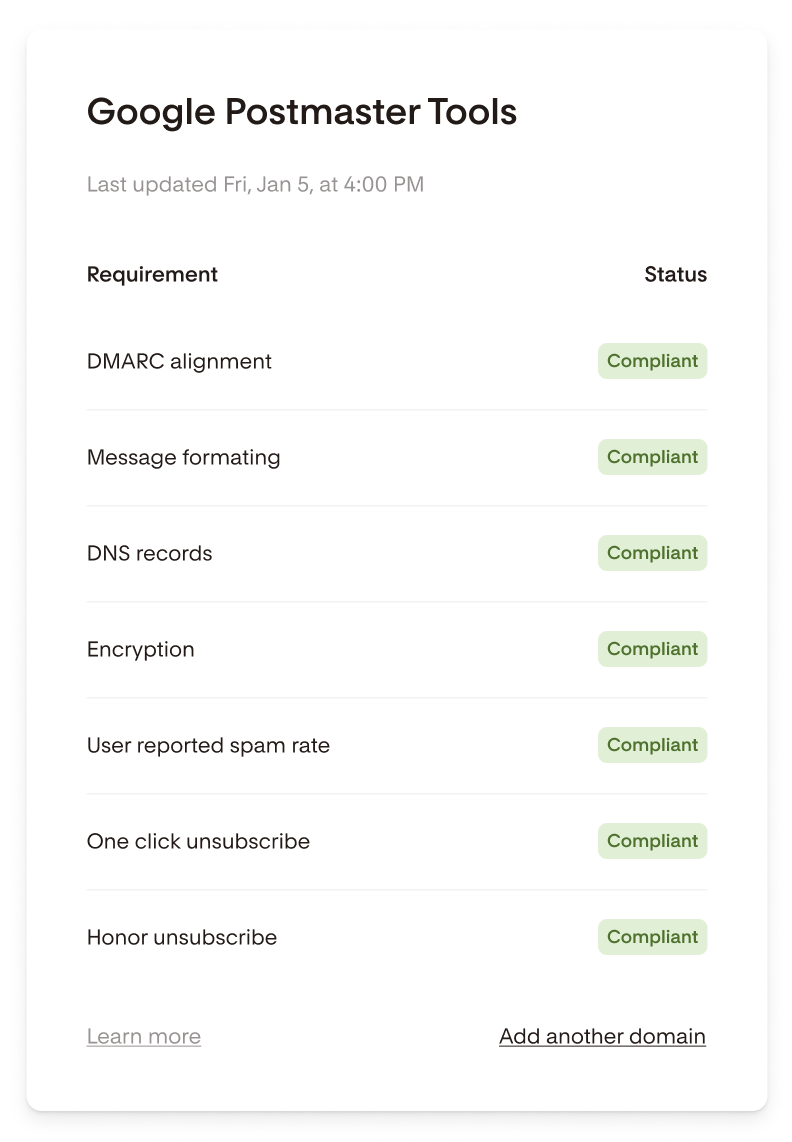
Flodesk connects with Google Postmaster Tools to show you how Gmail views your sending domain. Once connected, you'll see a compliance checklist inside your account that tells you whether your domain meets Gmail's requirements and flags anything that needs attention.
This article explains what each requirement means, what you're responsible for, and what Flodesk handles on your behalf.
What is Google Postmaster Tools?
Google Postmaster Tools gives you insight into how Gmail perceives your emails. That insight falls into two categories.
The first is about your sending: it surfaces actions you may need to take, like fixing authentication that isn't set up correctly or addressing spam complaints that are climbing too high.
The second is about how Gmail evaluates Flodesk's technical setup on your last send. Things like encryption, message formatting, forward and reverse DNS records, and unsubscribe behaviors are all checked here so you can confirm they're working as expected.
Note: Google only reports data on days when you send roughly 50 or more emails to Gmail addresses, though the exact threshold can vary. Expect gaps on lower-volume days.
What does the Flodesk integration do?
The Flodesk integration brings all of your Postmaster compliance data into one place, so you can quickly check whether your domain authentication and other technical setup pieces are correctly configured without leaving Flodesk.
It also unlocks something specific to Gmail: spam rate data. Unlike most major providers (Yahoo, Hotmail, Outlook, and others), Google doesn't send spam complaints back through a traditional feedback loop. They do this to protect recipients' privacy, and Apple Mail takes a similar approach. Google Postmaster Tools is how Google makes that information available, in an anonymized form.
With the integration connected, Flodesk pulls that data straight into your Email Analytics dashboard alongside data from other providers, so you can see at a glance whether you're tracking within Gmail's guidelines and enforcement thresholds.
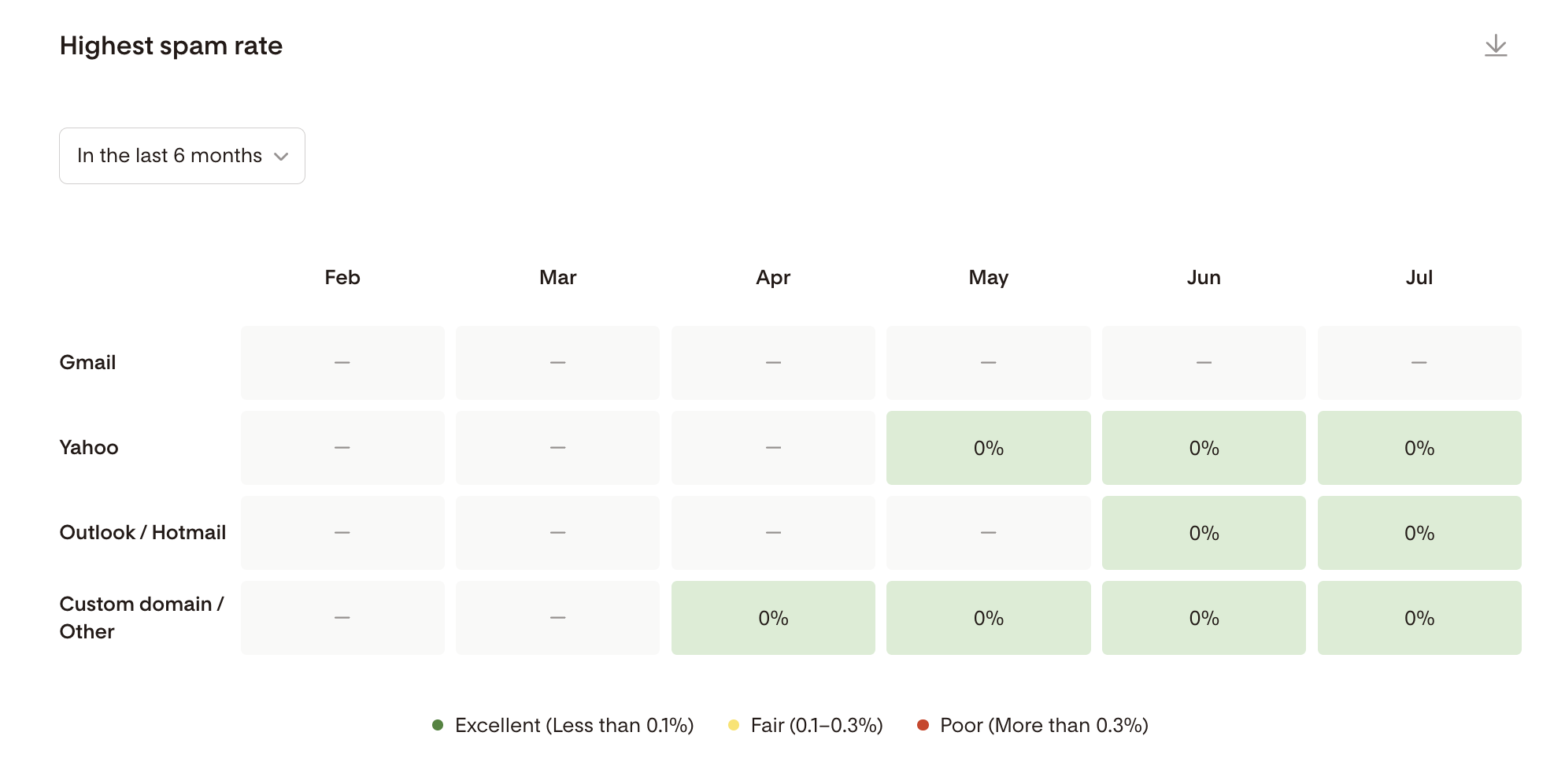
One thing worth knowing: Google Postmaster Tools reports an aggregate spam rate, not an absolute number of complaints. It samples from the messages available rather than reporting on every single one, again to keep recipient privacy intact. Treat the number as a directional signal, not a precise count.
Before you start
A few things to know before reviewing your compliance status:
Google Postmaster Tools must be connected to your Flodesk account. If you haven't set it up yet, go to My Account > Domain setup to get started.
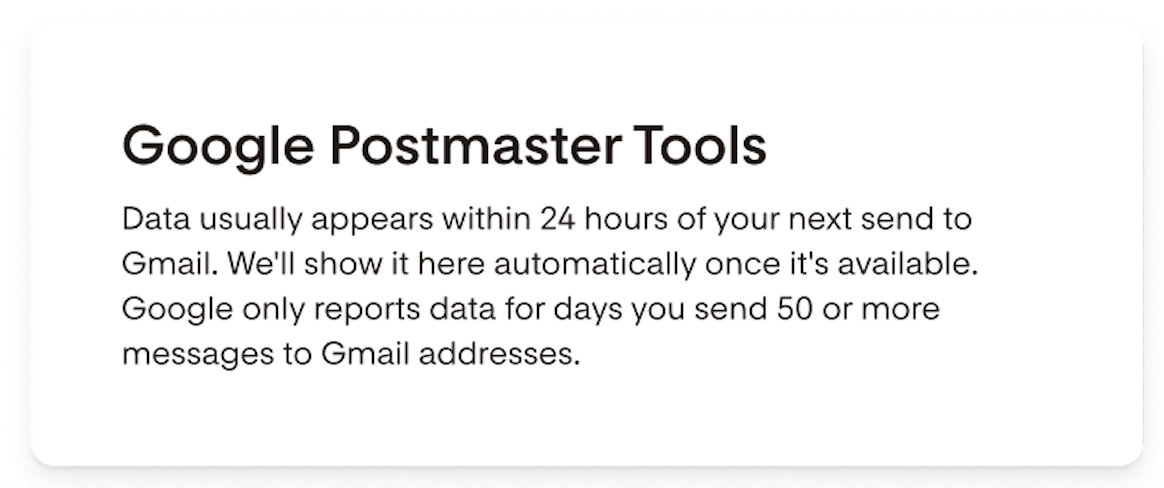
Google only reports data for days you send roughly 50 or more emails to Gmail addresses. If you're just getting started or send at lower volumes, you may see a message that data isn't available yet.
Data can take up to 24 to 72 hours to appear after a send. If your dashboard looks empty right after connecting, give it some time.
What each compliance requirement means
Your compliance dashboard shows seven requirements. Some are your responsibility to maintain, and some are handled automatically by Flodesk.
Your responsibility
(1) Spam rate
What it is: The percentage of your emails that Gmail recipients marked as spam.
Why it matters: This is one of the most important signals Gmail uses to decide whether to deliver your emails to the inbox or the spam folder. Gmail recommends keeping your spam rate below 0.10% and considers anything at or above 0.30% a policy violation. Spam rates are driven almost entirely by your content, who's on your list, and how engaged they are.
What to do if you're above the 0.10% threshold
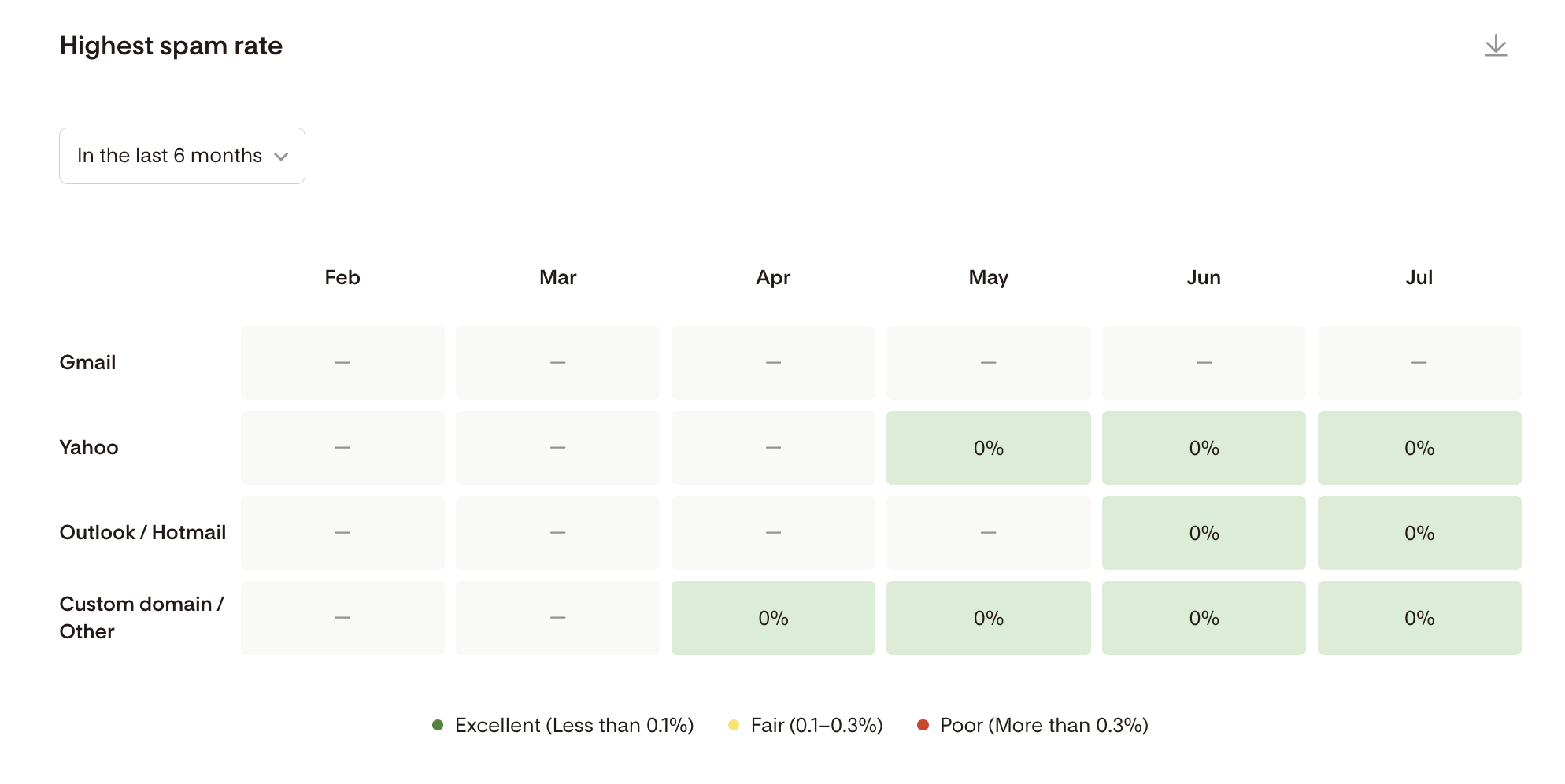
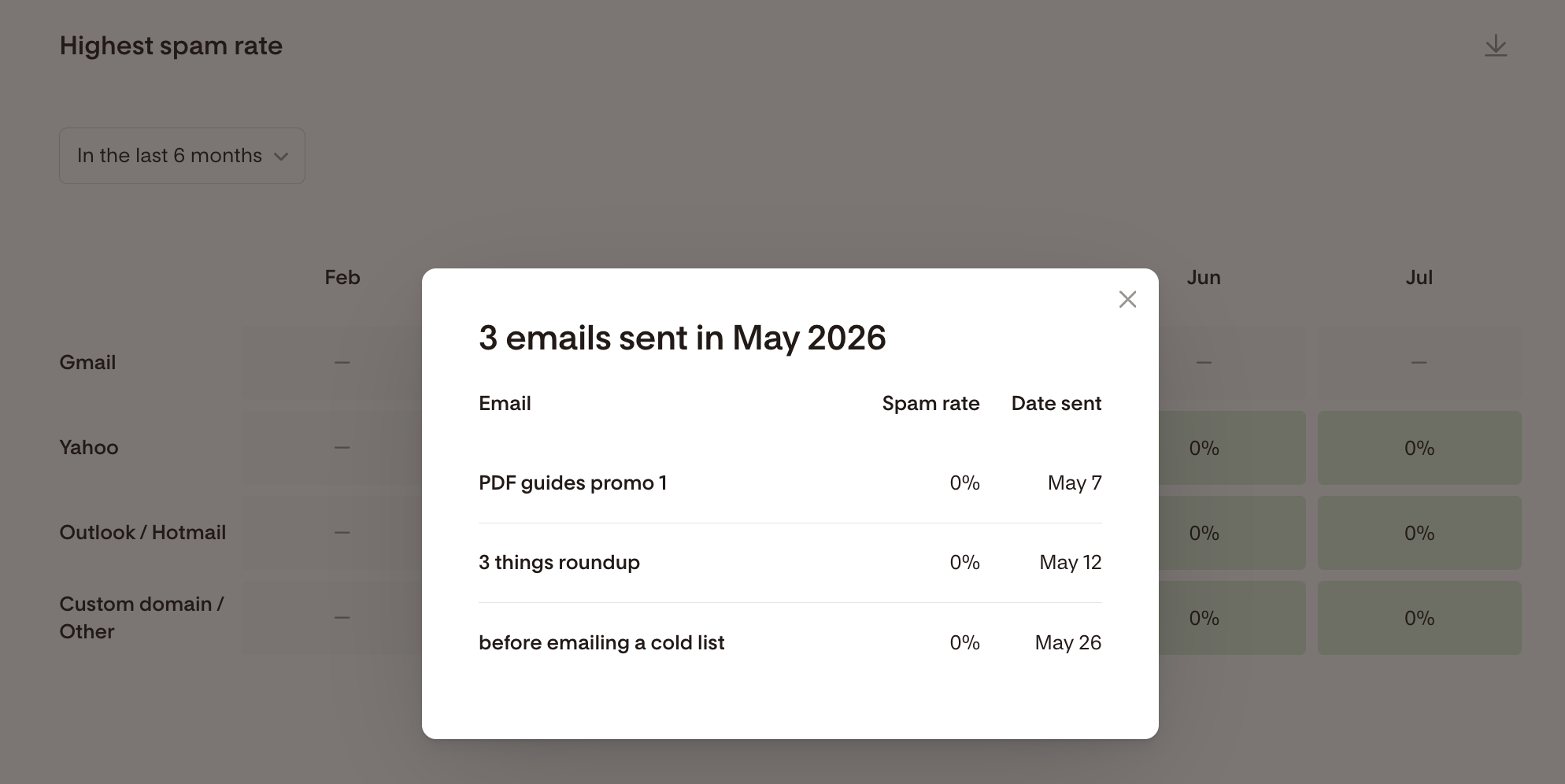
Head to the spam rate table in your Flodesk Email Analytics dashboard. You'll be able to see which sends had the highest spam rates and start spotting patterns. Click on any of the figures in the table, and it will list all the emails that were sent in that period.
Common causes include
Emailing inactive subscribers
Overly promotional subject lines
Sending to people who don't recognize your emails or don't remember signing up.
The most effective step you can take is to clean your list. Archive subscribers who haven't engaged with your emails using the pre-built unengaged pre-built segment, and make sure you have clear consent from everyone you're sending to.
(2) DMARC alignment
What it is: A check that your “From: address” aligns with the domains used to sign (DKIM) and send (SPF) your emails. When all three line up, Gmail can confirm the email actually came from you.
Why it matters: If authentication fails, Gmail is much more likely to treat your email as suspicious. Gmail requires authentication for senders with significant volume. Flodesk generates the records you need, but you have to add them to your DNS for them to work properly.
What to do if it's failing
Go to My Account > Domain setup in Flodesk. You'll see the status of each record there and instructions for adding anything that's missing or misconfigured at your DNS host. Once the records are in place and verified, your alignment should pass within a day or two.
Handled by Flodesk
For the following requirements, Flodesk manages the technical setup on your behalf. If any of these show "Needs work," contact Flodesk support directly so the team can investigate.
(1) Message formatting
What it is: A check that your emails follow the RFC 5322 standard, which is the technical specification for how email headers and structure should be formatted.
Why it matters: Emails that don't follow the standard are more likely to be flagged as spam or rejected by Gmail. Flodesk automatically formats the message header correctly for every send.
What to do if you see "Needs work": Contact Flodesk support. This isn't something you can adjust on your end.
(2) Encryption (TLS)
What it is: A check that your emails are being sent over an encrypted connection (Transport Layer Security, or TLS).
Why it matters: Gmail prefers and increasingly requires encrypted email. Low encryption rates can hurt deliverability. Flodesk automatically enables TLS encryption for all your emails.
What to do if you see "Needs work": Contact Flodesk support. This isn't something you can adjust on your end.
(3) DNS records
What it is: A check that the IP addresses your emails come from have proper forward and reverse DNS records, meaning the IP resolves to a hostname, and that hostname resolves back to the same IP.
Why it matters: Email servers use these records to verify that incoming mail is coming from a legitimate source. Missing or mismatched records make your emails look suspicious to Gmail. Flodesk automatically configures these records for every email you send.
What to do if you see "Needs work": Contact Flodesk support. These records are maintained on Flodesk's end.
(4) One-click unsubscribe
What it is: A check that your emails include the technical header Gmail requires to enable one-click unsubscribe, which is mandatory for bulk senders under Gmail's sender requirements.
Why it matters: Without this header, your email may be treated as non-compliant by Gmail. Flodesk includes the one-click unsubscribe header automatically with every email you send.
What to do if you see "Needs work": Contact Flodesk support. This isn't something you can adjust on your end.
(5) Honor unsubscribe
What it is: A check that unsubscribe requests are processed within the timeframe Gmail requires (within two business days for bulk senders).
Why it matters: Continuing to send to subscribers who've unsubscribed is one of the fastest ways to damage your sender reputation, and Gmail monitors for it. When a subscriber unsubscribes through your email, Flodesk processes that request automatically.
What to do if you see "Needs work": Contact Flodesk support. Flodesk handles unsubscribe processing and will look into anything that doesn't look right.
Quick reference: where to go for each issue
Status showing "Needs work" | Where to go |
Spam rate | Spam rate table in Flodesk Email Analytics |
DMARC alignment | My Account > Domain setup |
Message formatting | Contact Flodesk support |
Encryption | Contact Flodesk support |
DNS records | Contact Flodesk support |
One-click unsubscribe | Contact Flodesk support |
Honor unsubscribe | Contact Flodesk support |
FAQ
What is Google Postmaster Tools and why does it matter for my emails?
Google Postmaster Tools is a free service from Google that shares data about how Gmail views your sending domain. Connecting it to your Flodesk account gives you a compliance checklist so you can see whether your domain meets Gmail's requirements. Since Gmail is the most widely used email provider, keeping your domain in good standing there directly affects whether your emails land in the inbox.
Where do I find my Gmail compliance status in Flodesk?
Go to My Account > Domain setup. If Google Postmaster Tools is connected, you'll see your compliance checklist there. If it's not connected yet, you'll see a prompt to set it up.
Why is my compliance dashboard empty or showing no data?
There are two common reasons. First, Google only provides data for days you send roughly 50 or more emails to Gmail addresses. If you haven't reached that threshold recently, there won't be data to display. Second, data can take 24 to 72 hours to appear after a send. If you've recently connected Google Postmaster Tools or just sent your first campaign, check back in a day or two.
What does "Needs work" mean? Does it mean my emails are going to spam?
Not necessarily. "Needs work" means your domain isn't fully meeting a specific Gmail requirement, which could affect your deliverability over time. It's a signal to investigate and fix the issue, not a confirmation that your emails are blocked. Addressing "Needs work" items early helps protect your sending reputation.
My spam rate is showing "Needs work." What should I do?
A high spam rate means too many Gmail recipients are marking your emails as spam. The recommended threshold is below 0.10%. To bring it down, focus on sending to engaged subscribers, removing contacts who haven't opened your emails in a while, and making sure everyone on your list opted in.
Head to the spam rate table in your Flodesk Email Analytics dashboard to see which sends are contributing most.
Click on any of the figures in the table, and it will list all the emails that were sent in that period.
Click on the email's name in the popup, and it will bring you to the detailed email report
My DMARC alignment is failing. What should I do?
Head to My Account > Domain setup in Flodesk. You'll find the status of each authentication record there, along with instructions for adding or fixing anything at your DNS host. Once everything is in place and verified, alignment should pass within a day or two. See How to automatically configure your domain for a full walkthrough.
Why doesn't my spam rate show an exact number of complaints?
Google Postmaster Tools reports an aggregate spam rate, not a count of individual complaints. It samples from your messages rather than tracking every single one, to protect recipient privacy. Treat the percentage as a directional signal rather than a precise figure.
I have more than one sending domain. Can I check compliance for all of them?
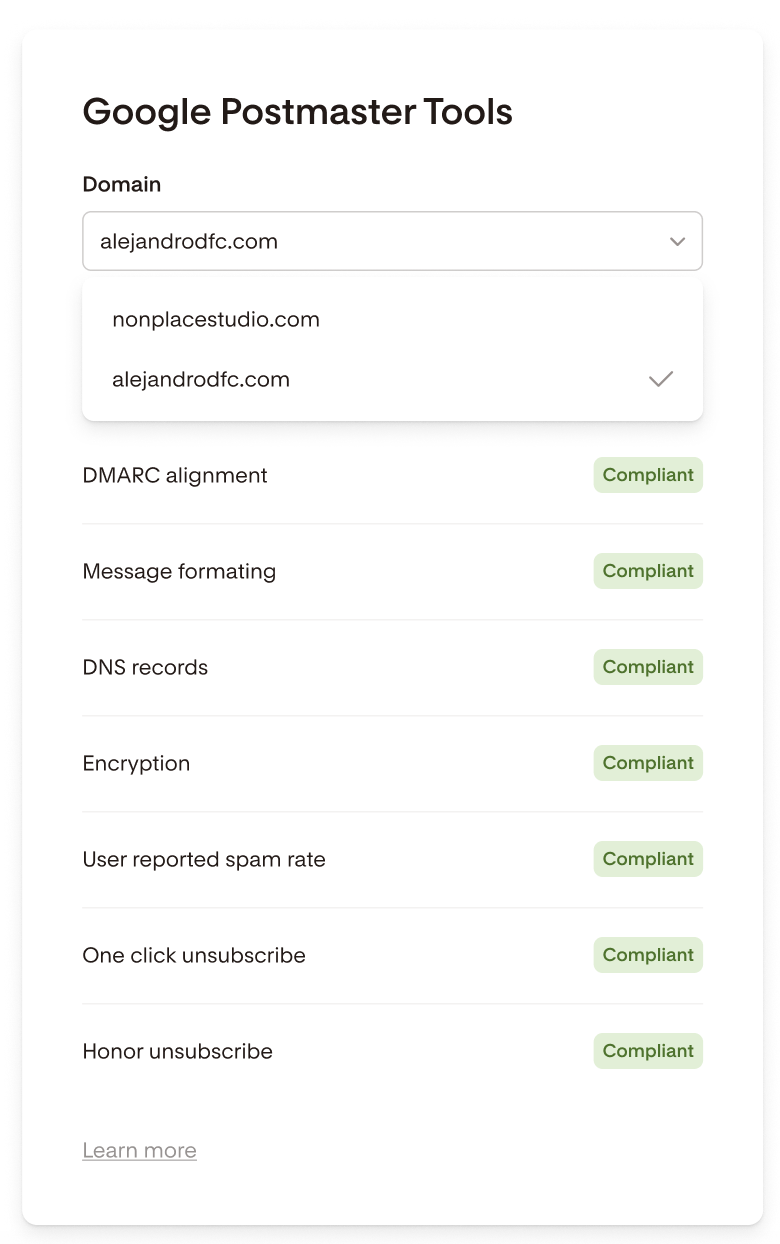
Yes. If you have multiple domains connected through Google Postmaster Tools, a tab will appear above your compliance checklist so you can toggle between domains and view the status for each one.
Can I disconnect Google Postmaster Tools from Flodesk?
To disconnect Google Postmaster Tools, you'll need to remove the associated domain from your domain setup page. Once the domain is removed, the Google Postmaster connection is also revoked. There's no separate disconnect button for the integration itself.
One of the "Flodesk handled" statuses is showing "Needs work." What does that mean?
For requirements like message formatting, encryption, DNS records, one-click unsubscribe, and honor unsubscribe, Flodesk manages the technical setup on your behalf. If any of these show "Needs work," it's not something you can fix on your end. Contact Flodesk support and the team will investigate.