
How to connect Google Postmaster Tools to monitor your Gmail sender health
Overview
Google Postmaster Tools is a free Google tool that shows you how Gmail views your sending domain. When you connect it to your Flodesk account, you'll see a compliance checklist that tells you whether your domain meets Gmail's sender requirements, and what to fix if it doesn't.
Approximately 56% of emails sent through Flodesk today are delivered to Gmail inboxes, so keeping an eye on your Gmail sender health is one of the most important things you can do for your deliverability.
Before you start
A few things to know before connecting:
You need a sending domain already set up in Flodesk. If you haven't done this yet, set up your sending domain first.
You need to be an account owner/admin or manager to connect to Google Postmaster Tools. Team members with editor access don’t have the permissions to connect.
Google Postmaster Tools only shows data for domains that send roughly 50 or more emails per day to Gmail addresses. If you're below or around that threshold, your dashboard may show no data for those days. This is normal.
After connecting, data can take up to 24-72 hours to appear. If you don't see anything right away, check back after your next send.
How to connect Google Postmaster Tools
Step 1. Go to My Account > Domain setup and find the Google Postmaster Tools card.
Step 2. Click Set up your Google account to open the setup wizard.
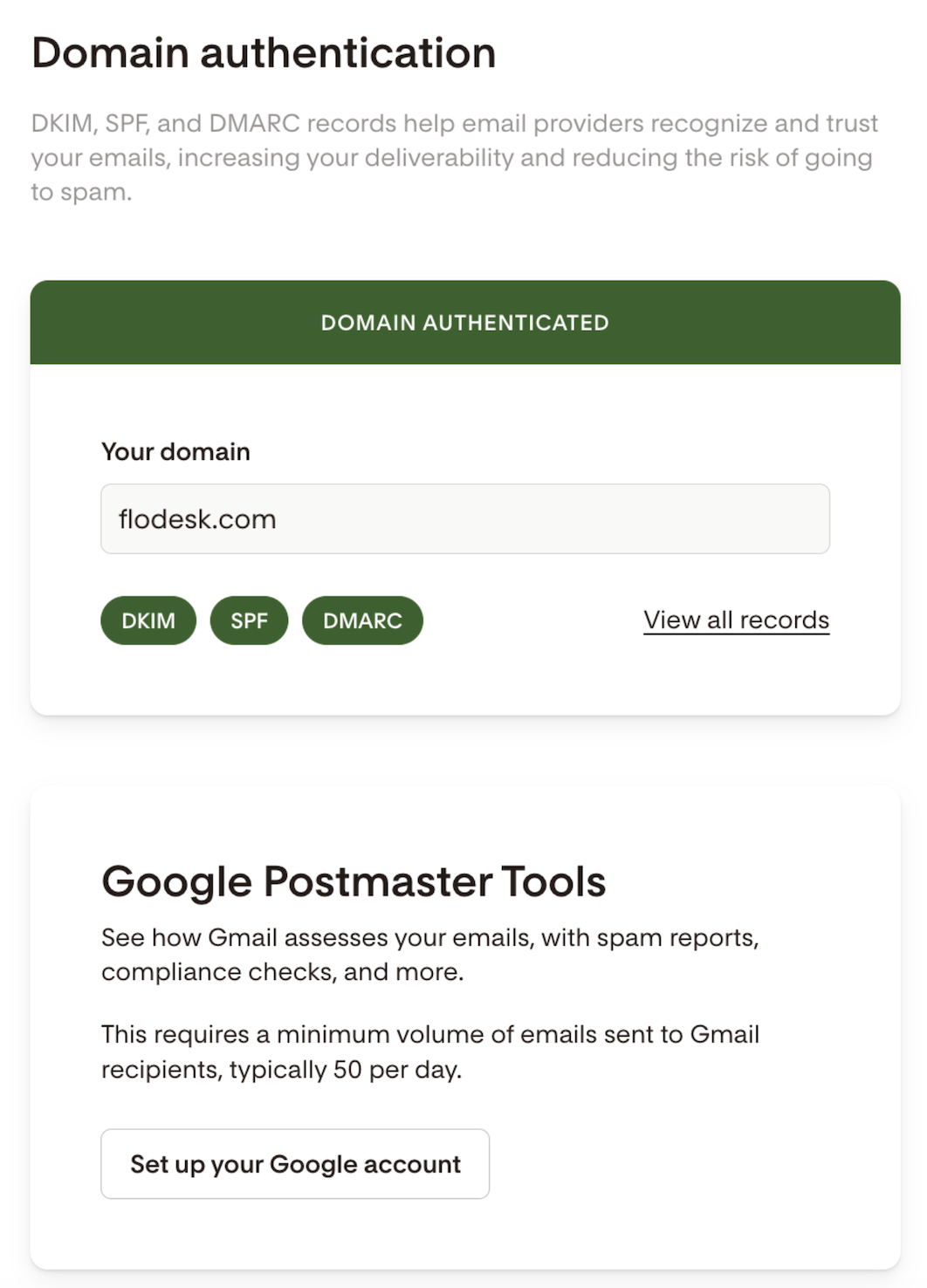
Step 3. Follow the steps in the wizard. If you haven't set up Google Postmaster Tools yet, you'll be asked to add a verification record to your domain's DNS to confirm you own it.
If you already have Google Postmaster Tools set up for your domain, click Skip this step.
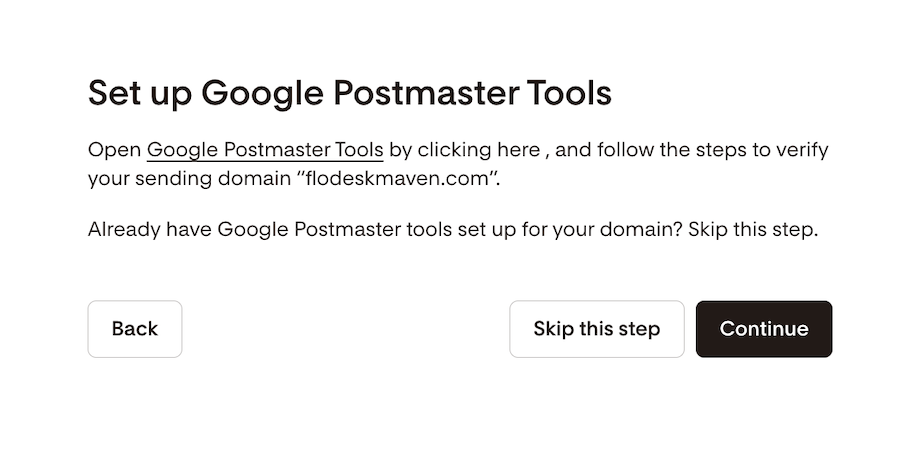
Step 4. Once your domain is verified, complete the Google sign-in step to authorize Flodesk to read your Postmaster data. At the end of the authorization, you will see a success message. Click Done.
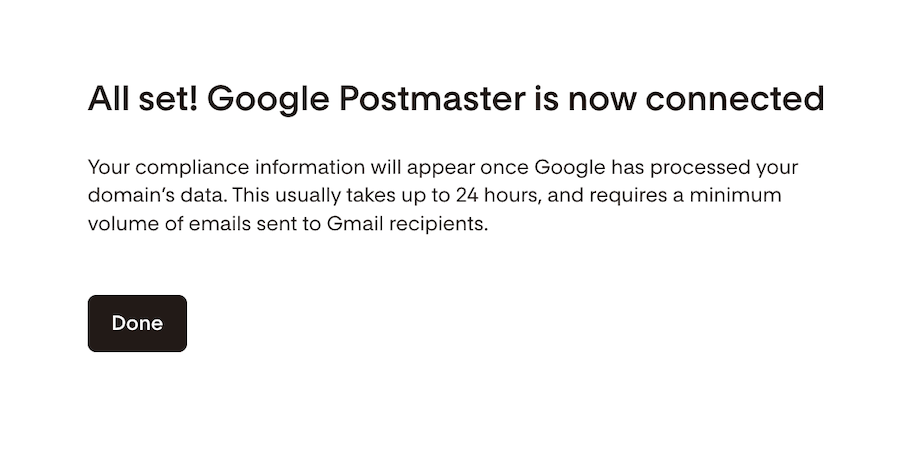
Step 5. Once connected, you'll see your compliance dashboard update automatically over time as the data becomes available.
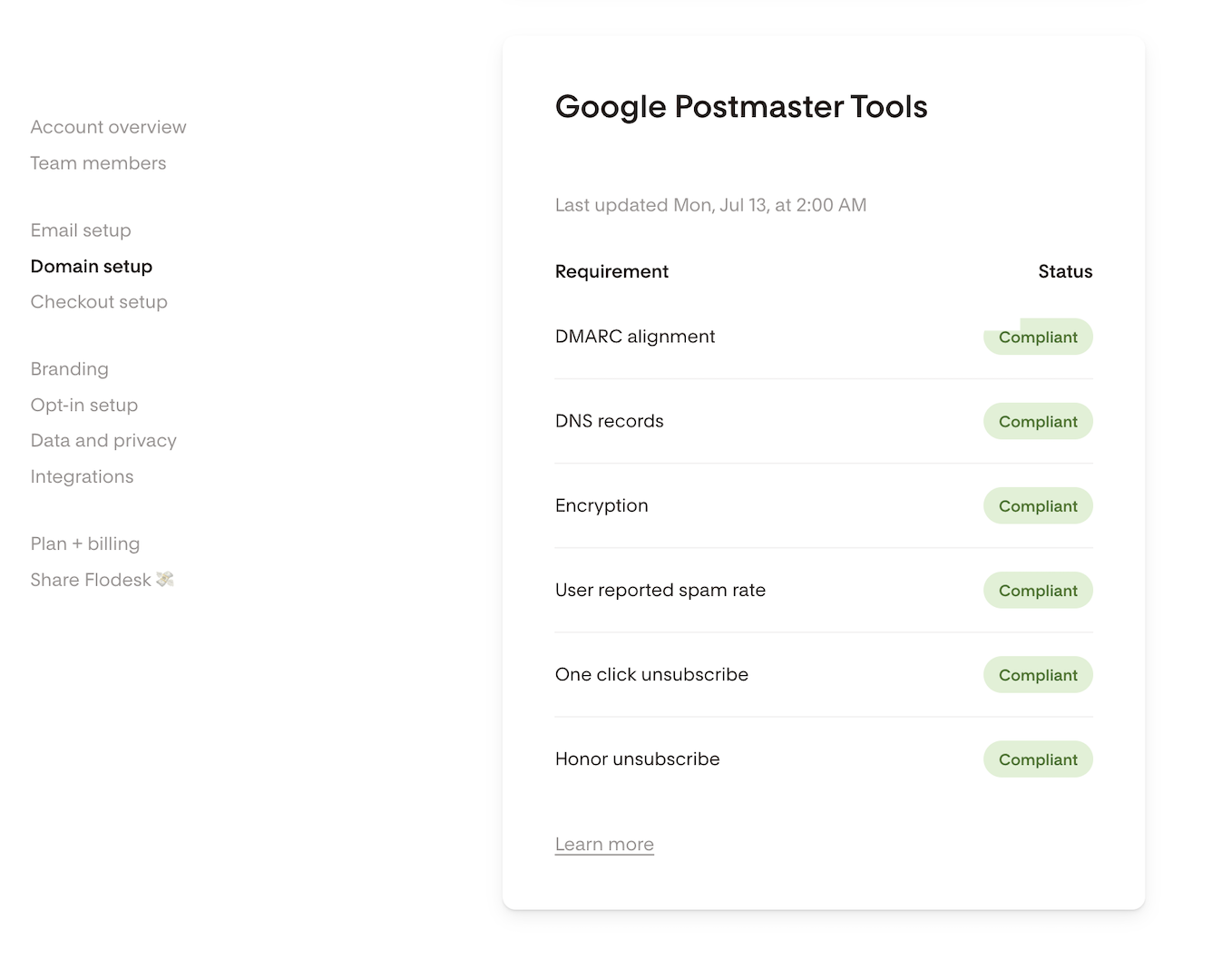
Note: If you have more than one sending domain, you can connect additional domains from the same card. Each domain will have its own compliance status tab.
About your compliance status
Once connected, your compliance dashboard shows a checklist of Gmail's sender requirements. Each item will show one of two statuses:
Compliant: This requirement is met. No action needed.
Needs work: Something about this requirement isn't meeting Gmail's standards.
Learn more about How to understand your Gmail compliance status in Flodesk here.
You can also see your spam rate ("marked as spam") over time in the Spam rate table on the Emails Analytics tab. The table includes thresholds reflecting Gmail’s policies:
0.1% - Gmail's recommended spam rate to help your emails land in inboxes.
0.3% - Gmail recommends avoiding ever reaching a spam rate of 0.3% or higher, which will affect your ability to reach inboxes.
FAQ
What is Google Postmaster Tools?
Google Postmaster Tools is a free tool from Google that gives email senders visibility into how Gmail views their sending domain. It shows whether your domain meets Gmail's bulk sender requirements for things like authentication, spam rates, and unsubscribe handling. Connecting it to your Flodesk account lets you see this data without leaving your dashboard.
Why should I connect Google Postmaster Tools?
Connecting Google Postmaster Tools gives you a clear picture of your Gmail sender health. Since Gmail accounts for a large share of most email lists, keeping your compliance statuses green helps protect your deliverability and makes sure your emails reach the inbox.
It also gives you insight into spam rate data, which Gmail does not provide email sending providers (like Flodesk) for custom domain addresses. With this information, you can gain a more accurate picture of how you’re performing.
Who can set up the connection to Google Postmaster Tools?
You need to be an account owner/admin or manager to connect to Google Postmaster Tools. Team members with editor access can’t connect.
Editor | Manager | Admin | |
Connect Google Postmaster Tools | ❌ | ✅ | ✅ |
View GPT Data (compliance status, spam rate) | ✅ | ✅ | ✅ |
I connected Google Postmaster Tools but I don't see any data. What's now?
Data can take up to 24-72 hours to appear after your next send. Google only reports data for senders on days they send roughly 50 or more emails per day to Gmail addresses. If you're under or around that threshold, your dashboard will show no information for those days.
Can I connect more than one domain?
Yes. If you have multiple sending domains, you can connect each one and view compliance status for each domain separately using the tabs on the compliance dashboard.
Can I disconnect Google Postmaster Tools?
There's no option right now to remove the connection directly from the Google Postmaster Tools card. To disconnect, remove your domain from the email setup page under My Account > Domain setup. This will automatically revoke the Postmaster Tools connection for that domain.