
Can I add a custom field to a form?
Yes, you can add custom fields to Flodesk subscriber opt-in forms to collect a small amount of extra information beyond name and email.
This article explains what custom fields are, how to add them, and what they can (and can’t) be used for.
What are custom form fields?
Custom form fields are member-created fields that let you collect additional subscriber data beyond:
First name
Last name
Email address
Examples of custom fields include:
Phone number
City or state
Instagram handle
Wedding month
Favorite product or interest
The information collected through custom fields is saved to the subscriber’s profile and can later be used for email personalization and workflow conditions.
Important limitations to know before you start
Custom fields in Flodesk are optimized for email list growth, not advanced data collection.
Here’s what’s not currently supported:
Hidden custom fields
Multiple-choice, dropdown, checkbox, or radio fields
Date pickers or validated formats, including validated number inputs
Password or encrypted fields
Website contact forms or client intake forms
All custom fields:
Are plain text only
Have no data validation
Must be filled out manually by the subscriber
If you need subscribers to self-segment during signup, use Preference options instead of custom fields. Preference options connect directly to segments.
How to add a custom field to a form
Open your form in the Form builder.
On the main form builder screen, click directly into a form field (for example, click inside the “Email address” field). This opens the Fields tab in the right sidebar.
Click Add field.
Select Custom field.
Enter your field label under "Display name" (this is what subscribers see on the form. In our example below, we added a custom field called 'Phone number.').
Map the field to:
An existing data field, or
A new data field you create during setup
(Optional) Check Required to make the field mandatory.
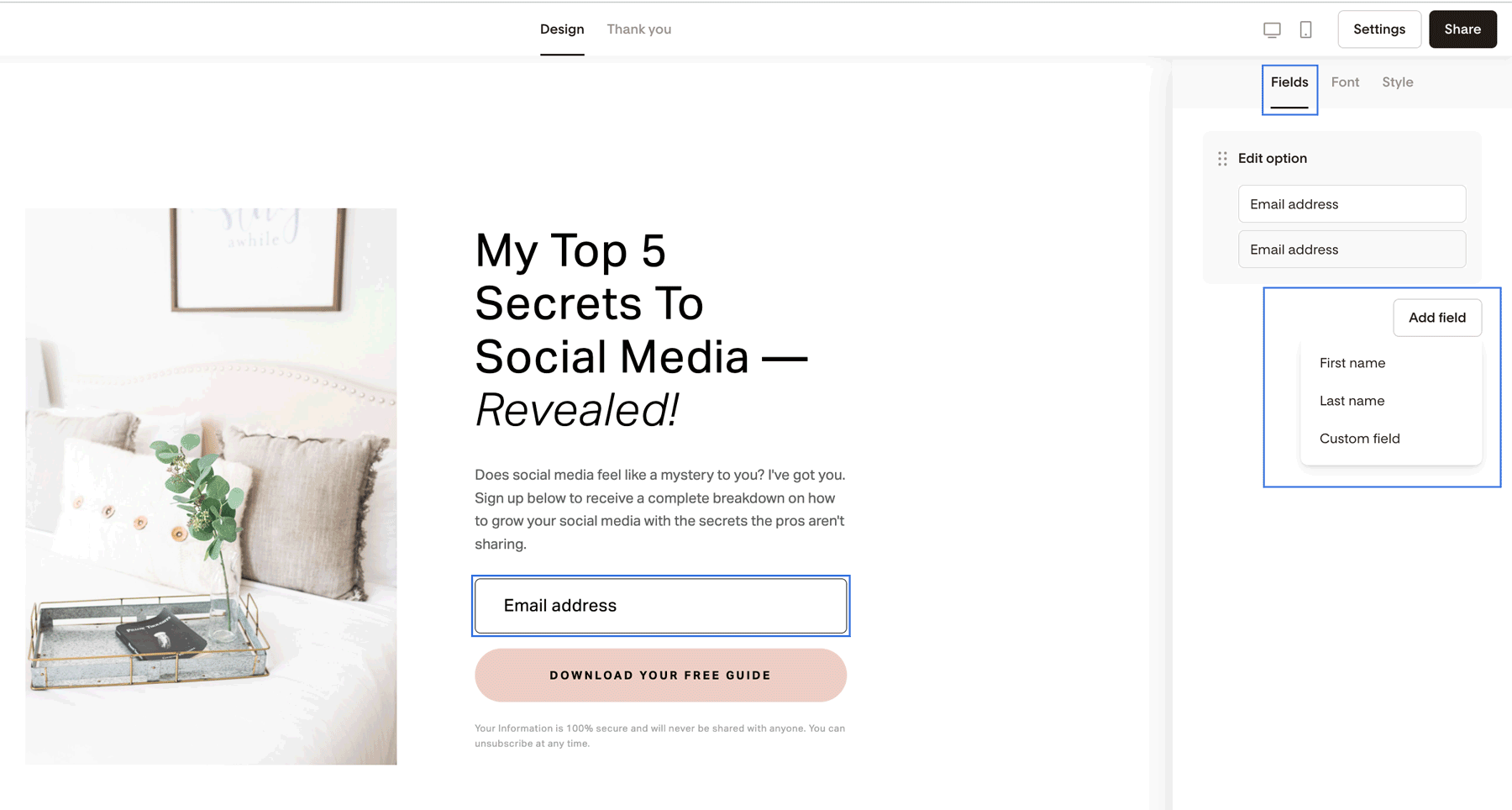
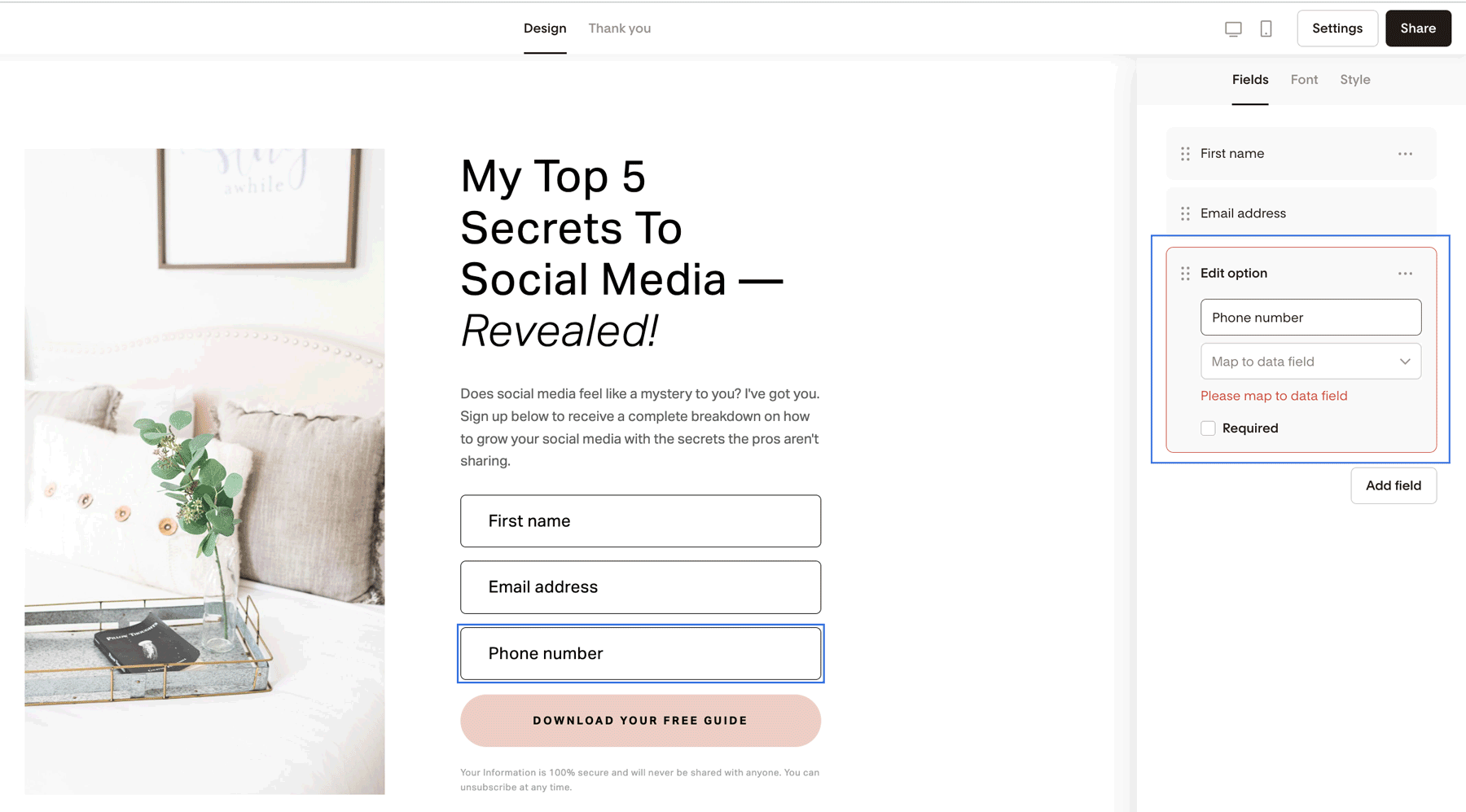
You can select from the existing data fields if you had created any in the past—for example, during your CSV file upload. You can also create a new field by typing the field name (in our example, 'phone number') and clicking Create.
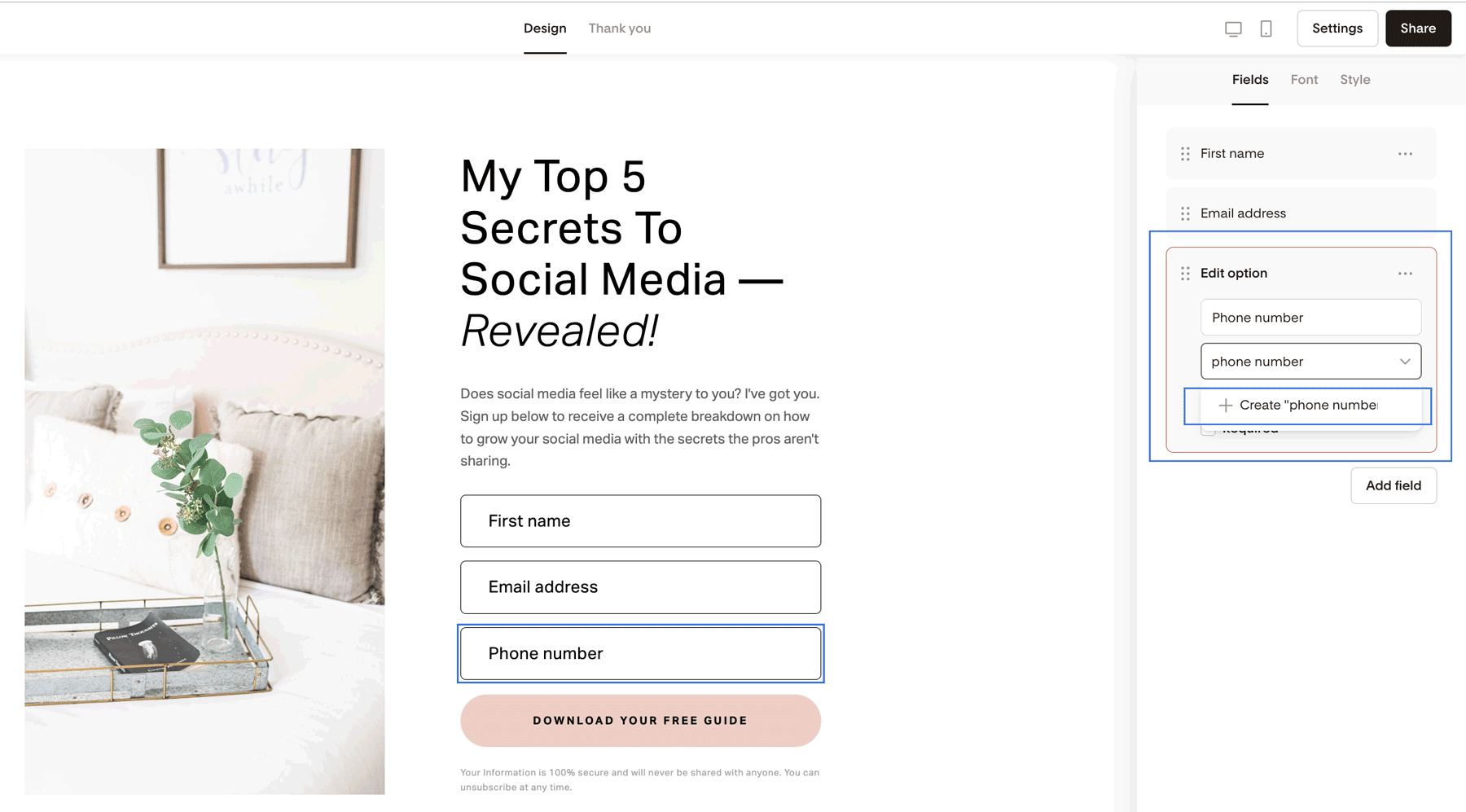
Why mapping fields matters
Every custom form field must be mapped to a subscriber data field.
If a field is not mapped:
The subscriber’s response will not be saved
The data won’t appear in their profile
You won’t be able to use it for personalization or workflows
Once mapped, the data appears under the subscriber’s profile in Audience → Segments & data.
How many custom fields can I add?
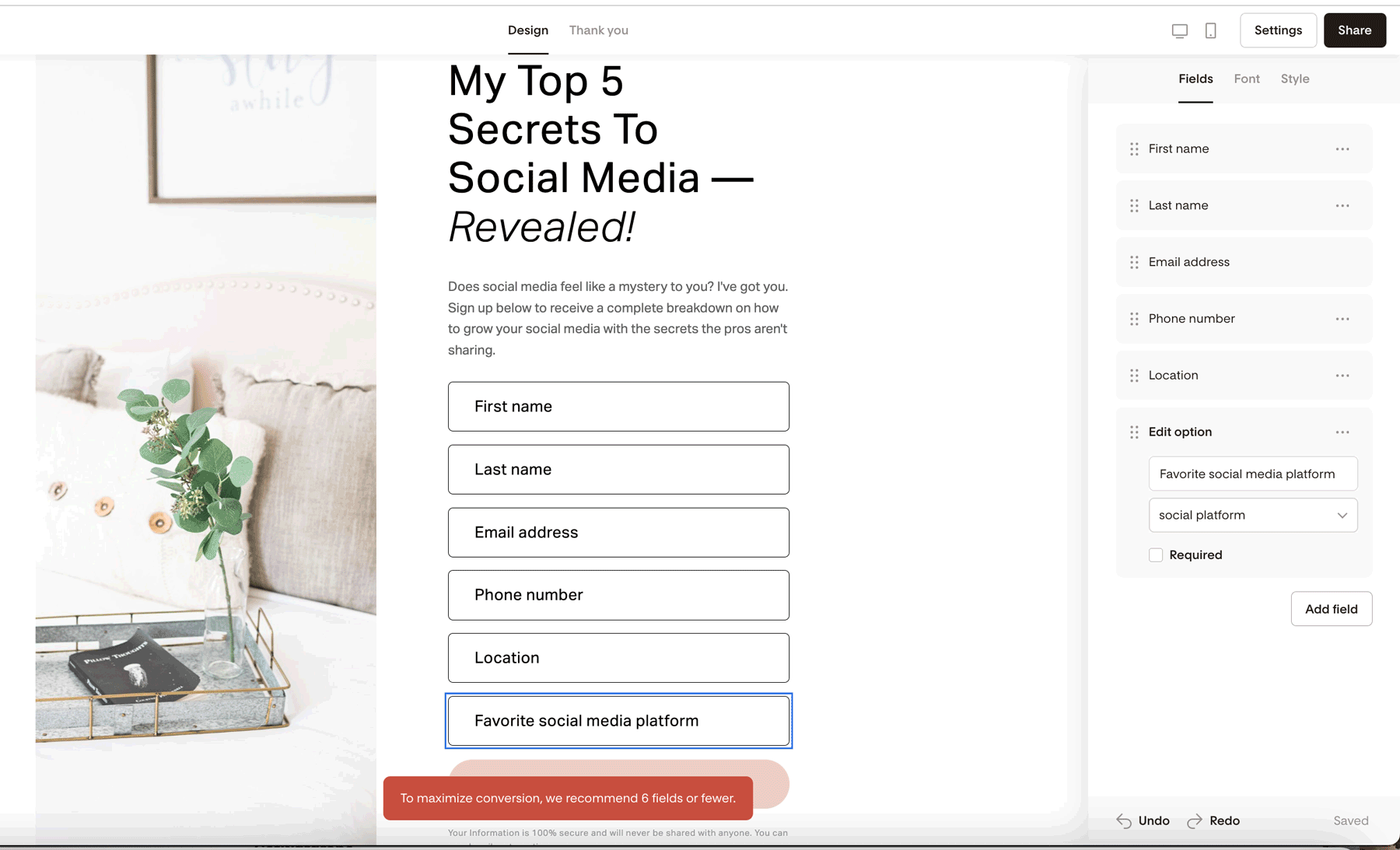
To keep forms fast and conversion-friendly, you can add up to 6 total fields per form, including:
First name
Last name
Email address
Any custom fields
If you reach the limit, you’ll see this message:
“To maximize conversion, we recommend 6 fields or fewer.”
Where can I use custom field data?
You can use custom field data in two main ways:
Insert custom field values directly into email Text blocks using the @ personalization menu.
Use conditions like:
Custom field matches
Custom field contains
This lets you trigger different paths based on subscriber responses.
Let's see an example.
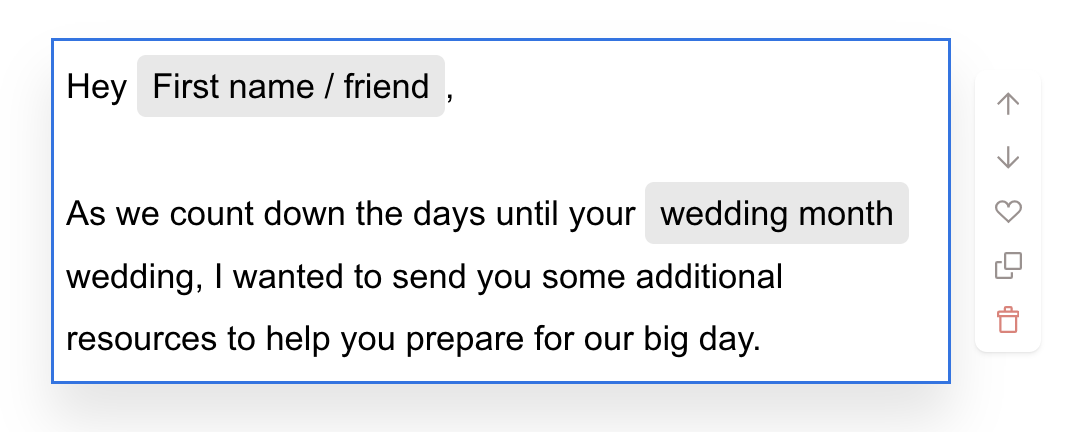
If you are a wedding photographer and your opt-in form asks for your subscriber's wedding month, you can use this data in your emails to make your subscribers feel uniquely seen. For this, you need to add a Text block to your email and use the @-sign to access the available personalization options.
What happens if I use the same custom field on multiple forms?
Custom fields are shared across your account.
If a subscriber submits different values for the same field on different forms:
The most recent submission overwrites the previous value
Example:
First form: City = San Francisco
Second form: City = Miami
Subscriber profile will show: Miami
What types of data can custom fields collect?
Custom fields currently support text only.
This means:
Dates, numbers, and formatted values are saved as plain text
There are no dropdowns, calendars, or validation rules
Important: you can't add an encrypted (i.e. typing masked by stars) password field in a Flodesk opt-in form.
Using Zapier with custom fields
Flodesk can work with Zapier in two different ways: as the trigger (sending data out) or as the action step (receiving data in). Custom fields are now fully supported in both directions, but it's still worth understanding the difference so you set up your Zap correctly.
When Flodesk is receiving data from another platform (Zapier → Flodesk)
When Flodesk is set as the action step in a Zap, Zapier can send information into your Flodesk account.
This means:
Data collected in another tool (like a quiz, checkout, or form on another platform)
Can be added to a subscriber's custom fields in Flodesk
For example:
Someone fills out a quiz on another platform
Zapier sends their quiz result into a custom field in Flodesk
That value is saved on the subscriber's profile and can be used for personalization or workflows
This direction is supported.
When Flodesk is sending data to another platform (Flodesk → Zapier)
When Flodesk is set as the trigger in a Zap, Zapier can detect that something happened in Flodesk (for example, a new subscriber was added).
Custom field values are now included when Flodesk is the trigger. This means you can pull data like a subscriber's wedding month or favorite product into another platform through Zapier.
For this to work as intended:
Update to the latest available version of the Flodesk app in Zapier
Update your existing Zaps, or create new ones, to pull in custom data fields
For step-by-step setup instructions, see How to connect Flodesk and Zapier.
This direction is now supported.
How to use custom field data outside of Flodesk
If you need your custom field data in another tool, you have two options:
Automatically, with Zapier
Since custom field values can now flow out of Flodesk, you can set up a Zap to send this data to your other tools whenever it's added or updated. Make sure you're on the latest version of the Flodesk app in Zapier, then update your existing Zaps or create new ones to pull in custom data fields.
Manually, with a CSV export
Prefer a one-time transfer? Export your data instead:
Download a CSV of your audience from Flodesk
The CSV will include all custom field values
Upload that CSV to your other platform
Summary
You can add custom fields to subscriber opt-in forms
Forms support up to six total fields
Custom fields are plain text only
Hidden fields and multiple-choice fields are not supported
Custom fields are mapped to subscriber data, not segments
For self-segmentation, use Preference options instead
Custom field data can now be sent to and from other platforms automatically through Zapier
FAQ
Can I add a custom field to a Flodesk form?
Yes. You can add custom fields to subscriber opt-in forms on all plans.
Can I add hidden fields to forms?
No. Hidden custom fields are not supported.
Can I add multiple-choice or dropdown fields?
No. All custom fields are plain text only.
How many fields can I add to a form?
Up to 6 total fields, including name fields and email address field.
Are custom fields meant for contact or intake forms?
No. Flodesk forms are optimized for email opt-ins, not advanced data collection.
Can custom fields connect directly to segments?
No. Custom fields map to subscriber data. Use Preference options for segmentation.
Can I collect dates or numbers with validation?
No. All responses are stored as simple text.
Can I send custom field data to other platforms with Zapier?
Yes. Custom field values are now included when Flodesk is set as the trigger in a Zap, so you can send this data out to other tools automatically. Just make sure you're on the latest version of the Flodesk app in Zapier, and update your existing Zaps (or create new ones) to start pulling in custom data fields.