
How to use Preferences on Forms
Let subscribers tell you what they care about — right from the start.
Form Preferences let you ask new subscribers what they want to hear about (or how often). Based on their selections, you can automatically organize them into the right segments so you can send more relevant emails later.
It’s an easy way to personalize your marketing from day one — without extra manual work.
Before You Start
Here are a few important things to know:
Preferences are optional. You cannot make them required.
Each preference option must be connected to at least one segment.
Subscribers are added to:
The main form segment, and
Any preference segments they select.
You can add up to 6 preference options per form.
Keeping preferences simple helps improve conversions.
What Are Form Preferences?
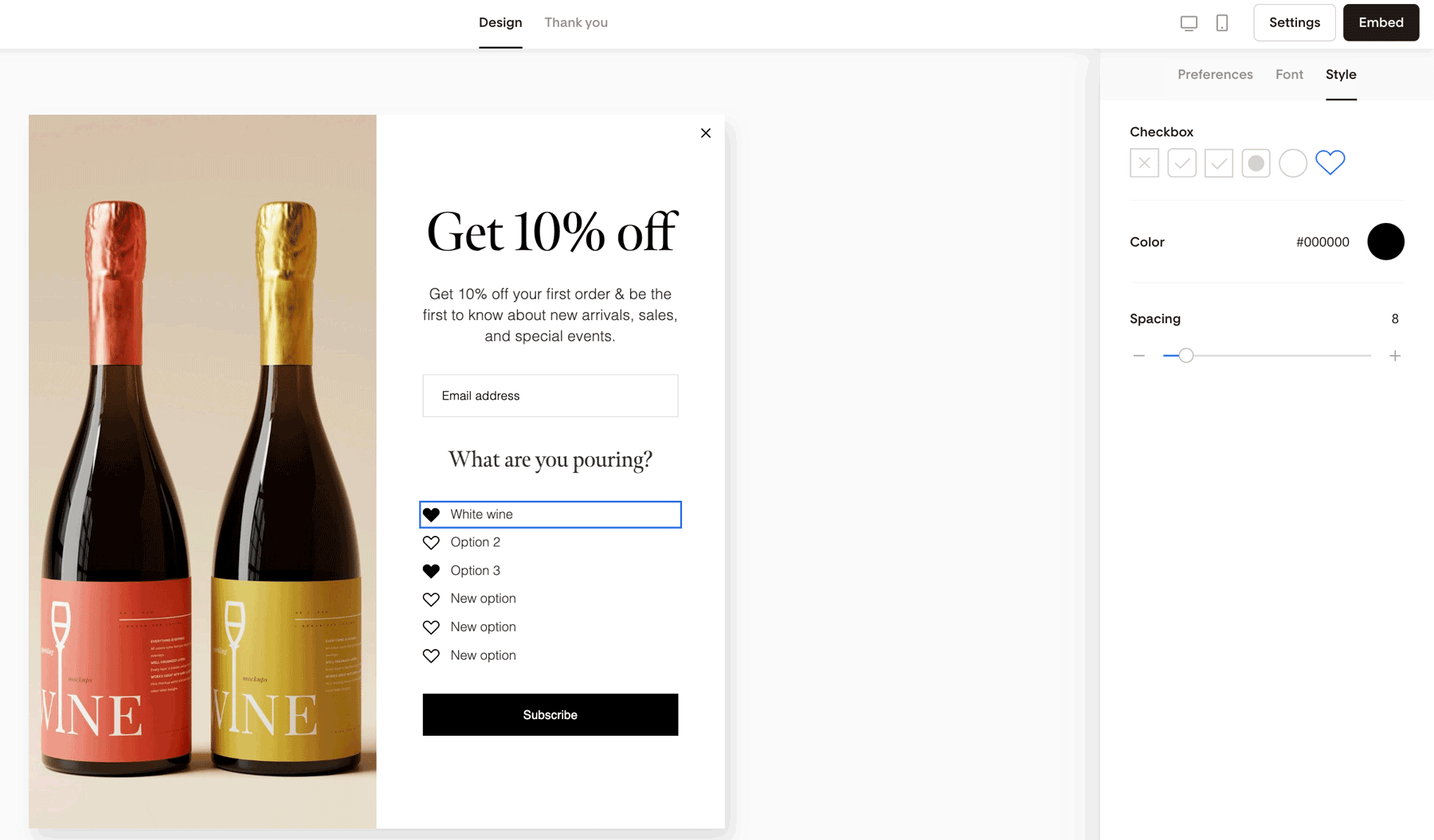
Preferences are multiple-choice questions you add directly to a form.
You choose:
The question (example: “What do you want to hear about?”)
The answer options
The segment(s) each option connects to
The design style
When someone selects an option, they’re automatically added to the connected segment(s).
Common examples
Content interests
New arrivals
Seasonal promotions
Blog updates
Email frequency
Weekly
Bi-weekly
Monthly
How to Enable Preferences on a Form
You can turn on Preferences for any new or existing form.
Open your form in the Form builder.
Click anywhere on the background area (outside the form fields).
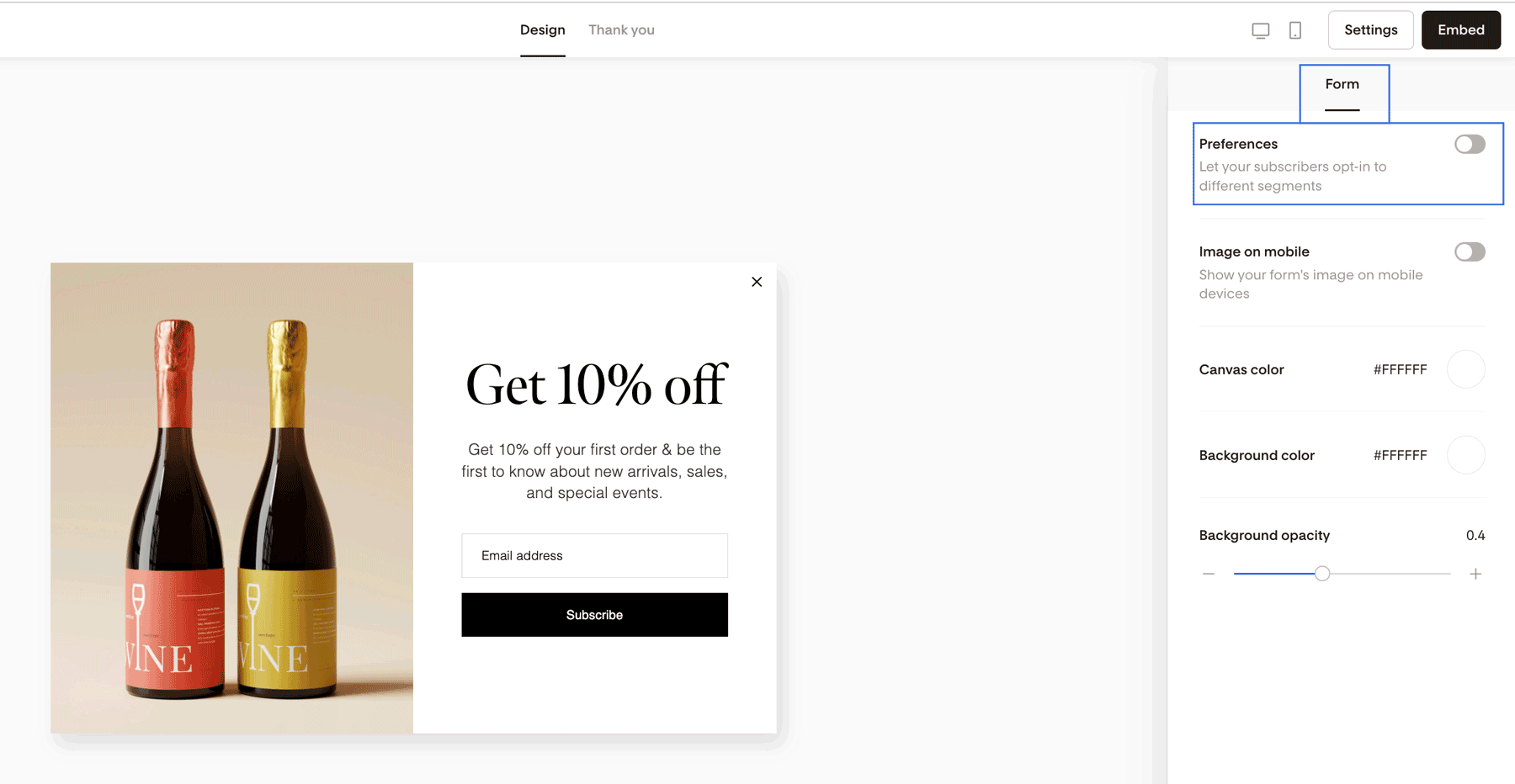
In the right sidebar, click the Form tab.
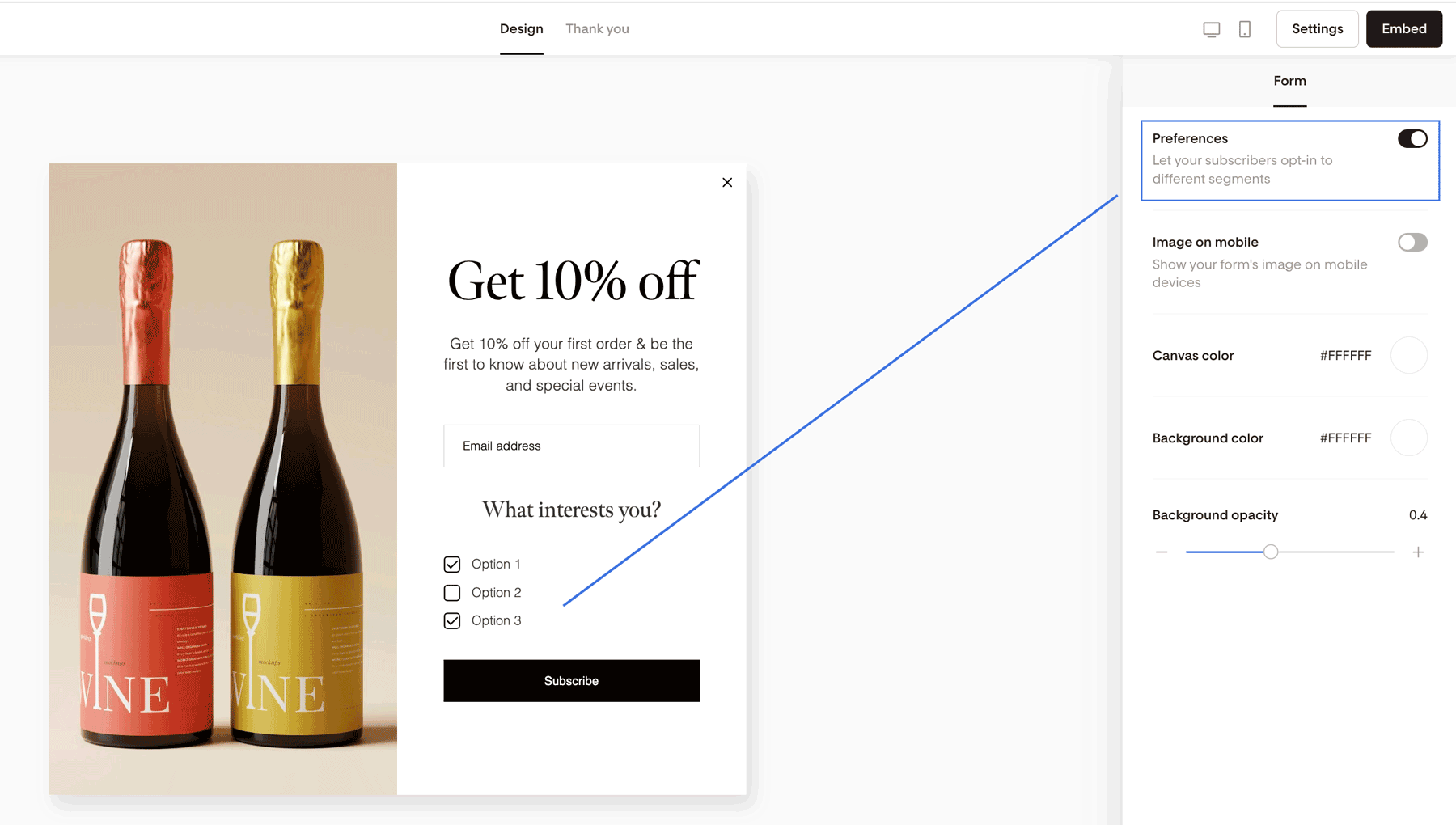
Toggle Preferences on.
Once enabled, click directly into the question or option text to edit it.
How to Add and Connect Preference Options
Each option must be linked to at least one segment.
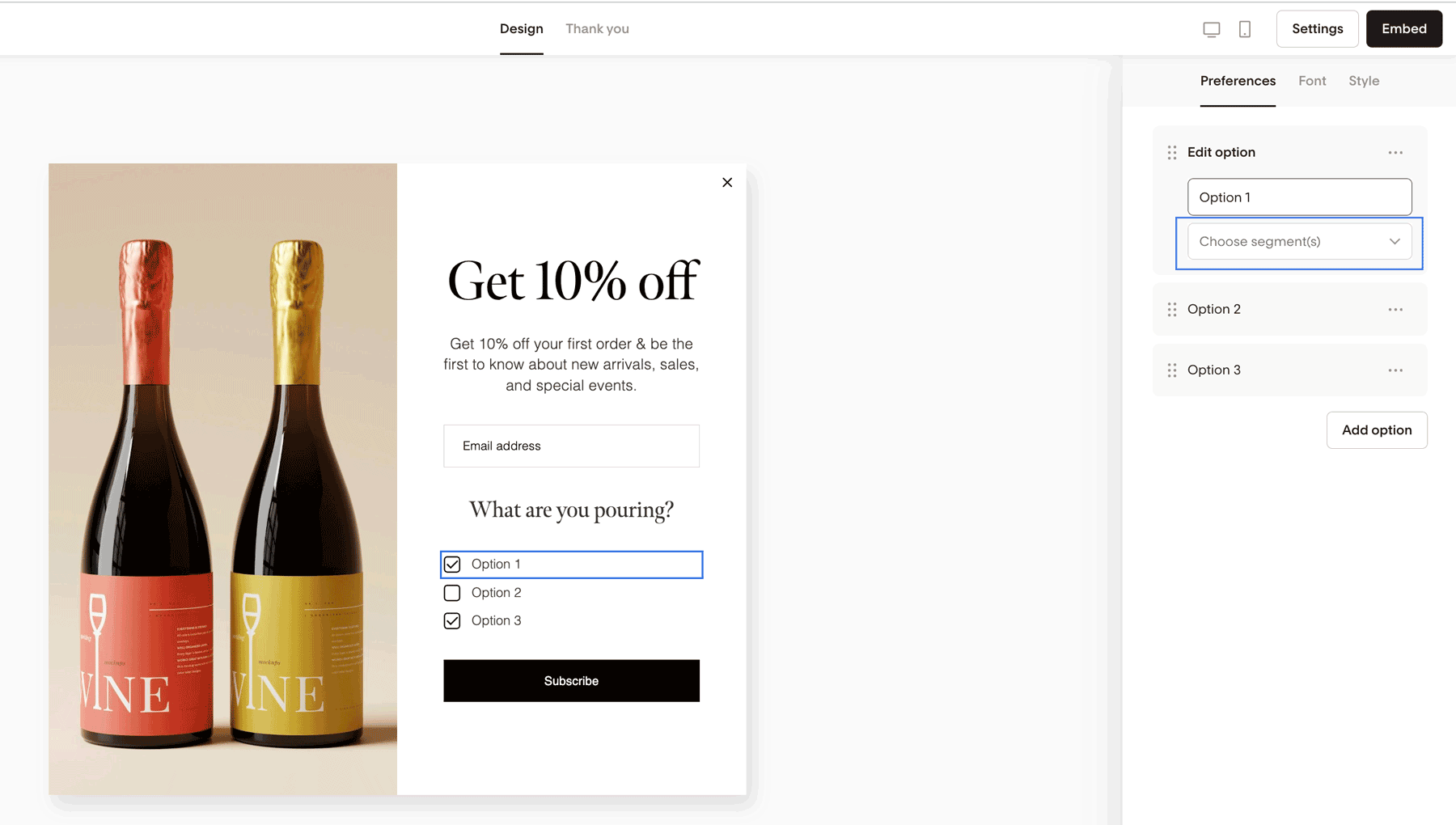
Click on a preference option.
Select the segment(s) you want that option connected to.
That’s it.
When a subscriber selects that option, they’ll automatically be added to the chosen segment.
Example
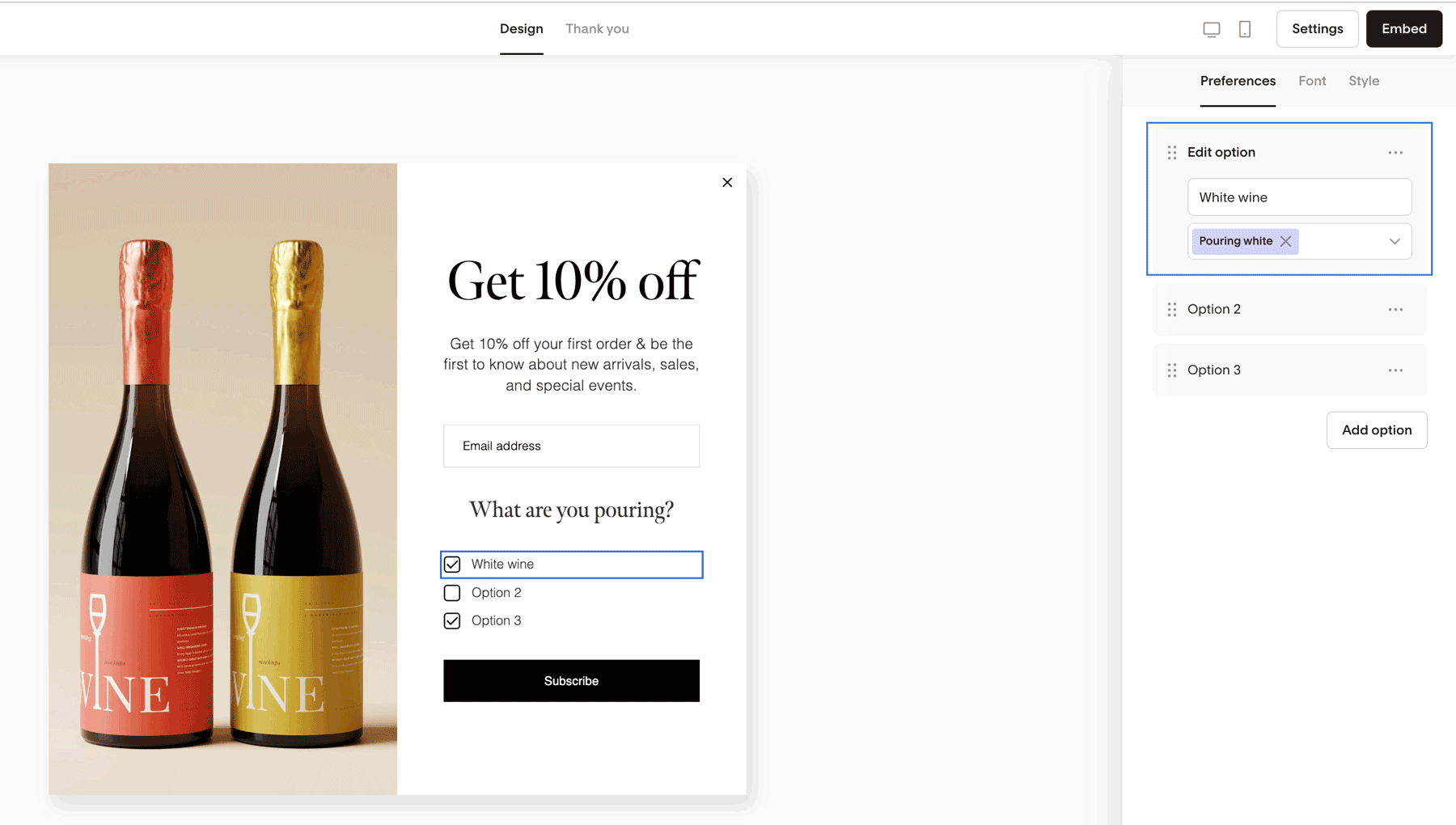
If someone selects “White wine” and that option is connected to the segment “Pouring white”, they’ll be added to:
The main form segment
The “Pouring white” segment
How to Check or Change the Main Form Segment
Every form has a main segment selected during setup.
To check or update it:
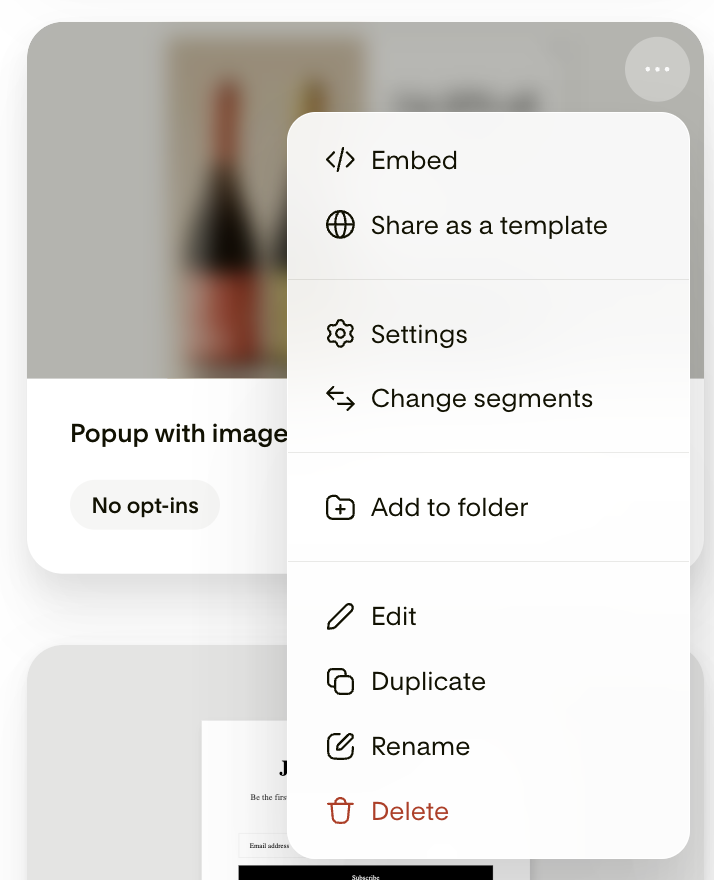
Go to your Forms dashboard
Hover over the form card
Click the three dots (… )
Select Change segments
This controls where all subscribers from that form are added by default.
Preference Limits
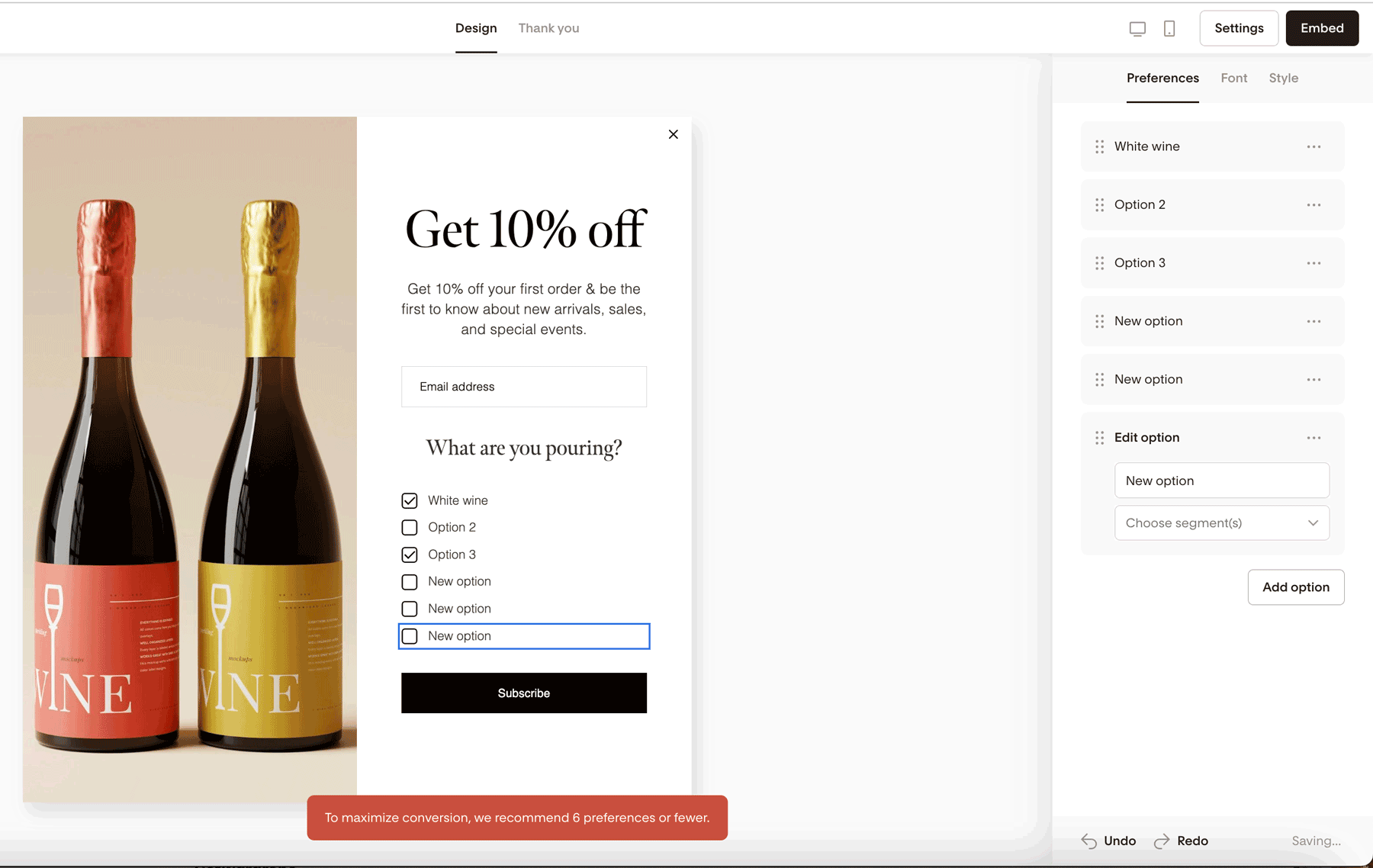
Maximum of 6 preference options per form.
If you reach the limit, you’ll see a message recommending 6 or fewer to maximize conversions.
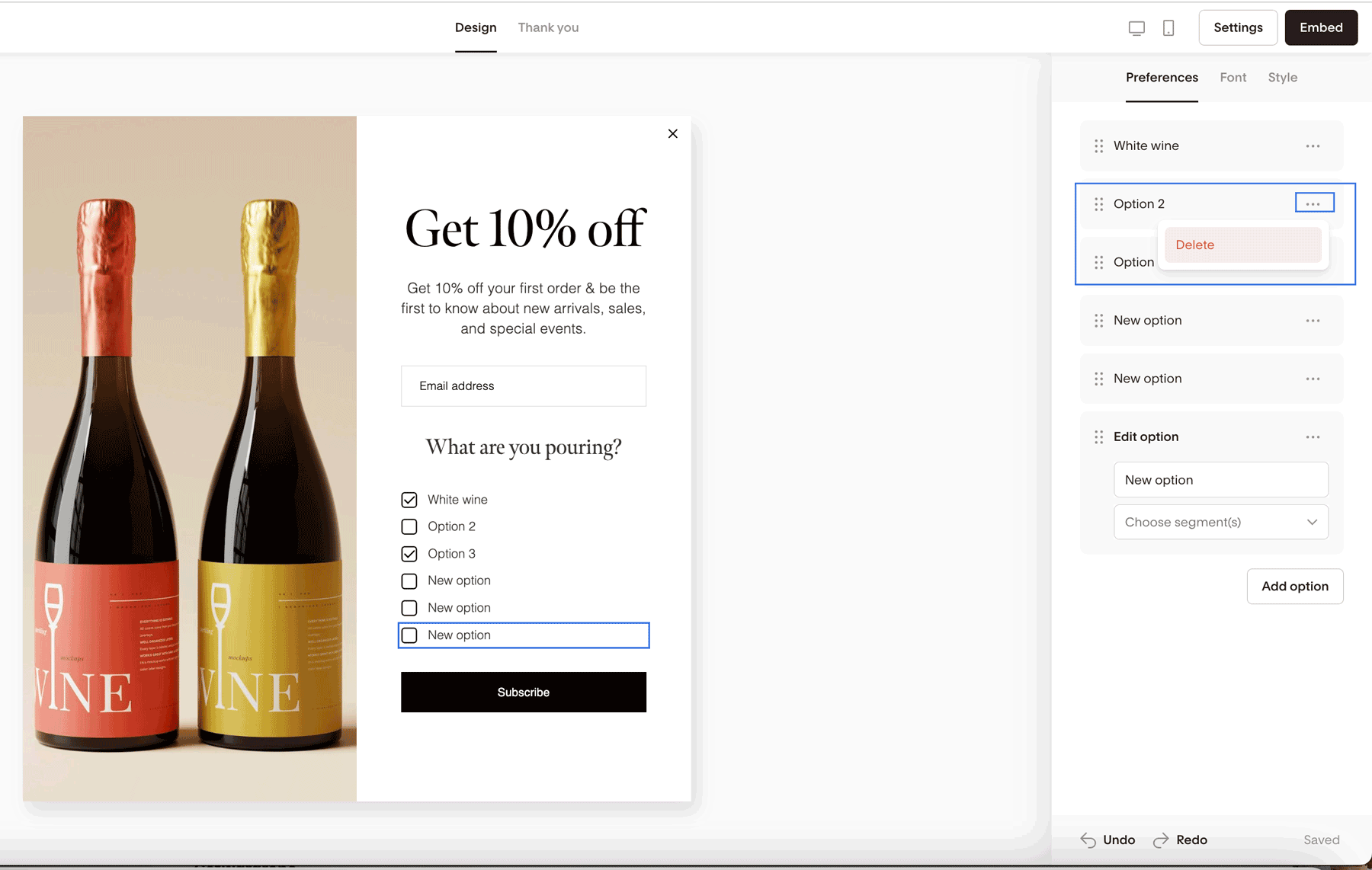
To delete an option:
Click the three dots (… ) next to the option
Select Delete
Customize the Look of Your Preferences
You can fully style your Preferences to match your brand.
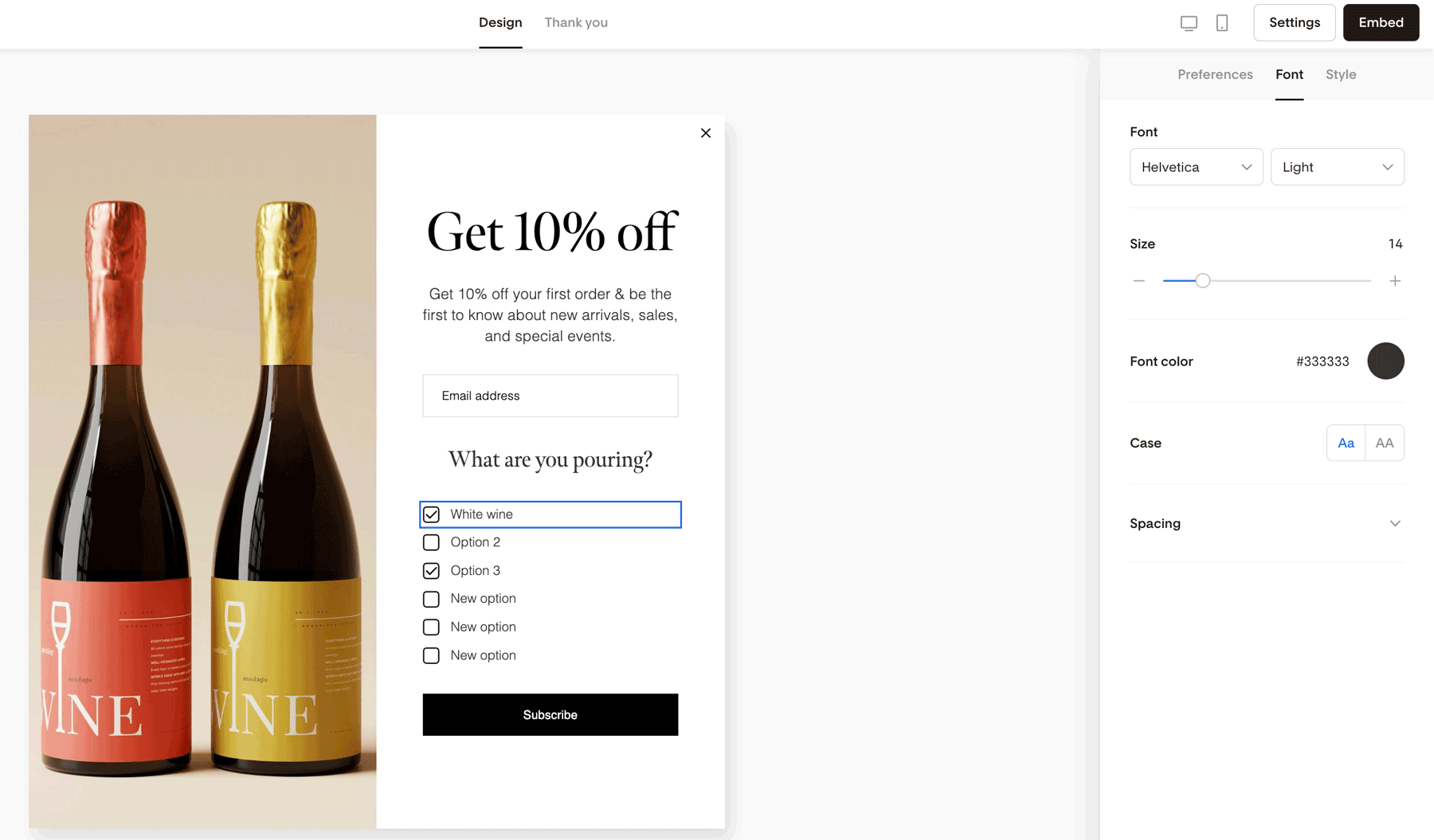
Font tab
Change font style
Adjust size
Update color
Style tab
Choose your checkbox shape:
Circle
Square
Heart
This helps Preferences blend seamlessly into your form design.
Form Preferences vs. the Preferences Page
These are two different features.
Form Preferences
Shown during signup
Used to segment subscribers immediately
Preferences Page
Accessed later via the “Manage Preferences” link in email footers
Lets subscribers update their choices over time
You can use both together for deeper personalization.
Example:
Ask “What do you want to hear about?” on the form
Ask “How often?” on the Preferences Page
To learn how these work together to help you customize content from the start of—and throughout—your subscriber relationship read our article What is the difference between Preferences in Forms and the Preferences Page?
Summary
Form Preferences help you:
Personalize emails from the start
Automatically segment subscribers
Send more relevant content
Keep your forms fully on-brand
Just remember:
Preferences are optional
Each option must connect to a segment
Keep it simple (6 options or fewer)
FAQ
Do Preferences automatically create segments?
No. Preferences do not create segments automatically. You must:
Create your segments first.
Connect each preference option to the appropriate segment.
Are Preferences required for someone to subscribe?
No. Preferences are always optional and cannot be marked as required.
Can I connect one preference option to multiple segments?
Yes. You can connect one option to multiple segments if needed.
Will subscribers be added to the main form segment too?
Yes. Every subscriber is added to:
The main form segment
Any preference segments they select
Can I edit Preferences after publishing the form?
Yes. You can go back into the Form builder anytime to:
Edit the question
Add or remove options
Update segment connections
Change styling
What happens if I don’t connect a preference option to a segment?
You will see an alert message notifying you that your form preference is missing a segment. You need to add one to proceed.