
How to avoid being marked as spam by your subscribers
Overview
If a lot of subscribers mark your emails as spam, it can seriously damage your sender reputation, and in some cases, get your emails blocked by inbox providers entirely. Spam complaints don't just affect the campaign you sent; they can hurt your deliverability for every email you send after, even to subscribers who are genuinely engaged.
This guide covers seven best practices to keep spam complaints low, plus how to track your spam rate right from your Flodesk account.
Why spam complaints matter
When someone clicks "Report as spam," it tells inbox providers like Gmail and Yahoo that:
Your email is unwanted
Your sending domain might not be trustworthy
Future emails from you should be filtered out
A high spam complaint rate (0.30% or higher) can lead to deliverability issues, or even suspend your sending privileges altogether.
Best practices to reduce spam complaints
1. Only email subscribers who opted in
Use explicit opt-in methods such as signup forms or landing pages
Avoid importing email contacts without consent
Never purchase email lists. (This violates Flodesk's acceptable use policy and significantly increases your risk of spam complaints.)
The more intentional your list-building process is, the less likely people are to report your emails as spam.
2. Use a recognizable sender name and email
Subscribers should know who an email is from at a glance.
Set a sender name (from name) that matches your brand or your personal identity.
Use a verified custom domain email address, not a free address (like Gmail)
You can set up your sender info under Account settings > Email setup in Flodesk.
3. Include a clear and visible unsubscribe link
Make your unsubscribe link easy to find and easy to read.
Don't hide it in small text or use colors that make it hard to see.
Why it matters: when subscribers can't find an unsubscribe link, they'll often mark the email as spam instead. Making it easy to opt out keeps your list healthier than forcing disengagement.
4. Segment inactive subscribers
Sending to people who don't engage raises your risk of spam complaints.
Flodesk automatically builds an Unengaged Subscribers segment for you. A subscriber lands in it when they're active, haven't opened or clicked any of your emails in the last 180 days, have received at least six emails from you in that same window, and joined your list more than 180 days ago. It updates on its own, so you don't need to build or maintain anything.
Sending to this segment carries real deliverability risk and can damage your sender reputation, so proceed with caution. We recommend excluding them from your emails and archiving them.
Review and archive your unengaged subscribers about once a month to keep your list healthy.
Focusing on your active subscribers keeps your list healthy and your complaint rate low. Learn more in "understanding your pre-built 'Unengaged Subscribers' segment."
5. Remind subscribers why they're on your list
If it's been a while since your last email, remind people how they joined your list. For example:
"You're receiving this email because you downloaded [Freebie Name] or signed up for updates at [Your Website]."
A quick reminder jogs their memory, and reduces confusion (and spam reports).
6. Avoid spammy design and language
Don't use misleading subject lines.
Avoid trigger phrases like "Act now," "Click here," or "Risk-free."
Add alt text to your images so emails still make sense if images don't load.
Emails that are mostly images with little text can look suspicious, especially if the images don't load properly.
7. Monitor your spam rate in Flodesk
Keeping an eye on your spam rate helps you catch problems early, before they affect your deliverability.
You can find your spam rate in your Emails Analytics dashboard, in a table below the open and click rate chart. There, you can view it across the last seven days, 14 days, four weeks, 12 weeks, six months, or 12 months. Learn more in "why your spam rate matters (and how to keep it low)."
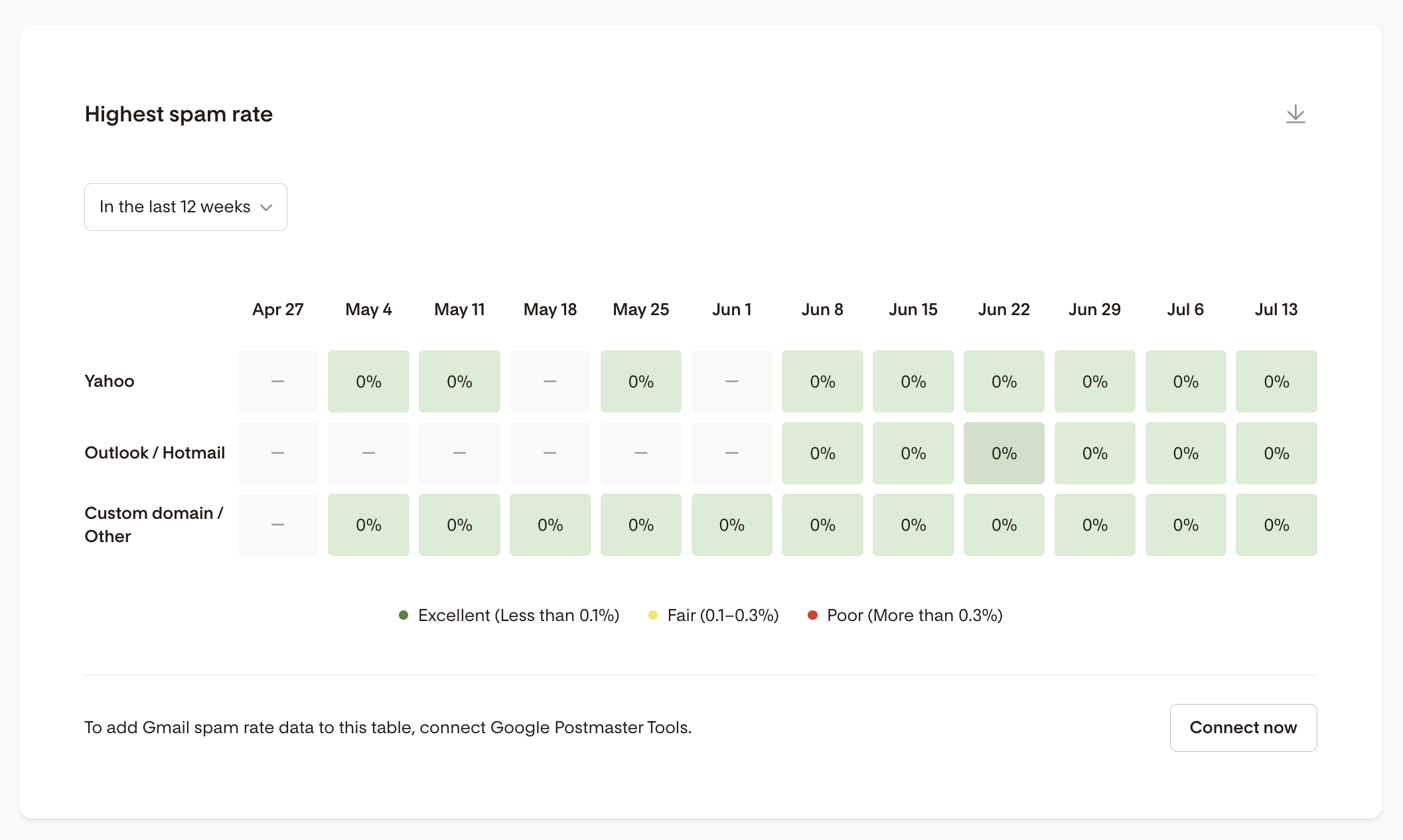
Keep in mind that Gmail doesn't automatically share spam complaint data with email marketing platforms, so your spam rate for Gmail subscribers may be underreported by default. To get a clearer, more accurate picture, connect your Google Postmaster Tools account to Flodesk. This brings Gmail-specific spam rate and domain reputation data into your Flodesk analytics, so you can see it all in one place. Learn how in "how to connect Google Postmaster Tools to monitor your Gmail sender health."
Summary
Action | Why it helps |
|---|---|
Email only opted-in subscribers | Ensures consent and reduces complaints |
Use a recognizable sender name and email | Builds trust and recognition |
Include a clear unsubscribe link | Prevents subscribers from reporting spam out of frustration |
Segment and archive disengaged subscribers | Reduces the chance of unwanted emails |
Avoid spammy content or design | Improves inbox placement and trust |
Monitor your spam rate in Flodesk | Catches problems early and protects sender reputation |
Keeping spam complaints low protects your sender reputation, improves deliverability, and helps you build long-term trust with your audience.
FAQ
Where can I see my spam rate?
Head to your Emails Analytics dashboard and look at the spam rate table below the open and click rate chart. It shows your spam rate as a percentage, broken out by mailbox provider, including Yahoo and Outlook/Hotmail. Gmail data only appears here once you've connected your Google Postmaster Tools account to Flodesk.
Why don't I see any spam rate data for Gmail?
Gmail doesn't automatically share spam complaint data with email marketing platforms. Until you connect your Google Postmaster Tools account to Flodesk, your spam rate table won't include Gmail-specific numbers, even if some of your subscribers use Gmail.
What spam rate should I aim for?
Gmail recommends staying below a 0.10% spam rate. A rate of 0.30% or higher is considered a policy violation and can affect your ability to reach inboxes across your entire sending domain.
Do I need to do anything special to add an unsubscribe link?
No. Flodesk automatically includes a one-click unsubscribe link in every email you send, so subscribers always have an easy way to opt out.
What should I do if my spam rate is high?
Start by reviewing your Unengaged Subscribers segment and archiving anyone who hasn't opened your emails in a while. Double-check that your unsubscribe link is visible, confirm you're only emailing people who opted in, and review your subject lines and content for anything that might feel unexpected or overly promotional.
Does one spam complaint hurt my whole account?
A single complaint won't cause major issues, but your spam rate reflects your entire sending domain's reputation, not just one campaign. If enough subscribers report your emails, it can affect deliverability across all future sends.
My subscriber accidentally marked the email as spam. How can I get them back as an active subscriber?
To get back on your list as an active subscriber, they'll need to sign up again through a Flodesk opt-in form with double opt-in enabled. Also, if they buy something through Flodesk Checkout and tick the box to receive marketing emails, they'll be set back to active.