
Where to find and manage your emails in Flodesk
Learn where to find your emails (newsletters) in Flodesk and how to create, organize, and track them.
Where to find your emails in Flodesk
You can find all your emails under the Emails dashboard.
Click Emails on the left-side navigation panel
Or go directly to: https://app.flodesk.com/emails
This is where all your one-off emails (single emails, newsletters) live, whether they are drafts, scheduled, or already sent.
What you can do on the Emails dashboard
From the Emails dashboard, you can:
Create new emails (newsletters, announcements etc.)
Send or schedule emails to your subscribers
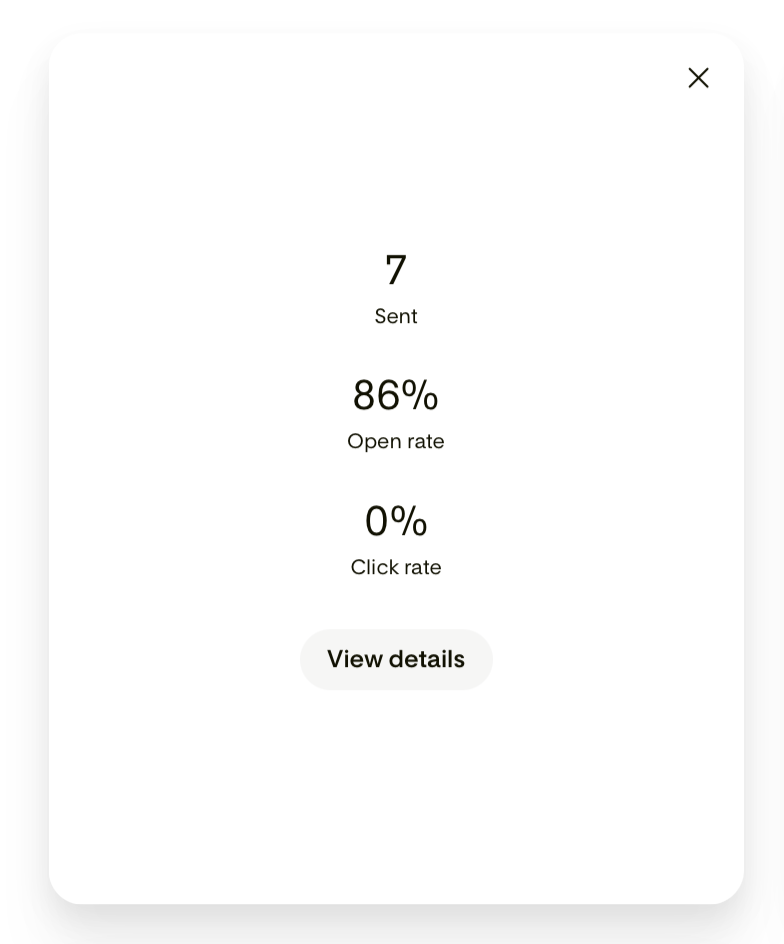
View email performance (recipients, open rate, click rate)
Organize emails into folders
Quickly take actions like saving favorites or sharing templates
How the Emails dashboard is organized
The Emails dashboard has two main sections:
Overview tab: where all your emails are created and managed
Folders tab: where you organize your emails
When you first access the Emails dashboard, both sections will be empty and ready for you to start.
Overview tab
This is your main workspace for creating and managing emails.
Create a new email
Click + New email to open the template gallery.

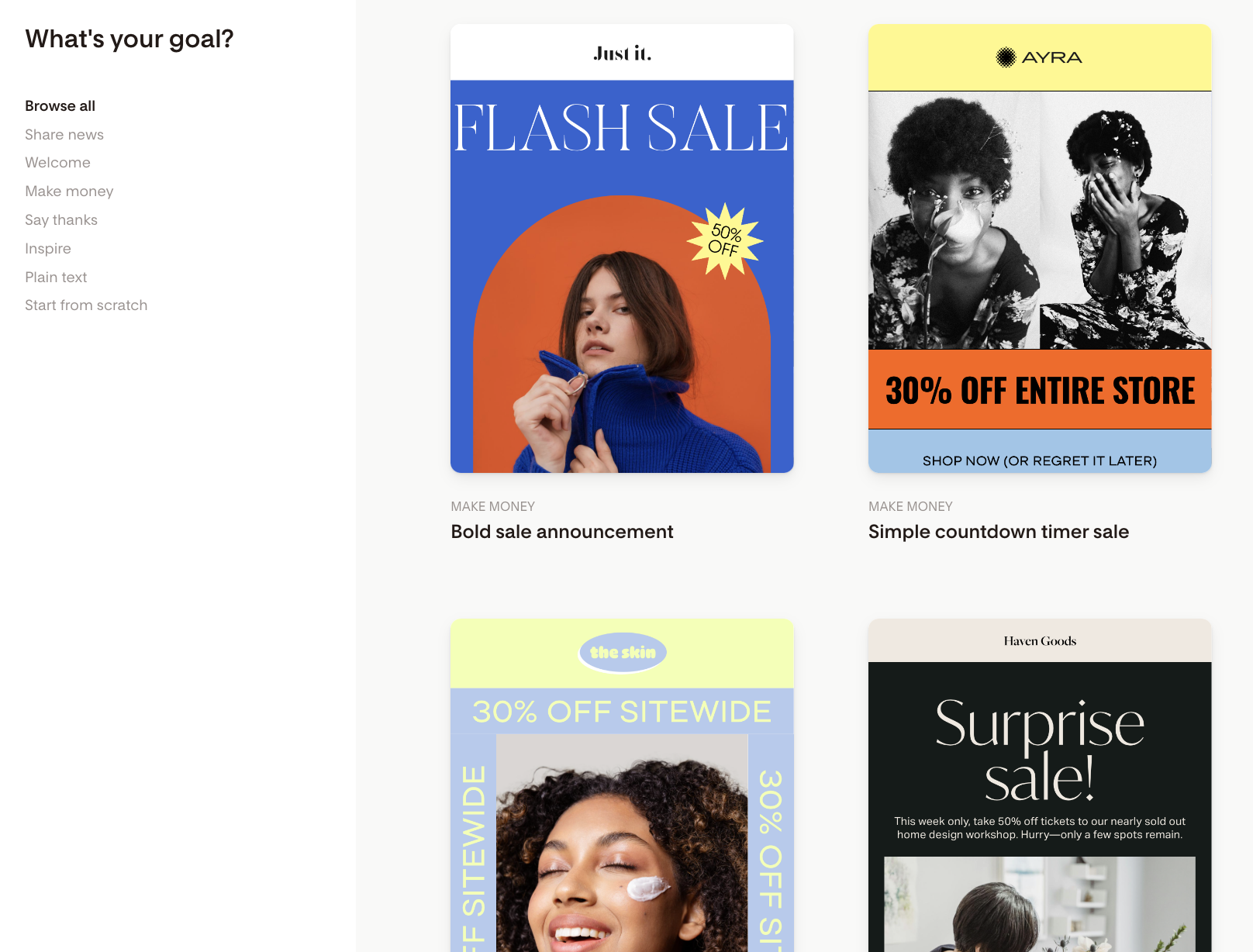
From there, you can:
Choose a pre-designed template or start from scratch
Customize your design
Use the left-side navigation to browse through the various categories. Once you save an email as a favorite later, those will be visible here as well under a new category called “My favorites”. Until then, you won't see “My favorites”.
Need help getting started? See: How to send weekly emails in Flodesk.
Choose how to view your emails
You can display your emails in two ways:
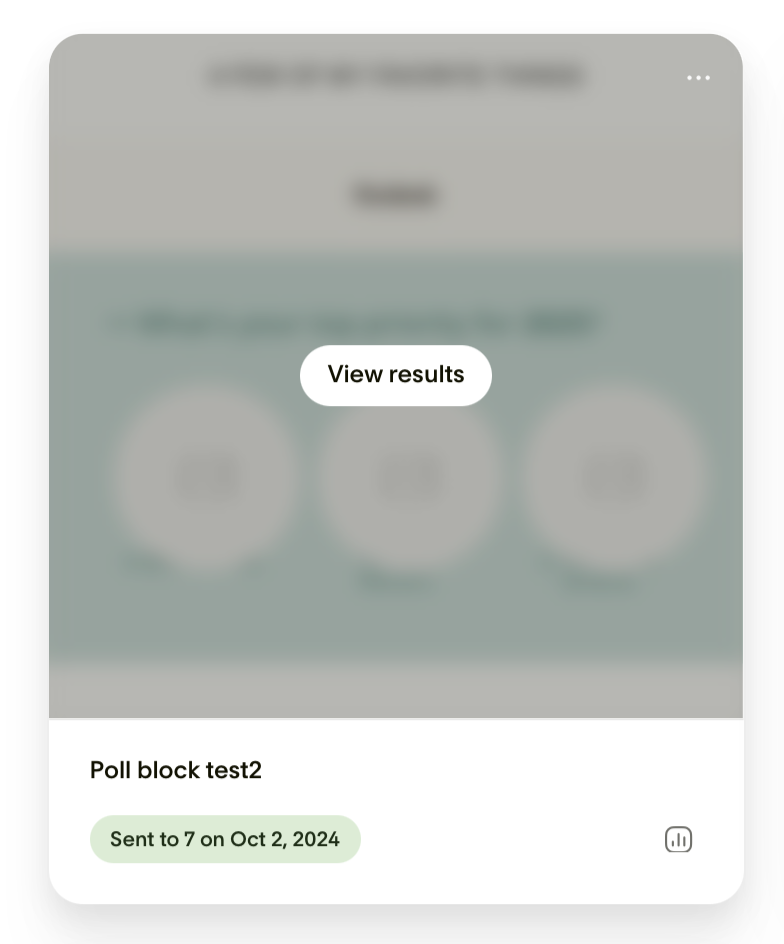
Card view: shows visual previews of your emails
List view: shows more details in a table format
You can switch between these views at any time.
If you don't see the list view option, check if you are using an ad blocker in your browser. It may prevent the feature from loading in the app.
Manage your emails
Use the toolbar to quickly find and manage your emails.
Search: Find emails by name
Sort: By date created, date modified, or alphabetically
Status filter: View emails by status (all, sent, scheduled, draft, archived or shared as a template)
View toggle: Switch between card view and list view
+ New email: Create a new email
Sorting in list view
When using list view, you can also click column headers to sort by:
Email name
Status (sort by Sent/Scheduled date)
Number of recipients
Quick actions for each email
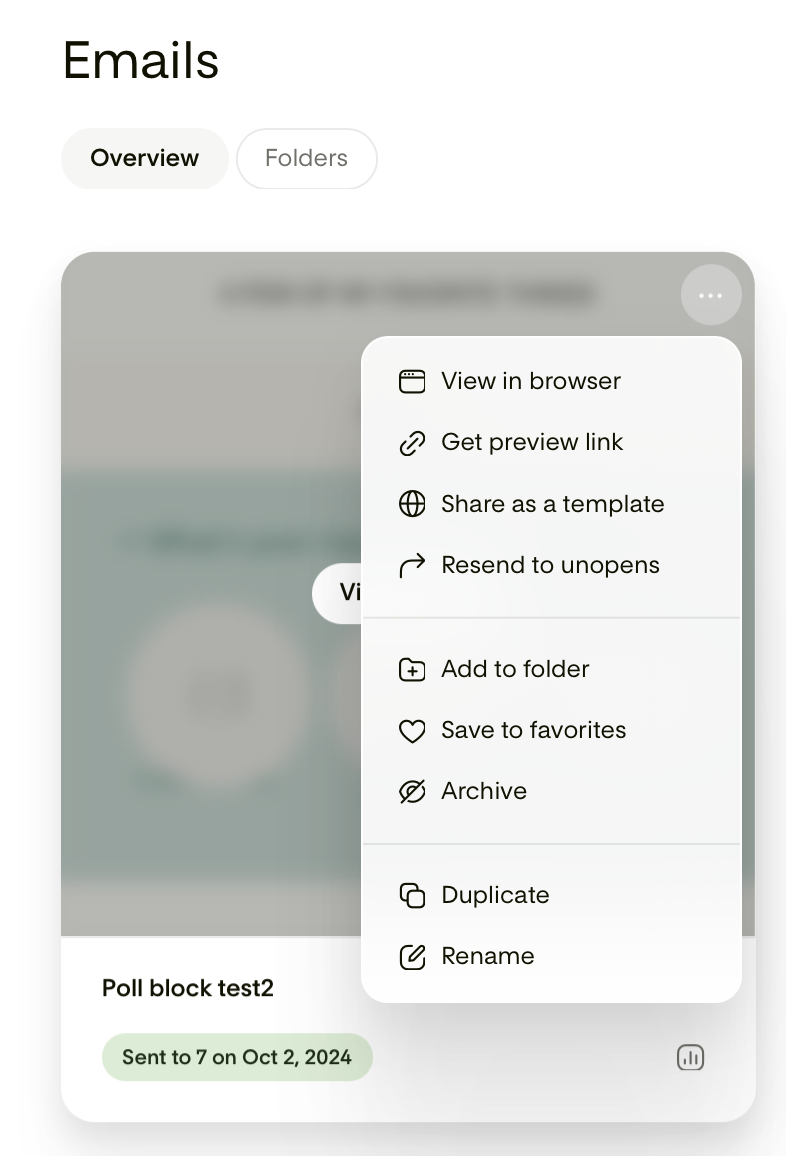
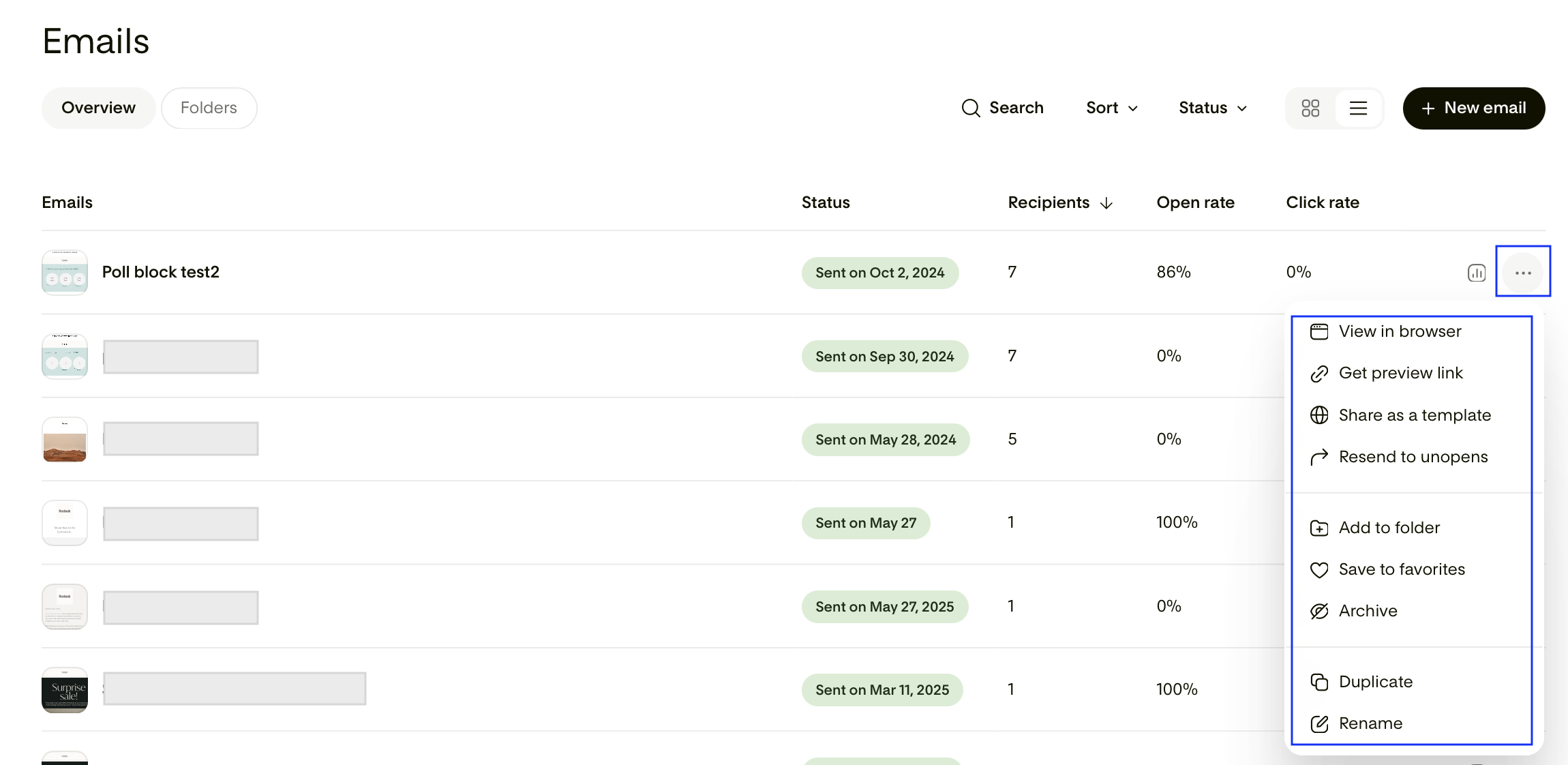
Click the three dots (…) menu on any email to access quick actions.
You can:
View in browser
Get preview link
Share as a template
Resend to unopens
Add to a folder
Save to favorites
Archive (sent emails only)
Edit (draft emails only)
Duplicate
Rename
Delete (draft emails only)
These options are available in both card view and list view.
How to view email stats
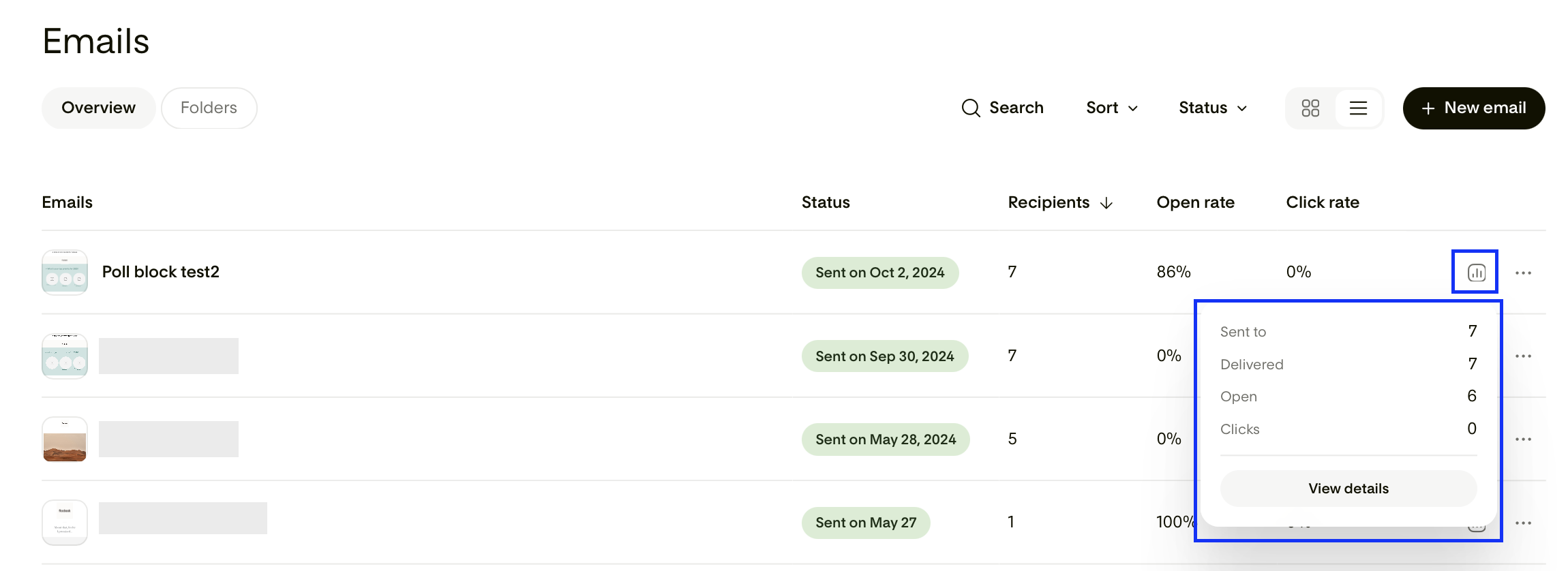
You can quickly check how your emails are performing.
In list view
See recipients, open rate, and click rate directly
Click the bar chart icon (analytics), then View details for full analytics
In card view
Click the bar chart icon on the email card
Or hover and click View details to see more
This opens the detailed analytics page.
Organize your emails with folders
Folders help you keep your emails organized by topic, campaign, or purpose.
Important to know
An email can only be in one folder at a time
Emails are not moved out of Overview tab when added to a folder
Folders create an organized view (they don’t store emails separately)
Folder actions
You can:
Search folders by name
Sort folders (created date, modified date, alphabetical)
Switch between card view and list view
Create a folder using + New folder
Learn more: How to create and manage folders
FAQ
Where are my emails in Flodesk?
All your emails are located on the Emails dashboard.
What’s the difference between card view and list view?
Card view shows a visual preview of your emails
List view shows more data like open rate and recipients in a table format
Can I switch between card view and list view?
Yes, you can toggle between both views anytime in the Overview tab or Folders tab.
How do I see email performance stats?
Use list view to see quick stats like open rate and click rate, or click the bar chart icon to view detailed analytics.
Why is my email still in the “Overview” tab after adding it to a folder?
All emails always remain in the Overview tab. Folders only help organize them, they don’t move or remove emails.
Can an email be in multiple folders?
No. Each email can only be in one folder at a time.
What actions can I take on an email?
You can edit, duplicate, rename, delete (drafts only), share, resend, and organize emails using the three dots menu.
Why can’t I edit or delete a sent email?
Sent emails can’t be edited or deleted to preserve reporting accuracy. You can duplicate the email to reuse it or archive it.
How do I create a new email?
Click + New email and choose a template to get started or build one from scratch.