
All about Video Forms
Learn what Video Forms are, where to find them, and how to customize them to match your brand.
What are Video Forms?
Video Forms are an opt-in form type that lets you embed a YouTube or Vimeo video directly inside your signup form.
They help you grow your list by combining:
The persuasive power of video
Beautiful, customizable form design
A seamless email opt-in experience
With Video Forms, visitors can:
Watch your video directly inside the form
Fill out their details while the video plays
Subscribe to your list without leaving the page
Important to know:
Videos do not autoplay. Visitors must click play.
Only YouTube and Vimeo video links are supported.
Video Forms are available as Popup forms (for your website) or Full page forms (with a shareable URL).
Where can I find Video Forms?
To create a Video Form:
Go to your Forms dashboard.
Click + New form.
Select a template from the Video category in the gallery.
You can choose between:
Popup Video Form – embed it on your website.
Full Page Video Form – share it using a direct URL (no website required).
In this example, we will walk you through the steps of customizing a full page video form.
How to customize your Video Form
Here’s how to set up and style your form.
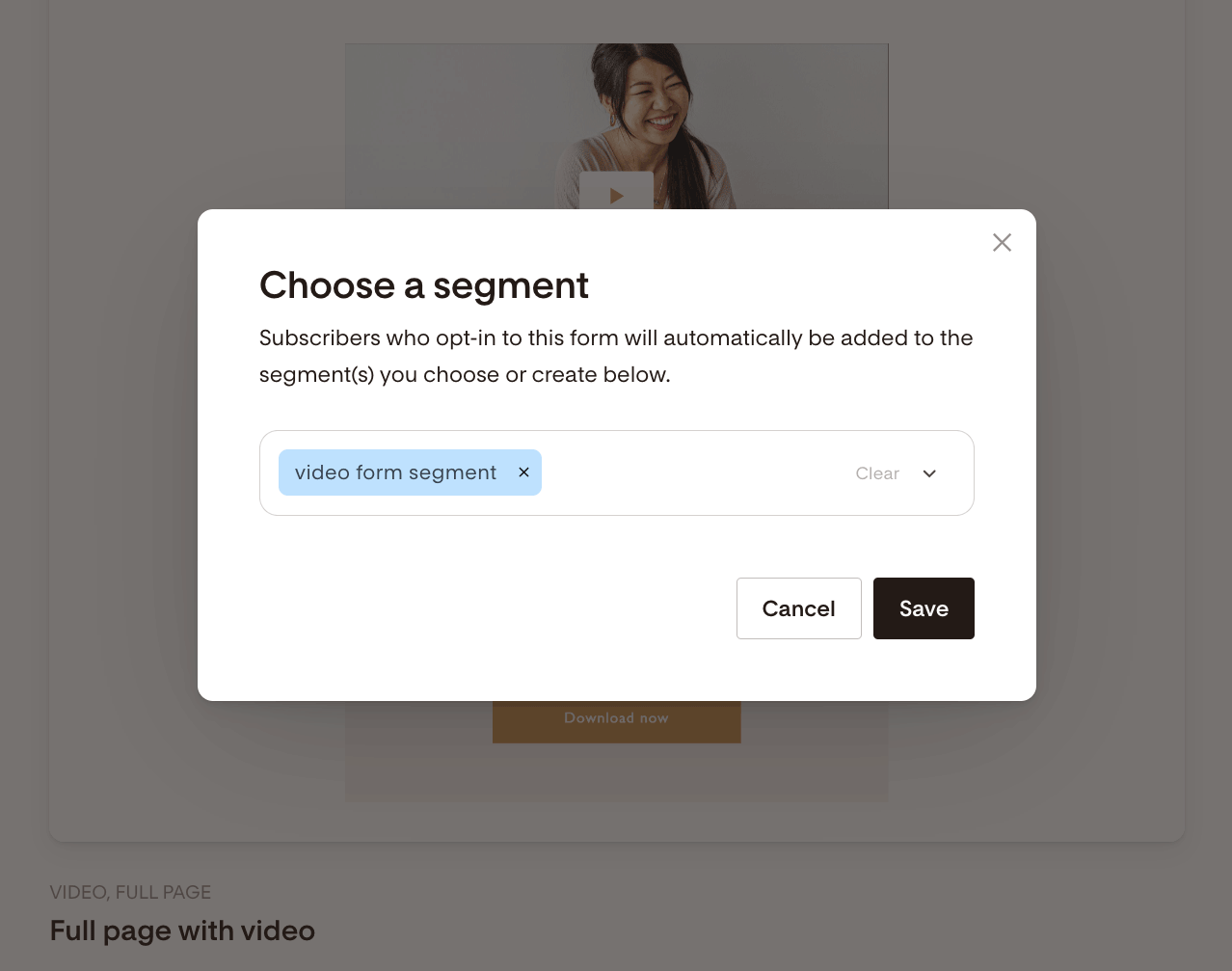
Step 1: Choose your segment
When you open a template, you’ll first select a segment.
Anyone who opts in through this form will automatically be added to the segment(s) you choose here.
You can:
Select an existing segment
Or create a new one
Step 2: Add your video
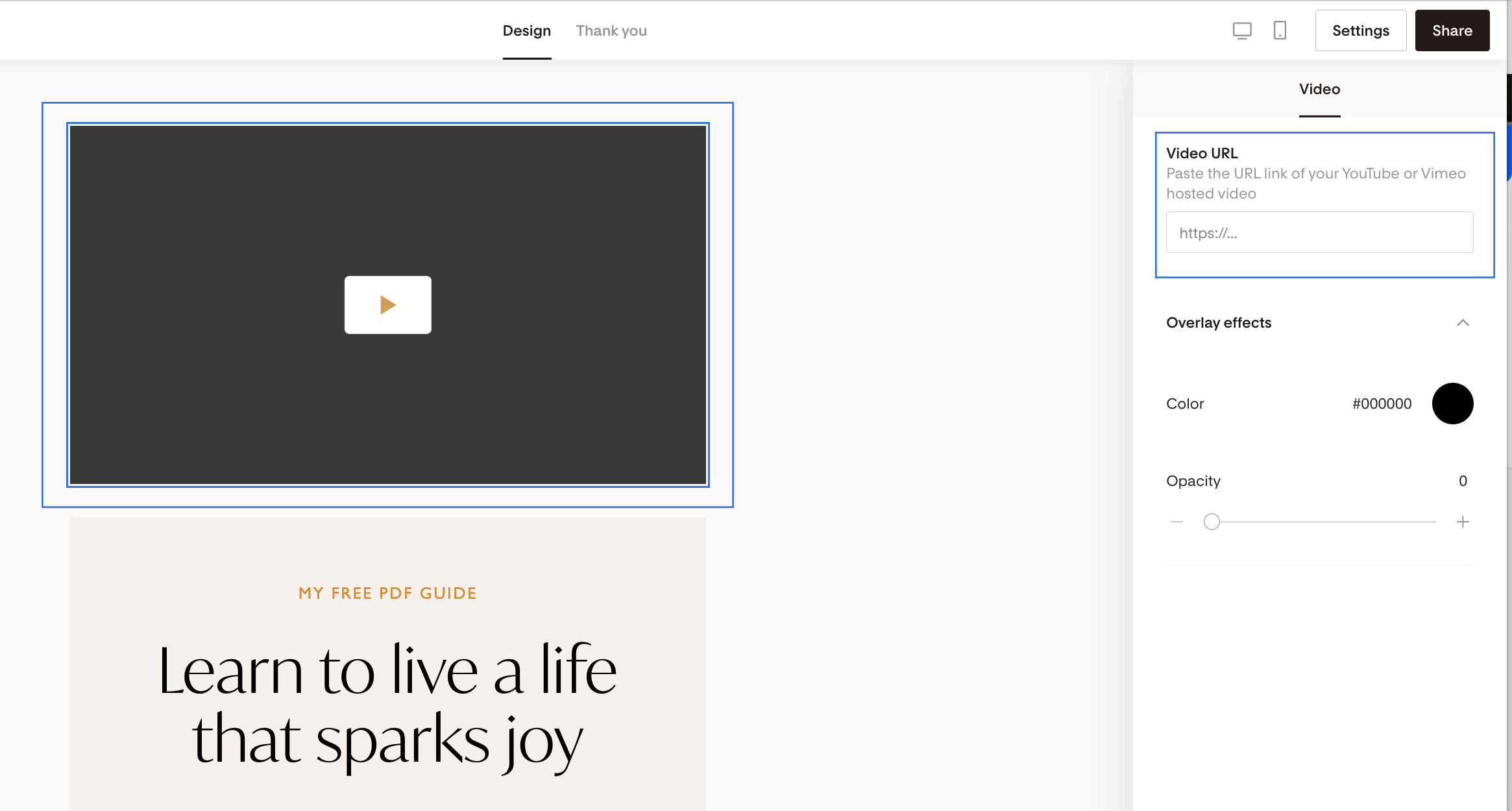
Click the video block.
Paste your YouTube or Vimeo URL into the Video URL field on the right.
Your video will automatically load into the form.
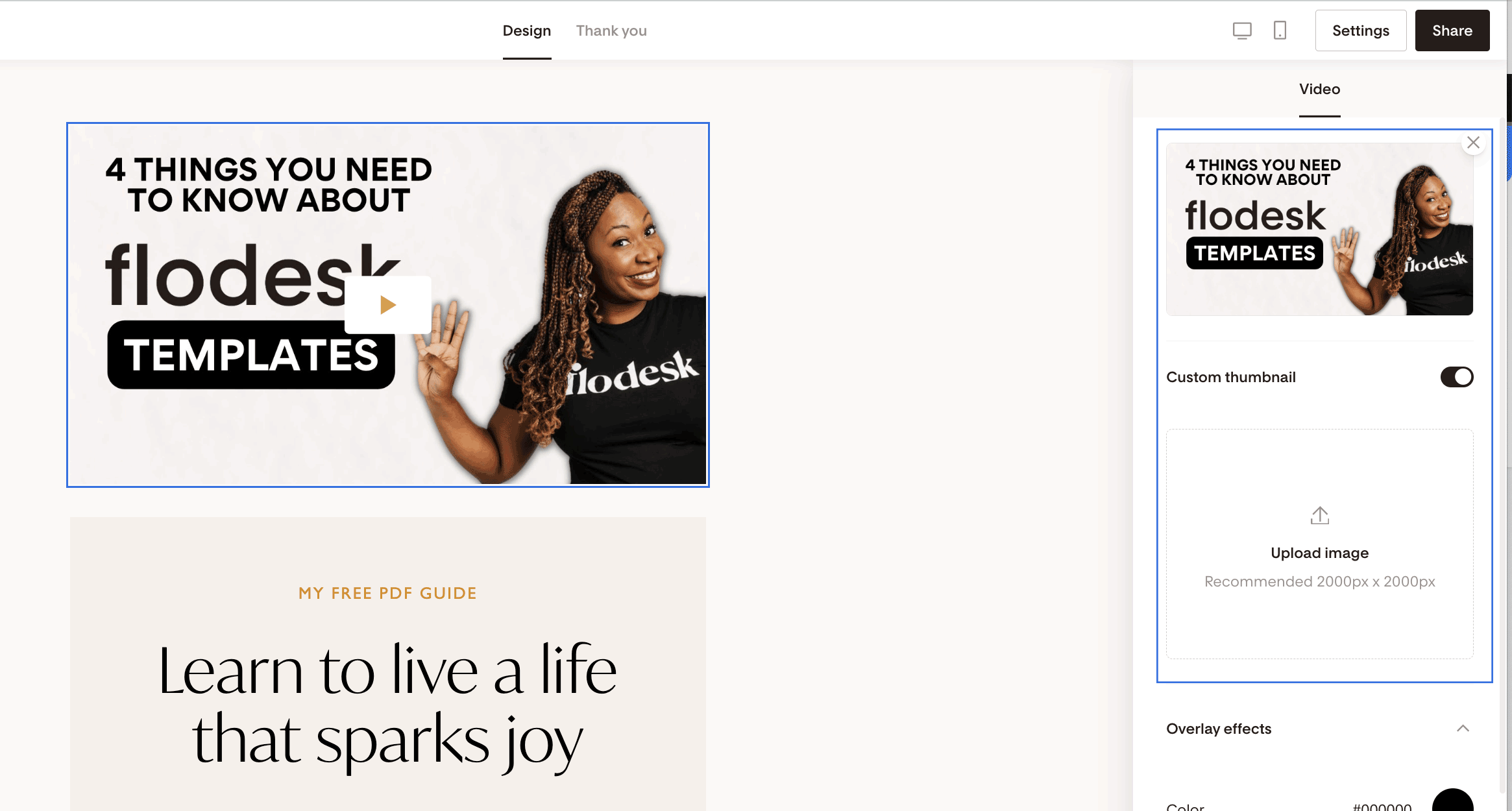
You can also:
Turn on Custom thumbnail to upload your own cover image.
Adjust overlay effects.
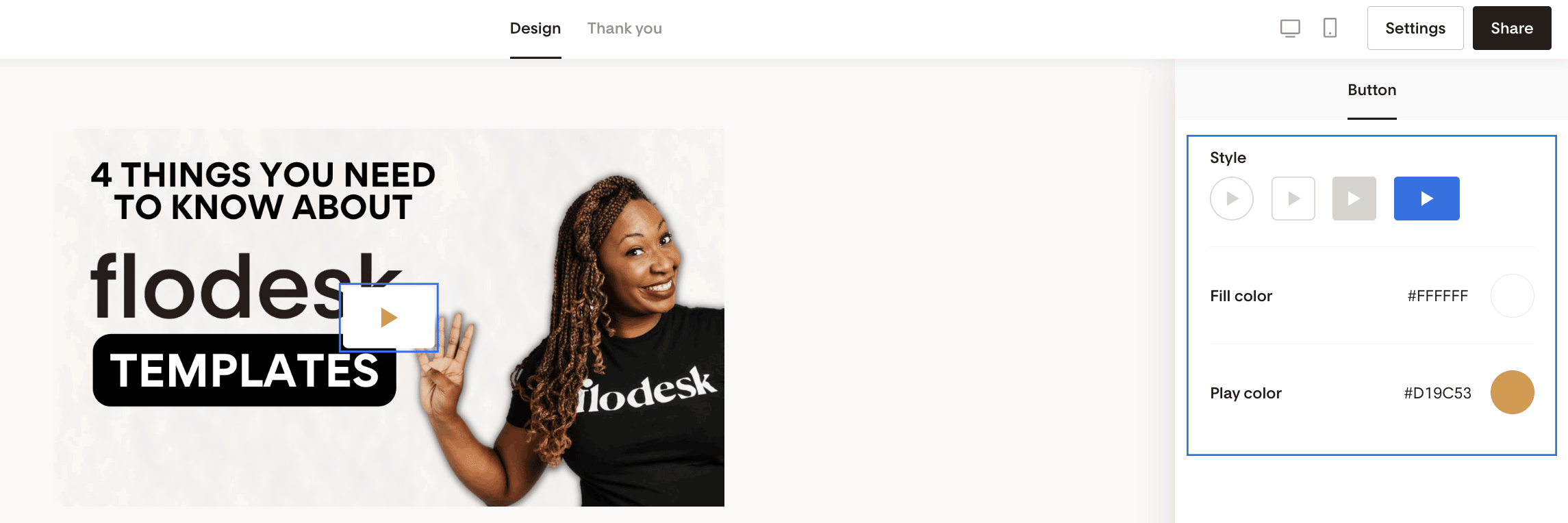
Customize the play button style, fill color, and play icon color.
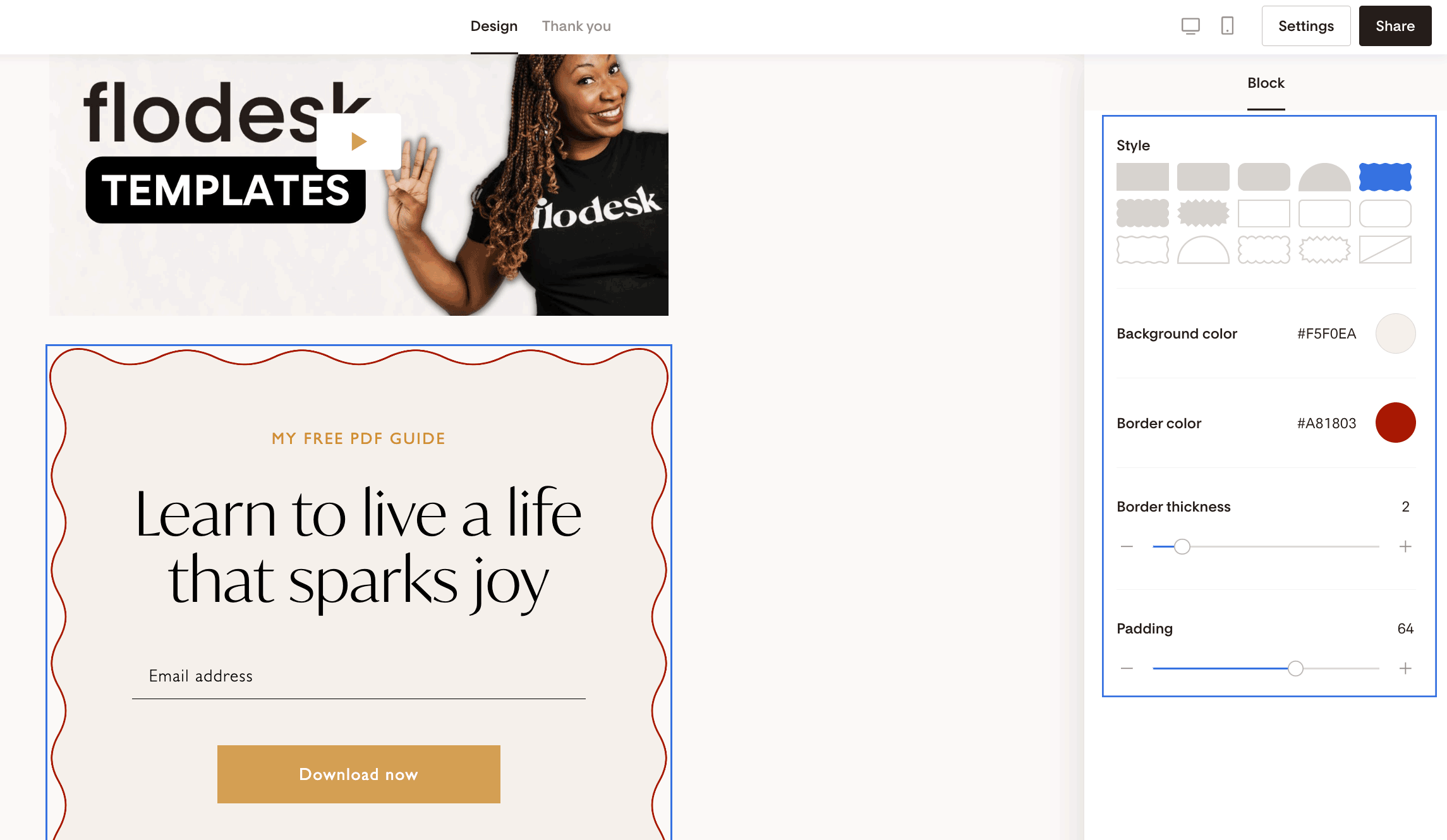
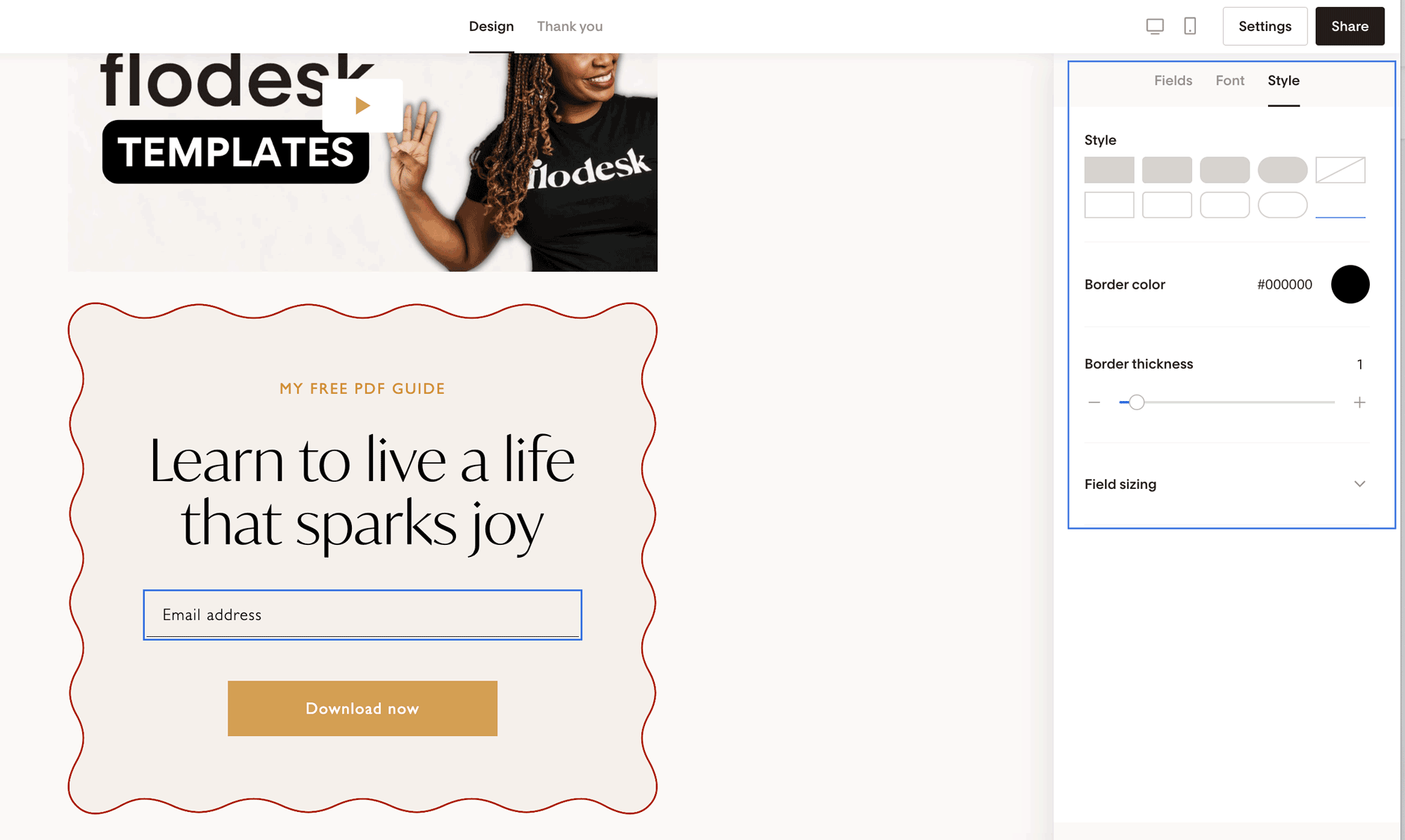
Step 3: Customize the form design
Click the form block to edit its appearance.
You can:
Choose from unique background shapes
Adjust background color
Change border color and thickness
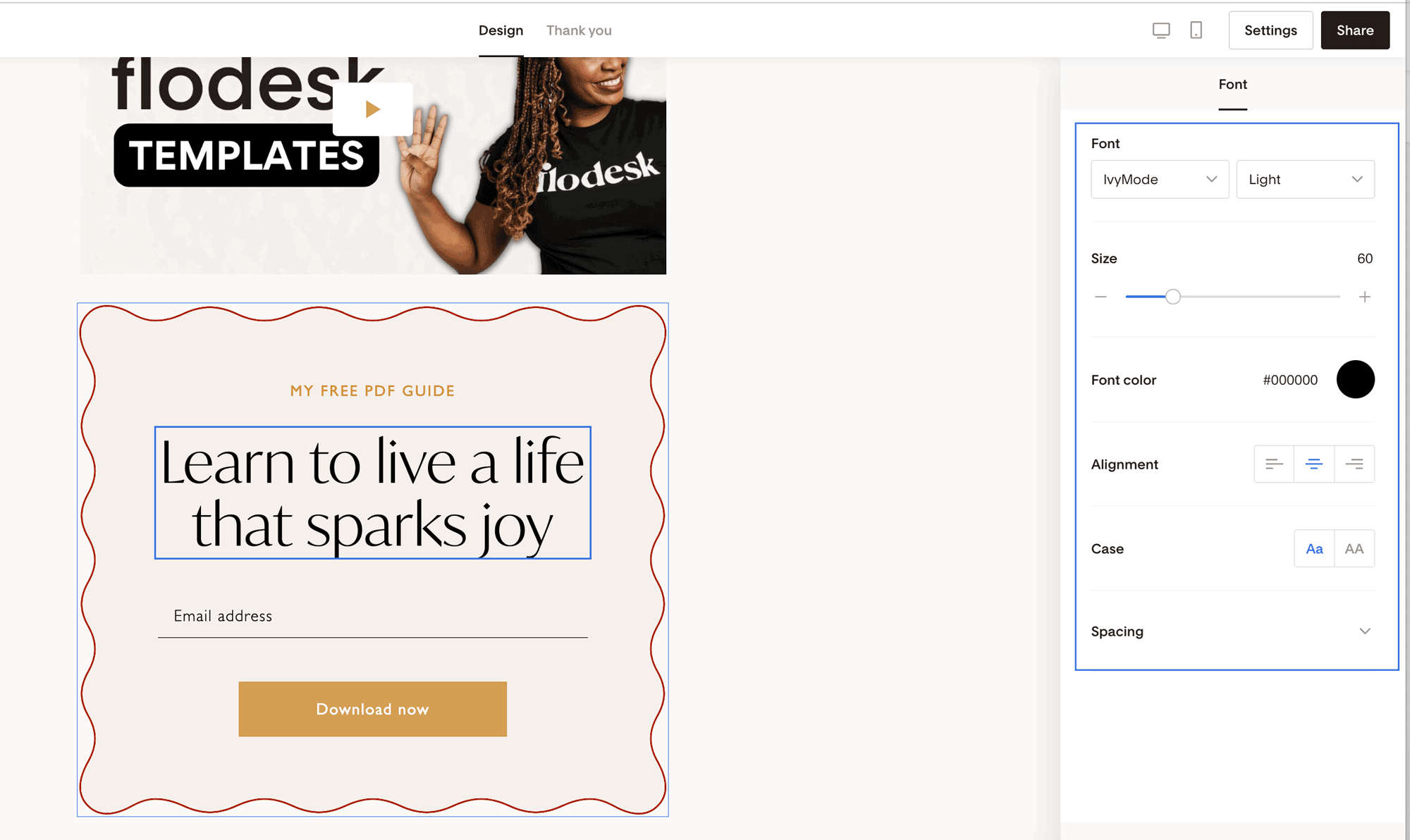
Modify fonts, spacing, alignment, and text styling
To update the copy:
Click the placeholder text.
Replace it with your own headline and description.
Use the styling panel to match your brand fonts and colors.
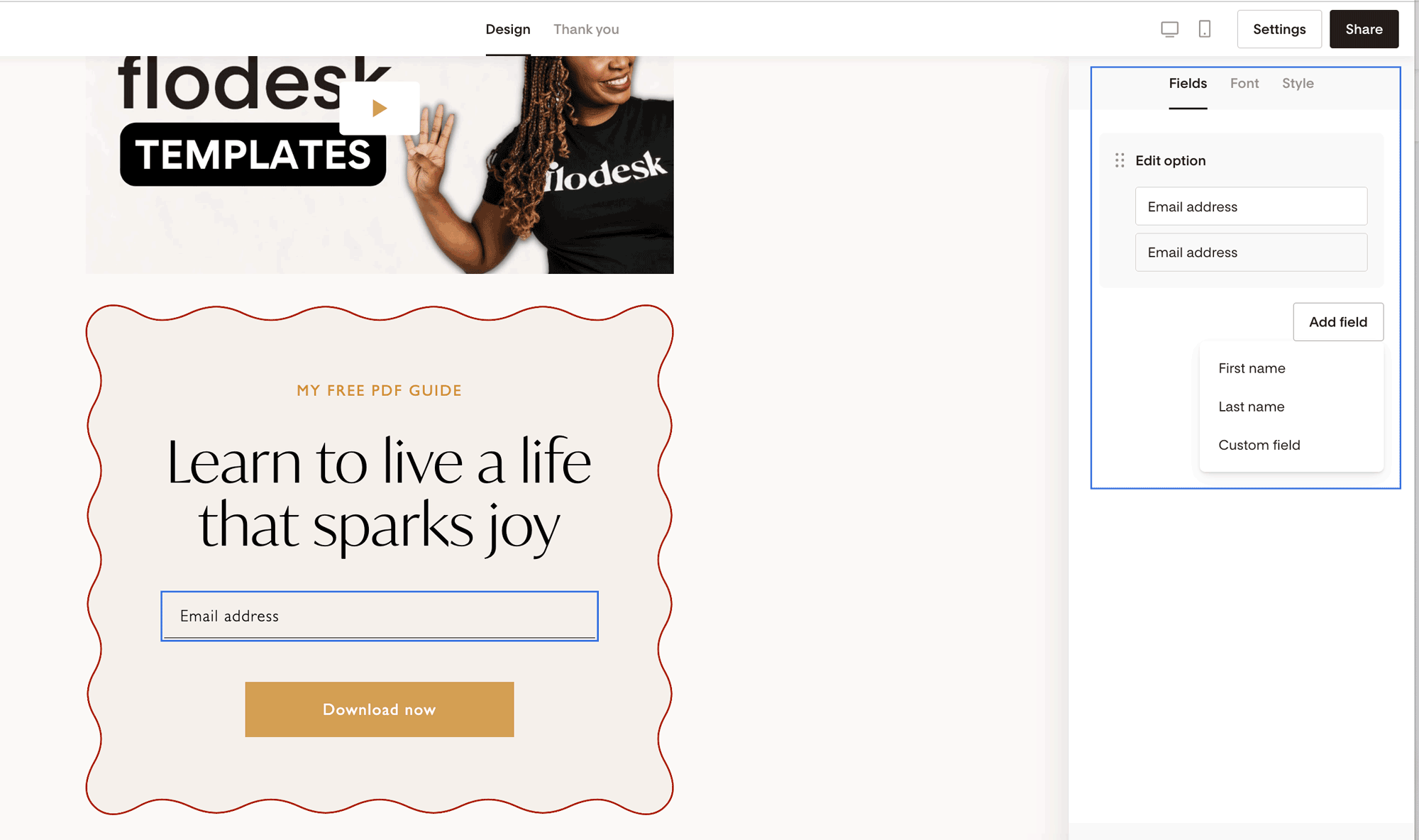
Step 4: Add and manage form fields
Click the email field to open the form fields panel.
You can:
Add a First Name field
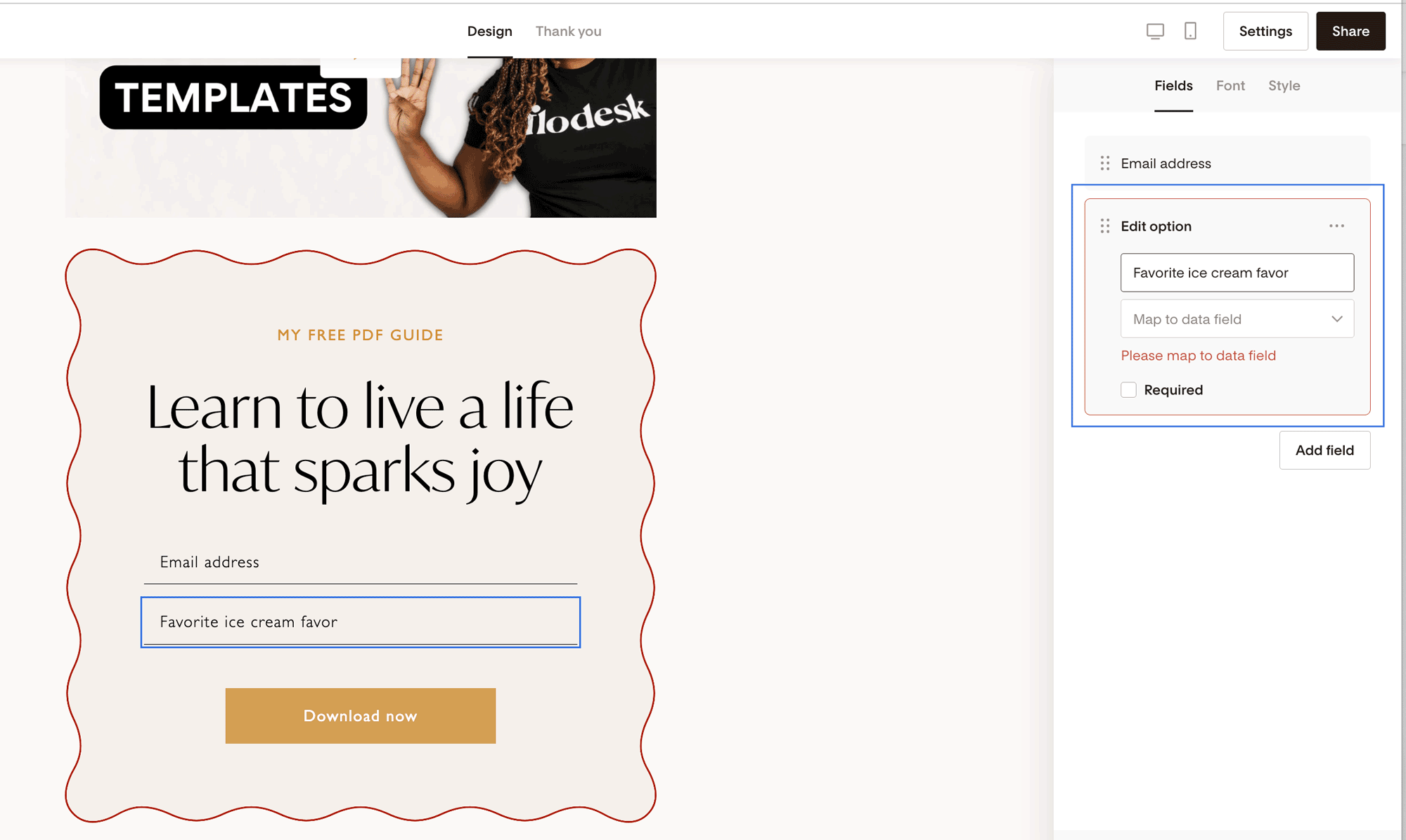
Add custom fields
Mark fields as Required
Important:
Every custom field must be mapped to a data field. If it isn’t mapped, the information won’t save in your database.
You can further customize field styling under the Style and Font tabs.
Step 5: Add form preferences (optional)
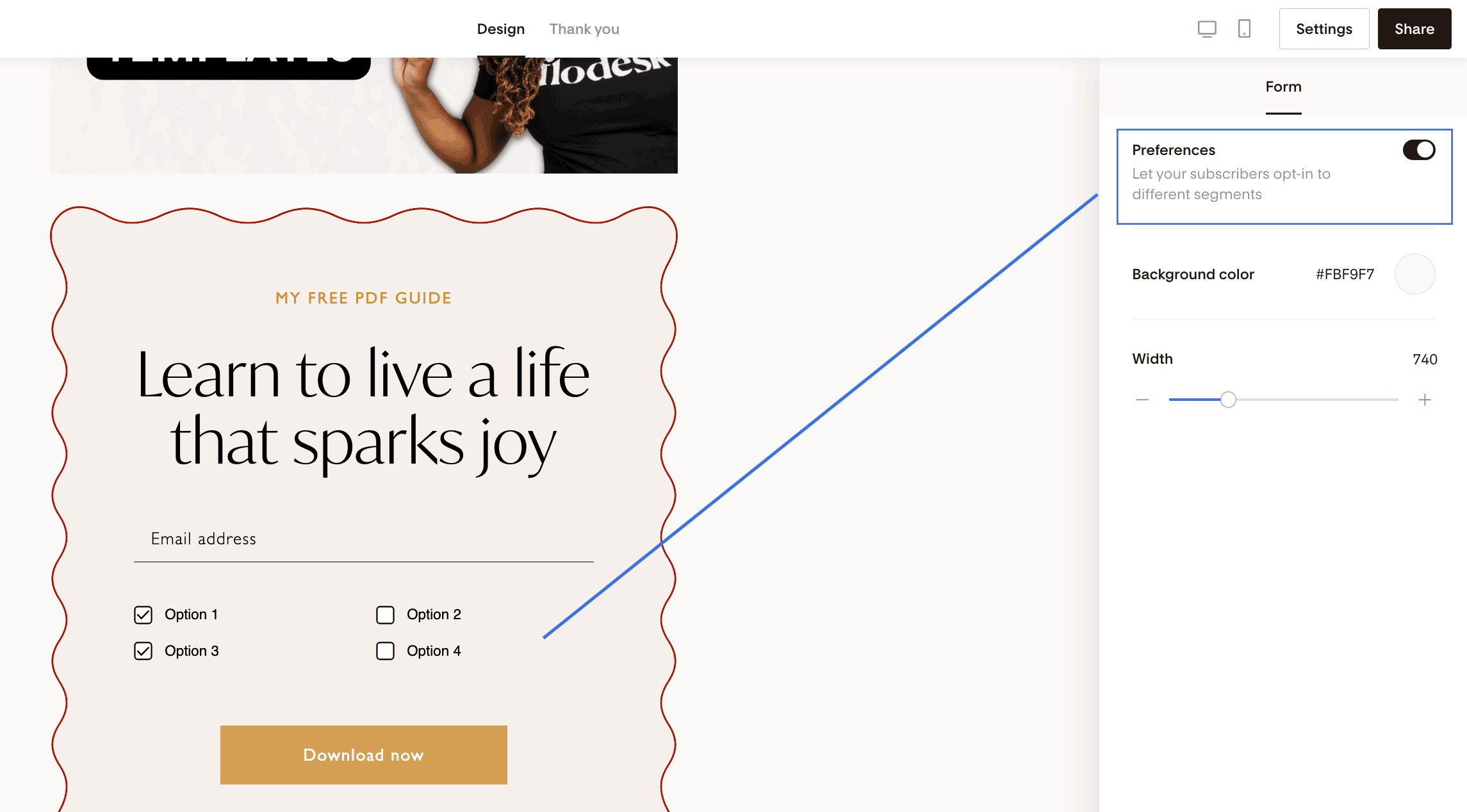
Click outside the video and form blocks to access form-level settings.
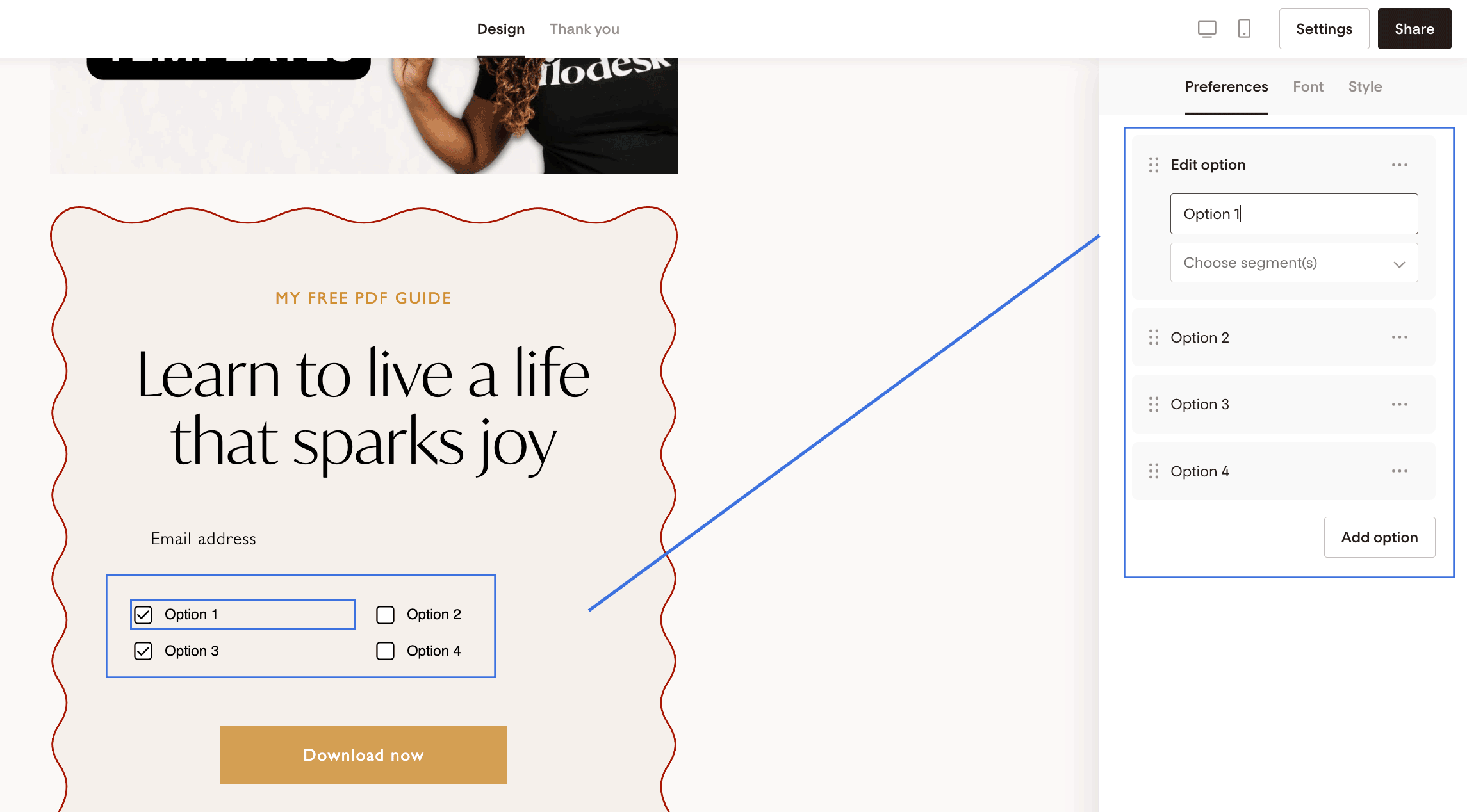
You can add preference options, such as checkboxes for interests.
Each preference option must be mapped to a unique segment.
This helps you automatically organize subscribers based on what they select.
Step 6: Customize your button
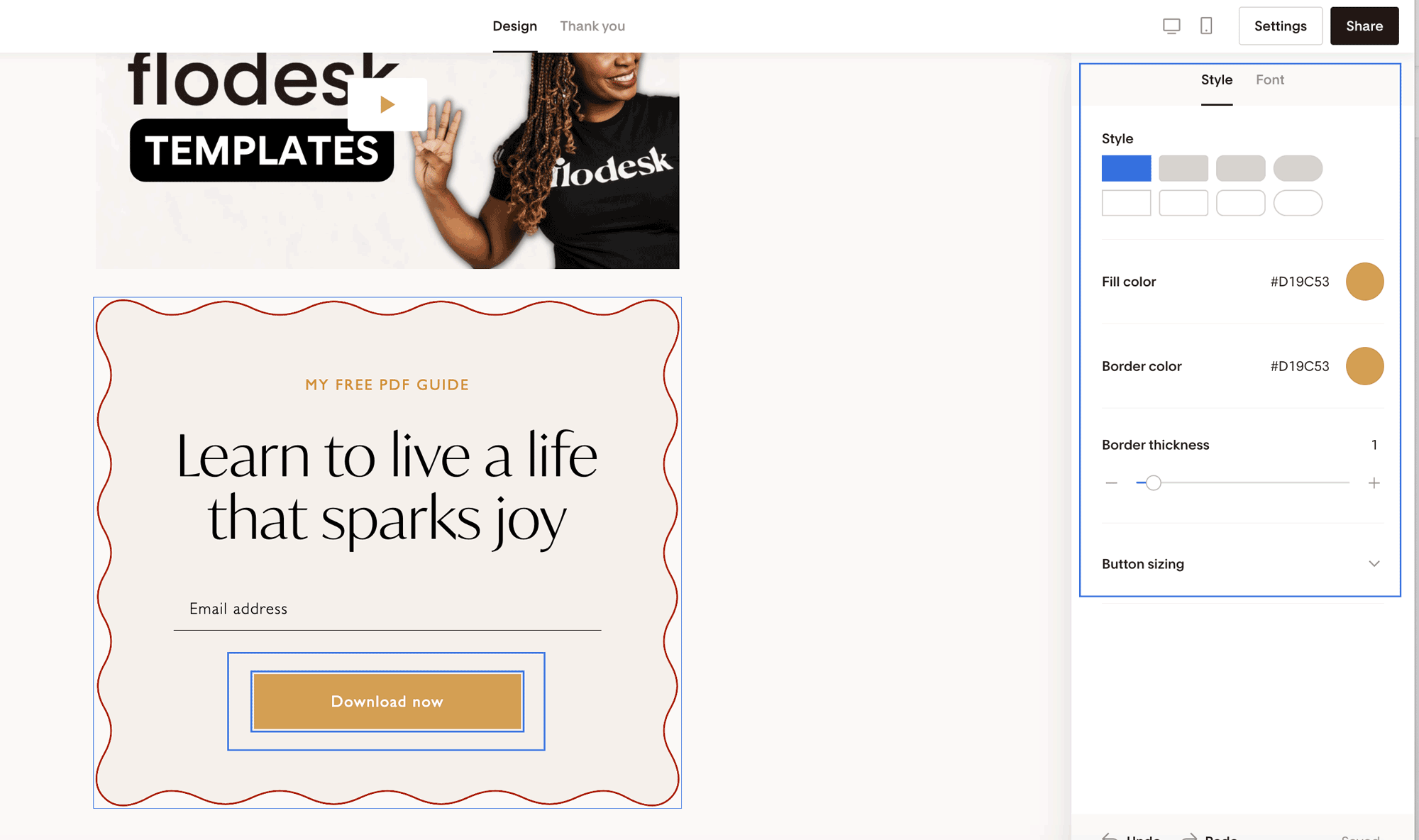
Click the button to:
Update the button text (e.g., “Watch & Join,” “Get Instant Access”)
Change font style
Adjust colors and spacing
Make sure your button clearly reflects your offer.
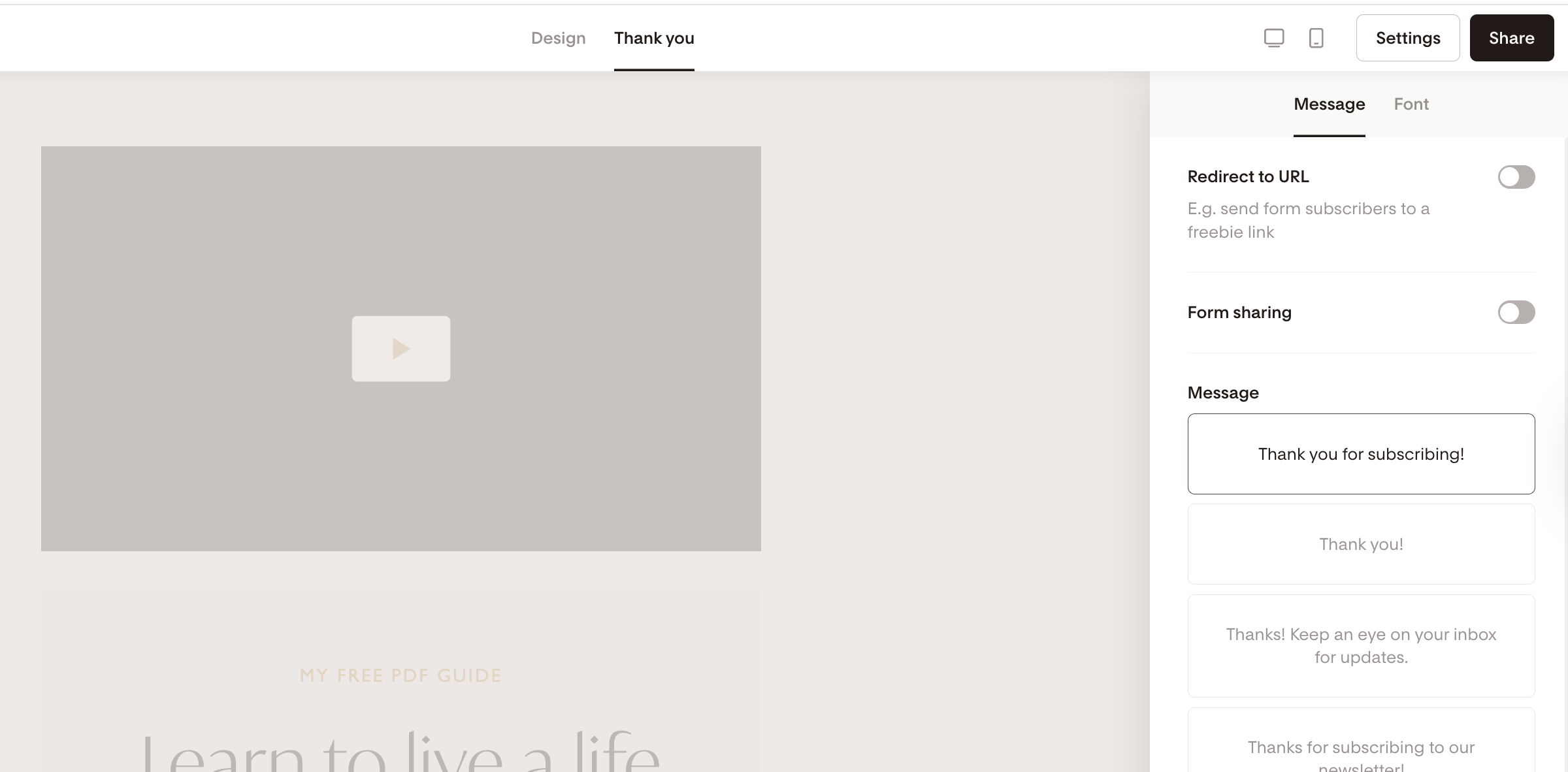
Step 7: Set up the Thank You experience
Click the Thank You tab at the top of the editor.
You can choose to:
Show a custom success message
Redirect subscribers to a URL (like a sales page or download page)
Enable form sharing
You can also style the thank-you message using the font panel.
How to publish your Full Page Video Form
Once your design is ready:
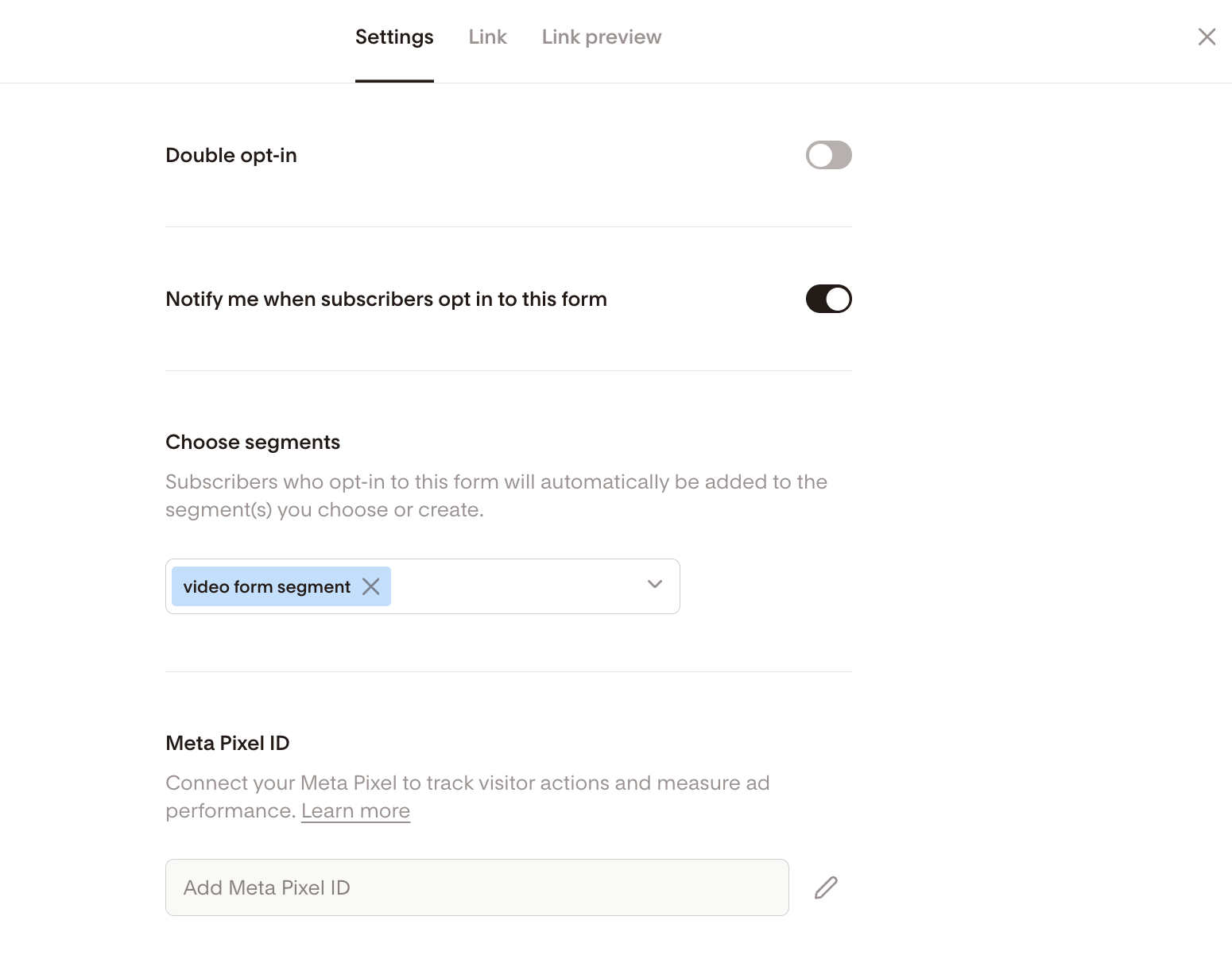
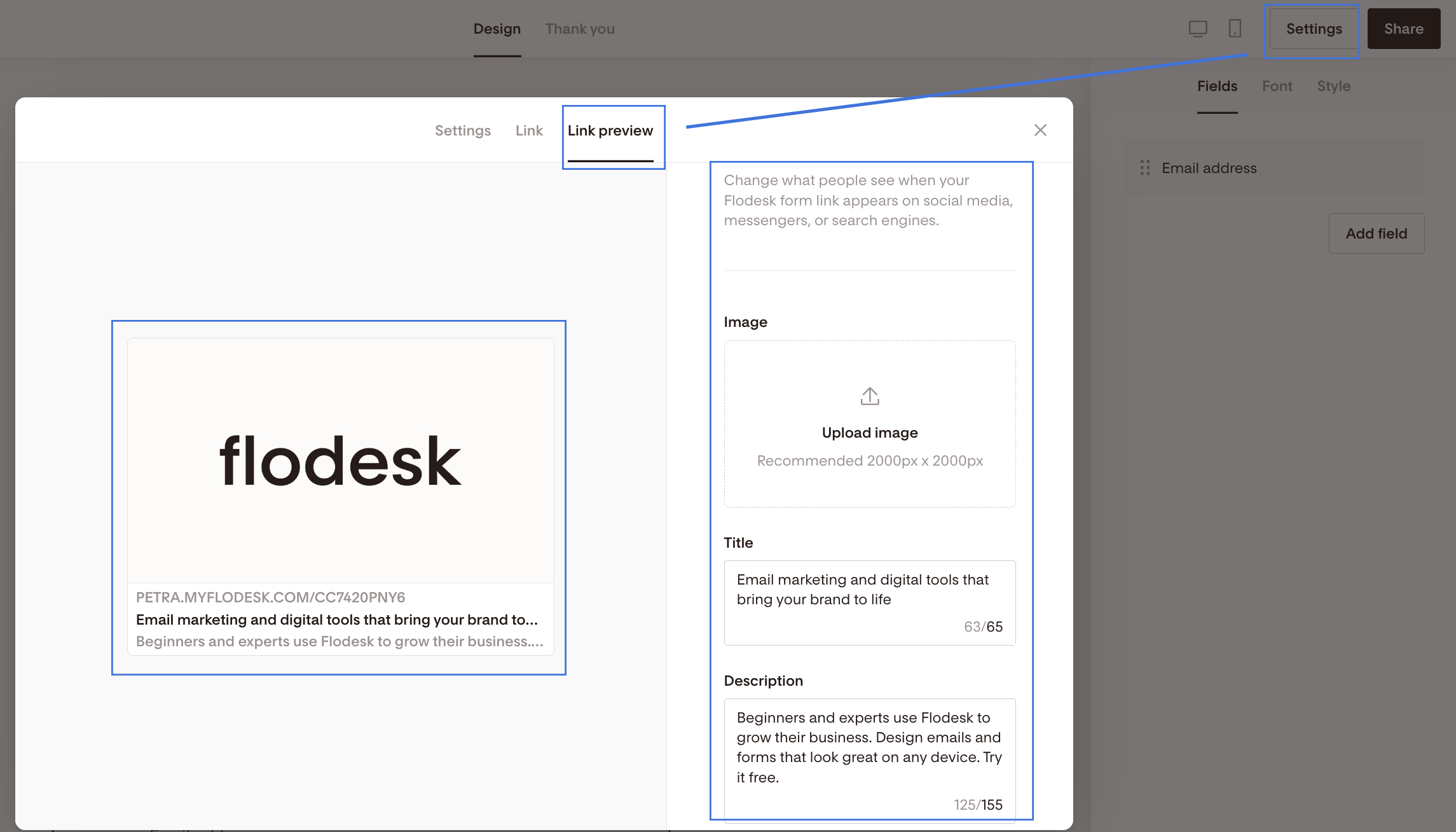
Click Settings in the top right corner.
Turn double opt-in on or off
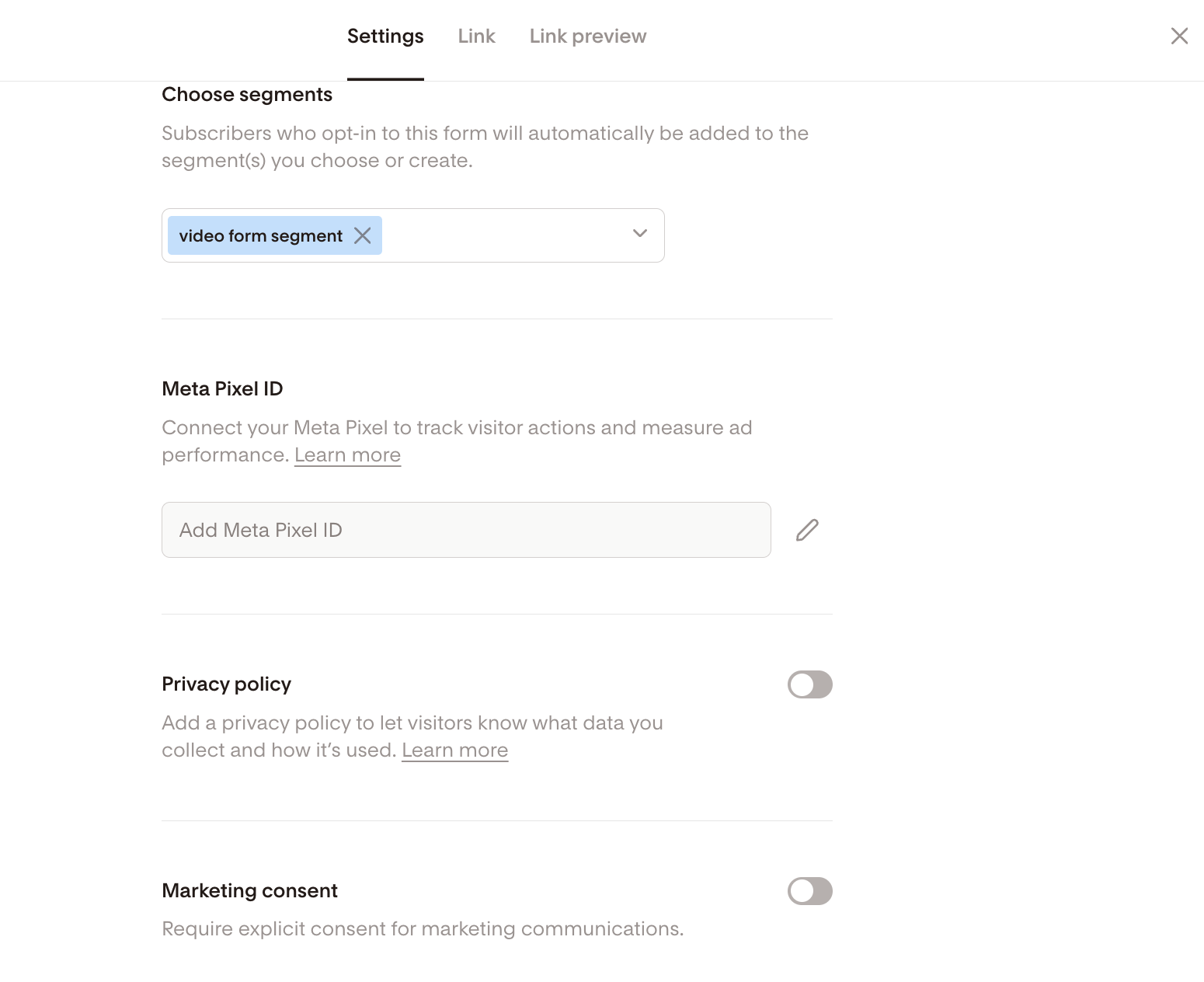
Choose which segments subscribers are added to
Enable subscriber notification emails (optional)
Connect your Meta pixel ID (if you are running ads)
Add your Privacy policy link to your full page form
Require explicit marketing consent
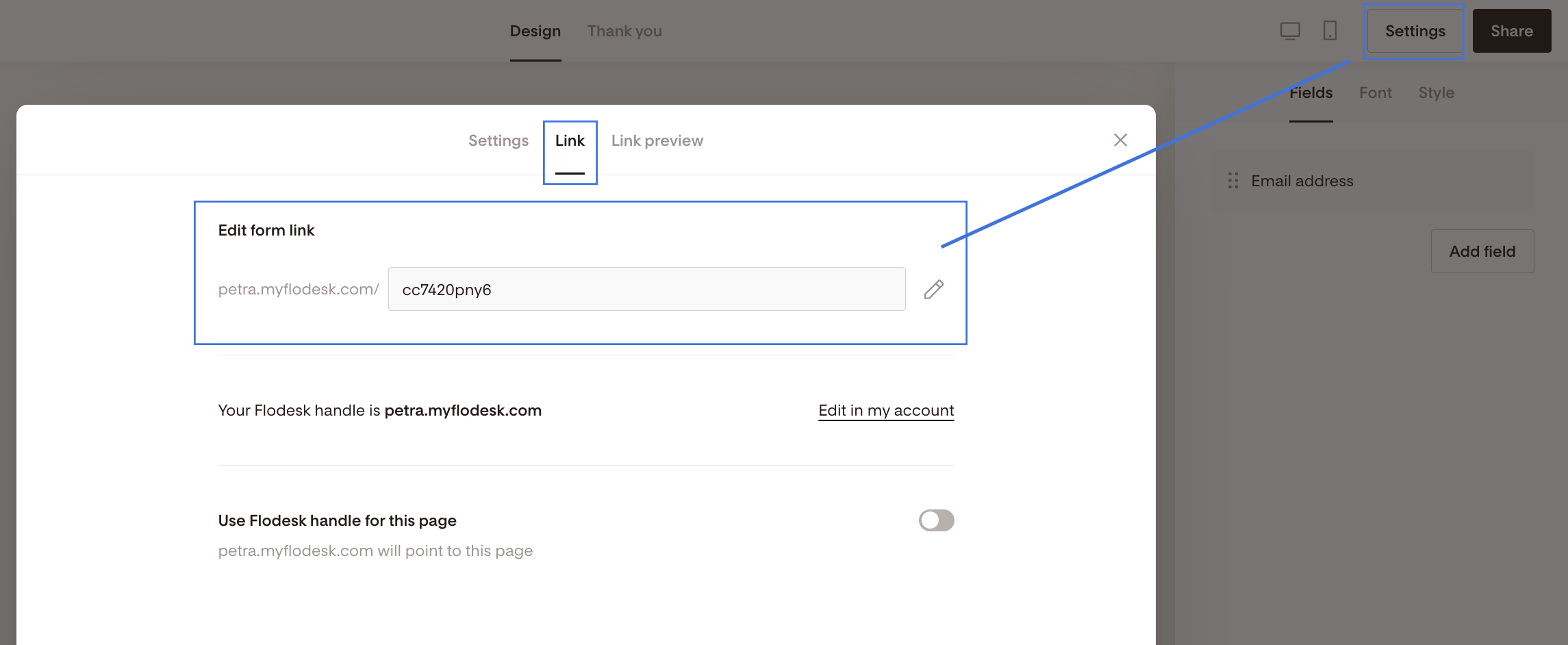
Edit your form link (slug)
Under the Link tab:
Click the pencil icon to edit your URL.
Create a clear, meaningful link.
Optionally toggle on your Flodesk handle.
Customize social preview settings
Under Link Preview, you can edit:
Meta image
Meta title
Meta description
This controls how your form appears when shared on social media or messaging apps.
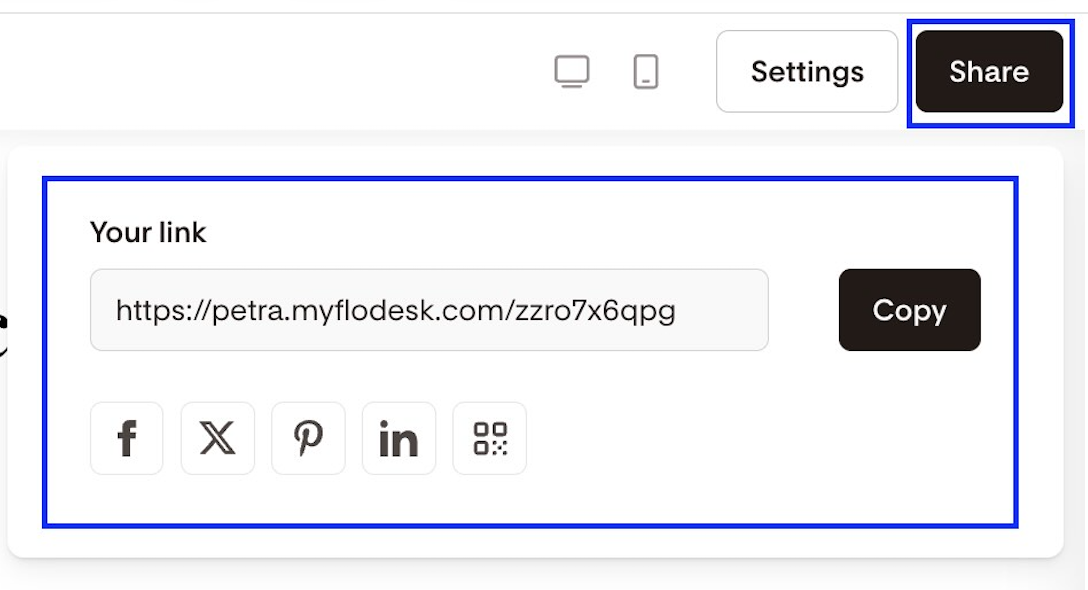
Click Share, then:
Copy the form link, or
Share the form link directly to Facebook, X (Twitter), Pinterest, or LinkedIn
Grab the form's QR code
That’s it—your opt-in form is live.
Troubleshooting: My video won’t play
If your video doesn’t play inside the form, check the following:
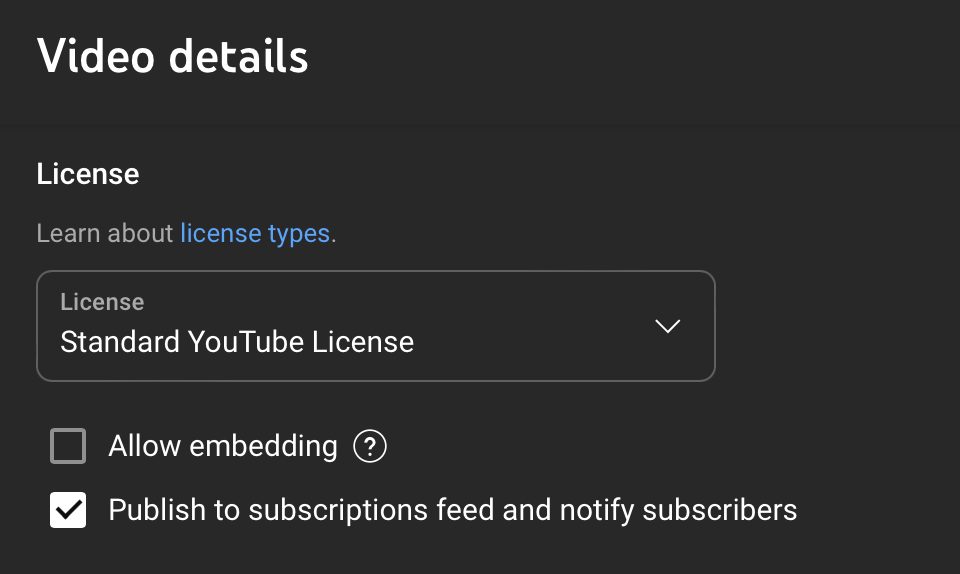
1. Make sure embedding is enabled (YouTube)
Sign in to YouTube Studio.
From the left menu, select Content.
Next to the video you’d like to manage, select Details.
From the bottom, select SHOW MORE.
Check the box next to “Allow embedding” and SAVE.
If embedding is disabled, the video will not play inside your form.
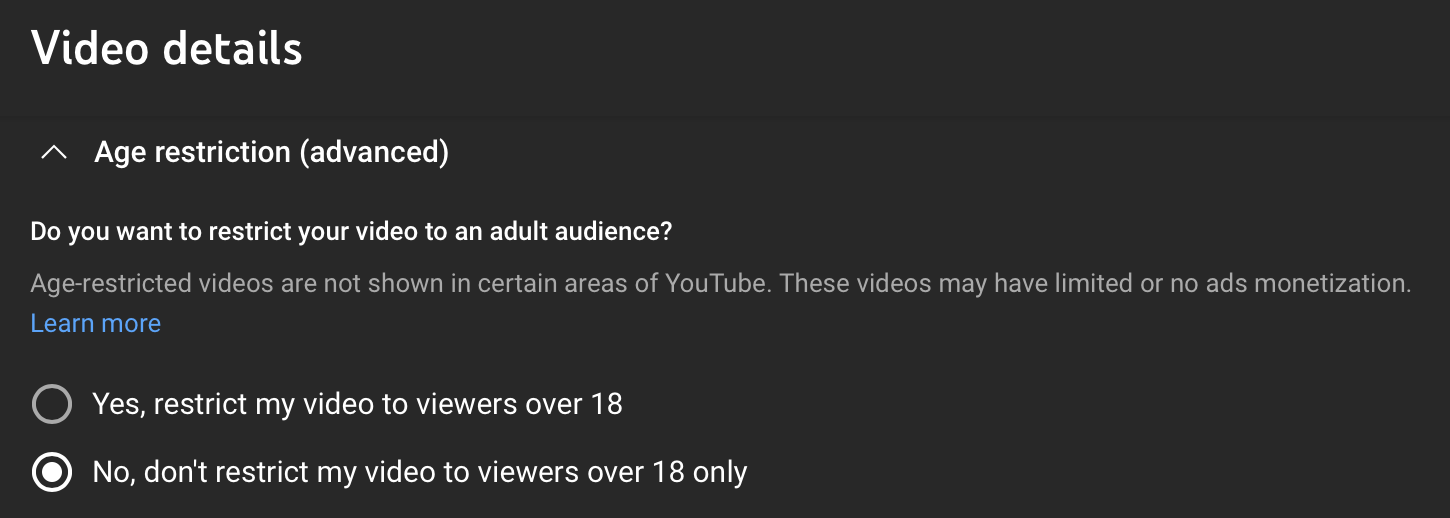
2. Check for age restrictions
Only videos that are not age-restricted can play inside embedded forms.
If your video is restricted to viewers over 18:
Visitors will be redirected to YouTube.
They may need to sign in to view it.
To embed successfully, your video must not be restricted.
Summary
Video Forms allow you to:
Embed a YouTube or Vimeo video directly inside your opt-in form
Let visitors watch and subscribe at the same time
Customize every design detail to match your brand
You can create Video Forms from the Forms dashboard under the Video template category.
They’re available as:
Popup forms (for websites)
Full page forms (with a shareable link)
FAQs
What is a Video Form?
A Video Form is an opt-in form that includes an embedded YouTube or Vimeo video. Visitors can watch the video and subscribe to your list in the same form.
Do Video Forms autoplay?
No. Visitors must click the play button to start the video.
Can I use any video platform?
Video Forms currently support:
YouTube
Vimeo
Other platforms are not supported.
Can I use a Video Form without a website?
Yes. Create a Full Page Video Form and share the generated URL anywhere.
Can subscribers fill out the form while the video is playing?
Yes. Visitors can watch the video and complete the form fields at the same time.
Why isn’t my YouTube video playing?
Common reasons:
Embedding is not enabled in YouTube settings.
The video is age-restricted.
The video is private or restricted.
Make sure embedding is allowed and the video is publicly accessible.
Can I redirect subscribers after they opt in?
Yes. In the Thank You tab, you can choose to:
Show a success message
Redirect to a custom URL
If you want to grow your list while showing off your personality, offer, or story — Video Forms make it easy to turn viewers into subscribers.