
How to use Form QR codes
Learn what Form QR codes are, where to find them, and how to use them to grow your email list—especially at in-person events.
If you attend markets, workshops, conferences, or pop-up events, Form QR codes make it easy for people to join your email list in seconds. No paper sign-up sheets. Just one quick scan.
The best part? You don’t need a third-party QR code generator. Flodesk creates one for you automatically.
What are Form QR codes?
A Form QR code is a scannable square image that links directly to your published:
Full page form
Link in bio form
When someone scans the QR code with their smartphone camera, it instantly opens your form in their browser so they can subscribe.
It’s a fast, contactless way to collect email subscribers anywhere.
When should I use a Form QR code?
Form QR codes are especially helpful when you want to grow your list offline, such as:
In-person events
Workshops or speaking engagements
Retail stores or pop-ups
Networking events
Printed flyers, postcards, or packaging
Tabletop displays or signage
If someone can see your QR code, they can join your list on the spot.
How to generate a Form QR code
You can generate a QR code for any published full page form or link in bio form.
Follow these steps:
Step 1: Open your form
Go to your Flodesk dashboard and open the full page form or link in bio form you want to share.
Step 2: Click Share
In the top right corner of the form builder, click the Share button.
Step 3: Select QR code
Choose the QR code option from the menu.
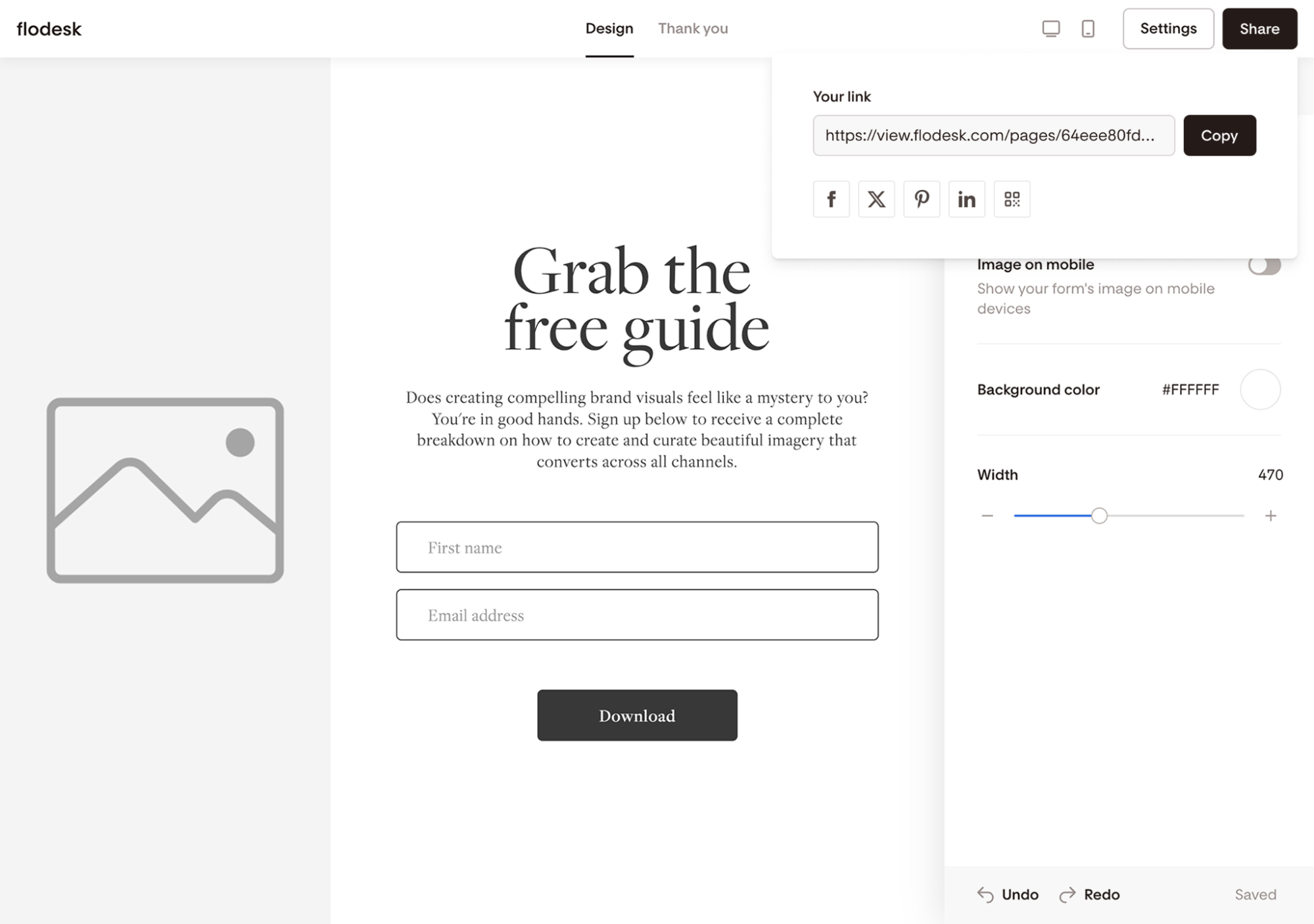
Step 4: Download the file
A preview of your QR code will appear.
Click Download to save it as a .png file with a transparent background.
You’re ready to print or share it anywhere you’d like.
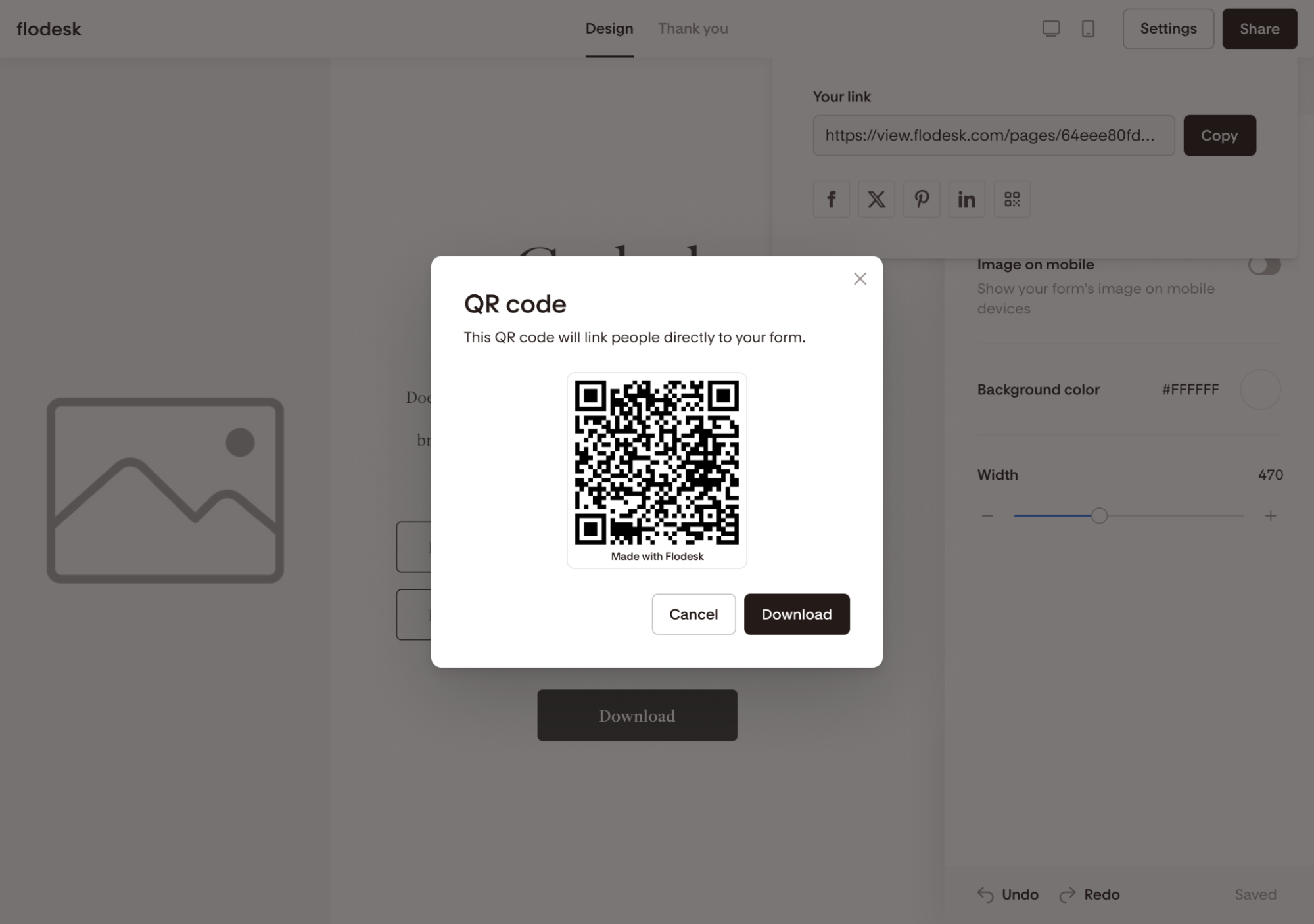
Important things to know
QR codes are available for full page forms and link in bio forms only
QR codes are not available for Checkout sales pages
You can currently generate QR codes from desktop only
Your form must be published before you can access its QR code
If you update your form design later, the QR code will still work—it links to the live version of your form.
Tips for getting more scans
Want more subscribers from your QR code? Try this:
Add a short headline near the code (Example: “Scan to get 10% off”)
Tell people exactly what they’ll receive
Make the QR code large enough to scan easily
Place it at eye level when possible
Test it yourself before printing
Clear messaging + easy scanning = better results.
FAQs
What forms support QR codes?
QR codes are available for:
Full page forms
Link in bio forms
They are not available for popup forms, inline forms, or Checkout sales pages.
Do I need a third-party QR code generator?
No. Flodesk automatically generates a QR code for you inside the form builder.
Can I customize the QR code design?
At this time, the QR code design is automatically generated and cannot be customized.
What happens if I edit my form after downloading the QR code?
Your QR code will still work. It links to your live form URL, so any updates you publish will automatically appear.
Can I use the same QR code in multiple places?
Yes. You can use the same QR code on printed materials, signs, packaging, slides, or anywhere you want to promote your form.
Why don’t I see the QR code option?
Make sure:
Your form is a full page form or link in bio form
Your form is published
You’re accessing Flodesk from a desktop device
Quick summary
To generate a Form QR code:
Open your full page or link in bio form
Click Share
Select QR code
Download the
.pngfile
Print it, display it, and start collecting subscribers with a single scan.