
How to add your Terms & Conditions and Privacy Policy to Flodesk
Flodesk makes it easy to display your Terms & Conditions (ToS) and Privacy Policy on your forms and checkouts. Adding these helps protect your business, set clear expectations with buyers, and comply with privacy requirements.
Important: Please note that Flodesk cannot provide legal advice. Please consult with your attorney to ensure your business Terms & Conditions and Privacy Policy are compliant with your local laws and regulations.
Where to manage your Terms & Conditions and Privacy Policy
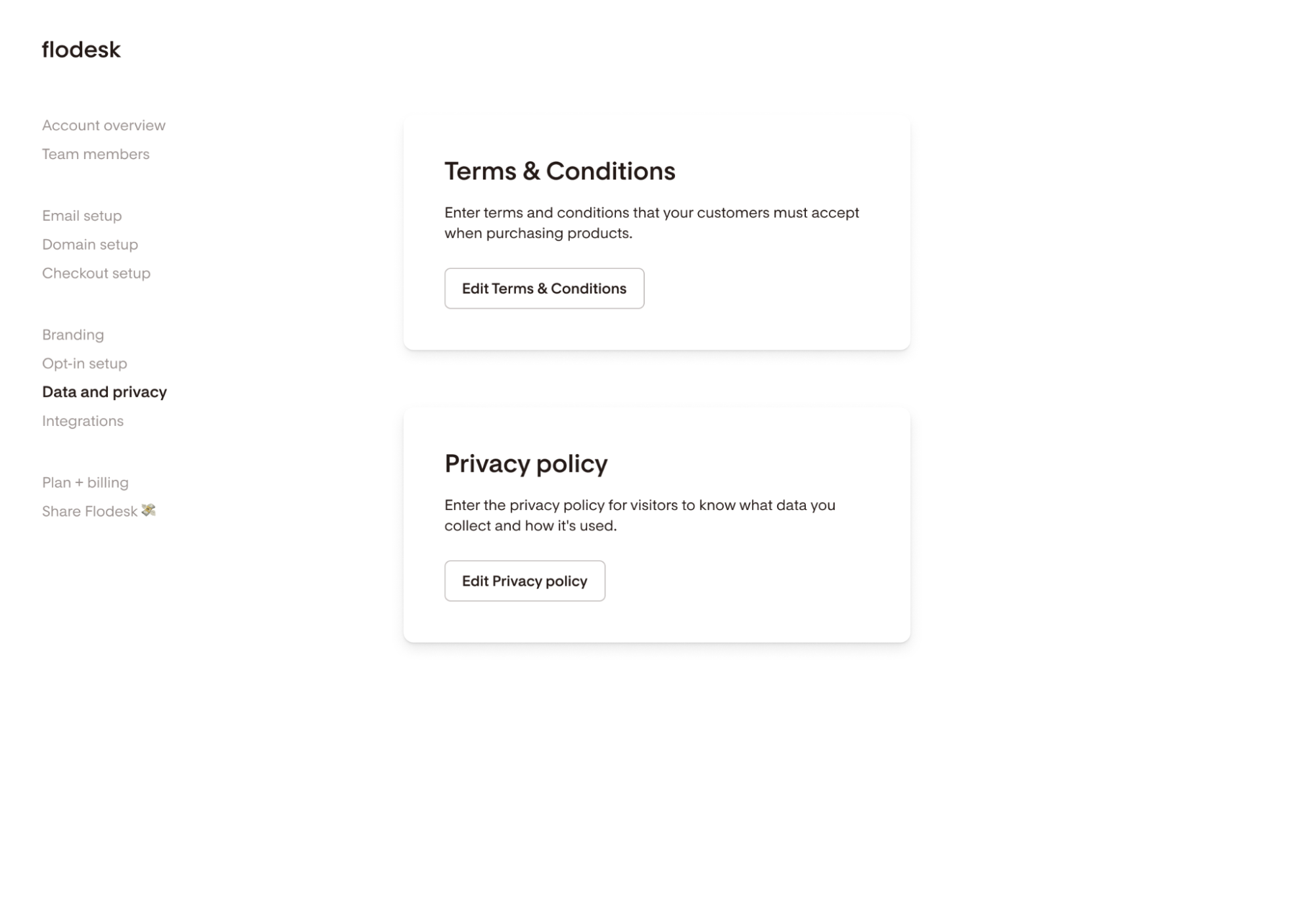
Go to My account > Data and privacy
From here, you can edit both your Terms & Conditions and your Privacy Policy documents.
Adding your Terms & Conditions
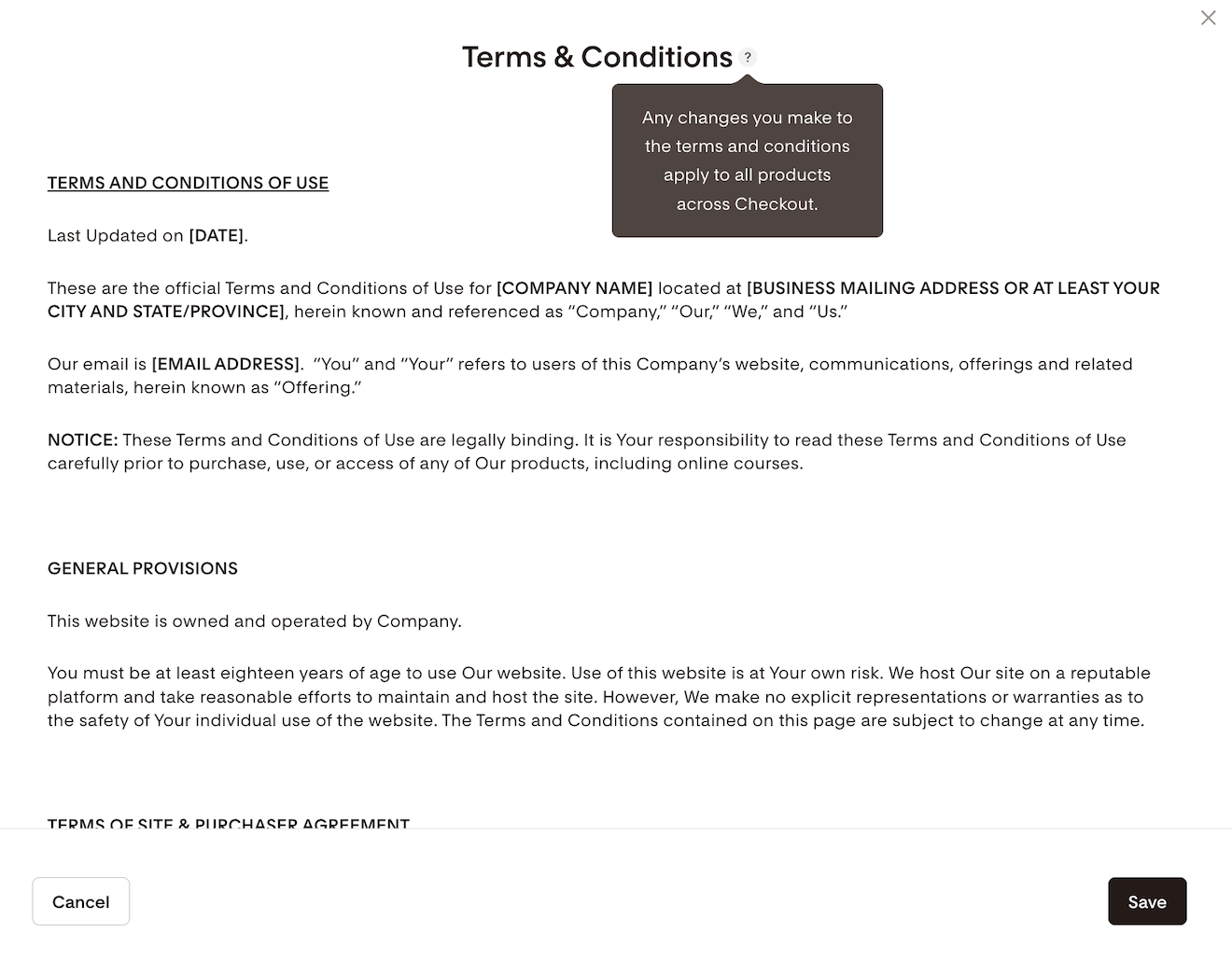
Click Edit Terms & Conditions.
If you don’t have a Terms & Conditions document, you can use the generic ToS you see pre-uploaded. Flodesk provides these Terms & Conditions for your convenience, and it makes no warranties or representations about its content; you accept them “as is”.
Replace the highlighted default placeholder values with your business information and modify the Terms & Conditions to fit your business.
If you already have a Terms & Conditions that you want to use, delete this preloaded version and replace it entirely with your own.
Save your changes
Adding your Privacy Policy
Click Edit Privacy policy.
If you don’t have a Privacy policy document, you can use the generic template you see pre-uploaded. Flodesk provides this Privacy policy for your convenience, and it makes no warranties or representations about its content; you accept it “as is”.
Replace the highlighted default values with your business information and modify the Privacy policy to fit your business.
If you already have a Privacy policy document that you want to use, delete this preloaded version and replace it entirely with your own.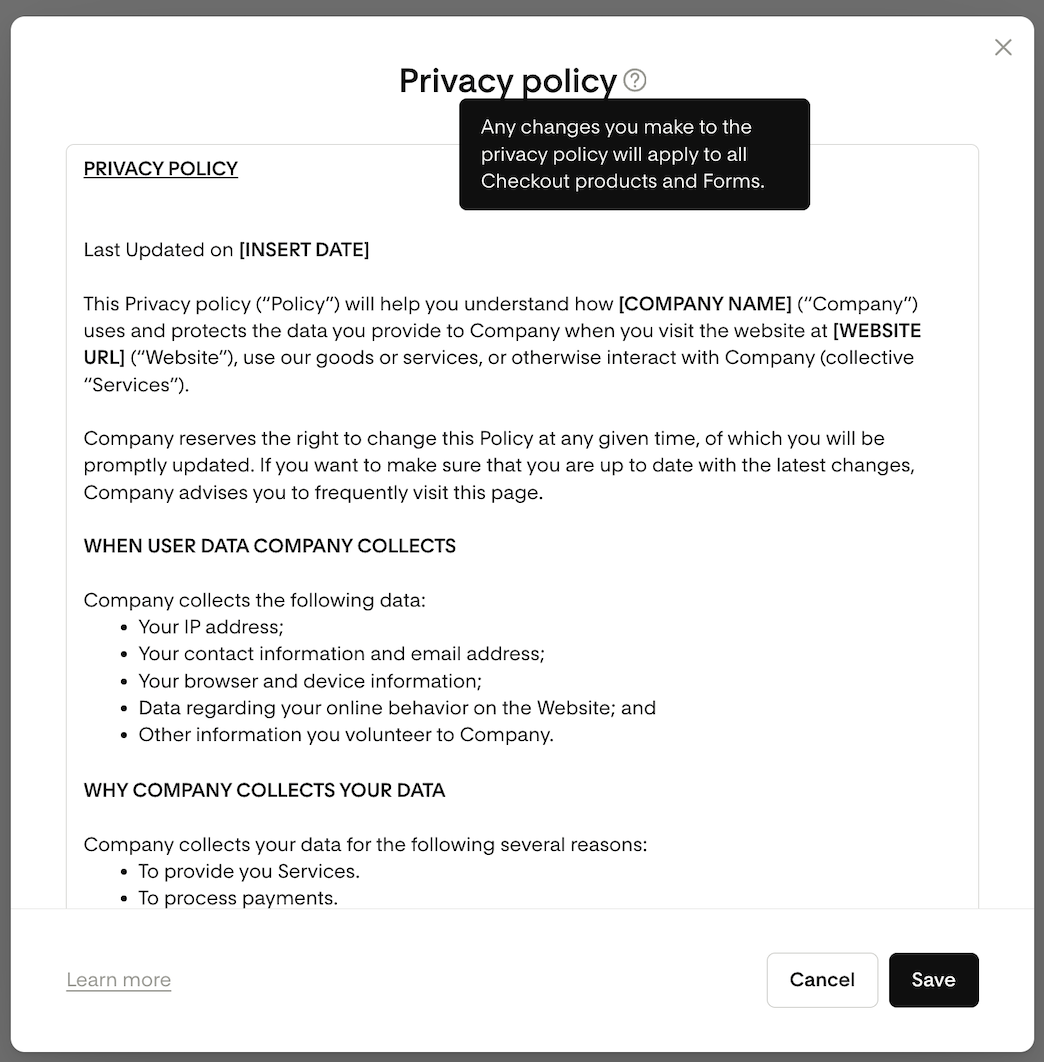
Save your changes.
How to enable your Terms & Conditions and Privacy Policy in Flodesk Checkout
Go to the Checkout dashboard and select a Checkout to edit it
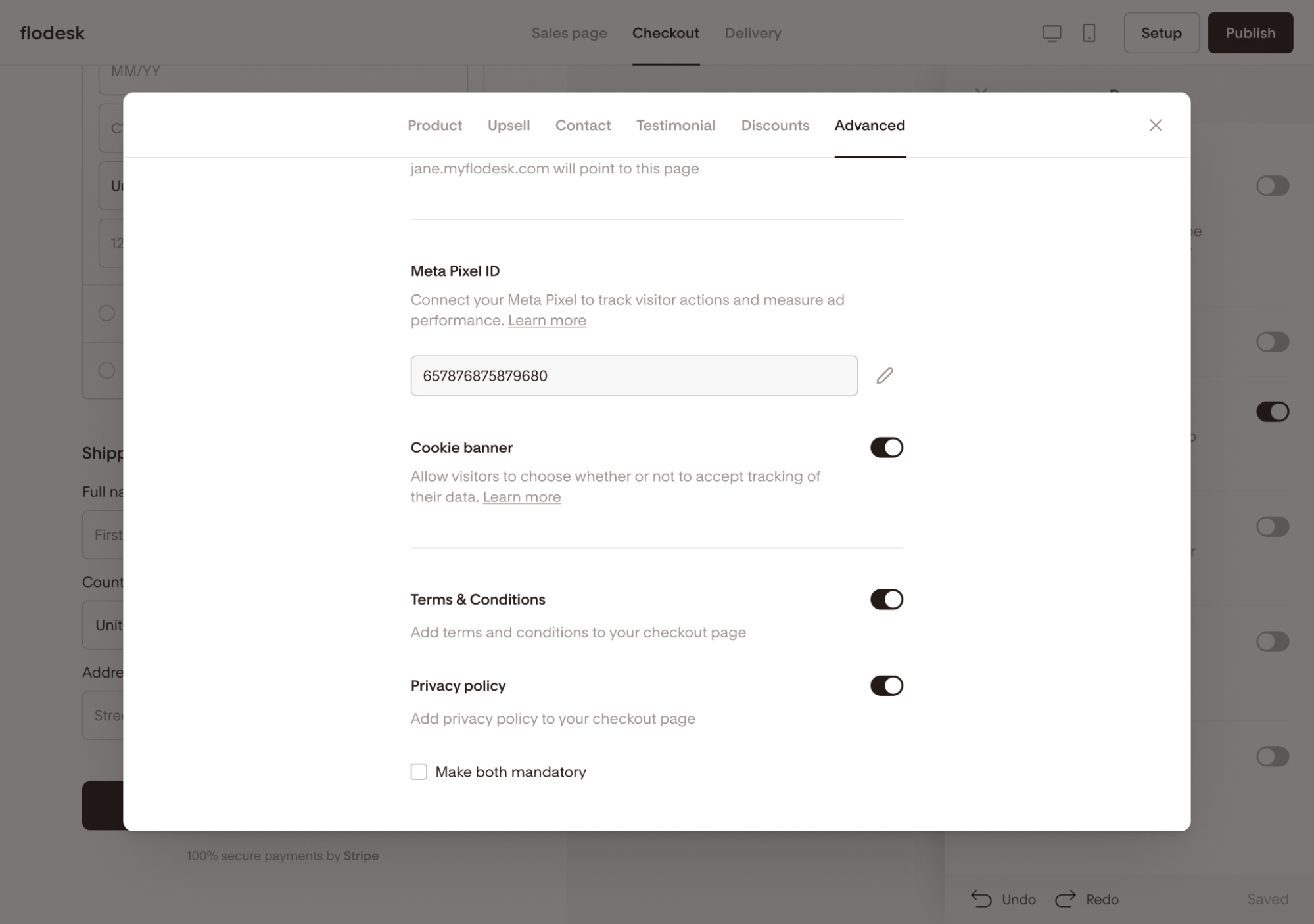
Click Setup > Advanced
Toggle ON the Terms & Conditions and the Privacy policy
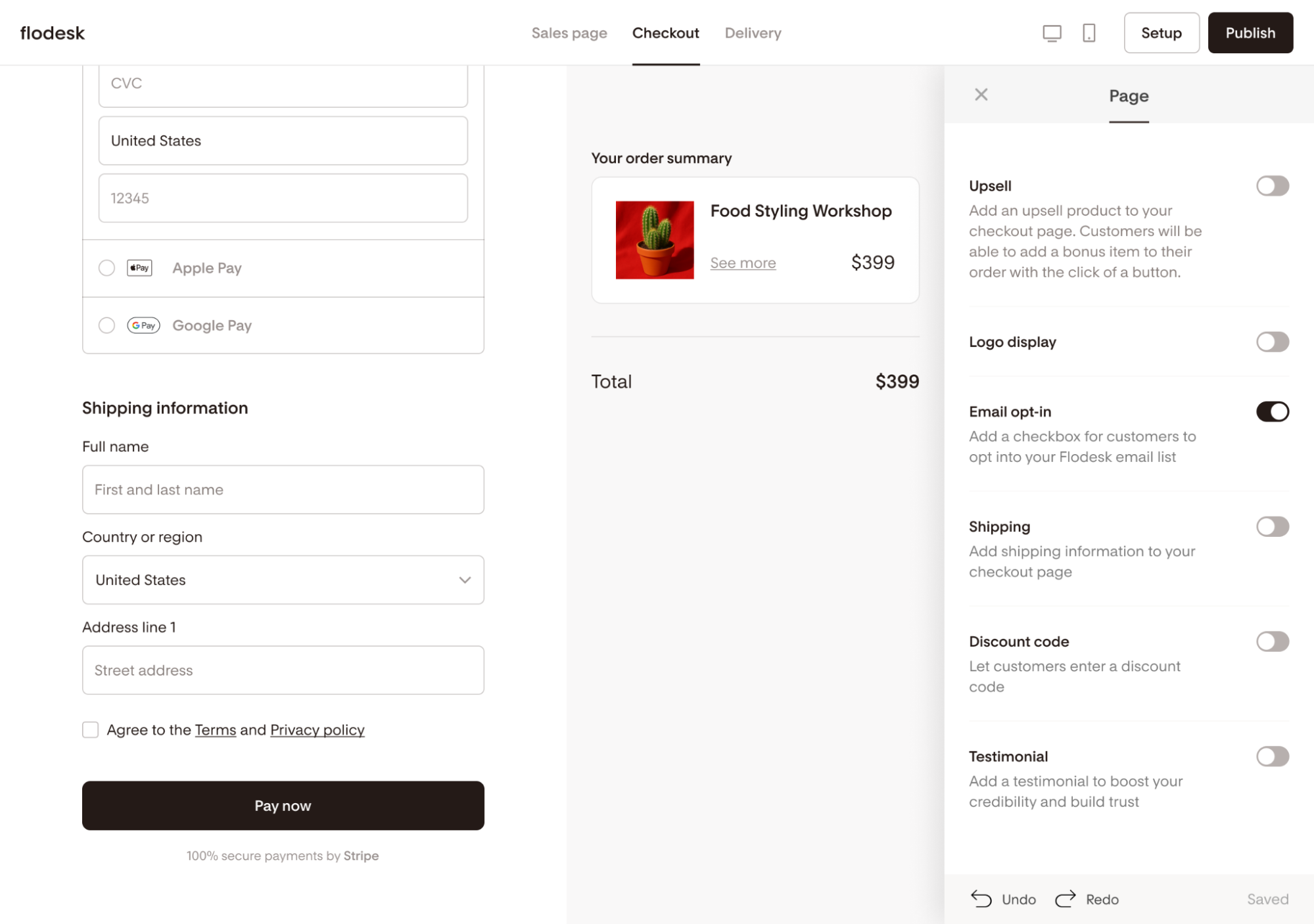
You can also make acceptance required, which adds a mandatory checkbox before buyers can complete their purchase
Where do checkout customers see it?
Your Terms & Conditions and Privacy Policy appear on the checkout page under the payment details section.
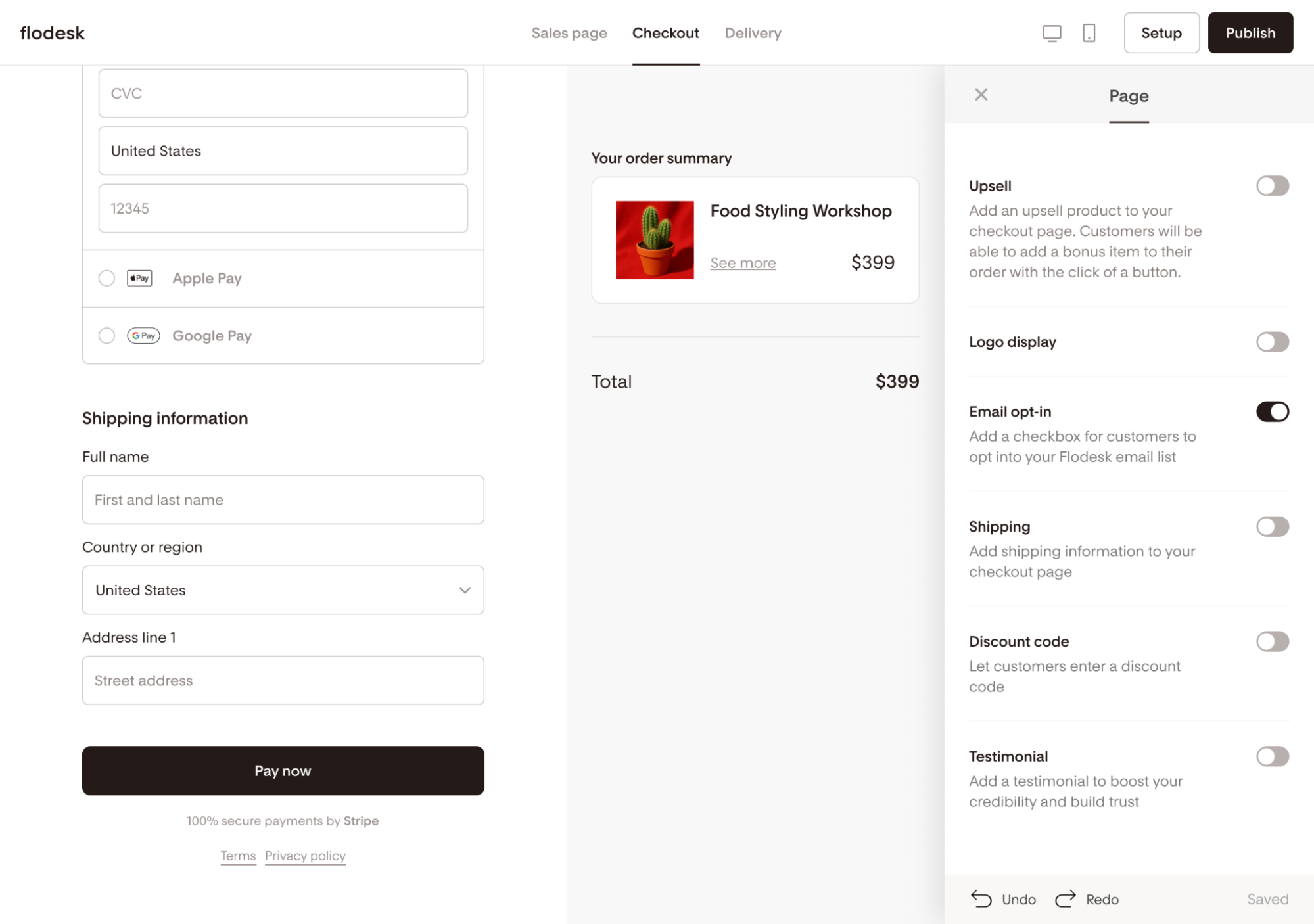
If you make them mandatory, buyers must select the checkbox before they can complete their purchase.
How to enable your Privacy Policy for your Flodesk Forms
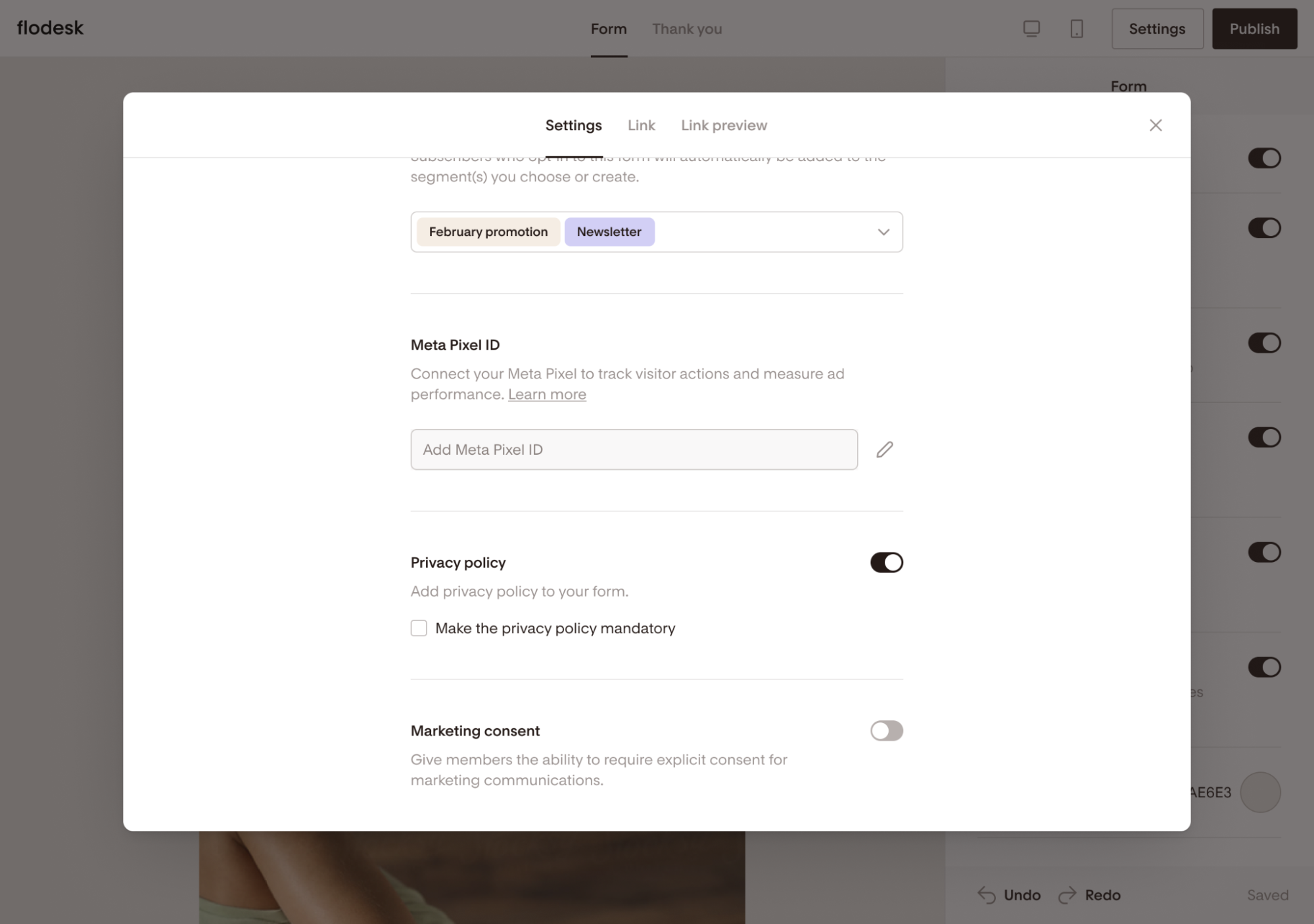
Open the form for editing and click the Settings button
On the Settings tab, toggle ON the Privacy policy
You can also make acceptance required, which adds a checkbox visitors must agree to before submitting the form
Where do visitors see it?
On forms, your Privacy Policy link will appear under the submission section.
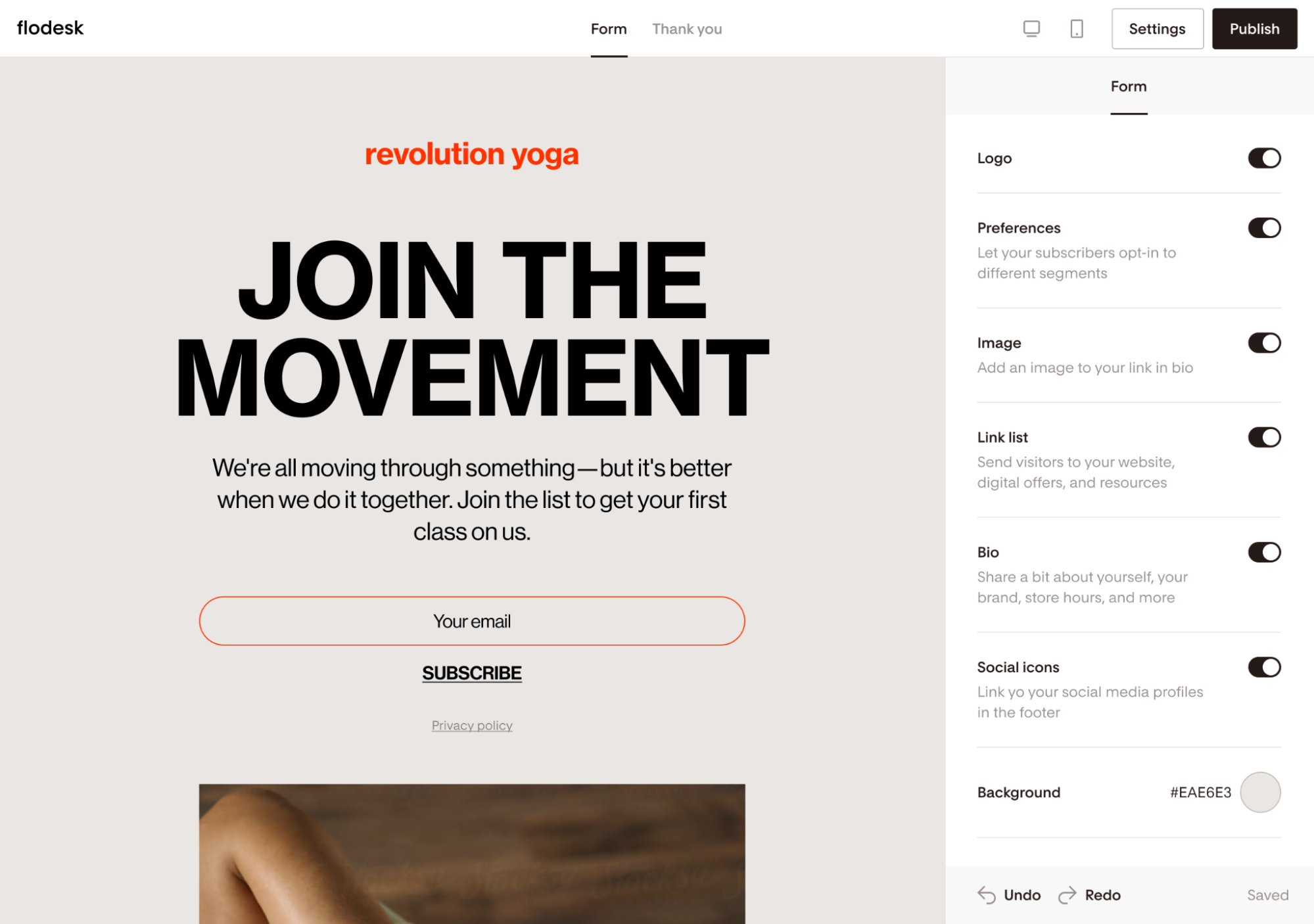
If you make it mandatory, it adds a checkbox visitors must agree to before submitting the form.
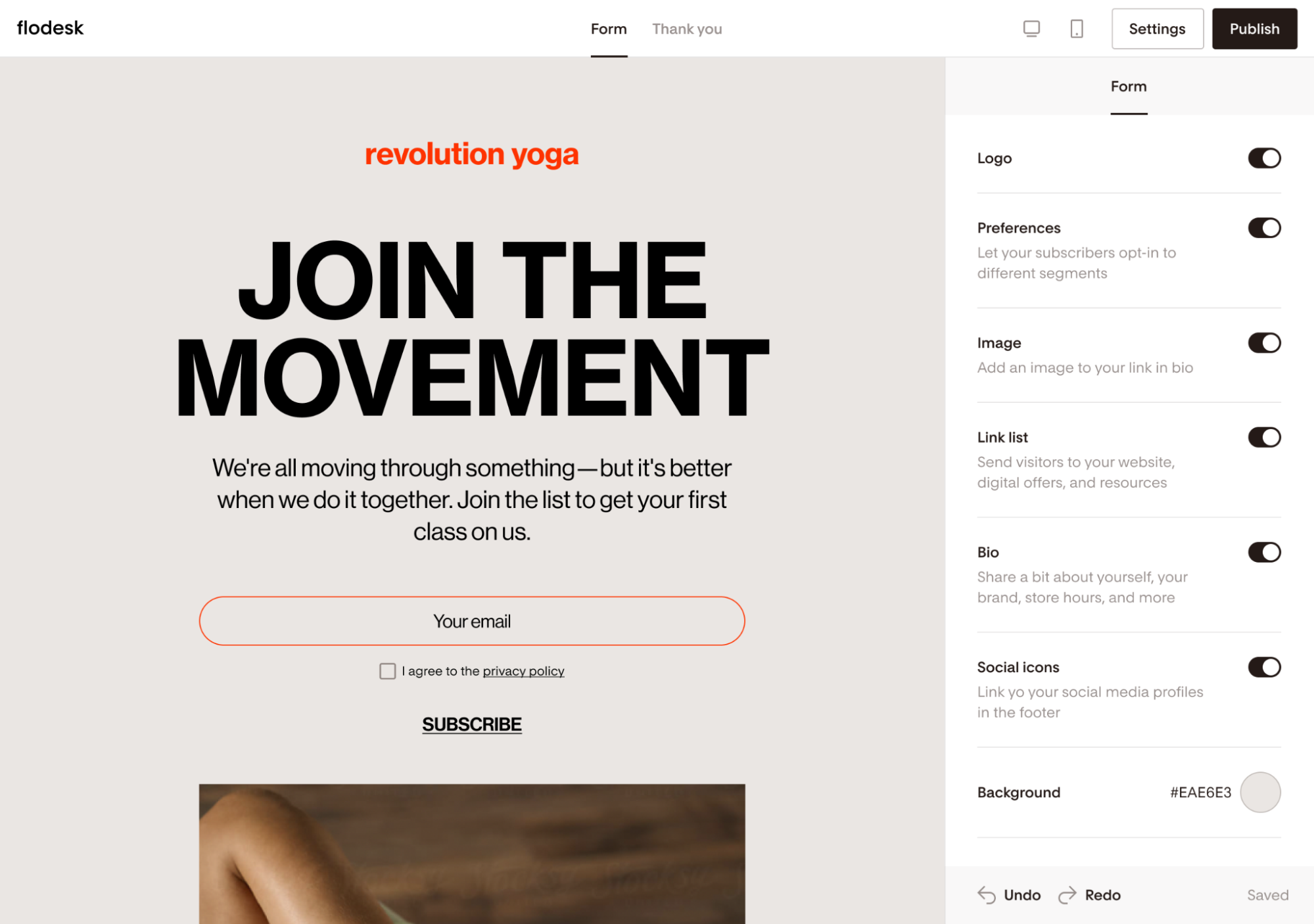
Important notes
Privacy Policy and Terms & Conditions links open in a modal window (or new tab for pop-up/inline forms).
When you duplicate or import forms/templates, your Privacy Policy settings carry over (toggled on/off, mandatory or not).
You can edit these policies either from My Account > Data and privacy or directly in the form/checkout builder.
Editing the Privacy Policy and Terms & Conditions in the form builder
In the form builder, click on the privacy policy block.
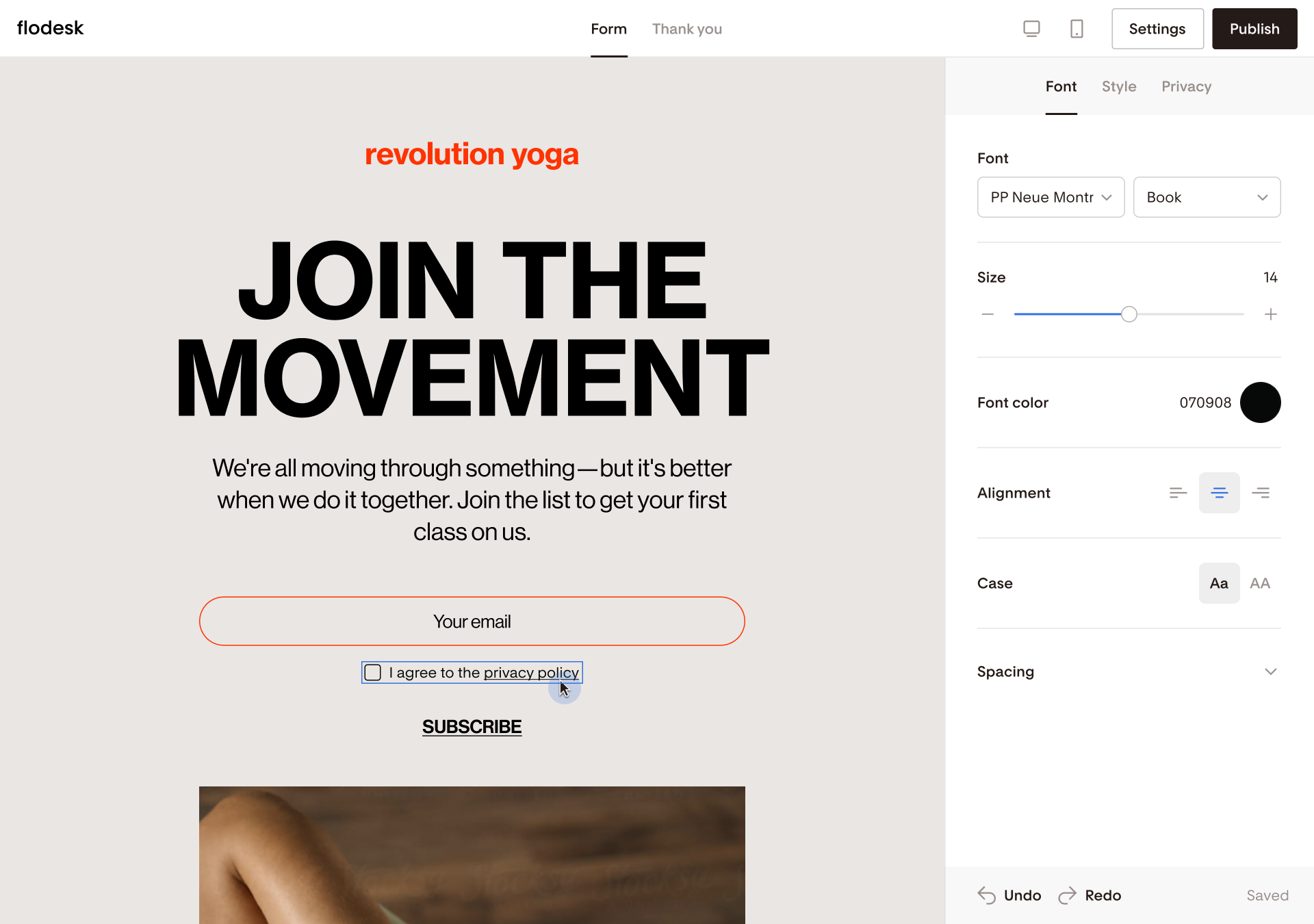
Use the options under the Font and Style tabs to customize the look and feel of the block on your form.
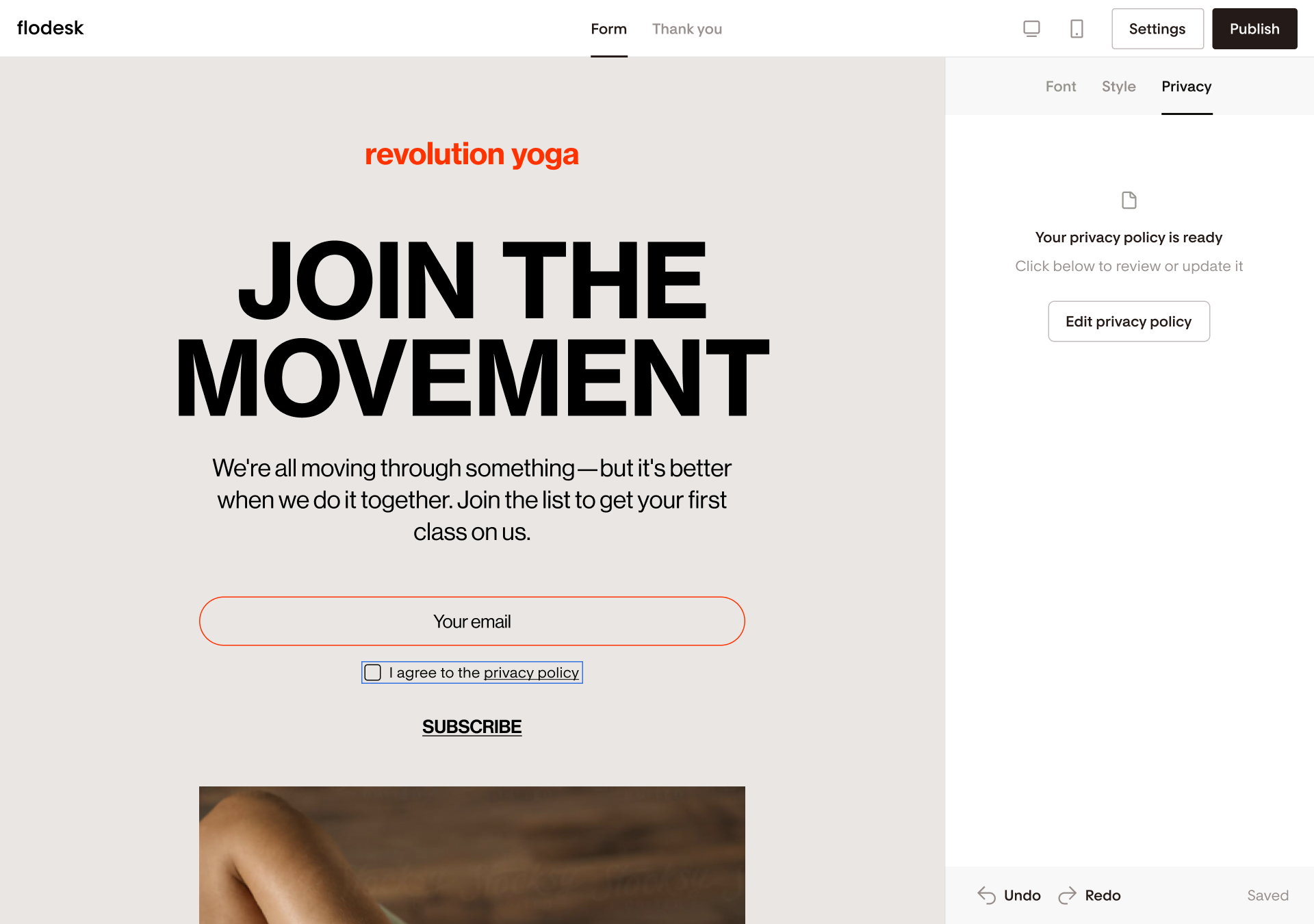
Under the Privacy tab, you can directly review and edit your privacy policy.
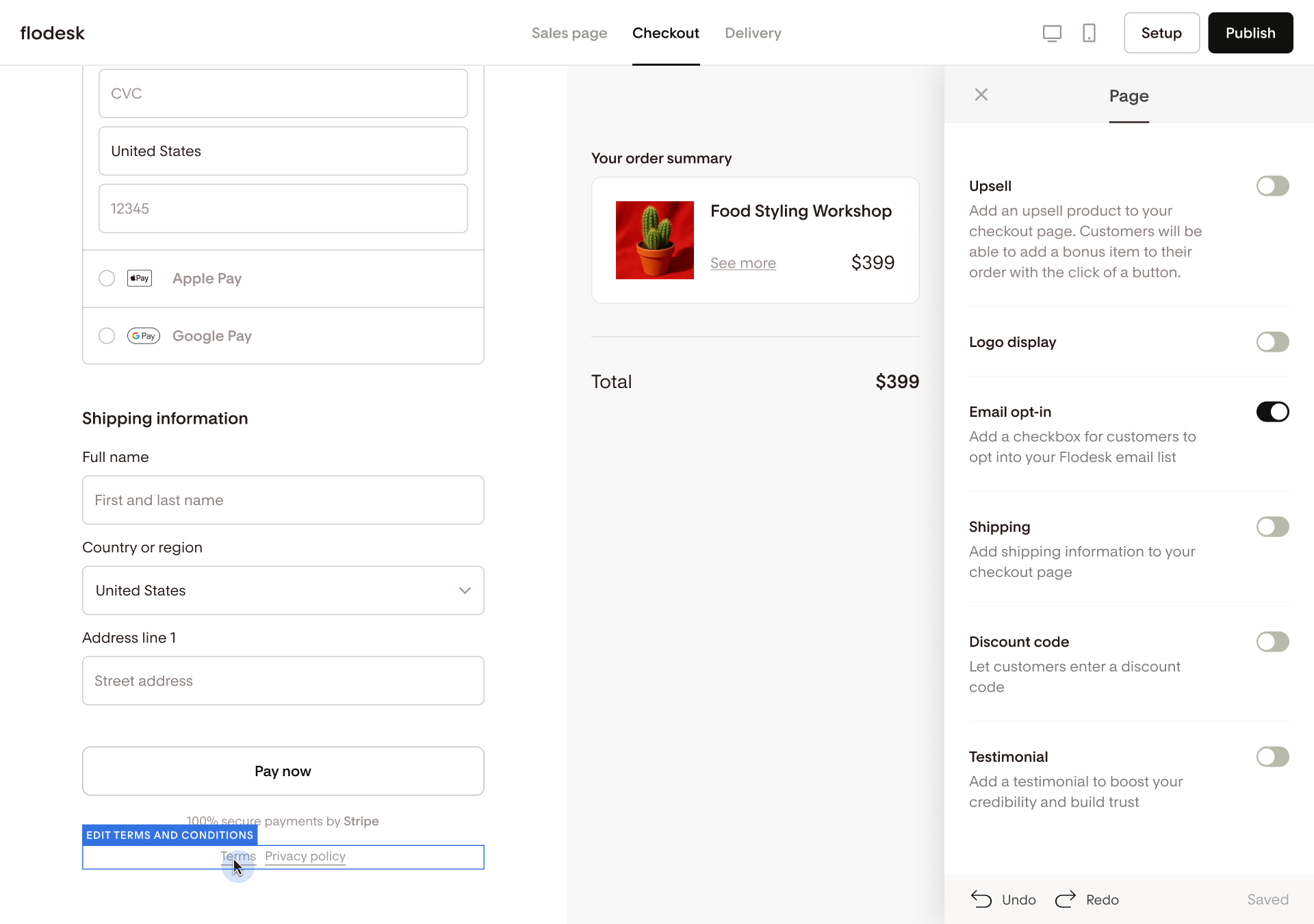
Editing the Privacy Policy and Terms & Conditions in the checkout builder
In the checkout builder, click on the terms and conditions or privacy policy link. The document will open in a popup modal to review and edit it as needed.
FAQs: Adding Terms & Conditions and Privacy Policy in Flodesk
Where can I edit my Terms & Conditions and Privacy Policy?
Go to My account > Data and privacy. Or edit them directly in the form/checkout builder.
Do I need to write my own documents?
Yes. Flodesk provides these (Terms & Conditions and Privacy policy) for your convenience, and it makes no warranties or representations about its content; you accept them “as is”. You should edit and replace them with your own business policies. Please consult with your attorney to ensure your business Terms & Conditions and Privacy Policy are compliant with your local laws and regulations.
Where will customers see my Terms & Conditions and Privacy Policy?
On the checkout page under payment details.
Where will form visitors see my Privacy Policy?
Under the form submission area.
Can I make them required?
Yes. Both Terms & Conditions and Privacy Policy can be set to “required,” adding a checkbox visitors must agree to before they proceed.
What happens if I don’t enable them?
If toggles are off, your forms and checkouts won’t display these links.
Does the checkbox stay checked on return visits?
No. The Privacy Policy agreement checkbox always resets and must be checked again on each visit.
Do settings copy when I duplicate forms or templates?
Yes. Your Privacy Policy and Terms & Conditions settings carry over (toggled on/off, mandatory or not).
If I’m using Team seats to add team members to my account, what can they access?
Under My Account:
Admin | Manager | Editor | |
Access to “Data and privacy” tab | ✅ | ❌ | ❌ |
Under Checkouts:
Admin | Manager | Editor | |
Edit Privacy policy | ✅ | ❌ | ❌ |
Edit Terms & Conditions | ✅ | ❌ | ❌ |
Toggle on/off Privacy policy | ✅ | ✅ | ❌ |
Toggle on/off Terms & Conditions | ✅ | ✅ | ❌ |
Make Privacy policy required | ✅ | ✅ | ❌ |
Make Terms & Conditions required | ✅ | ✅ | ❌ |
Under Forms:
Admin | Manager | Editor | |
Edit Privacy policy | ✅ | ❌ | ❌ |
Toggle on/off Privacy policy | ✅ | ✅ | ❌ |
Make Privacy policy required | ✅ | ✅ | ❌ |