
A/B testing subject lines
Overview
Not sure which subject line will get more opens? With A/B testing, you can send two subject line variations to a portion of your audience and let the results decide. Flodesk handles the splitting, timing, and winner selection automatically, so you can focus on writing great emails.
This article covers how to set up a subject line A/B test, what to expect while it runs, and how to read your results.
When to use subject line A/B testing
A/B testing is a good fit any time you want to learn what resonates with your audience. A few examples:
You have two strong subject lines and can't choose between them
You want to test whether adding an emoji affects your open rate
You're sending a high-stakes campaign (like a launch or Black Friday sale) and want to optimize before reaching your full list
Before you begin
A/B testing is available for email campaigns. You'll need at least two subject line ideas ready before you start the send flow.
For the most reliable results, make sure your sending domain is authenticated before running a test. An unauthenticated domain can affect deliverability, which may lead to lower open rates that don't reflect your subject lines' actual performance. If you haven't set this up yet, see How to authenticate your domain automatically before sending.
Note: If your web browser uses ad blockers, they can block this feature from loading in your Flodesk account. Turn off your ad blocker for the Flodesk app.
How to set up a subject line A/B test
A/B testing is built into the existing email campaign send flow, so there's nothing new to find or configure separately.
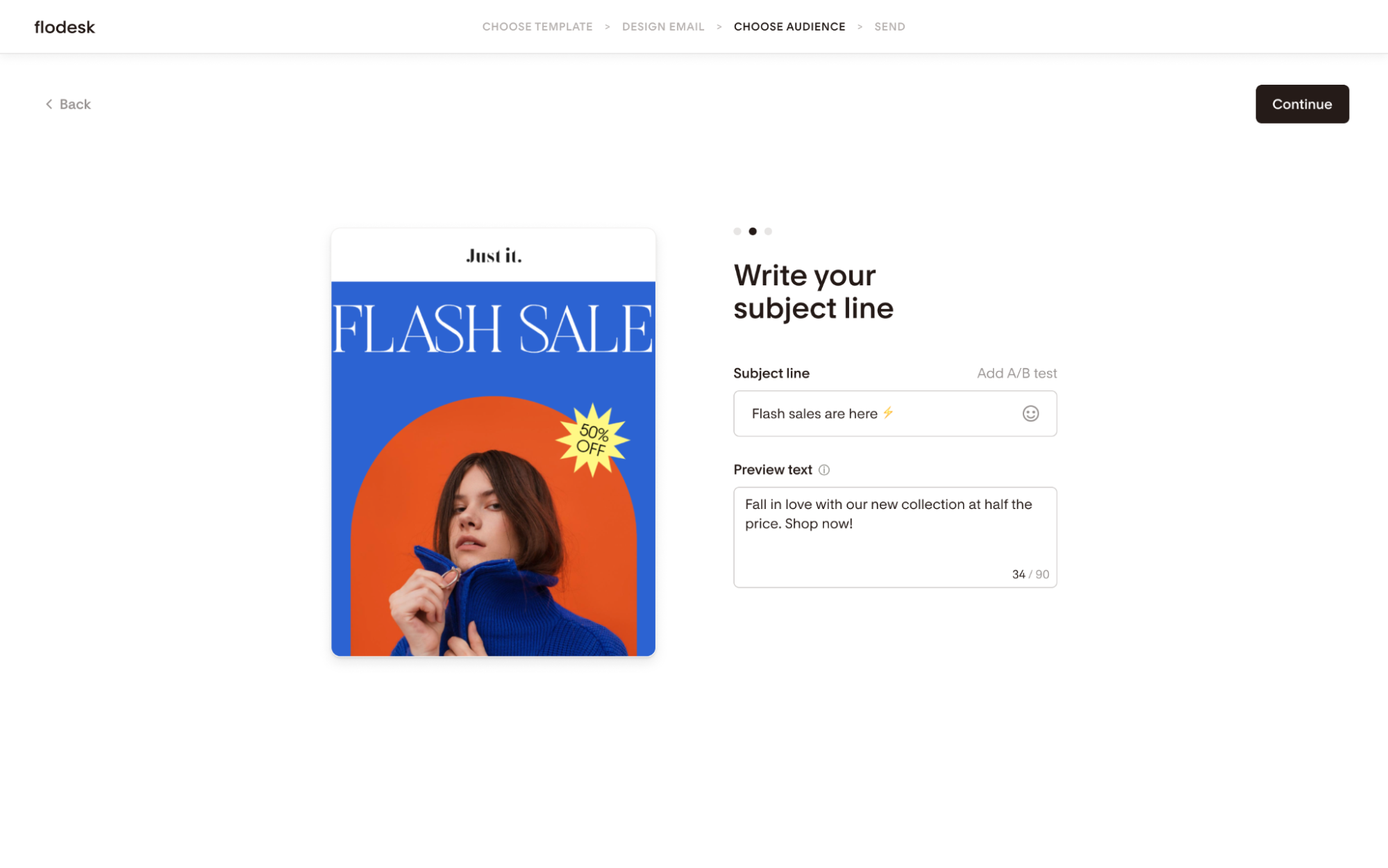
Step 1: Add your subject lines
In your email campaign send flow, go to the subject line step.
Click Add A/B test. A second subject line field will appear below the first.
Write your two subject lines: one in each field.
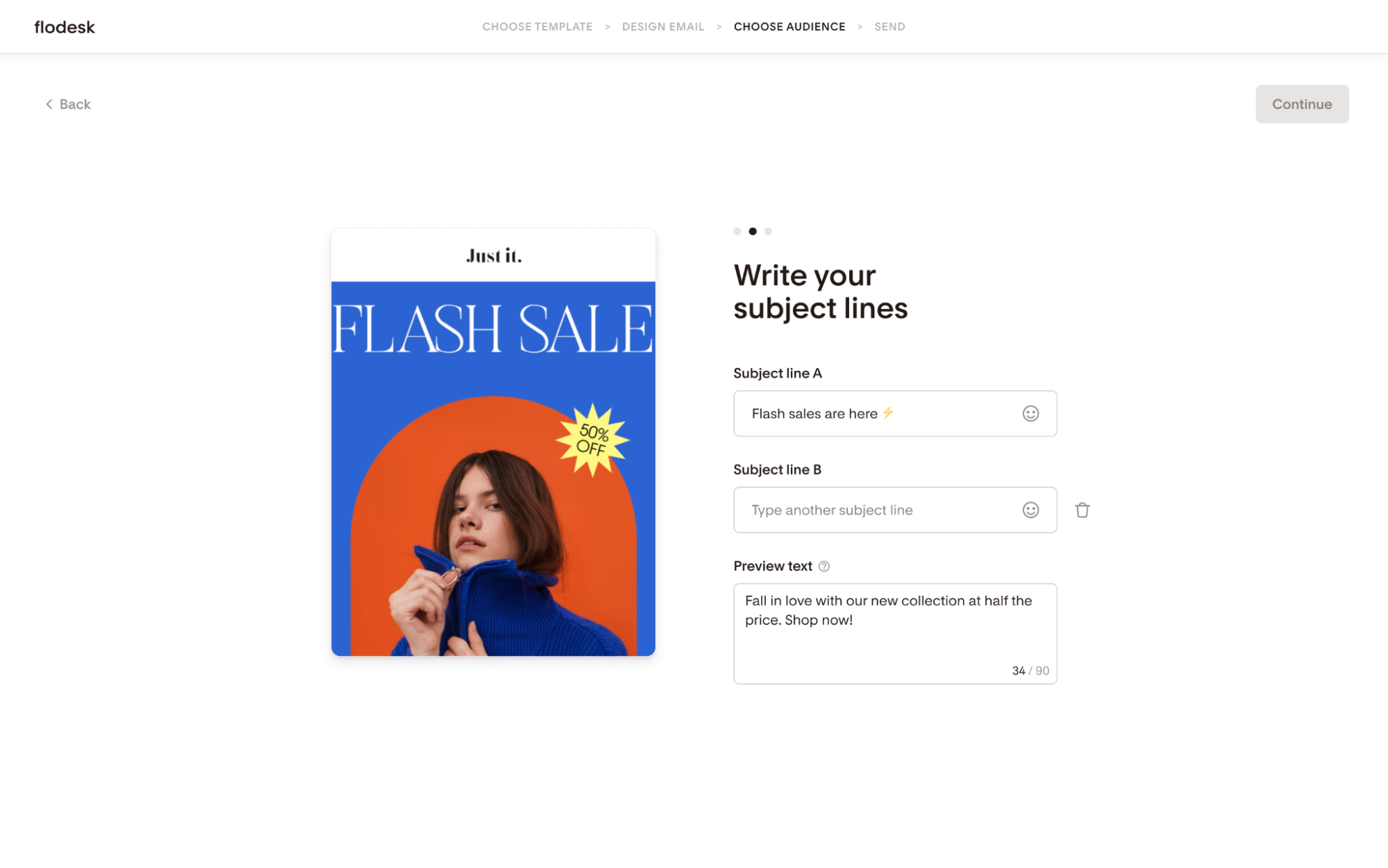
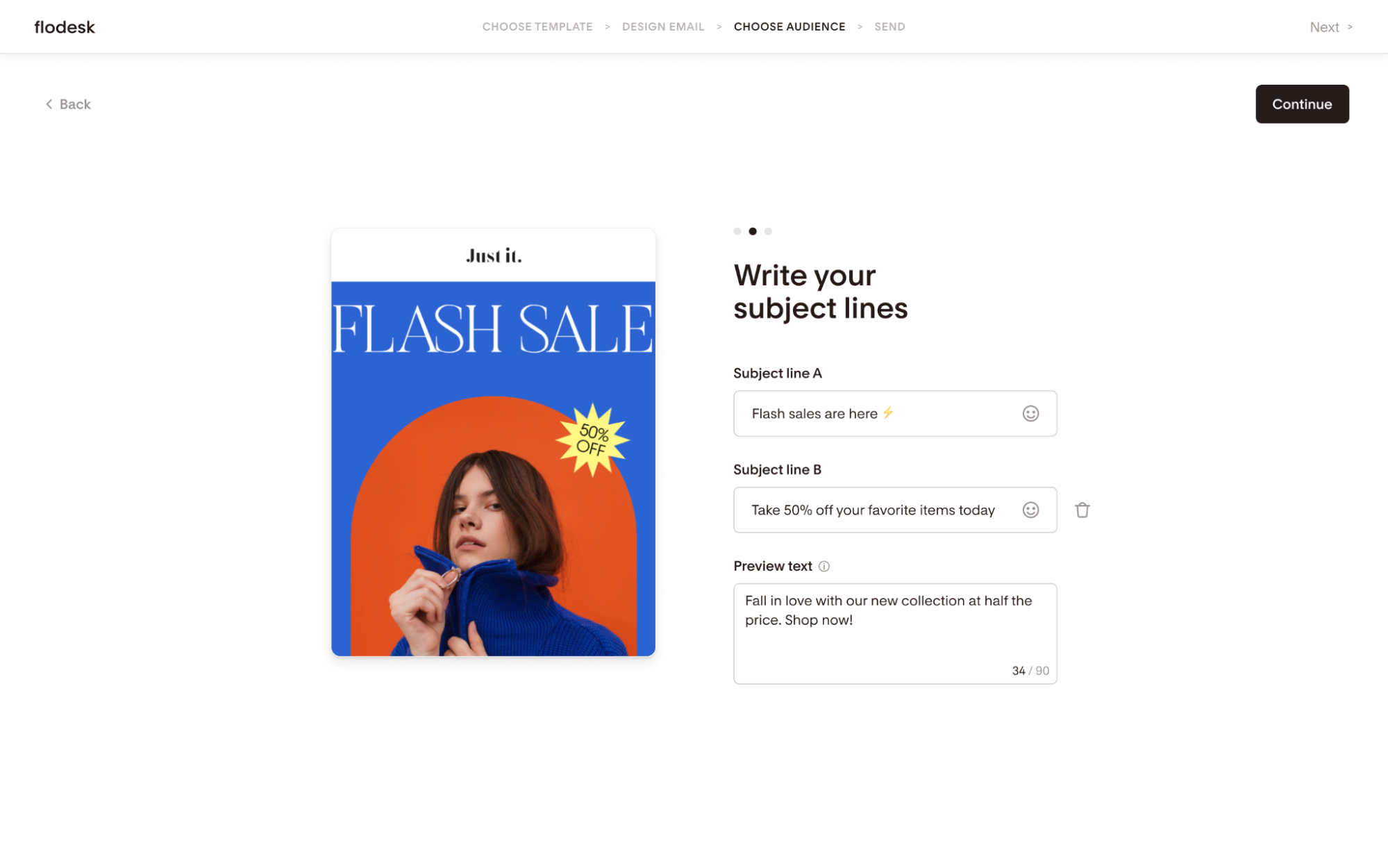
To remove the A/B test and go back to a standard send, click the trash icon next to the second subject line field.
Step 2: Add your recipients
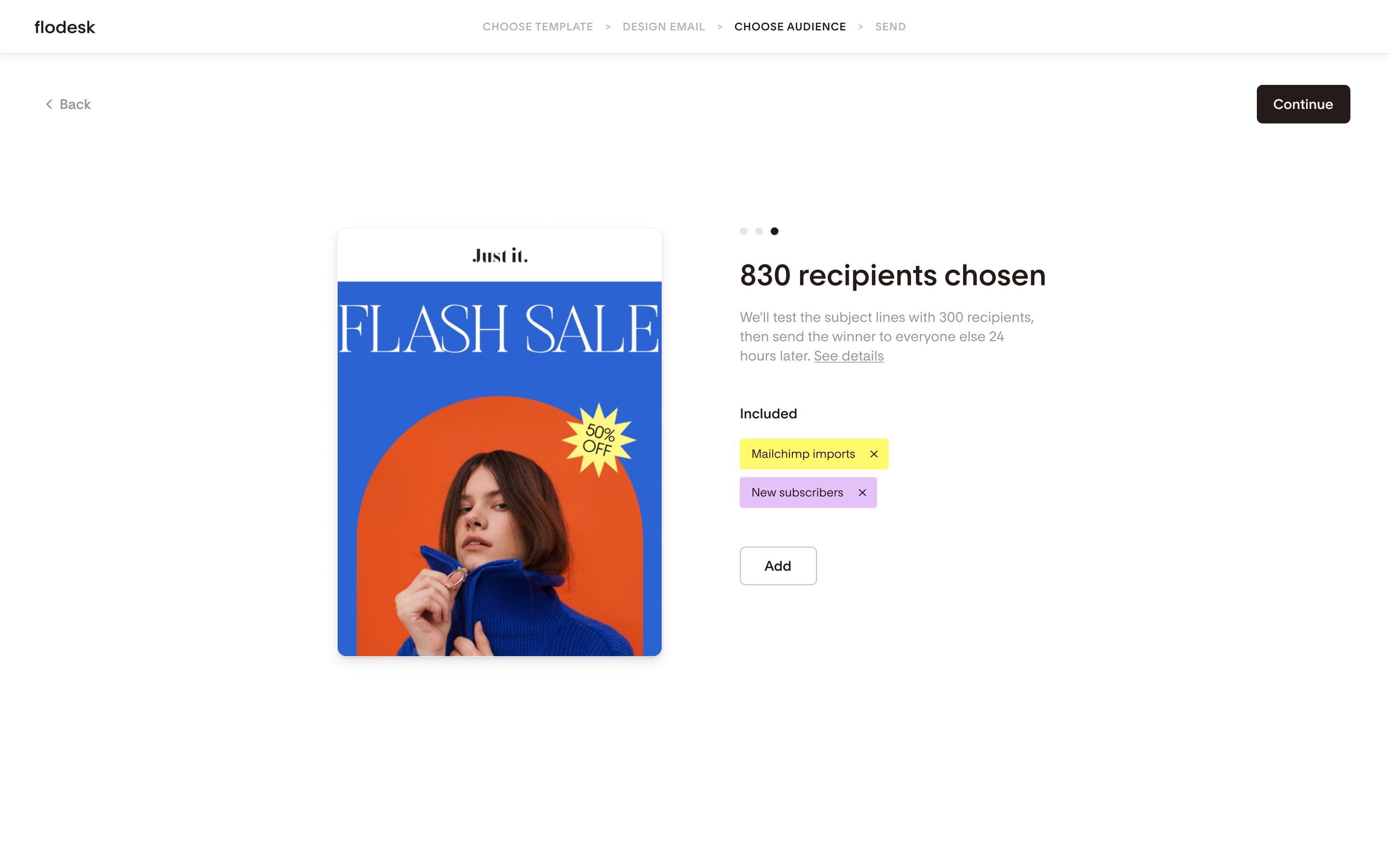
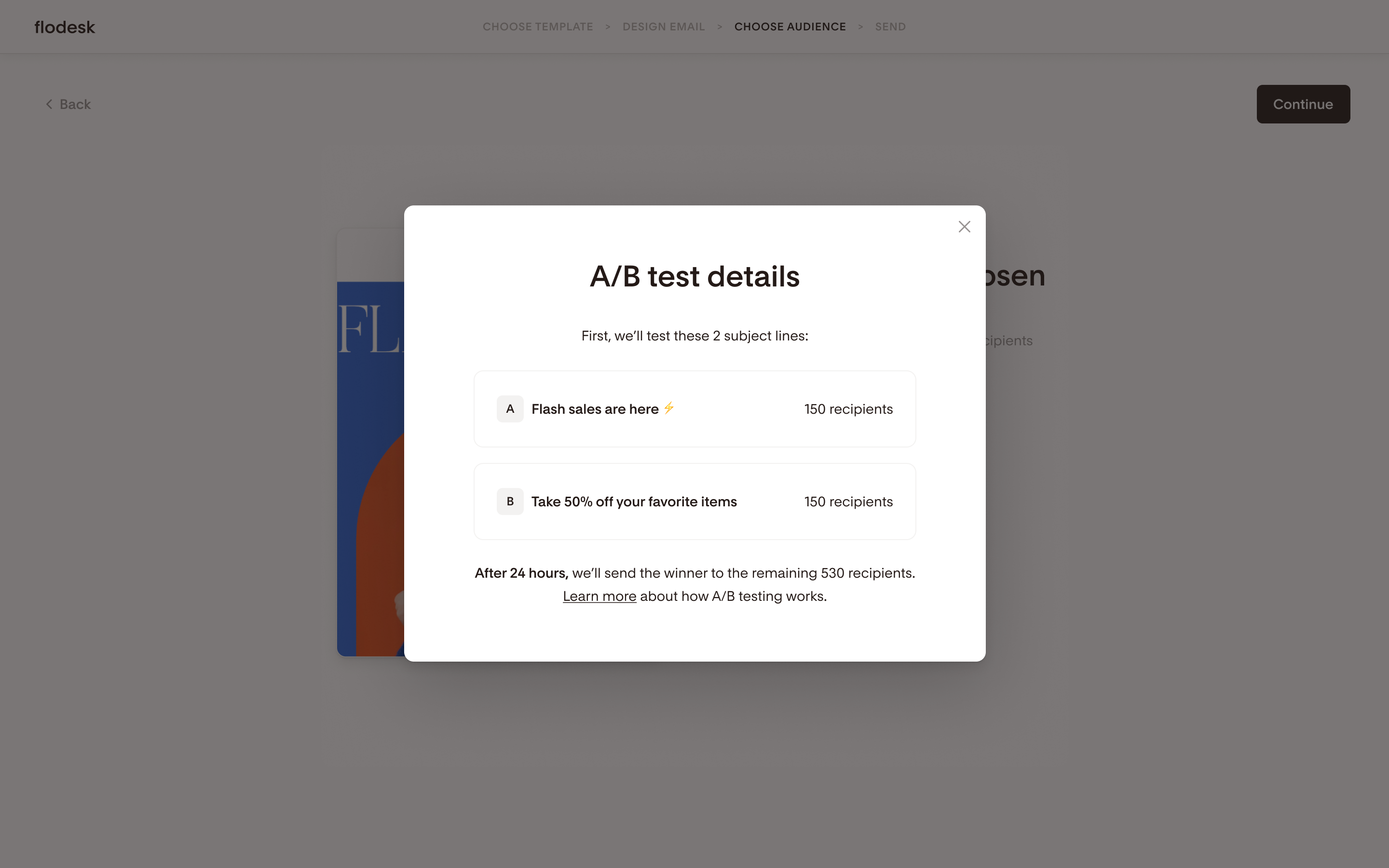
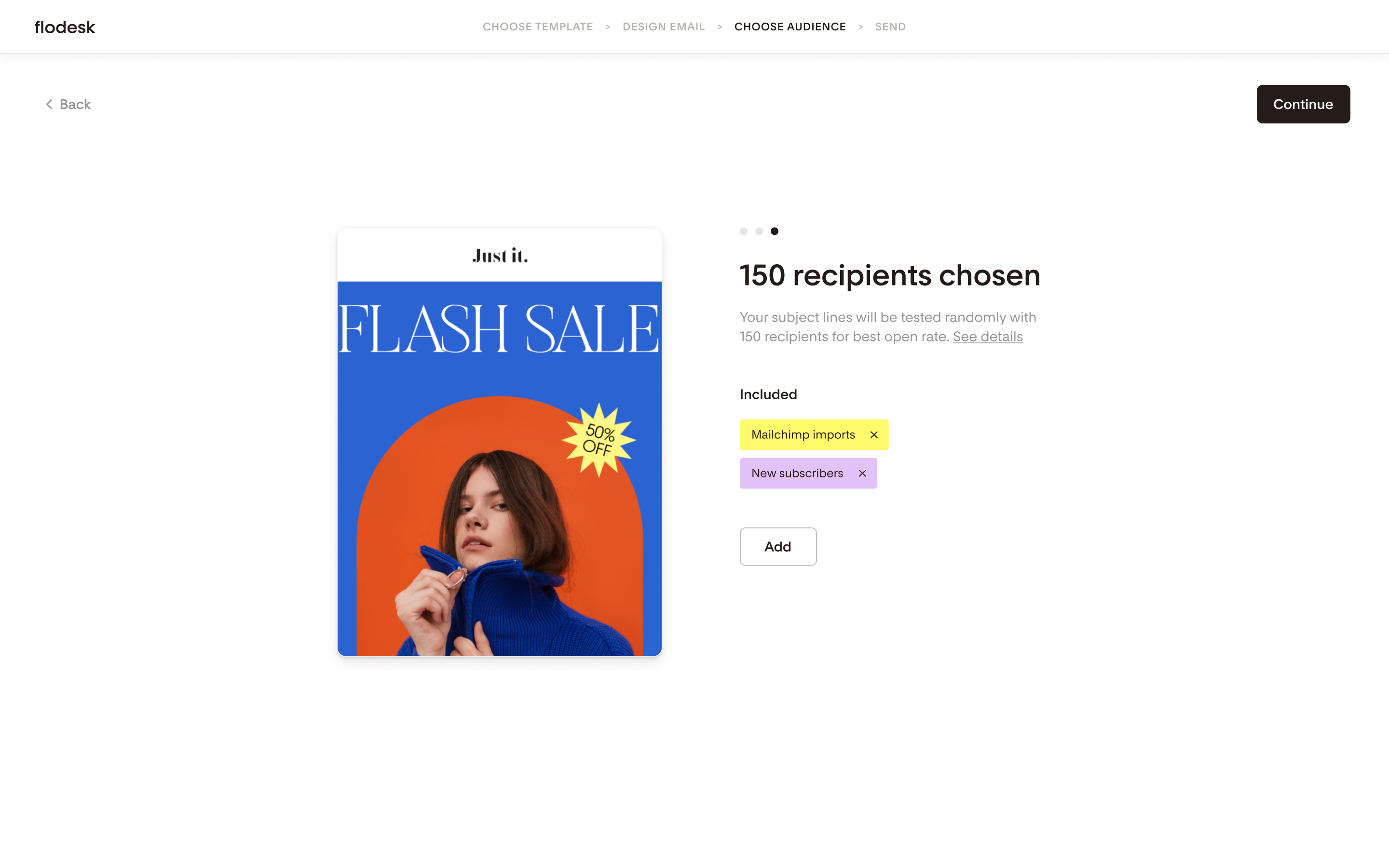
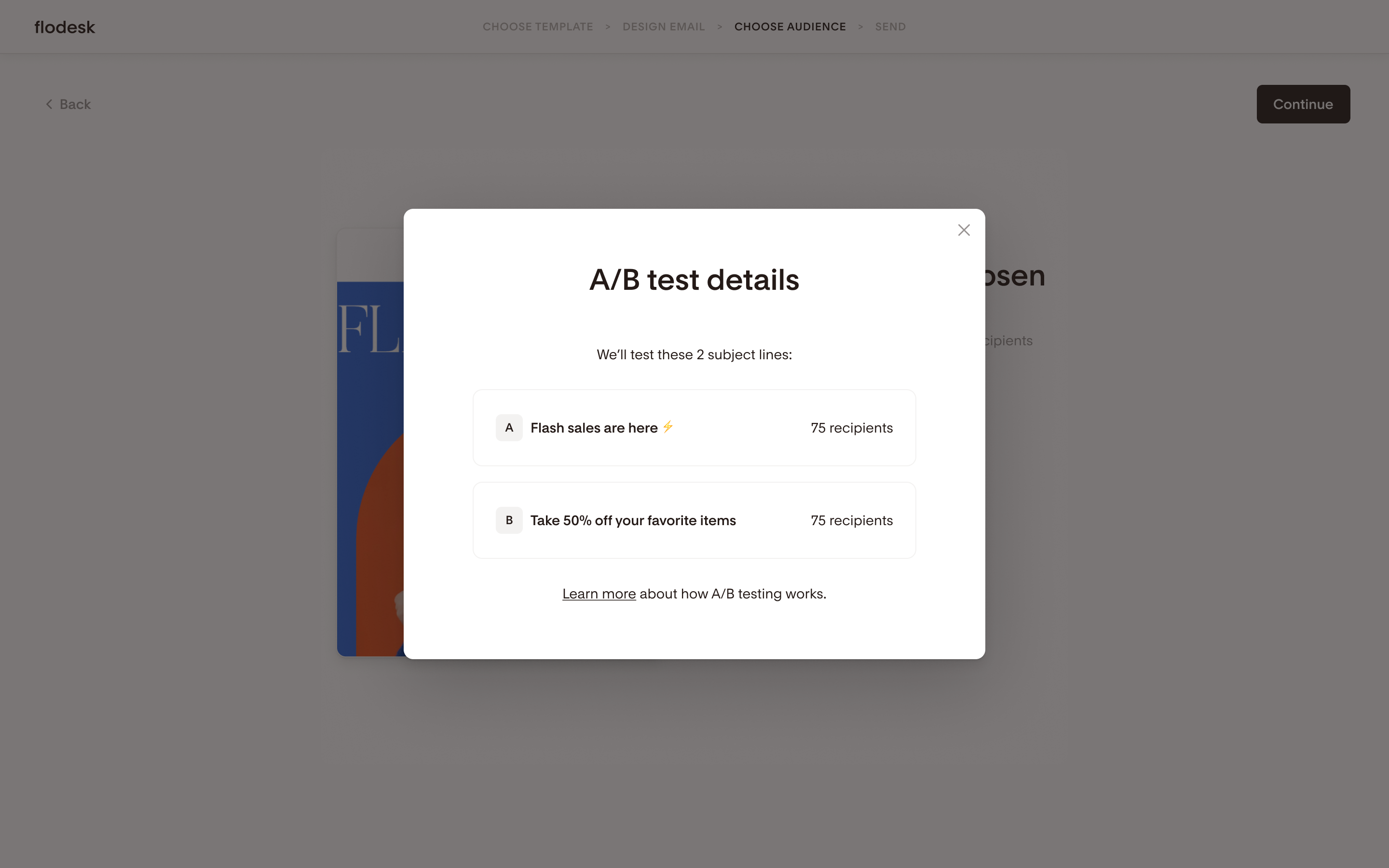
Once you add recipients, you'll see a brief note explaining how your audience will be split for the test. To see the full breakdown, click See more details. The modal shows:
How many recipients will receive Subject Line A
How many recipients will receive Subject Line B
If your list is large enough: how many recipients will receive the winning subject line after 24 hours
Large list:
Small list:
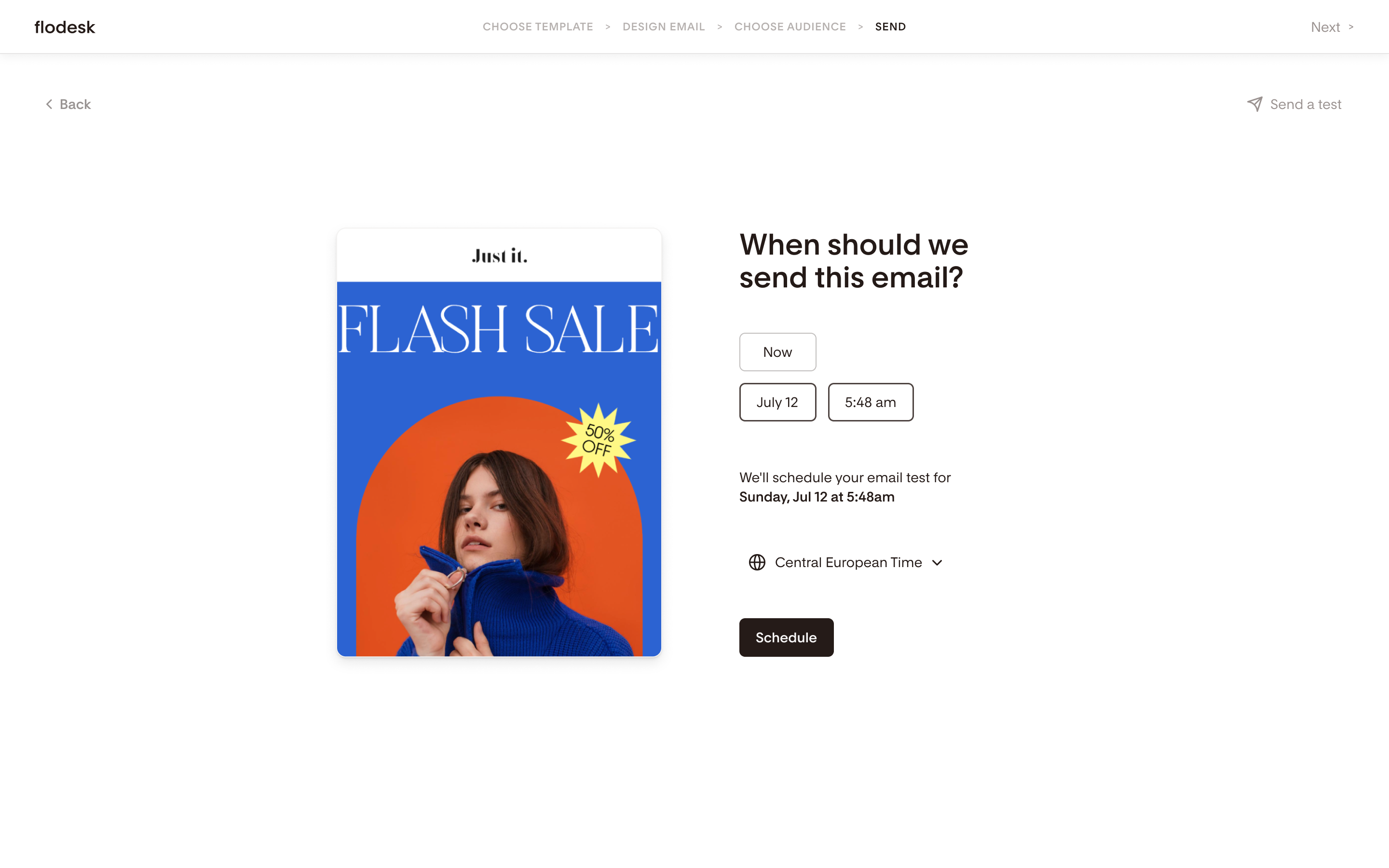
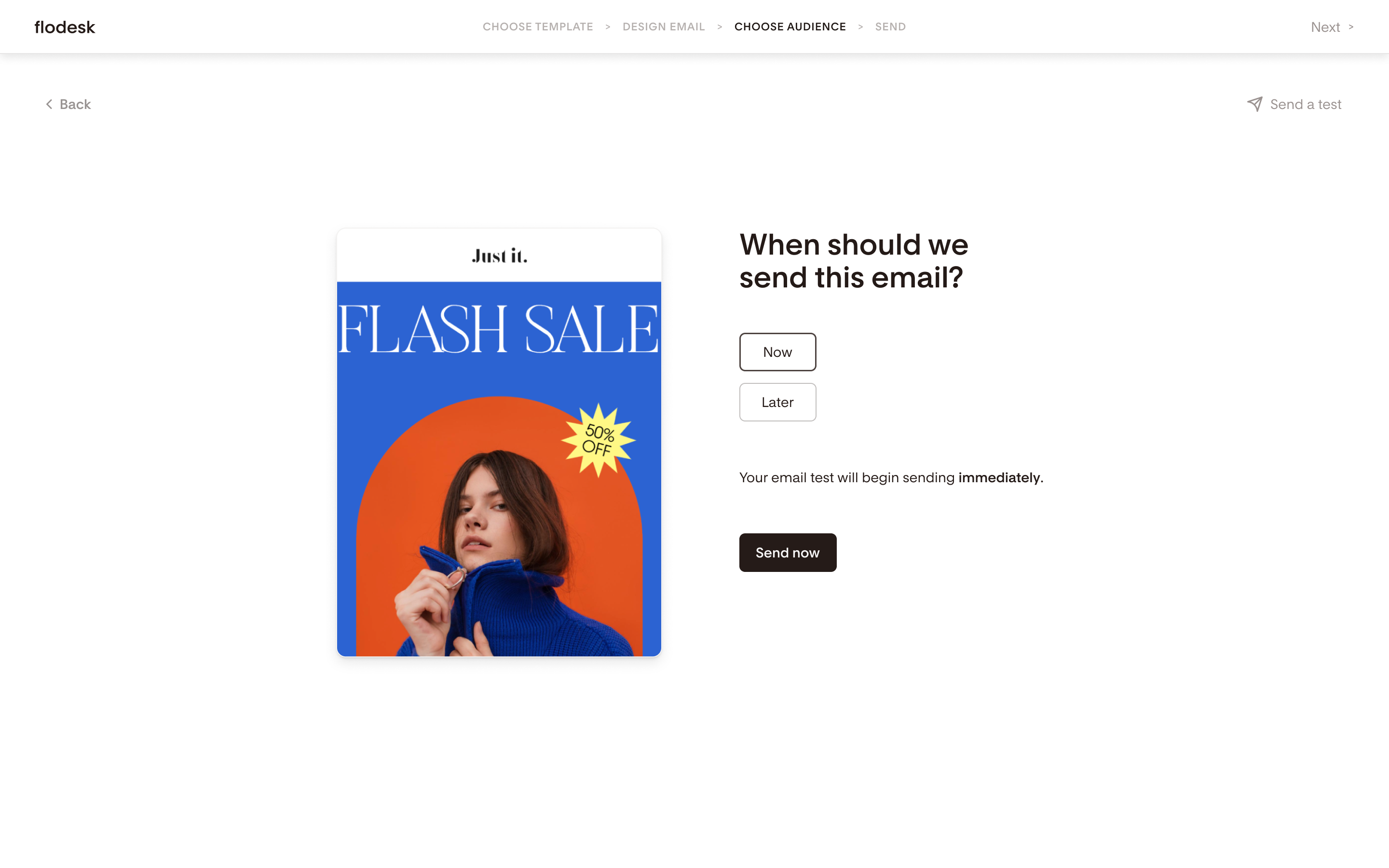
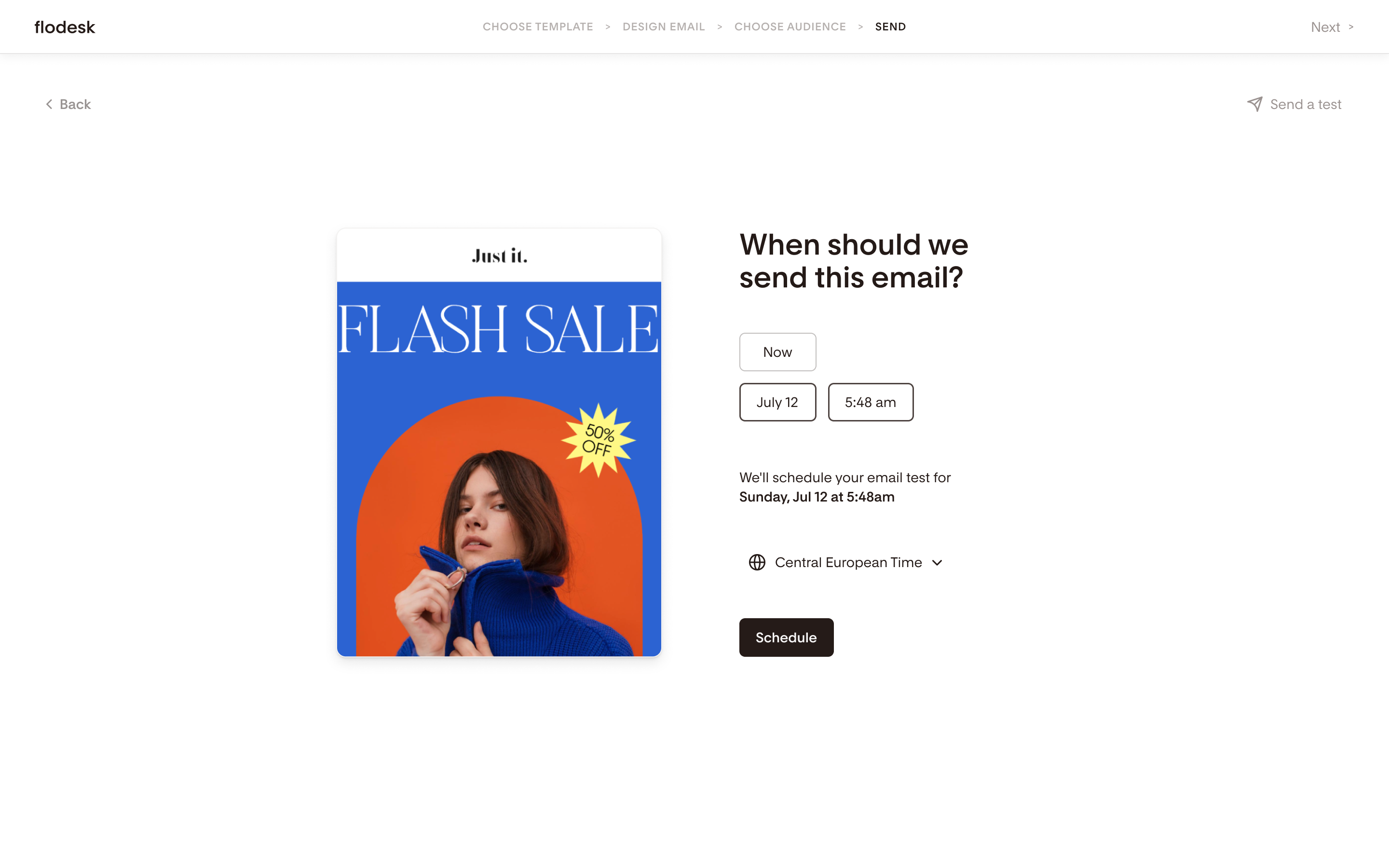
Step 3: Choose your send timing
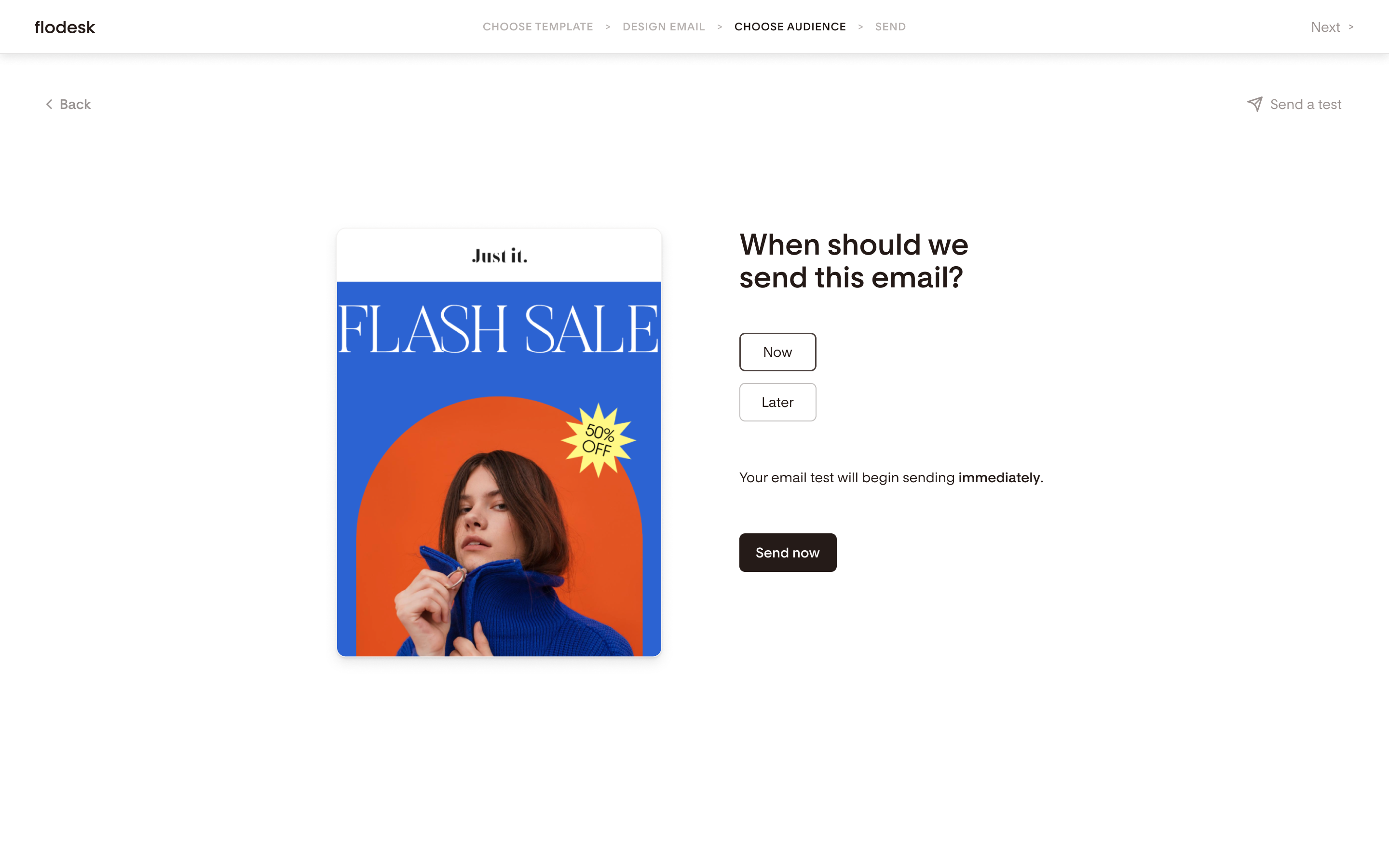
On the send timing page, you'll see a summary of what will happen based on your list size and send time. There are four possible scenarios:
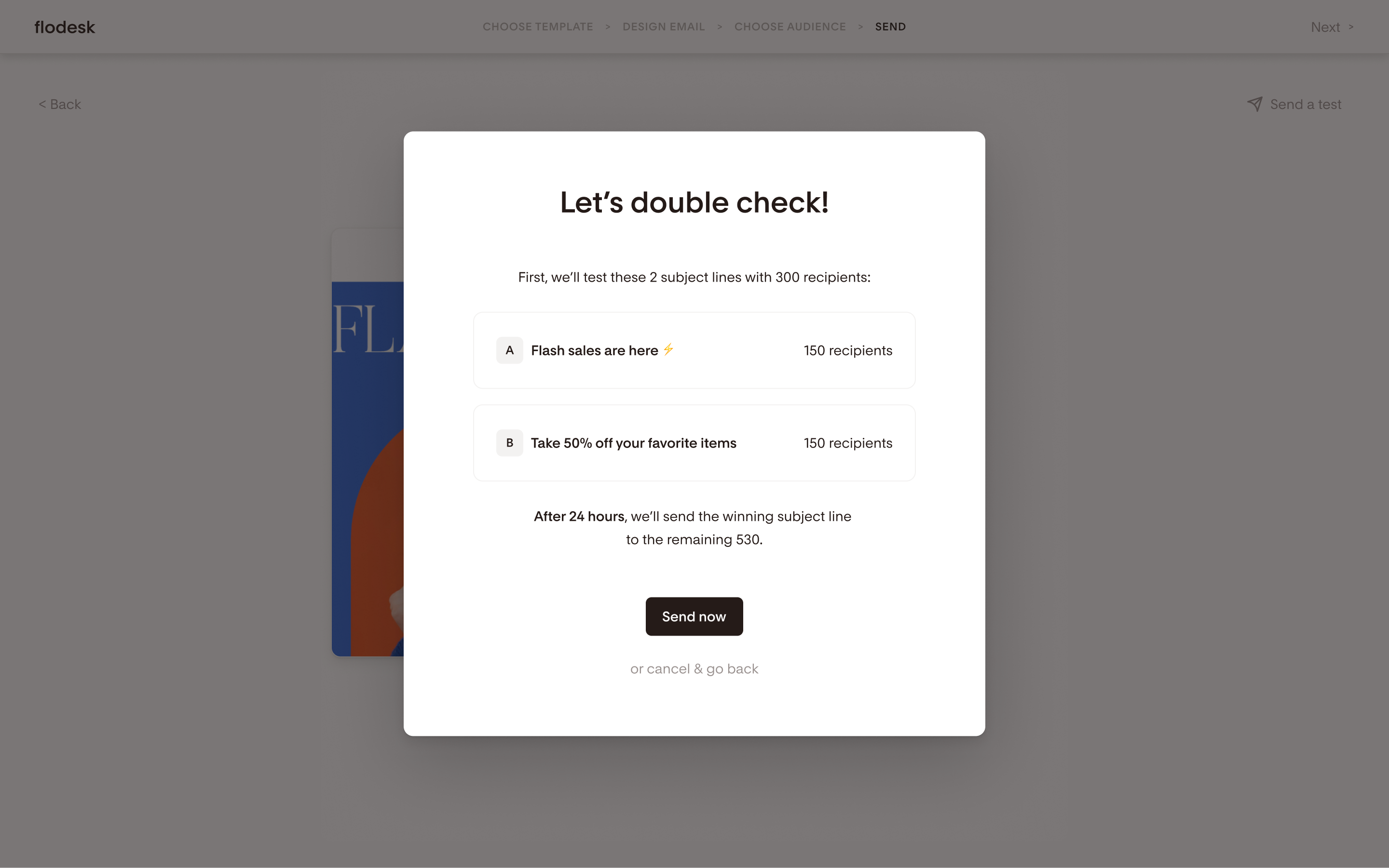
Send now, larger list: Each subject line is sent immediately to a test group. After 24 hours, the subject line with the better open rate is sent to the remaining recipients.
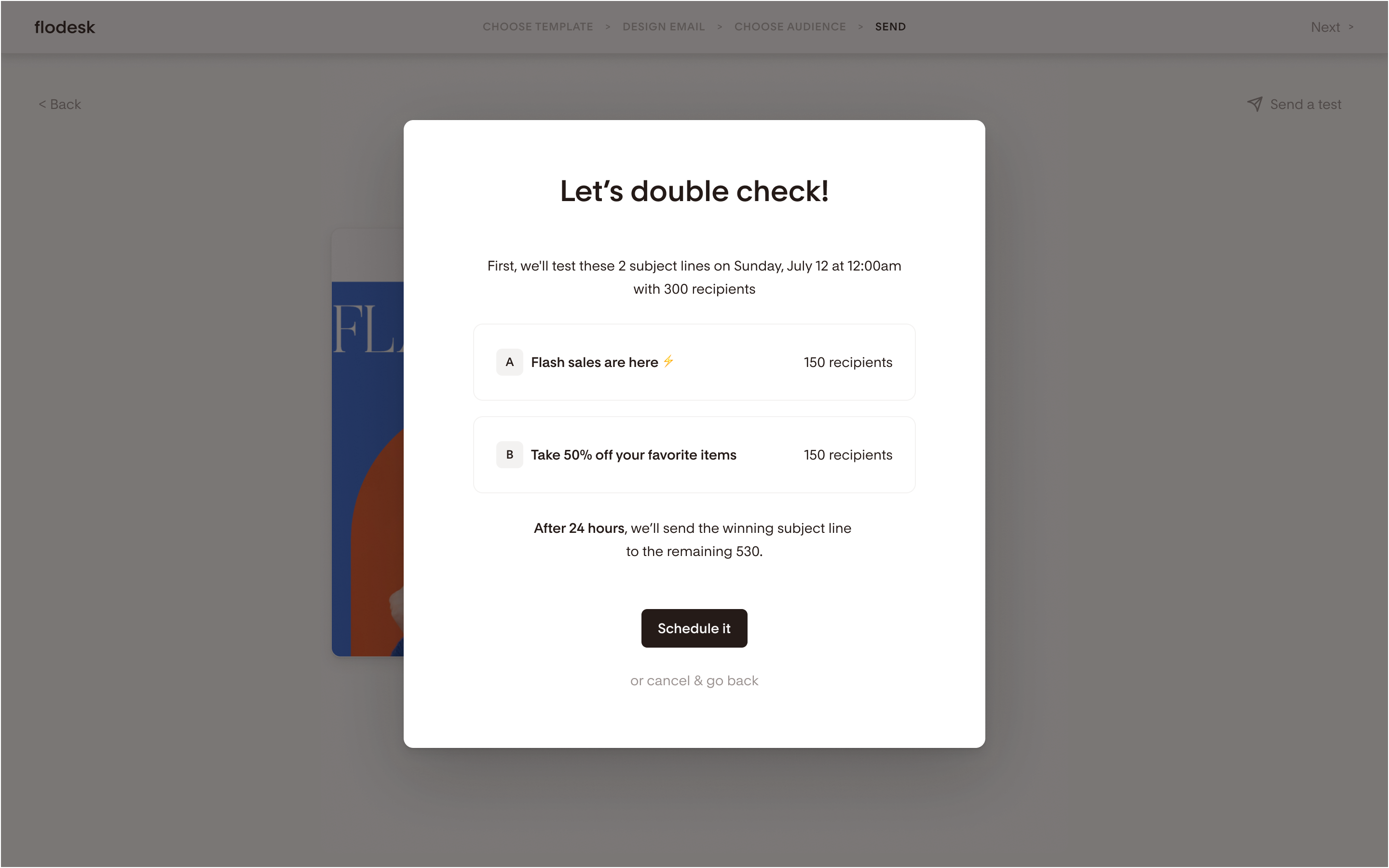
Schedule later, larger list: Your A/B test starts at your chosen date and time. After 24 hours, the winning subject line is sent to the remaining recipients.
Send now, smaller list (with under 300 recipients): Each subject line is sent immediately to half your recipients. After 24 hours, you'll see which subject line had the better open rate. (Because your full list has already received the campaign, there's no remaining group to send the winner to.)
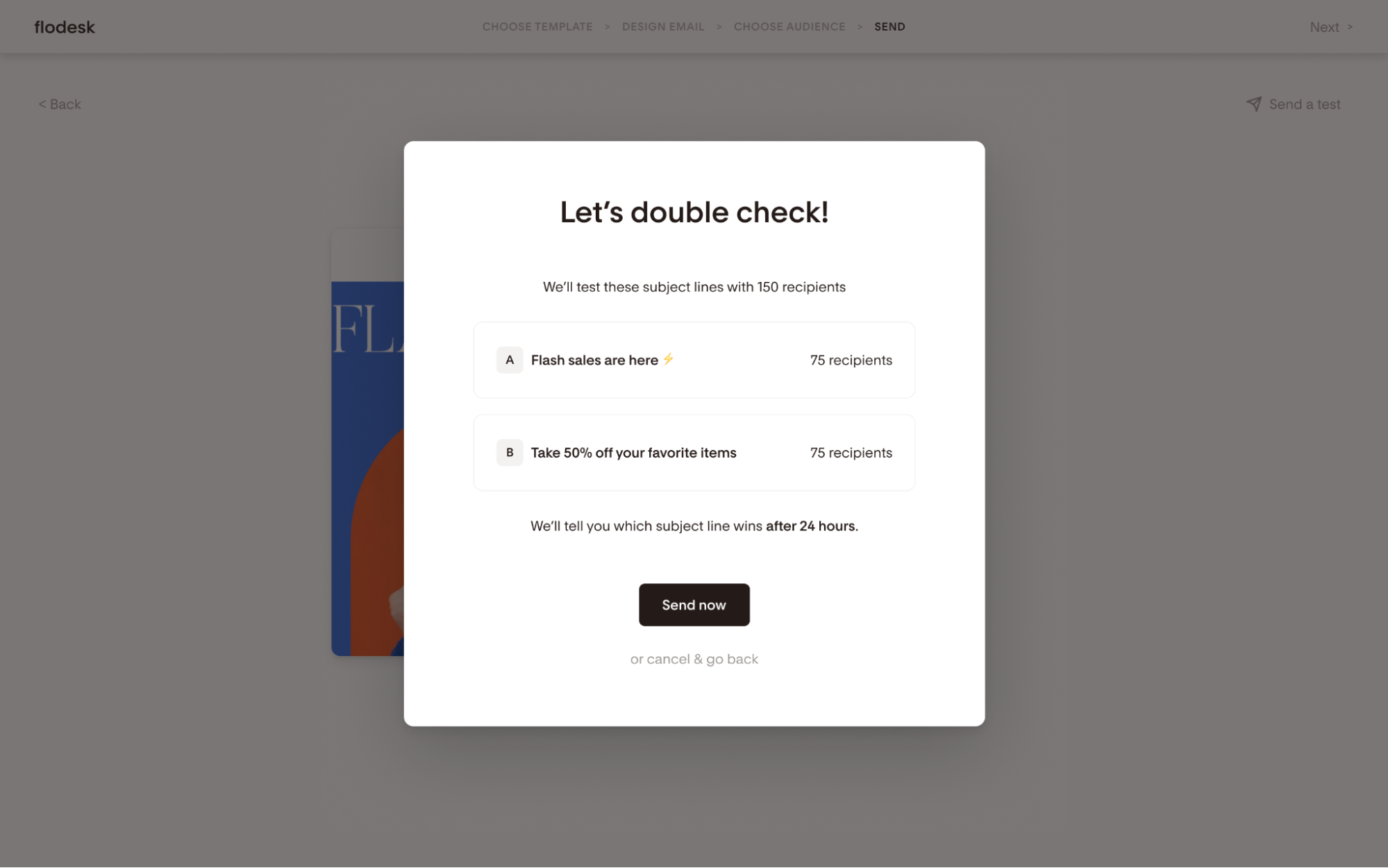
Schedule later, smaller list (with under 300 recipients): Your A/B test starts at your chosen date and time. After 24 hours, you'll see which subject line had the better open rate.
Step 4: Confirm and send
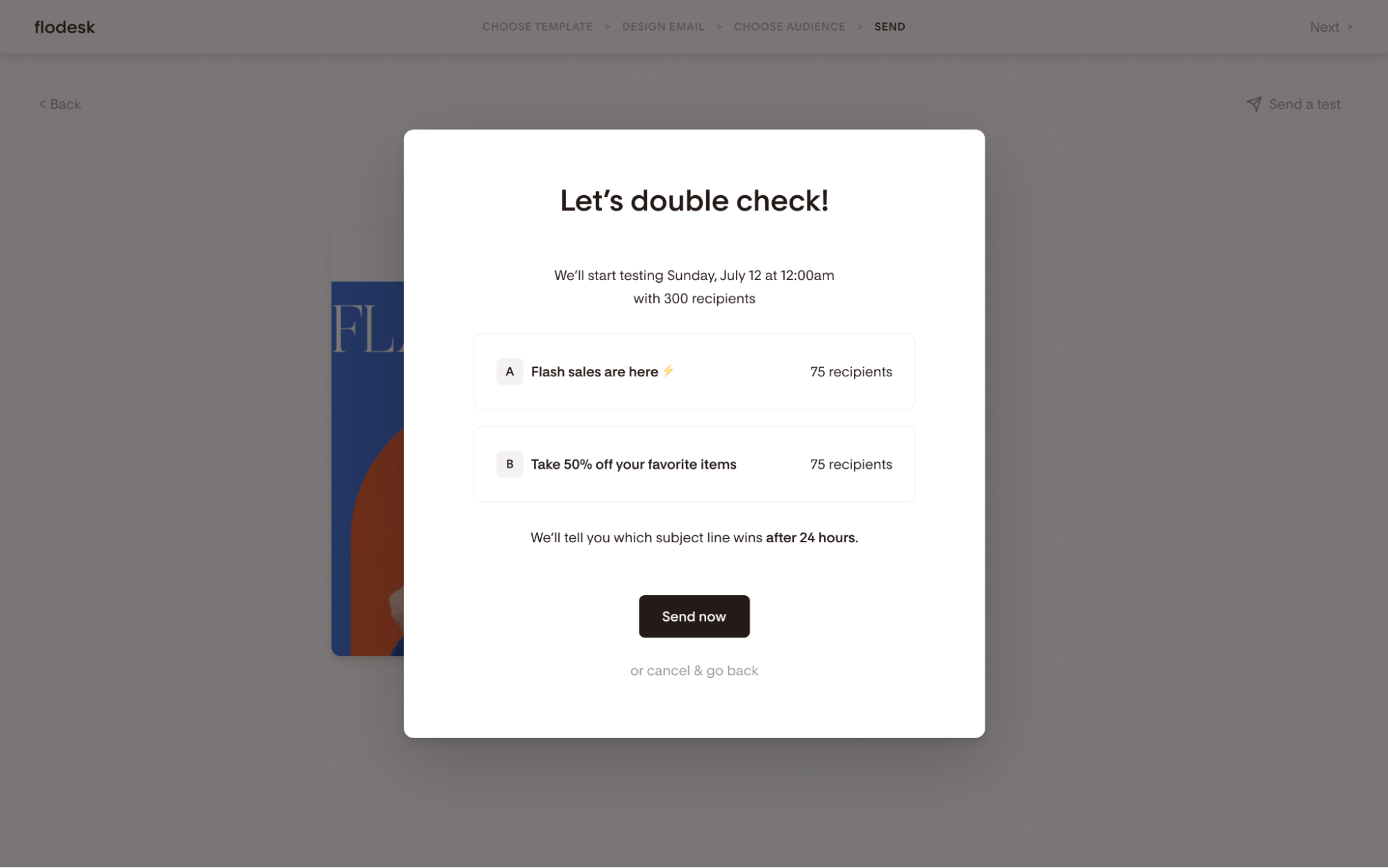
A confirmation modal shows the full breakdown:
Test group size,
How many recipients are in each group, and
(if applicable) how many are waiting for the winner.
Confirm to start your test.
After confirming, a success screen appears. From there, you can view your sending progress on the Emails page or undo the send if the email hasn't gone out yet.
How A/B testing works
Once your test is running, here's what's happening behind the scenes.
The test always runs for 24 hours. That window starts the moment your campaign sends (or at your scheduled time, if you chose to schedule it).
Winner determination is based entirely on open rate. Click rate is shown in your analytics for reference, but it has no effect on which subject line wins.
For larger lists: Flodesk tests a portion of your recipients and holds the rest. After 24 hours, the subject line with the higher open rate is automatically sent to the waiting group.
For smaller lists (with under 300 recipients): Your full audience is split evenly between both subject lines. Everyone receives the campaign right away, and after 24 hours you'll see which subject line performed better. There's no waiting group in this case.
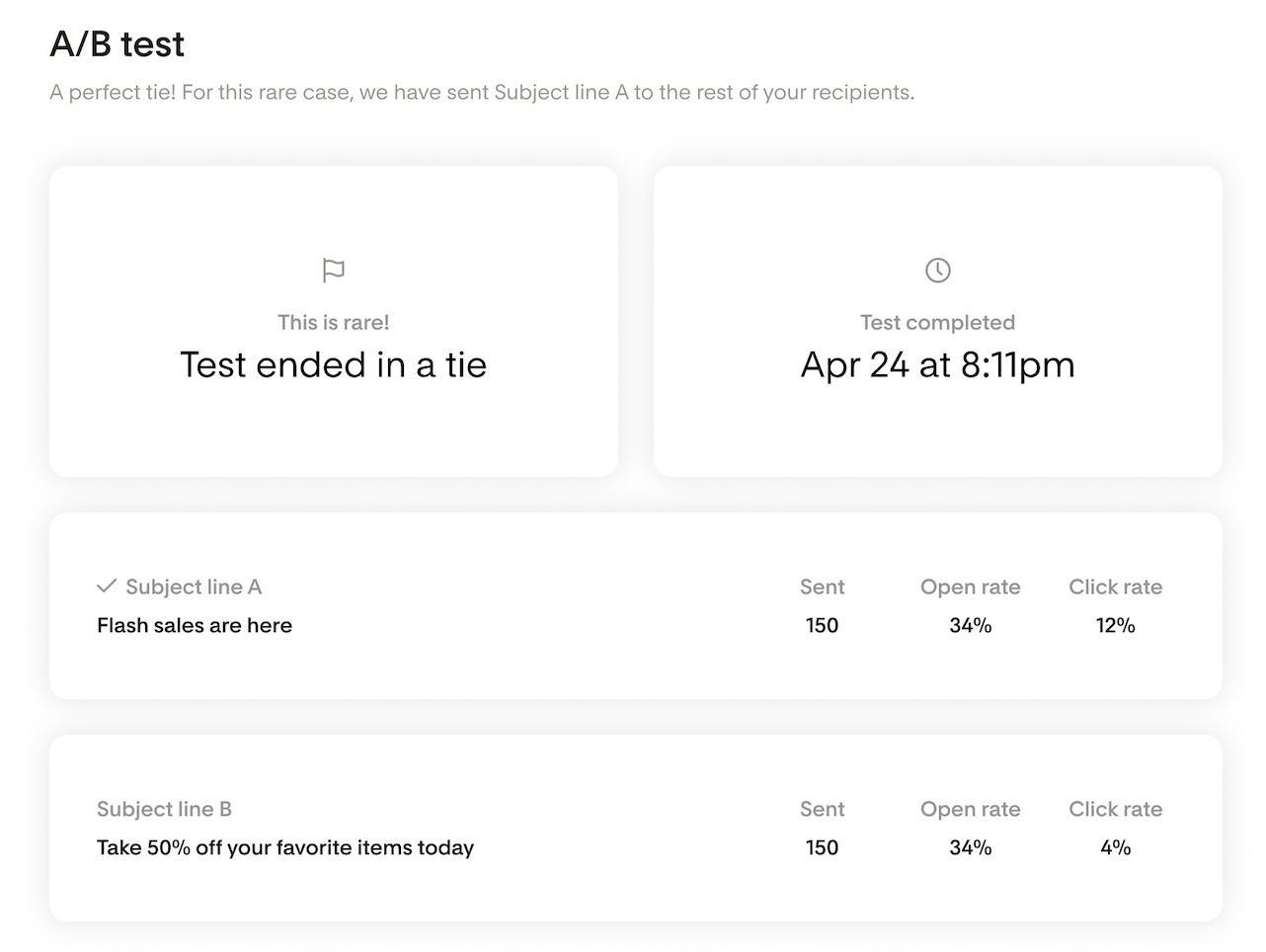
In the event of a tie: If both subject lines have the exact same open rate after 24 hours, Subject Line A is sent to any remaining recipients (if a waiting group exists).
Tracking your A/B test on the Emails page
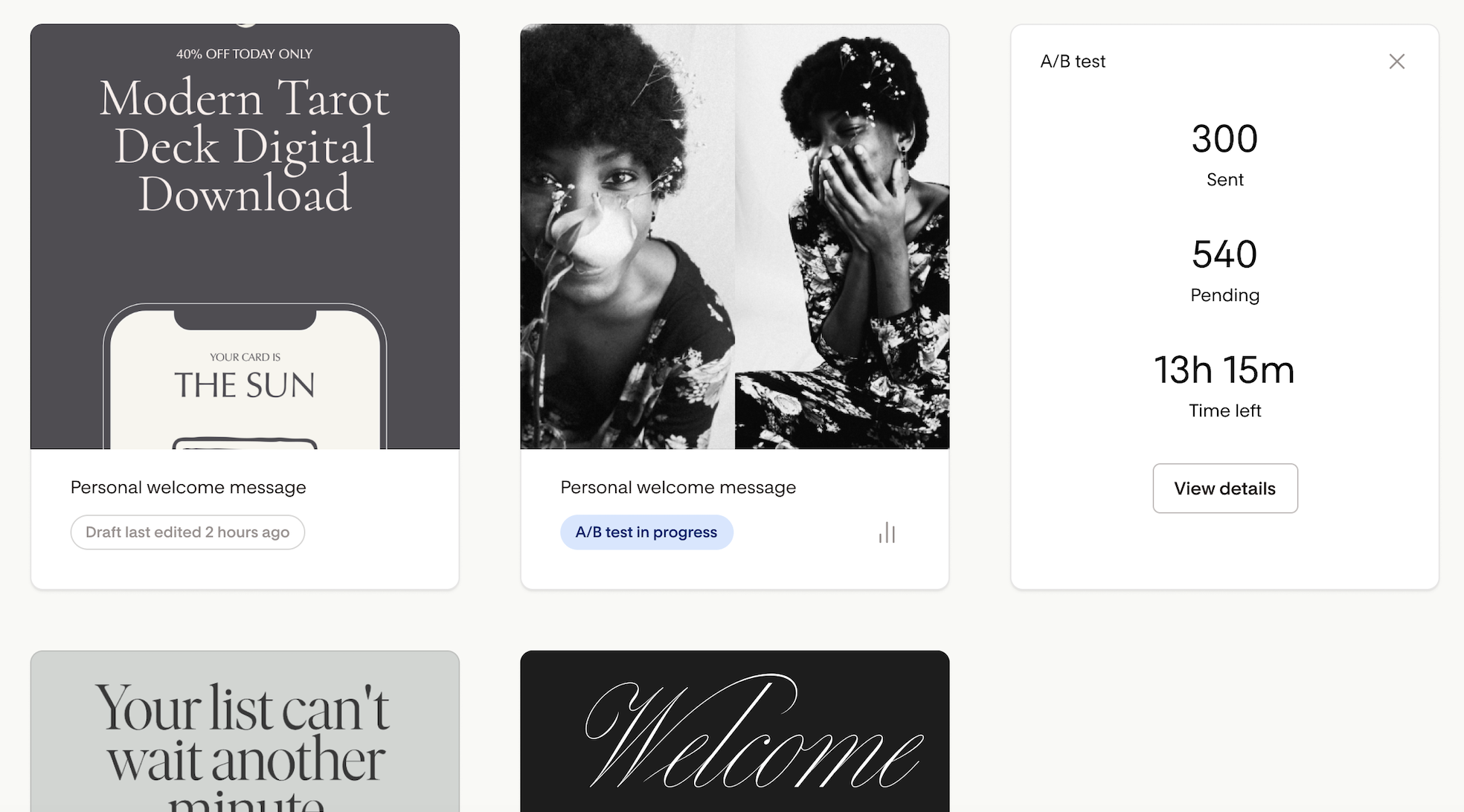
While your test is in progress, you'll see an "A/B test in progress" label on the campaign in your Emails page. Clicking the analytics icon shows:
Sent: how many recipients have already received the email
Pending: how many recipients are waiting for a winner to be sent
Time left: how long until the test concludes
Once the test ends, the quick analytics view returns to the standard layout.
Reading your A/B test results
Your full results live on the Email analytics page, in the A/B test section. You can get there by clicking View details from the Emails page, and the page will scroll directly to your results.
While the test is in progress, the section shows:
How many recipients are currently being tested
Time remaining until the test ends
After the test completes, the section shows:
The winning subject line
The date and time the test ended
Both subject lines side by side, with open rate and click rate for each
How many recipients received the winning subject line (if a winner group existed)
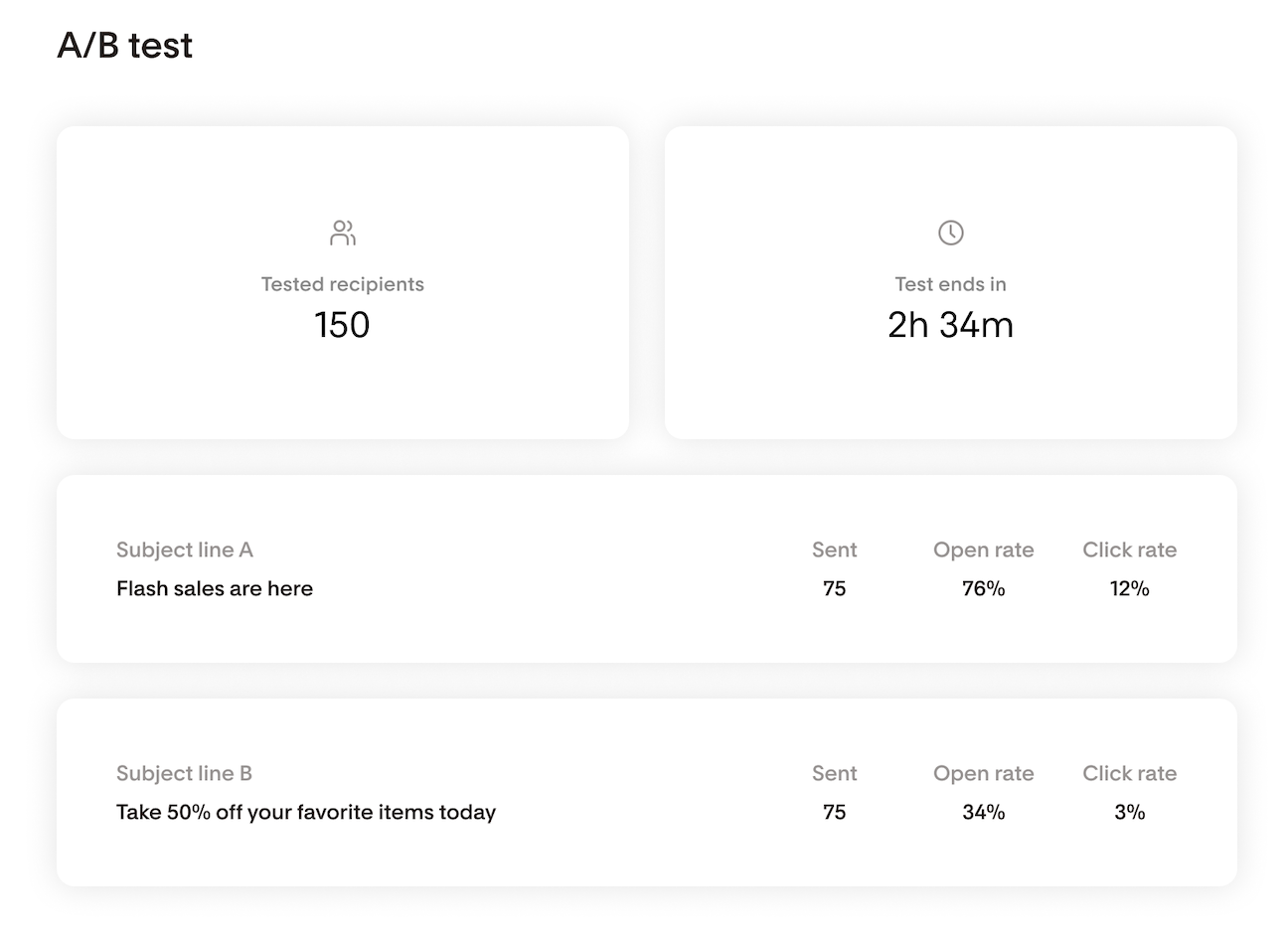
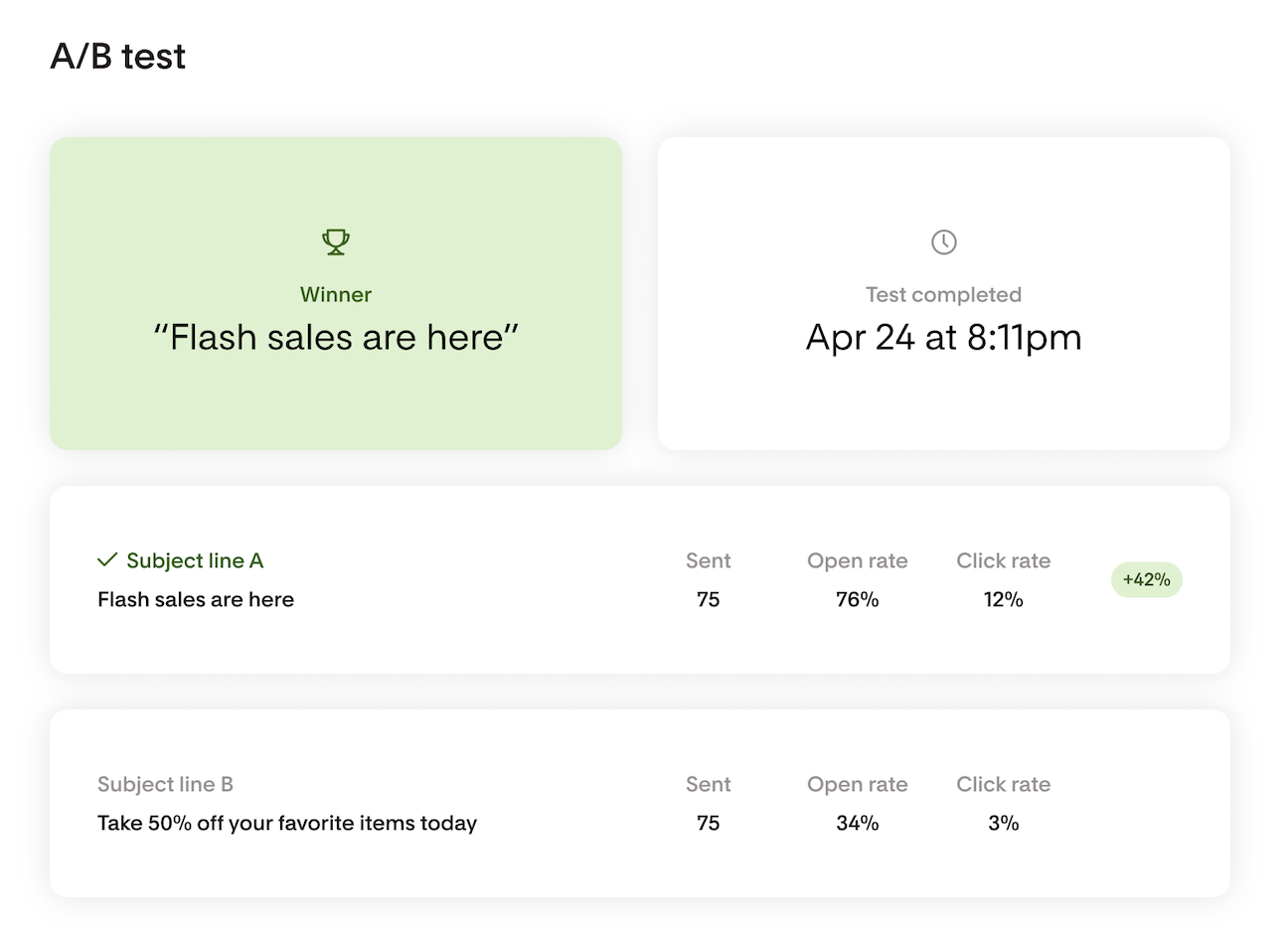
The subject line cards update in real time during the test. After the 24-hour window closes, they'll continue to update as opens and clicks come in, though most activity will happen within the first day.
Email notifications
You'll receive two emails from Flodesk related to your A/B test.
Test started: Sent when your A/B test begins. It includes both subject lines, your test group size, and a link to view test progress.
Test complete: Sent after the 24-hour window closes. It shows the winning subject line and the open rates for both variants, with a link to your full results. If it's a tie, you'll receive a tie results email instead.
Cancelling an in-progress subject line A/B test
You can cancel an A/B test after it starts, but only if there's still a winner group waiting to receive an email. If your full list has already been sent to (smaller list scenario), cancellation isn't available because there's nothing left to cancel.
What happens when you cancel:
The pending send to the winner group is cancelled. No further emails are sent for this campaign.
The 24-hour countdown stops and no winner is declared.
The test complete notification email is not sent.
Analytics for subject lines that were already sent continue to update normally.
The A/B testing section in Email analytics shows a note that the test was cancelled.
After cancelling, the campaign is treated like a sent email and can no longer be edited. To run the same test again, duplicate the email and start a new send.
FAQs
How is the winner decided?
The winner is the subject line with the higher open rate after 24 hours. Click rate is not used to determine the winner.
What happens if my list is small?
If your list doesn't meet the volume threshold for a meaningful test (with under 300 recipients), your audience is split evenly and both subject lines are sent right away. You'll still see which subject line had the better open rate, just without a waiting group to send the winner to.
Can I test more than two subject lines?
Not in this version. A/B testing is currently limited to two subject lines. Testing more than two variants would reduce the reliability of results for most list sizes.
Can I test my preheader text or email body?
Not yet. A/B testing is currently limited to subject lines only.
What if both subject lines tie?
In a tie, Subject Line A is sent to any waiting recipients. You'll receive a tie results email with both open rates.
Can I see results after the test ends?
Yes. Your A/B test results stay in the Email analytics page and continue to update as opens and clicks come in after the 24-hour window.
Can I undo a send?
Yes, if the campaign hasn't gone out yet. You'll see the option to undo your send on the success screen immediately after confirming.