
Where to find and manage your workflows in Flodesk
Learn where to find your workflows (automations) in Flodesk and how to create, organize, and track them.
Where to find your workflows in Flodesk
You can find all your workflows on the Workflows dashboard.
Click Workflows in the left-side navigation bar
Or go directly to: https://app.flodesk.com/workflows
This is where all your workflows and workflow emails live, whether they are still drafts or already published.
What you can do on the Workflows dashboard
From the Workflows dashboard, you can:
Build new workflows
Publish or unpublish (pause) workflows
View high-level workflow details (like total entries, in workflow, completed) when in list view
Organize workflows into folders
Quickly take actions like adding subscribers to a workflow or sharing templates
How the Workflows dashboard is organized
The Workflows dashboard has two main sections:
Overview tab: where all your workflows are created and managed
Folders tab: where you organize your workflows
When you first go to the Workflows dashboard, both sections will be empty and ready for you to start.
Overview tab
This is your main workspace for creating and managing workflows.
Create a new workflow
Click + New workflow to open the template gallery.

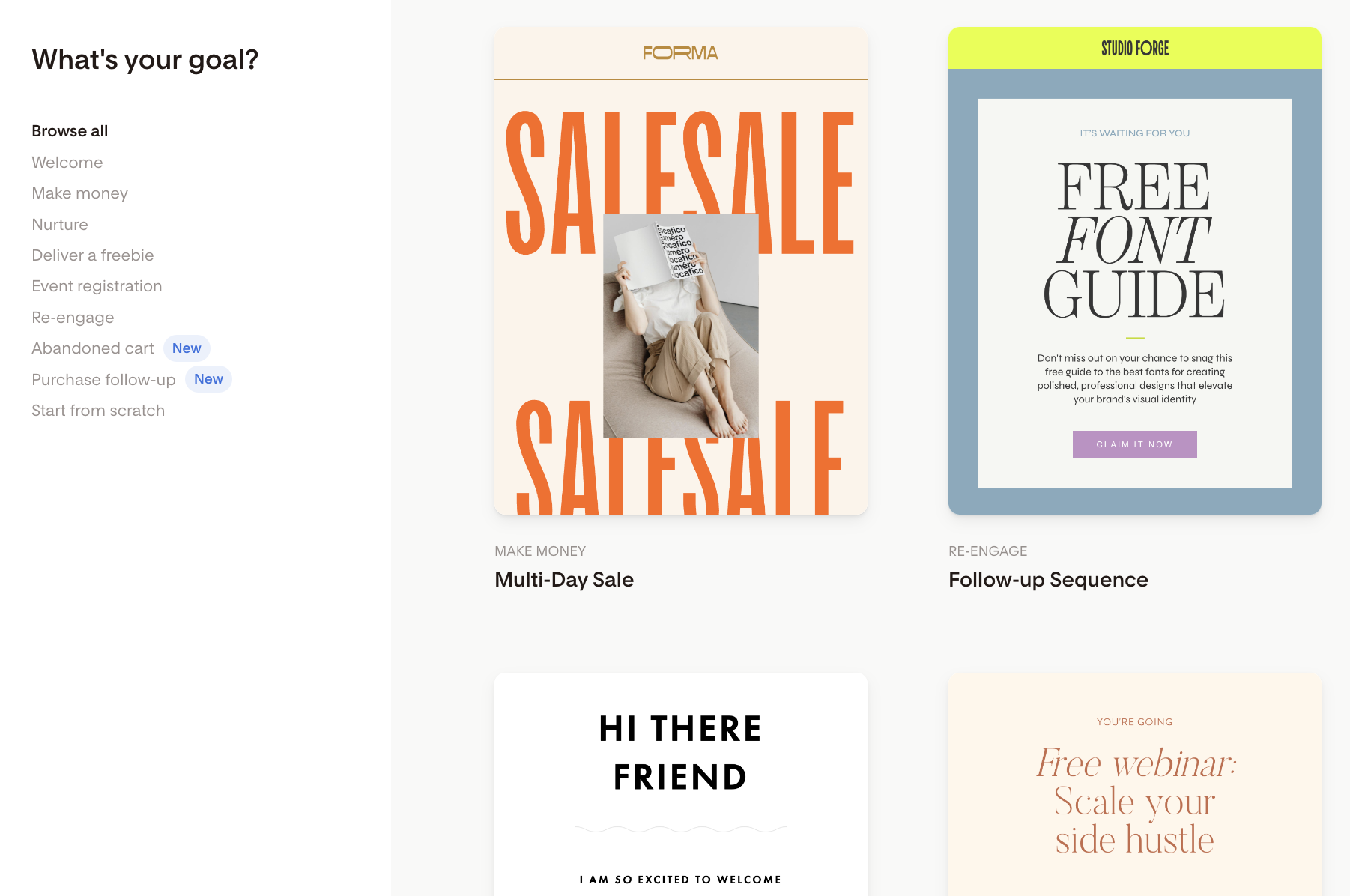
From there, you can:
Choose a pre-designed workflow template or start from scratch
Customize your design
Use the left-side panel to browse through the various categories.
Need help getting started? See: How to Create Workflows in Flodesk
Choose how to view your workflows
You can display your workflows in two ways:
Card view: shows visual previews of your workflow’s trigger step
List view: shows more details in a table format
You can switch between these views at any time.
If you don't see the list view option, check if you are using an ad blocker in your browser. It may prevent the feature from loading in the app.

Manage your workflows
Use the toolbar to quickly find and manage your workflows.
Search: Find workflows by name
Sort: By date created, date modified, or alphabetically
Status filter: View workflows by status (all, published, paused, draft, or shared as a template)
View toggle: Switch between card view and list view
+ New workflow: Create a new workflow
Sorting in list view
When using list view, you can also click column headers to sort by:
Workflow name
Status (sort by Published/Paused/Draft last edited date)
Can't find your workflow?
If a workflow doesn't appear on your Workflows dashboard, it may be hidden by a filter or pagination setting. Here's how to track it down:
Check the workflow status selector at the top of the page. It lets you filter by Published, Paused, or Draft workflows. Make sure it's set to All so every workflow is visible.
Scroll to the bottom of the page and check how many workflows are displayed at once. By default, this is set to 12, but you can adjust it to show 24, 60, or 120 at a time.
If you have more workflows than the page displays, use the pagination controls at the bottom to move to the next page.
Use the Search bar on the dashboard to search for the workflow by name. Entering a keyword will return all workflows whose names include that word.
Quick actions for each workflow
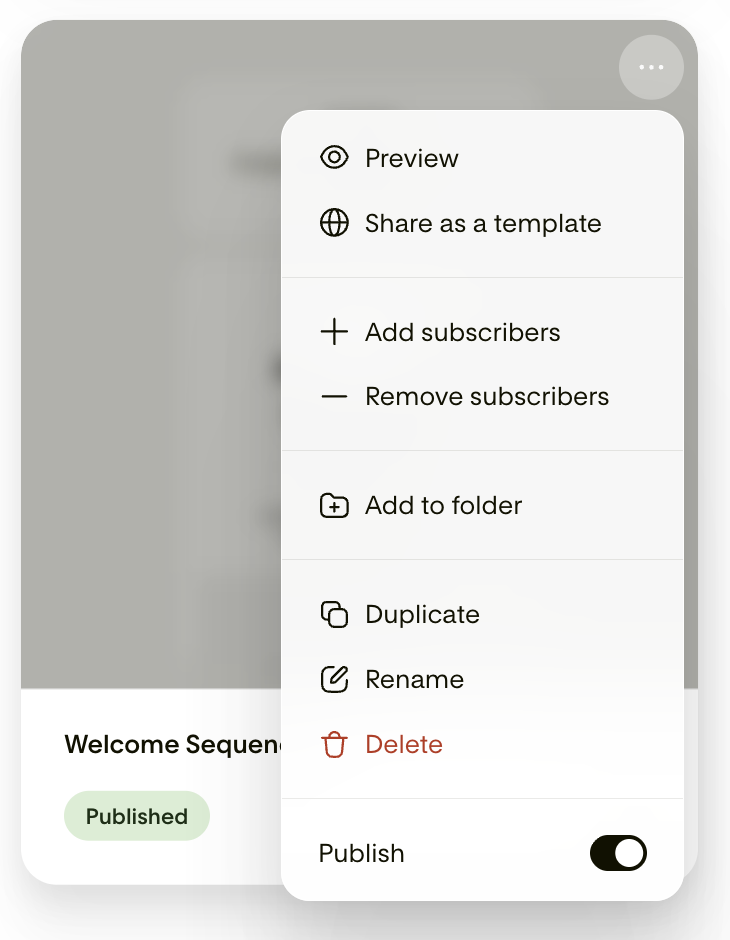
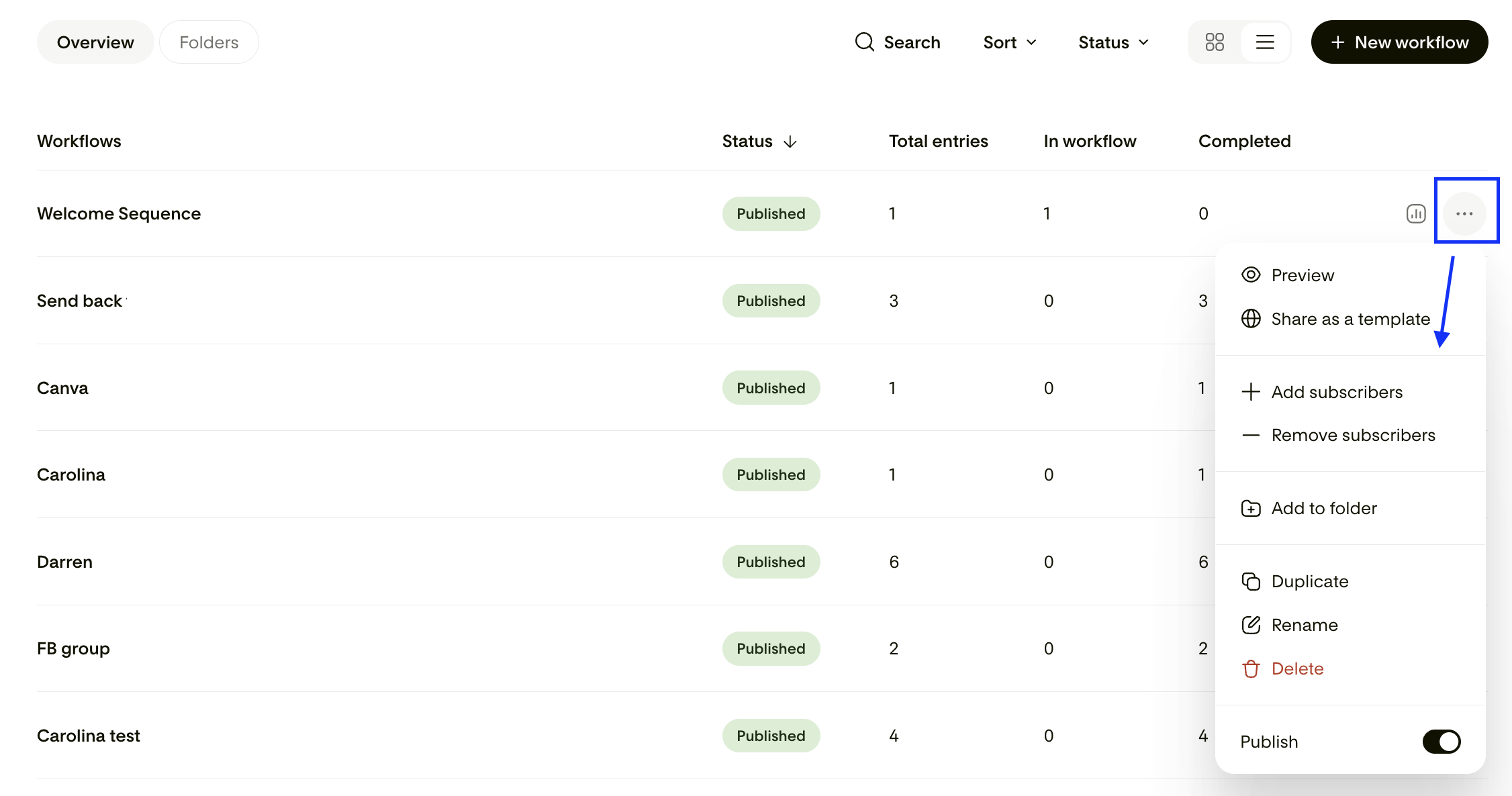
Click the three dots (…) menu on any workflow to access quick actions.
You can:
Preview (published or paused workflows)
Share as a template
Add subscribers (published or paused workflows)
Remove subscribers (published or paused workflows)
Add to folder
Remove from folder
Edit (draft or paused workflows)
Duplicate
Rename
Delete
Publish/unpublish toggle (published or paused workflows)
These options are available in both card view and list view.
How to view workflow stats
You can quickly check how your workflows are performing.
In list view
See total entries, in workflow, and completed directly
Click the bar chart icon to view the overall open rate and click rate, then View details for full analytics
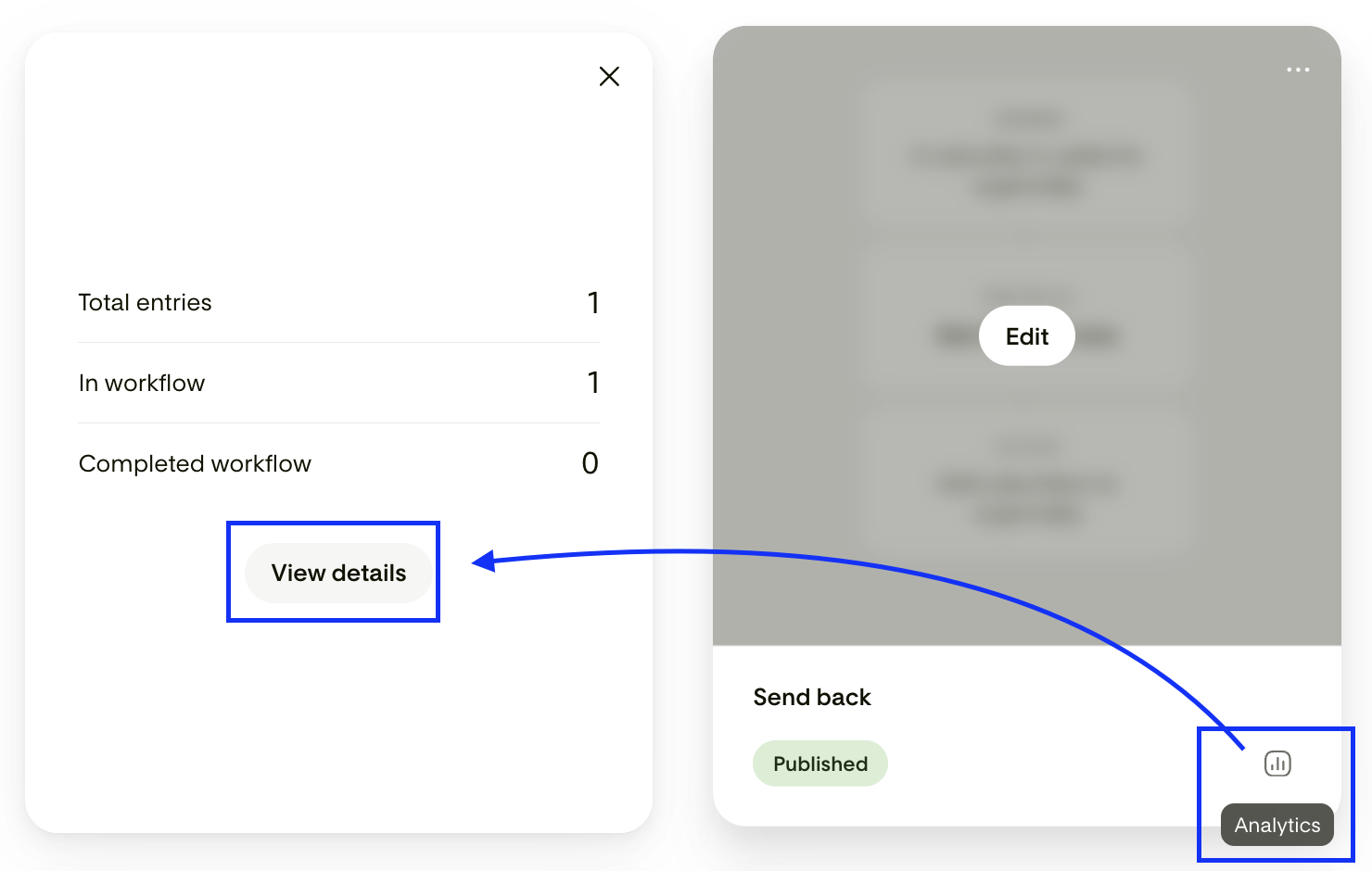
In card view
Click the bar chart icon on the workflow card
Click View details to see more
This opens the detailed analytics page.
Organize your workflows with folders
Folders help you keep your workflows organized by topic or purpose.
Important to know
A workflow can only be in one folder at a time
Workflows are not moved out of the Overview tab when added to a folder
Folders create an organized view (they don’t store workflows separately)
Folder actions
You can:
Search folders by name
Sort folders (created date, modified date, alphabetical)
Switch between card view and list view
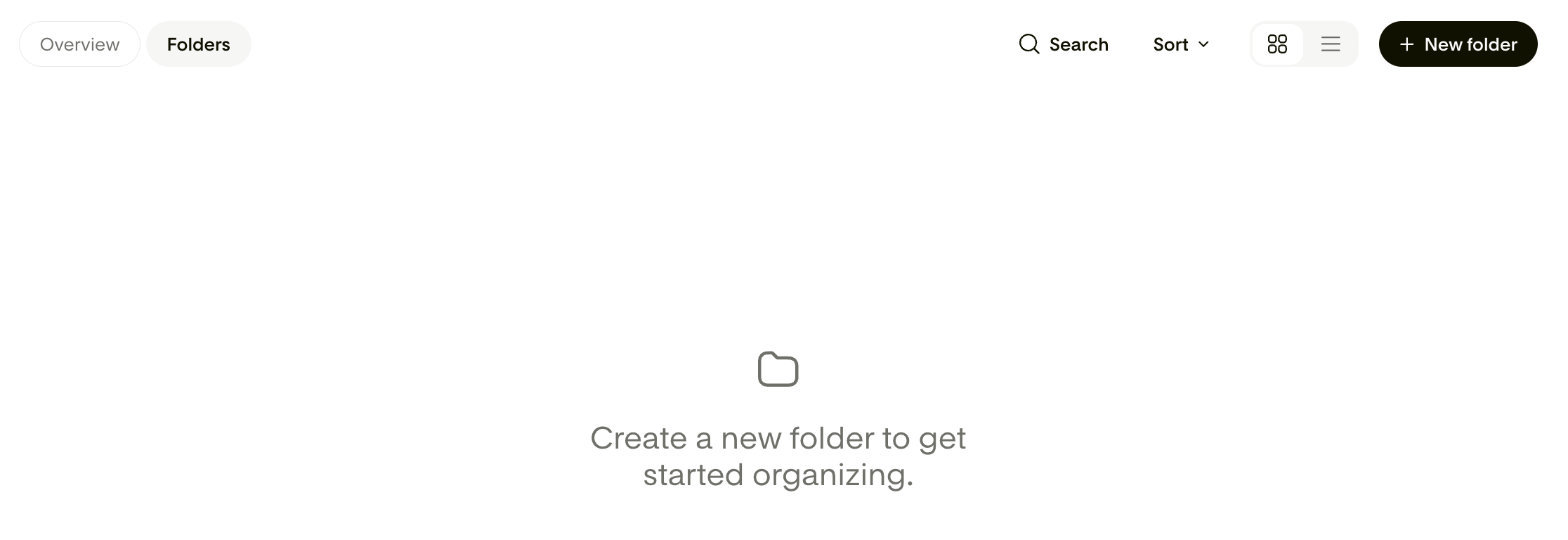
Create a folder using + New folder
Learn more: How to create and manage folders
FAQ
Where are my workflows in Flodesk?
All your workflows (automations) are located on the Workflows dashboard.
What’s the difference between card view and list view?
Card view shows a preview of your workflows (trigger step)
List view shows more data like total entries, in workflow and completed in a table format
Can I switch between card view and list view?
Yes, you can toggle between both views anytime.
How do I see workflow performance stats?
Use list view to see quick stats total entries, in workflow and completed, or click the bar chart icon to check overall open and click rates or view detailed analytics.
Why is my workflow still in the “Overview” tab after adding it to a folder?
All workflows always remain in the Overview tab. Folders only help organize them, they don’t move or remove workflows.
Can a workflow be in multiple folders?
No. Each workflow can only be in one folder at a time.
What actions can I take on a workflow?
Using the three dots menu, you can
Preview (published or paused workflows)
Share as a template
Add subscribers (published or paused workflows)
Remove subscribers (published or paused workflows)
Add to folder
Remove from folder
Edit (draft or paused workflows)
Duplicate
Rename
Delete
Publish/unpublish toggle (published or paused workflows)
How do I create a new workflow?
Click + New workflow in the Workflows tab and choose a template to get started or build one from scratch.
Why can't I find a specific workflow in the Workflows tab?
There are a few reasons a workflow might not appear right away:
A filter is active. The workflow status selector at the top of the page may be set to show only Published, Paused, or Draft workflows. Switch it to All to see every workflow.
Pagination is limiting the view. By default, the Workflows tab shows 12 workflows per page. You can increase this to 24, 60, or 120. If your workflow still isn't visible, use the pagination controls at the bottom to browse additional pages.
The workflow name doesn't match your search. Try using a single keyword in the Search bar on the dashboard. Results will include any workflow whose name contains that word.
If you've tried all of the above and still can't locate your workflow, reach out to our support team for help.