
Prevent automatic subscriber tier increases by disabling forms and integrations
This guide applies to members on the tiered Lite, Pro and Everything plans and explains how to keep your subscriber count under control and avoid unwanted tier upgrades.
Overview
Flodesk’s tiered plans are designed to ensure your emails keep sending smoothly and your subscribers always receive your campaigns without interruptions. To make this possible, your account may automatically move to a higher subscriber tier if new subscribers are added through forms or integrations and your list grows beyond your current limit.
This automatic adjustment helps maintain continuity of service, so your marketing campaigns don’t pause or stop unexpectedly.
At the same time, Flodesk aims for transparency. You’ll be notified whenever you’re close to your subscriber limit to help you stay informed and in control.
However, if you’ve cancelled your annual tiered plan, new subscribers added before your cancellation takes effect could still move your account into a higher tier, which may result in an additional charge.
To prevent this, you can disable the features that automatically add subscribers:
Unpublish or delete forms to stop new signups through forms
Turn off integrations to stop automatic imports from other platforms
1. Disable or remove forms
Currently, there isn’t a single toggle to “pause” forms in Flodesk. However, you can stop forms from collecting new subscribers in a few ways:
Option A: Delete a Form
Go to your Forms dashboard.
Hover over the form’s card you want to delete.
Click the three dots (...) quick access menu and select Delete (trash can icon).
Confirm deletion.
Deleting a form removes it completely from your account.
Option B: Remove the form’s HTML code from your website
Open the webpage where your Flodesk form is embedded.
Locate the HTML embed code you pasted from Flodesk.
Delete or if you know coding, comment out the code.
Save and republish your page.
This prevents the form from displaying or collecting new subscribers.
Option C: Change or remove the form link (full page forms or link in bio forms only)
Go to your Forms dashboard and click the full page or link in bio form you want to edit.
Copy the form’s public link.
Remove this link from anywhere it’s shared, such as social media, ads, or email campaigns.
(Optional) Replace it with a different link or page.
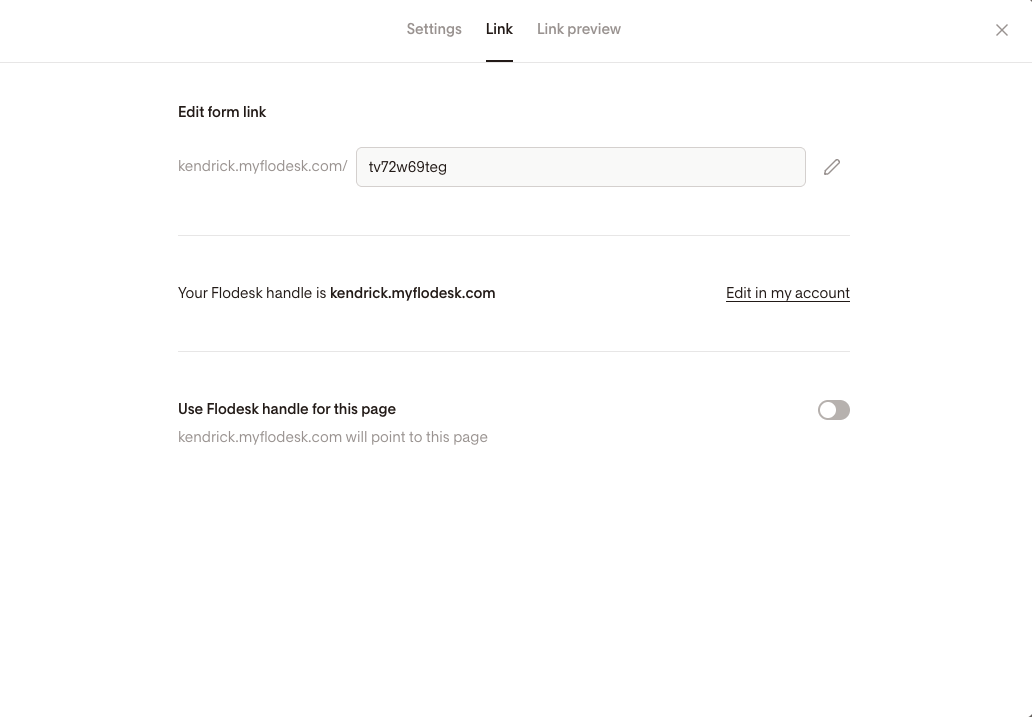
Changing or removing shared links “breaks the path” to the form so no new subscribers can sign up.
2. Turn off integrations
Integrations can automatically add subscribers from other platforms into your Flodesk account. To stop this, you need to turn off integrations in your Flodesk and in any 3rd-party apps that you connected to Flodesk, including via Zapier or Pabbly Connect:
In Flodesk, go to Account settings → Integrations.
Locate the integration you want to disable (for example, Shopify or Squarespace).
Toggle the integration off.
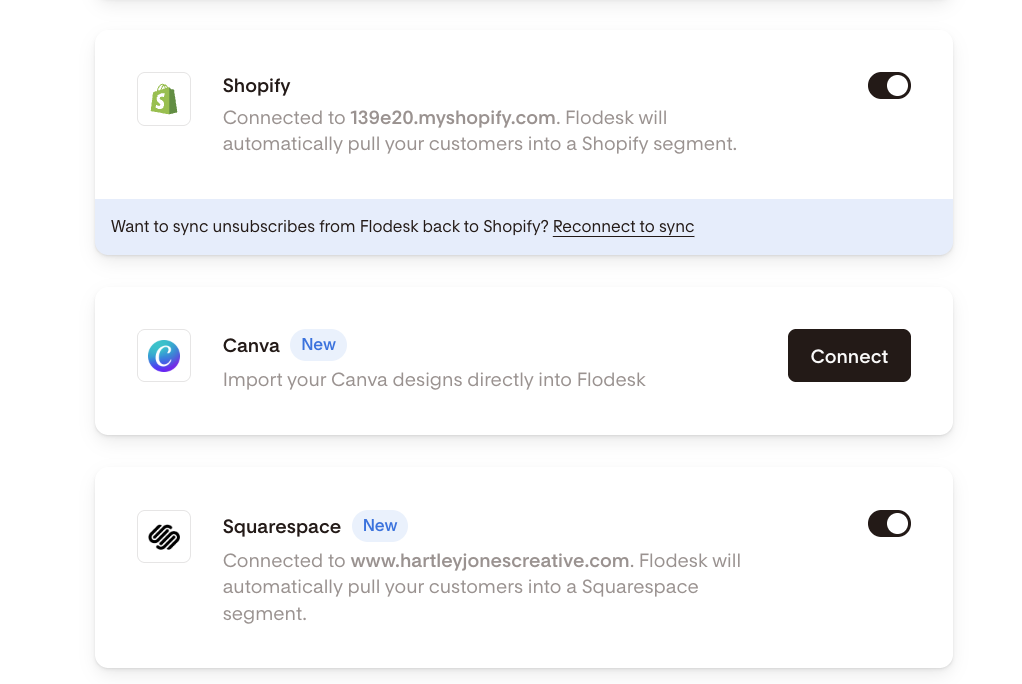
Once toggled off, no new subscribers will be added from that integration.
Turning off external integrations
Some integrations—especially those managed by external platforms—must also be turned off from the partner side.
The following are just a few examples, not an exhaustive list. You need to make sure to disconnect all integrations that you have set up, which may include connections via Zapier, Pabbly Connect or API.
Integration | How to Disable |
ThriveCart | There are two integrations. You can turn off the Ecommerce Workflows integration from the Flodesk side, but you must also log into ThriveCart to disable any Subscriber Sync/Product Rule Automations. |
Podia | Podia’s email integrations are one-way. Podia will continue to send subscribers to Flodesk unless you disable the connection from your Podia account settings. Learn more here. |
WPForms | Disable the Flodesk connection in your WordPress plugin settings. See setup details. |
Teachery | Disconnect Flodesk from your Teachery integrations settings. See guide. |
HoneyBook | Disconnect Flodesk from your HoneyBook integration settings. Learn more here. |
ManyChat | Disconnect Flodesk from your ManyChat integrations settings. See guide. |
Interact | Disconnect the Flodesk connection in your Interact account. Learn more here. |
Marvelous | Disconnect Flodesk from your Marvelous integrations settings. Learn more here. |
Session | Disconnect Flodesk from your Session integrations settings. See guide. |
BookFunnel | Disconnect Flodesk from your BookFunnel integrations settings. Learn more here. |
BDOW! | Disconnect Flodesk from your BDOW! integrations settings. Learn more here. |
Disconnect Flodesk from your involve.me integrations settings. See guide. | |
Grow by Mediavine | Disconnect Flodesk from your Grow Publisher Portal integrations settings. See guide. |
Why this matters
Disabling forms and integrations gives you control over how subscribers are added to your account. This helps you:
Prevent accidental upgrades to higher subscriber tiers
Avoid unexpected charges after cancelling an annual plan
Manage your subscriber list intentionally and keep growth on your own terms
FAQ
I'm on a tiered plan. Why is my subscriber count increasing automatically?
Subscribers can be added automatically through forms or integrations connected to your Flodesk account. Flodesk’s tiered Lite, Pro and Everything plans are designed to make sure your emails keep sending without interruption.
If your subscriber list grows beyond your plan’s limit, your account automatically moves to the next tier. This ensures continuity of service, so your marketing campaigns never get turned off due to plan limits.
Why does this matter if I’ve cancelled my annual plan on a tiered plan?
If your subscriber count increases before your cancellation takes effect, your account could still be charged more based on the higher tier. Preventing automatic additions helps you avoid extra charges.
It also helps ensure that your marketing campaigns aren’t interrupted or turned off automatically if your plan status changes.
How can I stop forms from adding new subscribers?
There’s no single “pause” option for forms. You can:
Delete the form from your Forms dashboard.
Remove the HTML embed code from your website.
Change or remove shared form links (social media, ads, emails).
How do I stop integrations from adding new subscribers?
In Flodesk, Go to Account settings → Integrations, locate the integration, and toggle it off. Once turned off, no new subscribers will be added from that integration.
Additionally, you may also need to disable integrations directly on the partner’s side. For example:
ThriveCart: Turn off the Ecommerce Workflows integration in Flodesk, then disable any Subscriber Sync/Product Rule Automations in ThriveCart.
Podia: Disconnect Flodesk in your Podia account settings.
WPForms and Teachery: Remove or disable the Flodesk connection within their plugin or platform settings.
Important: this is not an exclusive list. You may also have set up Zapier/Pabbly Connect integrations or created an API. Make sure to disconnect any integrations.
Will disabling forms or integrations remove my current subscribers?
No. Turning off forms or integrations only prevents new subscribers from being added. Your existing subscribers will stay in your account.
What’s the benefit of disabling forms and integrations?
Doing this helps you:
Prevent automatic tier upgrades
Avoid unexpected charges after cancelling a plan
Maintain control over your subscriber growth