
How to add your Instagram feed to a Flodesk email
Overview
The Instagram block in Flodesk lets you display your most recent Instagram posts directly in your emails. It's a quick way to bring your social content into your email marketing without any manual uploading.
Before you can use the Instagram block, you'll need to connect your Instagram account to Flodesk under My Account > Integrations. This article walks you through the full setup.
Important: personal Instagram accounts are no longer supported
Meta stopped supporting the Instagram Basic Display API on December 4, 2024. As a result, only public Business or Creator Instagram accounts can now be connected to Flodesk. Personal accounts are no longer supported.
If you previously connected a personal account, you'll need to:
Convert your Instagram account to a public Business or Creator account
Reauthorize the connection in Flodesk under My Account > Integrations
Learn more about professional accounts on Instagram here: https://www.facebook.com/help/instagram/138925576505882?helpref=faq_content
Steps to set up a business account on Instagram: https://help.instagram.com/502981923235522
Steps to set up a creator account on Instagram: https://help.instagram.com/2358103564437429?helpref=faq_content
Step 1: Connect Instagram to Flodesk
Log in to Flodesk and go to My Account > Integrations
Find the Instagram card and click Connect
Log in with your Instagram credentials and allow access
If you've recently switched from a personal account to a Business or Creator account, make sure to reauthorize your Instagram connection here before moving on.
Step 2: Add an Instagram block to your email
Open the email builder and open the email you want to edit
Hover between any two content blocks until the plus (+) icon appears
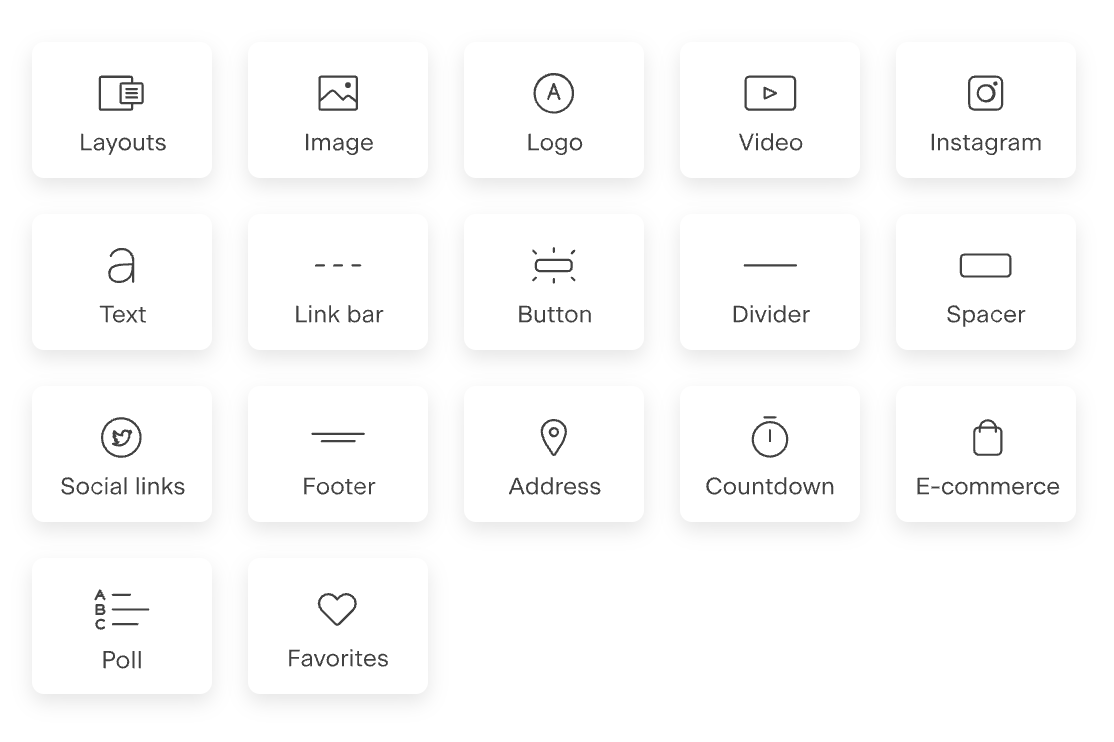
Click the plus icon and select Instagram from the block options
Your most recent Instagram posts will load into the block automatically.
Step 3: Customize the Instagram block
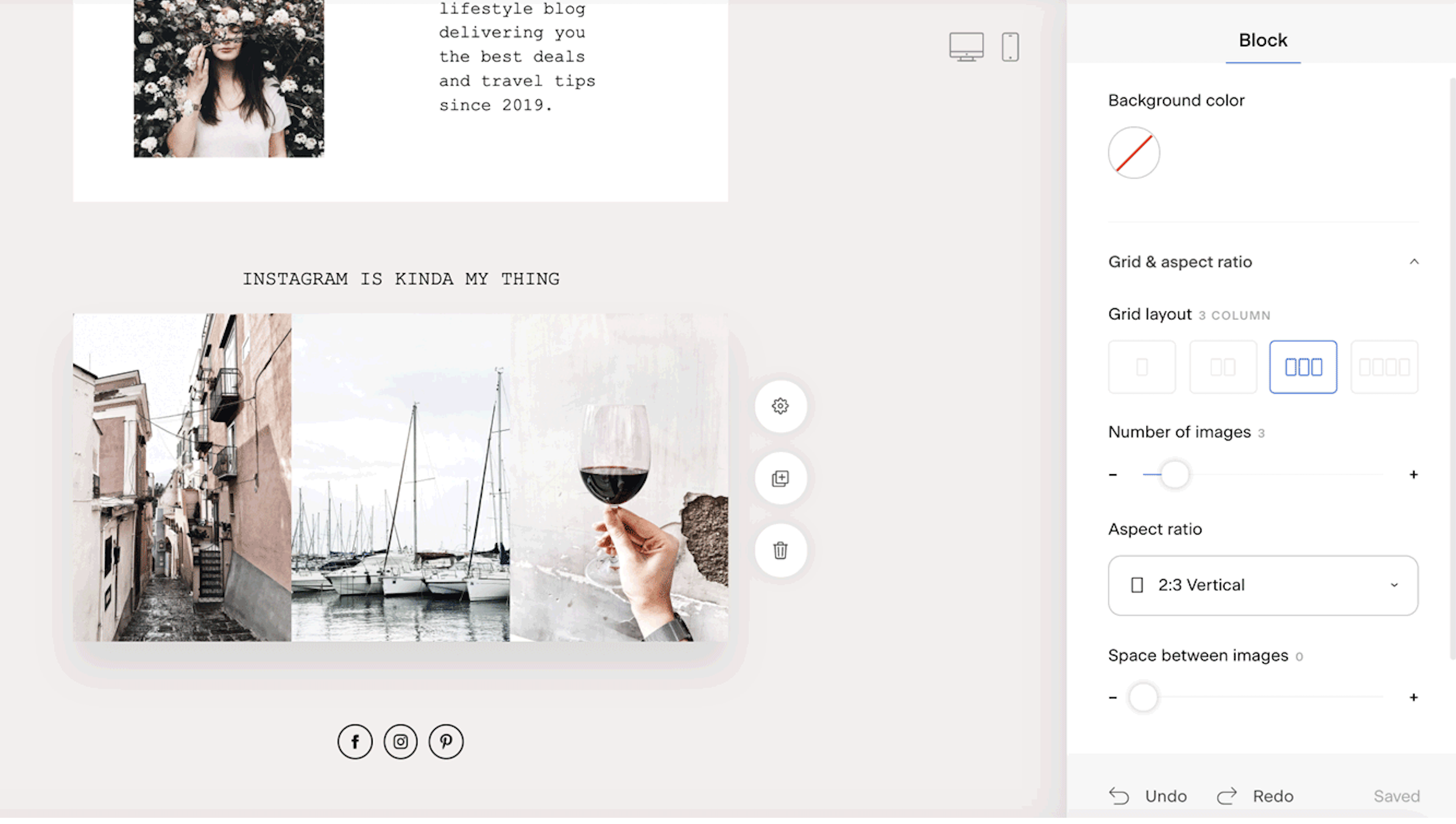
Click on the Instagram block to open its customization options in the right-hand panel under the Block tab. From there, you can:
Change the background color
Adjust the grid layout and image aspect ratio (square, vertical etc.)
Modify the padding for spacing around the feed
Choosing which Instagram posts appear
Flodesk pulls in your most recent public Instagram posts automatically. It's not currently possible to select specific posts or filter by content type (such as Reels or trial content).
If you'd prefer more control over which images appear in your email, use a regular Image block instead and upload the specific images you want to feature.
A practical tip: if you have Reels or content you're not ready to make public yet, save them as drafts on Instagram rather than publishing them, so they don't appear in your email feed before you're ready.
Troubleshooting: feed not displaying
If your Instagram feed isn't loading in the email builder, check these things first:
Your account is connected: go to My Account > Integrations and confirm your Instagram account shows as connected
Your account type is correct: only public Business or Creator accounts are supported. Personal accounts won't work
Reauthorize if needed: if you recently switched from a personal account to a Business or Creator account, you'll need to reconnect your Instagram in Flodesk under My Account > Integrations
FAQ
How do I add my Instagram feed to a Flodesk email?
First, connect your Instagram account in Flodesk under My Account > Integrations. Then open your email in the email builder, hover between two content blocks until the plus (+) icon appears, and select Instagram from the block options. Your most recent posts will load automatically.
Can I connect a personal Instagram account to Flodesk?
No. As of December 4, 2024, only public Business or Creator Instagram accounts are supported. Personal accounts can no longer be connected to Flodesk. You'll need to switch your Instagram account type before connecting.
Can I choose which Instagram posts appear in my email?
Not at this time. Flodesk automatically pulls in your most recent public Instagram posts. If you want more control over which images appear, use a regular image block and upload the specific photos you want to feature instead.
My Instagram feed isn't showing up in my email. What should I do?
Check three things: confirm your Instagram account is connected under My Account > Integrations, make sure your account is set to public Business or Creator (personal accounts aren't supported), and if you recently switched account types, reauthorize the connection in Flodesk.
Do I need to reconnect my Instagram account after switching from a personal to a Business or Creator account?
Yes. After switching your Instagram account type, you'll need to reauthorize the connection in Flodesk under My Account > Integrations. The previous connection won't carry over automatically.
How do I customize how my Instagram feed looks in an email?
Click on the Instagram block in your email to open the Block tab in the right-hand panel. From there, you can change the background color, adjust the grid layout and aspect ratio, and modify the padding around the feed.
What's the difference between the Instagram block and a regular image block?
The Instagram block automatically pulls in your most recent public posts from Instagram. A regular image block lets you manually upload any image you choose. If you want to feature specific photos rather than your latest posts, the image block gives you more control.
Will Reels show up in my Instagram block?
Flodesk pulls in your most recent public posts, which may include Reels. It's not currently possible to filter by content type. If you have Reels you're not ready to make public, save them as drafts on Instagram so they don't appear in your email feed.