
How to save font styles and button styles
Save and reuse text and button styling across all your emails for a consistent brand look.
Overview
If you’ve designed the perfect heading, paragraph, or call-to-action button in Flodesk—and want to reuse that same look again—you can save font styles and button styles to your account.
Saved styles let you quickly apply the same fonts, sizes, colors, spacing, and button designs to other email blocks without recreating them from scratch.
Important:
This article explains how to save styles only (fonts and buttons).
If you want to save and reuse an entire email block, learn more here:
How to save email blocks as favorites
What you can save
Font styles
Saved font styles include:
Font family
Weight
Size
Color
Alignment
Case
Line height
Line spacing
You can save up to 30 font styles.
Font styles can be saved from:
Text blocks
Layout blocks
Button styles
Saved button styles include:
Button style
Fill color
Border color
Position
Border and sizing
Font settings
You can save up to 30 button styles.
Button styles can be saved from:
Standalone Button blocks
Layout blocks that include buttons
How to save font styles in an email
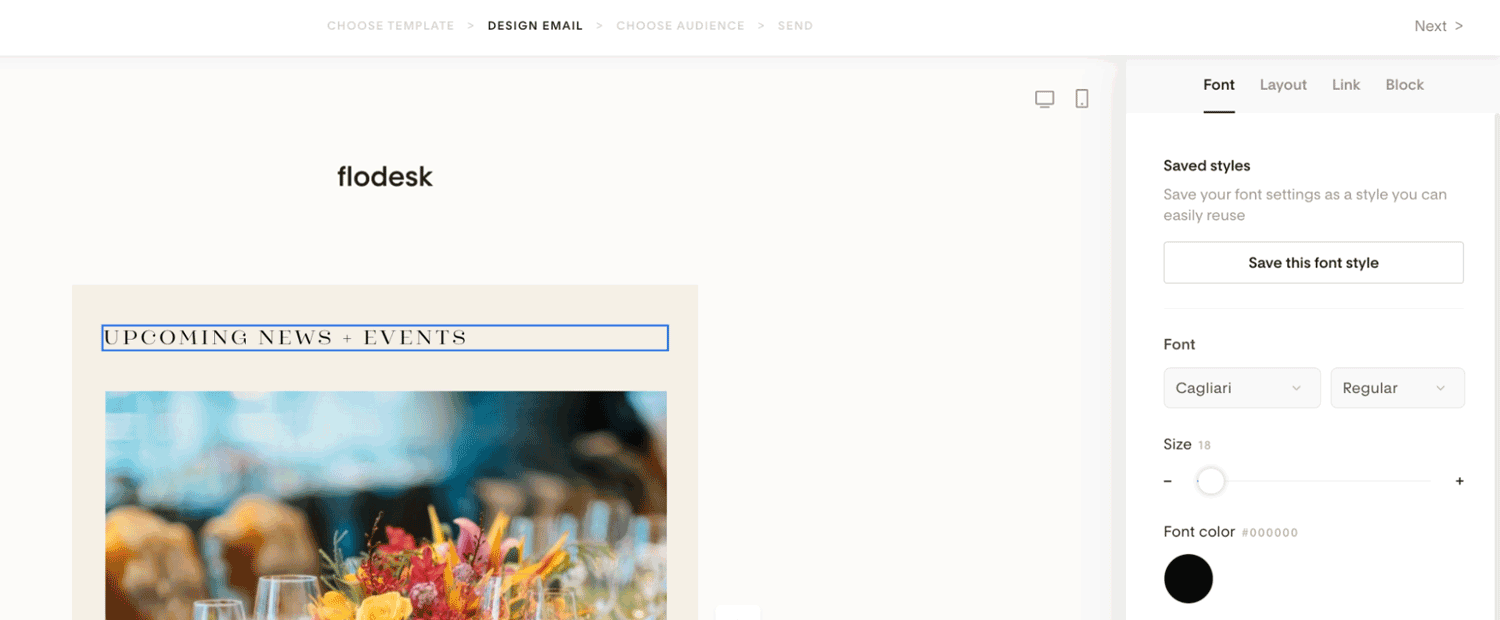
Save your first font style
Click the block containing the text with the font style you want to save.
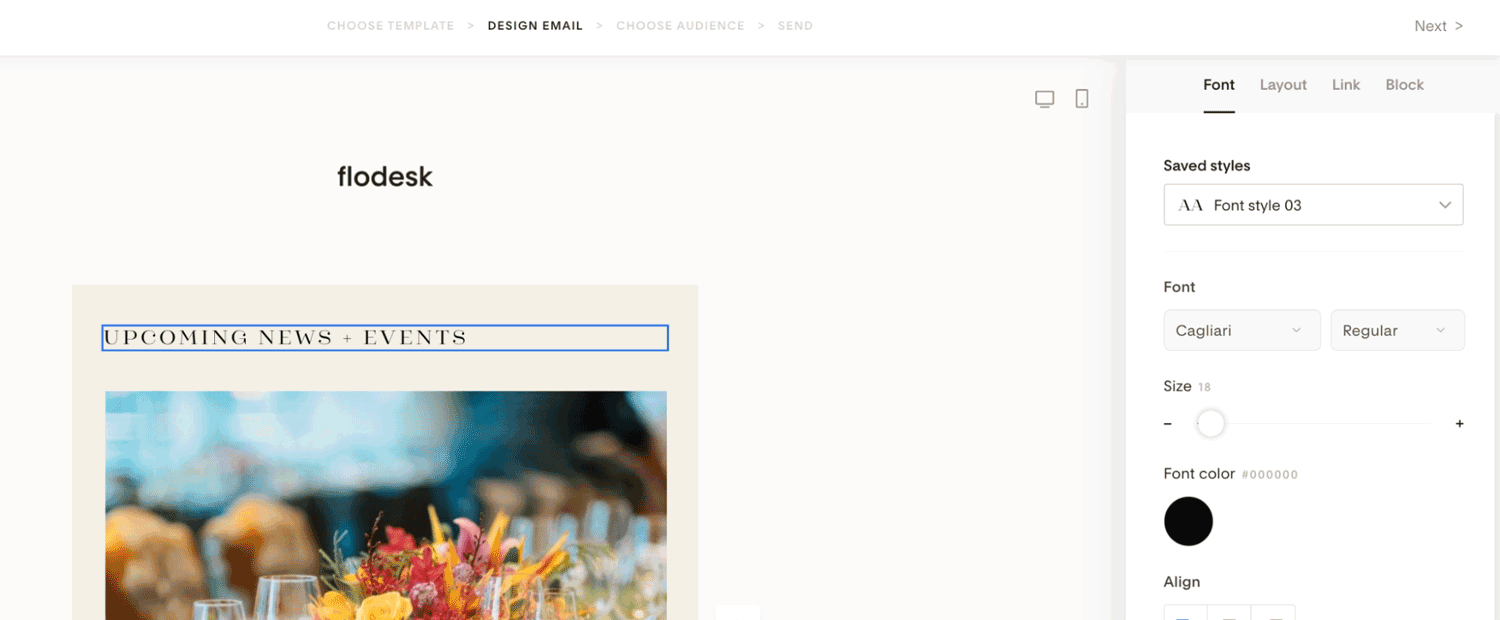
Under the Font tab in the right sidebar, click Save this font style.
Once saved, the style appears in the Saved styles dropdown and can be reused in any email.
Save additional font styles
Step 1. Click the block whose font style you want to save. In this example, we want to save the font style of a Text block section.
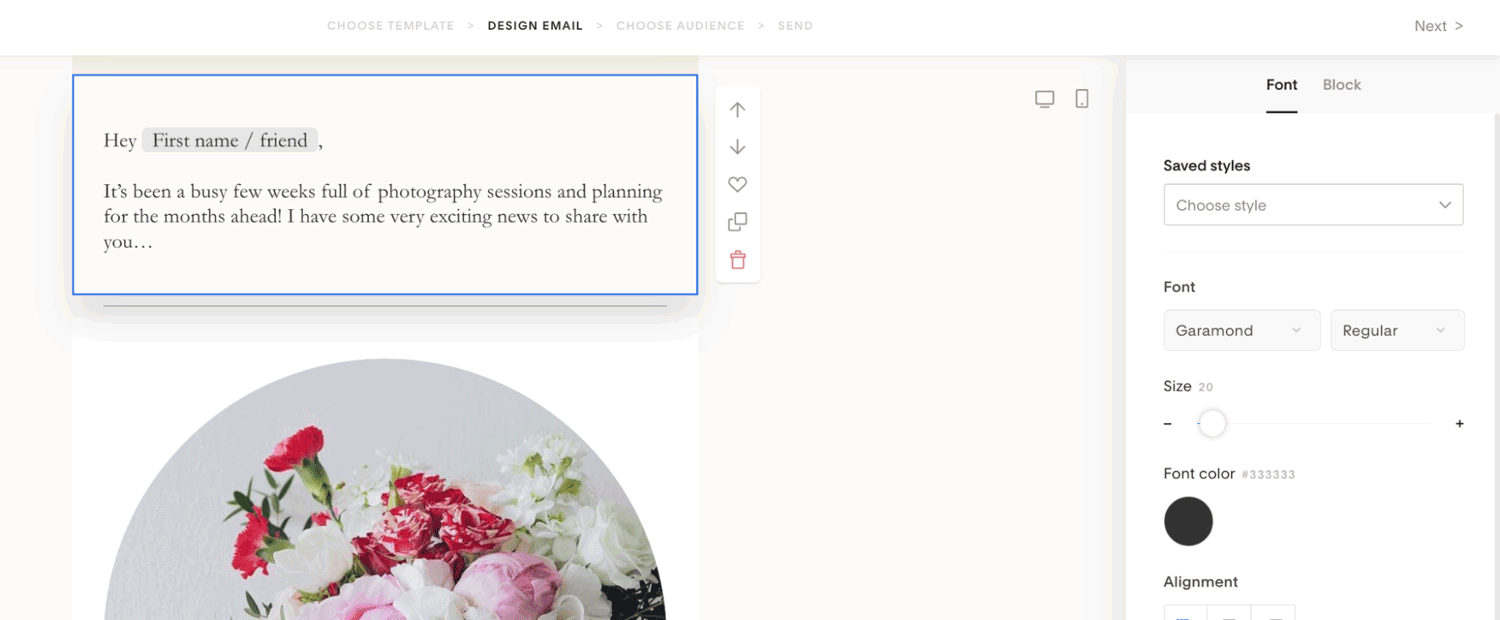
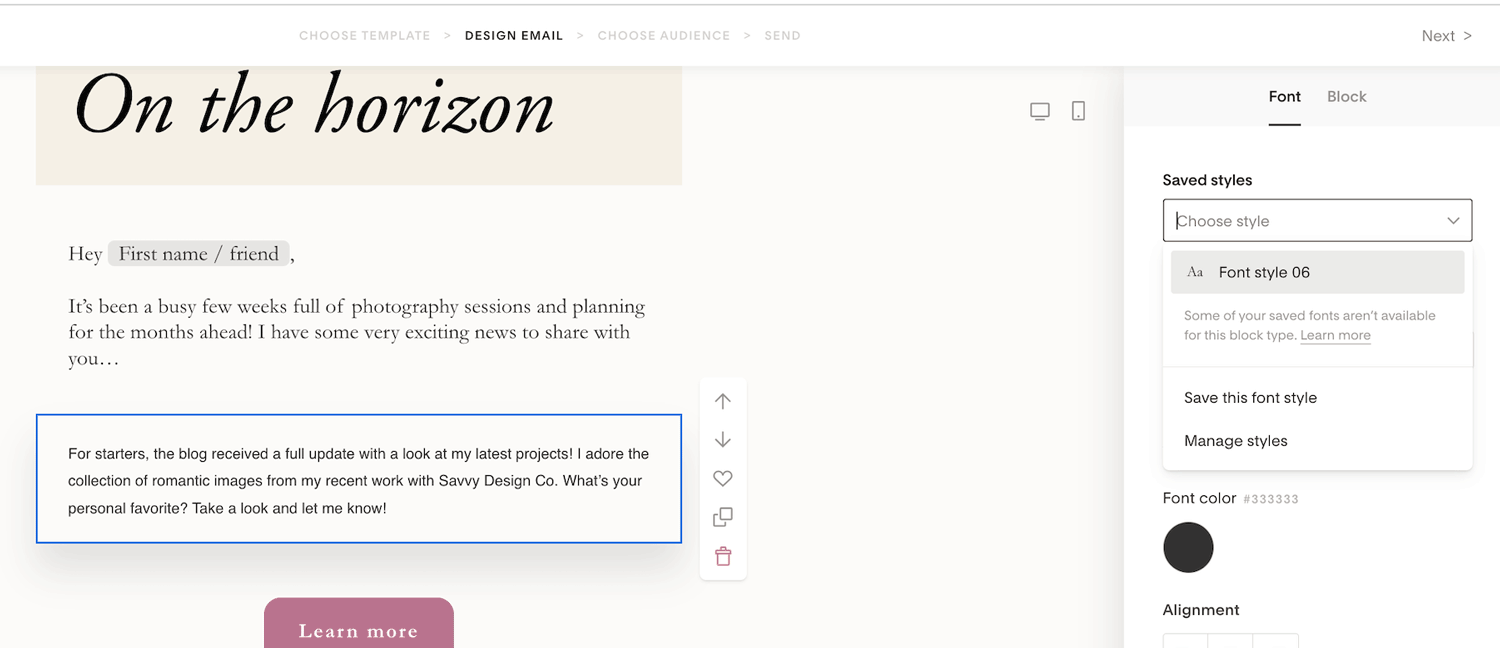
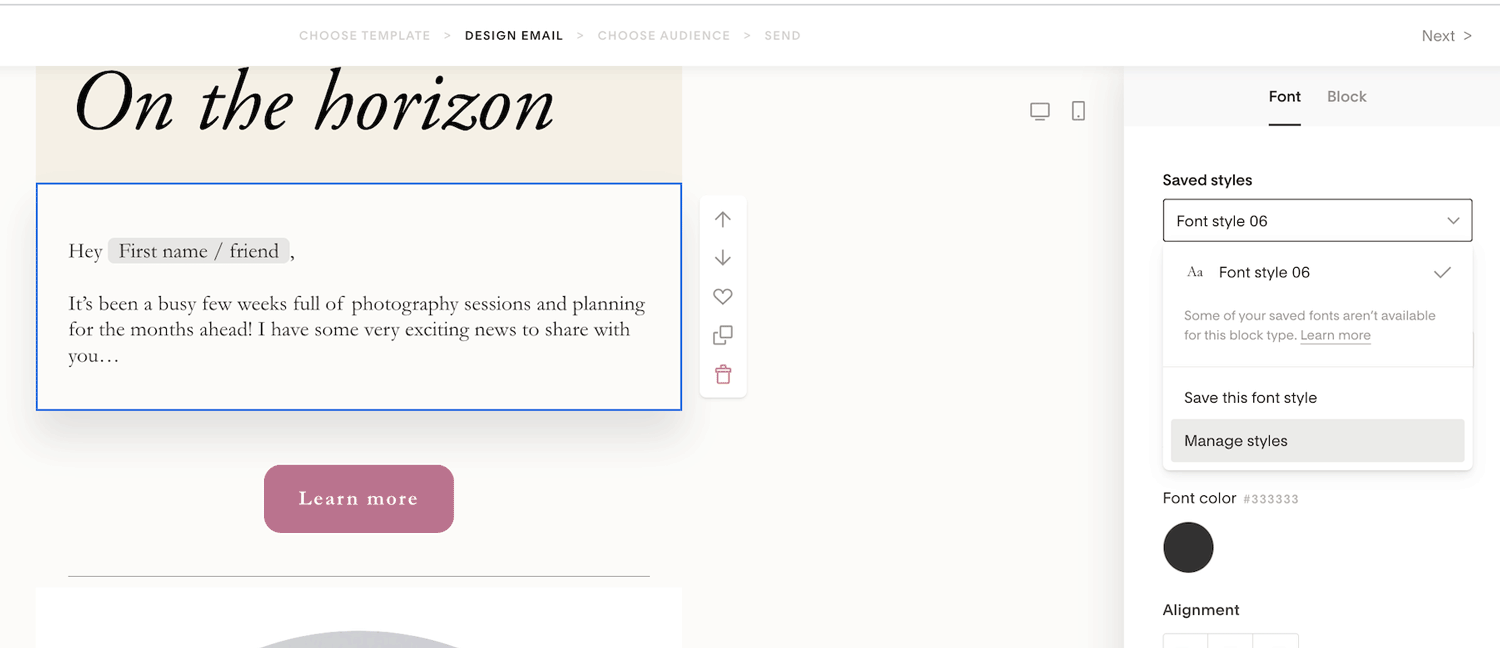
Step 2. Under the Saved styles dropdown, click the down-pointing arrow and choose the option to “Save this font style”.
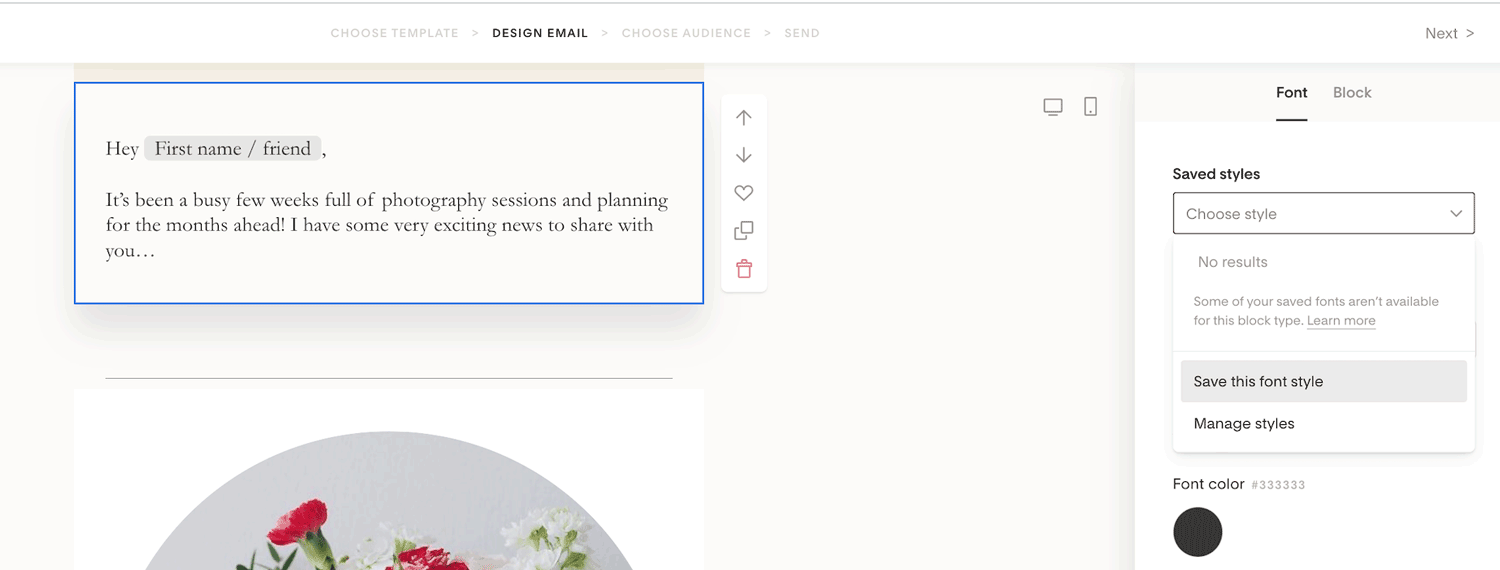
Your font style is now saved and ready to be used elsewhere.
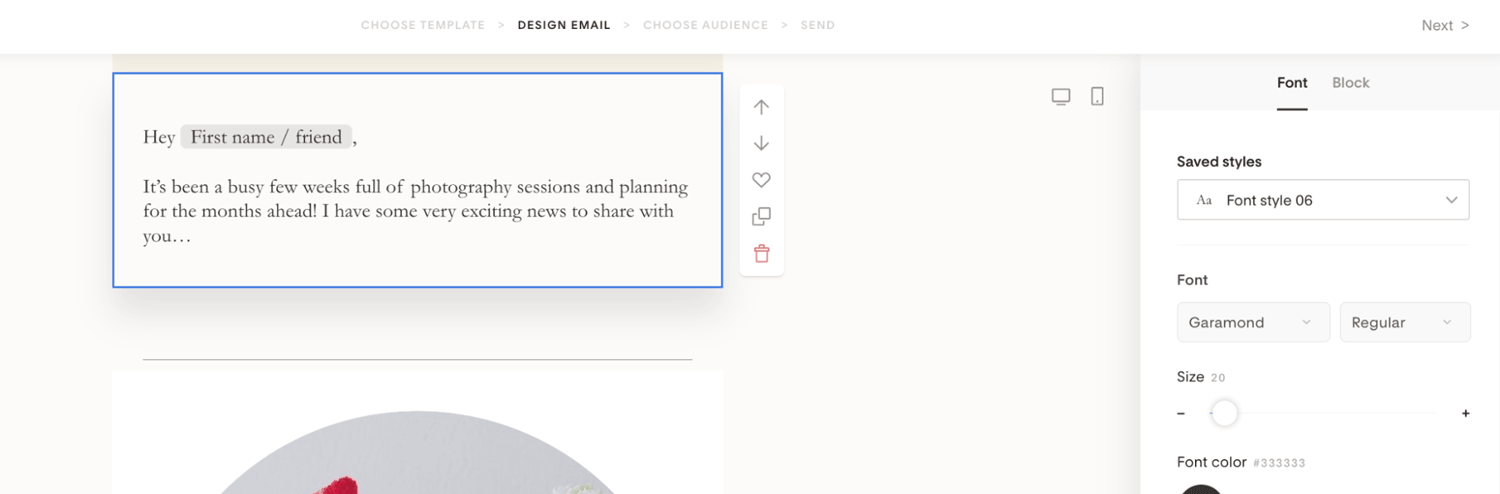
Note: as a default setting, Flodesk will give a generic name to your saved font styles like “Font style 06”. To see how you can rename your saved styles click here.
How to save button styles in an email
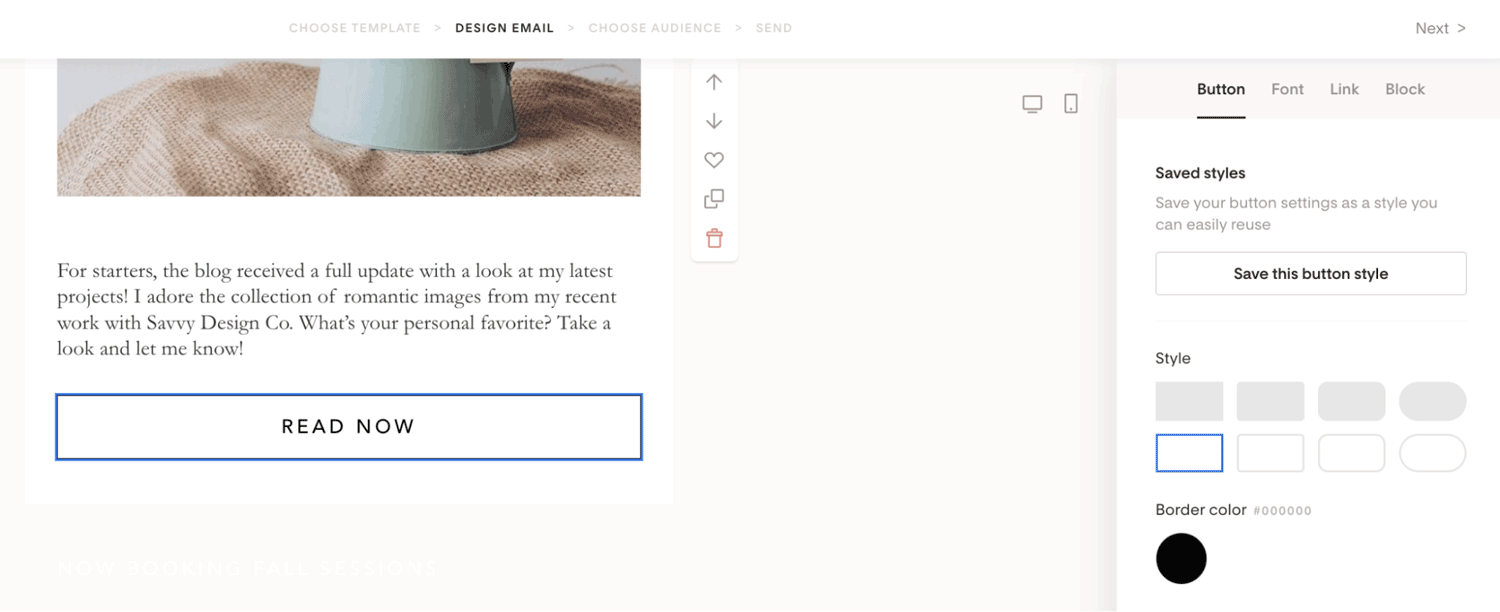
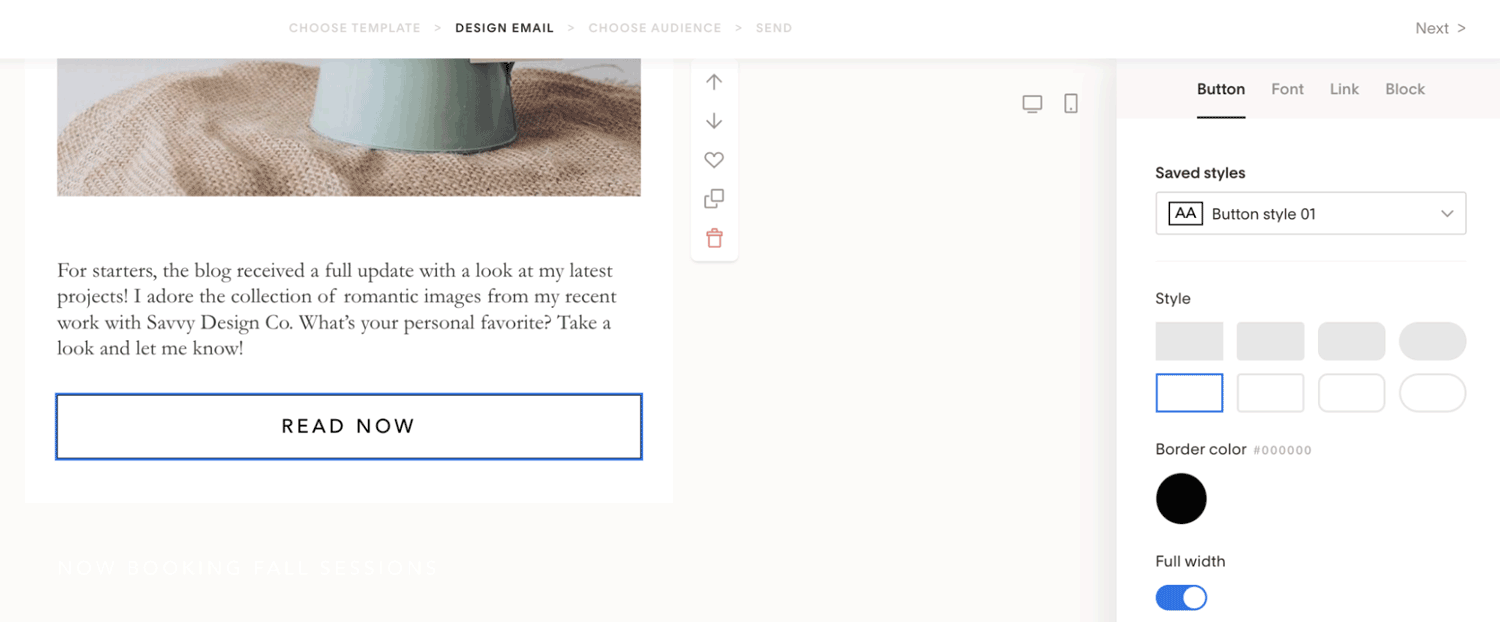
Saving your first button style
Click the button you want to save.
Open the Button tab in the right sidebar.
Click Save this button style.
The saved button style will appear in the Saved styles dropdown.
Save additional button styles
Step 1. Click the button whose style you want to save. In this example, we created and styled a standalone Button block.
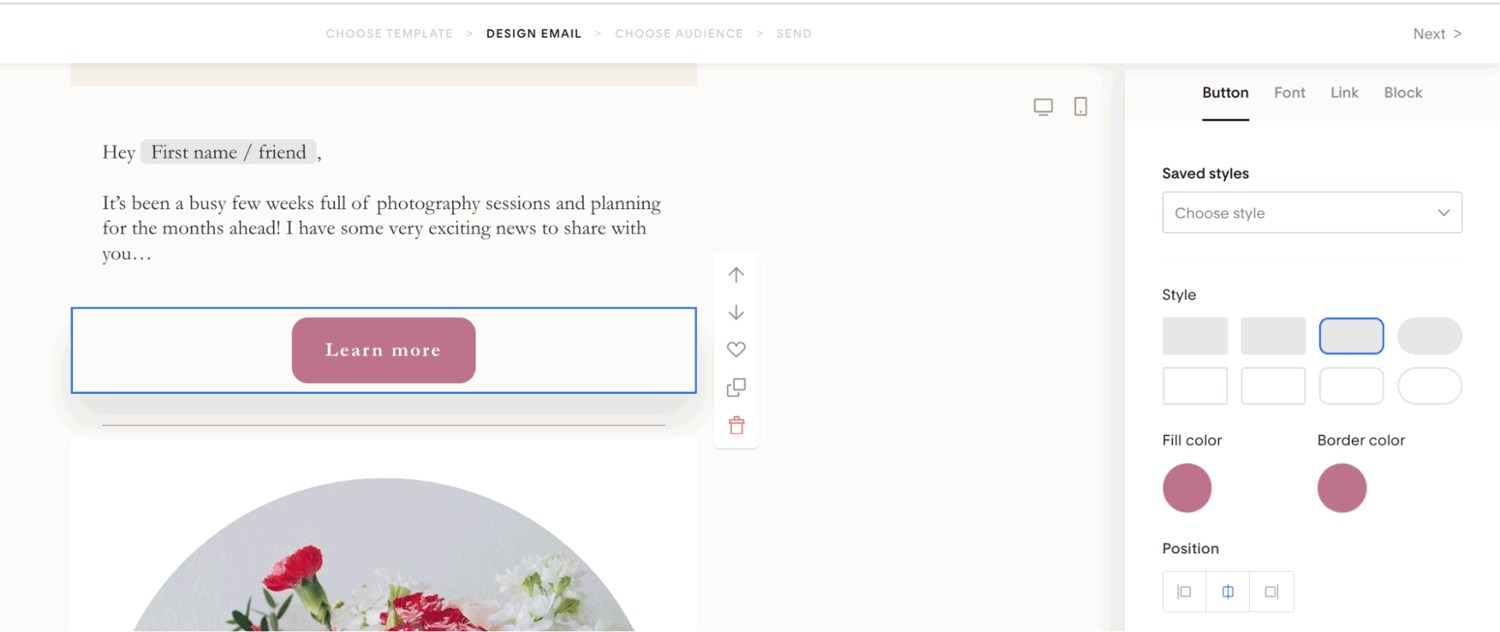
Step 2. Under the Saved styles dropdown, click the down-pointing arrow and choose the option to “Save this button style”.
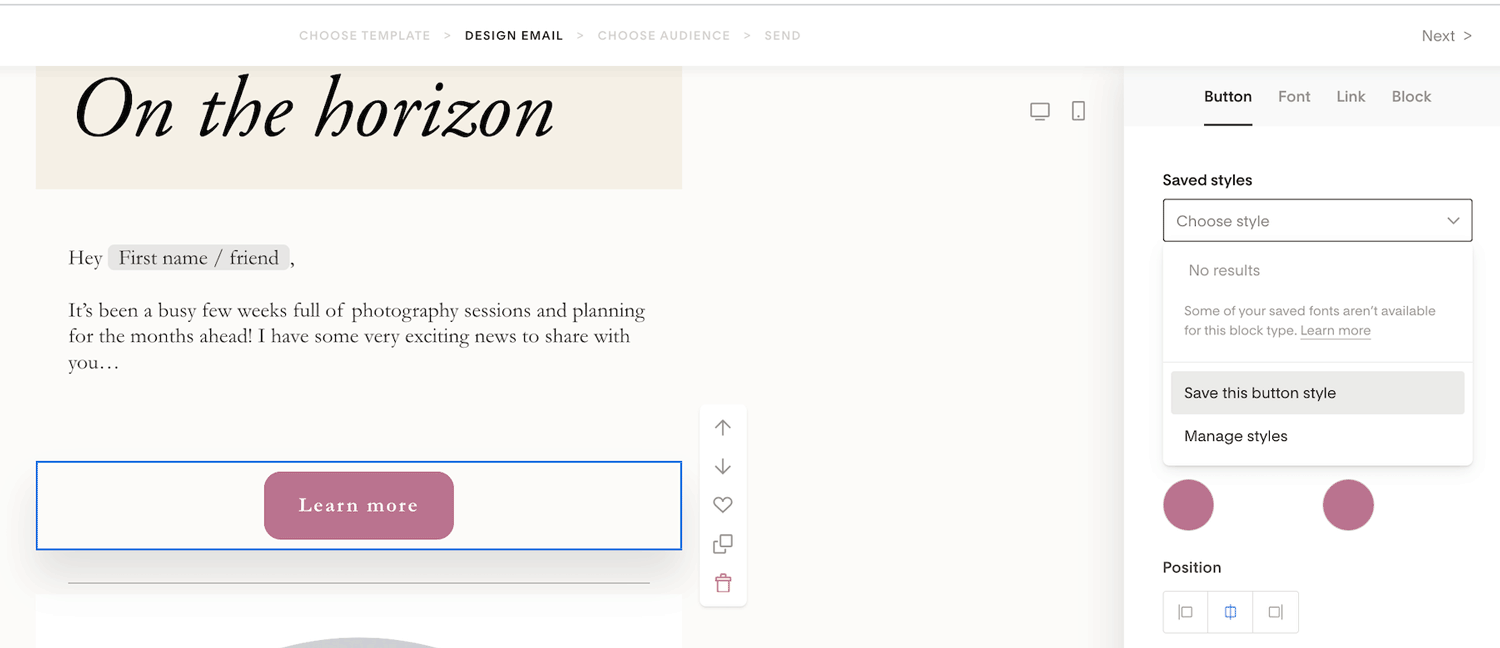
Your button style is now saved and ready to be used elsewhere.
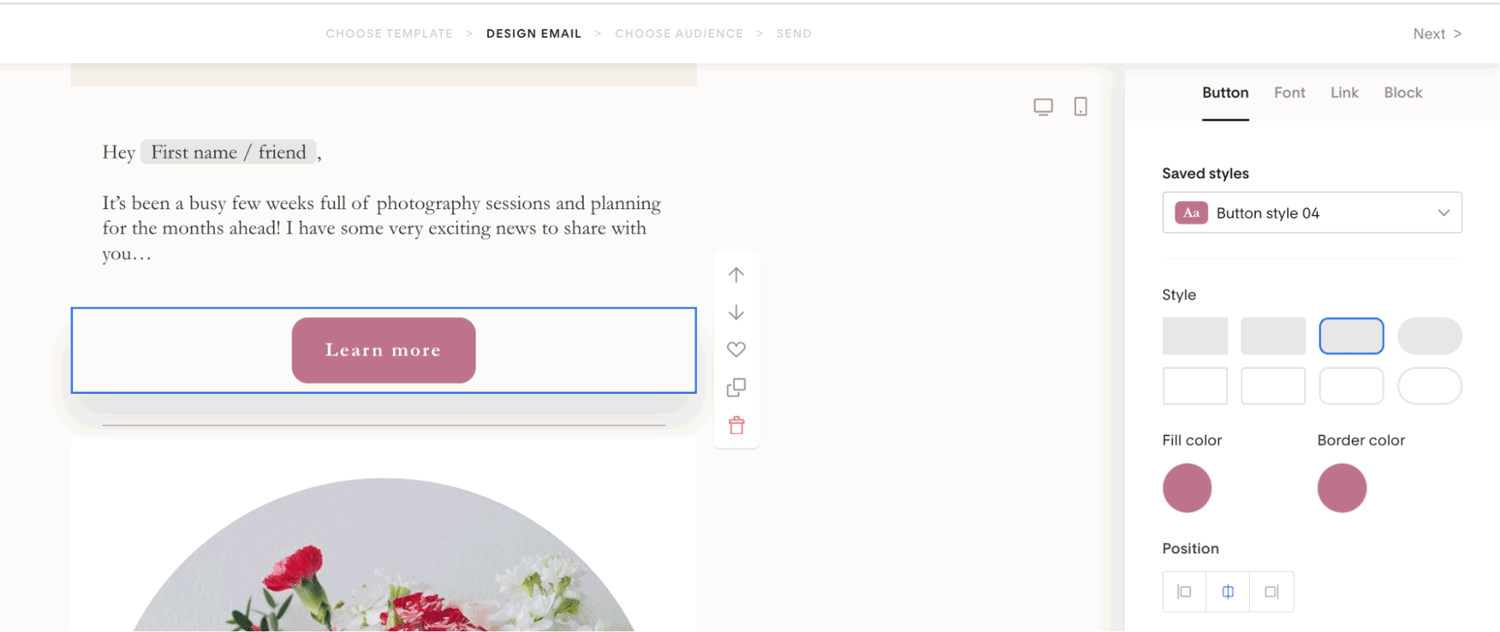
Note: as a default setting, Flodesk will give a generic name to your saved button styles like “Button style 04”. To see how you can rename your saved styles click here.
How to apply saved styles to other blocks
Click the text or button you want to update.
Open the Saved styles dropdown.
Select the saved font style or button style you want to apply.
For example, to apply a saved font style to a new paragraph of text, click the Text block and then under the Saved styles dropdown, select the font style you wish to use.
Style availability rules
Styles using custom fonts are only available in Layout blocks.
Styles using web-safe fonts are available in:
Text blocks
Button blocks
Layout blocks
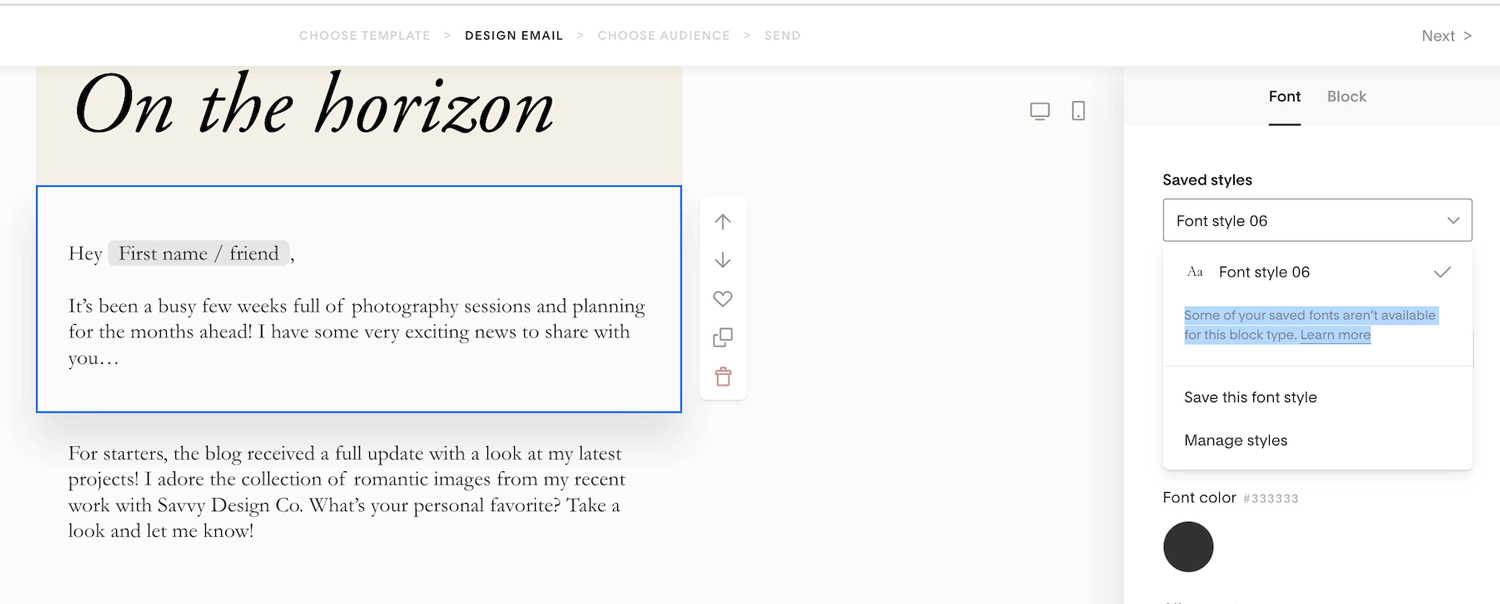
You may see a message saying:
“Some of your saved fonts aren’t available for this block type.”
This simply means the style uses a custom font that isn’t supported in that block.
Why some saved styles can’t be applied everywhere
Text blocks use true text rendered with web-safe fonts.
Layout blocks render text and buttons as images, which allows custom fonts.
Standalone Button blocks use web-safe fonts only.
Because of this:
Custom-font styles → Layout blocks only
Web-safe font styles → All block types
Managing and editing your saved styles
To manage your saved font styles or button styles, click the “Manage styles” button under the Saved styles dropdown.
This will open the “Manage saved styles” window listing all your saved styles.
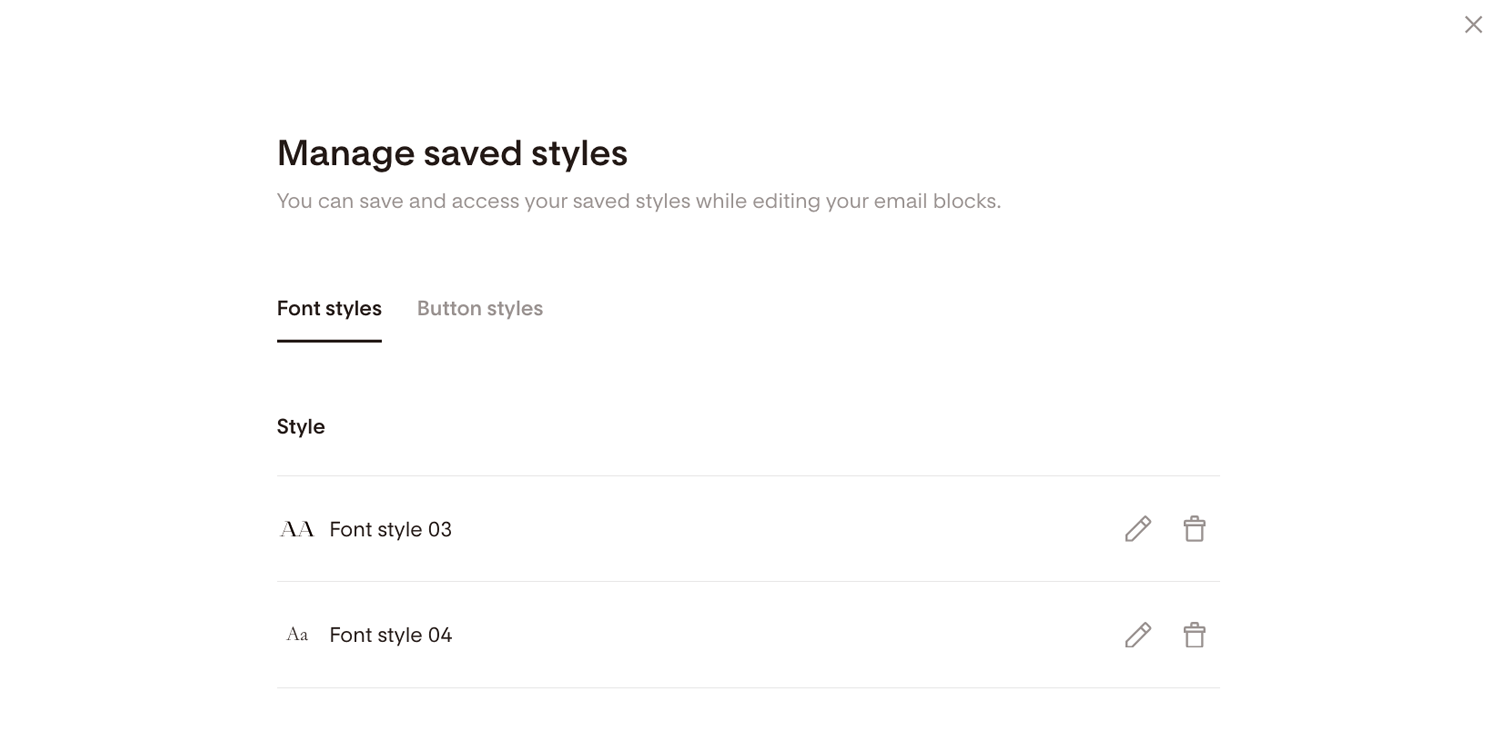
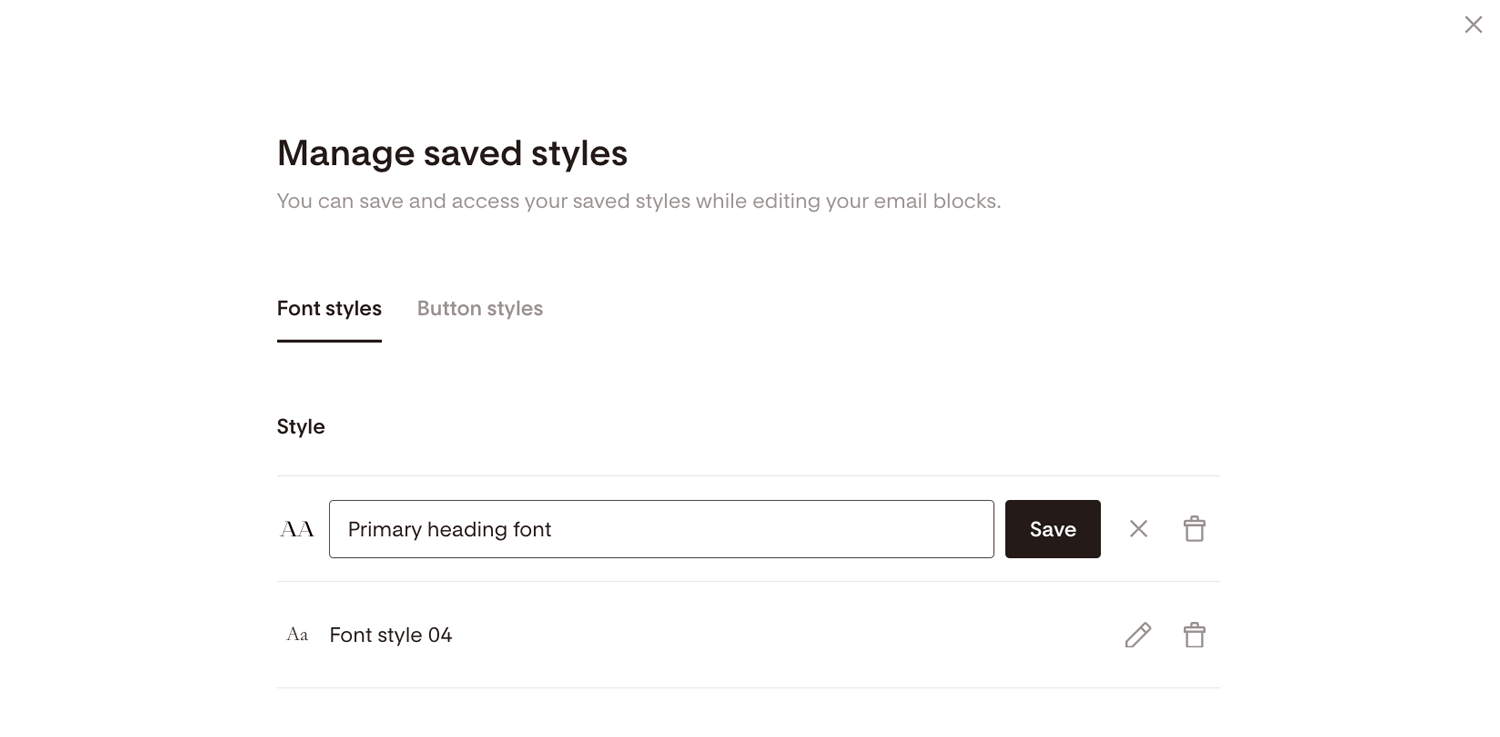
To edit the name of a font style or a button style, click the pencil icon and rename the style as needed. Then save the changes.
In the example screenshot below, we edited the font style name from “Font style 03” to “Primary heading font”.
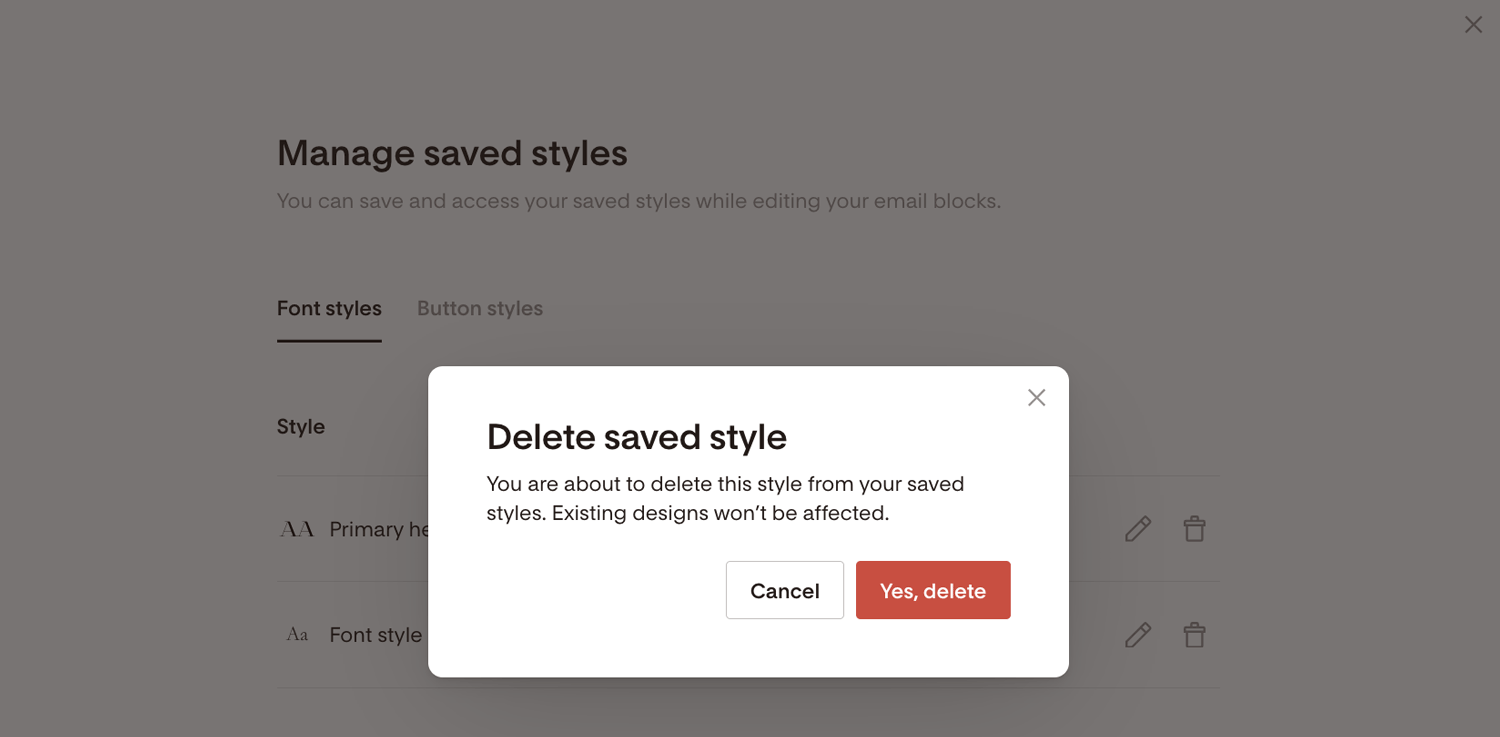
To delete a saved style, click the trash bin icon and confirm you want to proceed deleting it. Existing designs won’t be affected.
Summary
Save font and button styles to reuse design settings across emails
Save up to 30 font styles and 30 button styles
Custom-font styles work only in Layout blocks
To reuse entire blocks (not just styles), use email block favorites
FAQ
Can I save an entire email block to reuse later?
Yes. To save and reuse a full block (layout, content, and design), use email block favorites. This article only covers saving font and button styles. Learn more here: https://help.flodesk.com/en/articles/4573825
Why can’t I apply my saved font style to a Text block?
The style likely uses a custom font. Custom fonts only work in Layout blocks, not Text blocks.
How many styles can I save in Flodesk?
You can save up to 30 font styles and 30 button styles per account.
Do saved styles apply across all emails?
Yes. Saved styles are available in all emails in your Flodesk account.
Will deleting a saved style break my existing emails?
No. Deleting a style does not change emails that already use it.