How to downgrade your Flodesk plan
Overview
You can downgrade your Flodesk plan anytime from your Plan + billing settings.
When you downgrade, your plan change takes effect at the end of your current billing cycle, so your existing plan continues until then.
Downgrading to a lower plan (like from Everything → Pro or Pro → Lite) means you’ll lose access to certain features, and you may need to make changes before you can confirm the downgrade.
How to downgrade your plan
Step 1. Go to Plan + billing
In your Flodesk account, click your avatar (top right).
Select Plan + billing from the left-hand menu.
Step 2. Click “Cancel or Downgrade”
You’ll find this button at the bottom of your billing page, next to your invoice history.
Note: The same button is used for both downgrading and canceling your plan.
If you started your paid Flodesk subscription before December 2, 2025, you are on one of our legacy plans.
For Legacy (unlimted) Plans: If you decide to change plans, you’ll switch to our new pricing model, which is based on your active subscriber count.
For Beta members: Keep in mind that your beta discount only applies to your current plan and won’t transfer to the new plans.
If you have any additional questions about your legacy plan, please contact us at support@flodesk.com with your account details.
Step 3. Choose your new plan
If you’re on:
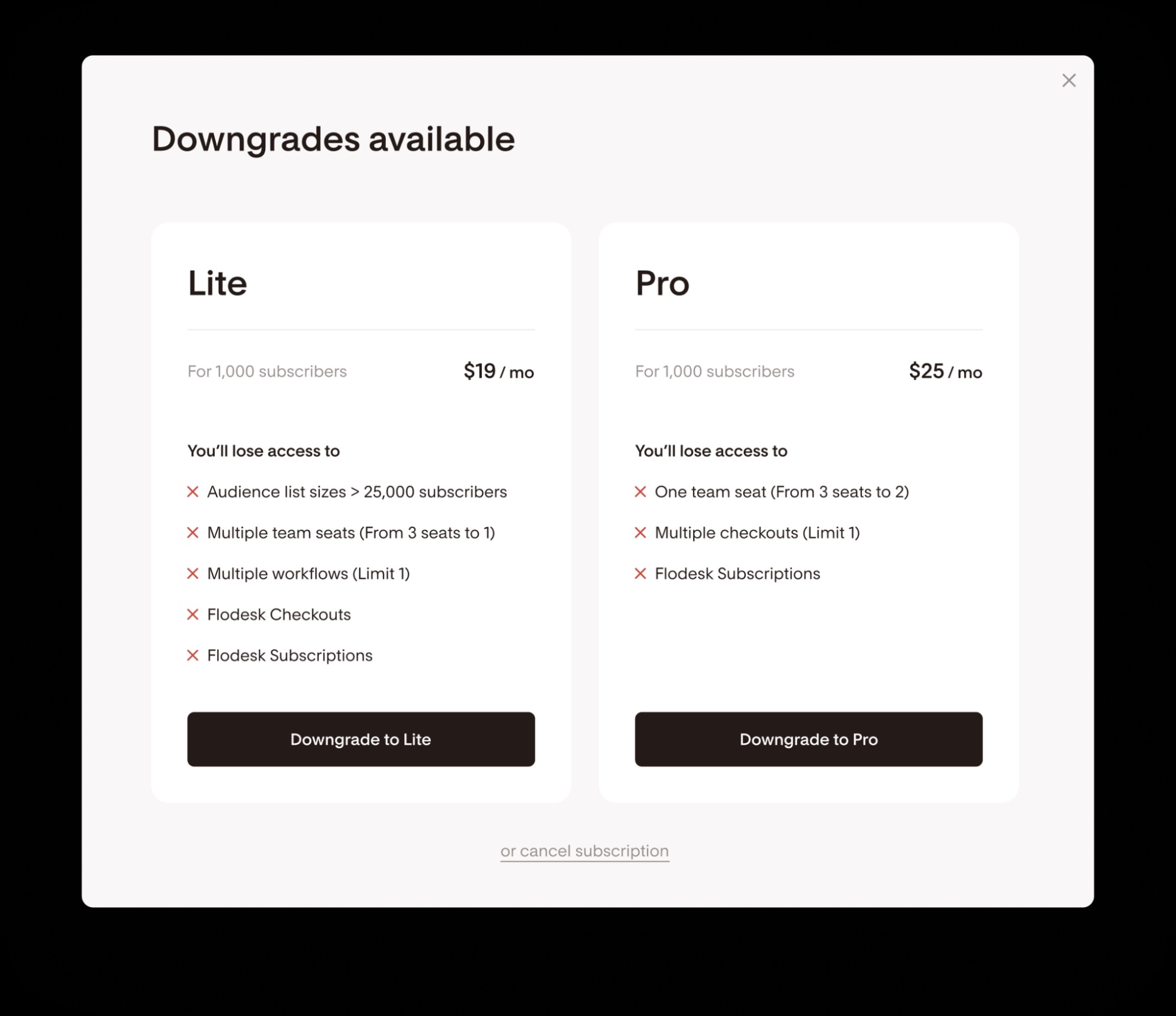
Everything plan: You’ll see options to downgrade to Pro or Lite.
Pro plan: You’ll see an option to downgrade directly to Lite.
Each option clearly lists what you’ll lose access to, such as:
Team seats (reduced number)
Multiple workflows (Lite allows one published workflow)
Flodesk Checkouts and Subscriptions
Audience limits (Lite supports up to 25,000 subscribers)
Step 4. Review downgrade requirements
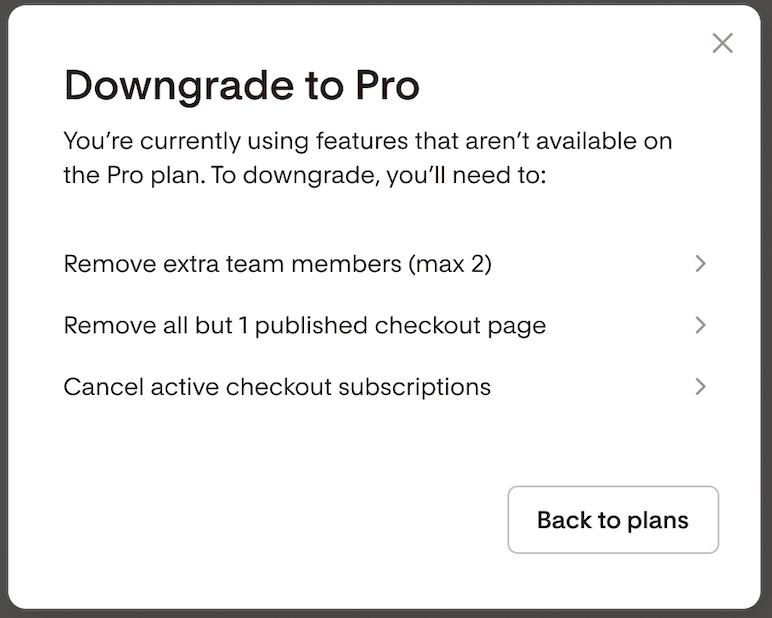
Before you can confirm, Flodesk checks if you’re using any features that aren’t included in the new plan.
You’ll need to:
Reduce subscribers to 25,000 or fewer
Remove extra team members (max 1 for Lite, 2 for Pro)
Unpublish Checkout pages
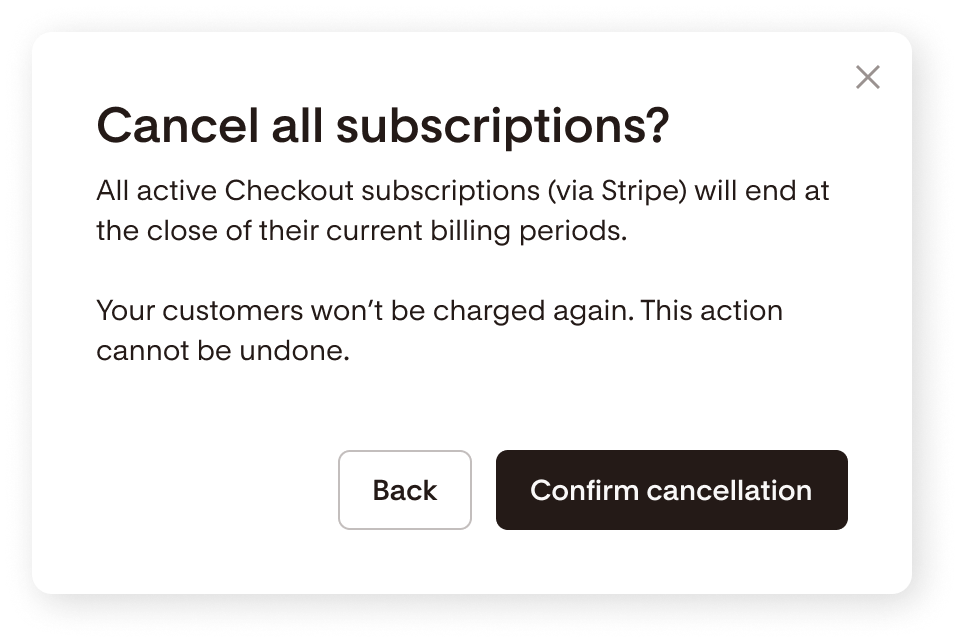
Cancel active Checkout subscriptions
Unpublish extra workflows (Lite allows 1)
Links are provided to help you take each action without leaving your current flow. Once all conditions are met, you can proceed to confirm your downgrade.
Step 5. Confirm your downgrade
After completing the steps, click Downgrade to Lite or Downgrade to Pro.
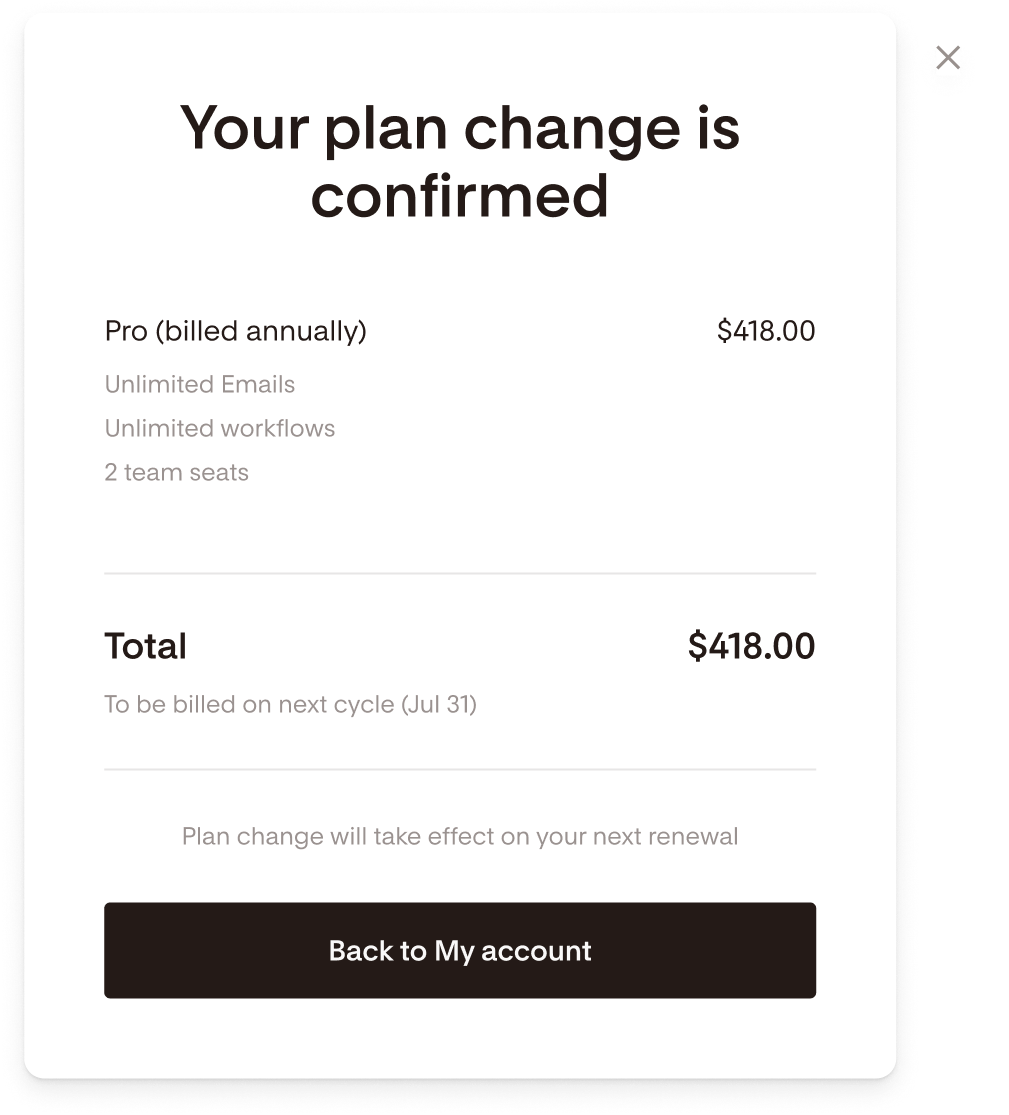
You’ll see a confirmation screen showing your new plan details and billing total.
Your plan will update automatically on your next renewal date.
Important notes
Scheduled downgrades: If you downgrade today, the change applies at the end of your billing period—no features will change immediately.
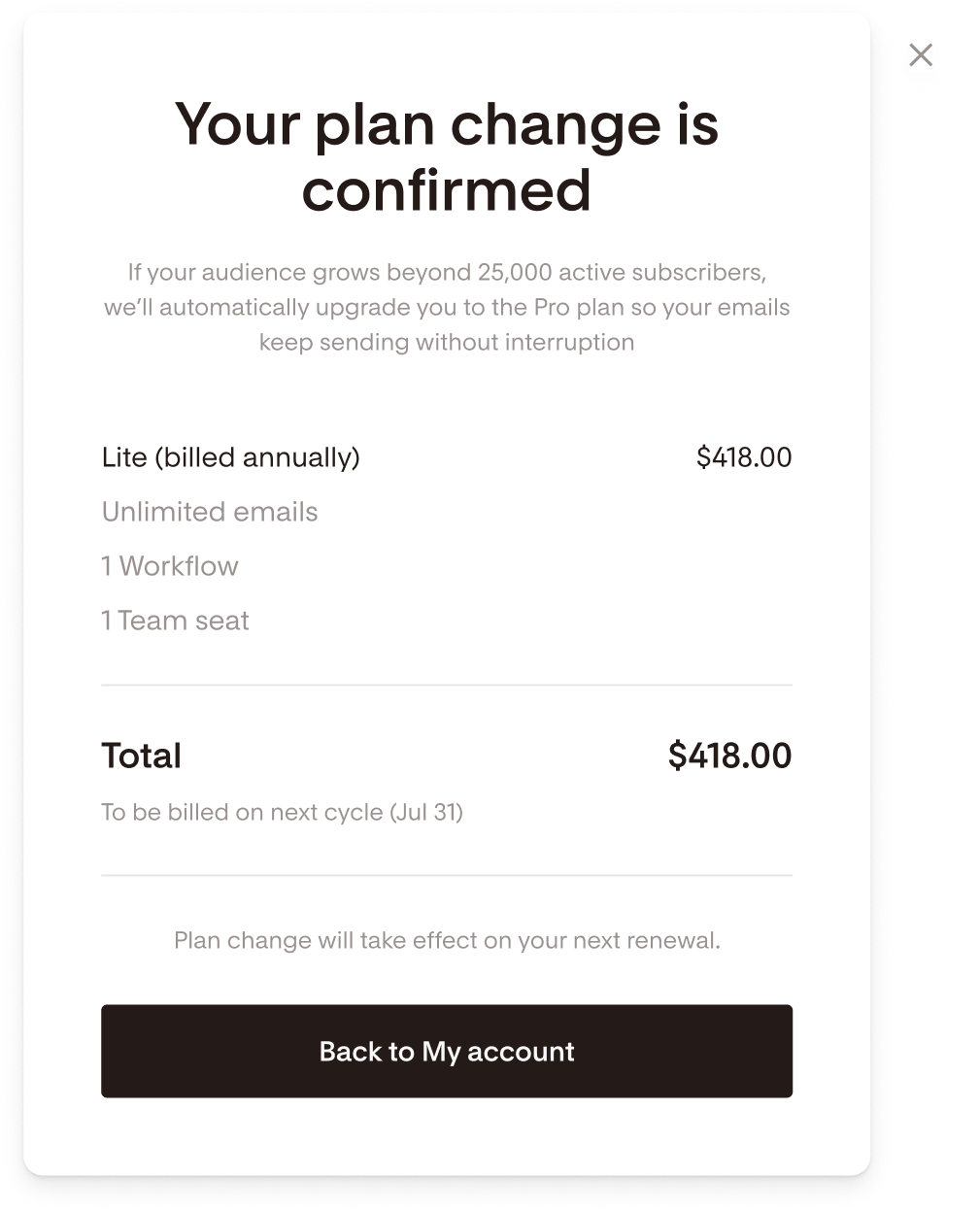
Over 25,000 subscribers: If you schedule a downgrade to Lite but then go over 25,000 subscribers, we will automatically remove your downgrade to Lite and change your downgrade to Pro instead.
Checkouts and subscriptions: Canceling active Checkout subscriptions is permanent and cannot be undone. The only way your buyers can continue their subscriptions is to re-purchase through a Flodesk Checkout page.
No downtime: Downgrades are designed to maintain service continuity, so you won’t lose sending ability during the transition.
Downgrading your Flodesk plan — FAQs
How can I downgrade my plan?
Go to Account settings → Plan + billing and click Cancel or Downgrade. Then select the plan you want to move to and follow the prompts.
When will my downgrade take effect?
Your downgrade takes effect at the end of your current billing cycle. You’ll stay on your current plan until then.
What do I need to do before I can downgrade?
Depending on your plan, you may need to:
Reduce your subscribers to 25,000 or fewer
Remove extra team members
Unpublish extra workflows or Checkout pages
Cancel any active Checkout subscriptions
What features will I lose on the Lite plan?
On the Lite plan, you’ll have:
1 team seat
1 published workflow
No Checkouts or Subscriptions
A 25,000 subscriber limit
What happens if I go over 25,000 subscribers on Lite?
If your audience grows beyond 25,000, Flodesk will automatically upgrade you to Pro so your emails continue sending without interruption.
Can I undo a Checkout subscription cancellation?
No. Canceling Checkout subscriptions is permanent—buyers would need to repurchase through your Checkout page.
Will my data or workflows be deleted when I downgrade?
No, your data remains safe. However, features not available in your new plan (like extra workflows or Checkouts) will become inactive until you upgrade again.
Can I upgrade again later?
Yes. You can move back to a higher plan anytime from your Plan + billing settings.
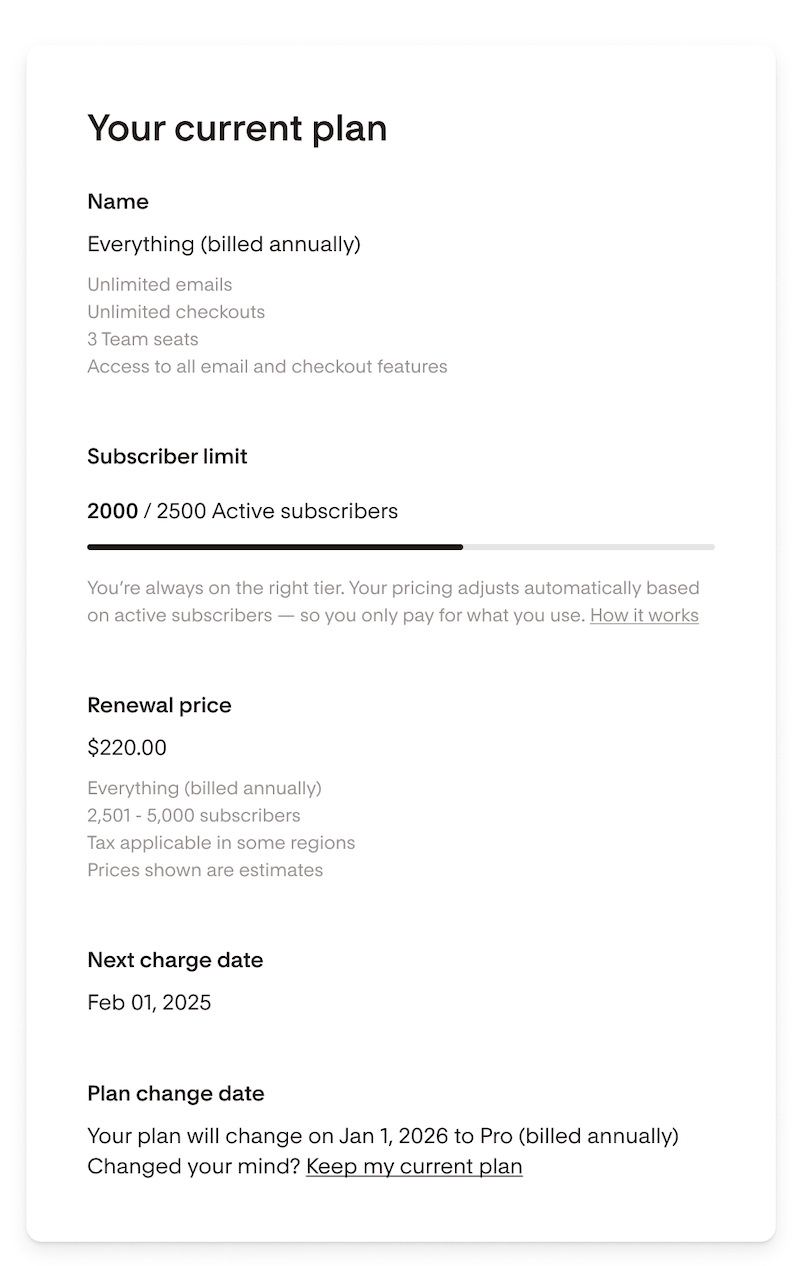
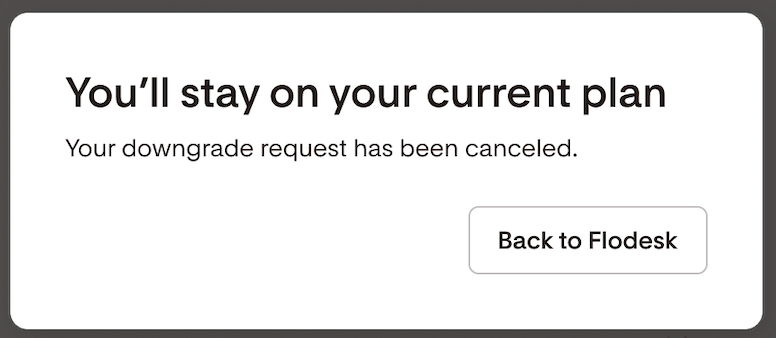
Can I cancel my plan downgrade if I change my mind?
Yes. You can stop your scheduled downgrade anytime before it takes effect.
Go to Plan + billing, then click Keep my current plan under the Plan date change summary section at the bottom of the page.
Important:
If you had unpublished workflows or Checkouts, or canceled active subscriptions as part of your downgrade, you’ll need to manually re-enable those features.
If you canceled buyer subscriptions during the downgrade process, your customers will need to re-purchase through your Checkout page to continue their subscriptions.