Create an email from a prompt in Flodesk
Overview
Prompt to Create is a new way to start an email in Flodesk. Describe what you want, and Flodesk generates a beautifully designed, on-brand email to get you most of the way there. From there, you can refine it by typing follow-up instructions in the chat, or adjust it manually in the email builder, on your computer or your phone.
The layouts are handcrafted by Flodesk's design team, and your brand is applied automatically. You bring the idea. Flodesk handles the design.
Note: This feature is being rolled out gradually over the next few days.
The original ways to create an email without chat (choosing a template or starting from scratch) are still available. Prompt to Create is an additional starting point. For more on creating emails without a prompt, see How to send a newsletter in Flodesk.
Before you start
To use Prompt to Create, you'll need:
An active Flodesk account
AI features enabled in your account (on by default; see "How to turn off AI features" below if you'd like to check)
Your brand settings filled in
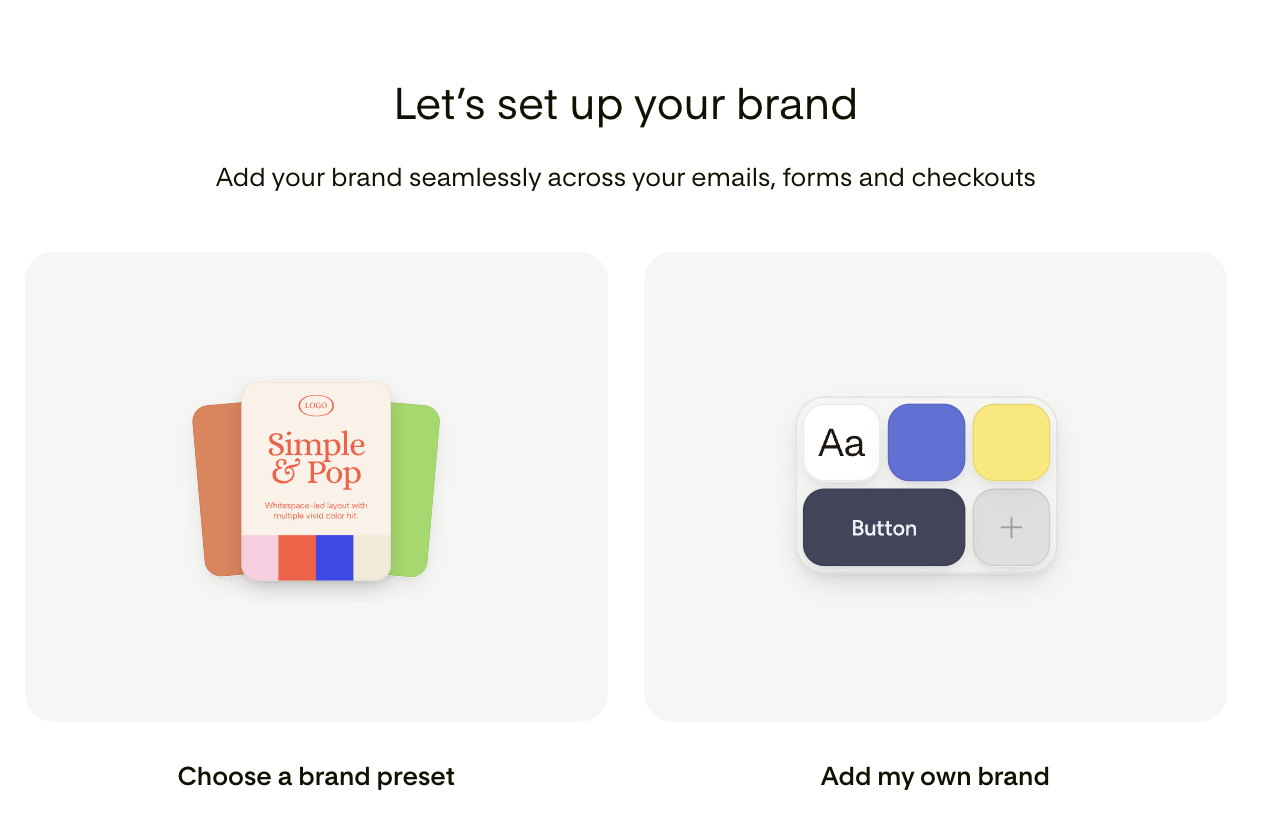
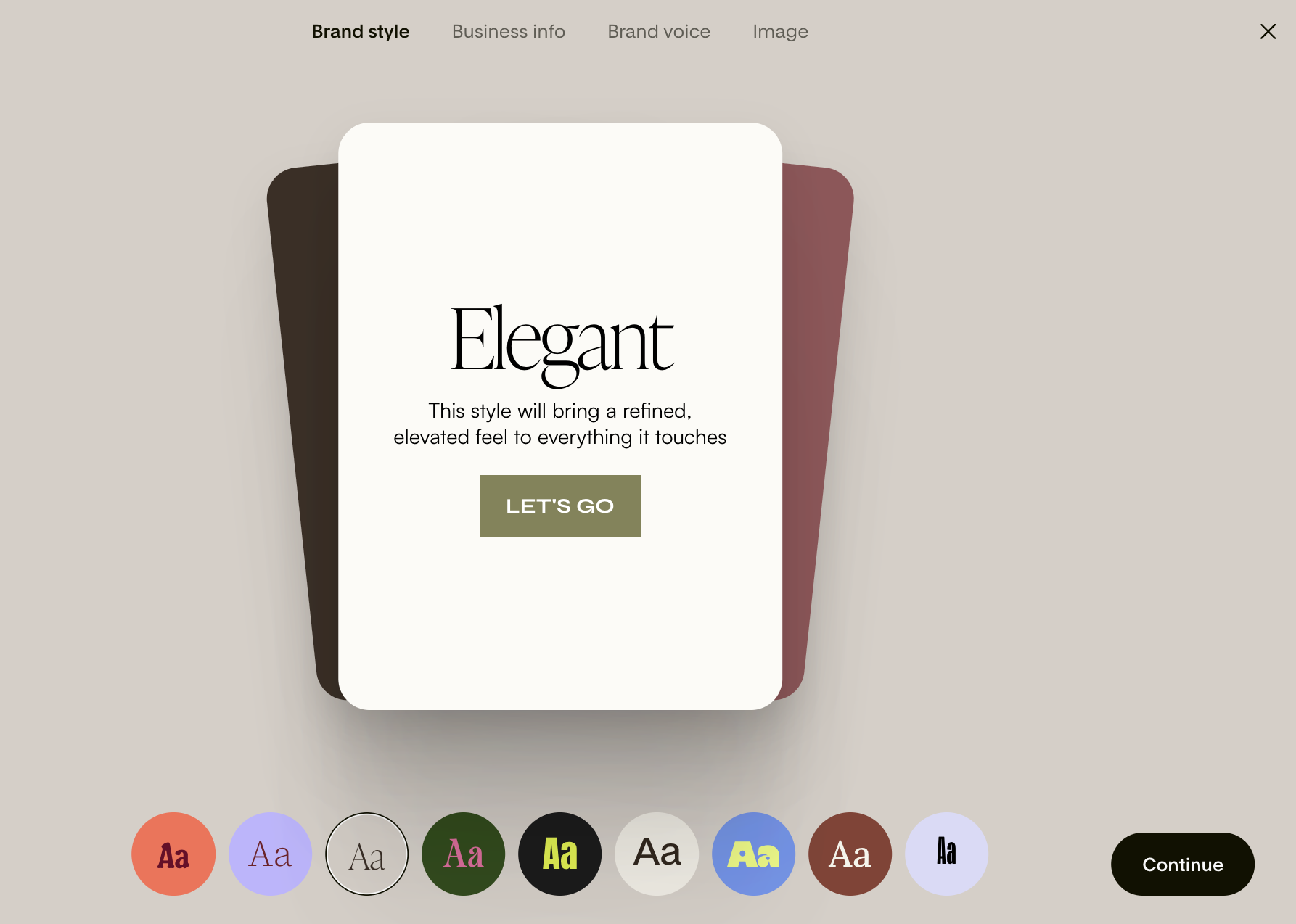
Click “My brand” in the bottom left of the side navigation panel. Flodesk uses your brand colors, fonts, and style to generate an email that looks like you. You can Choose a brand preset or Add your own brand.
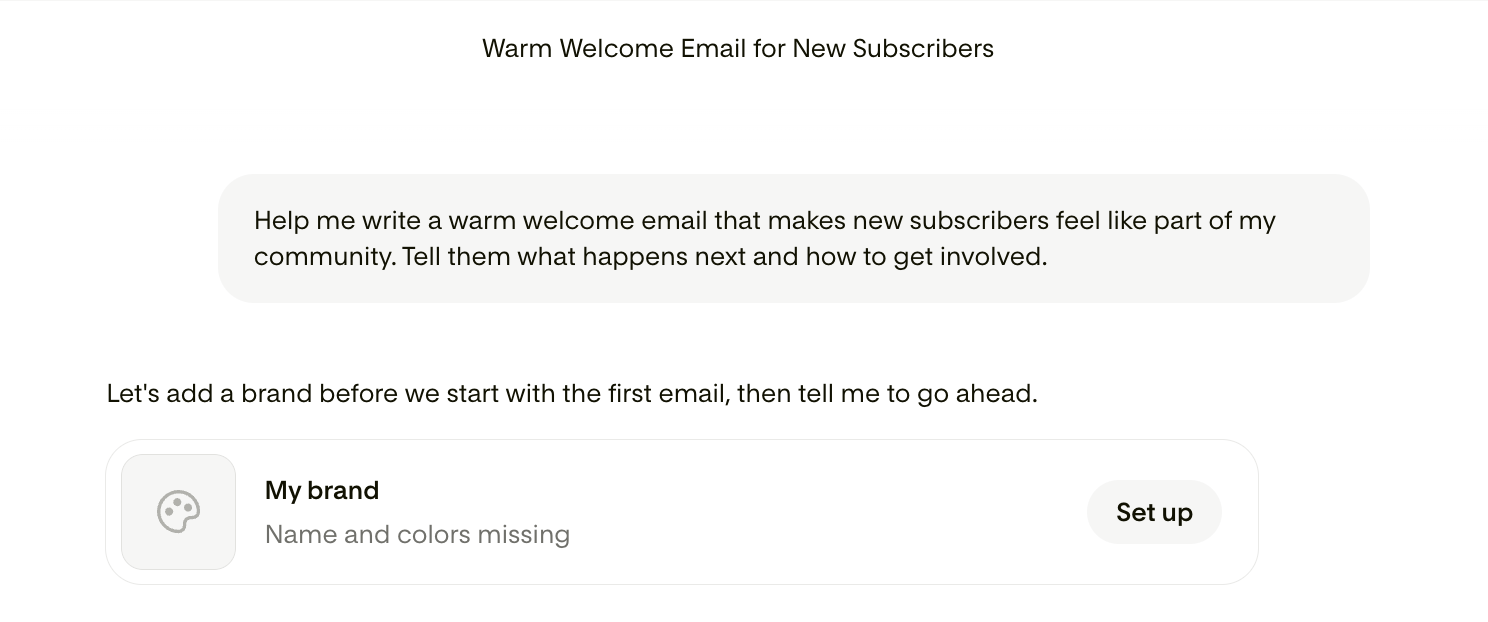
Note: if you start to create an email through a prompt without any brand settings defined, you will be asked in the chat interface to set them up first.
How to create an email from a prompt
Step 1: Start a new email
Go to the Emails tab in your Flodesk account.
Click +New email.
Enter your prompt into the dialog box or start with a template.
You can also start creating a new email by clicking “New chat” on the left-side navigation panel.
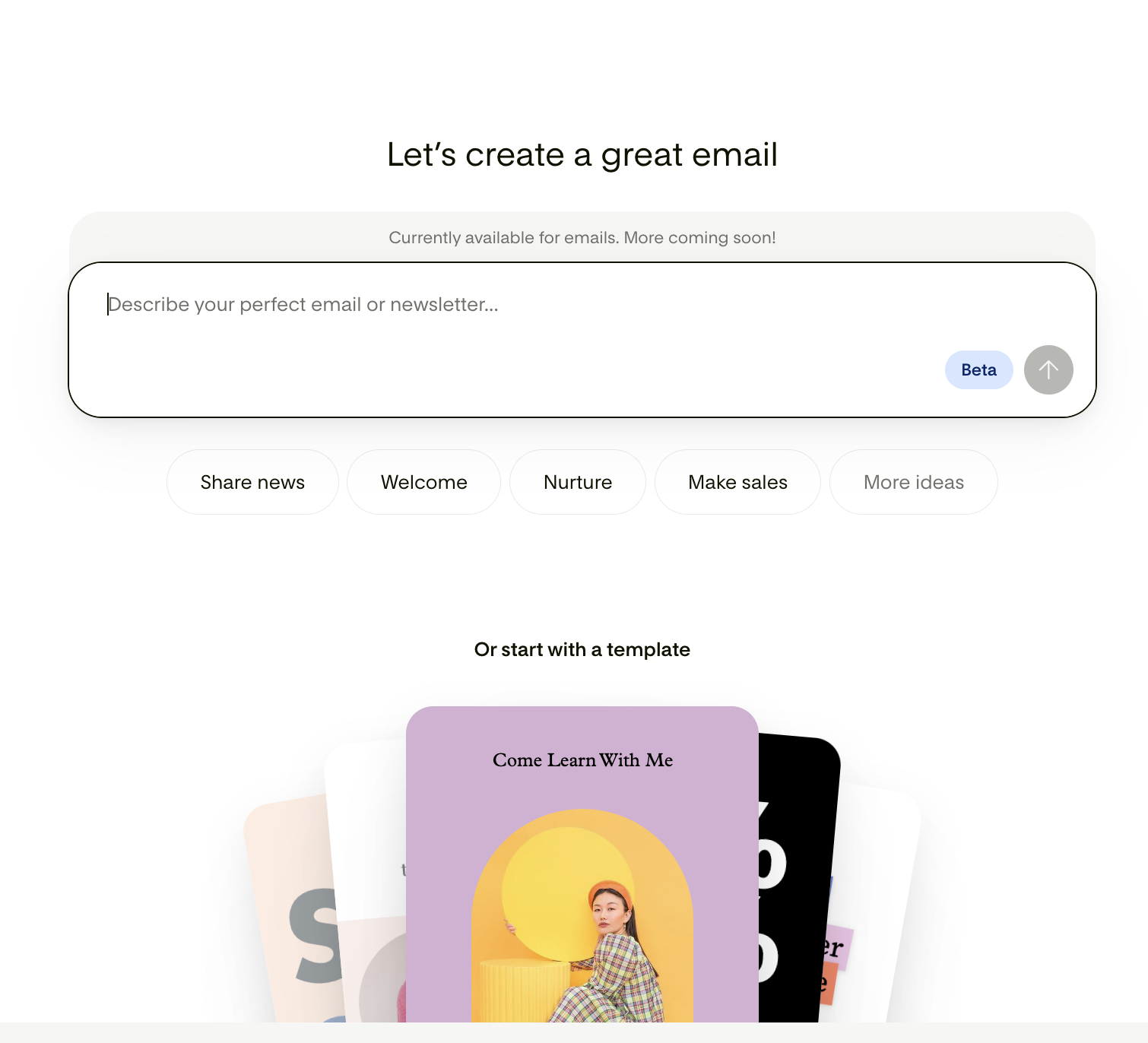
Step 2: Write your prompt
In the prompt field, describe the email you want to create. You don't need to be specific about fonts, colors, or layout. Flodesk handles the visual design based on your brand settings. Focus instead on:
The purpose of the email (example: "a promotional email for my spring collection launch")
The tone you're going for (example: "warm and conversational" or "confident and minimal")
Once you're happy with your description, submit your prompt.
You can also browse the prompt gallery by topics to help you get started.
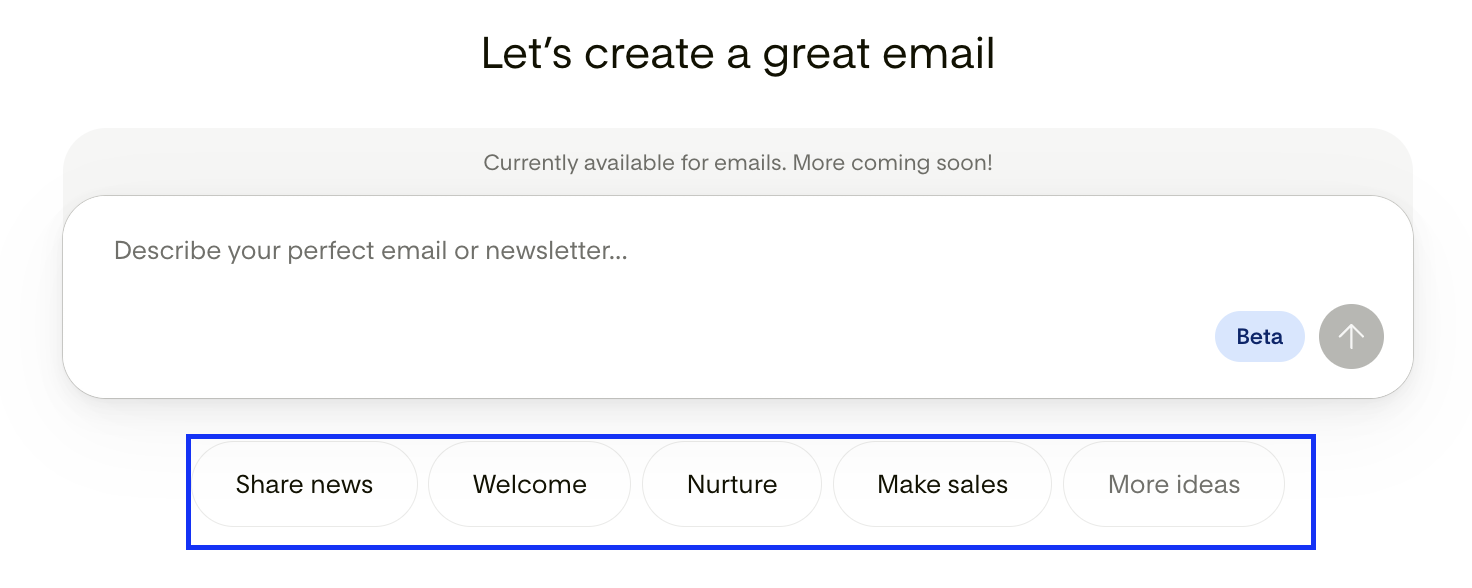
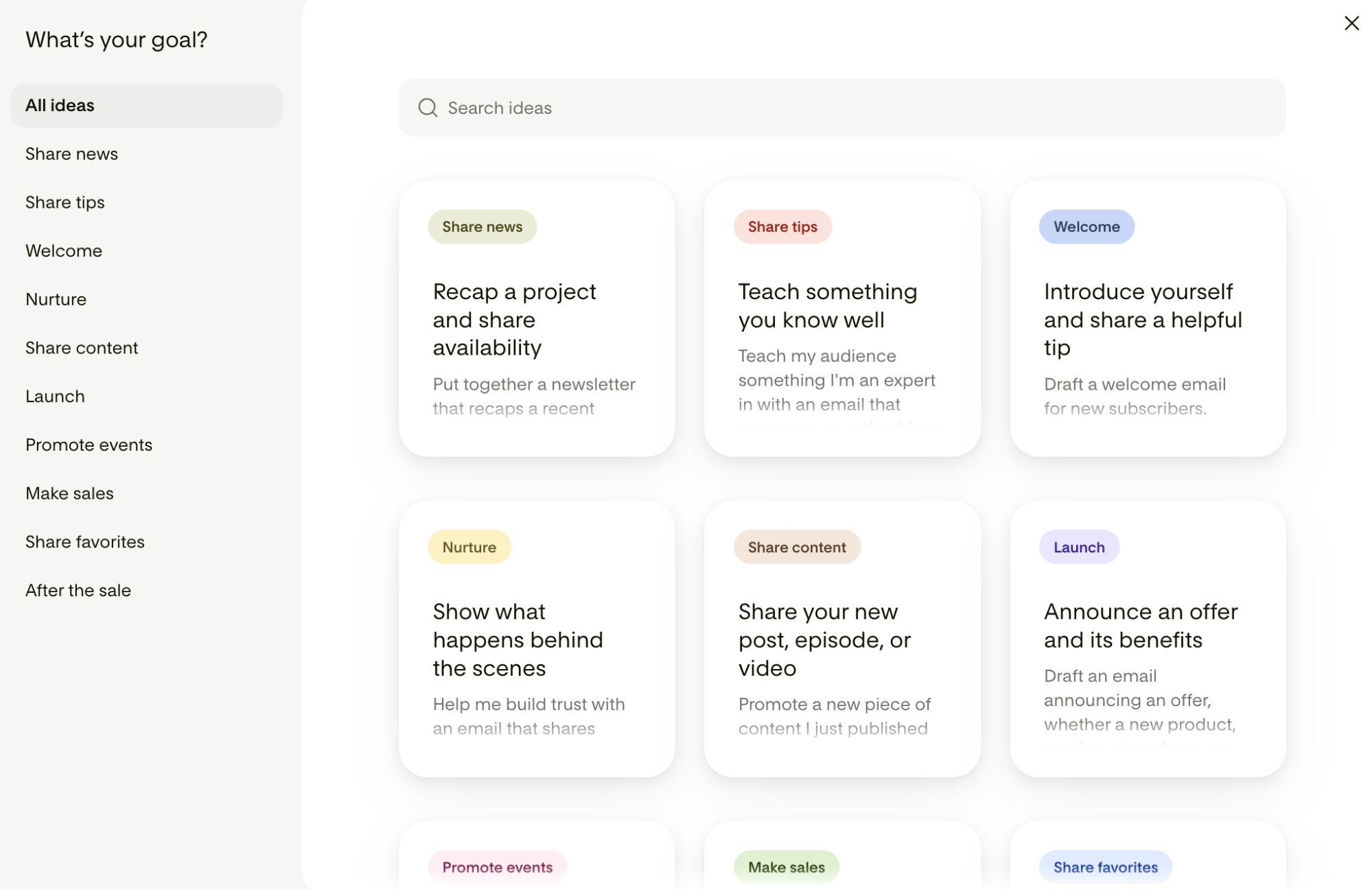
Step 3: Preview the generated email
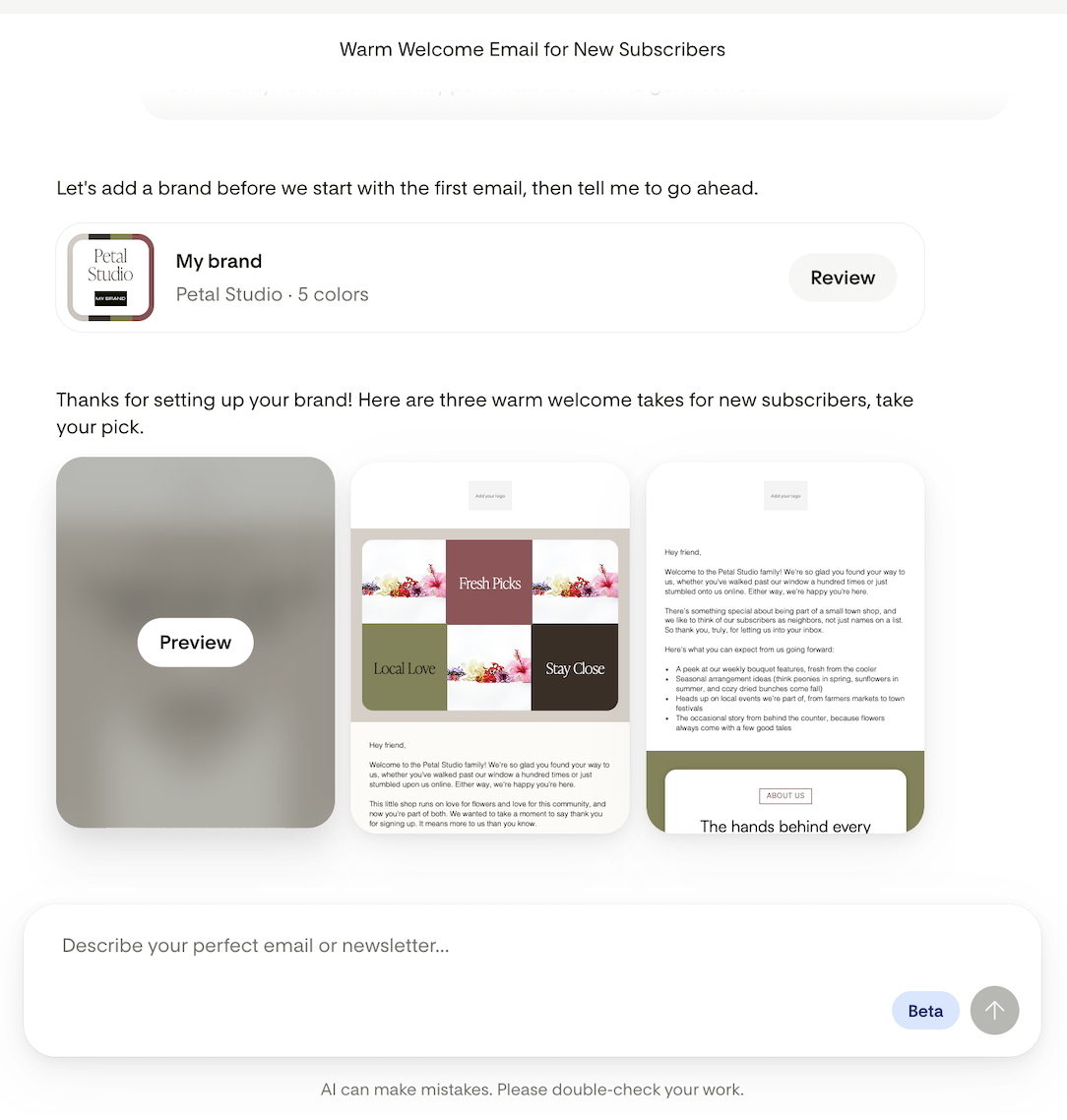
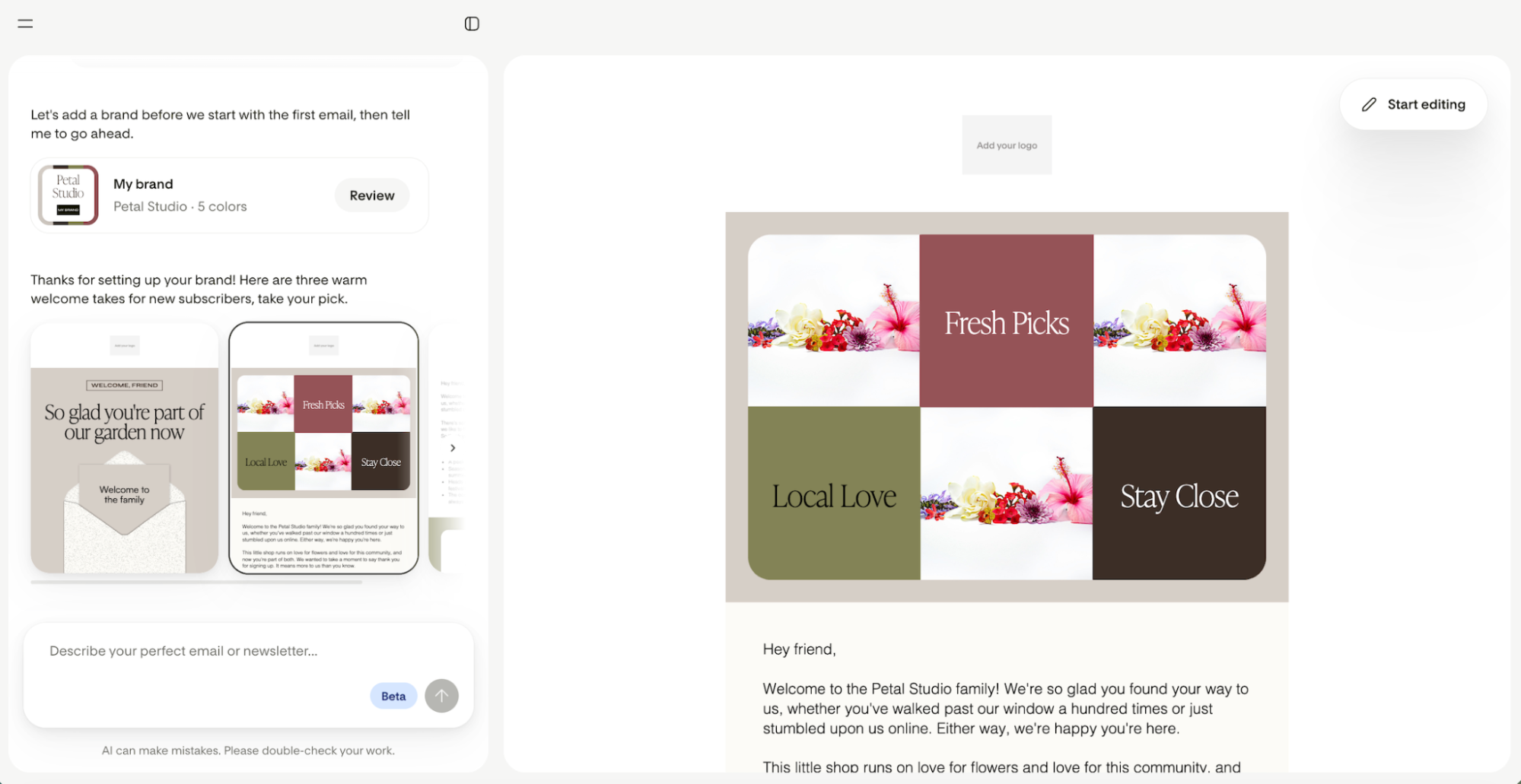
Flodesk generates three branded emails based on your prompt. Take a look at:
The overall layout and visual design
The generated copy (headings, body text, button labels)
The placement of your brand colors and fonts
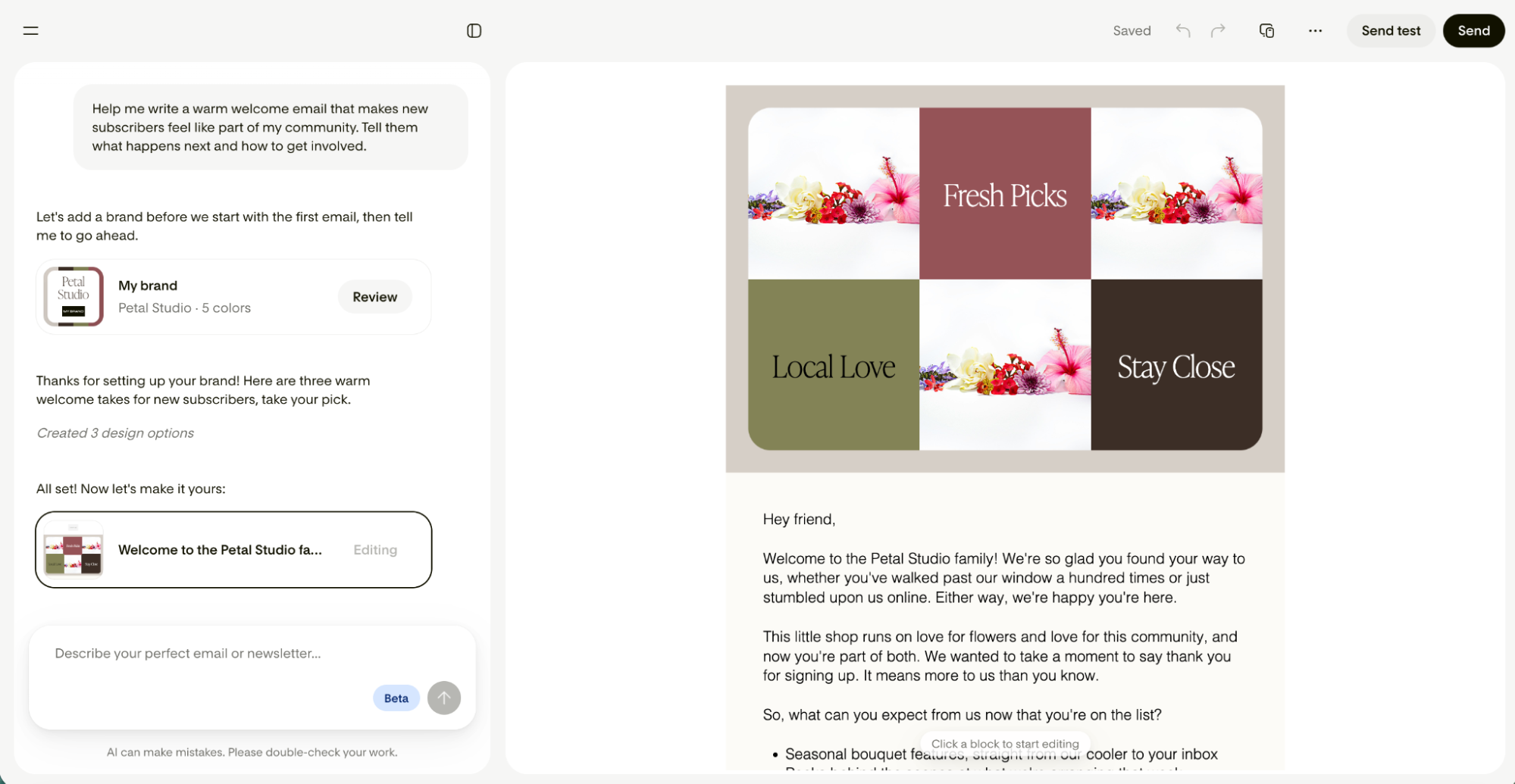
Pick the design you like the most, then click “Start editing”.
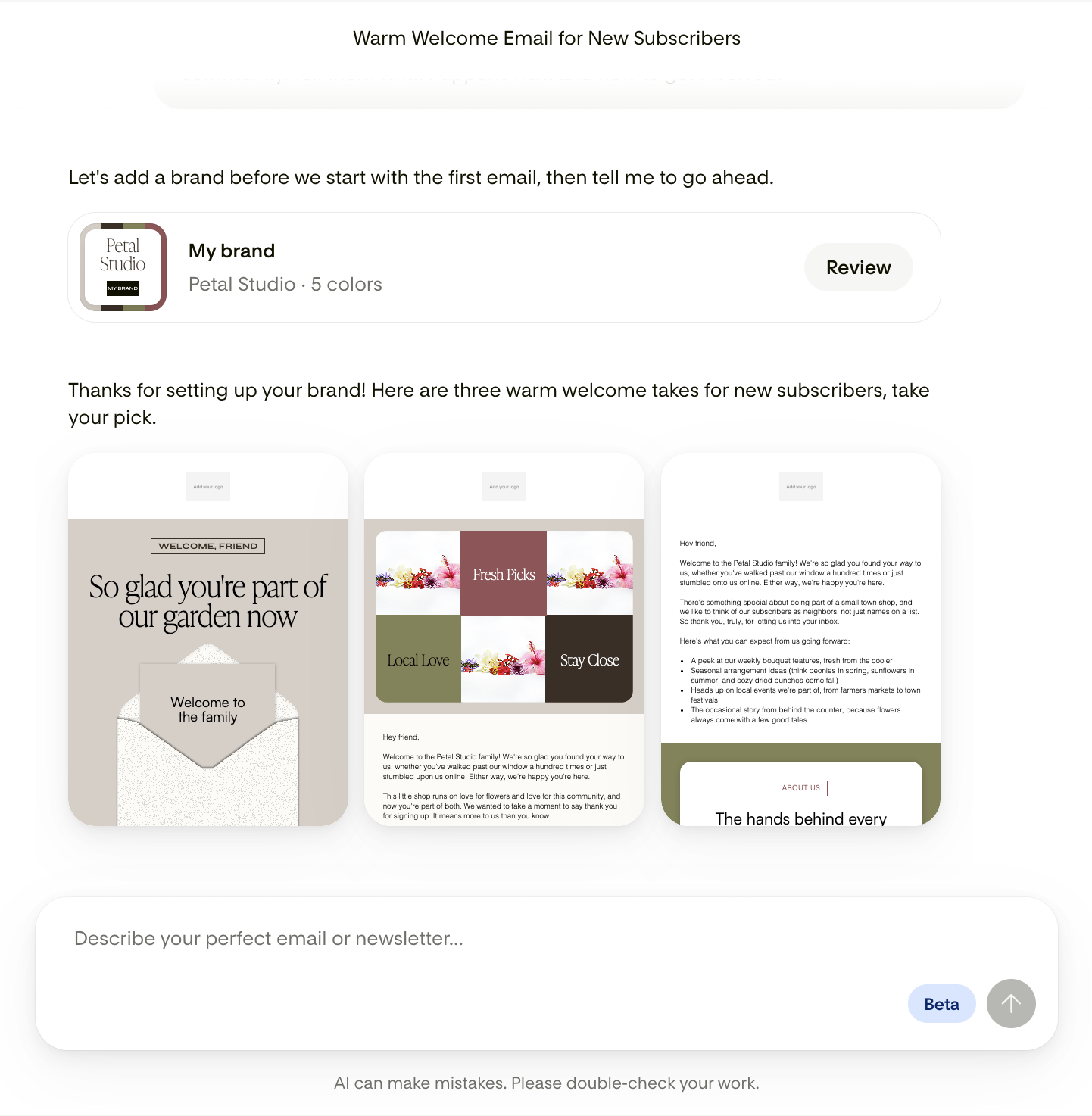
Step 4: Start editing to refine your email
You have two ways to edit:
Refine using chat:
Type a follow-up instruction in the chat to adjust the email. This works well for things like:
Changing the tone ("make this feel more playful")
Updating copy ("rewrite the intro paragraph to focus on the limited-time offer")
You can go back and forth as many times as you need.
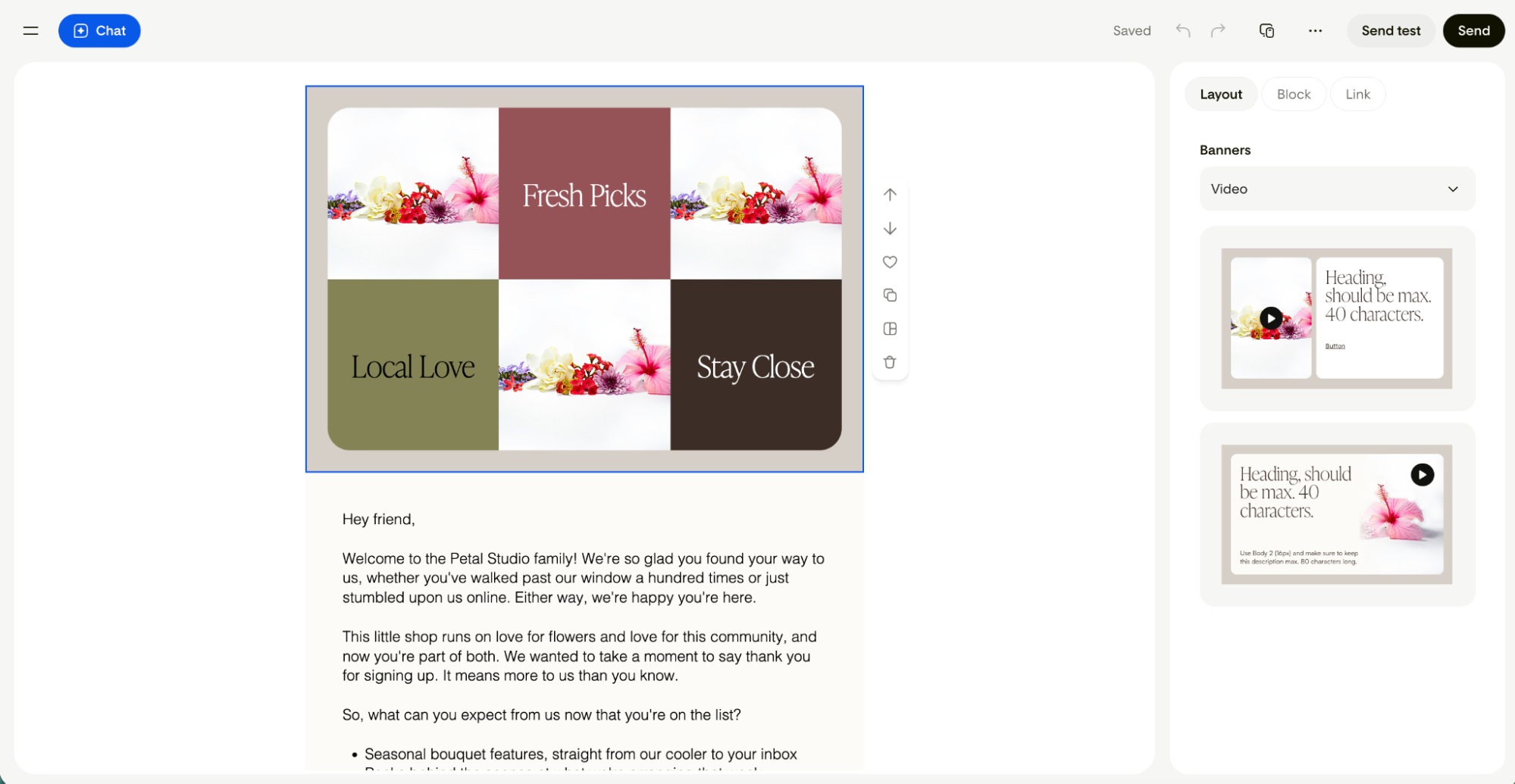
Edit manually in the builder:
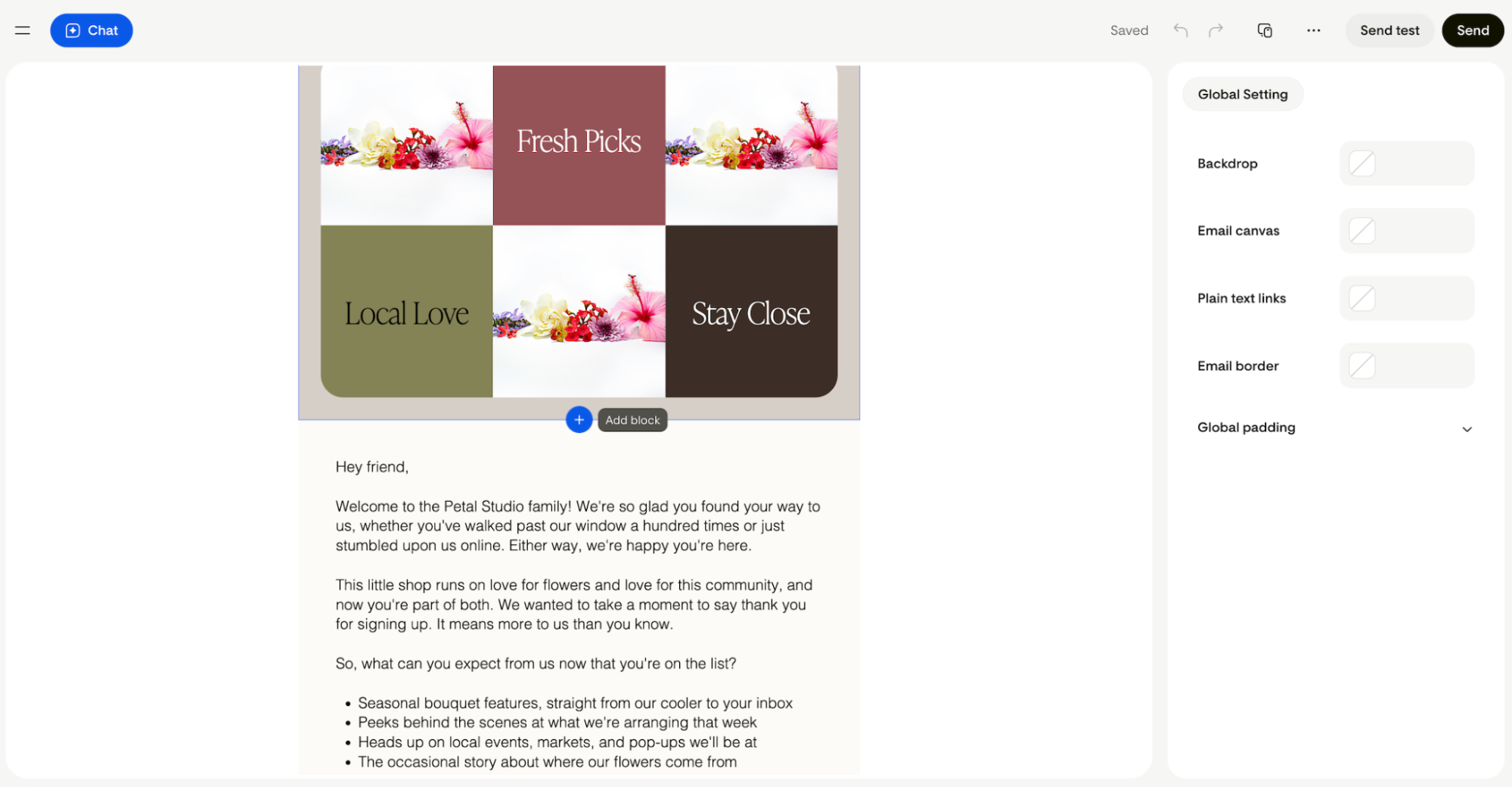
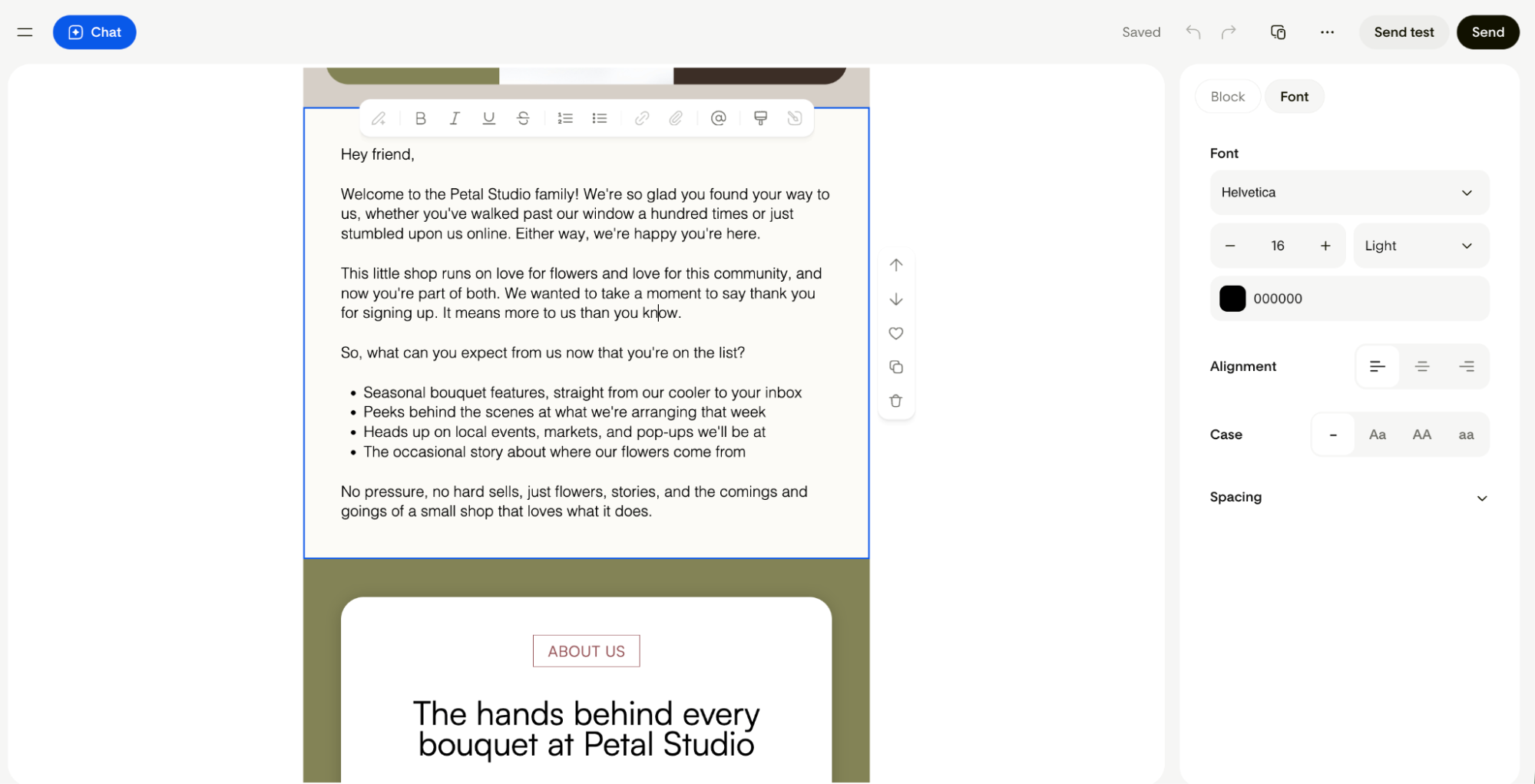
Click into the email to make edits by hand. You can:
Update any text
Swap in your own images
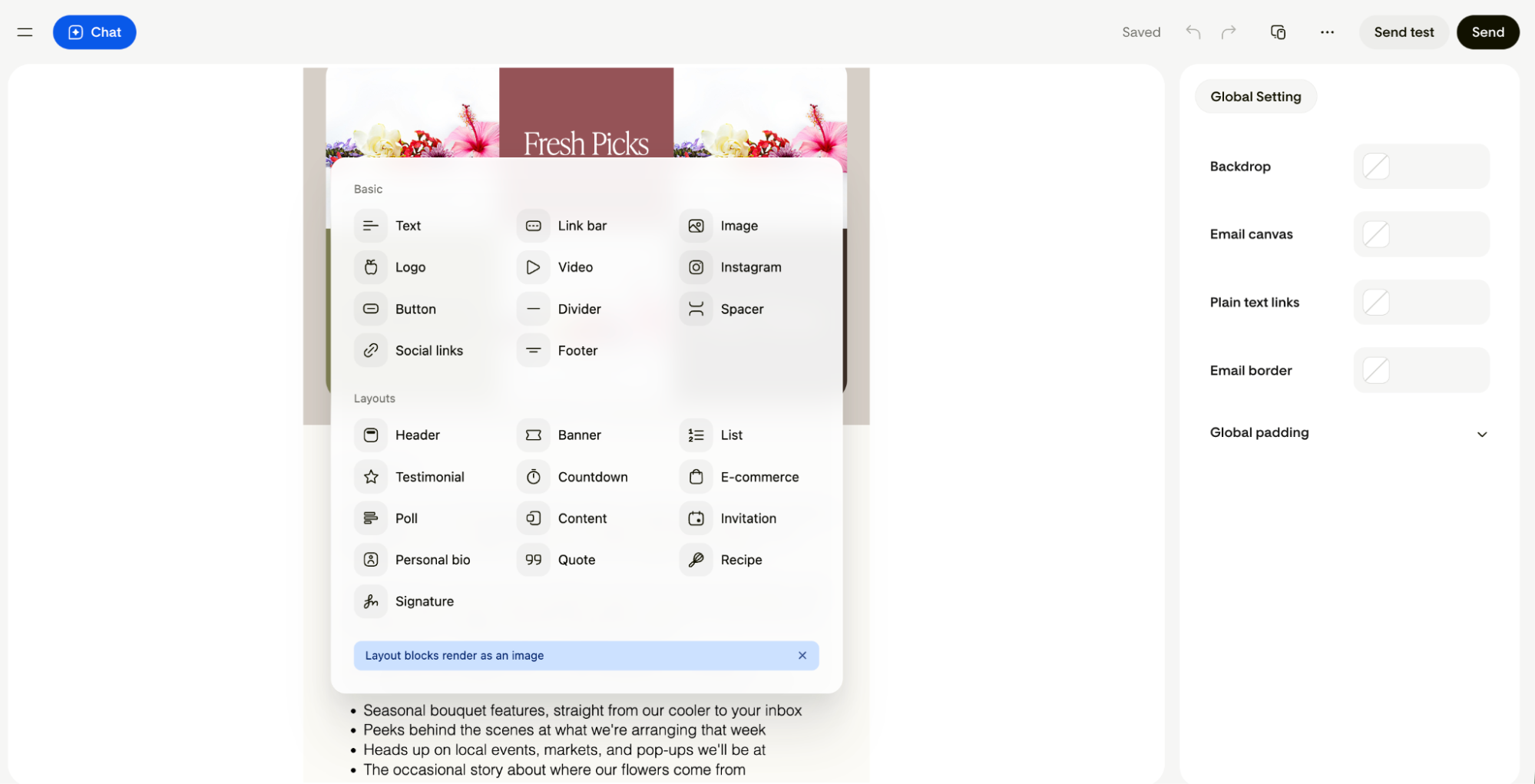
Add or remove content blocks
Adjust colors, buttons, font sizes
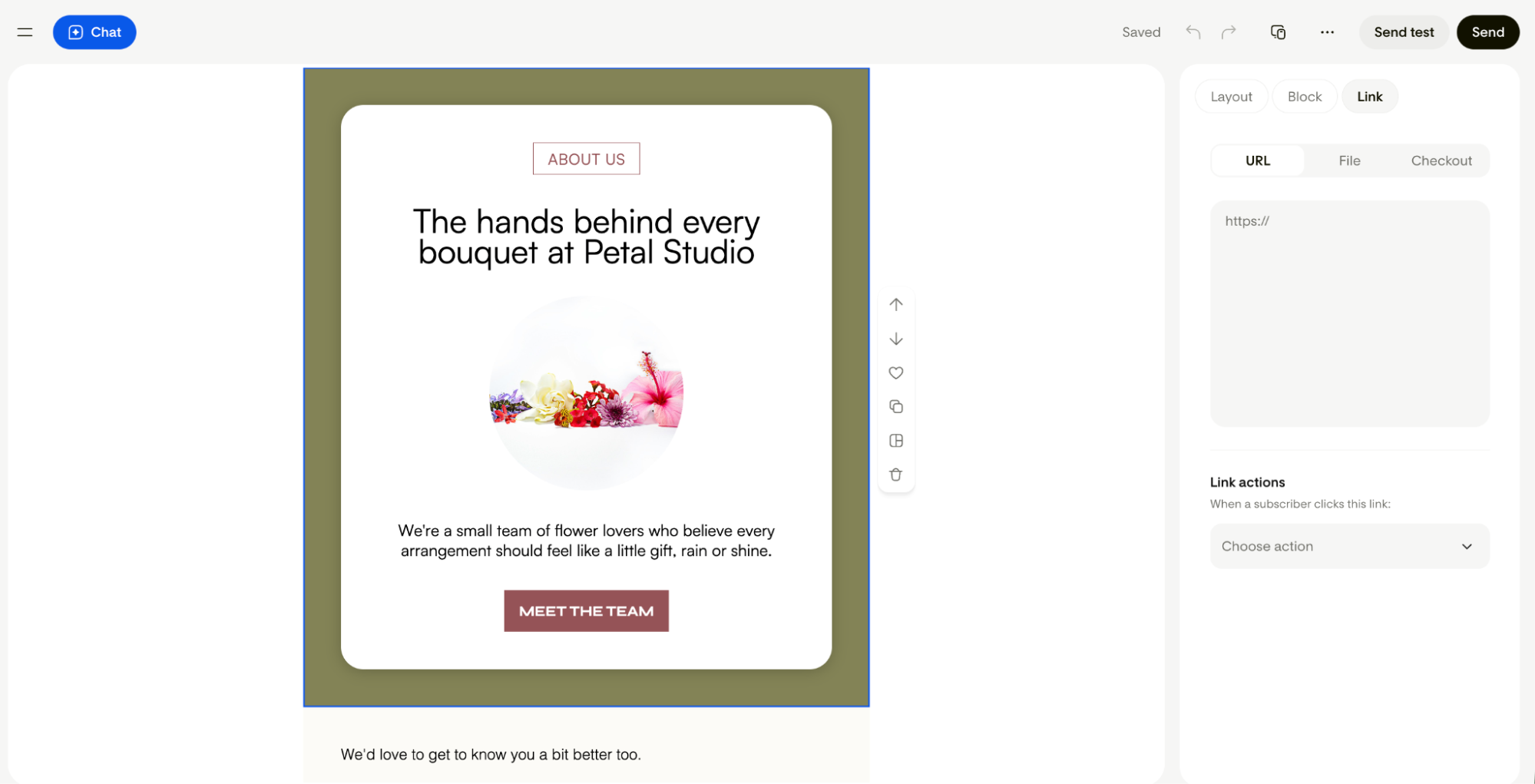
Add links
Both options are available. You can switch between them as you work.
Step 5: Send or schedule
Your email saves automatically as you work. When it's ready:
Click Send in the top-right corner.
Choose your sender profile and add your subject line and preview text (Flodesk may suggest these based on your content). You can also set up a subject line A/B test.
Choose your recipients. You can include and exclude recipients. Excluded recipients override included ones.
Send immediately or schedule for a later date and time.
Creating and editing on mobile
You can create, edit, and send emails using Prompt to Create from your phone. The experience works the same way: describe your email, review the generated design, and refine it in chat or with manual edits. No desktop required.
How to turn off AI features
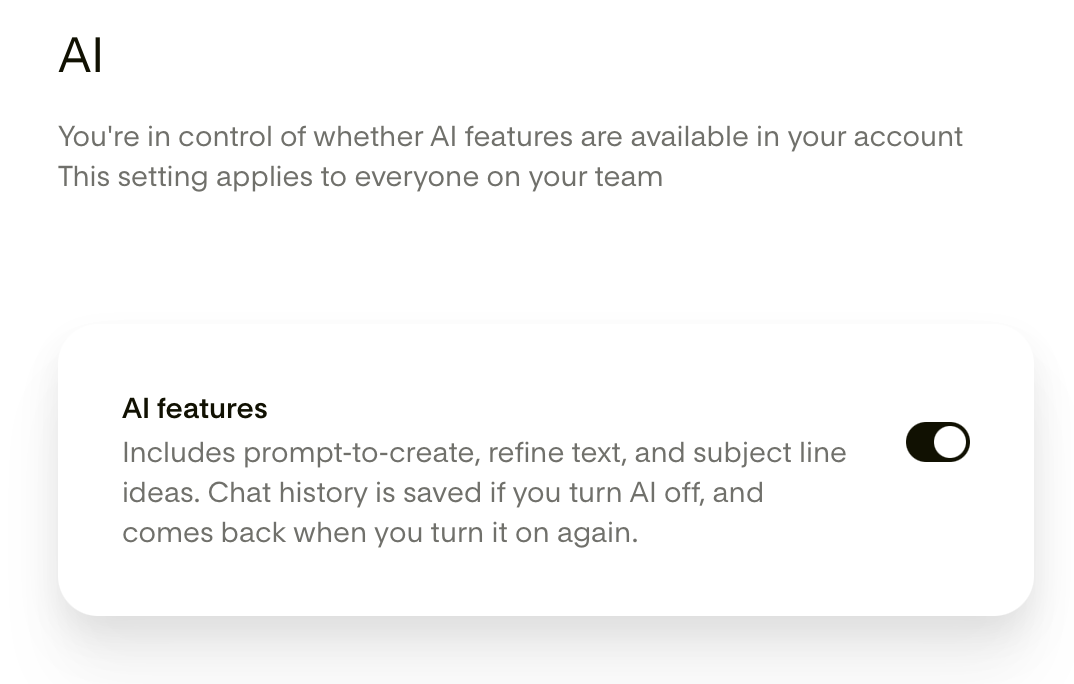
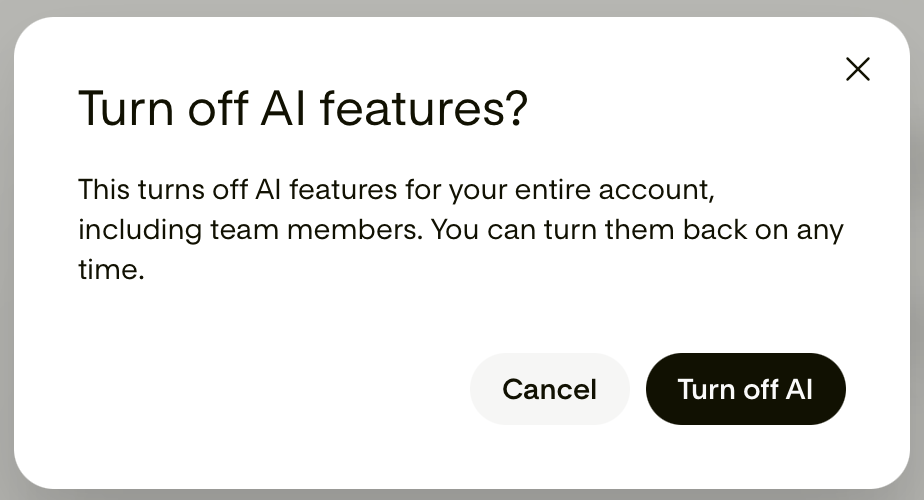
If you'd prefer not to use AI-powered features in your account, including Prompt to Create, subject line generation, and refine text, you can turn them all off with one toggle in your settings.
Go to Account settings > AI
Toggle AI features off.
Once toggled off, the Prompt to Create option will no longer appear when creating a new email. You can turn it back on at any time.
FAQ
Does Prompt to Create use my brand?
Yes. Flodesk applies your saved brand settings (colors, fonts, and style) automatically when generating your email. The more complete your brand settings are, the more on-brand the result will be. If you haven’t loaded your brand yet, you’ll be asked to set them up before your first prompt based email can be generated.
Can I still create emails using templates or from scratch?
Yes. Prompt to Create is an additional starting option. You can still choose a template or start from a blank canvas when creating a new email.
Can I edit the email after it's generated?
Yes. You can refine the email through the chat by describing what to change, or edit it directly in the email builder by clicking into any element.
Is my content used to train AI?
No. Flodesk doesn't use your content to train AI models, and neither does Anthropic, the AI provider powering this feature.
Can I use a Prompt to Create email in a workflow?
Yes, you can use them in workflows, except for emails containing the abandoned cart block. Support for emails containing the abandoned cart block will be available soon.
Can I turn off AI if I don't want to use it?
Yes. One toggle in your account settings turns off all AI features across your account, including Prompt to Create.