
Turn on multi-factor authentication (MFA) with an authenticator app
Overview
Add an extra layer of protection to your Flodesk account with multi-factor authentication (MFA) using an authenticator app. Once you turn it on, you'll enter a one-time code from your app every time you log in with your email and password, so a compromised password alone can't get into your account.
This applies if you log in with your email and password. If you sign in with Google, your account's second factor is whatever multi-factor authentication you've set up on your Google account. Flodesk doesn't add a separate authenticator app step to the Google sign-in flow.
If you haven't set up an authenticator app, you may still see the email verification code (one-time password (OTP) you're used to when you log in. Turning on the authenticator app replaces that email code with the authenticator code going forward.
Instructions
Set up your authenticator app
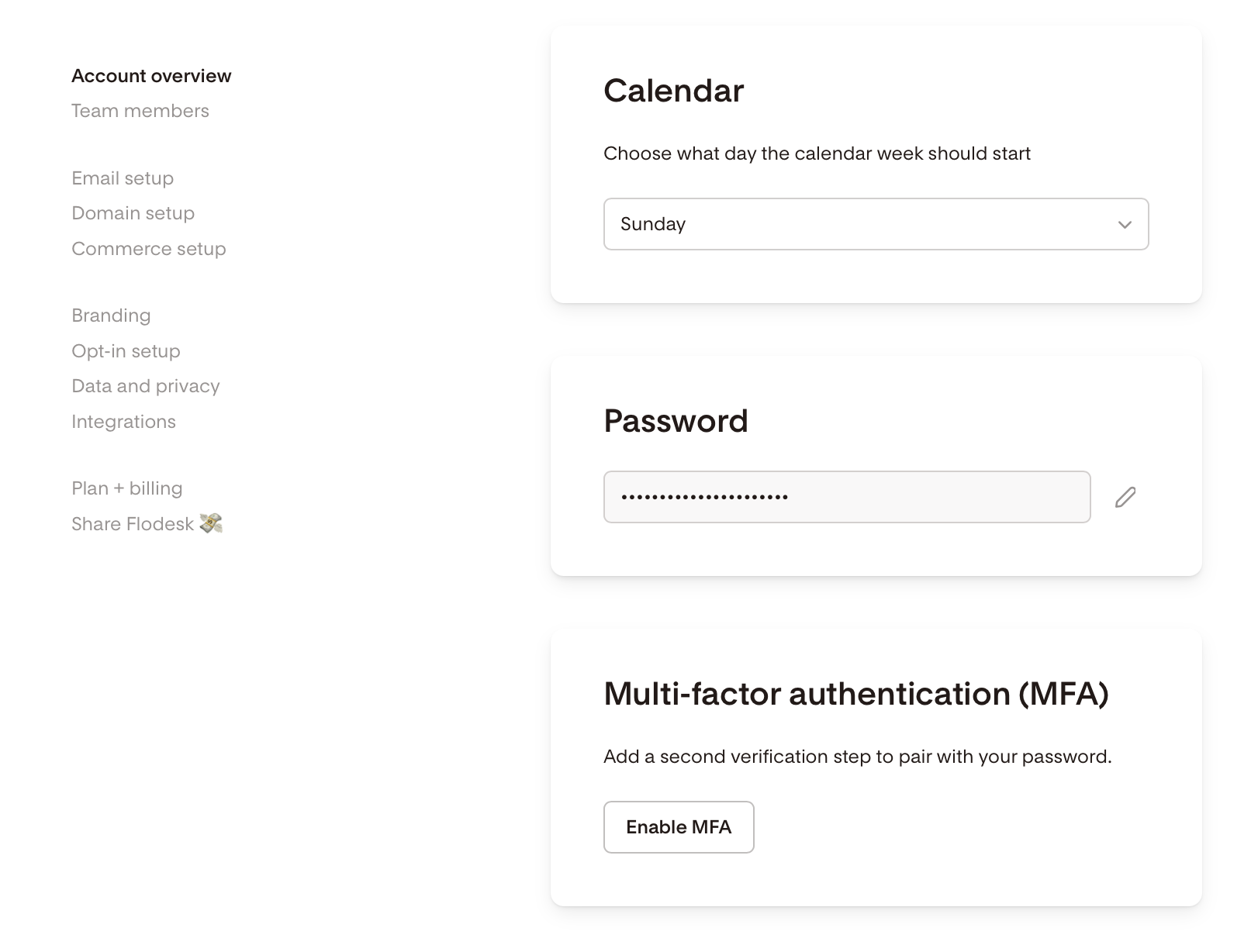
Go to Account settings > Account overview
Scroll down to the bottom, and start the authenticator app setup by clicking Enable MFA
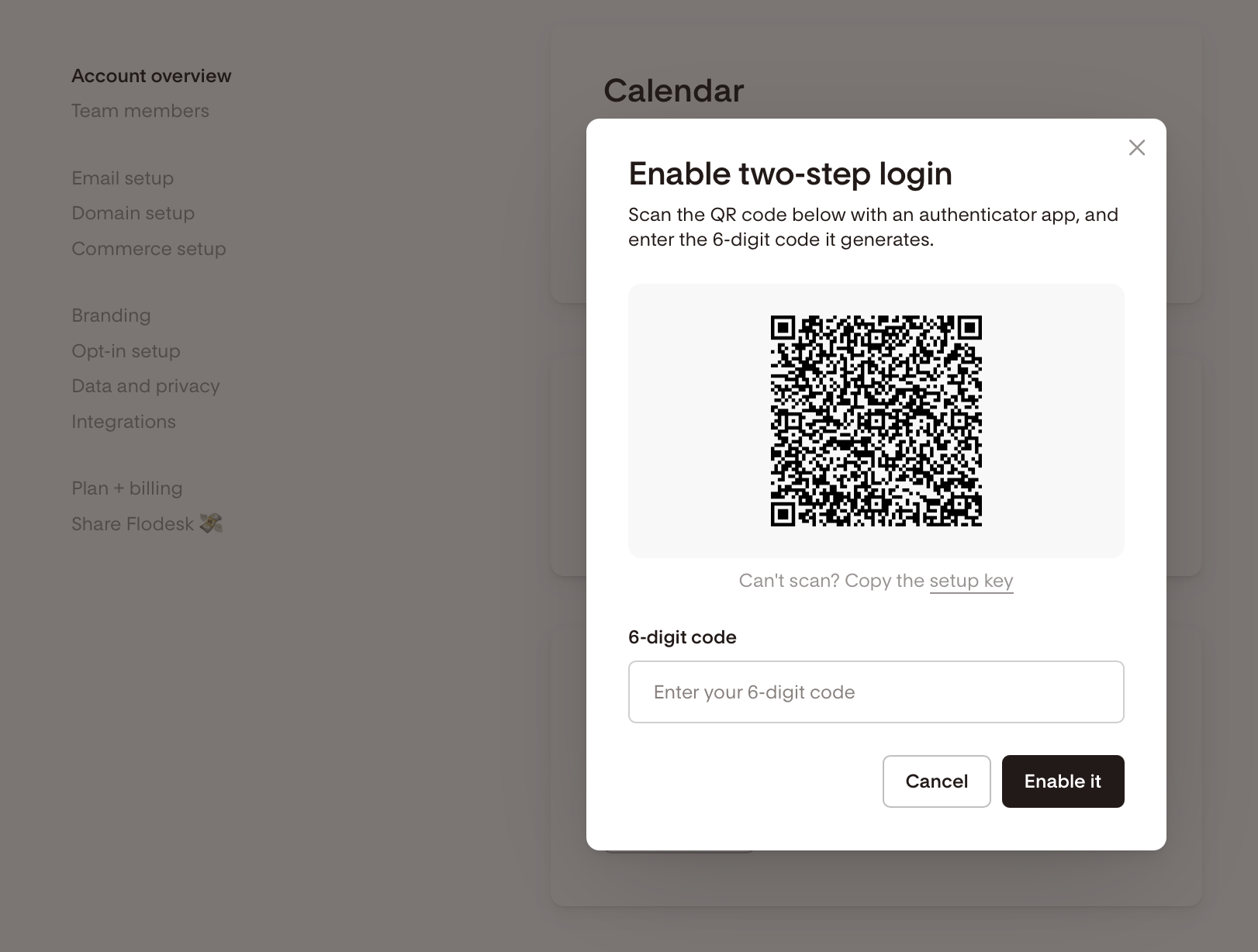
Scan the QR code in your authenticator app of choice
Enter the code your app generates to confirm setup
Once confirmed, your authenticator app is your new second factor for every email and password login.
Log in with your authenticator code
After you enter your email and password, you'll be prompted to enter the code from your authenticator app. This applies whether you're logging into Flodesk directly or authorizing a third-party app that connects to Flodesk through the API.
If you enter an incorrect or expired code, you'll see an error message and be asked to try again. Repeated incorrect attempts may temporarily lock you out of that login attempt.
Turn off your authenticator app
You can turn off authenticator app MFA from Account settings > Account overview. You'll need to re-authenticate to do this.
Lost access to your authenticator app
If you lose your device or can't access your authenticator app, contact Flodesk support. Our team can reset your authenticator app enrollment so you can log back in and set it up again. There are no backup codes for this feature, so support-assisted reset is the only way to regain access.
FAQ
Does Flodesk offer two-factor authentication (2FA)?
Yes, Flodesk offers multi-factor authentication as an extra layer of security for your account.
Do I have to turn on authenticator app MFA?
Turning it on is your choice. It gives you stronger protection than the email verification code (OTP) alone: even if someone gets your password, they can't log in without the code from your authenticator app.
What happens if I sign in with Google?
Your login experience doesn't change. Your second factor is whatever multi-factor authentication method (MFA) you have set up on your Google account, not a Flodesk authenticator app step.
What if I enter the wrong code?
You'll see an error and can try again. If you enter incorrect codes repeatedly, you may be temporarily locked out.
Can I get backup codes in case I lose my device?
No, this feature doesn't include backup codes. If you lose access to your authenticator app, contact support to have your enrollment reset.
Does this apply to third-party apps I've connected to Flodesk?
Yes. If you authorize a third-party app through Flodesk's public API using email and password login, you'll be asked for your authenticator code before that authorization completes.