
How to automate a new project in Dubsado when you get a new subscriber in Flodesk
Overview
If you use Flodesk to market your services and Dubsado to manage client projects, you can connect the two so that a new project is created in Dubsado automatically whenever someone joins a specific segment in Flodesk.
For example, if you have an opt-in form where subscribers can express interest in working with you, this zap will create a new Dubsado project for each person who opts in, without any manual work on your end.
This article uses Dubsado as the example, but the same zap setup works with other CRM tools too, such as HoneyBook, Bonsai, and Keap.
We will assume that you already have a Flodesk form that asks subscribers to opt in if they’re interested in working with you. Alternatively, you can add a form preference to your opt-in form and let subscribers check that preference when opting in.

What you'll need before you start
An active Flodesk account
A Zapier account
A Dubsado account
At least one opt-in form and one segment already created in Flodesk
At least one project workflow set up in Dubsado
Make sure your Dubsado project workflow is fully built before creating the zap. You'll need to select it during setup, and it won't appear in Zapier if it doesn't exist yet.
How to connect Flodesk and Dubsado via Zapier
Step 1: Create a new zap
Log in to Zapier and create a new zap. Give it a name so it's easy to find later.
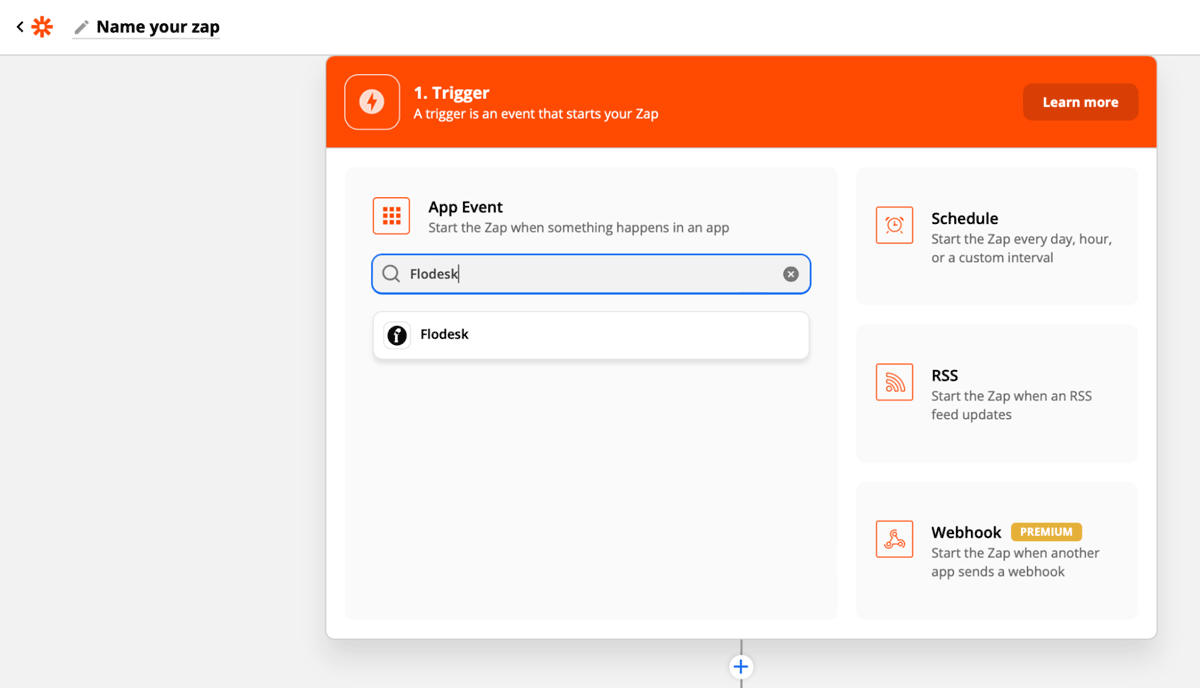
Step 2: Set Flodesk as the trigger
Select Flodesk as the trigger app and choose Subscriber Added to Segment as the event. This means the zap will run whenever someone is added to a specific segment in Flodesk. You'll choose which segment in the next step.
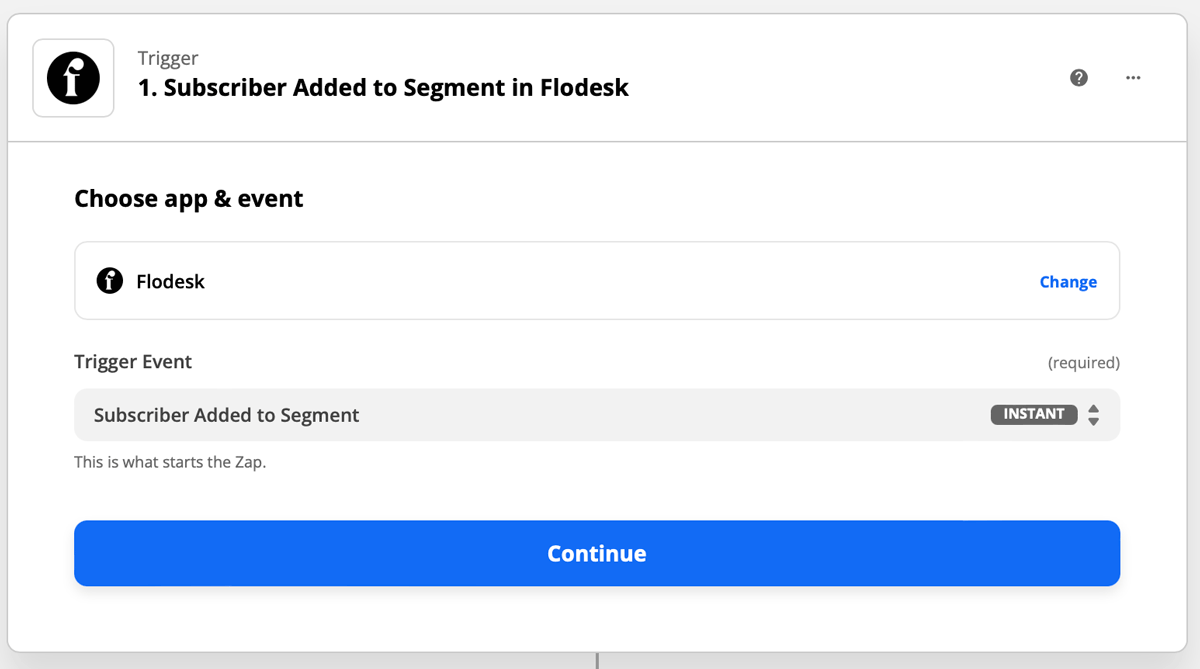
Step 3: Connect your Flodesk account
If this is your first time linking Flodesk and Zapier, you'll be prompted to log in to your Flodesk account.
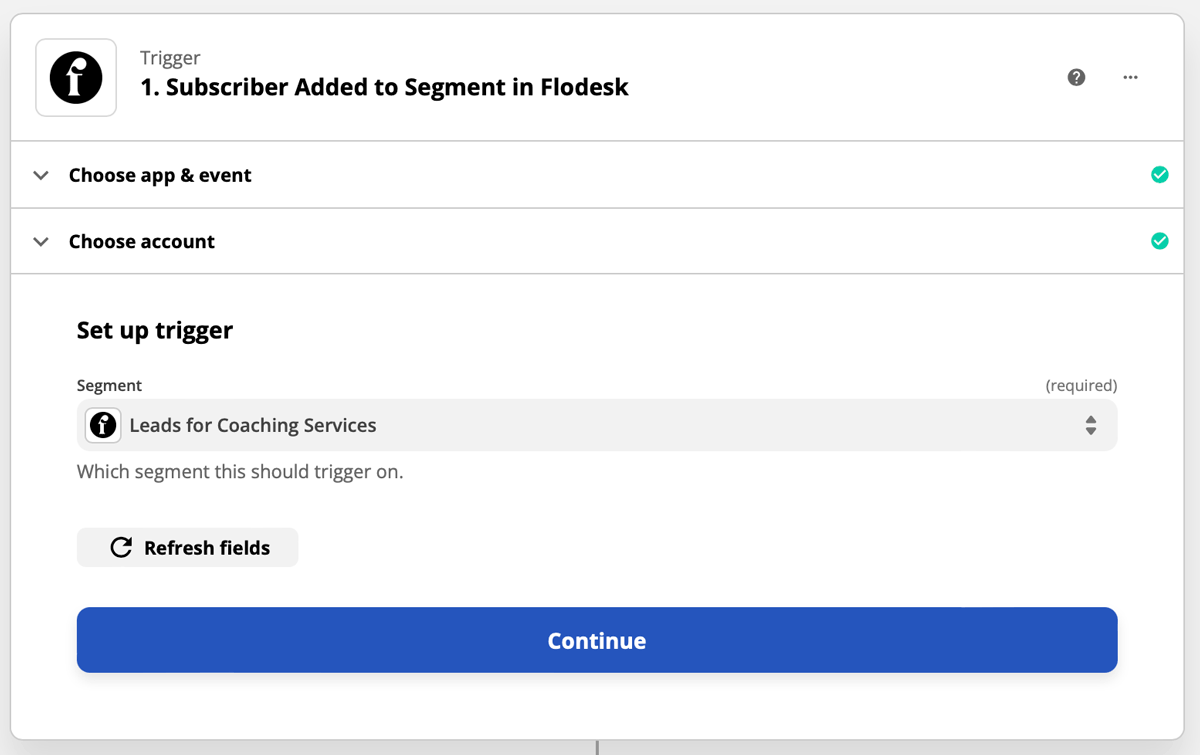
Step 4: Choose your trigger segment
Select the segment that should trigger the zap. If you haven't created this segment in Flodesk yet, do that first before continuing in Zapier.
Step 5: Test the trigger
Zapier will test the trigger to confirm it's working correctly. This step is optional but recommended.
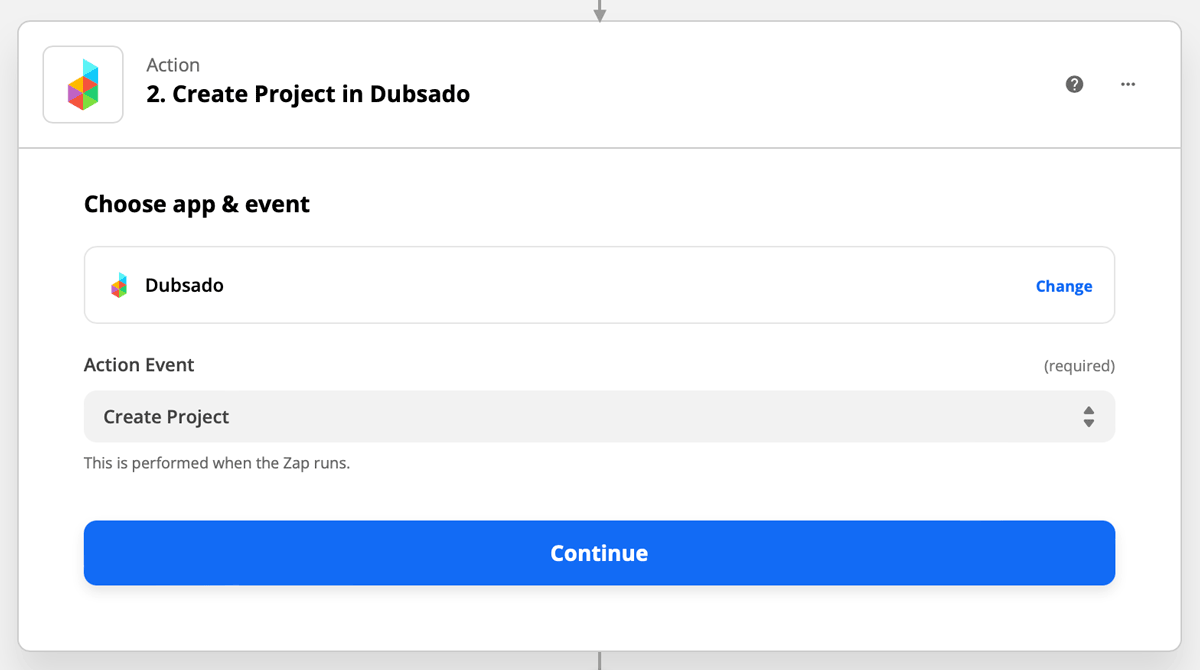
Step 6: Set Dubsado as the action
Select Dubsado as the action app and choose Create Project as the event. This tells Zapier to create a new project in Dubsado each time someone is added to the trigger segment in Flodesk.
Step 7: Connect your Dubsado account
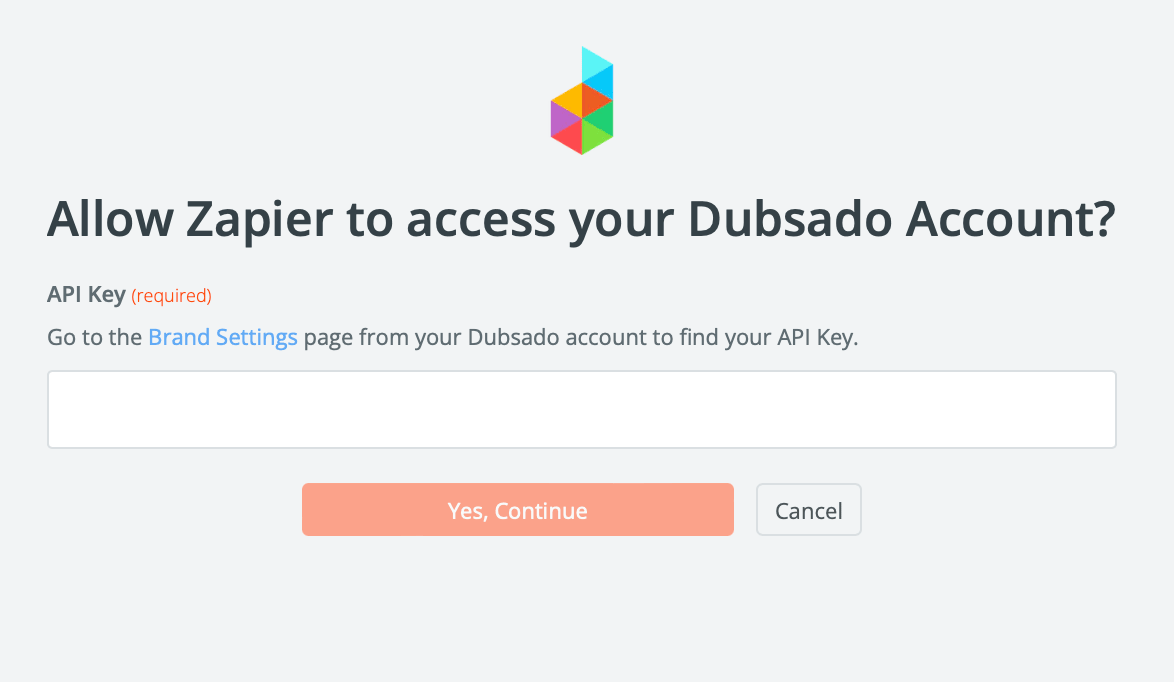
If this is your first time connecting Dubsado to Zapier, you'll need your Dubsado API key. To find it:
Go to your Dubsado account dashboard
Navigate to Settings > Integrations > Zapier > Generate Tokens
Click Generate New Token to create your API key
Copy it immediately. Dubsado will only show it once.
Step 8: Configure the action fields
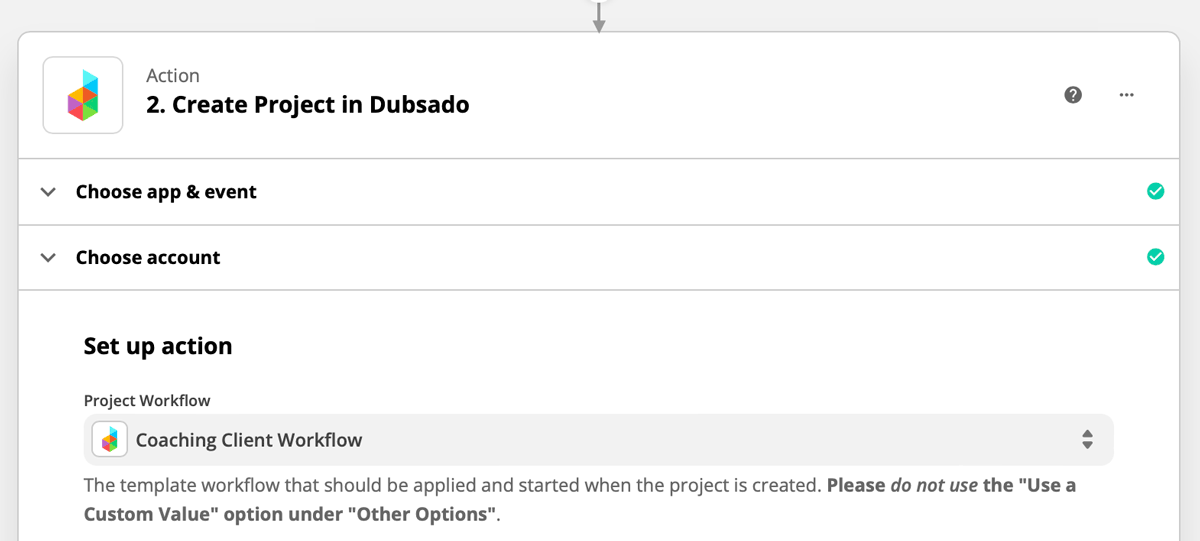
Fill in the required fields to set up the project:
Project workflow: select the Dubsado workflow you want to apply to new projects
Title of the created project: map to First Name (and Last Name, if you'd like) from the Flodesk subscriber data
Client email: map to Email from the Flodesk subscriber data
The remaining fields are optional and can be left blank or filled in as needed.


Step 9: Test your zap
Run the test in Zapier to make sure everything is connected correctly.
Step 10: Turn on your zap
Once the test passes, review the zap and turn it on so it's live.
FAQ
How do I automatically create a Dubsado project when someone joins my Flodesk list?
Set up a zap in Zapier with Flodesk as the trigger (using Subscriber Added to Segment) and Dubsado as the action (using Create Project). Map the subscriber's name and email from Flodesk to the project fields in Dubsado, select your Dubsado workflow, and turn the zap on.
Which Flodesk segment should I use as the trigger?
Use a segment that specifically identifies people who are interested in working with you, such as a segment tied to a "work with me" opt-in form. Only subscribers added to that segment will trigger the zap and create a new Dubsado project.
Where do I find my Dubsado API key?
Go to your Dubsado dashboard and navigate to Settings > Integrations > Zapier > Generate Tokens. Click Generate New Token. Copy the key immediately as Dubsado will only show it once. You'll need this key to connect Dubsado to Zapier.
What if I haven't created my Dubsado workflow yet?
Build the workflow in Dubsado before setting up the zap. You'll need to select it during the action setup in Zapier, and it won't appear as an option if it doesn't exist yet.
Do I need to have my Flodesk segment created before setting up the zap?
Yes. You'll need to select the segment during the trigger setup in Zapier. If it doesn't exist yet, create it in Flodesk first and then come back to finish the zap.
Can I use this same zap setup with a different CRM instead of Dubsado?
Yes. The same approach works with other CRM tools like HoneyBook, Bonsai, and Keap. The steps will be similar: set Flodesk as the trigger and your CRM as the action, then map the subscriber's name and email to the relevant fields in your CRM.
What subscriber data from Flodesk can I pass to Dubsado?
You can map any data fields collected by your Flodesk opt-in form, including first name, last name, and email address. These are the most important fields for creating a new project in Dubsado. Additional optional fields can be mapped too, depending on what your form collects and what Dubsado supports.
Can I set up this automation for subscribers who express interest through a form preference?
Yes. You can add a preference option to your Flodesk opt-in form so subscribers can indicate they're interested in working with you. When that preference is selected, they can be added to the trigger segment automatically, which then fires the zap and creates the Dubsado project.