
How to identify and manage Unengaged Subscribers in Flodesk
Overview
Flodesk automatically creates a pre-built Unengaged Subscribers segment for every account, so you can find inactive subscribers without setting up any filters. For a full breakdown of how that segment works, see Understanding your pre-built "Unengaged Subscribers" segment.
This article covers what to do once you've found your unengaged subscribers (whether through the pre-built segment or your own custom filter), including how to build a custom filter if you want more control, and why you should be cautious about re-engaging this group at all.
Keeping your list clean improves your email deliverability, increases your open and click rates, and keeps your analytics focused on subscribers who actually want your content.
Best practice: when moving your list from another platform to Flodesk, don't bring your unengaged subscribers with you.
What are unengaged subscribers?
Unengaged subscribers are people who consistently ignore your emails. They're still active on your list (subscriber status: active), but over a set period of time they haven't opened or clicked anything you've sent. They may have:
Stopped opening your emails altogether
Never clicked a link in any of your emails
Lost interest in your content
Changed email addresses without unsubscribing
Why this matters
When you keep emailing subscribers who never engage, inbox providers like Gmail and Outlook take notice. This can hurt your sender reputation and send more of your emails to spam, including the ones going to your most engaged subscribers.
Cleaning your list regularly signals to mailbox providers that the people you email actually want to hear from you, which makes your emails less likely to get filtered out.
How to find unengaged subscribers
Quick path: your pre-built Unengaged Subscribers segment
Go to Audience > Segments. Your Unengaged Subscribers segment is pinned to the top, already built and automatically updated. For details on exactly who's included, how often to review it, and how it behaves, see Understanding your pre-built "Unengaged Subscribers" segment.
Use this option if you're comfortable with Flodesk's default criteria. Use a custom filter (below) if you want to define "unengaged" differently, for example a shorter time window, or a lower open rate threshold.
Build a custom filter
There's no single definition of "unengaged" that fits every account; adjust your criteria based on how often you send.
Note: you shouldn’t use all these criteria at once to filter your list. Stacking all of them can leave you with an empty result.
Activity type | Suggested criteria |
Open rate | Less than 5%–10% over the last 60–90 days |
Click rate | No clicks in the last 90 days |
Emails opened | 0–1 emails opened in the past 8–10 campaigns (assuming weekly sends, roughly 90 days) |
Emails clicked | 0 clicks in the past 10 campaigns (assuming weekly sends, roughly 90 days) |
Last activity | No recent activity in 3–6+ months |
Adjust based on how often you send emails. For example, if you email weekly, use a 90-day window. If monthly, consider 6 months or more.
Keep in mind: last activity is not the same as last engagement. Flodesk calculates last activity as the most recent of these six events:
Last email opened
Last email clicked
Last unsubscribed
Last purchase (Checkout)
Re-import date
Date added to your list
This filter tells you when something last happened on the subscriber's record, not necessarily when they last engaged with an email.
Steps to build a custom filter:
Go to Audience > All subscribers
Click the Filter
The filter panel will slide out from the right. This is where you’ll build your filter criteria
Click +Add filter to add your own criteria
Once you set your filters, hit Apply to view the results
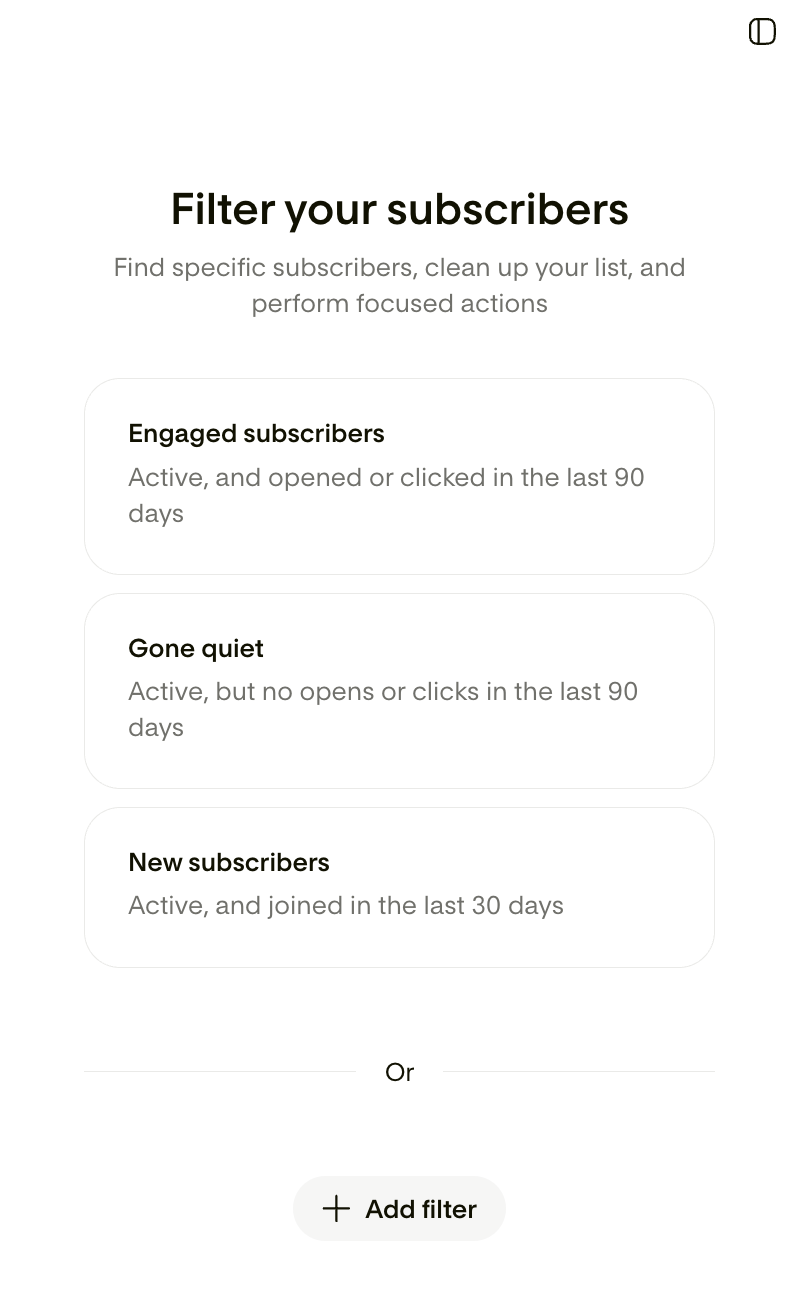
Important: Depending on your audience and sending frequency, you can increase or decrease the time frames and message thresholds.
NOTE: The below are just examples, not hard rules.
Example 1: Subscribers who are active, are receiving emails, but have never opened or clicked on your emails.
Subscriber status: Active
Emails delivered: more than 5 in the last 90 days (adjust this depending on your sending frequency)
Emails opened: 0 times over all time
Emails clicked: 0 times over all time
Example 2: Subscribers who are active and receive emails, but have stopped engaging after a while.
Subscriber status: Active
Emails delivered: more than 5 over all time (adjust this based on your sending frequency)
Last activity: not in the last 6 months
What you can do with Unengaged Subscribers
Once you've found your unengaged subscribers (through either method above), select them and choose a bulk action:

Archive: Archiving means they will stop receiving your emails, but their data stays intact. The segments, form history, past purchases, all still there. Select this if you're not ready to unsubscribe or delete those people.
Add to segment: Choose the segment(s) from the drop-down you want to add the selected subscriber(s) to. You can also create a segment by starting to type the new segment’s name.
For example, You can add unengaged subscribers to a dedicated new segment called e.g. “disengaged” or "my unengaged subscribers".
To avoid sending them further emails, exclude this segment from your email campaigns/newsletters and your active workflows.
Remove from segment: Choose the segment(s) you want to remove the selected subscriber(s) from - without deleting them from your entire list
Unsubscribe from your entire list
Delete permanently from your entire list
Action | What it does |
|---|---|
Archive | Moves them out of your active list and stops emails, without deleting their data. You can restore them anytime |
Add them to a segment | Groups them into a dedicated segment (like "Disengaged" or "My unengaged subscribers") so you can exclude them from future sends |
Unsubscribe them | Removes them from future sends, but keeps their record |
Delete them | Permanently removes their data from your account |
Remove from specific segments | Removes them from a specific segment, without affecting the rest of their record |
Send a re-engagement campaign | Gives them one more chance to engage before you remove them (send with caution, see below) |
If you use "Add to segment" to create a custom unengaged segment, exclude it from your campaigns and workflows so those subscribers stop receiving emails.
What is a re-engagement campaign?
Before you archive, unsubscribe, or delete unengaged subscribers, you can give them one last chance. A re-engagement (or "win-back") campaign is a one-time email or sequence designed to get inactive subscribers to take action.
Send with caution: these subscribers already show a pattern of not opening or clicking. Emailing all of them at once, even with good intentions, can trigger the same deliverability problems you're trying to avoid: low open rates, spam complaints, and a hit to your sender reputation.
If you send a re-engagement campaign:
Start with a very small test batch first, not the whole segment at once
Watch your open rate, bounce rate, and spam complaints closely on that test batch before sending to anyone else
Only expand to a slightly larger batch if that first test comes back clean, and keep repeating in small waves rather than sending to the rest all at once
If engagement stays low or complaints climb at any point, stop immediately and archive the remaining subscribers instead of continuing to send
For subscribers who've been inactive a very long time (six months or more), consider skipping re-engagement altogether and archiving them directly
What to include, if you do send:
A reminder of who you are and why they subscribed
An incentive (a discount, freebie, or early access)
A clear call to action (update preferences, confirm they still want emails)
An easy way to unsubscribe, if they're no longer interested
Should I Archive, Unsubscribe or Delete?
Action | What it does | Can they be added back later? |
|---|---|---|
Archive | Marks the subscriber as archived; keeps their data, but stops future emails | ✅ Yes, you can unarchive them at any time. Also, certain activities by the subscriber can unarchive them. |
Unsubscribe | Marks the subscriber as inactive; keeps their data, but stops future emails | ❌ Only if they opt-in again (resubscribe). You can't add them back. |
Delete | Removes the subscriber’s record entirely | ✅ Yes, via an opt-in form, manually or via CSV import |
Note: if you only want to remove/delete a subscriber from one segment (not your whole list), use Remove from segment instead.
Summary
Cleaning your list isn't about losing subscribers. It's about keeping the ones who actually want to hear from you.
Key takeaways:
Use your pre-built Unengaged Subscribers segment for the fastest path, or build a custom filter if you want your own criteria
If you re-engage, start with a very small test batch and expand slowly: don't email your entire unengaged segment at once
Archive, unsubscribe, or delete those who remain inactive
Repeat this process regularly (monthly for the pre-built segment, or every three to six months if you're using a custom filter)
A smaller, engaged list performs better than a larger, unresponsive one.
FAQ
Should I use the pre-built unengaged subscribers segment or a custom filter?
Use the pre-built segment if Flodesk's default criteria work for you: it requires no setup. Build a custom filter if you send more or less frequently than average, or want to define "unengaged" using your own thresholds.
Is it safe to send a re-engagement campaign to my entire unengaged segment at once?
No. Sending to a whole segment of already-disengaged subscribers at once carries real deliverability risk. Start with a very small test batch, watch your open rate and spam complaints closely, and only expand in small waves if that test comes back clean. For subscribers inactive six months or more, consider archiving them directly instead of re-engaging.
How often should I clean my list?
Review and archive your unengaged subscribers on a regular cadence, monthly if you're using the pre-built segment, or every three to six months if you're using a custom filter based on your own sending frequency.
What's the difference between archiving and deleting a subscriber?
Archiving keeps their data and is reversible: you can restore them to active status anytime. Deleting permanently removes them from your account and can't be undone.