
How to adjust the width of your logo or image in an email
Overview
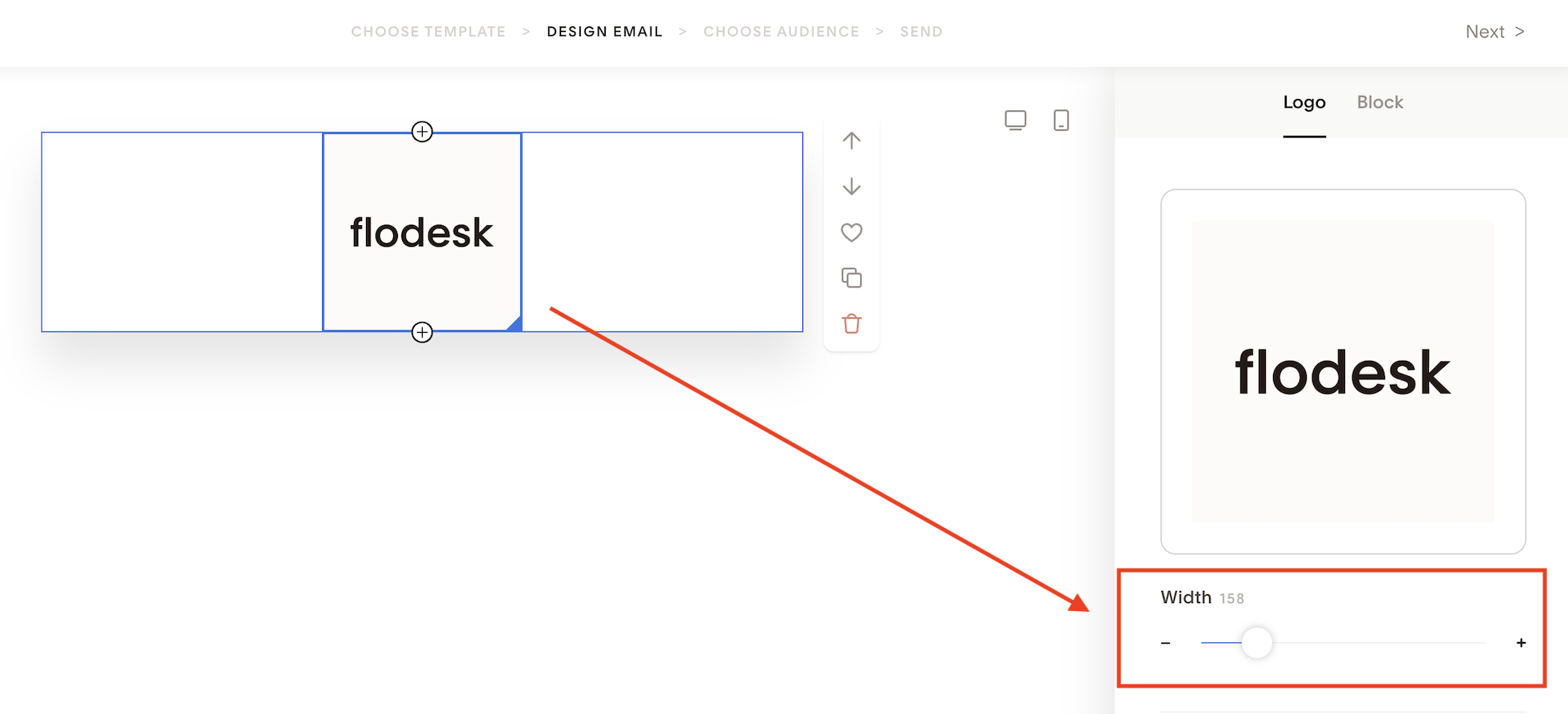
In Flodesk, all emails have a maximum width of 600 pixels. That's the widest your logo or images can appear. Within that limit, you can resize any image or logo to whatever size works best for your design using either the width selector in the sidebar or by dragging the corner of the image directly.
How to resize using the width selector
Click on the image or logo block in your email to select it
In the right sidebar, find the width selector
Adjust the value to your preferred size
This is the quickest way to set a precise width.
How to resize by dragging
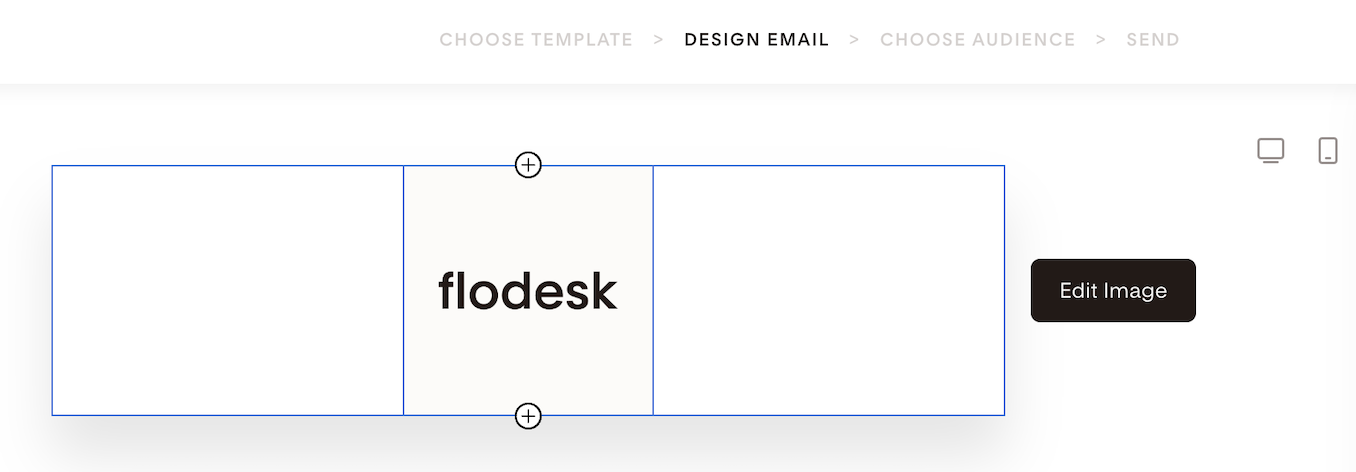
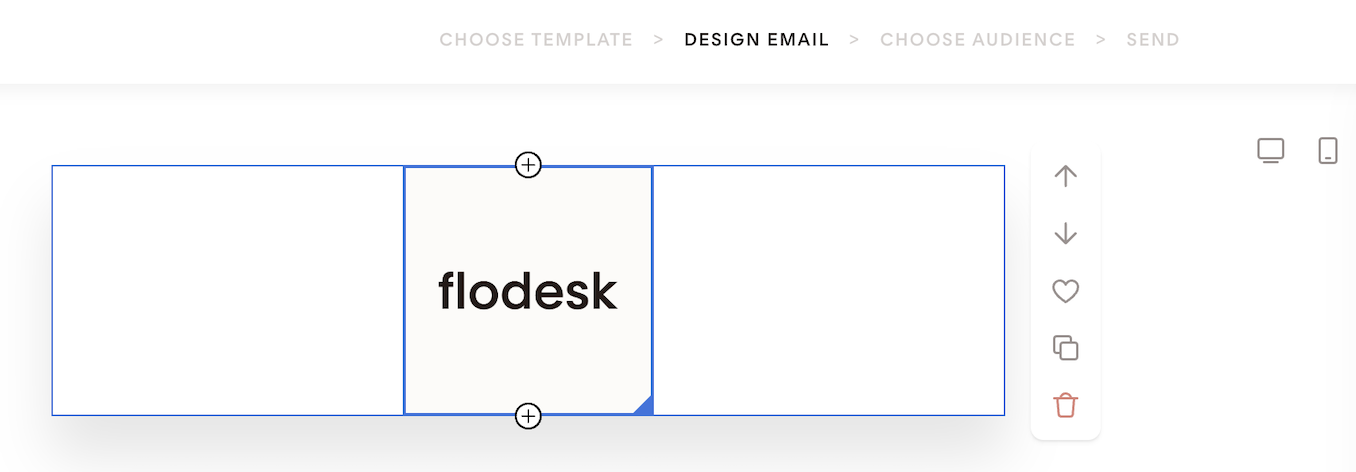
Click on the image or logo block to select it (it will highlight with a blue border)
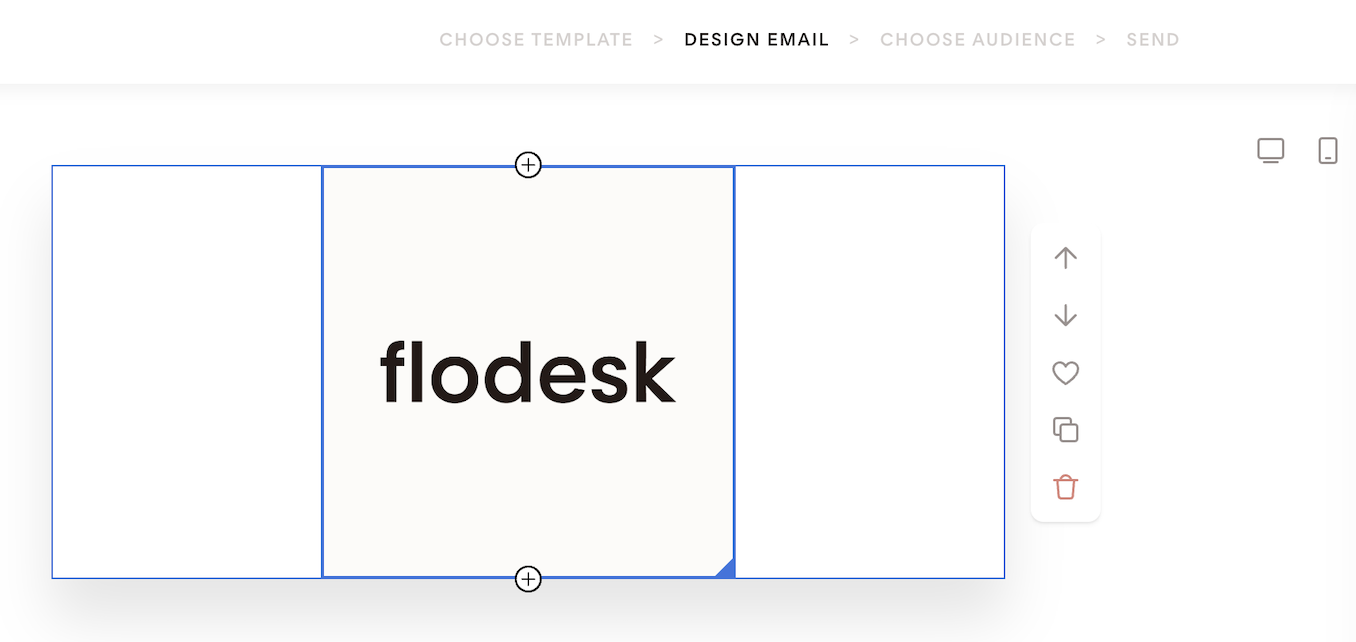
Hover over the image or logo inside the block until you see a blue triangle in the bottom-right corner
Click and drag that corner to resize
FAQ
How do I resize an image or logo in a Flodesk email?
Click on the image or logo block to select it, then either adjust the width value in the right sidebar or drag the blue triangle in the bottom-right corner of the image to resize it.
What is the maximum image width in Flodesk emails?
All Flodesk emails have a maximum width of 600 pixels. Your images and logos can't exceed this width.
How do I make my logo smaller in a Flodesk email?
Click on the logo block to select it, then use the width selector in the right sidebar to reduce the size. You can also hover over the logo until you see the blue triangle in the bottom-right corner and drag it inward to make it smaller.
Why can't I make my image wider in Flodesk?
Flodesk emails have a maximum width of 600 pixels, so images and logos can't be sized beyond that. This is a standard email width that ensures your designs look good across all email clients and devices.