
How to use bullet points and numbered lists in the email builder
Overview
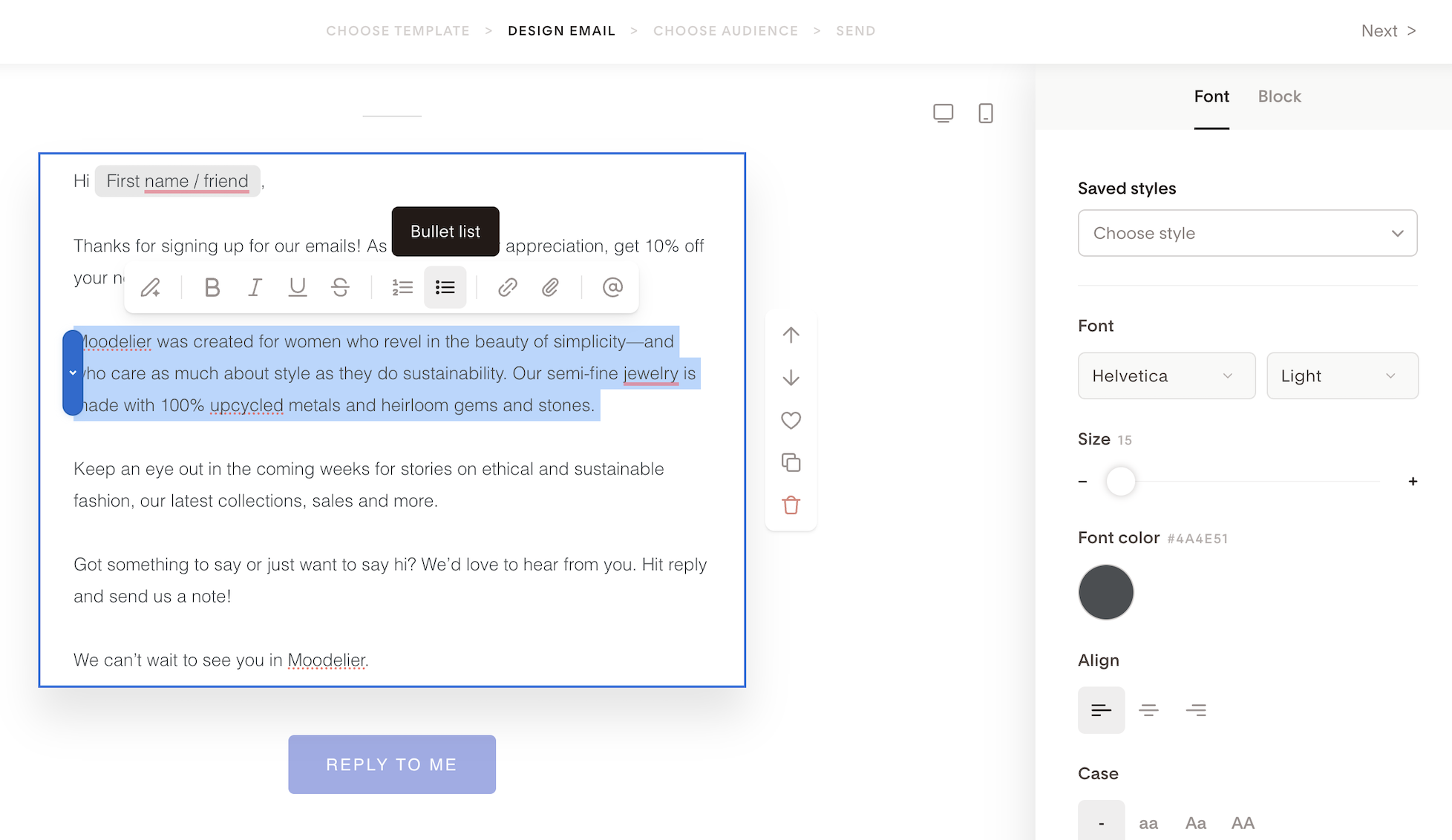
Bullet points and numbered lists are a good way to break up text and make your emails easier to scan. You can add them to both Text blocks and Layout blocks using the quick formatting panel that appears when you highlight text in the email builder.
How to add a list in a Text block
Click into a Text block in your email
Highlight the text you want to turn into a list
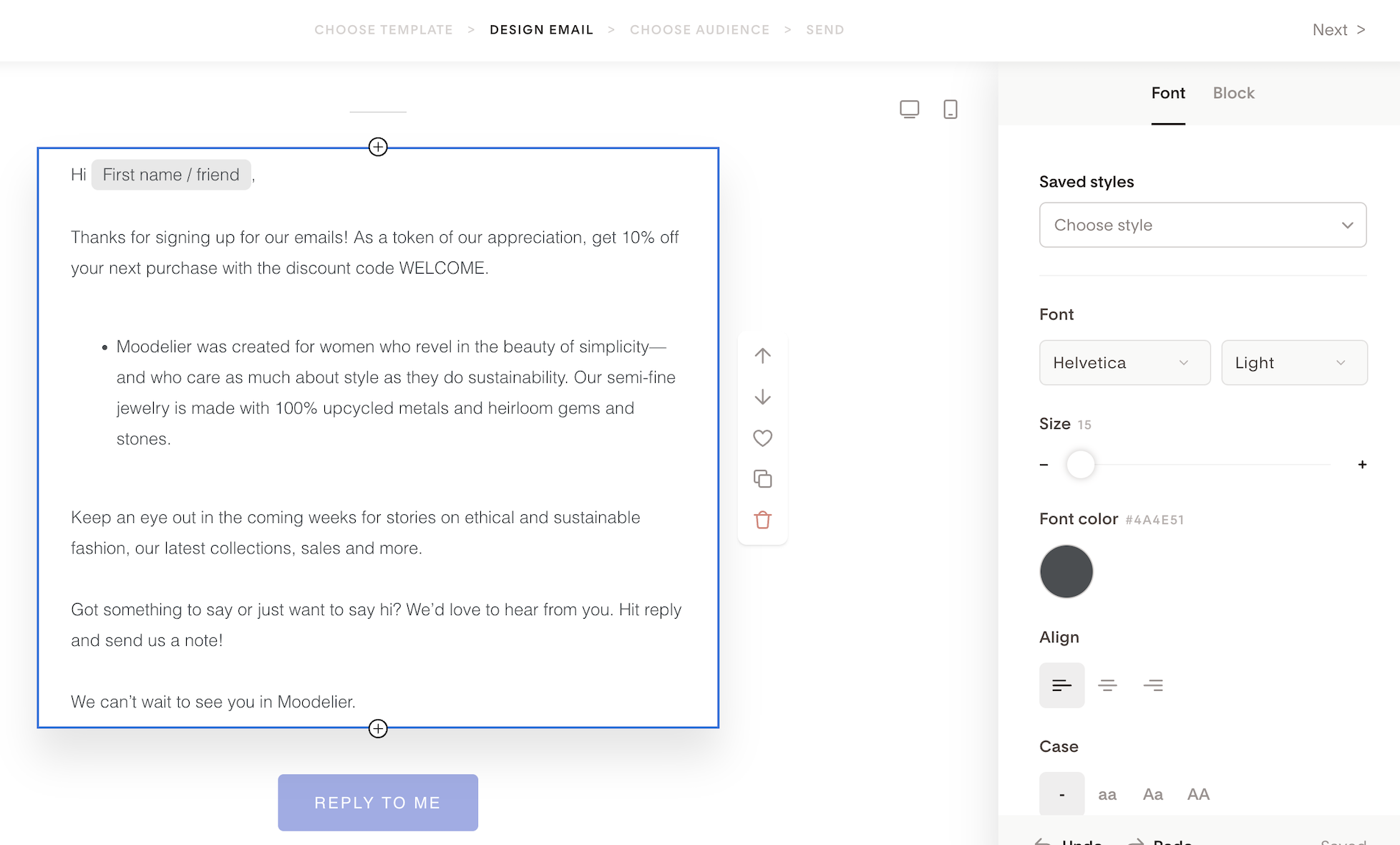
In the quick formatting panel that appears, click the bullet list or numbered list icon. The highlighted text will convert to your chosen list format.
Press Enter to add each new list item
Tip: To add a blank line between list items, press Shift + Enter instead of Enter. This adds a line break without starting a new bullet point.
How to add a list in a Layout block
Layout blocks combine images and text in a single design unit. You can add lists here too, though it's worth keeping text short in Layout blocks since they're designed more for visual impact than long-form content.
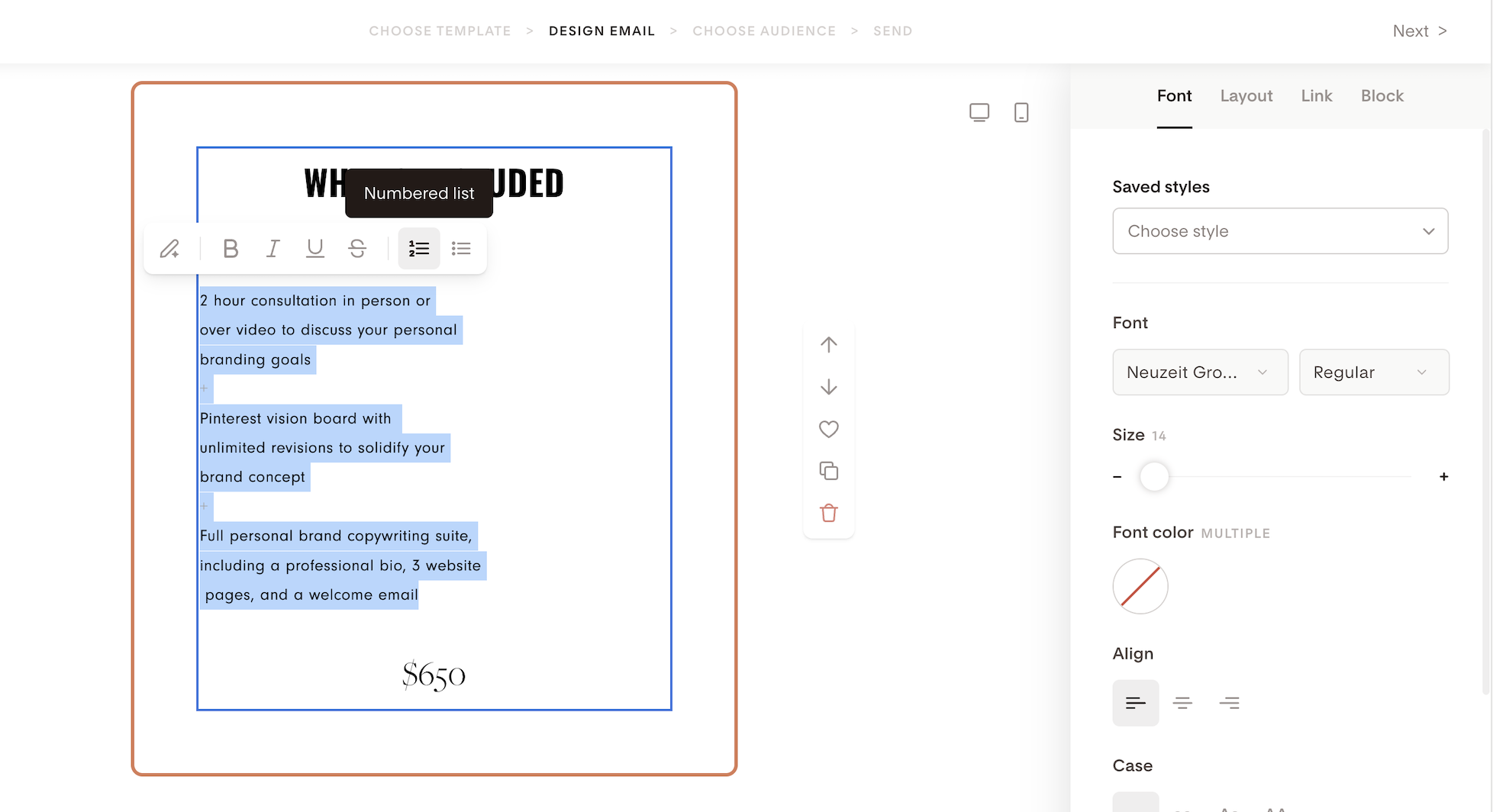
Click into the text area of a Layout block
Highlight the text you want to format
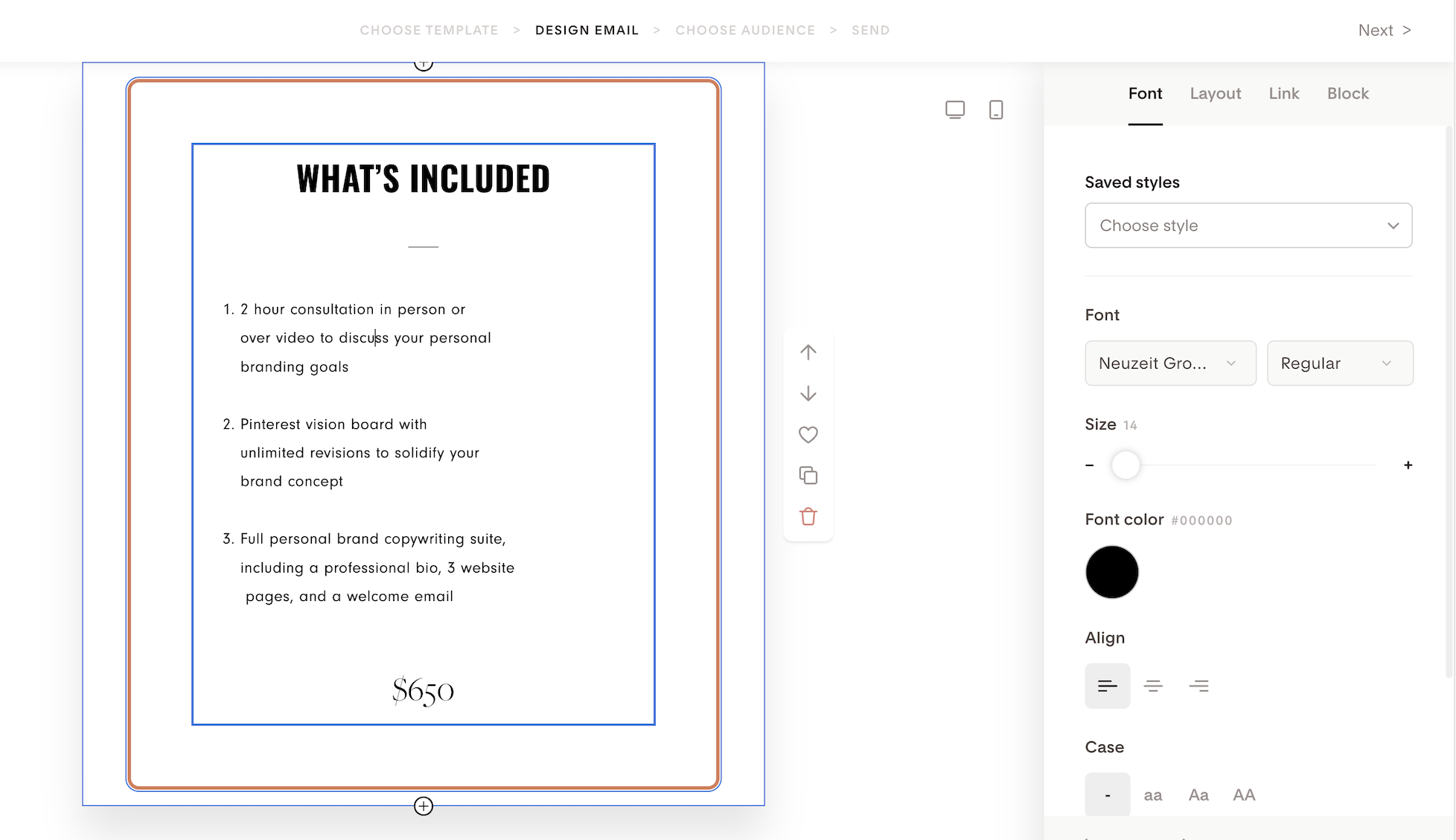
In the quick formatting panel, click the bullet list or numbered list icon
The text will convert to your chosen list format.
Tip: To add a blank line between list items, press Shift + Enter instead of Enter. This adds a line break without starting a new bullet point.
How to remove list formatting
To remove bullet or numbered list formatting from any block:
Highlight the text that's currently formatted as a list
Click the active bullet list or numbered list icon in the quick formatting panel to toggle it off
The text will return to its default paragraph format.
FAQ
How do I add bullet points in the Flodesk email builder?
Click into a Text block or Layout block, highlight the text you want to format, and select the bullet list icon from the quick formatting panel that appears. Press Enter to add new items to the list.
Can I add numbered lists in Flodesk emails?
Yes. The process is the same as adding bullet points. Highlight your text in a Text block or Layout block, then click the numbered list icon in the quick formatting panel.
Where can I use bullet points and numbered lists in Flodesk?
You can add lists in both Text blocks and Layout blocks in the email builder.
How do I remove bullet point or numbered list formatting in Flodesk?
Highlight the text that's formatted as a list, then click the active bullet list or numbered list icon in the quick formatting panel to turn it off. The text will go back to normal paragraph format.
Can I use bullet points in a Layout block?
Yes. Highlight the text inside the Layout block and select the bullet list or numbered list option from the quick formatting panel. Keep in mind that Layout blocks are designed to pair visuals with short text, so it's best to keep any lists there brief.
How do I add a blank line between bullet points in Flodesk?
Press Shift + Enter instead of Enter. This inserts a line break within the list without creating a new bullet point, giving you extra space between items. This works in both Text blocks and Layout blocks.