
Can I edit a scheduled email in Flodesk?
Overview
Yes, you can edit a scheduled email, as long as it hasn't been sent yet. The process takes just a few steps: unschedule the email to move it back to draft mode, make your edits, then reschedule it when you're ready.
Keep in mind: once an email has been sent, it can't be edited or recalled. If you need to send a corrected version, you can duplicate the original and resend it.
How to edit a scheduled email
Go to your Emails dashboard
Find the scheduled email you want to edit
Hover over the email card and click the three-dot menu (...)
Select Unschedule
Click Yes, unschedule to confirm
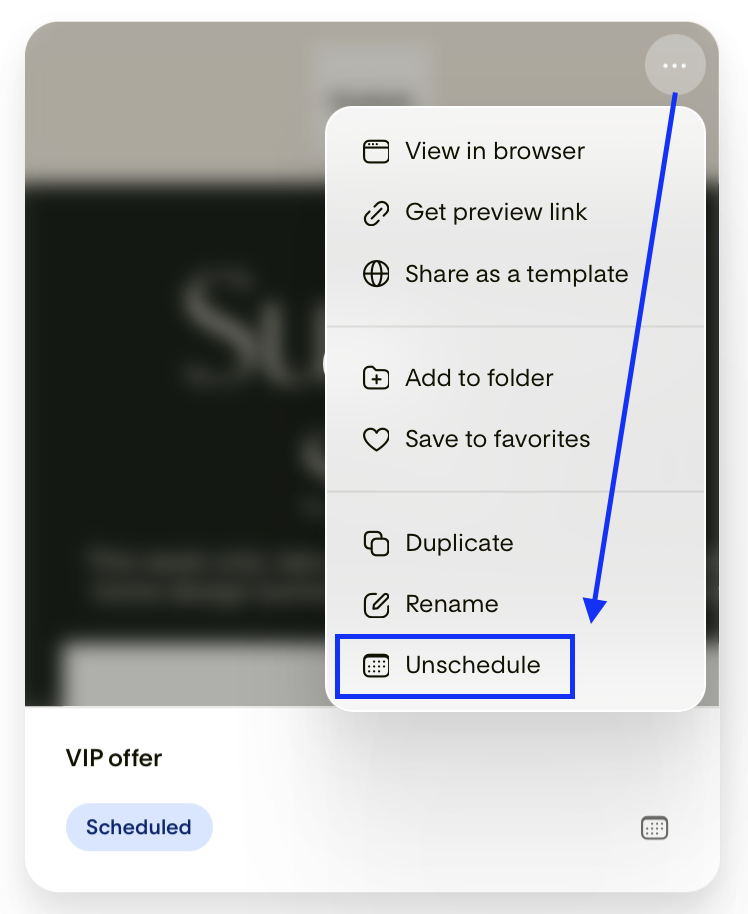
Your email will move back to draft mode. From there, click into the email to open the editor, make your changes (text, images, links, subject line, or anything else), then click Next to reschedule it for your chosen date and time.
What to do if your email has already been sent
Sent emails can't be edited. Here's what to do instead:
Go to your Emails dashboard and find the sent email
Click the three-dot menu (...) and select Duplicate
Open the duplicate, make your corrections, and send it to your audience
When writing the subject line for your follow-up email, keeping it clear and honest goes a long way. A few options that work well:
"Oops, here's the correct link"
"Update: important info inside"
"A quick correction from us"
FAQ
Can I edit a scheduled email in Flodesk?
Yes. As long as the email hasn't been sent yet, you can unschedule it, make your edits, and reschedule it. Go to your Emails dashboard, hover over the scheduled email, click the three-dot menu (...), and select Unschedule. The email will return to draft mode so you can make changes.
How do I unschedule an email in Flodesk?
Go to your Emails dashboard, hover over the email card, click the three-dot menu (...), and select Unschedule. Confirm by clicking Yes, unschedule. The email will move back to draft mode, where you can edit it and reschedule it when ready.
What happens when I unschedule an email?
The email moves back to draft mode. No one receives it, and nothing is lost. You can edit it and reschedule it whenever you're ready.
Can I edit an email after it's been sent?
No. Once an email has been sent, it can't be edited or unsent. If you need to send a corrected version, duplicate the original from your Emails dashboard, make your changes, and send the updated email to your audience.
How do I resend a corrected email in Flodesk?
Find the original sent email in your Emails dashboard, click the three-dot menu (...), and select Duplicate. Open the duplicate, make your corrections, and send it. Using a subject line like "Oops, here's the correct link" or "A quick correction from us" helps set the right expectation for your audience.
Will my subscribers receive the email twice if I unschedule and reschedule it?
No. Unscheduling an email simply moves it back to draft mode. No one receives it until you reschedule and it sends at the new time you choose.