
Can I add a GIF into an email?
Yes, you can add animated GIFs to your Flodesk emails.
GIFs are a great way to add movement, highlight an offer, or draw attention to an important message. When used intentionally, they can make your emails feel more engaging than static images.
This guide walks you through where GIFs are supported, how to add them, and where they’re not supported, so you know exactly what will (and won’t) work.
Where GIFs are supported in Flodesk emails
You can add GIFs only to Image blocks in the email builder.
GIFs are not supported in:
Layout blocks
E-commerce blocks
Poll blocks
These blocks support static (flat) images only.
How to add a GIF to your Flodesk email
Option 1: Add a GIF from Giphy
Flodesk includes a built-in Giphy integration, so you can search and add GIFs directly from the email builder.
Open a new email or edit an existing one.
Hover over your email content and click the plus (+) icon.
Add an Image block.
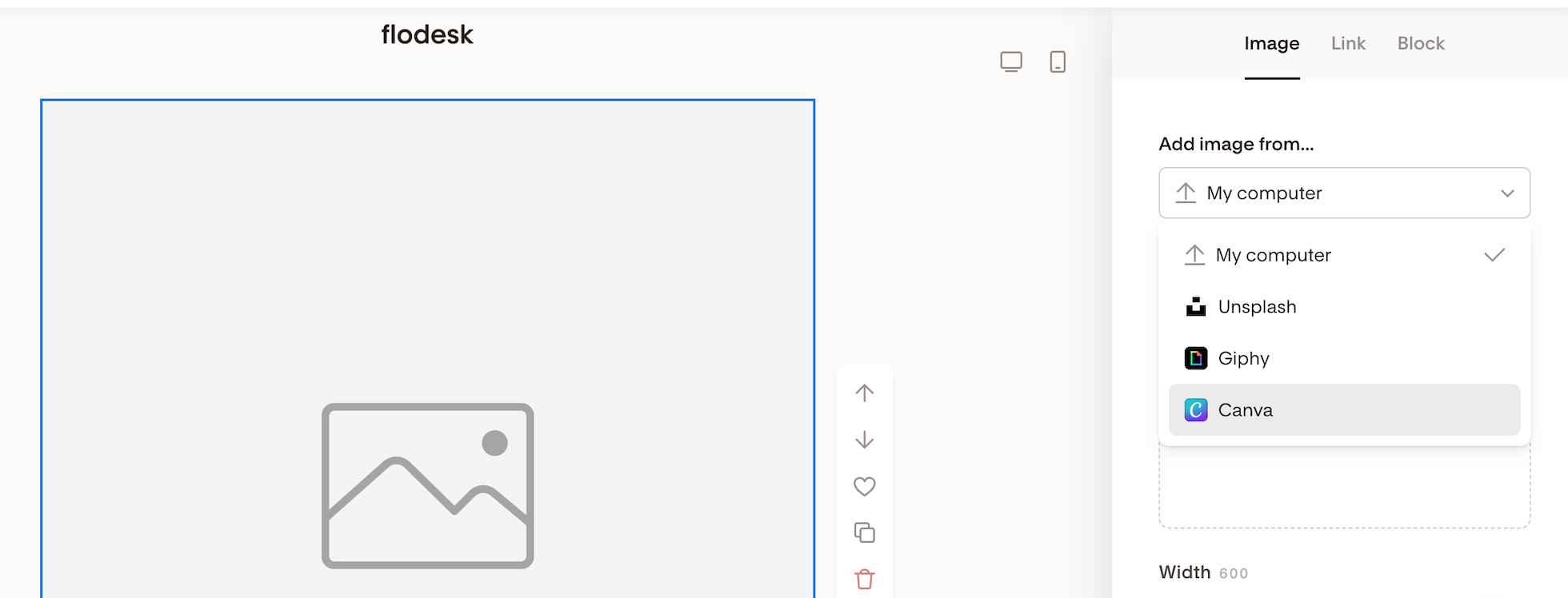
Select Add image from… > Giphy.
Search for a GIF.
Hover over the GIF you want and click Select.
The GIF will load into your email automatically.
Option 2: Upload a GIF from your computer
GIFs are image files, just like .png or .jpg, and can be uploaded directly.
Save your GIF to your computer as a
.giffile.In the email builder, click the plus (+) icon.
Add an Image block.
Select Add image from… → My computer.
Upload your GIF file.
This is the recommended option if you created your GIF in Adobe Express or another design tool.
Option 3: Create a GIF in Canva and import it
Flodesk integrates directly with Canva, making it easy to pull GIF designs into your emails.
Go to Account settings > Integrations in your Flodesk account.
Connect your Canva account (if it’s not already connected).
Open your email and click the plus (+) icon.
Add an Image block.
Select Add image from… → Canva.
Click Add design and choose your GIF.
Previewing your GIF
GIF animations may not play inside the Flodesk editor preview.
To see the animation correctly, send yourself a test email using the paper plane icon and view it in your inbox.
Summary
You can add GIFs to your Flodesk emails by:
Selecting a GIF from Giphy
Uploading a
.giffile from your computerImporting a GIF from Canva
Just make sure you’re using an Image block, since GIFs aren’t supported in Layout, E-commerce, or Poll blocks.
FAQ
Can I add a GIF to a Flodesk email?
Yes. GIFs can be added using an Image block in the email builder.
Why won’t my GIF animate in the editor preview?
The editor preview may not show animation. Send yourself a test email to see how the GIF appears in your inbox.
Can I use a GIF in a Layout block?
No. Layout, E-commerce, and Poll blocks support only static images.
Can I use GIFs created in Adobe Express?
Yes. Create your GIF in Adobe Express, save it to your computer, and upload it using Add image from… > My computer.
Is there a direct Adobe Express integration?
Not yet. At this time, Adobe Express GIFs must be uploaded manually.
Can I pull GIFs directly from Canva?
Yes. Once your Canva account is connected, you can import GIFs directly into Image blocks.
Do I need to worry about file size?
Flodesk supports image uploads up to 10MB per file, whether it’s a PNG or a GIF. That said, smaller GIFs tend to load faster and create a better experience, especially on mobile.