
How can I view my email after it has been sent?
A quick guide to viewing sent email campaigns and Workflow emails in Flodesk
After sending an email, you may want to review the exact content or design you sent—whether to double-check details, share it with someone, or reference it later. Flodesk makes this easy for both email campaigns and Workflow emails.
How to view a sent email campaign
You can view the full content of any sent (or draft) email directly from your Emails dashboard.
Steps
Go to Emails from the top navigation.
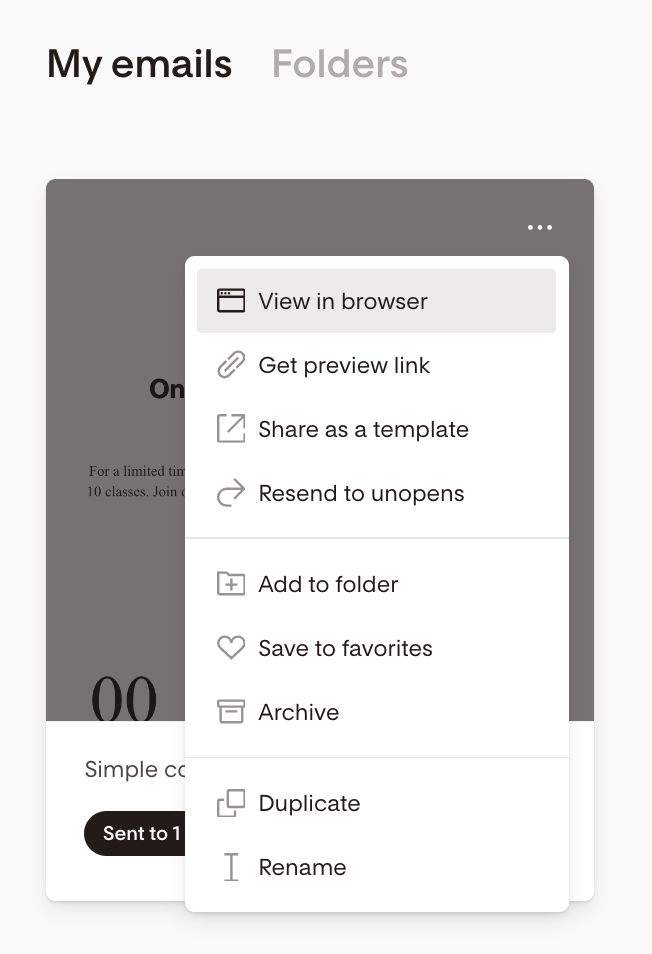
Hover your mouse over the email’s card on the Emails dashboard.
Important: The three dots (...) are hidden by default and only appear when you hover over the email card.
Click the three dots (…) in the upper-right corner of the card.
Select View in browser.
Your email opens in a new browser tab, showing exactly what was sent.
Optional: Share your email
Choose Get preview link instead to generate a shareable link.
You can send this link to teammates or clients to get feedback.
This option is also available for Draft emails.
How to view a Workflow email without pausing the Workflow
If your Workflow is live and you only want to review an email (not edit it), you can preview it without pausing or unpublishing the Workflow.
Steps
Go to Workflows.
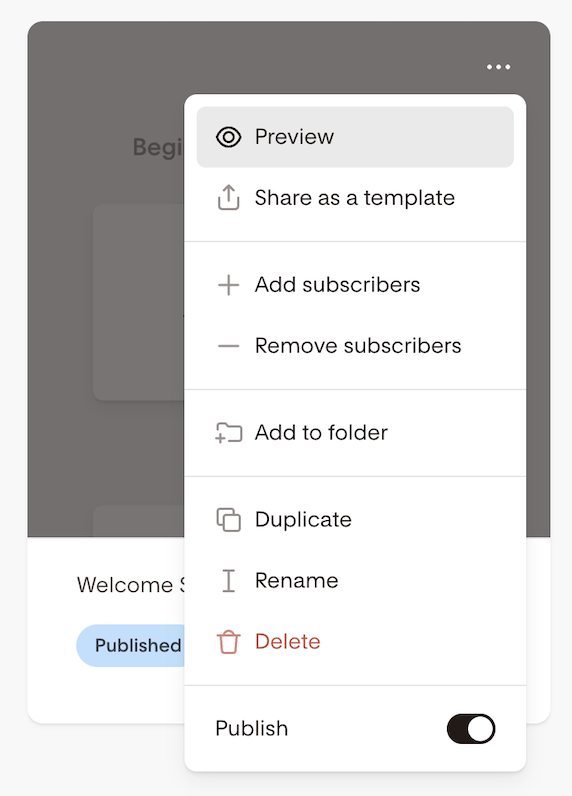
Hover over the published Workflow’s card.
Click the three dots (…) and select Preview.
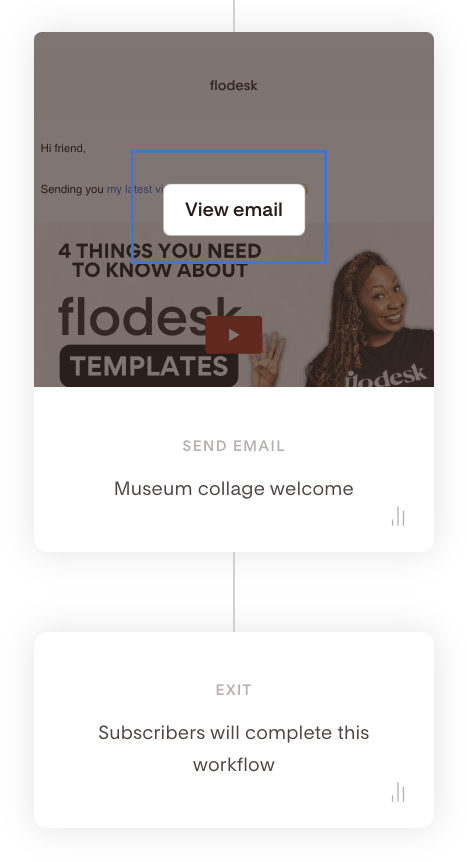
On the Workflow details screen, hover over an Email card.
Click View email.
The email opens in a read-only mode in a new tab.
Note: You can’t edit the email in preview mode. To make changes, you must pause (unpublish) the Workflow first.
Summary
To view a sent email campaign, hover over the email card, click (...), and select View in browser.
If you don’t see the three dots, make sure your mouse is hovering over the email card.
To view an active Workflow email without pausing it, use Preview from the Workflow card.
FAQ
Can I view an email after it’s been sent in Flodesk?
Yes. Go to your Emails dashboard, hover over the email card, click the (...) menu, and select View in browser.
I don’t see the three dots on my email—why?
The three dots only appear when you hover your mouse over the email card. They are hidden in the default view.
Can I share a sent email with someone else?
Yes. Use Get preview link from the same (...) menu to generate a shareable link.
Can I view a Workflow email without pausing the Workflow?
Yes. Use Preview from the Workflow card and select View email to open it in read-only mode.
Can I edit a Workflow email from preview mode?
No. Preview mode is read-only. To edit a Workflow email, you must pause (unpublish) the Workflow first.