
How to set up the Contact tab in Flodesk Checkout
Overview
The Contact tab in Flodesk Checkout controls what information you collect from buyers at checkout: their name and email address. It also lets you add an email list opt-in so buyers can subscribe to your list right at the point of purchase, and you can choose which Flodesk segment they're added to when they do.
Note: If you need to collect shipping information from your customers, click on the background area outside of any fields to open the Page settings panel in the right sidebar and toggle ON Shipping fields.
How to access the Contact tab
Open your checkout in Flodesk
Click the Setup button in the top-right corner
Select the Contact tab
How to customize the contact fields
By default, the checkout collects the buyer's first name, last name, and email address. If you don't need the name fields, you can toggle them off individually:
Toggle off First name to remove that field from the checkout form
Toggle off Last name to remove that field from the checkout form
The email address field is always required and can't be removed.
As you make changes, the preview on the left side of the editor updates automatically.
How to set up the email opt-in
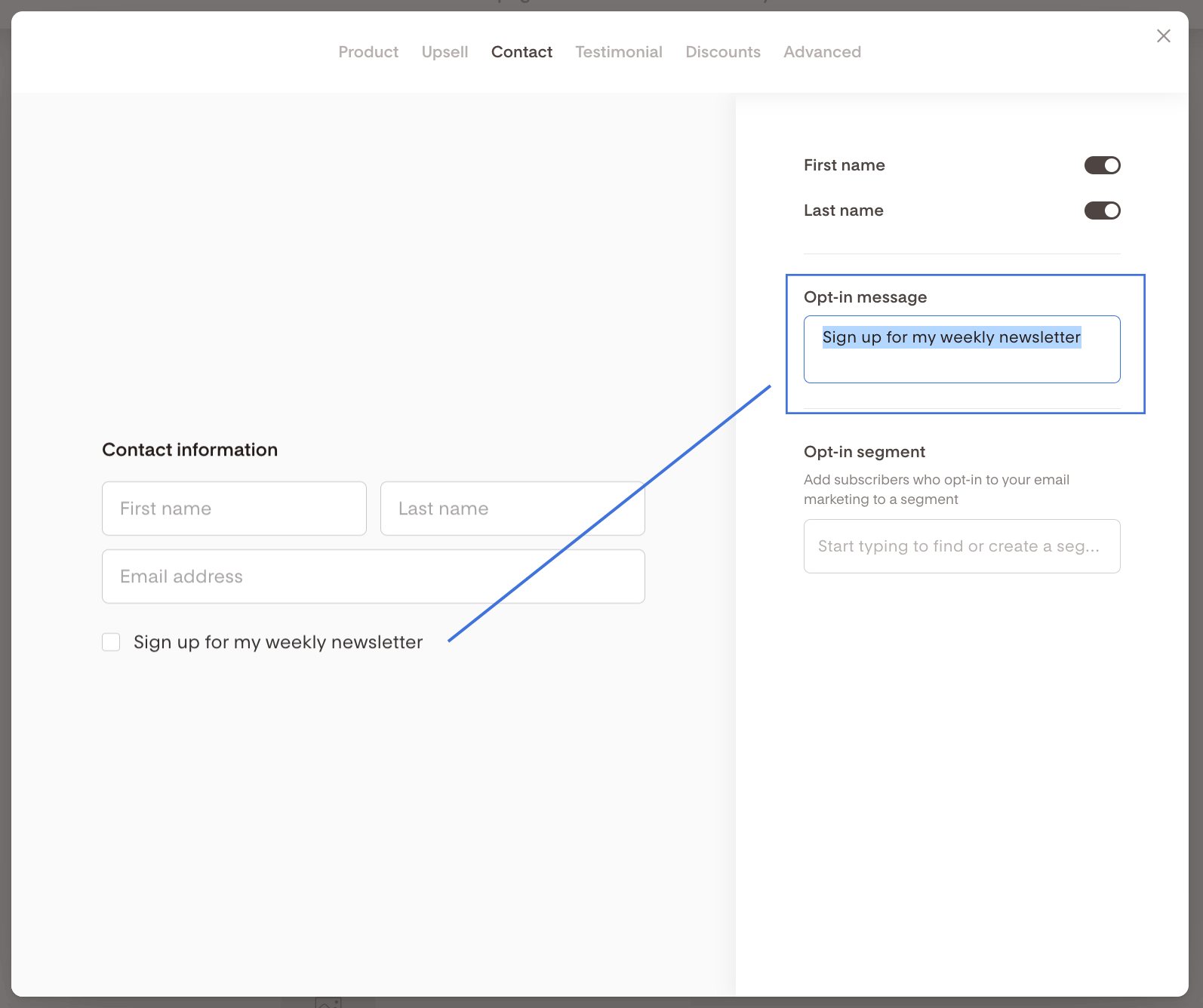
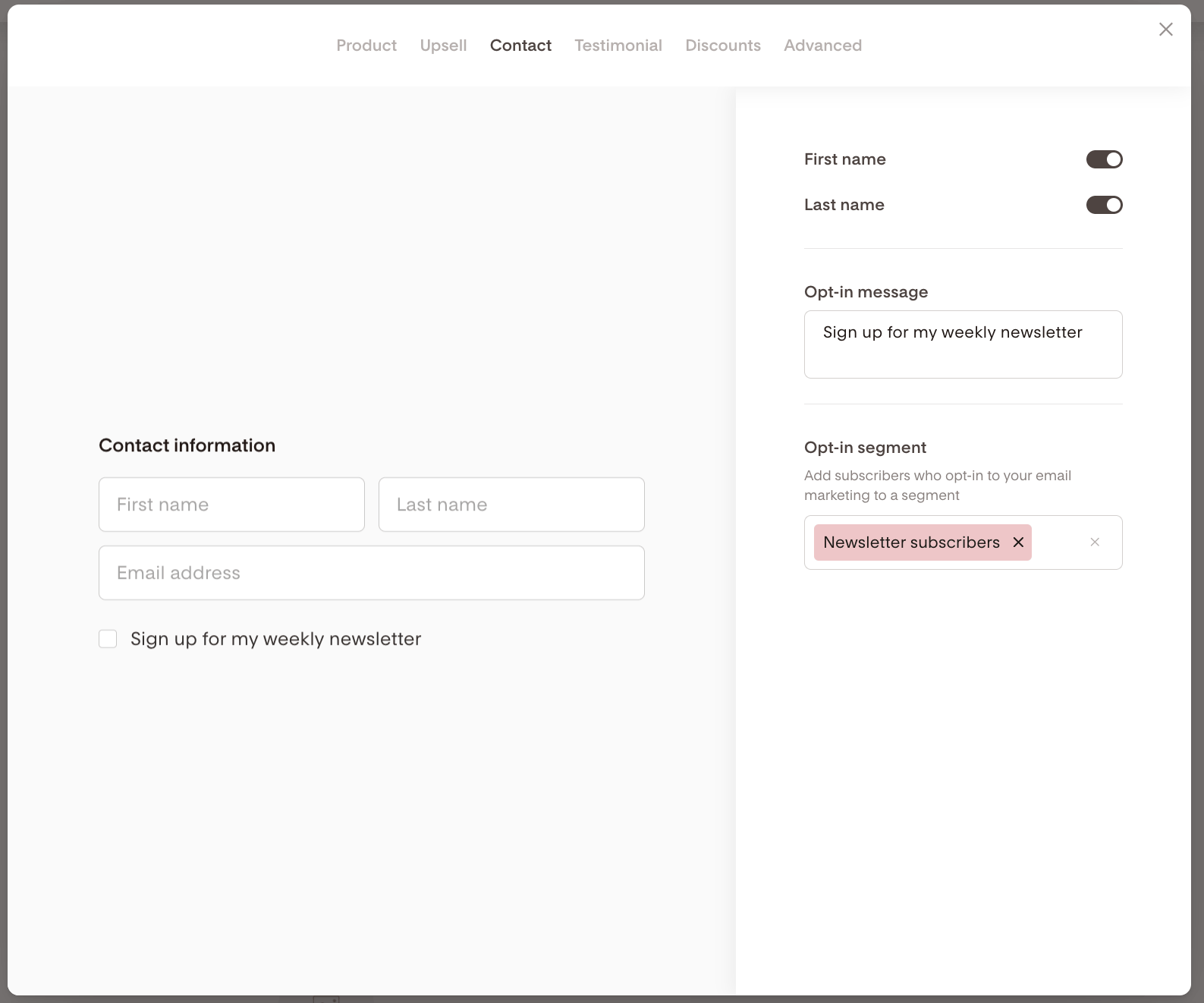
The Contact tab includes an opt-in message that invites buyers to subscribe to your email list during checkout. To customize it:
Click into the Opt-in message box and update the text to match your voice
Click into the Opt-in segment box and choose the Flodesk segment you want buyers added to when they opt in
This is a great way to grow your email list with buyers who are already engaged with your brand.
How to hide the email opt-in block
If you'd prefer not to show the email opt-in on your checkout page:
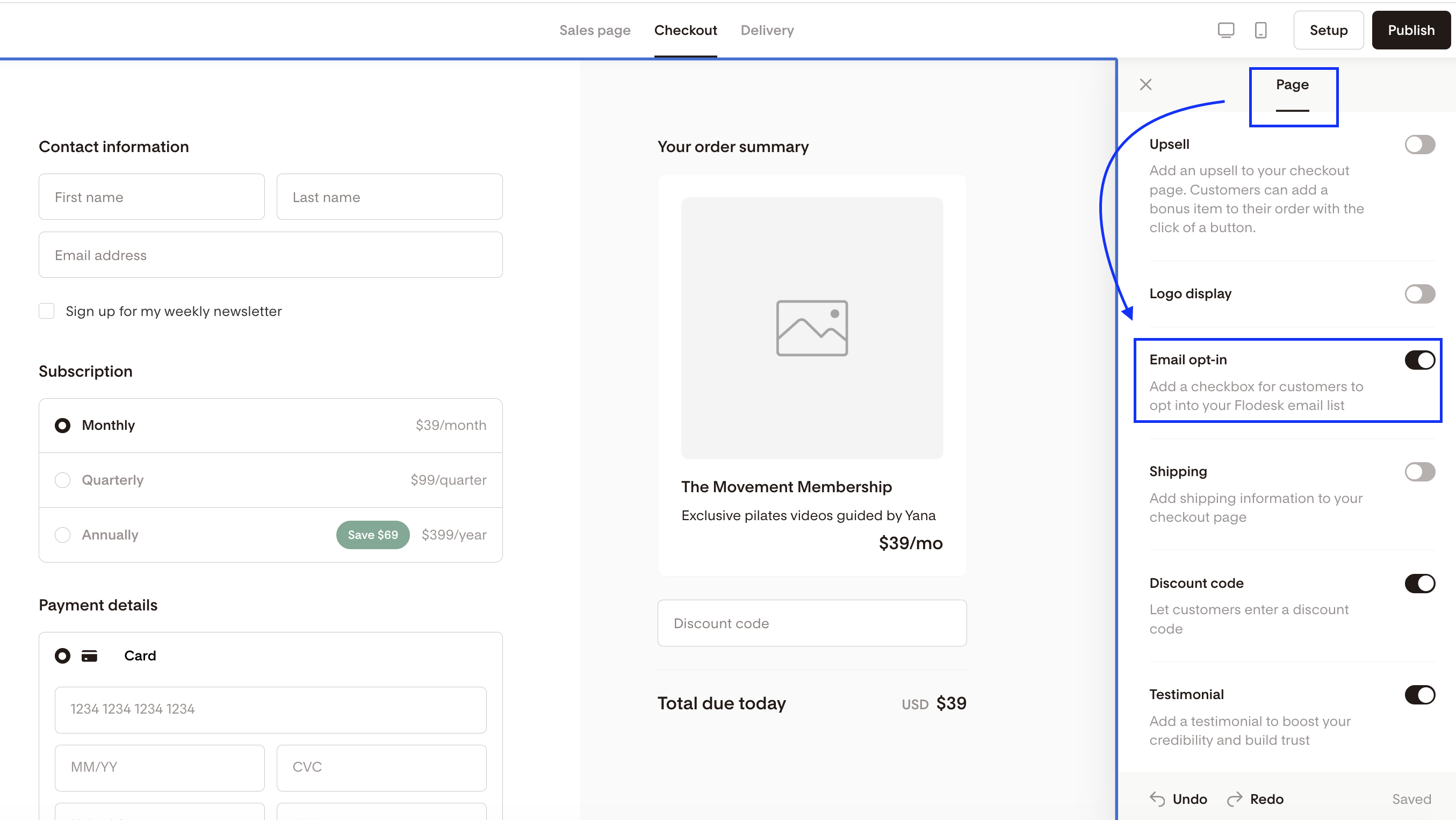
Click anywhere on the background of the checkout page to open the Page settings panel
Toggle off the Email opt-in block
Buyers will still complete checkout and their contact information will still be collected, but the option to join your email list won't be shown.
FAQ
What does the Contact tab do in Flodesk Checkout?
The Contact tab controls what information is collected from buyers at checkout (name and email address) and lets you set up an email list opt-in so buyers can subscribe to your list during the purchase process. You can also choose which Flodesk segment opted-in buyers are added to.
How do I access the Contact tab in Flodesk Checkout?
Open your checkout, click Setup in the top-right corner, and select the Contact tab.
Can I remove the name fields from my checkout form?
Yes. In the Contact tab, you can toggle off the First name and Last name fields individually if you don't need them. The email address field is always required and can't be removed.
Can I collect custom fields or additional information at checkout?
Not at this time. Unlike Flodesk opt-in forms, the checkout contact form doesn't support custom fields. You can collect the buyer's first name, last name, and email address, but it's not possible to add custom questions or additional fields beyond those.
If you need to collect a shipping address, you can enable that separately. Click on the background area outside of any fields to open the Page settings panel in the right sidebar, then toggle on Shipping fields. Buyers will be required to fill in their shipping address before completing their purchase.
How do I add buyers to a Flodesk segment when they opt in at checkout?
In the Contact tab, click into the Opt-in segment box and select the segment you want buyers added to. Only buyers who check the opt-in box during checkout will be added to that segment.
Can I customize the opt-in message buyers see at checkout?
Yes. Click into the Opt-in message box in the Contact tab and update the text to say whatever feels right for your brand and offer.
How do I hide the email opt-in from my checkout page?
Click on the background of your checkout page to open the Page settings panel, then toggle off the Email opt-in block. Buyers will still complete the purchase, and their contact details will still be collected, but the option to join your email list won't be shown.
What's the difference between the buyer's email address collected at checkout and the email opt-in?
The email address field is always collected as part of the standard checkout process, so you have the buyer's contact details for their order. The email opt-in is a separate, optional checkbox that asks buyers if they'd like to join your email marketing list. Only buyers who check that box will be added to your Flodesk segment.