
Why your opt-in emails aren’t sending (and how to fix it)
Overview
If you’ve filled out your own form or added yourself to a segment—but no emails show up—it usually means one small piece of the opt-in system isn’t quite lined up yet.
This guide walks through the most common reasons opt-in and workflow emails don’t send, plus exactly how to fix each one.
Before you start: quick checks
Make sure these basics are true first:
You’re using a Flodesk plan that includes workflows.
Your workflow is published, not just saved as a draft.
You’re testing with a real inbox you can access (including the promotion and spam folders).
If all that checks out, keep going.
Common reasons your opt-in emails aren’t being delivered
1. There’s no workflow sending the email
Opt-in forms don’t send emails by themselves, workflows do. After someone opts in, a workflow is what tells Flodesk what to send and when.
How to fix it
Go to Workflows in your Flodesk account.
Confirm a workflow exists.
Make sure the workflow status is Published (look for the blue “Published” label).
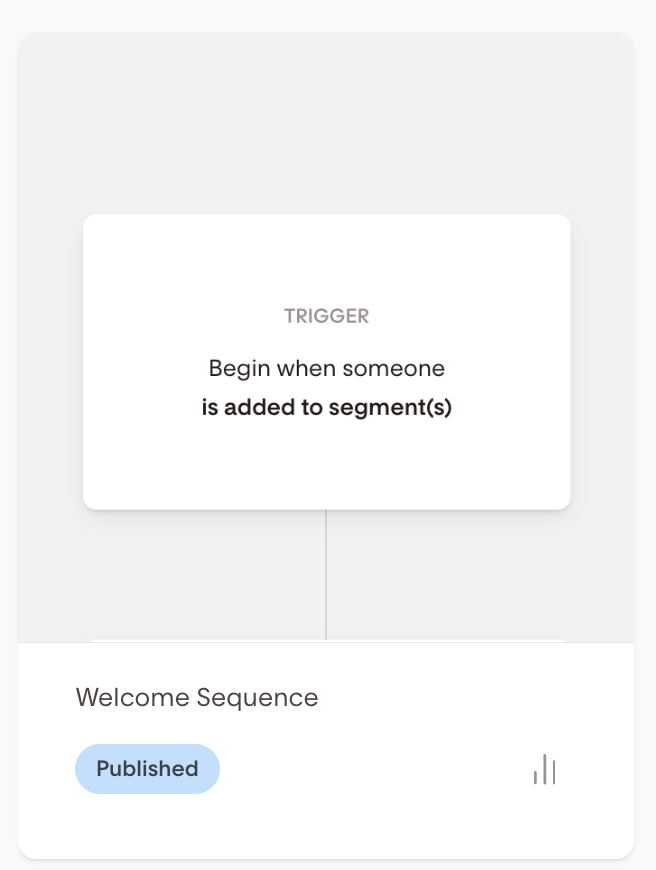
2. Your form and workflow aren’t connected
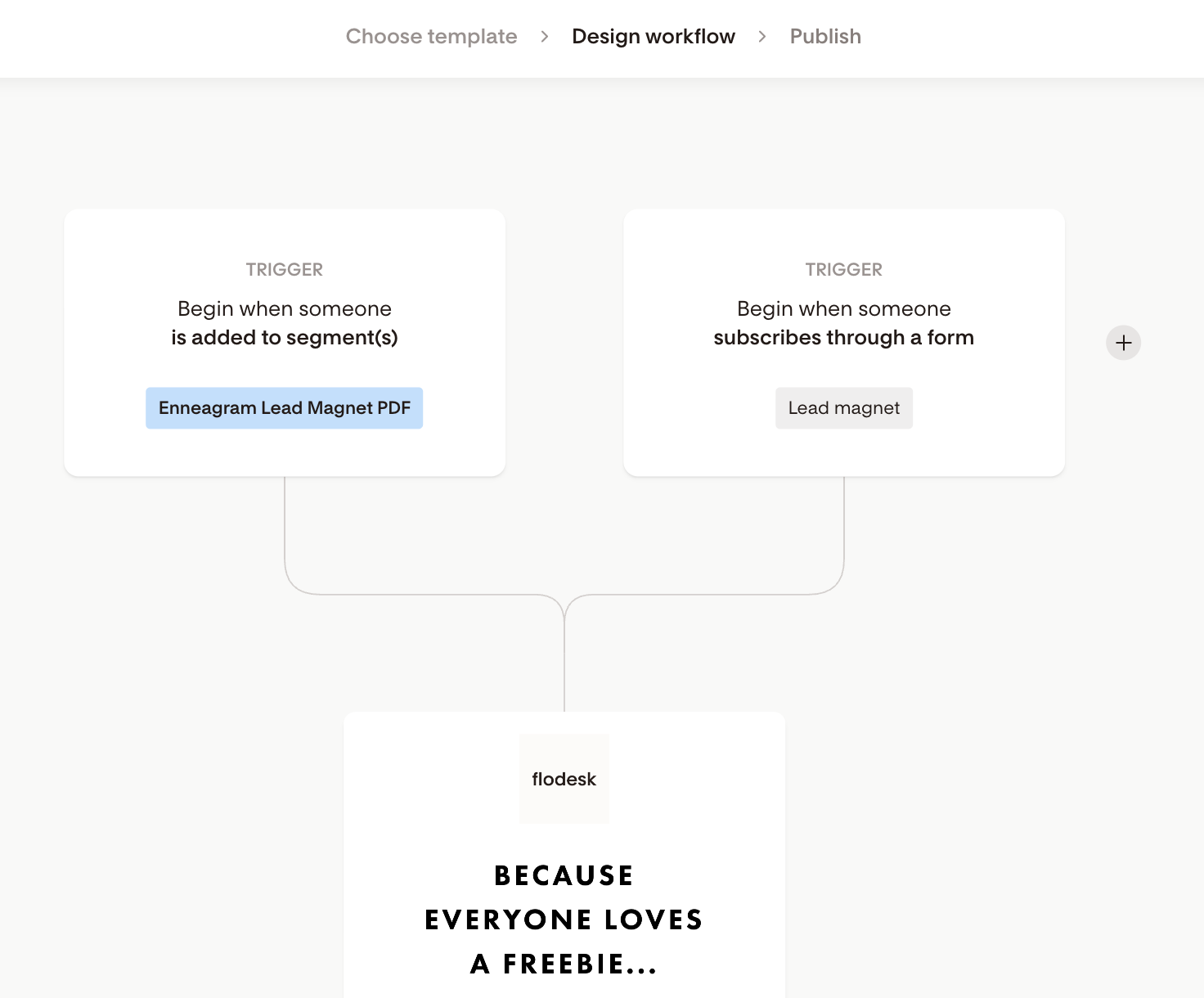
A workflow triggers when someone enters its trigger segment or when someone submits an opt-in form connected to the workflow as a trigger.
If your form adds subscribers to Segment A, but your workflow is watching Segment B, nothing will send.
How to fix it
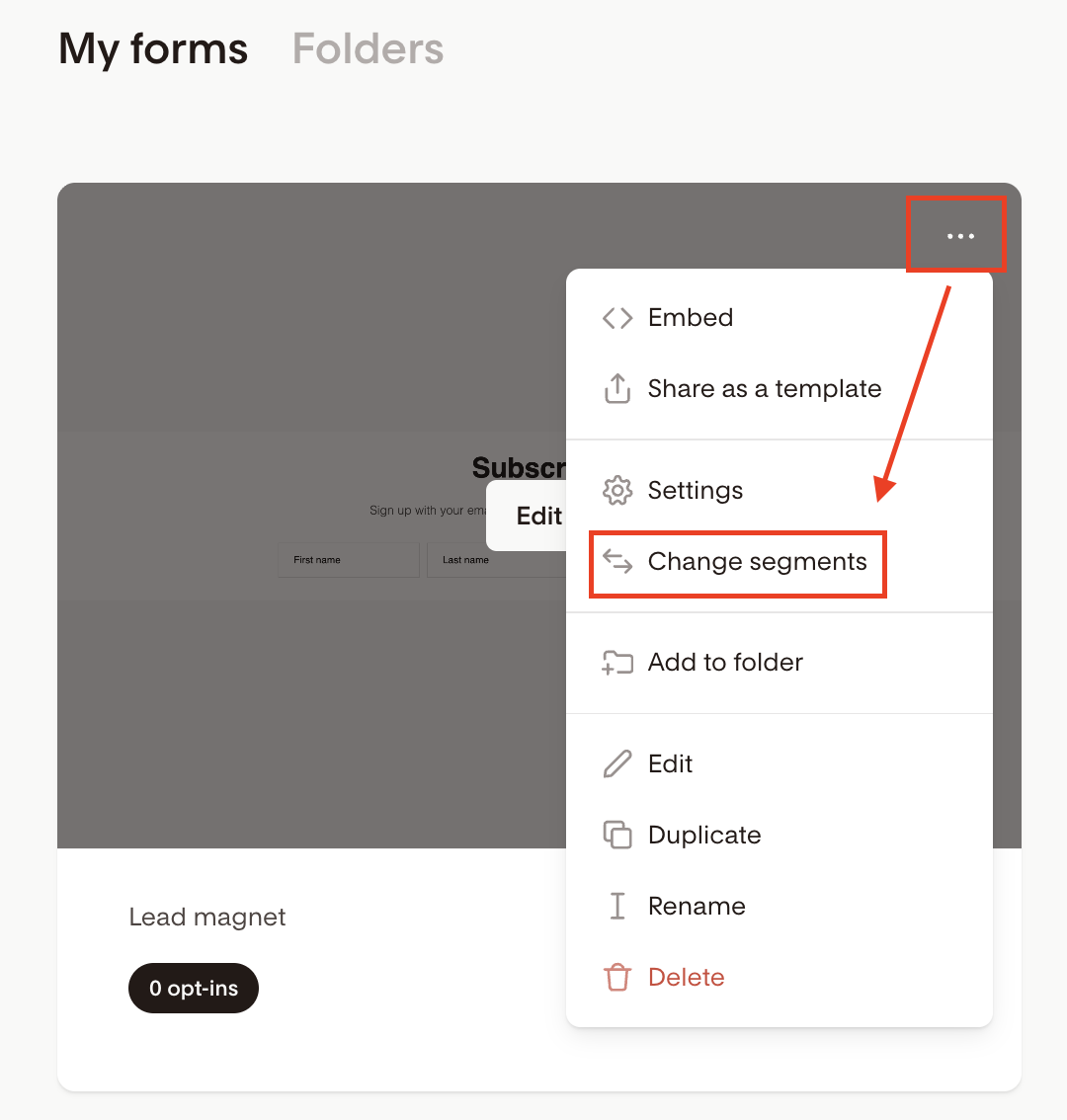
Go to Forms and open your opt-in form’s Change segments settings.
Note the segment(s) the form adds subscribers to.
Open your workflow and click the trigger card.
Make sure the trigger segment matches the form’s segment exactly.
If they don’t match, update the workflow trigger and republish.
Additionally, you can set the opt-in form as a trigger for the workflow. This way, your workflow will start if someone fills out the form OR joins the segment.
3. You’re testing with an email that already went through the workflow
By default, Flodesk prevents subscribers from receiving the same workflow more than once. This protects inboxes (and your sender reputation).
If you’ve already tested this workflow with your email address, it won’t trigger again unless you reset things or allow subscribers to repeat a workflow.
How to fix it
Go to Audience > All Subscribers and find your email.
Remove yourself from the workflow’s trigger segment.
(Follow: How to remove a subscriber from a segment)Remove yourself from the workflow itself.
(Follow: How do I add or remove a subscriber from a workflow)Opt into the form again.
To allow subscribers to repeat a workflow:
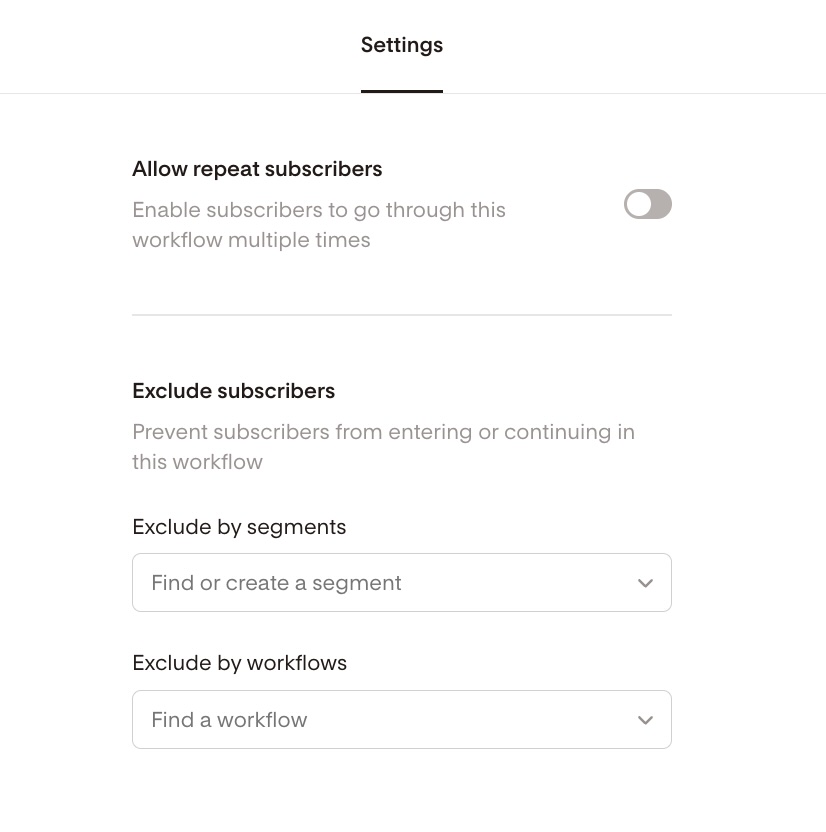
Click Settings in the top right corner in the workflow builder
Toggle “Allow repeat subscribers” ON
Set a "Wait time before repeating"
Click the X to close the modal
Once enabled, subscribers can re-enter the workflow if they meet the trigger criteria again—as long as they’re no longer active in the workflow.
4. You have “excluded” the trigger segment
Flodesk allows you to exclude specific segments from entering or continuing in your workflow. This feature is useful, for example, when you want to automatically end your sales workflow for people who purchased your product mid-flow.
However, if you mistakenly exclude the workflow’s own trigger segment, no one can trigger it.
How to fix it
Pause your workflow.
Click the Settings button in the top-right corner of the workflow editor.
Under “Exclude subscribers”, double-check that you did not exclude the workflow’s trigger segment.
Republish the workflow.
5. The workflow is delayed (and hasn’t sent yet)
Most triggered emails send in under 10 seconds, but delays can happen, especially if you’ve added wait steps.
How to check
Open your workflow in preview mode and look for Time Delay / Wait steps.
Confirm the email you’re expecting isn’t scheduled for later.
If there’s a delay, everything may actually be working as designed.
6. You added an email step to the workflow after someone already passed this step
If you edit an already published workflow by adding an email step somewhere in the middle and a subscriber is already past that step, they will not get this new email retroactively.
Only subscribers who haven’t reached that step yet will get this new addition.
7. The email went to spam (or Promotions)
If the workflow is set up correctly, the email may still be landing somewhere unexpected.
Check these places
Spam
Promotions (Gmail)
Other inbox tabs
To improve deliverability of your emails, follow the guidelines here: https://help.flodesk.com/en/articles/4289217
Still not seeing emails?
At this point:
Double-check spam and inbox tabs.
Wait a few minutes if the workflow includes time delays.
Confirm the workflow is published after all edits.
If everything looks correct and emails still aren’t sending, our Flodesk Support team can help investigate further: support@flodesk.com.
FAQs
Why didn’t I get an email after signing up through my form?
Most often, the workflow isn’t published, the trigger segment doesn’t match the form, or you already went through the workflow once and your workflow doesn’t allow subscribers to repeat it.
Do forms send emails on their own?
No. Forms only collect subscribers. Workflows are required to send emails.
Can I test a workflow multiple times with the same email?
Yes, but you must remove yourself from the trigger segment AND the workflow before testing again.
How long should I wait before assuming something’s wrong?
Most emails send within seconds, but delays and wait steps can slow things down. Always check your workflow timing first.