
Adding alt text to images in Flodesk
Alt text (short for “alternative text”) helps make your emails more accessible to everyone, including subscribers who use screen readers.
If someone can’t see your images, alt text describes what’s there. Assistive technology reads it aloud, and it appears if an image doesn’t load.
Adding alt text only takes a few seconds, but it makes a big difference.
What is alt text?
Alt text is a short written description of an image in your email.
It helps:
Subscribers using screen readers understand your content
Readers if images are blocked by their email provider
You create a more inclusive experience for your audience
Alt text is not used for SEO in emails. It’s purely for accessibility and clarity.
Where can I add alt text in Flodesk?
You can add alt text in the Accessibility section of the following email builder block types:
Image block
Layout block
E-commerce block
Countdown timer block
Logo block
Video block
Poll block
How to add alt text (step-by-step by block type)
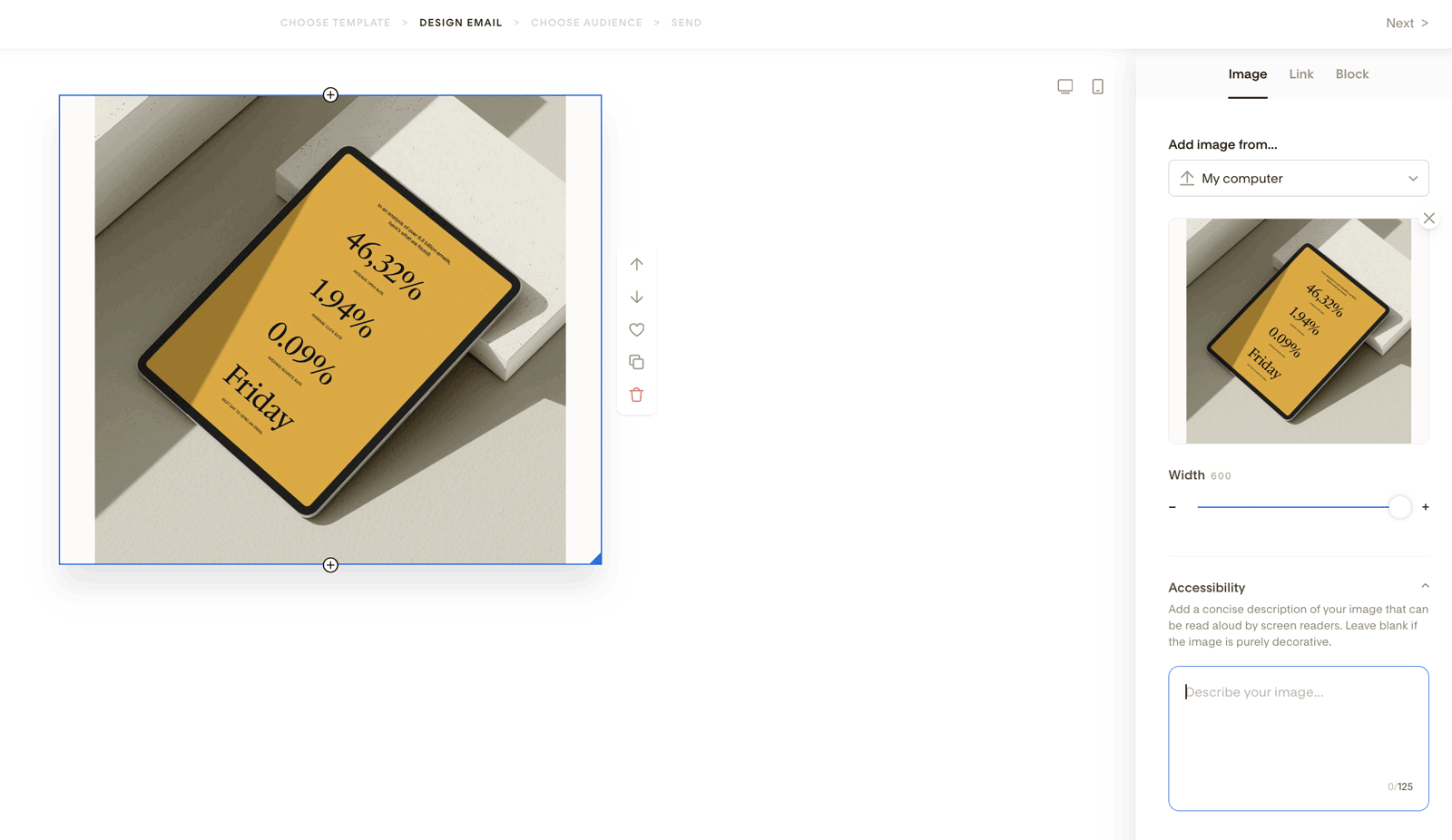
Image block
Add an Image block to your email.
Click on the image to open the settings.
Scroll to the Accessibility section (below the Width selector).
Type your image description in the text box.
Layout block
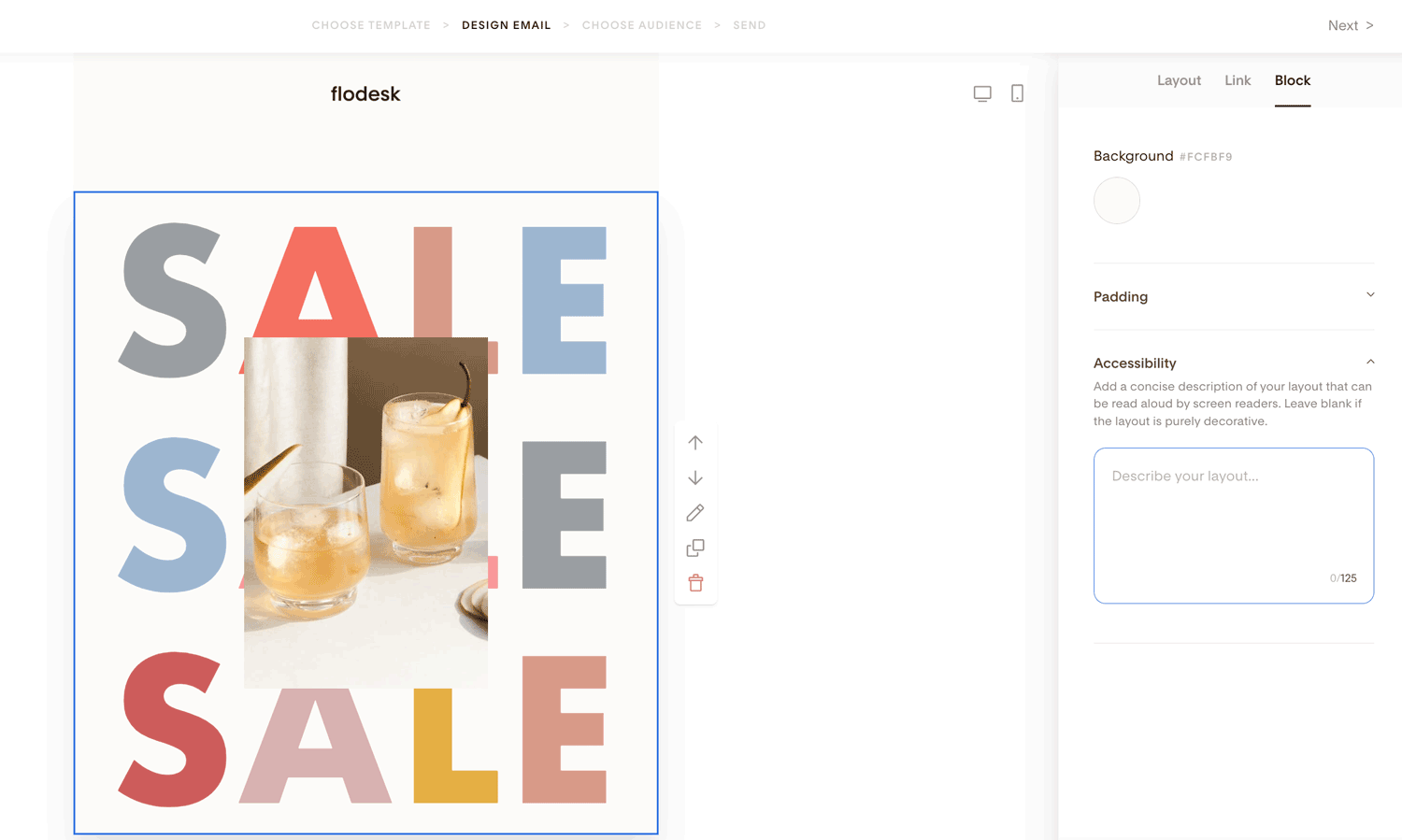
Add a Layout block.
Click on the block.
Go to the Block tab.
Find the Accessibility section.
Add a short description for the entire layout as it renders as a single image.
E-commerce block
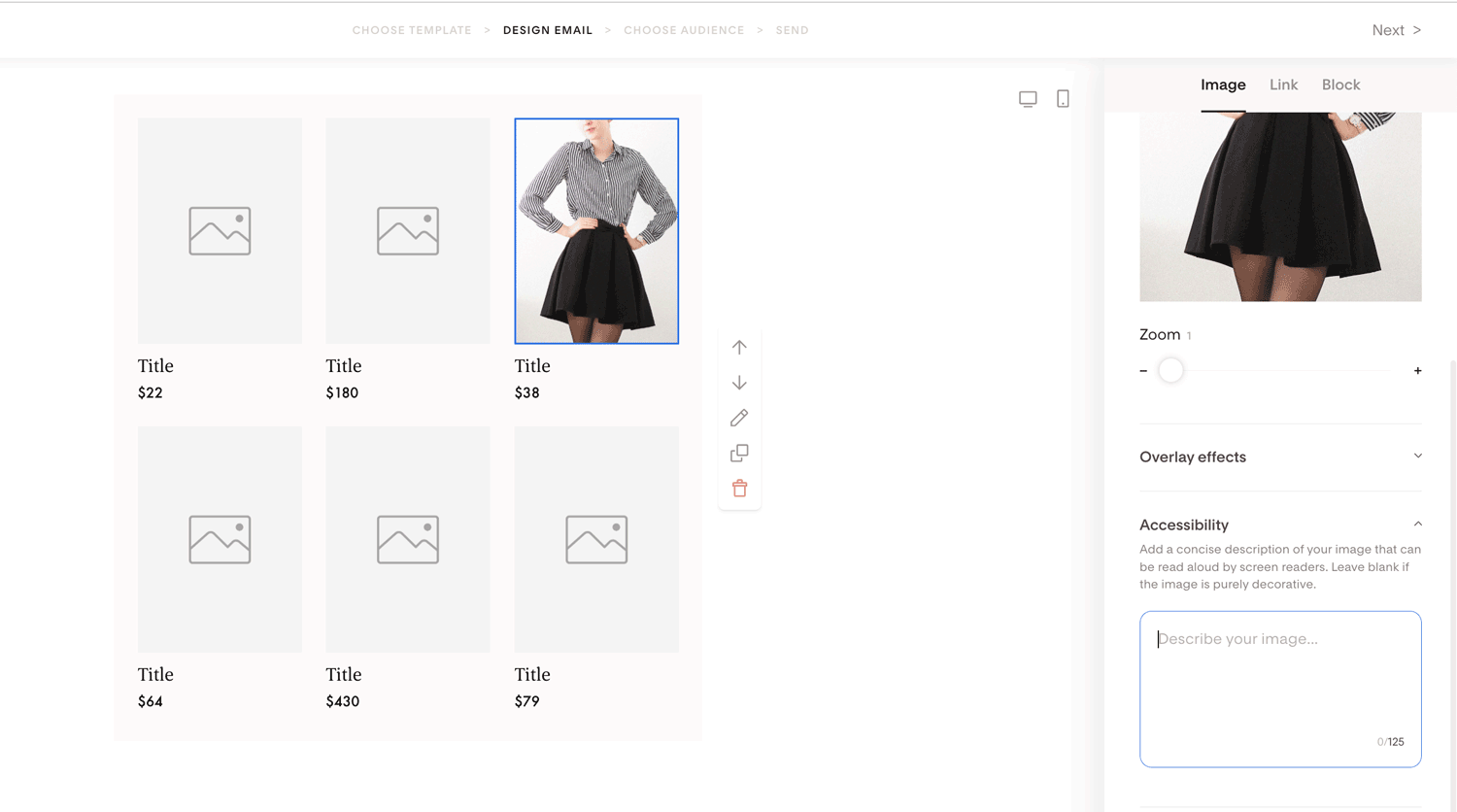
Add an E-commerce block.
Click on the product image.
Under the Image tab, scroll below Overlay effects.
Find the Accessibility section.
Add a description of the product image.
Countdown timer block
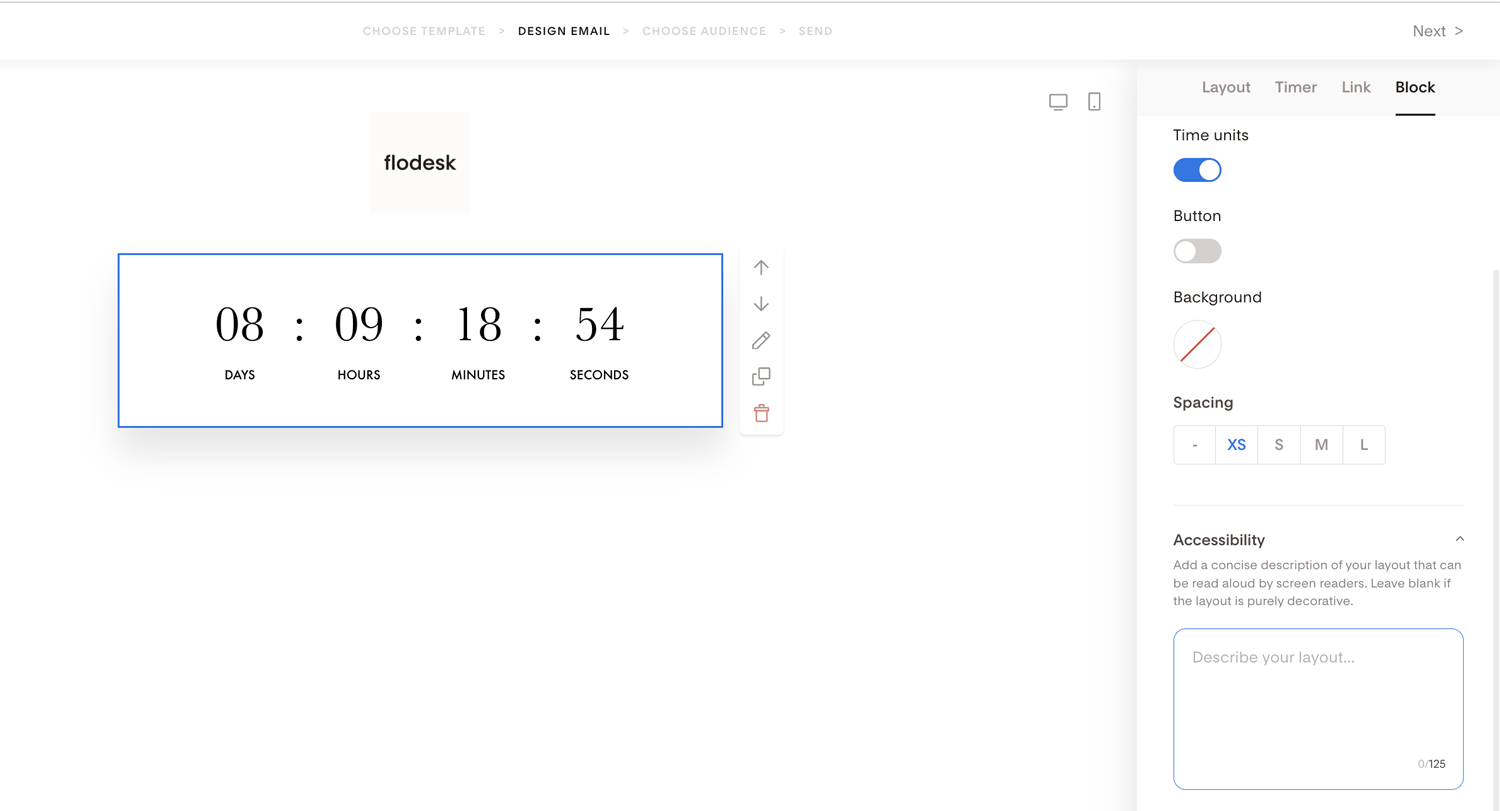
Add a Countdown timer block.
Click on the block.
Go to the Block tab.
Find the Accessibility section.
Describe what the timer represents.
Example:
“Countdown to March 15 at 8 PM EST product launch.”
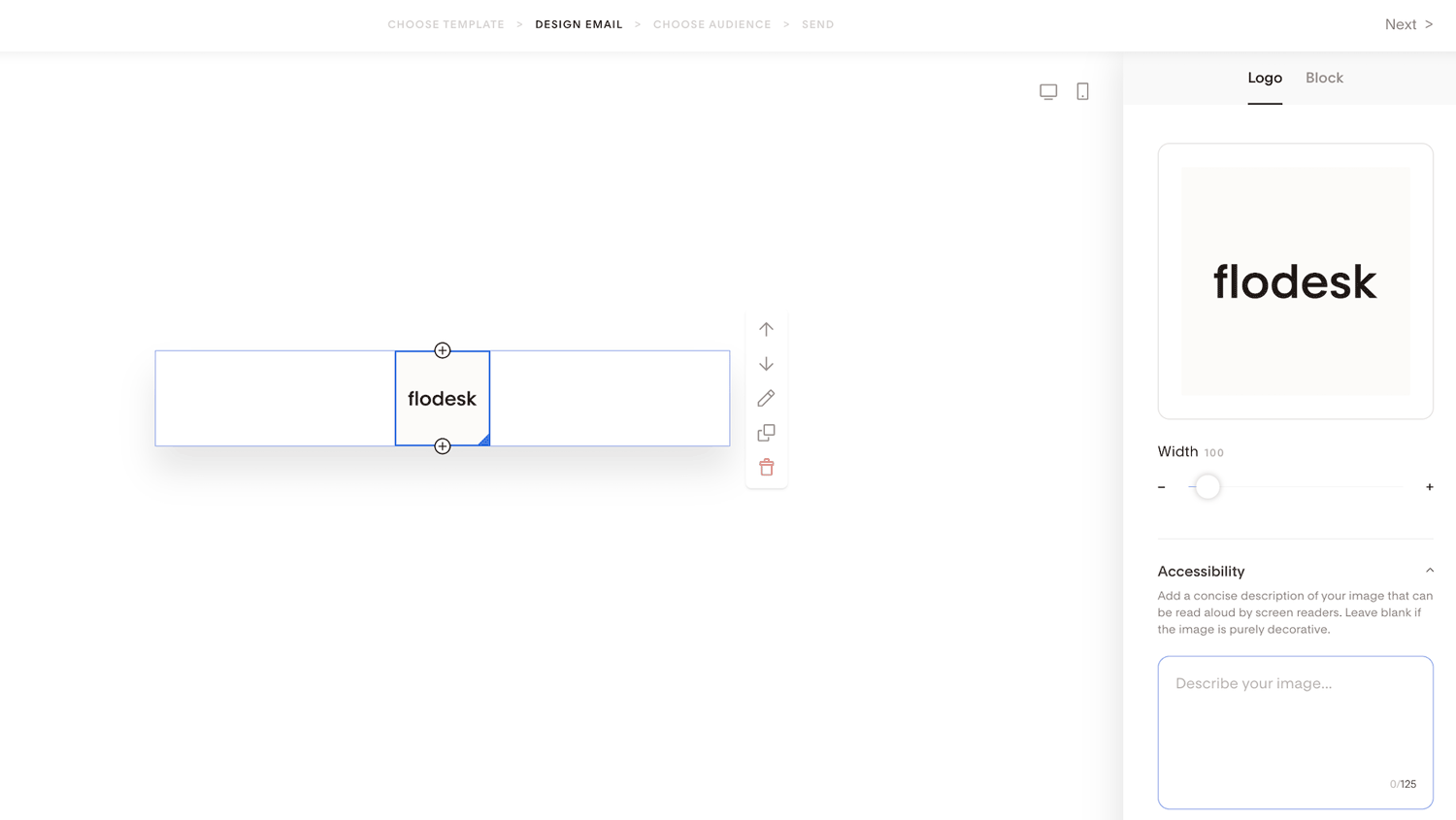
Logo block
Add a Logo block (if your template doesn’t already have one).
Click the logo image.
Open the Logo tab.
Scroll to Accessibility.
Add a simple description of your logo.
Example:
“Floral Haven logo in black script font.”
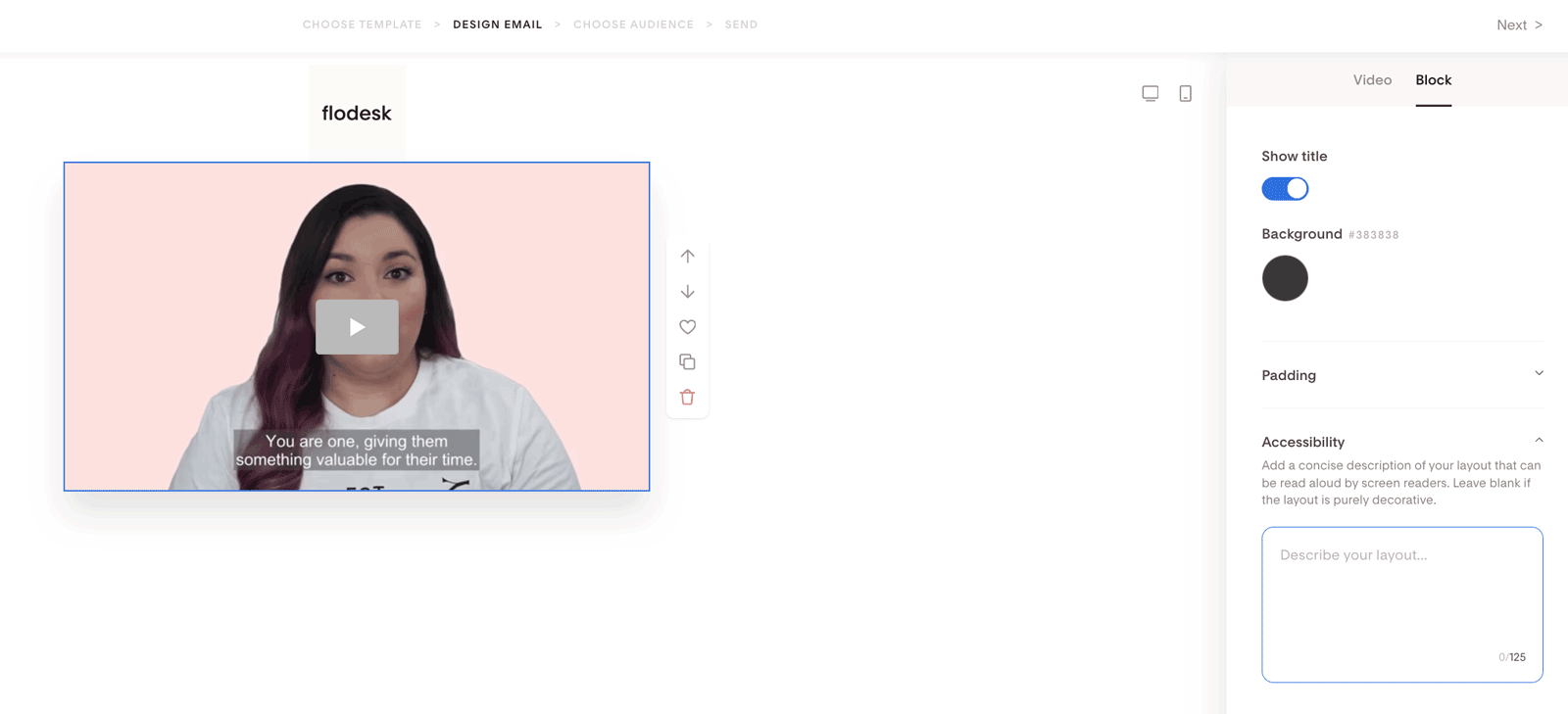
Video block
Add a Video block.
Click on the block.
Go to the Block tab.
Find the Accessibility section.
Add a short description of what the video is about.
Example:
“Behind-the-scenes look at our fall collection photoshoot.”
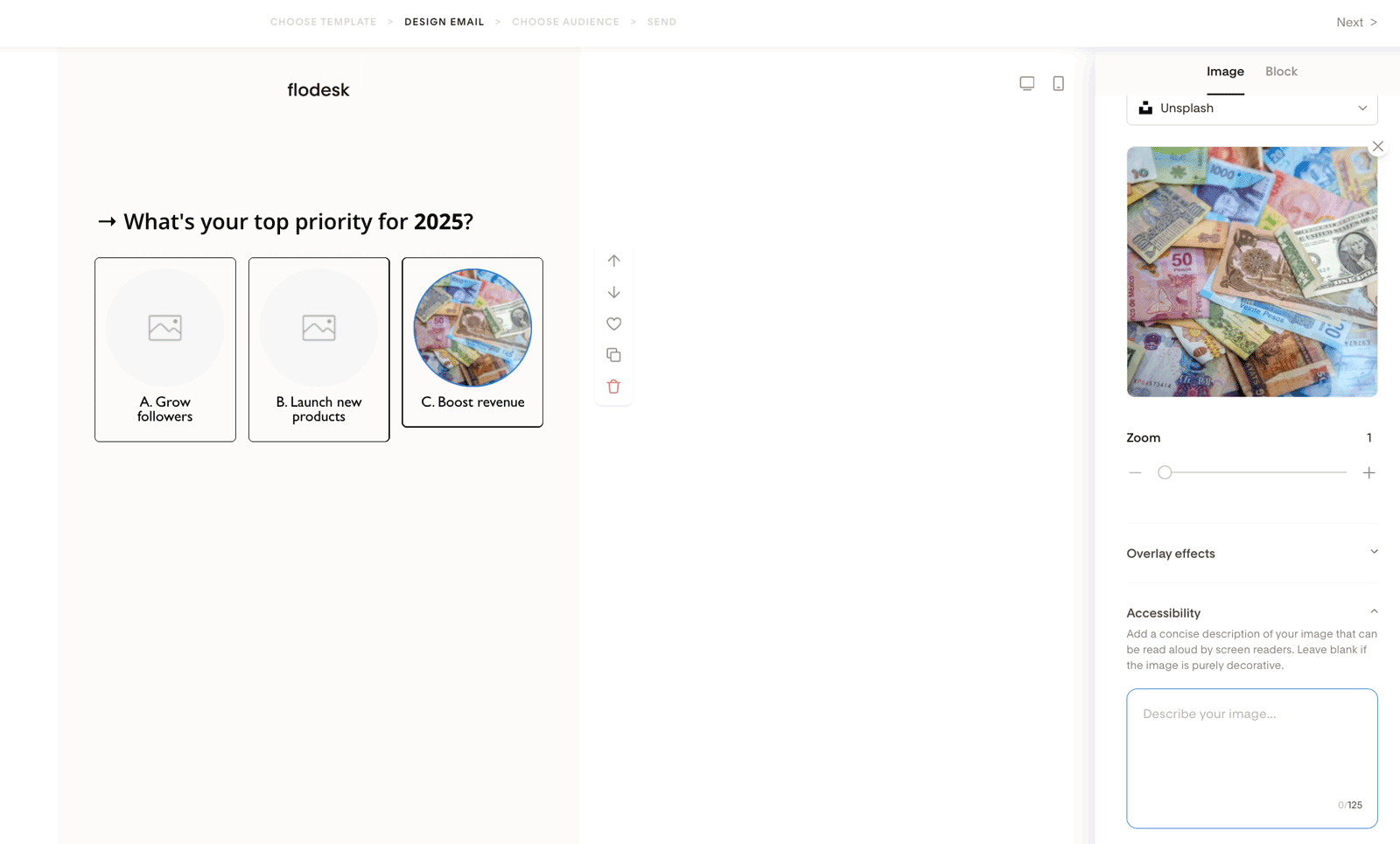
Poll block
Add a Poll block.
Click on the block.
Go to the Image tab.
Find the Accessibility section.
Add a brief description of the poll image.
Automatic alt‑text for Instagram block & Social links block
We’ve rolled out an accessibility update to help you stay on track with the European Accessibility Act—and create a more inclusive experience for all your subscribers.
Instagram block
If you’ve added alt text to your Instagram post, Flodesk automatically pulls it into your email.
If no alt text is available, we add a fallback like:
“Instagram post image by @username.”
Social links block
All social icons now include descriptive alt text like:
“Visit our Instagram” or “Visit our Pinterest.”
This helps screen readers clearly explain where each link goes.
Alt text best practices
Keep these guidelines in mind:
1. Keep it short
2. Don’t start with “Image of…”
Screen readers already announce that it’s an image. Jump straight into the description.
Instead of:
“Image of a smiling woman holding a notebook”
Write:
“Smiling woman holding a leather notebook at a desk.”
3. Leave it blank if decorative
If an image is purely decorative (like a divider or abstract shape), you can leave the alt text empty.
4. Focus on meaning, not every detail
Ask yourself:
“What does this image add to the email?”
Describe what’s important for understanding the message, not every tiny visual detail.
5. Read your email out loud
If the alt text sounds awkward or repetitive when read aloud, simplify it.
Summary
Alt text makes your emails more accessible.
You can add it under the Accessibility section in supported blocks.
Keep it short.
Focus on clarity and meaning.
It’s a small step that makes your emails better for everyone.
FAQs
What happens if I don’t add alt text?
If you don’t add alt text:
Screen reader users won’t know what the image shows.
Subscribers may see a blank space if images don’t load.
It’s not required, but it’s strongly recommended.
Should I include keywords for SEO?
No. Email alt text is not indexed by search engines. Write for people, not search engines.
What if my image includes text?
Include the important text in your alt description.
For example, if your image says: “50% Off Ends Tonight”
Your alt text should communicate that message.
Do I need alt text for logos?
Yes. A simple description like: “Your Brand Name logo” is perfect.
Can I edit alt text after publishing an email?
No. Once an email is sent, it can’t be edited, including the alt text. Always double-check before sending.
Does Flodesk automatically generate alt text for all images?
No. Alt text must be added manually in most blocks.
The only automatic cases:
Instagram block (if alt text exists on Instagram)
Social links block (icons include built-in descriptions)