
Set up commerce branding in Products
Overview
After a buyer completes a purchase, they'll land on a Flodesk-hosted delivery page. This article explains how to access your delivery page content, and how to apply your branding to all your transaction (checkout) and delivery pages.
This article applies to the Products experience only. If you're using legacy checkout, commerce branding won't apply to your pages.
Note: this feature is being released in batches. Right now, Products is available to new members who haven't created a checkout before. If you’re an existing Flodesk member who has existing checkouts, you'll be invited to try Products soon, and switching will always be your choice, nothing will be migrated automatically.
Good to know: Delivery settings are configured at the product level. Each product can have its own delivery destination set under the post-purchase confirmation page during the product creation flow, independent of other products in your catalog.
Plan or permission requirements
Commerce branding is available on all Flodesk plans. Only members with an admin or manager role can edit and publish branding changes.
Commerce branding
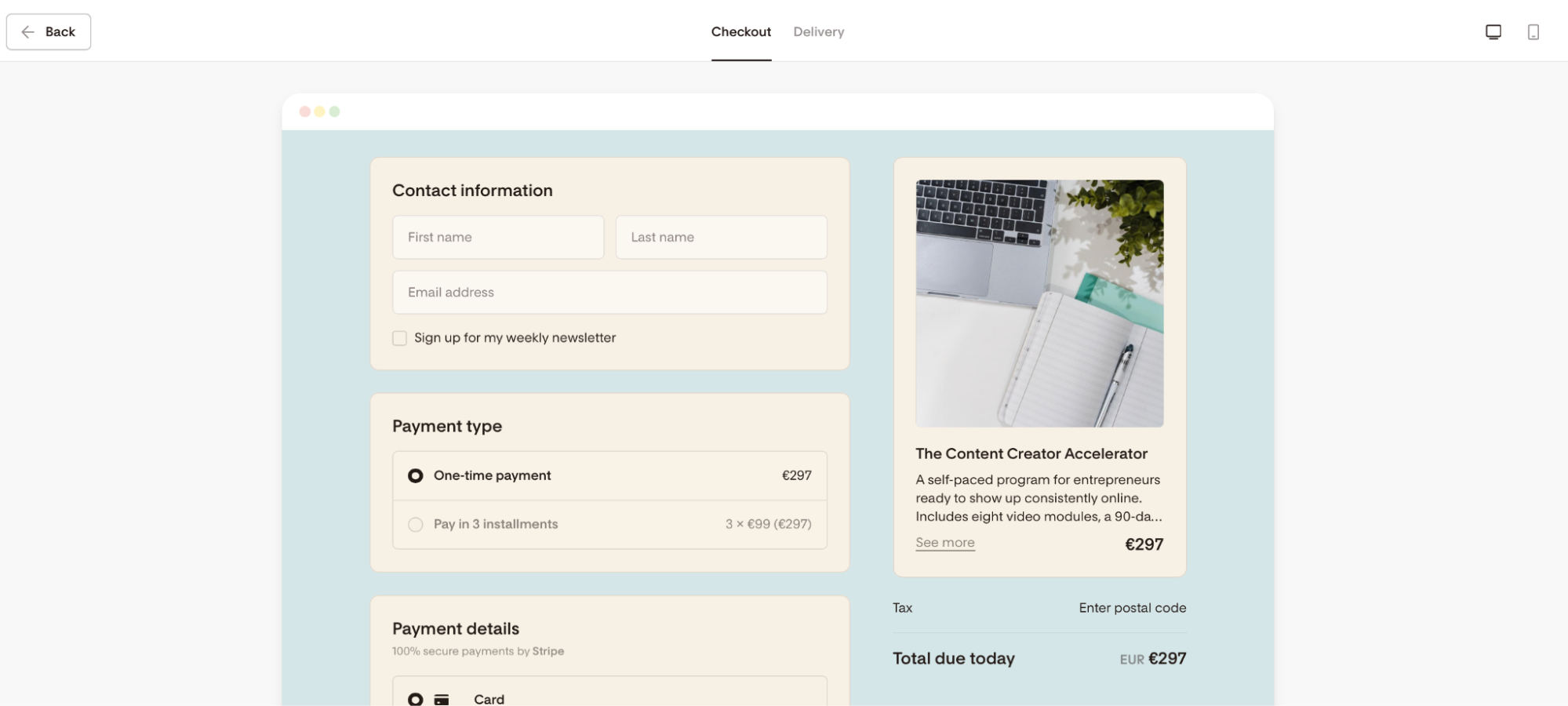
Your commerce branding settings control how your transaction and delivery pages look to buyers across your entire account. This includes the checkout page buyers see when purchasing, and the delivery page they land on after.
Think of it as setting up your storefront's visual identity once, so every buyer interaction feels consistent and on-brand without you having to style each product individually.
How to access it:
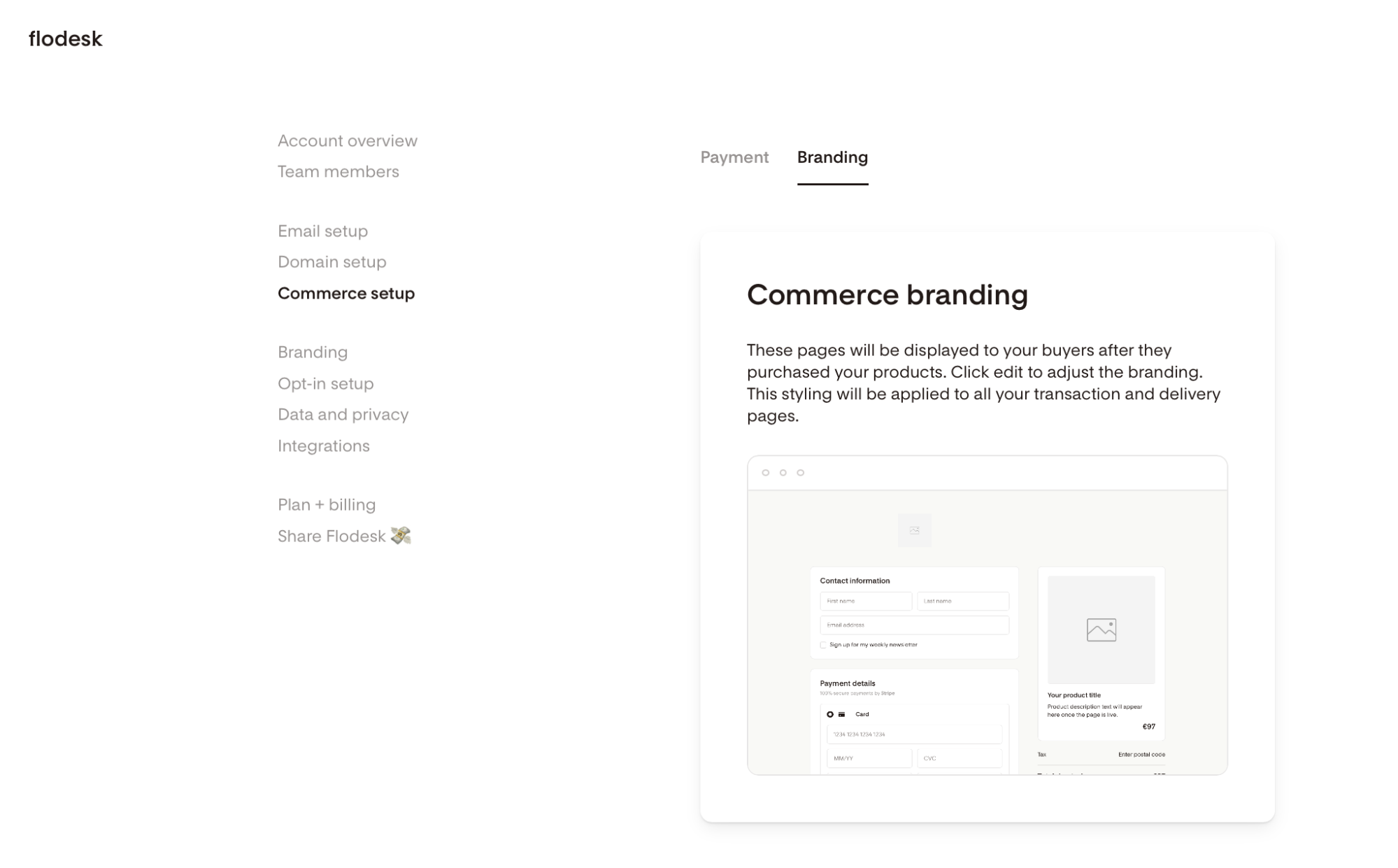
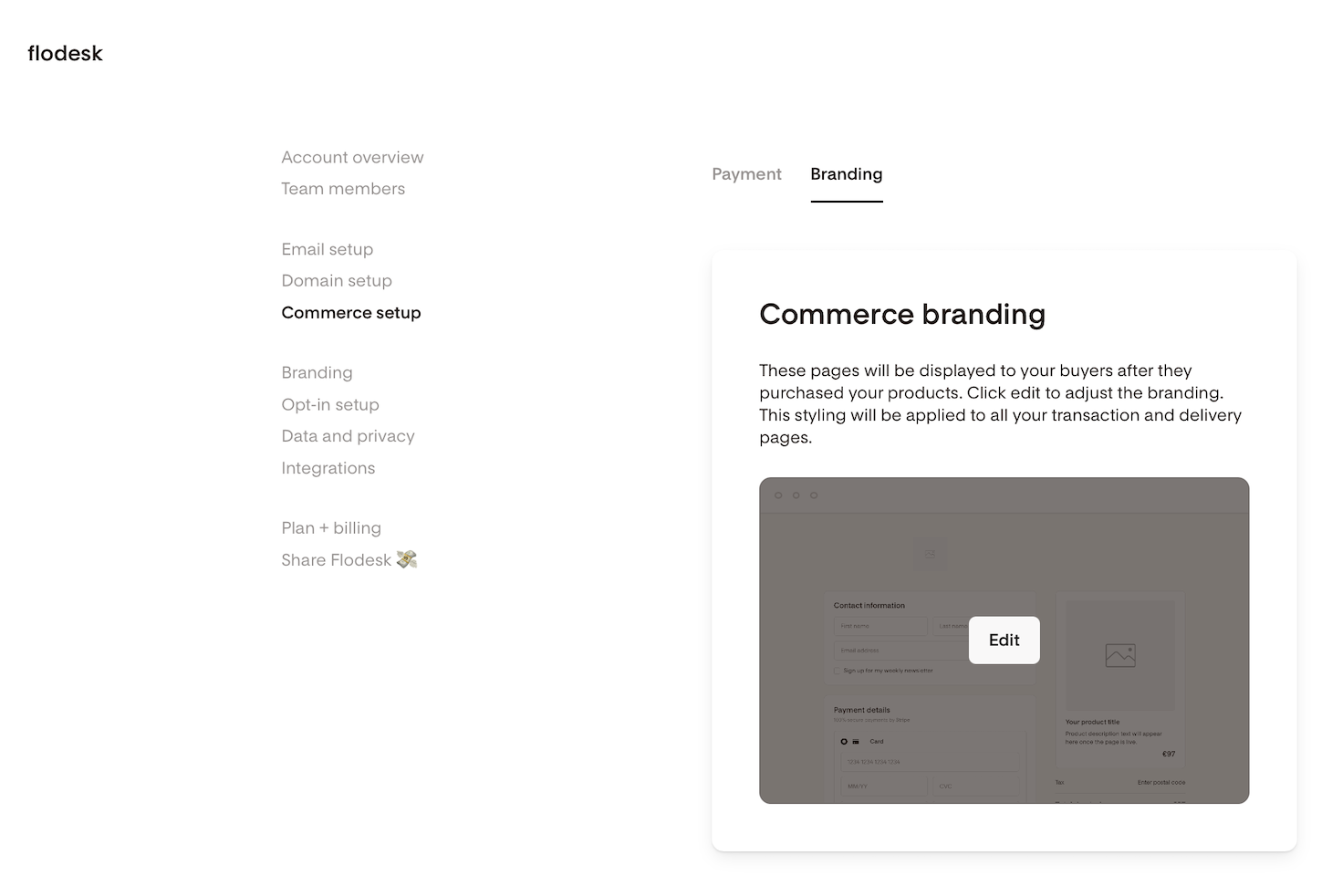
Go to Account Settings > Commerce Setup > Branding > Commerce Branding.
Click Edit to start customizing your Checkout and Delivery page.
What you can customize:
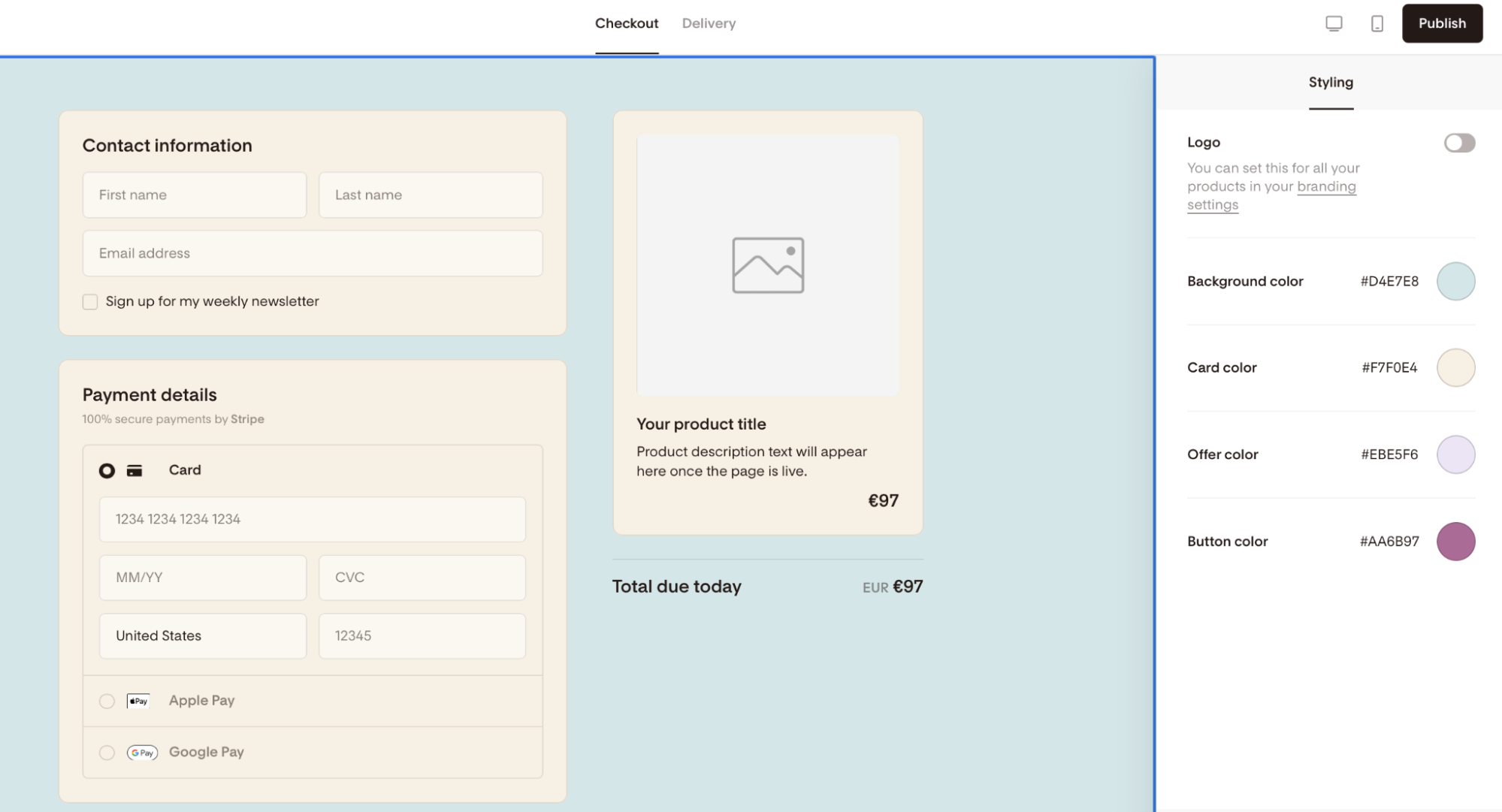
Logo: Toggle your logo on or off.
Page background color: The background color of your transaction and delivery pages.
Card color: The color of the card or content container on the page.
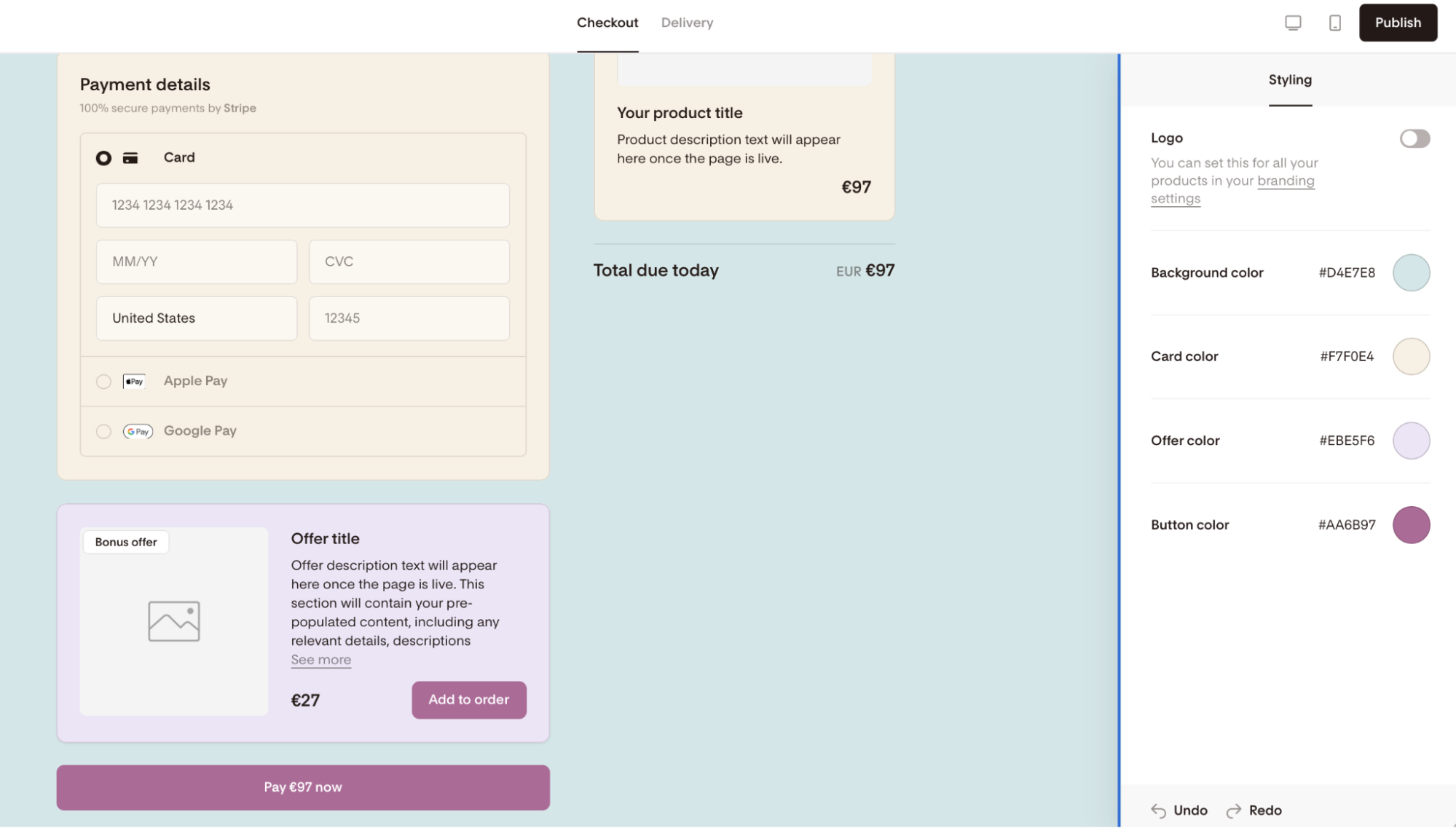
Bump offer color: The background color of the upsell offer step buyers see after checkout.
Button color: The color of the primary action buttons on your pages.
Any changes you make here apply to all your transaction and delivery pages automatically. You don't need to update individual products when you update your branding. Make sure to hit Publish once you’ve finished customizing this section.
Note: You don’t need to set different colors for the background, card, offer and button on this page. It will then simply show with the default color as is now. However, applying your brand colors can give your checkout page a distinctive edge and carry on the brand-experience as your buyers move from the sales page to checkout and then delivery page.
Account-level Checkout page
Adding a newsletter opt-in to your checkout page
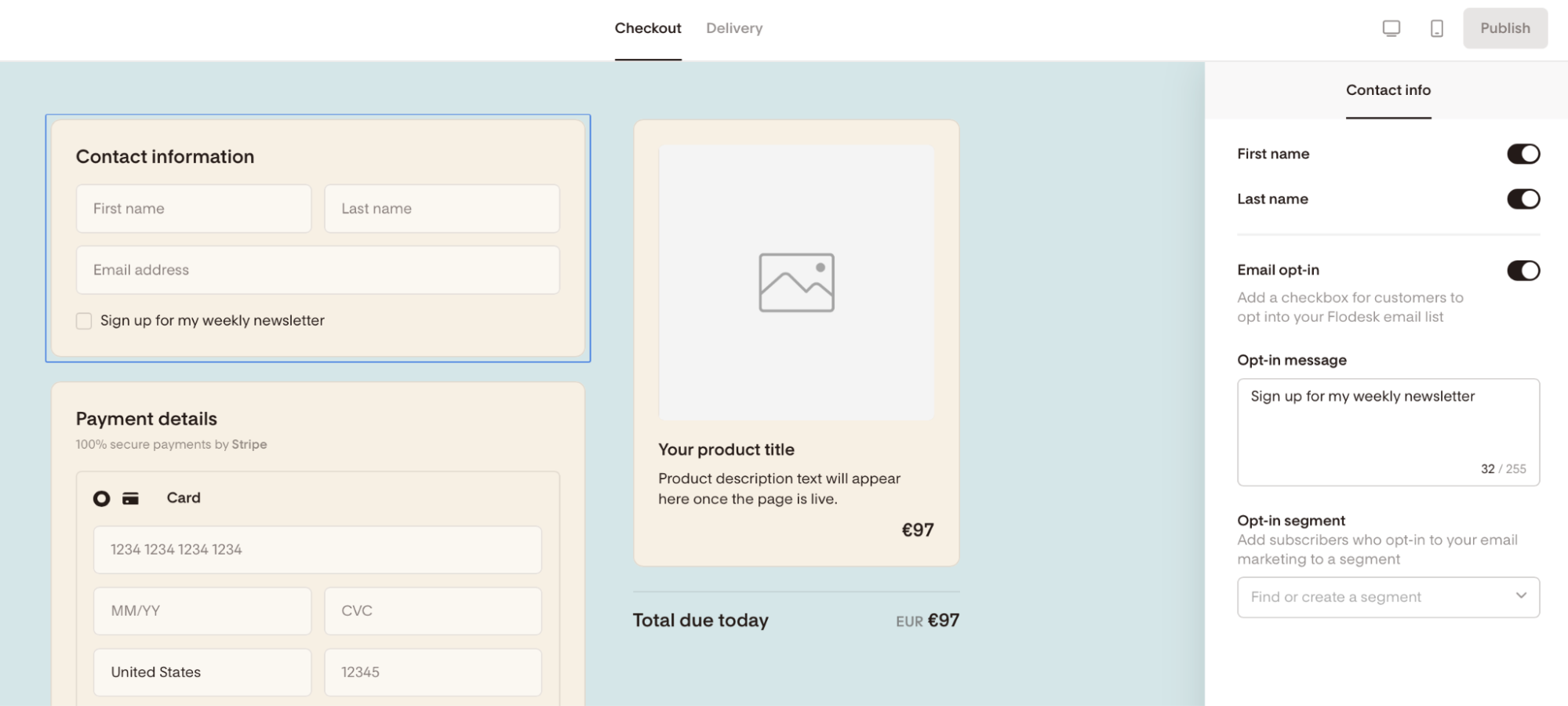
Click the Contact information block to access customiztion options, including a checkbox for customers to opt into your Flodesk email lists. You can write your own Opt-in message and select an Opt-in segment. Anyone who opts in to your email marketing during checkout will be added to the segment you define here.
Account-level Delivery page
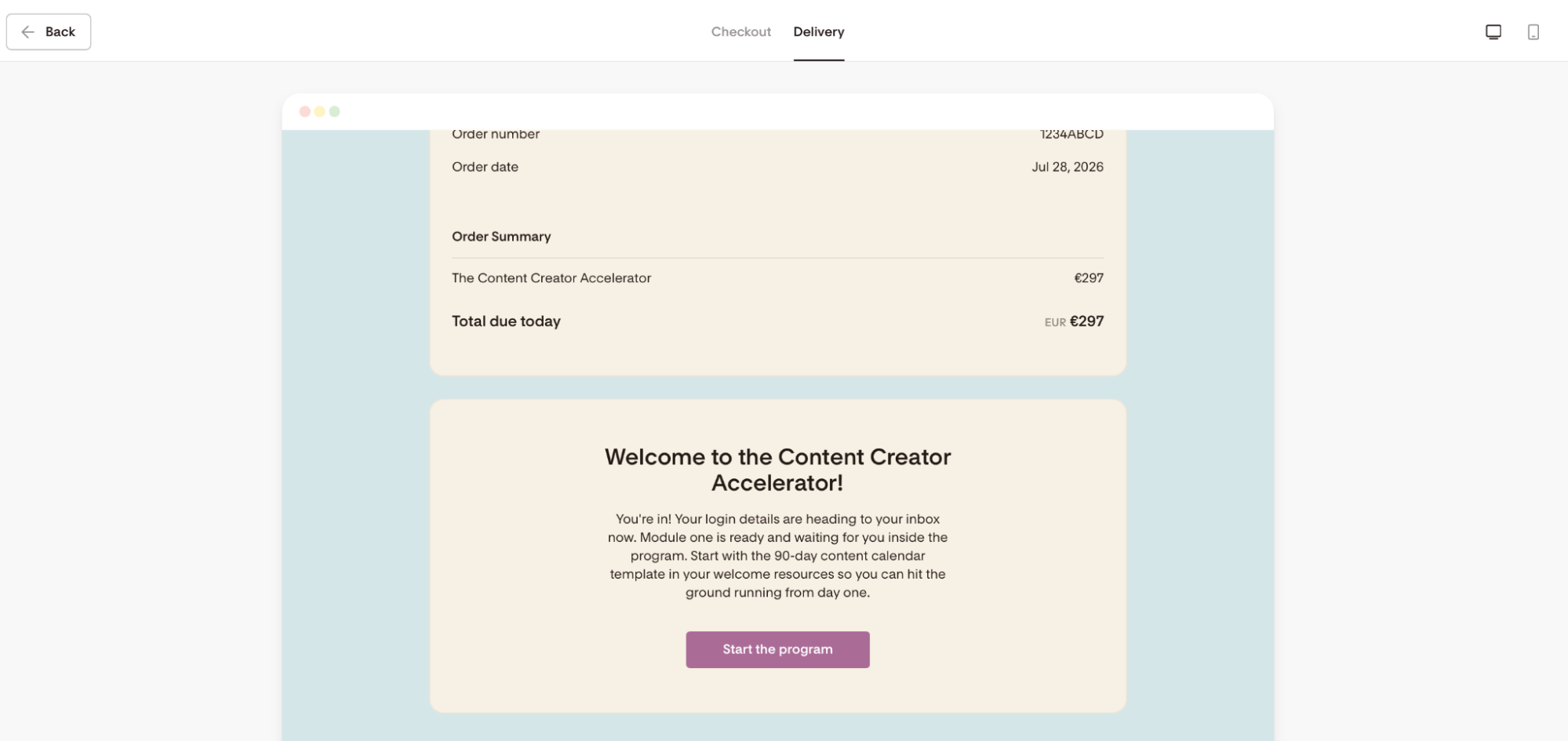
Your product contributes its own name, description, and any additional delivery content you add. You don't need to rebuild the page for each product: the template stays consistent, and your product's details slot in automatically.
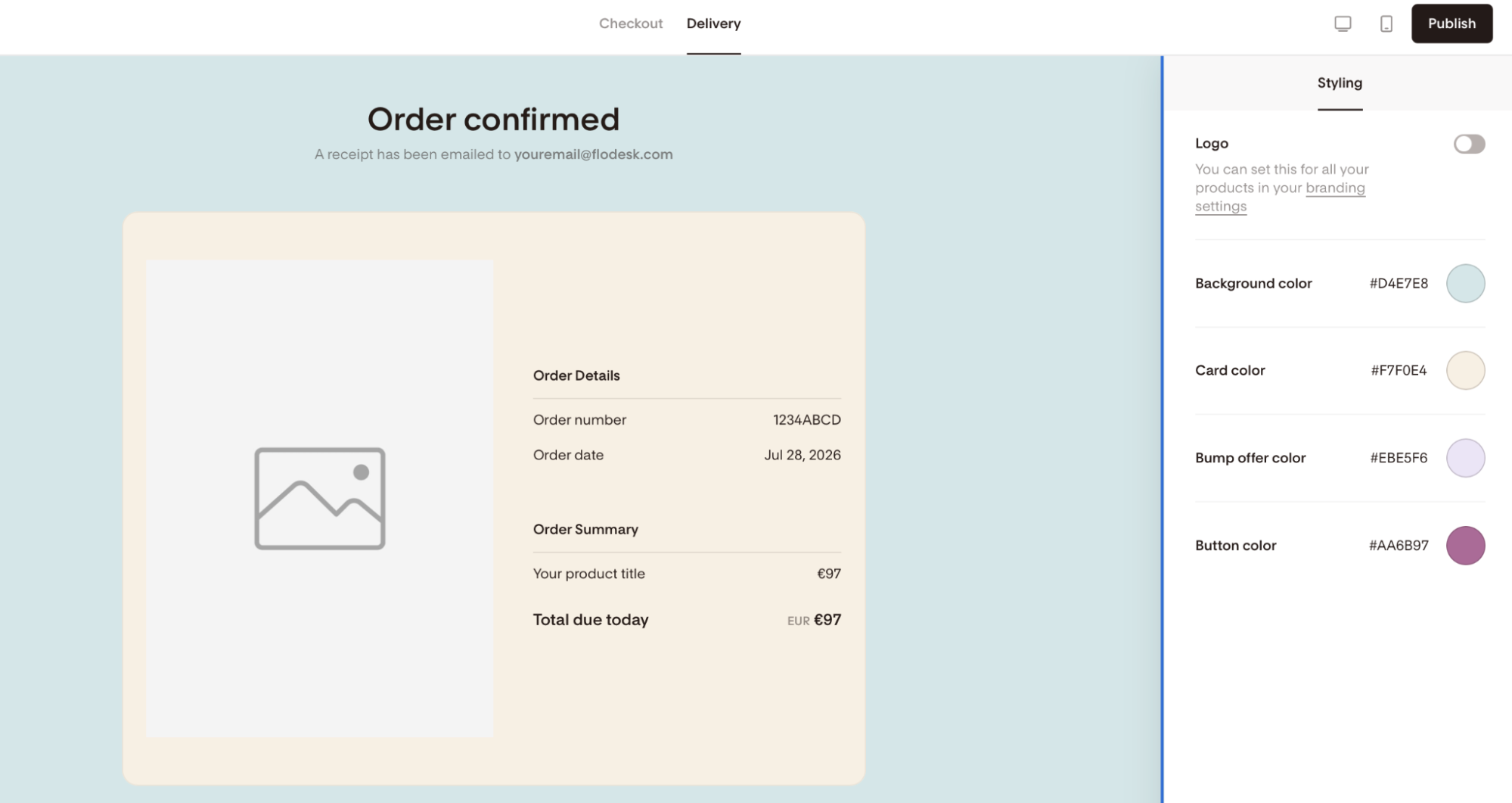
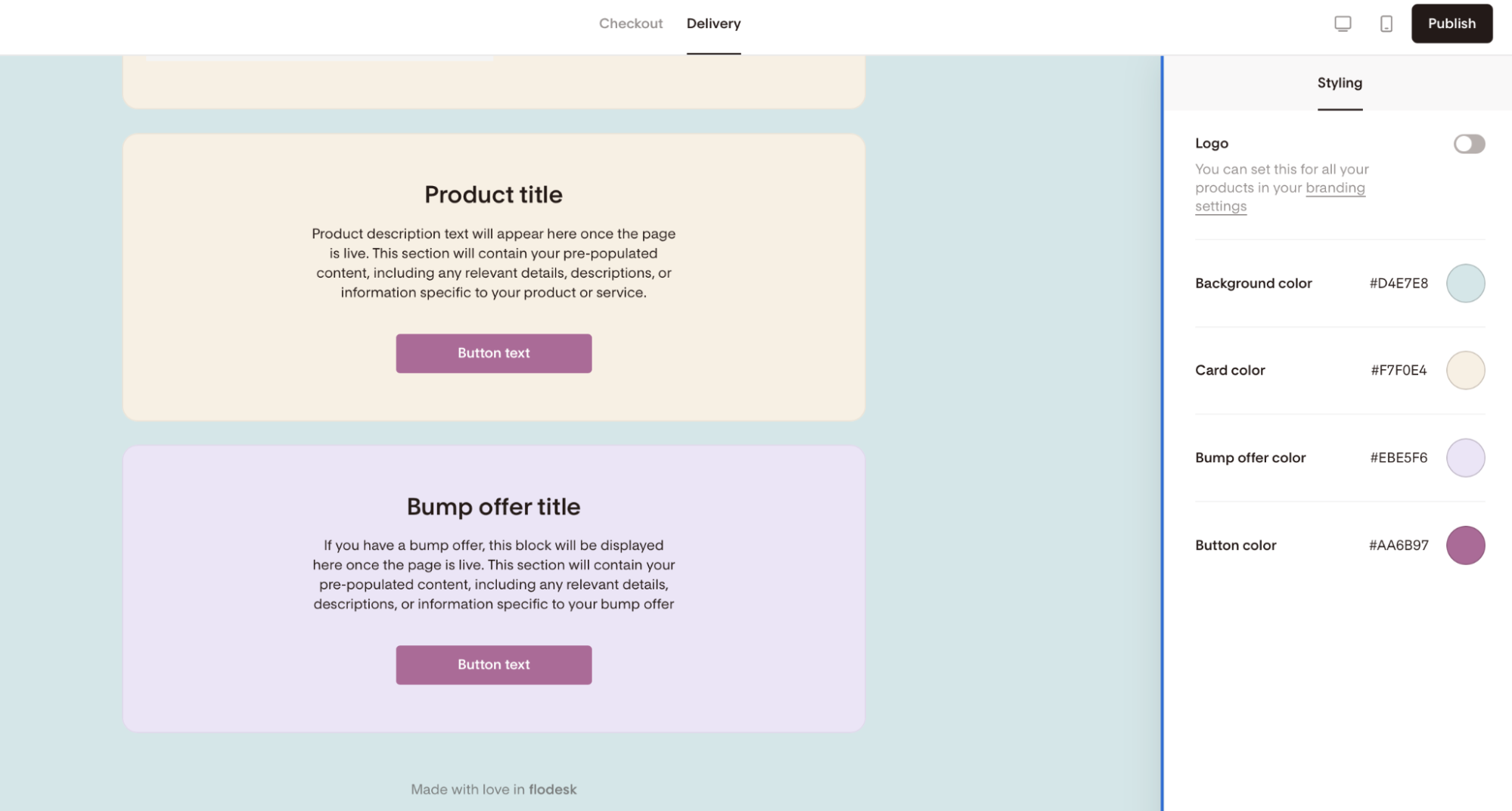
Note: Your product's name and description (set in the Product details section) are automatically surfaced on the delivery page. You don't need to re-enter them here. The same applies to the bump offer (upsell) details if you have set up one for your product.
Receipt emails
A receipt email is always sent to the buyer after a successful purchase. This is automatic and applies to all products, including free ($0) products. The receipt email confirms the purchase and serves as the buyer's record of the transaction. You can't edit the content of the receipt email.
FAQ
Will my commerce branding apply to existing checkouts?
Commerce branding applies to your transaction and delivery pages across your account in the new Product feature experience. It won’t apply to legacy checkouts, though.
Can I use different branding for different products?
No. Commerce branding applies to your entire account, so all your products share the same background, card, bump offer, and button colors. If you'd like to adjust the branding, you can update it any time under Commerce Branding, and the change will apply to all your products at once.
Can I preview what my delivery page looks like with a real product?
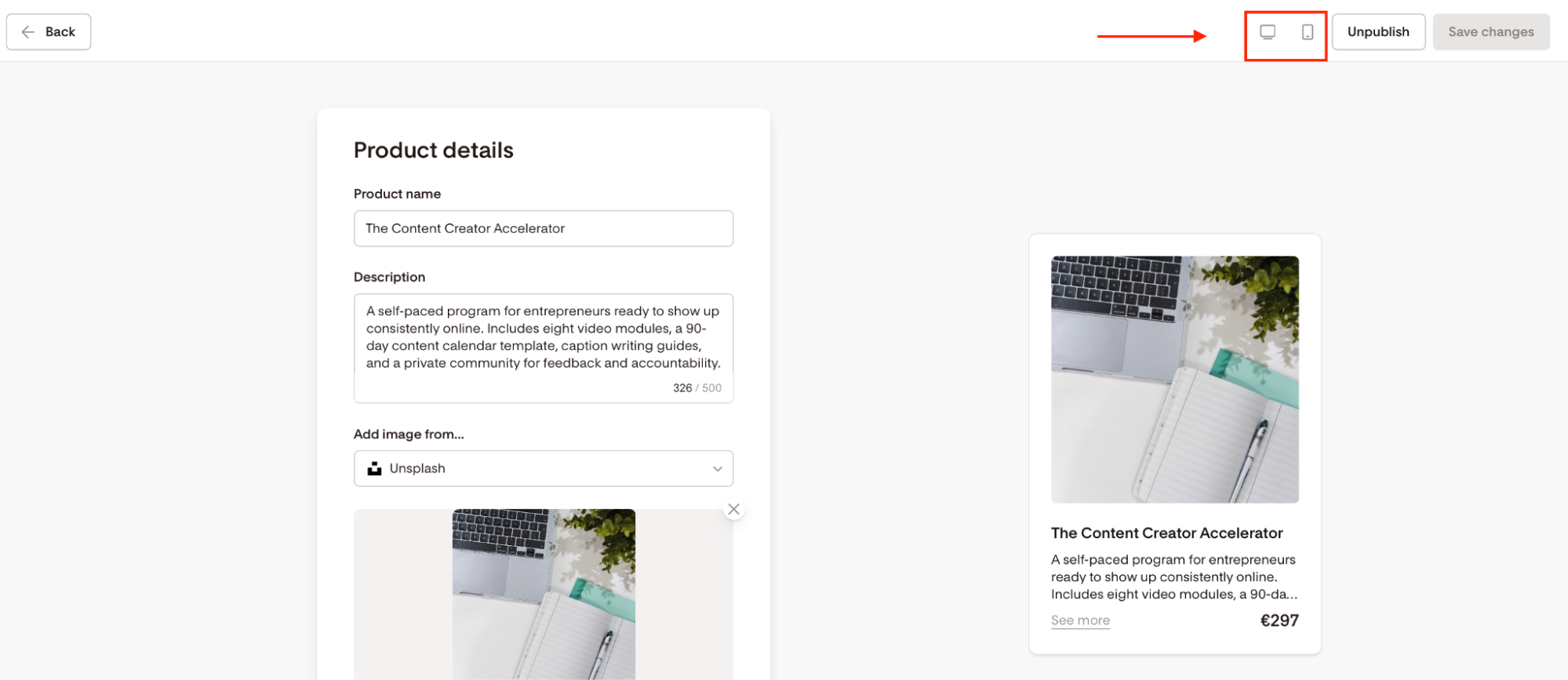
Yes. Click on a product under your Products dashboard, and then use the preview option (desktop and mobile icons) in your product editor to see how the checkout and delivery page will appear to buyers.
Do I need to set up commerce branding before I publish my first product?
No. Your products can be published without configuring commerce branding first. The default styling is applied automatically. You can update your branding at any time and the changes will take effect immediately across all your pages.