
How to manage an existing product
Overview
Once your product is live (or saved as a draft), this article covers everything you'll do with it from here: editing it, unpublishing it, tracking your sales, and archiving or deleting it when you're done.
Note: this feature is being released in batches. Right now, Products is available to new members who haven't created a checkout before. If you’re an existing Flodesk member who has existing checkouts, you'll be invited to try Products soon, and switching will always be your choice. Nothing will be migrated automatically.
Managing your product from the three dots menu
Under Products > My products, click the three dots (...) menu next to any active/published product to access a few quick actions without opening the full editor.
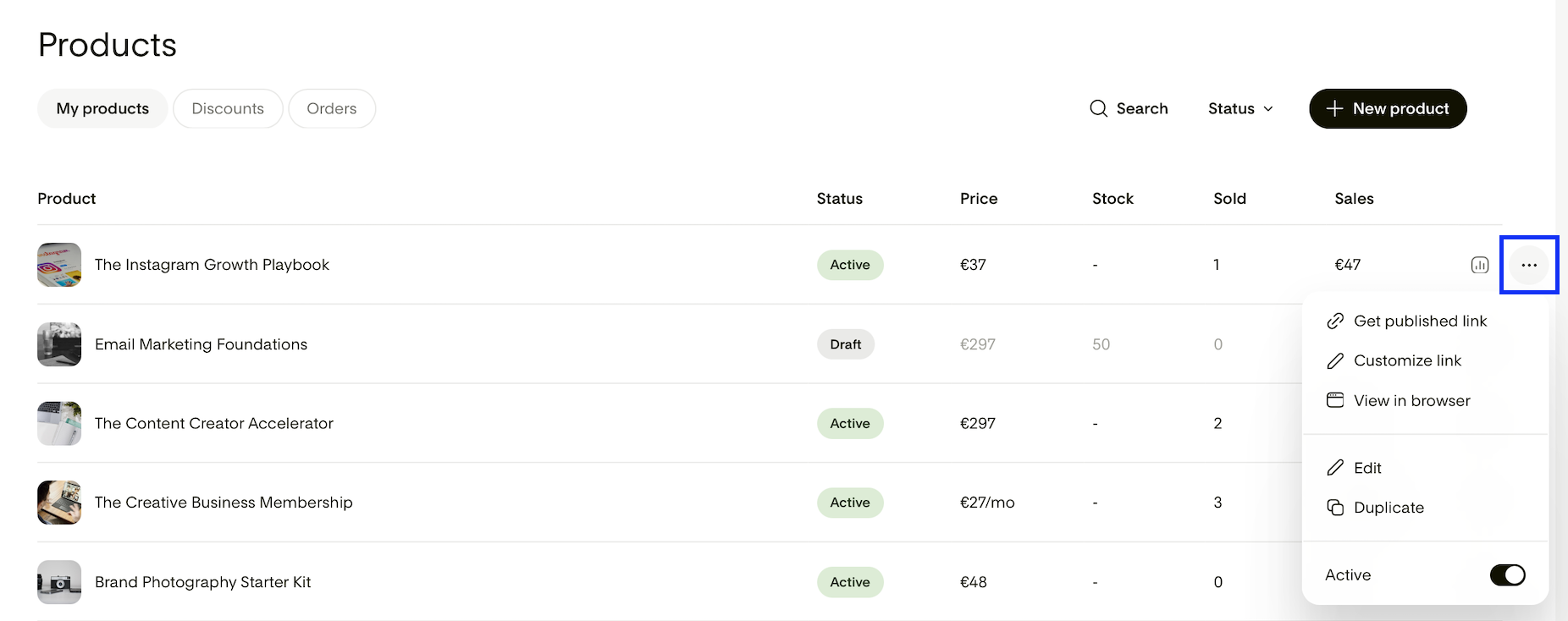
Get published link
Gives you the link to your product's live checkout page, so you don't need to open the product, scroll to Advanced settings, and grab it from there. Share this link anywhere: when someone clicks it, they'll land on your product's checkout page and can purchase directly from it.
Customize link
Opens the same field found in Advanced settings, where you can edit the last part of your product's link (the slug). You can also point your Flodesk handle (which is the subdomain for all of your published links) directly to this page.
View in browser
Opens your product's checkout page in a new browser window, so you can see exactly what buyers see before you share it. You can also copy the link directly from that browser window.
Duplicate
Creates an exact copy of your product, saved as a draft named "Copy of [product name]." All the details from the original carry over (including Meta Pixel ID and Google Analytics tracking code), though the product link will be unique to the new copy.
How to edit a product
You can edit a product at any time, whether it's a draft or published.
Under Products > My products, click the product you want to edit.
Make your changes.
Click Save changes or Save as draft to apply them.
Changes to a published product take effect as soon as you save. If you update something like the product name or price, it updates wherever that product is used.
How to unpublish a product
Under Products > My products, click the three dots menu next to the product.
Toggle off Active and confirm you want to unpublish it.
Note: The product will still be visible on any sales pages where it's linked, but clicking it will show a 404 page, so buyers can no longer purchase it.
How to archive or delete a product
Archive
Archiving removes a product from your catalog without permanently deleting it. Archived products are no longer purchasable and are removed from any sales pages they're linked to. You can unarchive a product later if you need it again.
To archive a product:
Click the three dots menu.
Toggle off Active and confirm to unpublish.
Click the three dots menu again.
Select Archive.
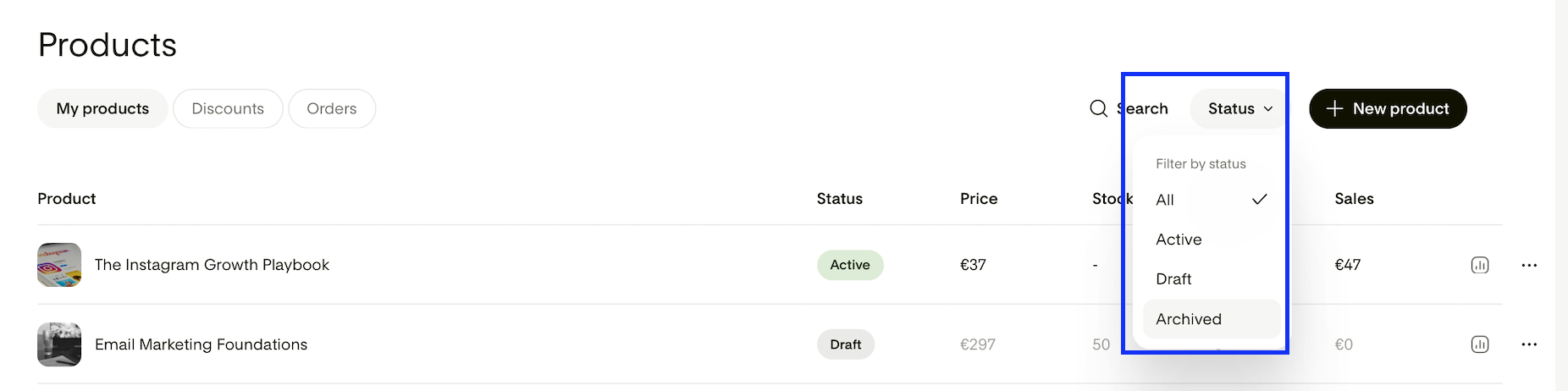
You'll find all your archived products under Status > Archived.
Delete
Deleting a product permanently removes it from your catalog. This can't be undone. You can only delete draft products that have never been published. If a product has already been published, you can only deactivate and archive it.
To delete a draft product, click the three dots menu and select Delete. You'll be asked to confirm before the product is removed.
Tracking your orders
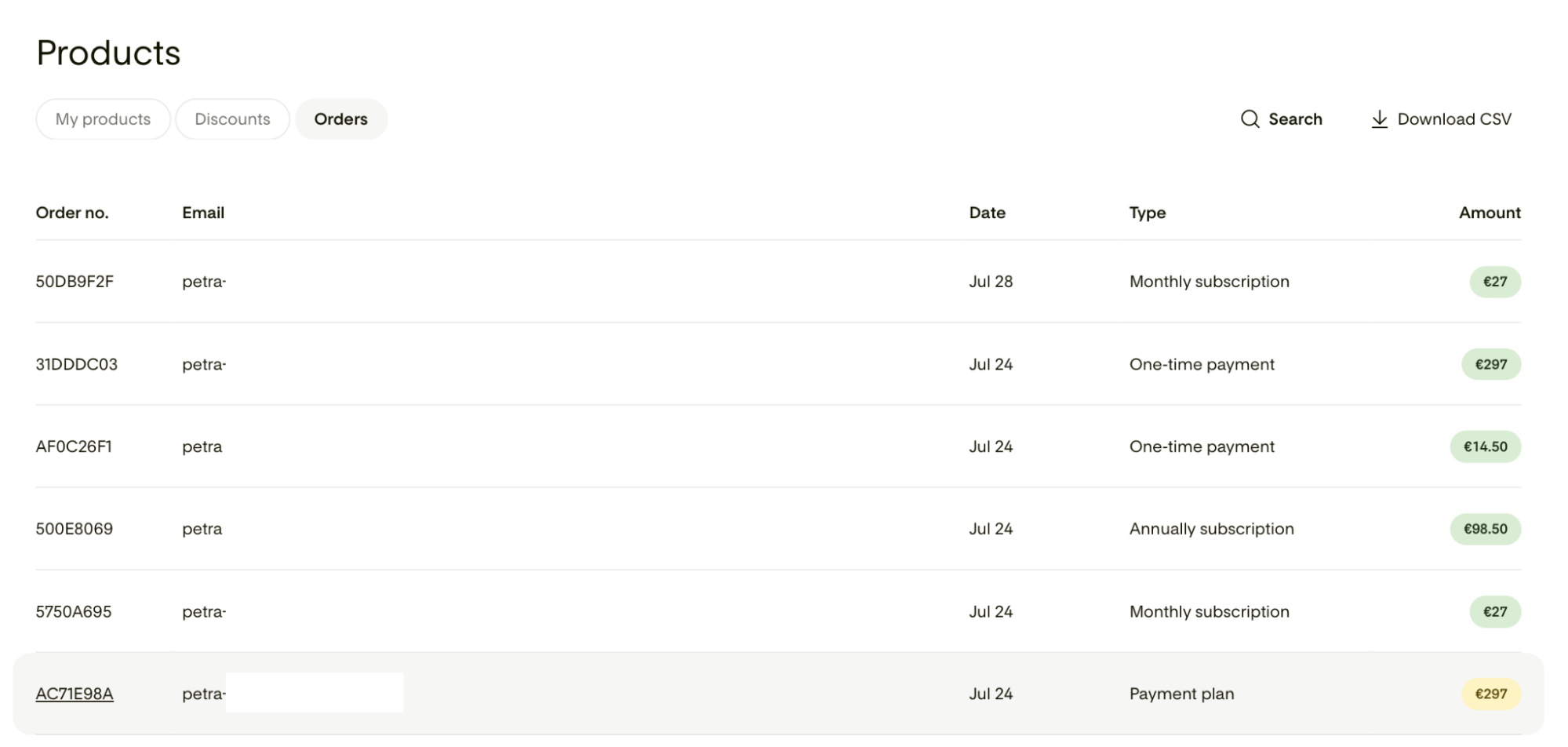
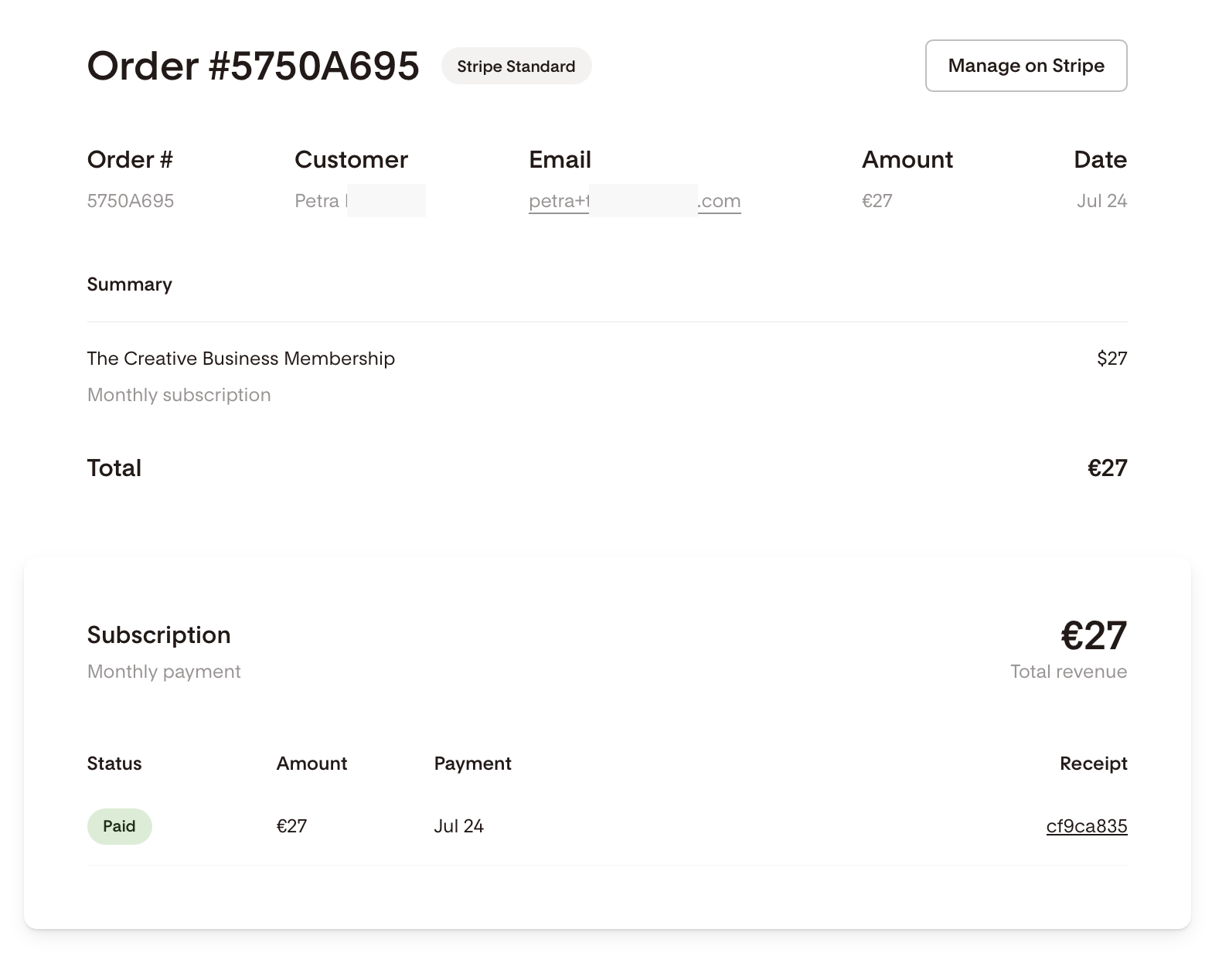
Under Products > Orders, you’ll see all completed orders to date. Data includes:
Order number
Email
Date
Type
Amount
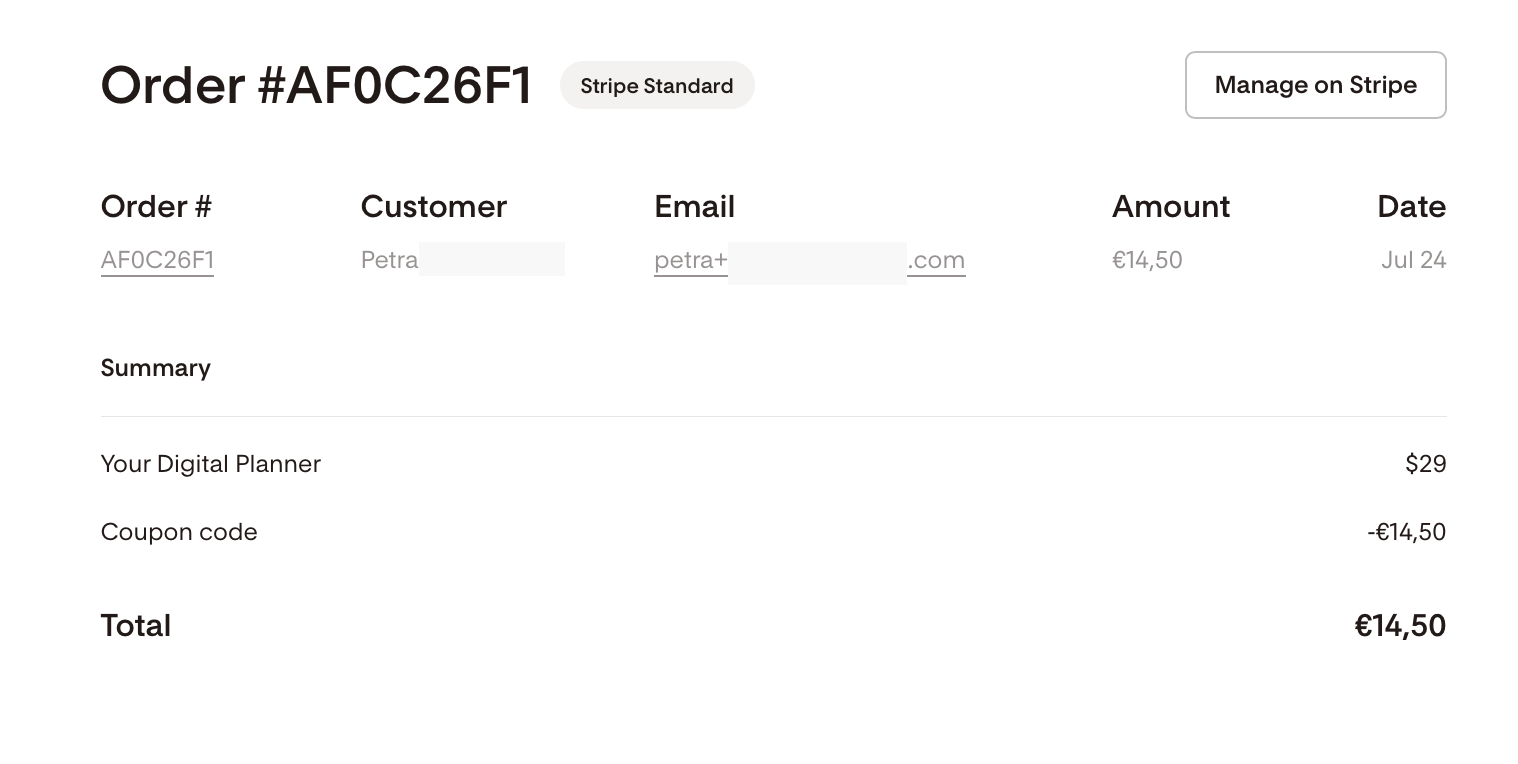
Clicking on each order number opens a more detailed page related to the order, including if a coupon code was used. You can also click the Manage on Stripe button to access the order transaction details on your Stripe account.
For more details on how your products are performing, including views, sales, conversion rate and revenue, check out Product analytics vs sales page analytics.
FAQ
Do I need to unpublish a product before I can edit it?
No. You can edit a product at any time, whether it's a draft or already published. Changes take effect as soon as you save, there's no need to take it offline first.
Can I unarchive a product later?
Yes. Archiving removes a product from your catalog without deleting it, so you can unarchive it anytime you want to bring it back.
Does duplicating a product also copy its bump offer and testimonial?
Yes. Duplicate creates an exact copy of the original product's details, saved as a new draft. The only thing that's unique to the copy is its product link.
If I delete a product, does that affect past orders or sales records?
No. You can only delete a product that's still a draft and has never been published, so there's no sales history tied to it in the first place. Once a product has been published, you can only archive it, which keeps all past orders and sales records intact.