
Plan and schedule emails with calendar view
Overview
Calendar view gives you a bird's-eye view of your entire email marketing schedule all in one place: sent emails, scheduled emails, and drafts with a saved date.
No more pen-and-paper tracking. You can spot gaps in your schedule, see when emails are too bunched together, and drag things around to find a better rhythm. All without leaving Flodesk.
Note: Calendar view shows campaign emails (newsletters) only. Calendar view is not available for checkouts, forms, and workflow emails.
How to access calendar view
On the left-side navigation panel, click the Calendar or the calendar icon if the panel is collapsed.
Switching between the month and week views
Once you're in calendar view, you can toggle between month view and week view depending on how much detail you need.
The Month view gives you the full picture. It’s great for planning ahead and spotting gaps in your schedule.
The Week view lets you zoom in and see exact send times, and gives you more control when rescheduling emails.
Which emails show up in calendar view
Not every email in your account will appear on the calendar. Here's what does:
Sent emails: any campaign that's already gone out
Scheduled emails: campaigns with a confirmed future send date
Drafts with a saved date—but only if the draft was:
Duplicated from a sent or scheduled email
Duplicated from another draft that already had a date saved
Created directly within the calendar view
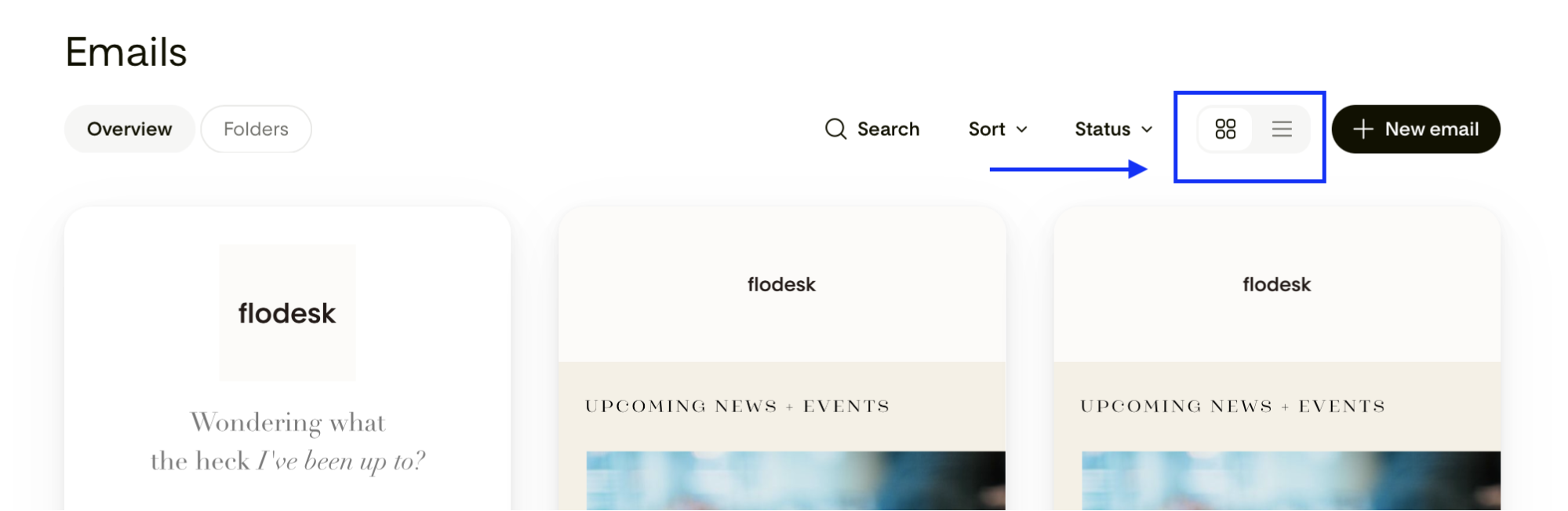
Drafts that don't have a date saved, or that were created from scratch outside the calendar, won't appear. They aren’t lost! You can still locate them on the Emails dashboard under the card view or list view.
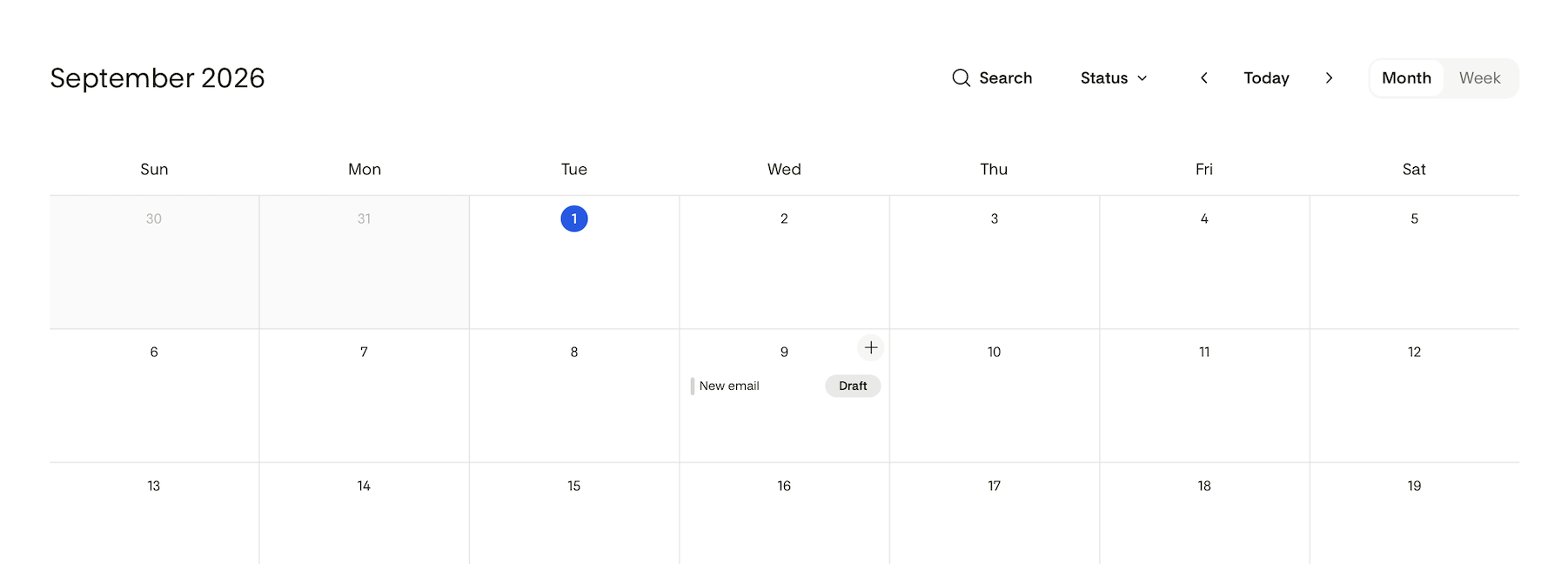
Adding a new email from the calendar
Step 1. Hover over an empty space on any future date. A plus + icon will appear. Click the plus + icon to create a new draft for that date.
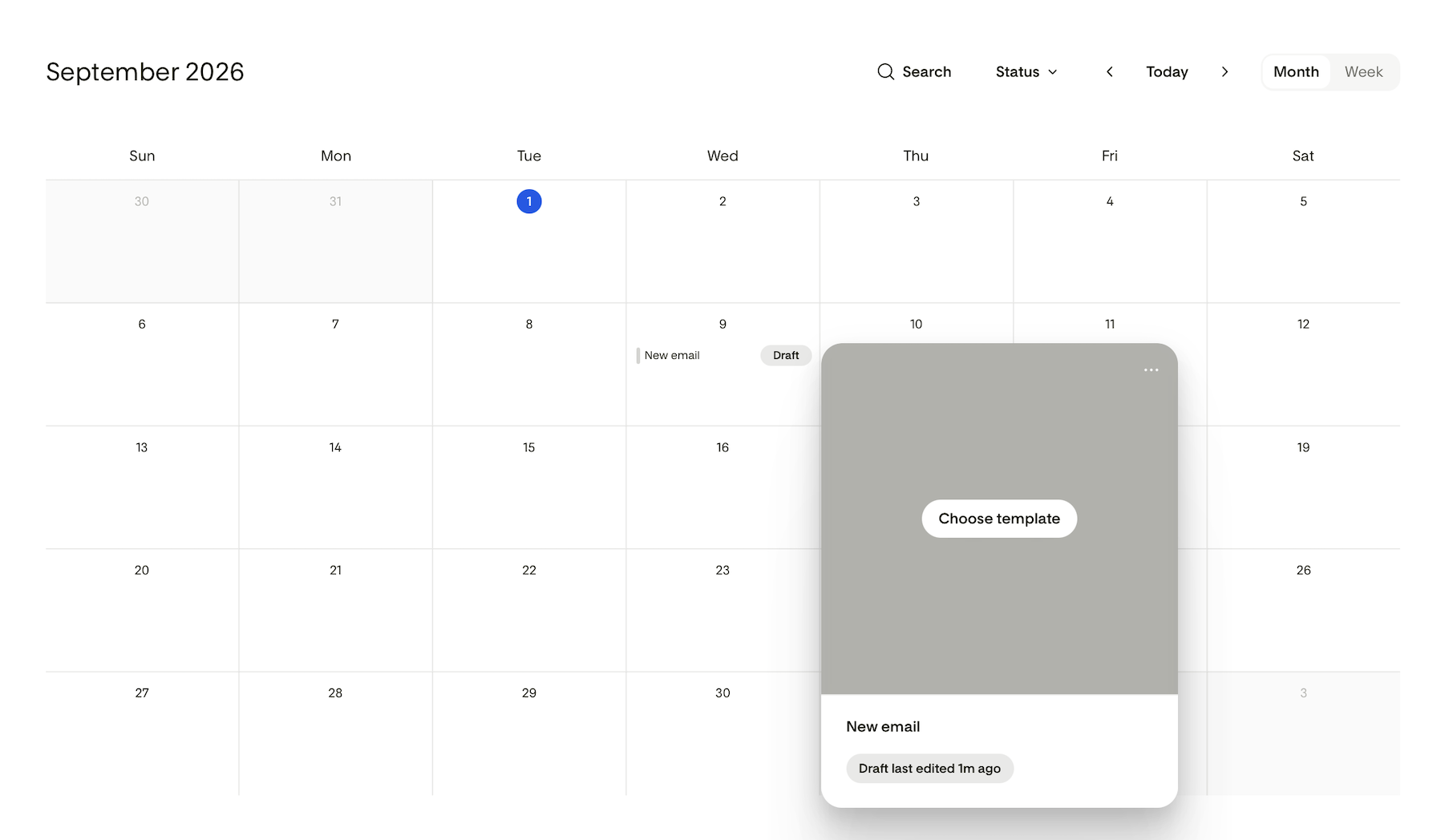
Step 2. When you're ready to edit, click the draft, then Choose template. You'll be taken to the email template gallery selection page to select a design.
Step 3. To confirm and officially schedule it, go through the normal schedule flow from within the draft.
Important: You can't add an email to a date that's already passed.
Rescheduling an email by dragging it
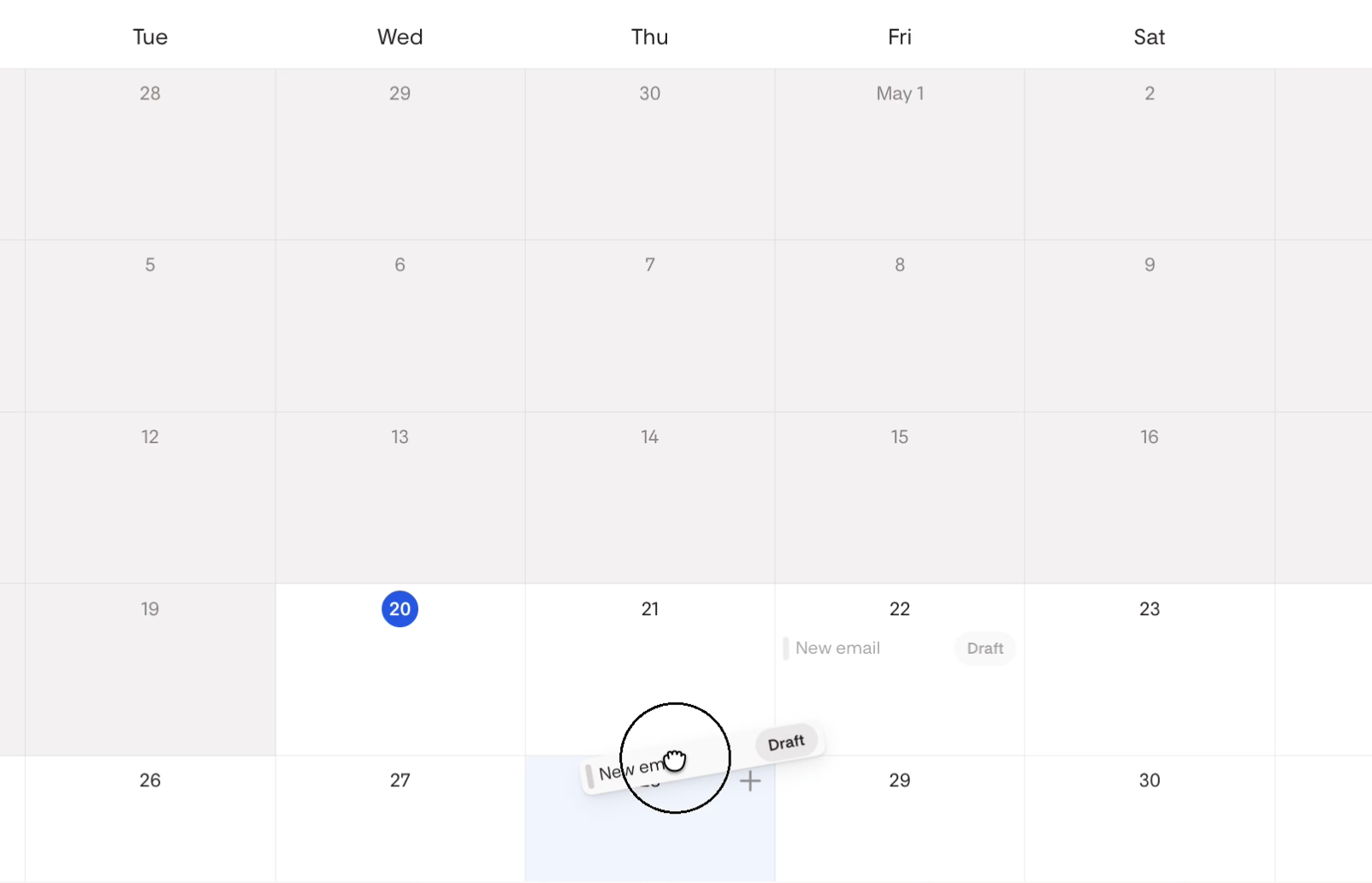
You can drag scheduled emails and drafts to a new spot on the calendar.
In month view: Drag the email to a new date. The time of day stays the same, only the date changes.
In week view: Drag the email to a new date and/or time. Times snap to 60-minute increments.
A couple of things to keep in mind:
Sent emails can't be moved. Once it's out, it's out.
If an email is mid-send (sending in progress), it can't be rescheduled.
Duplicating an email from the calendar
Want to resend a past campaign or use one as a starting point?
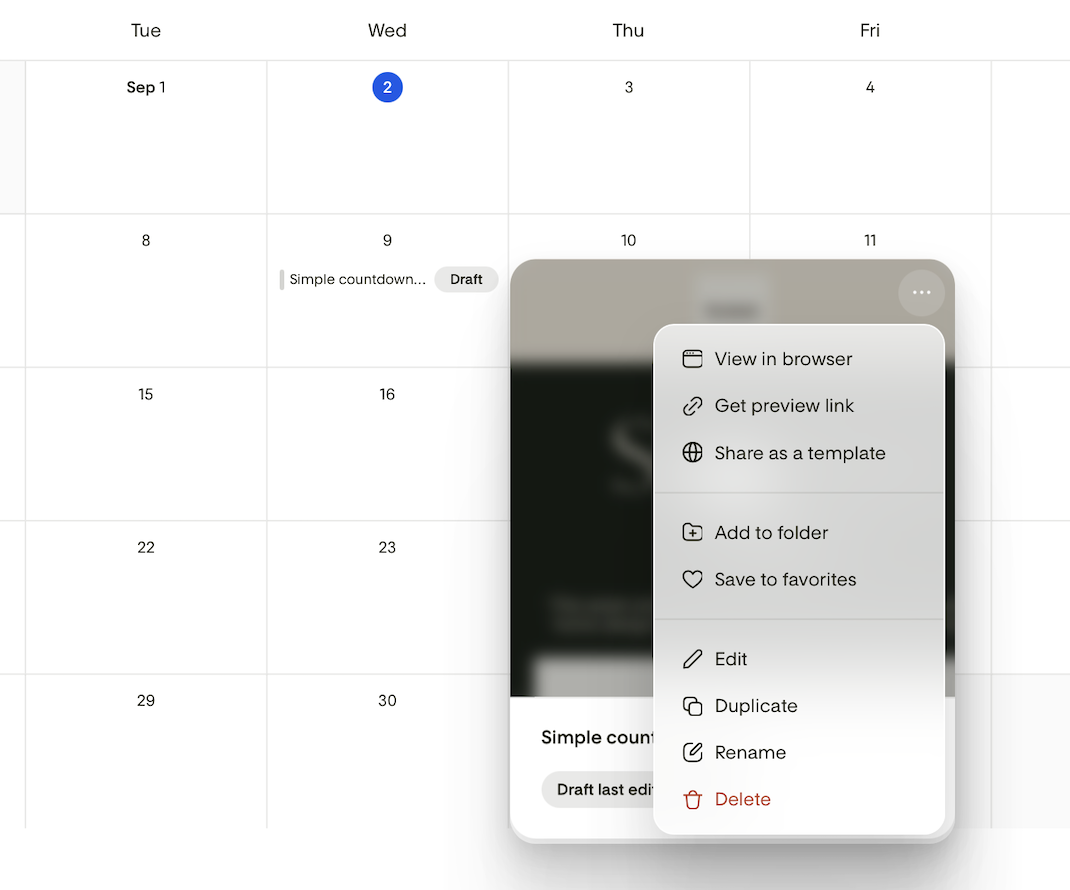
Click on any email in the calendar to open the email card preview.
Click the three-dot menu to see your options.
Select Duplicate.
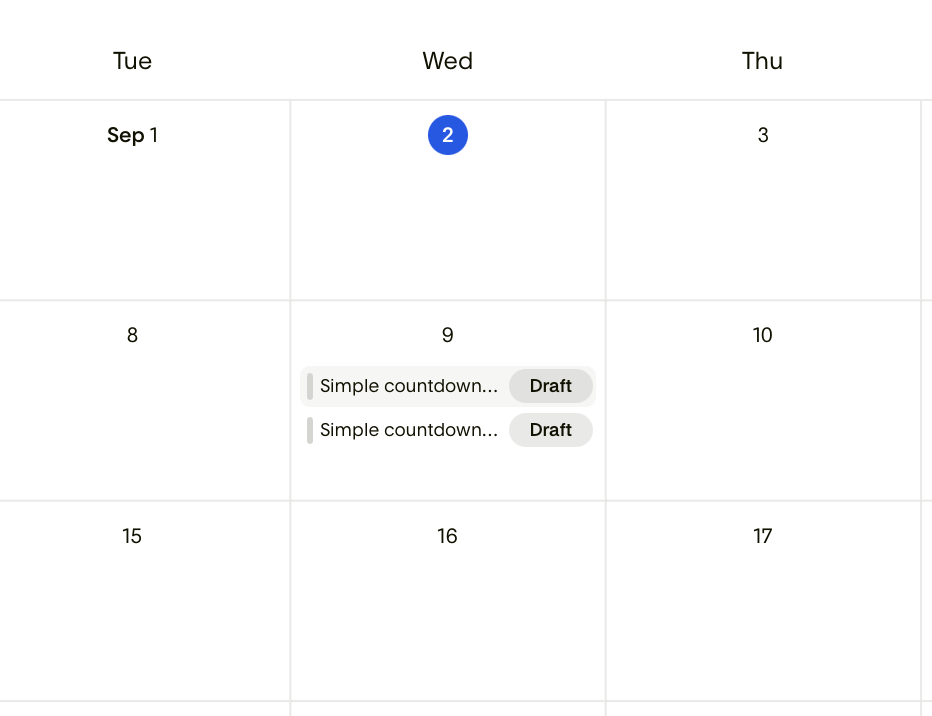
A copy of the email will appear in the calendar with the same date and time as the original.
If the original was in the past, the duplicate will also appear on that past date. You will then have two options:
Drag the email to reschedule it to a date/time in the future from the Calendar itself
Open the email to edit the draft, and get to the send now/send later page
Choose Send now
Change the scheduled date from a past date to a future date
Setting your week start day
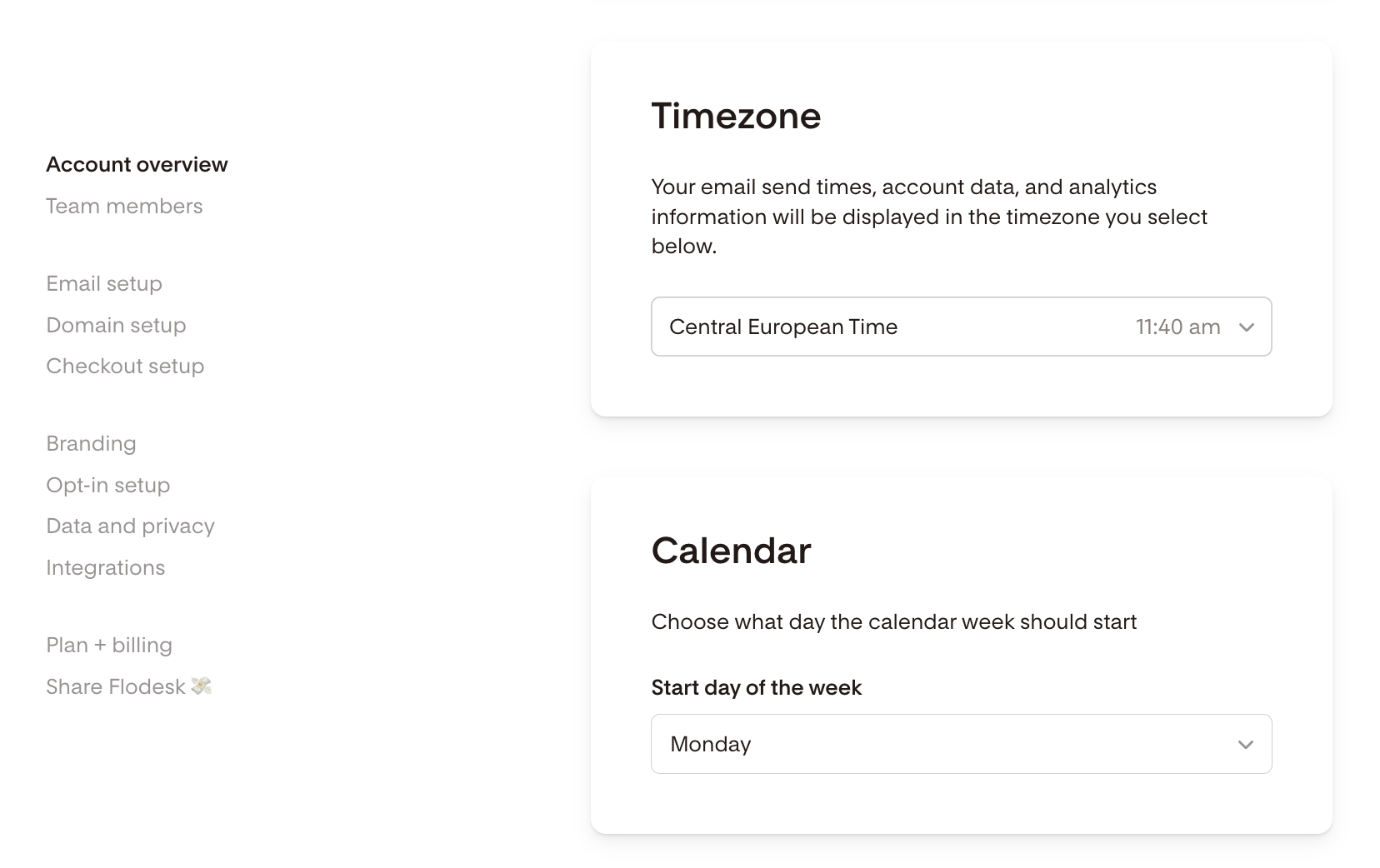
By default, the calendar week starts on Sunday. If you'd prefer Monday, you can update this in your account settings.
Go to Account Settings > Account overview > Calendar card and choose your preferred start day. This setting applies to the calendar view across your account.
FAQs
Can I use the calendar view to see all of my drafts?
Not quite. Only drafts with a saved date and time appear in the calendar, specifically ones that were duplicated from a sent, scheduled, or dated draft, or created directly within the calendar. Drafts you started from scratch without a date won't show up in the calendar view, but you can find them by switching to card view or list view.
Can I change the send time from the calendar?
In the week view, you can drag an email to a new time slot. In the month view, you can only change the date. To update the send time, you'll need to open the email and go through the schedule flow.
What happens if I duplicate a past email?
The duplicate will appear on the same past date as the original. To send it, you'll need to open the email and either send it now or reschedule it to a future date.
Will changing my time zone affect my scheduled emails?
The calendar always displays in your account's time zone, so if a scheduled email was set using a different time zone, you'll see it converted to your account's time zone.
For example: if your account is set to Pacific time and you scheduled an email for 9:00 am Eastern, it will show up at 6:00 am Pacific in the calendar. Within the send flow, it will still say 9:00 am Eastern. It's the same moment in time—just shown in your account's time zone so the calendar has one consistent point of reference.
I created an email directly in the calendar. Why doesn't it have a template yet?
When you add a new email to a date from within the calendar, it's created as a blank draft first. The first time you click "edit," you'll be taken to the template selection page to choose your design.
Can I see checkouts or forms in a calendar view?
No. Calendar view shows campaign emails (newsletters) only—sent, scheduled, and qualifying drafts. Checkouts, forms, and workflow emails aren't included.
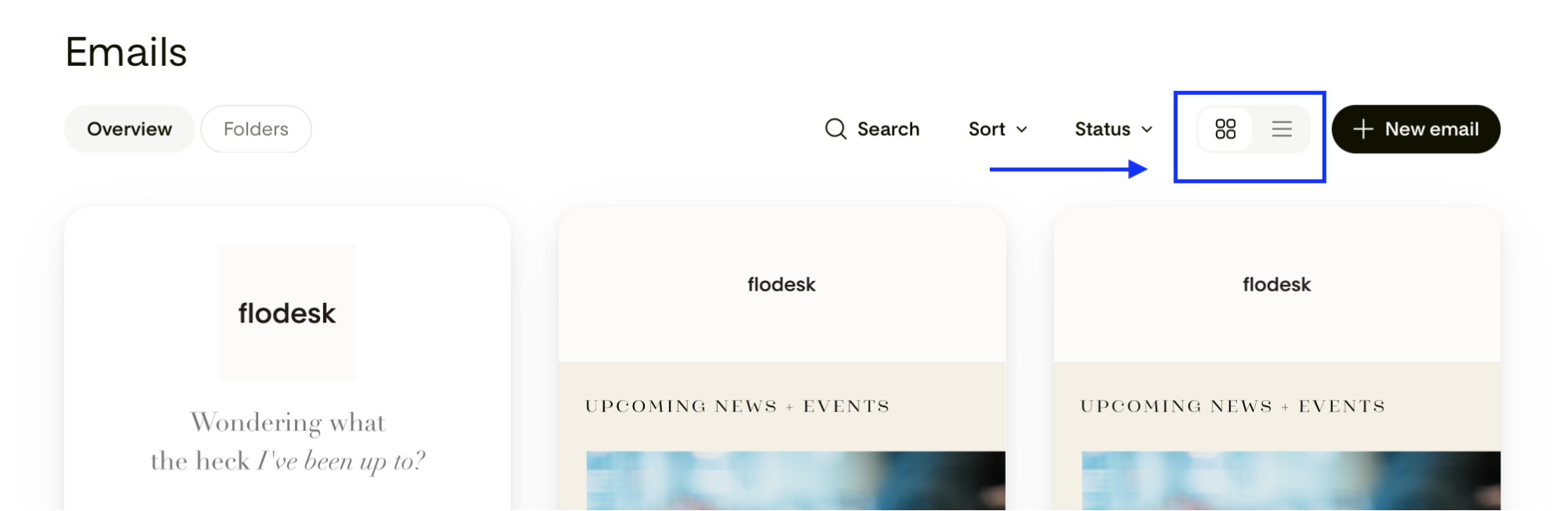
Where did my email card view and email list view go?
It's still there! You can locate them on the Emails dashboard next to the create +New email button.
Does the week start day setting affect other parts of Flodesk?
The week start day is a global setting, so it may also apply to scheduling components elsewhere in your account, depending on your settings.