
How to import your Canva email into Flodesk
Overview
You can now design an email in Canva and send it through Flodesk — without rebuilding it from scratch or touching a single line of code.
Start with any of Canva's many email templates (or a blank canvas), make it yours, and export it directly to Flodesk in one click. Your Canva email lands in your Flodesk account as a ready-to-send email. No HTML files, no copying and pasting, no reformatting.
This article walks you through how to export your Canva email design to Flodesk, add finishing touches, and send your email.
What you'll need:
A Canva account
A Flodesk account (no account yet? You can create one during the connection process)
Good to know before you start:
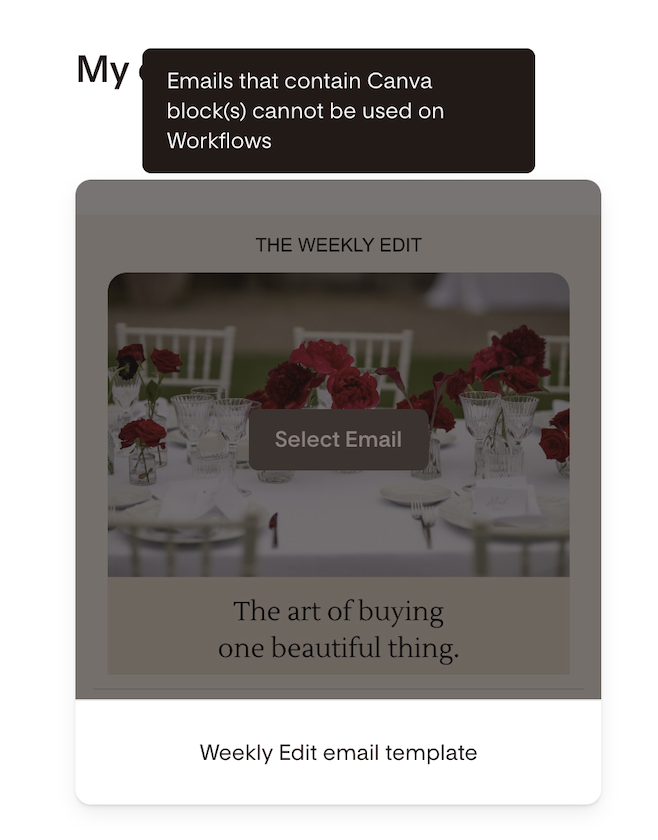
Canva email import is supported for campaigns only — not for workflow emails at this time
Sharing Canva emails as templates is not supported
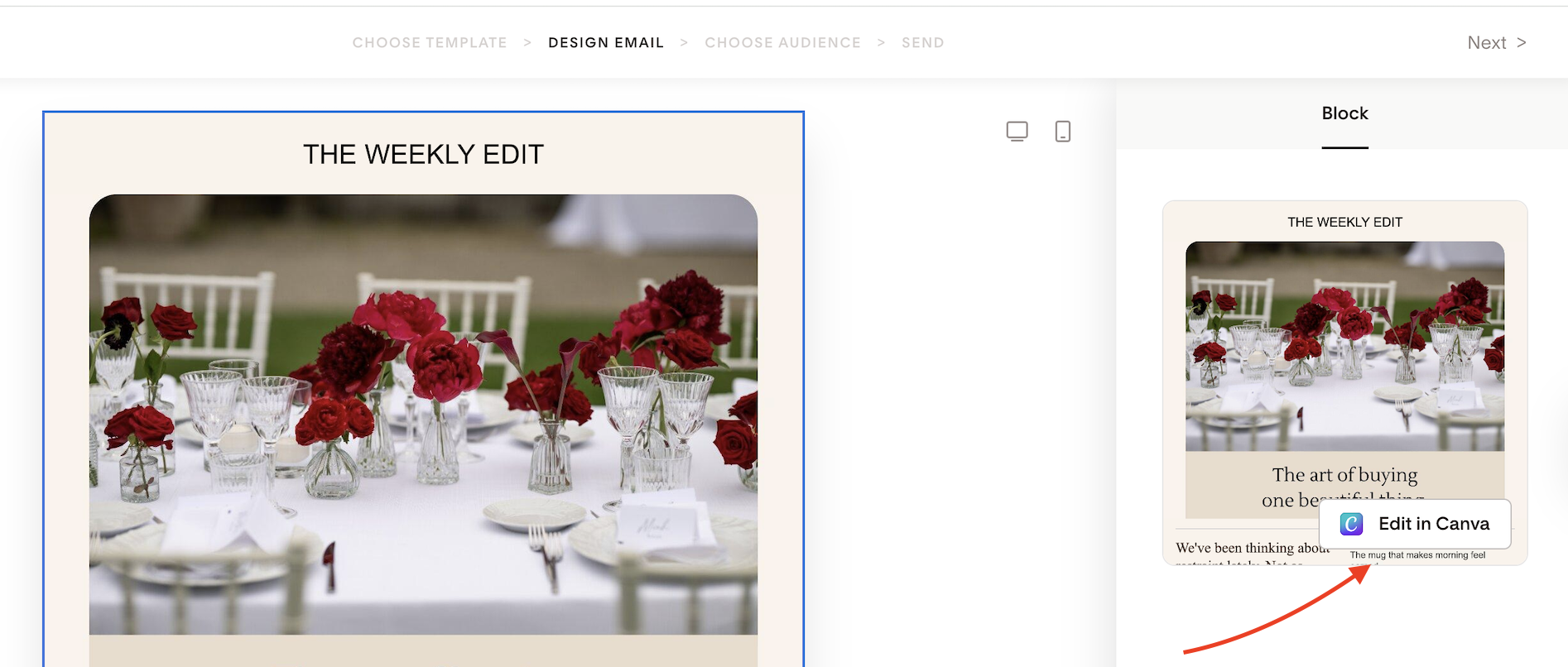
Your Canva email design imports as a single locked block into Flodesk, so edits need to happen in Canva (more on this in Step 3)
If you want to import images and graphics you created in Canva to your Flodesk emails, forms and checkouts, read this guide: How to import your Canva designs into Flodesk
Step 1: Open Canva and design your email
Log in to your Canva account and design an email from scratch. Or select any of Canva’s email templates and customize it for your needs.
Before you export, there are two things to take care of inside Canva:
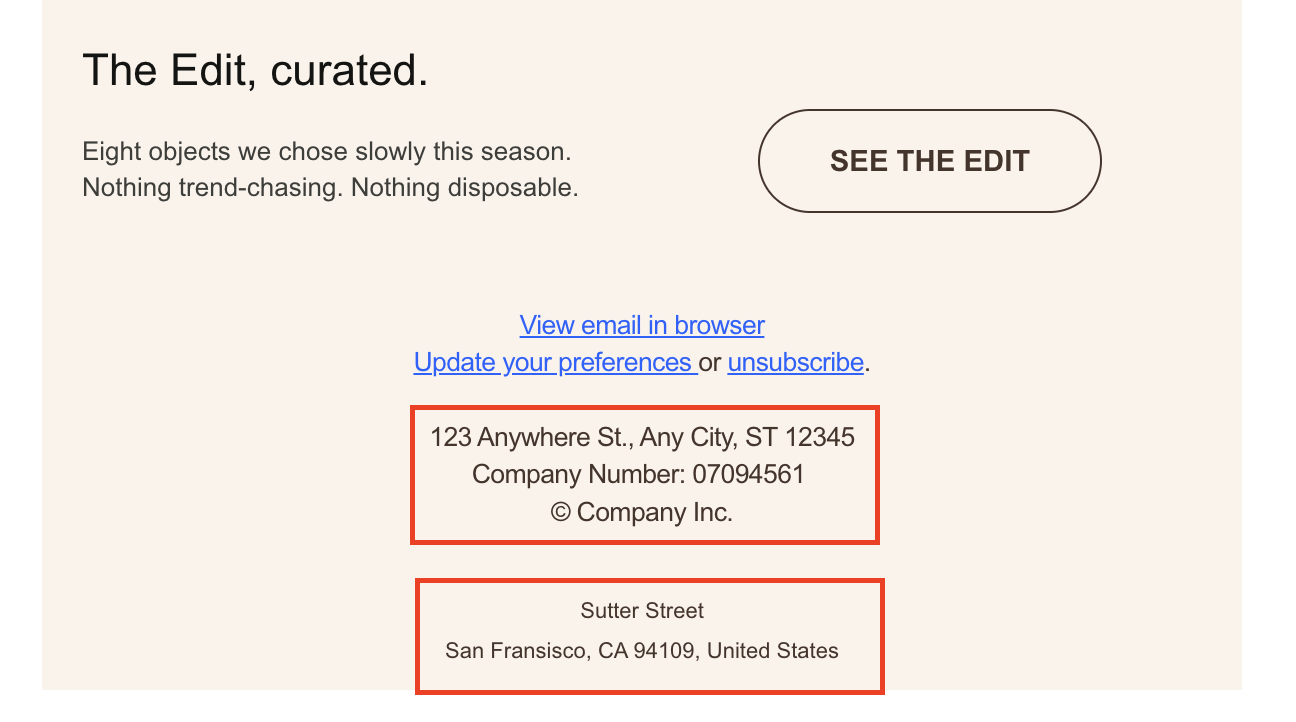
Remove Canva's mailing address. Flodesk automatically adds your compliant sending address to every email, so if you leave Canva's address in your design, both addresses will appear. Remove the Canva address before exporting to keep things clean.
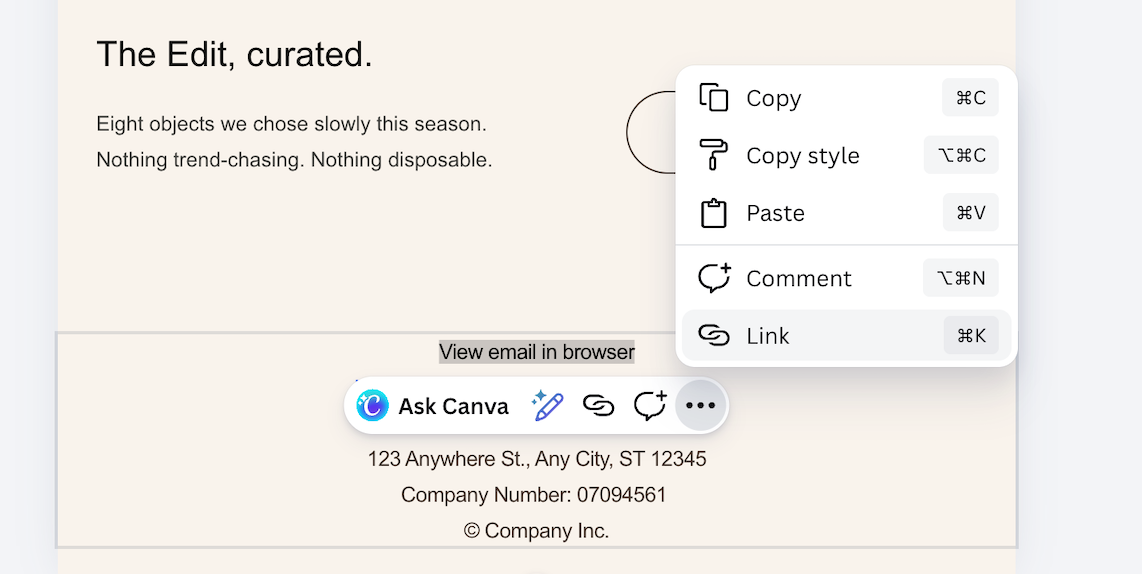
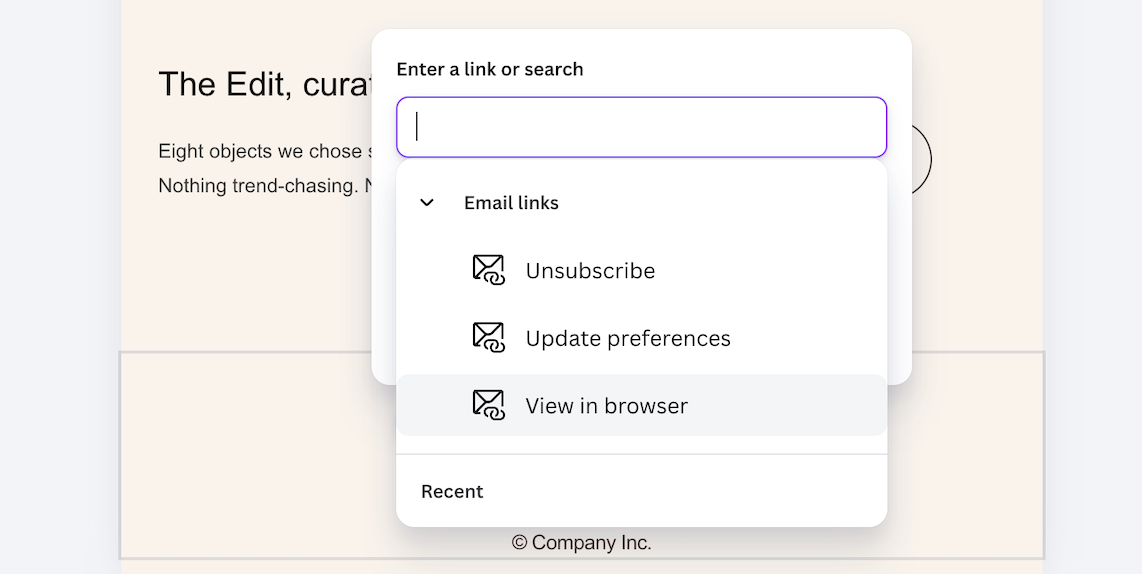
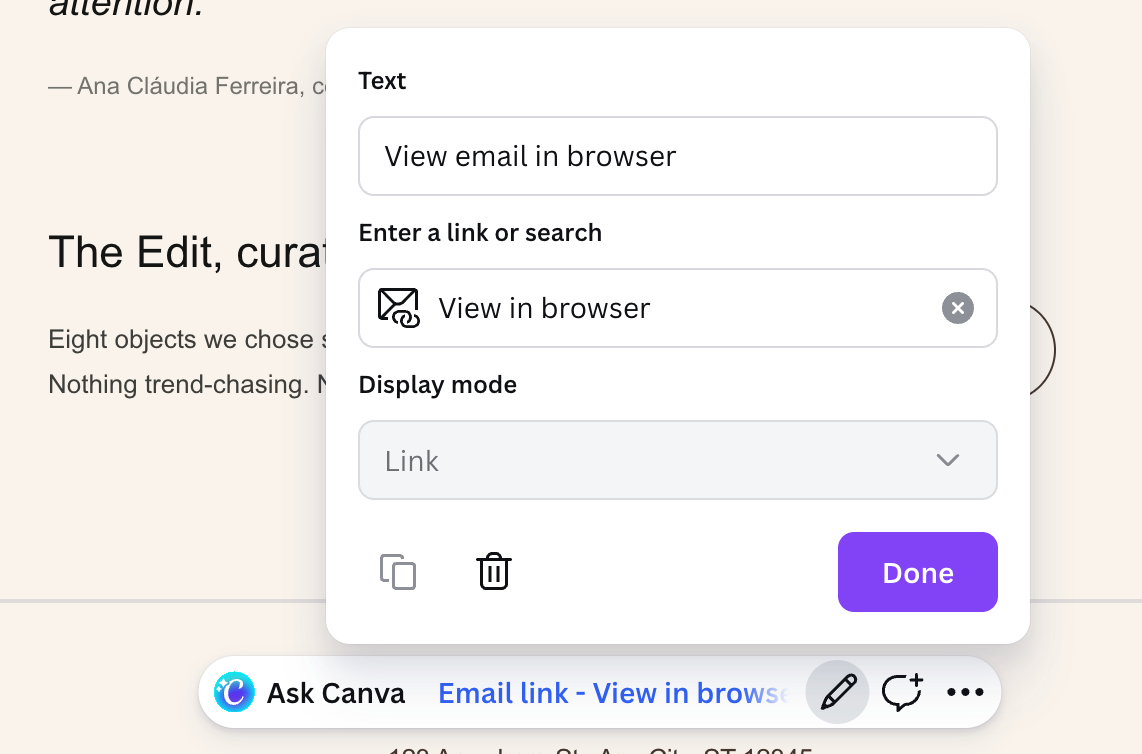
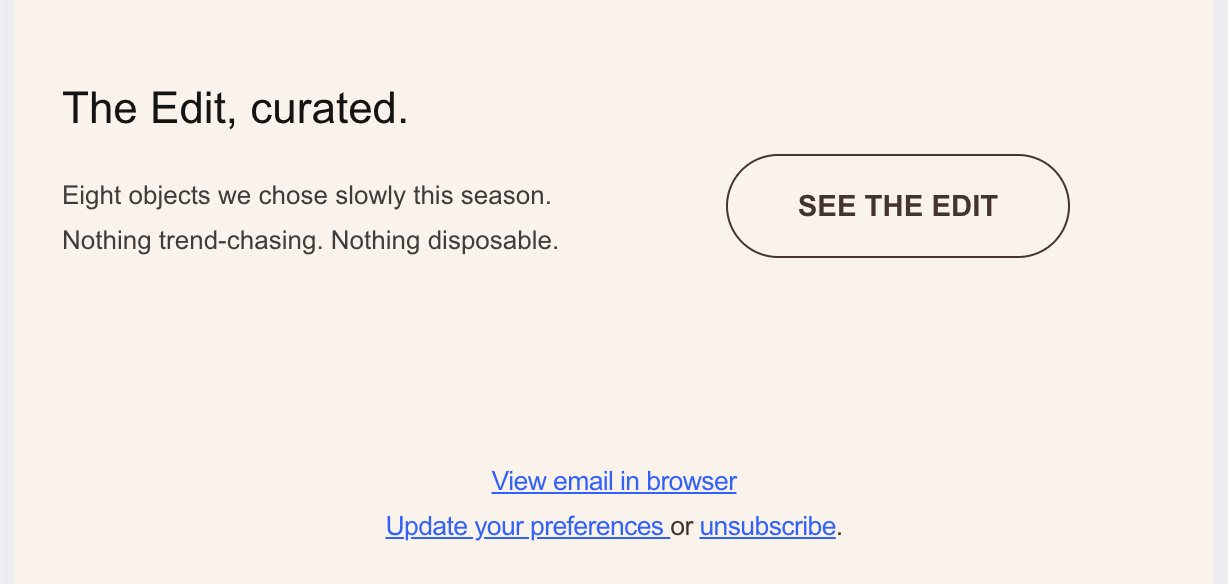
Update the unsubscribe and preference links. For any Canva email template, click and edit the hyperlink/compliance links in the footer. Select the relevant variables for Unsubscribe and Manage preferences (and View in browser, if applicable). If you skip this step, Flodesk will add its standard unsubscribe footer to your email instead.
Step 2: Click Share and select Flodesk
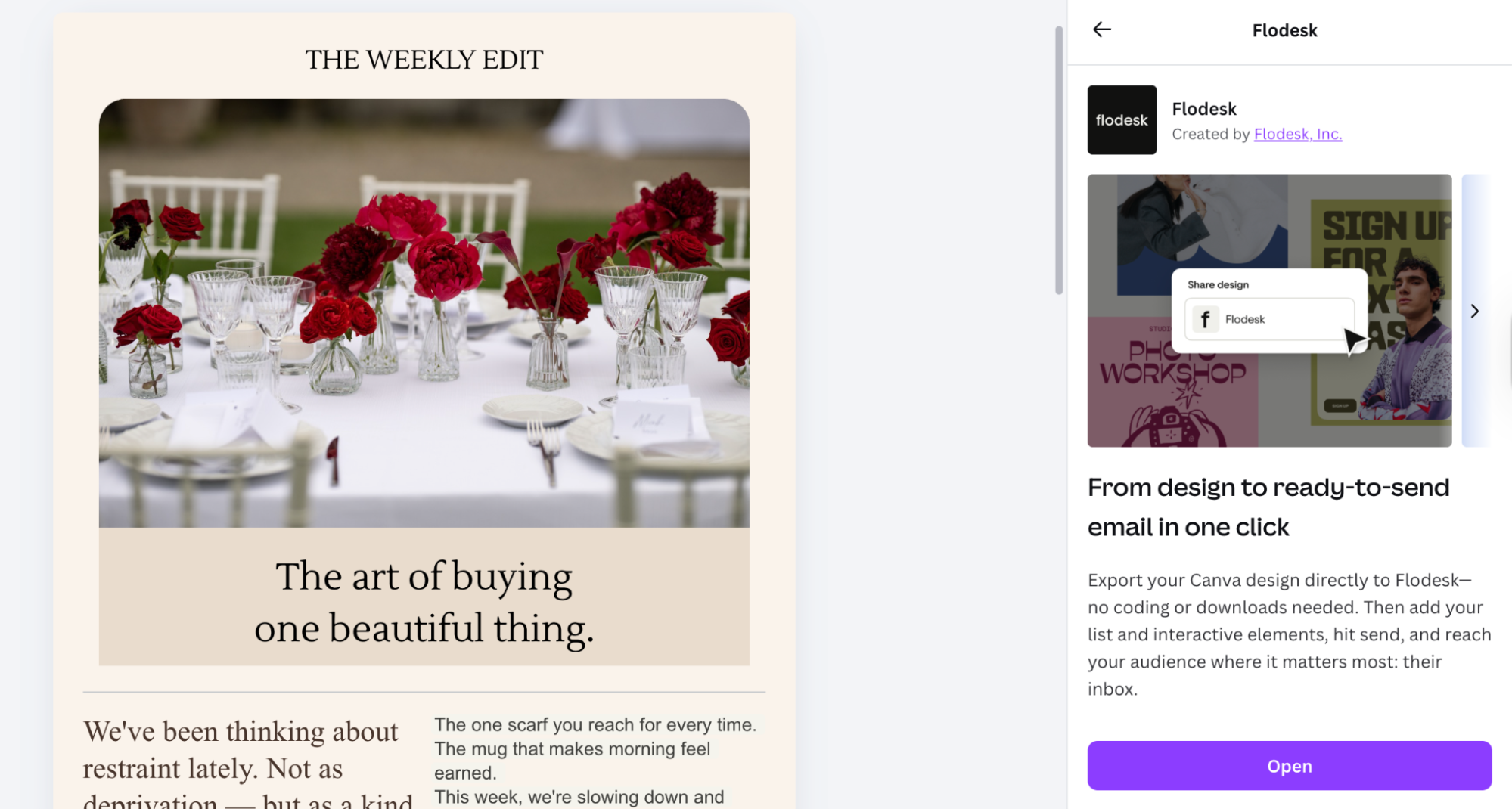
When your email is ready, click Share and select Flodesk from the available messaging options. Next, click Open and Connect to Flodesk.
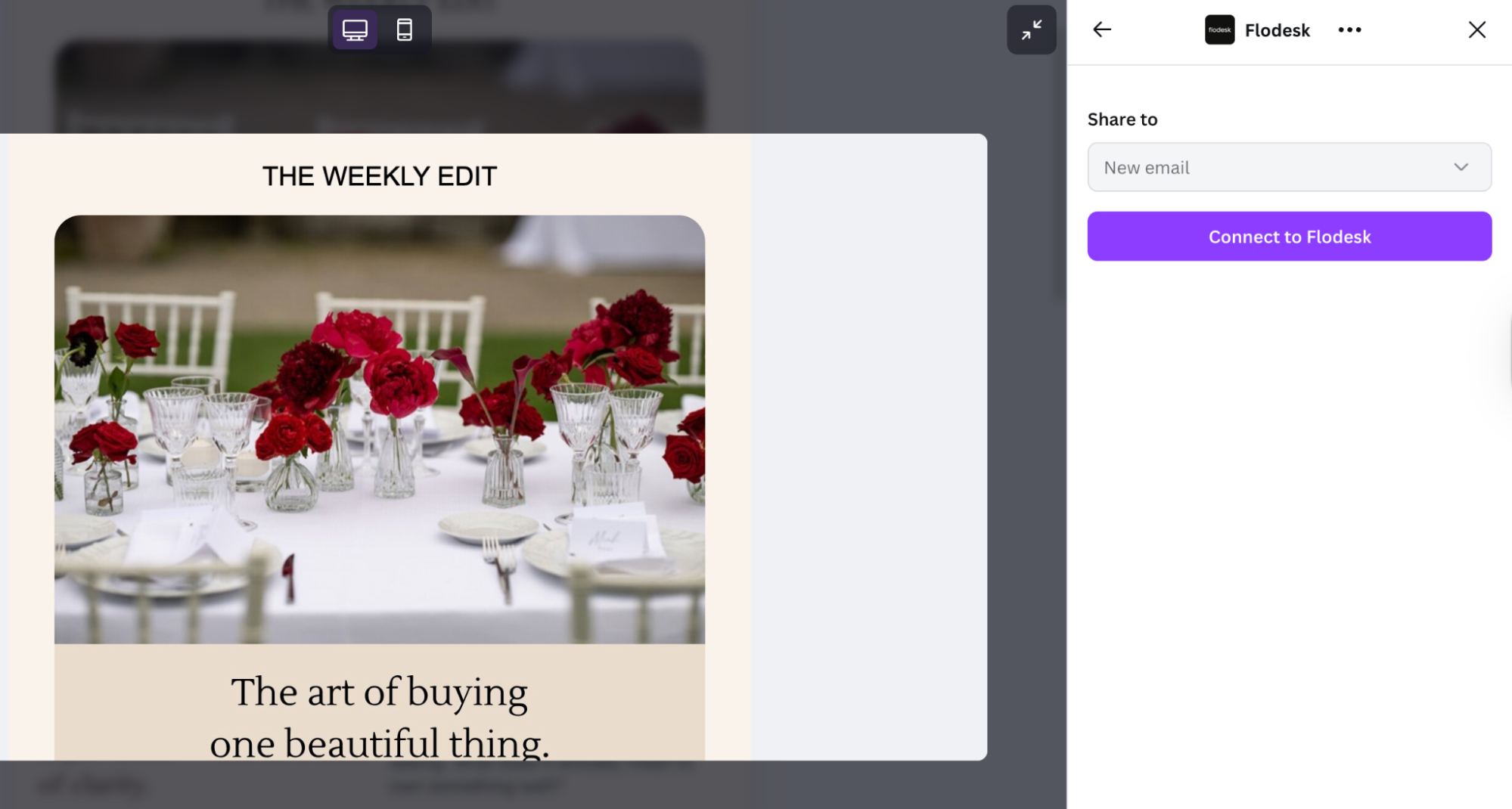
Sign in to your Flodesk account (or create a new account if you’re not a Flodesk member yet).
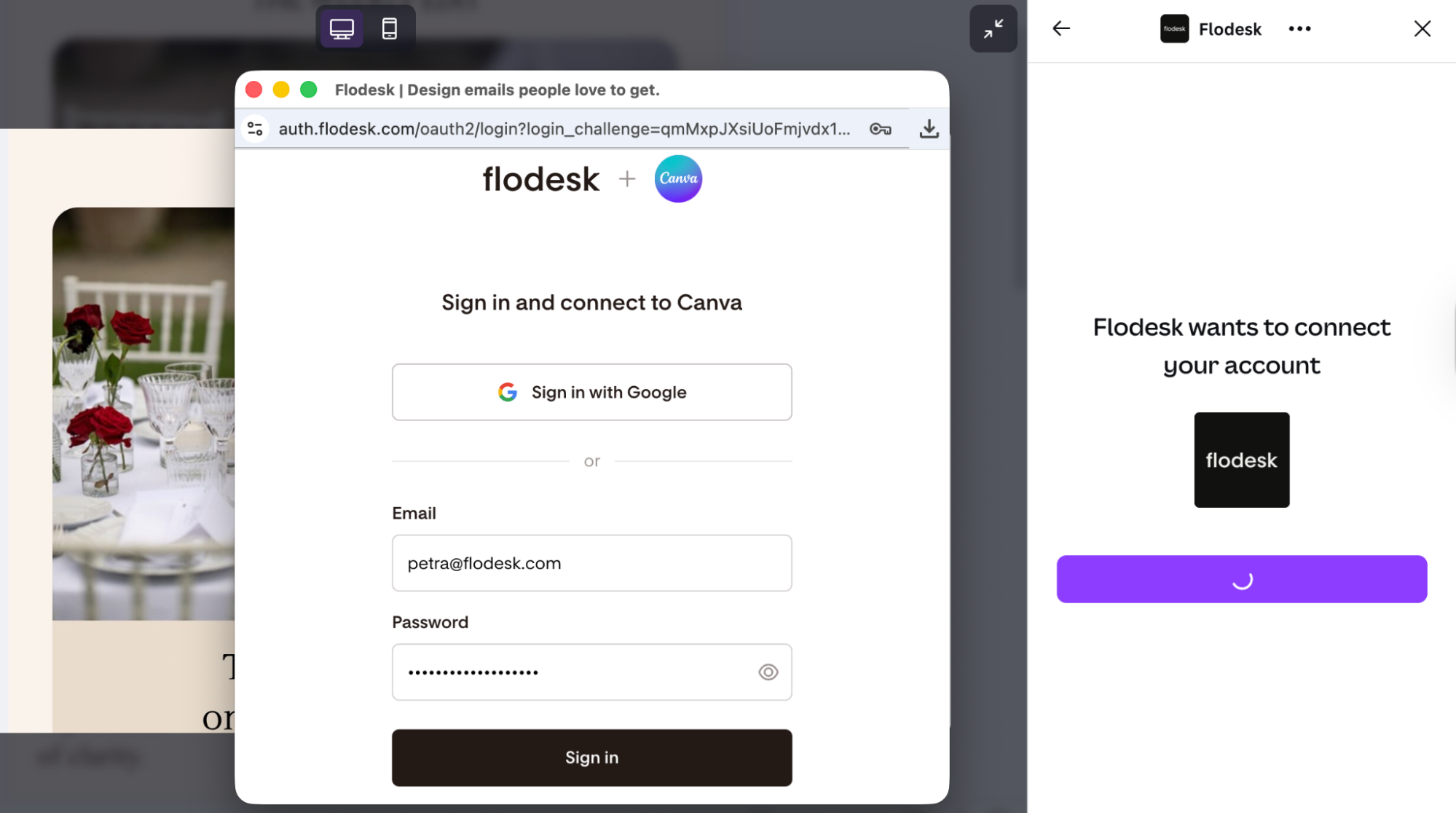
If your Canva design includes multiple pages, select the specific page you want to send to Flodesk.
You can choose to
Create a new email, or
Add to an existing email (if you’re already connected to Flodesk).
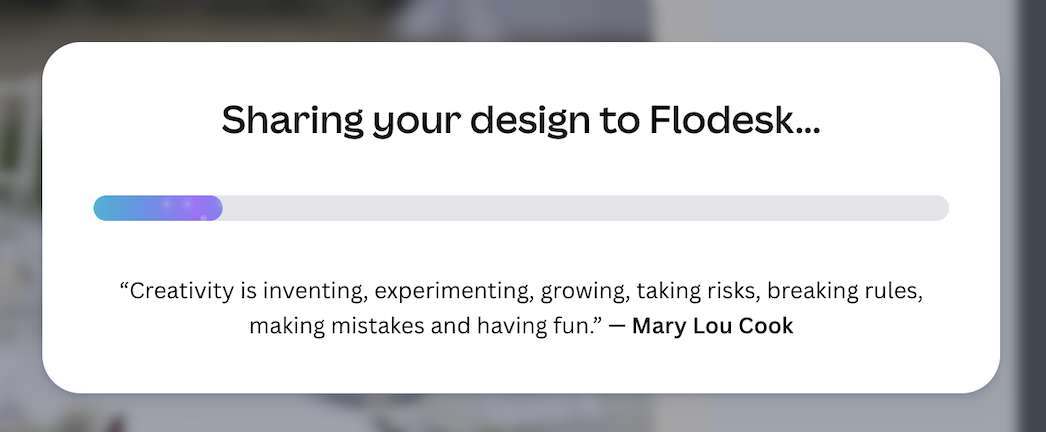
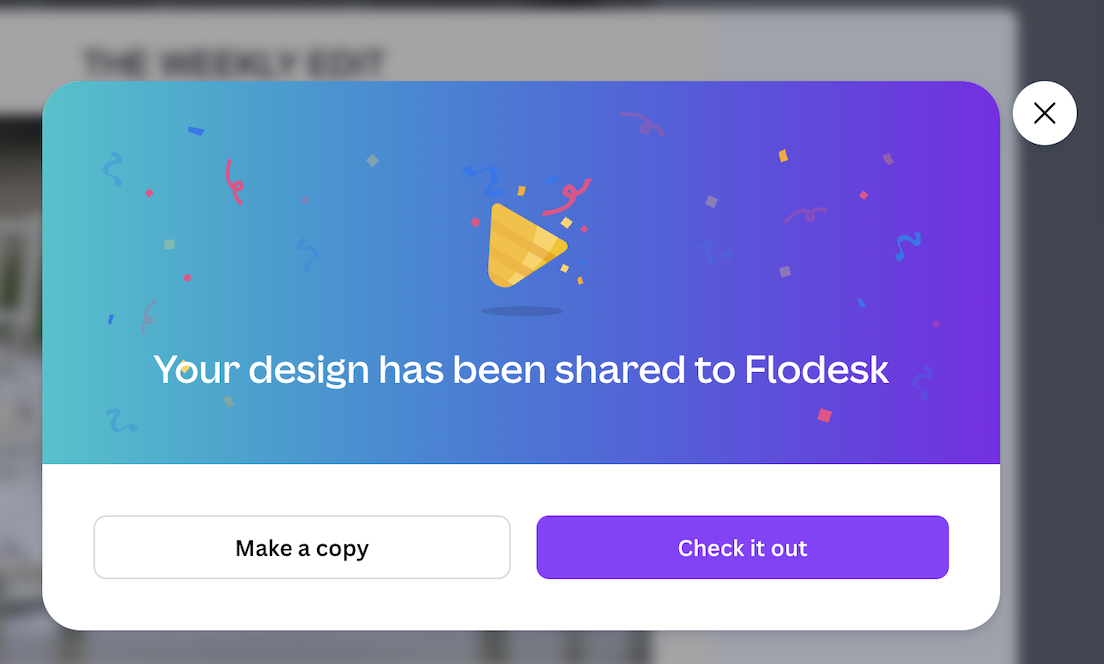
Click Share to Flodesk.
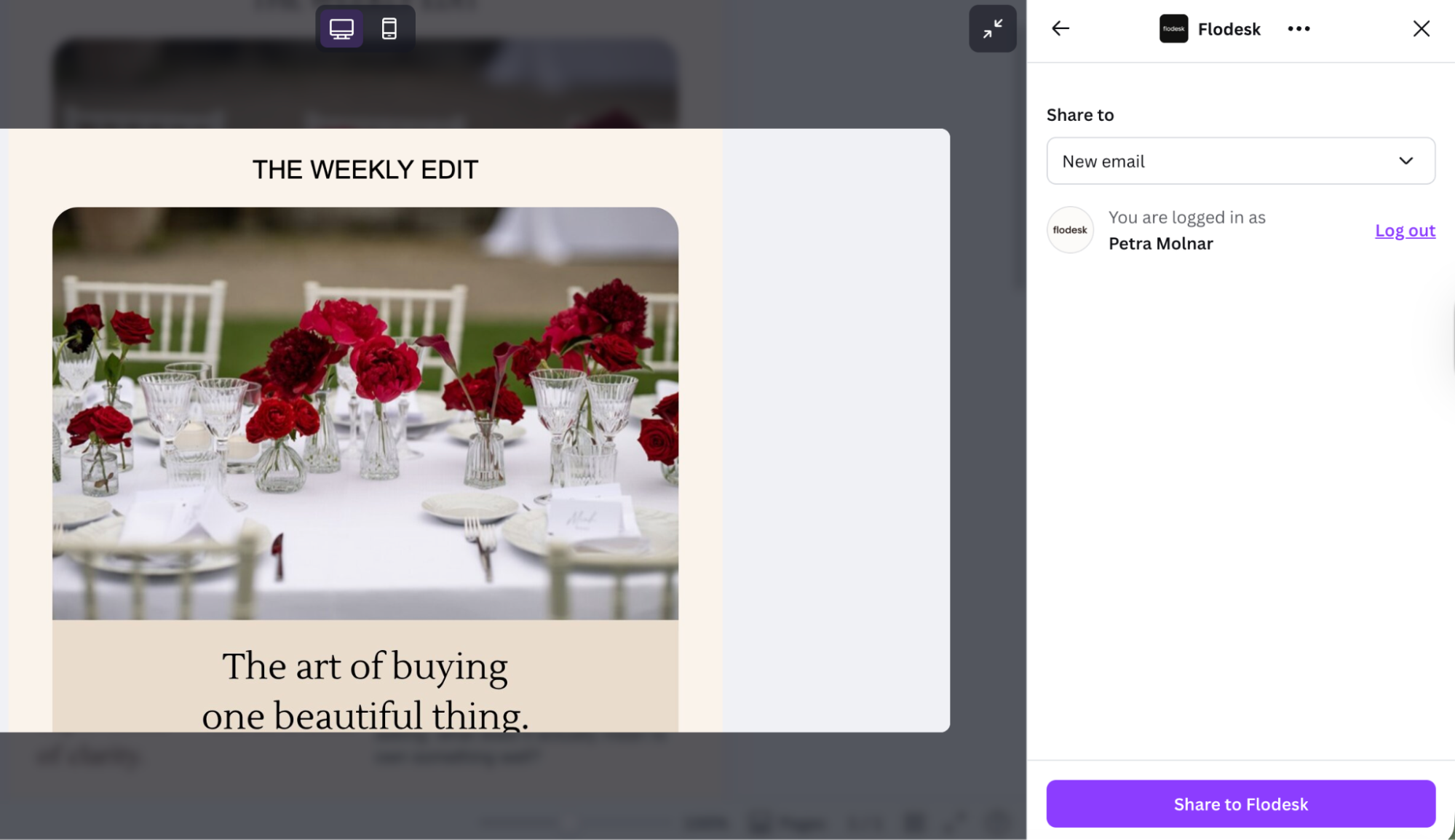
You don’t need to download any HTML files. Your Canva design lands directly in your Flodesk account as a single, locked Canva email block.
Step 3: Add the finishing touches
Once your email is in Flodesk, you can build around your Canva design using the Flodesk email builder. Add any Flodesk content blocks — text, images, buttons, dividers — above or below the imported Canva block.
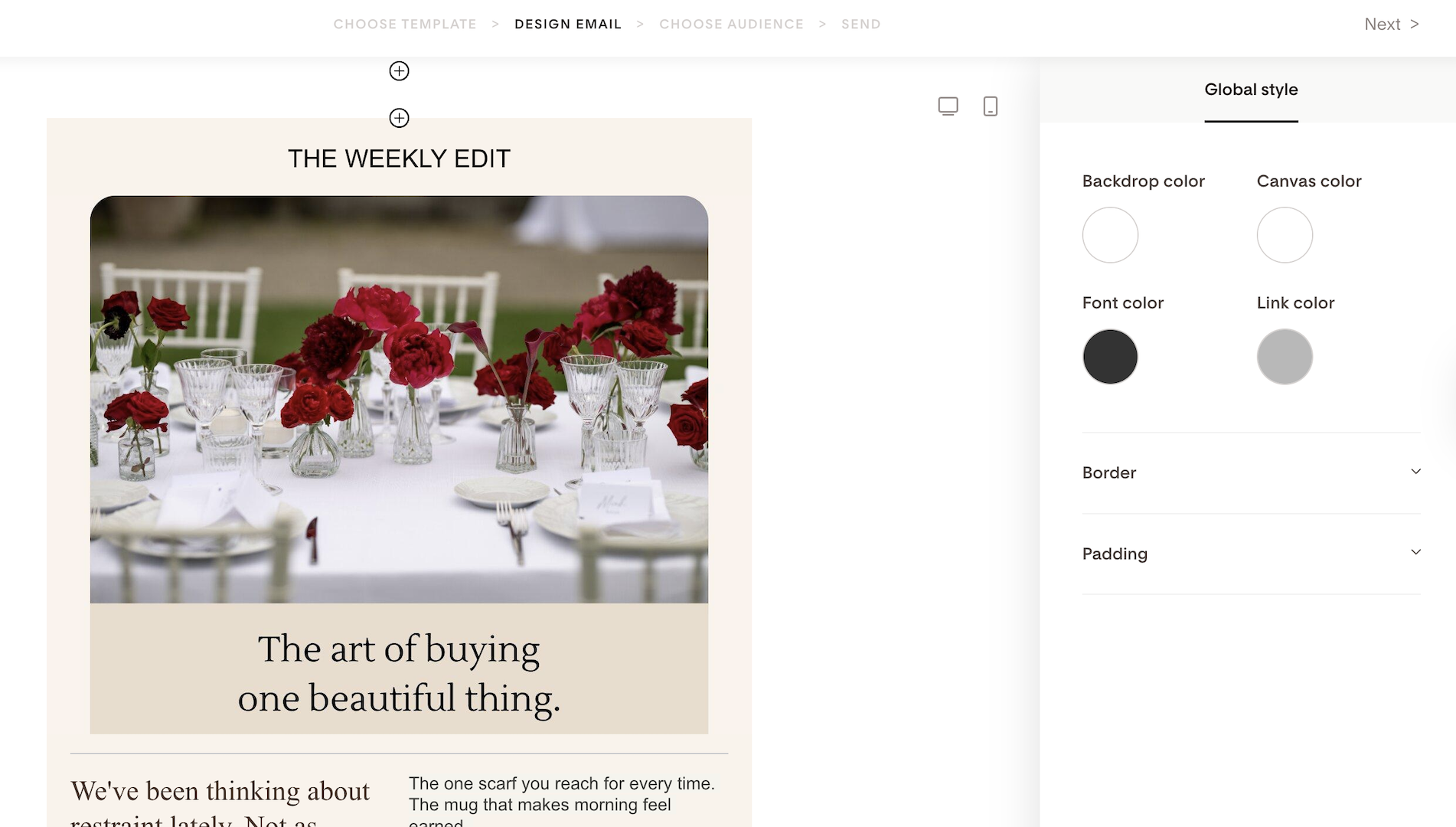
Flodesk automatically replaces the unsubscribe and manage preference links with compliant Flodesk links and adds your mailing address to keep you compliant.
Important: If you don’t remove Canva’s address manually, the email may display two addresses.
Need to make changes to the design?
Click Edit in Canva. This takes you back to your original design in Canva. Once you've made your updates, share the updated version back to Flodesk in one click. The previous Canva block will be replaced with the new block that contains your most recent changes.
Flodesk supports any links in the Canva email, and also click tracking for these links.
Step 4: Send your email
When you’re ready, click Next in the top right corner of the Flodesk email builder. On the next few screens, you’ll:
Choose your sender profile
Enter your subject line and preview text
Send immediately, or schedule for later
FAQ
Do I need to download or upload HTML files to import my Canva email?
No. You don’t need to download or upload any HTML files. When you export from Canva to Flodesk, your design is sent directly into your Flodesk account automatically.
Why can’t I edit my Canva design inside Flodesk?
Canva emails are imported as a single locked Canva email block. This means you can’t edit the design directly inside Flodesk. To make changes, click “Edit in Canva”, update your design there, and re-publish it to Flodesk.
Can I still add content around my Canva email in Flodesk?
Yes. You can add any Flodesk blocks (like text, images, buttons, or dividers) above or below your Canva email block to complete your email layout.
What happens if my Canva design has multiple pages?
You’ll be able to choose which page to send to Flodesk when exporting. Only one page is imported at a time.
Can I add my Canva email to an existing Flodesk campaign?
Yes. When exporting from Canva, you can choose to create a new email draft or add the design to an existing campaign. Note that Canva email import is not supported for workflow emails.
Why are there two mailing addresses in my email?
Flodesk automatically adds the compliant sending address stored in your Flodesk account. If your Canva design also includes an address, both will appear. To fix this, remove the address from your Canva design before exporting.
Are unsubscribe and preference links handled automatically?
Flodesk replaces any unsubscribe or manage preferences links in your Canva email with compliant Flodesk links. You'll need to make sure those variables are mapped to the correct links in your Canva email footer first — see Step 1 for details.
Will links from my Canva email still work in Flodesk?
Yes. All links included in your Canva design will continue to work after import, and Flodesk will track clicks on those links.
Can I use link actions like 'add to segment' or 'remove from workflow' for links in my Canva email design?
No. While links and click tracking work for Canva email blocks, we don't currently support link actions like 'add to segment' or 'remove from workflow' for Canva email links.
What happens when I click “Edit in Canva”?
You’ll be redirected back to your original Canva design. After making updates and re-sharing:
The old Canva block in Flodesk is replaced
The new version reflects your latest changes
Do I need to connect Canva to Flodesk before exporting?
Yes. The first time you export, you’ll be prompted to connect your Canva and Flodesk accounts and approve permissions. After that, you can export in one click.
Can new Flodesk members export from Canva too?
Yes. If you don’t have a Flodesk account yet, you’ll be prompted to create a Flodesk account during the connection process, and your design will be ready in Flodesk once setup is complete.