
How Multiple branch workflows work
Use multi-branch steps to split subscribers into multiple paths and automatically bring them back together.
Overview
The Multiple branch feature gives you more control over how subscribers move through a workflow. Instead of creating endless, disconnected branches, workflows now flow:
You can split subscribers into multiple paths at once
Branches can be based on data, segments, or percentages
Subscribers automatically rejoin the main workflow unless you stop them with an Exit step
This makes workflows easier to build, manage, and scale.
What is a Multiple branch step?
A Multi-branch step is a workflow step that splits subscribers into more than two paths at the same time.
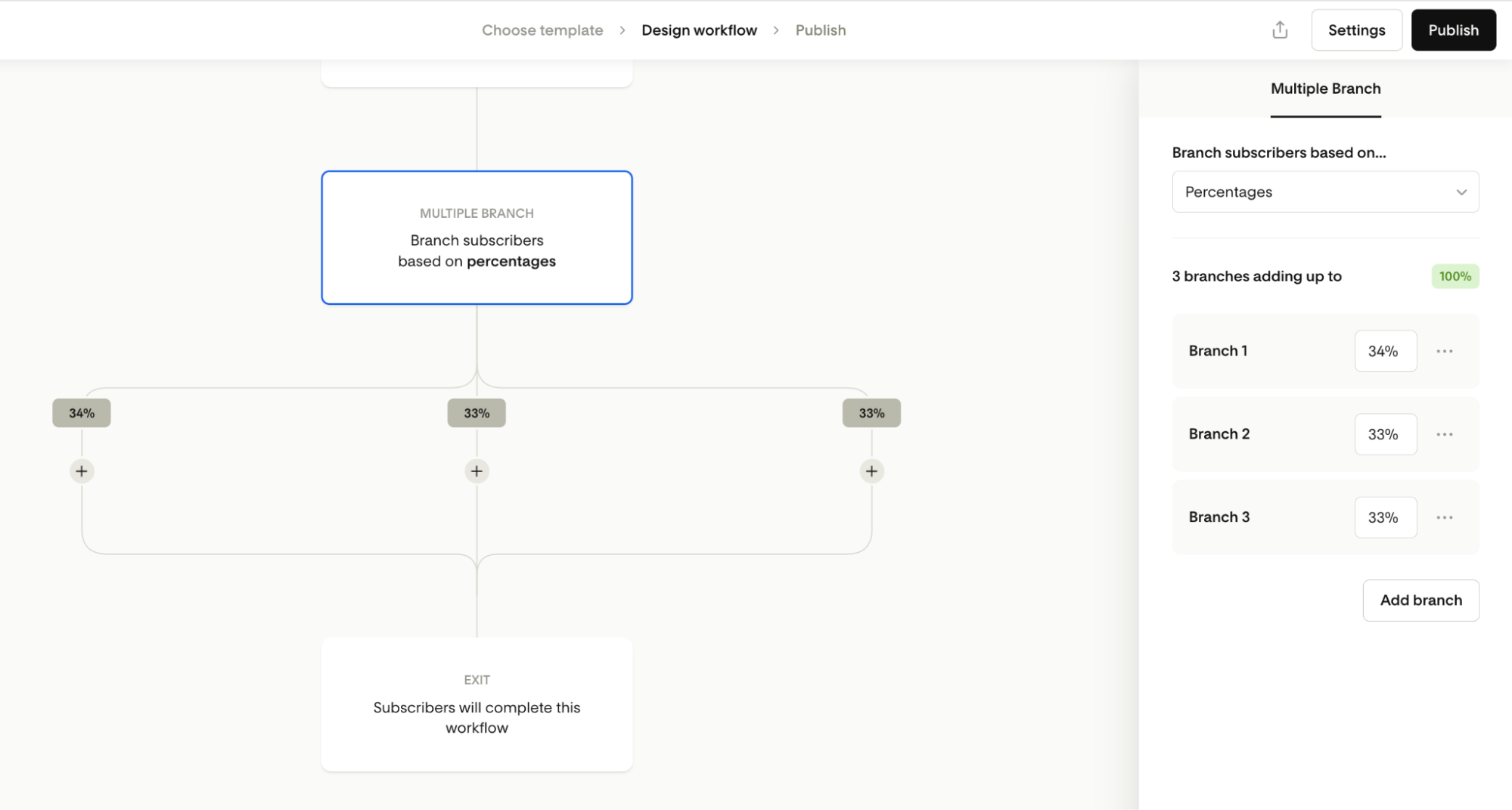
You can branch subscribers based on:
Data fields (like first name or custom fields)
Segments
Percentages (for testing and experiments)
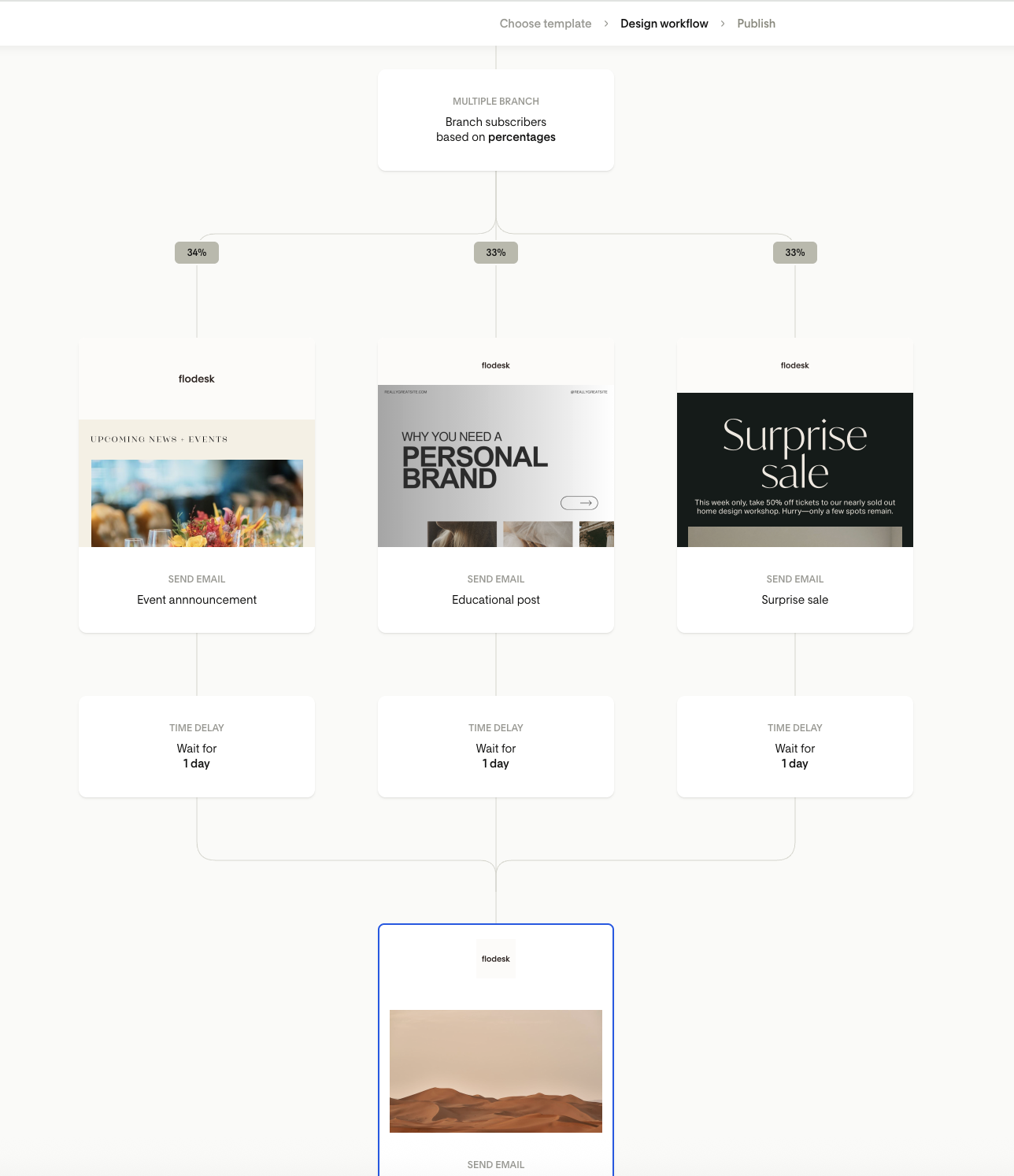
Each branch can contain its own steps (emails, delays, actions), and then reconnect back to the main workflow.
How branching works
Branching by data fields or segments
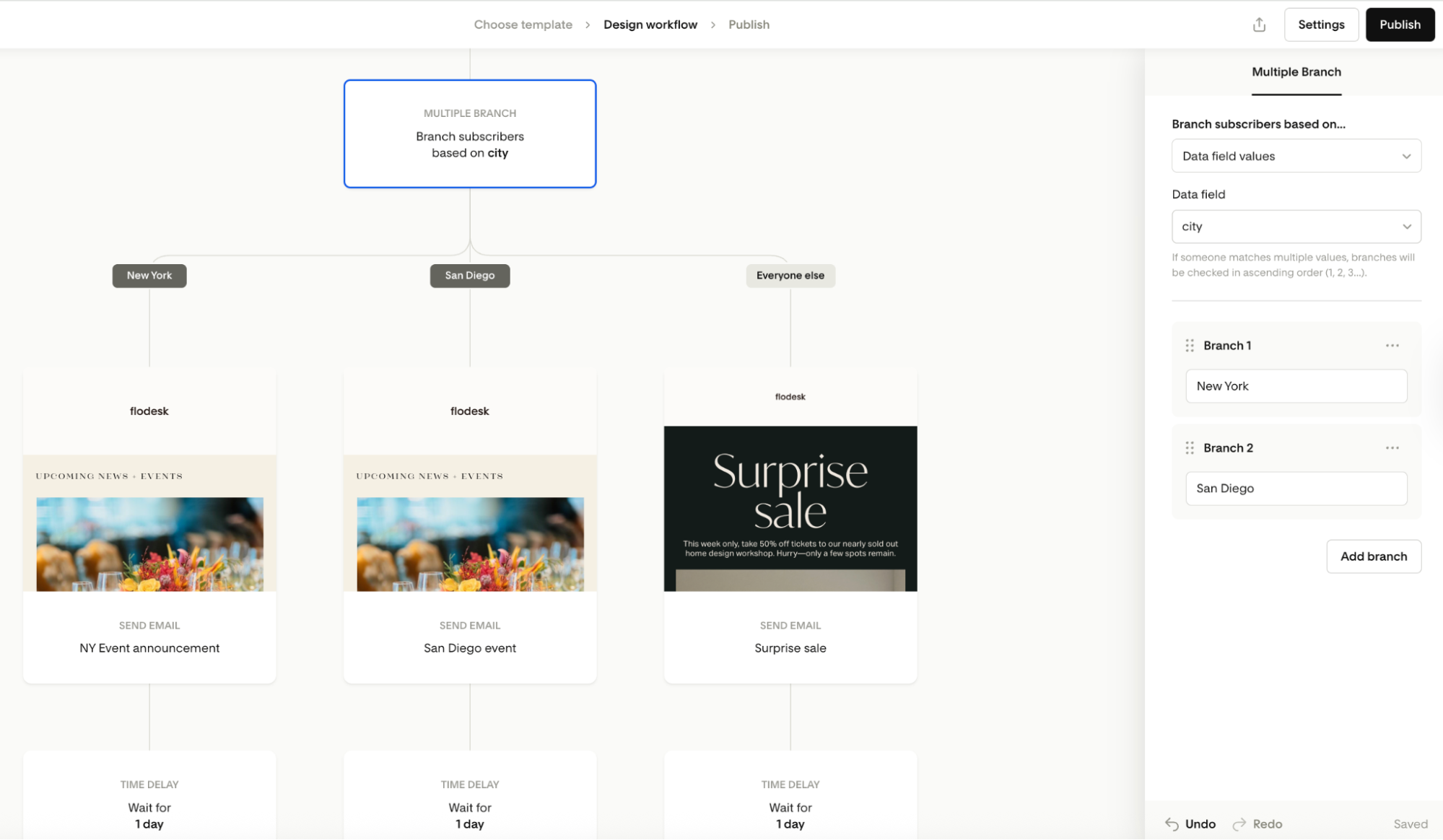
When you branch by data fields or segments:
You add branches one at a time
Each branch represents one value or segment
You can add up to 12 branches by clicking the “ Add branch” button
The fields/segments can be dragged in the right-side panel to reorder or deleted via the three dot menu on each card
An “Everyone else” branch is always included and cannot be deleted. It will apply for anyone who doesn’t meet the conditions of any of the other branches. If you have 12 branches, "Everyone else" will appear as a 13th branch.
Important behavior to know:
Branches are checked from left to right
A subscriber enters the first branch they qualify for
If they qualify for multiple branches, only the first matching branch is used
This ensures subscribers never go down more than one branch.
Branching by percentages
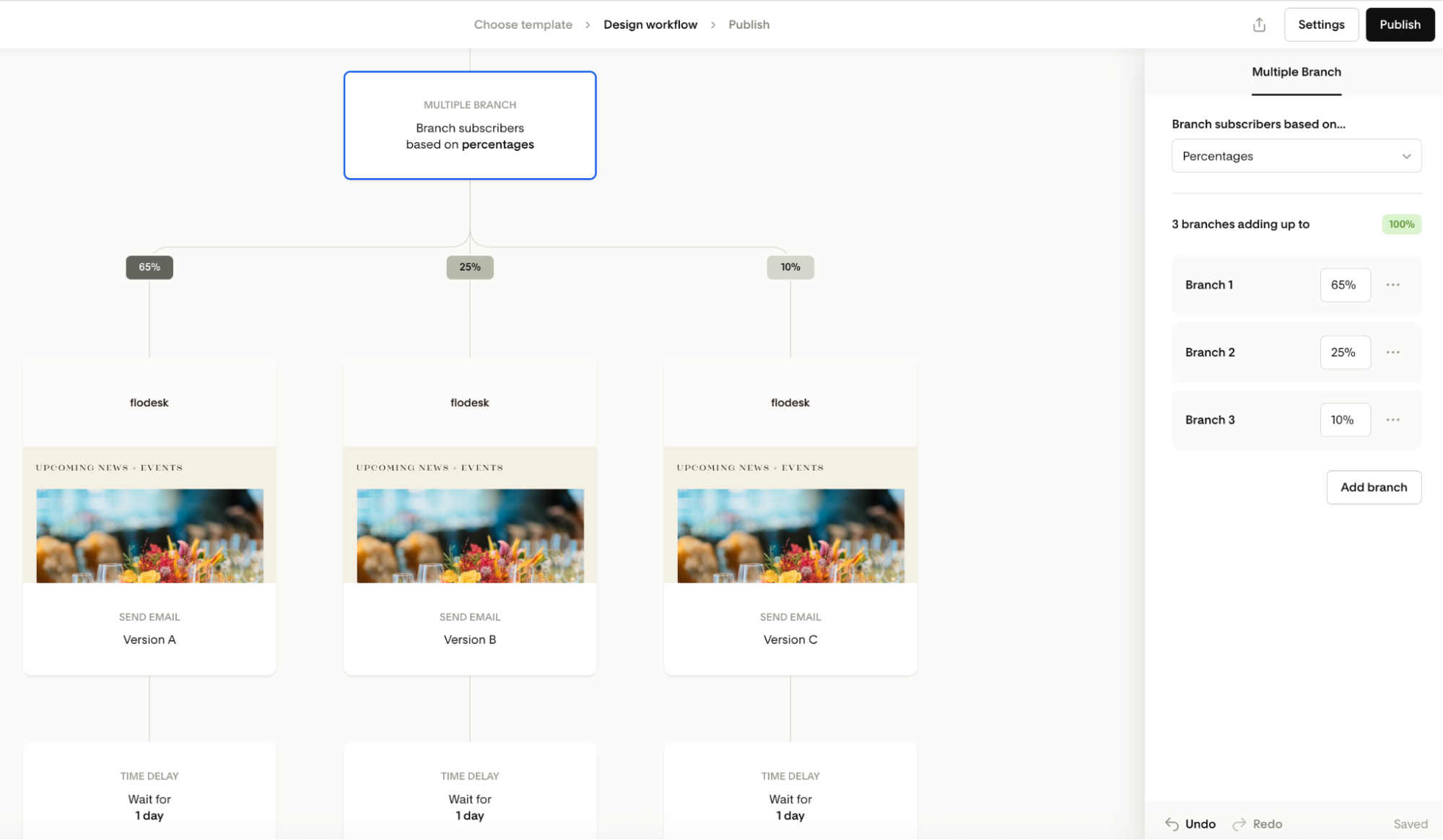
Percentage branches are designed for experiments and testing.
Key rules:
Starts with 2 branches at 50% / 50%
You can add up to 6 percentage branches by clicking the “ Add branch” button
You can manually adjust the percentages of each branch (Using whole numbers only, no decimal places), and the total percentage of all branches must sum 100%.
Percentages between branches can be uneven. For example 80% / 15% / 5% is an acceptable input.
Subscribers are assigned randomly, but evenly over time
Flodesk automatically balances traffic so the real-world distribution closely matches your chosen percentages, even as more subscribers enter the workflow.
Auto re-join: how branches reconnect
What “auto re-join” means
After a split (Yes/No step or Multiple branch step), all branches now reconnect into a shared path called the main flow.
Subscribers automatically rejoin the main flow
The workflow no longer grows endlessly sideways
You don’t need to duplicate steps across branches
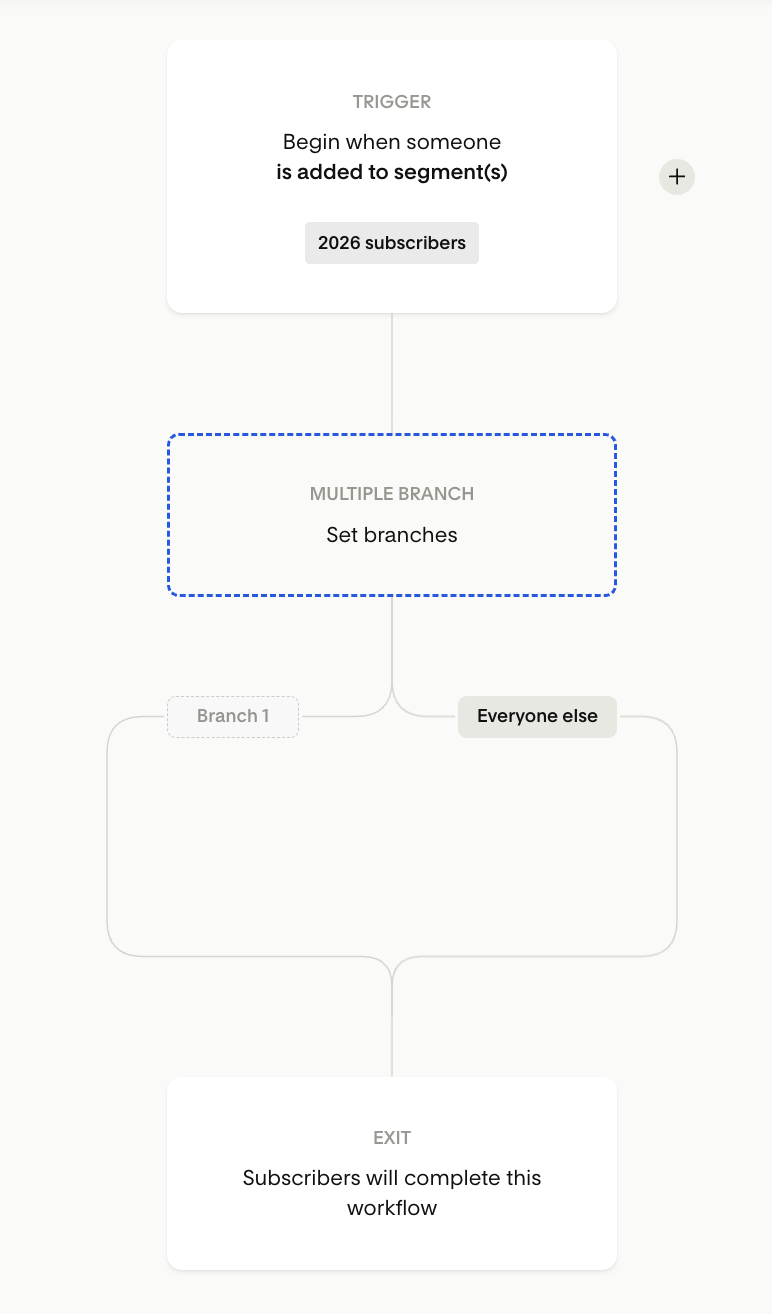
When subscribers do not rejoin
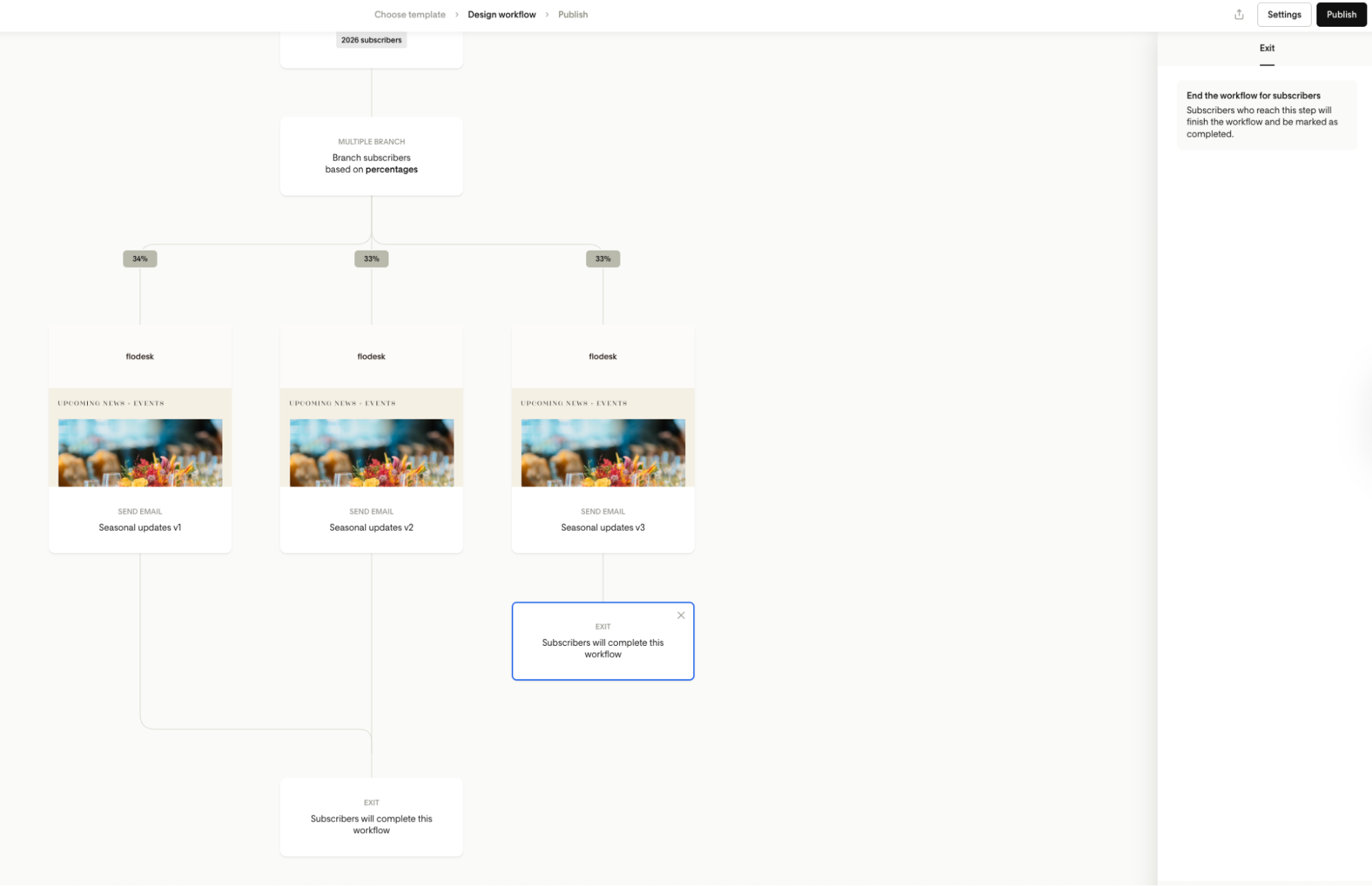
A subscriber will not rejoin the main flow if you add an Exit step inside a branch. Exit steps permanently stop subscribers in that branch and remove them from the workflow.
Evergreen behavior (important change)
An evergreen state means a subscriber waits at an empty step until you add something later.
With the new system:
Evergreen nodes can only exist at the very end of the main flow
Split branches can no longer end in an evergreen state
Branches will always rejoin the main flow unless an Exit step is added.
If you later remove that Exit step, the branch reconnects to the main flow.
What happens if you delete things?
Deleting a Multiple branch step
If the step is empty, you’ll see the standard delete confirmation message
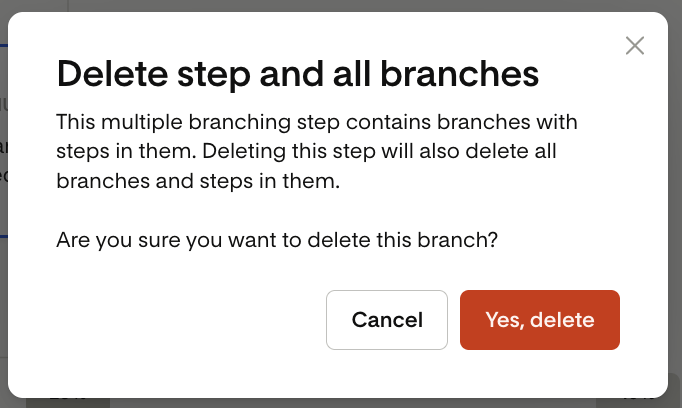
If the step contains other steps, you’ll see a warning similar to the example below
Confirming deletion (“Yes, delete”) removes:
The multi-branch step
All branches and steps inside it
Deleting a data field used in a branch
If a data field is removed:
Branch values are cleared
All subscribers are sent to the Everyone else branch
The workflow continues without stopping subscribers
Canvas controls (navigation help)
Multi-branch workflows can get wide, so new canvas controls help you move around:
Zoom in and out
Fit the entire workflow to your screen
Pan (click and drag) across the canvas
Keyboard shortcuts for faster navigation
Function | Mac shortcut | Windows shortcut |
Zoom out | - | - |
Zoom in | + | + |
Scroll zoom | ⌘ Scroll | Ctrl Scroll |
Zoom to 100% | ⌘ 0 | Ctrl 0 |
Back to trigger | ⌘ ↑ | Ctrl ↑ |
Pan | Space Drag | Space Drag |
Pan (mouse-only) | Press wheel | Press wheel |
Move (trackpad-only) | Drag 2 fingers | Drag 2 fingers |
This makes large, complex workflows easier to edit.
Summary
The Multiple branch step in workflows lets you split subscribers by data, segments, or percentages
Branches automatically rejoin the main flow
Exit steps stop rejoining when needed
Percentage branches stay balanced over time
Workflows are cleaner, shorter, and easier to maintain
FAQ
What is a Multiple branch step?
A workflow step that splits subscribers into multiple paths at once based on data fields, segments, or percentages.
How many branches can I create?
Up to 12 branches for data fields or segments (If you have 12 branches, "Everyone else" will appear as a 13th branch.)
Up to 6 branches for percentages
What happens if someone qualifies for multiple branches?
They enter the first matching branch from left to right.
Do branches reconnect automatically?
Yes. All branches automatically rejoin the main workflow unless there’s an Exit step.
How do percentage branches work?
Subscribers are assigned randomly but balanced over time so real distribution matches your percentages.
Can I stop subscribers from rejoining?
Yes. Add an Exit step inside the branch.
What happens if I delete a branch or field?
Subscribers are safely routed to the “Everyone else” branch or removed with clear warnings. No one gets stuck.