
How to Add a Flodesk Popup or Inline Form in AI Builders (Bolt & Lovable)
AI website builders like Bolt and Lovable let you create beautiful websites using simple prompts instead of code. The good news? You can easily add your Flodesk popup or inline form using our AI-friendly embed prompt.
This guide gives you a quick overview plus detailed steps for both platforms. Follow along, and you’ll be live in just a few minutes.
Before You Start
To add a Flodesk form to any AI website builder, you’ll need:
A customized and ready Flodesk popup or inline form
The AI-friendly prompt from your form’s Embed settings
Access to your website project in Bolt or Lovable
Important:
All design changes must be made in Flodesk. Your site builder simply places the form on your page. Any edits made inside Bolt or Lovable may break the embed.
Quick Start (Works for Any AI Builder)
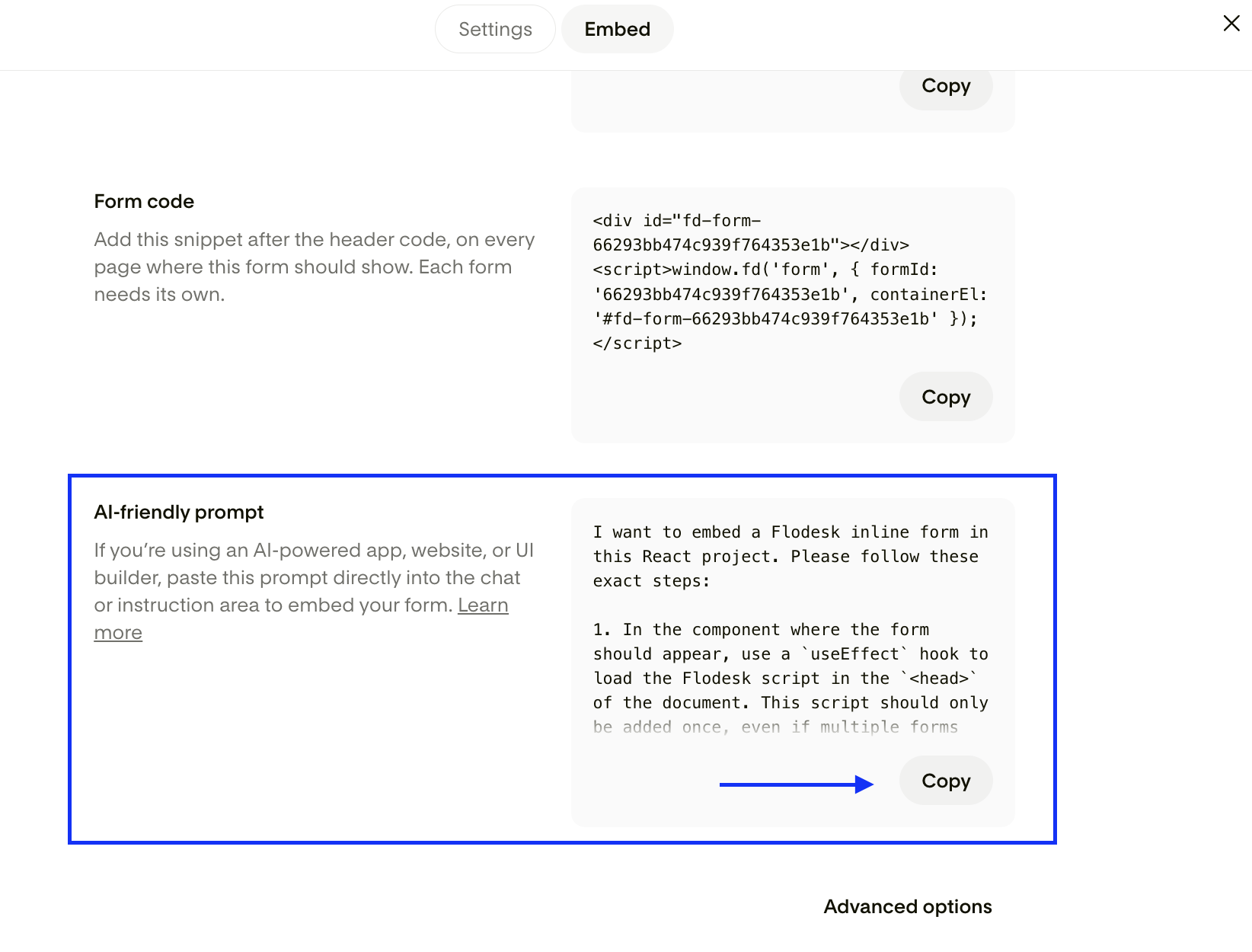
Step 1: Copy your AI-friendly prompt in Flodesk
Log in to Flodesk.
Open (or create) your popup or inline form.
Go to Embed settings.
Select the AI-friendly prompt and copy it.
Step 2: Paste the prompt into your AI builder (Bolt, Lovable)
Open the project/page where you want the form.
Paste the AI-friendly prompt into the builder’s chat or instruction panel.
If adding an inline form, tell the AI where to place it. For example:
“Place above the Testimonials section.”
Publish your site.
Some forms may not appear in preview mode. If you don’t see it, publish the page and check the live version.
Note: Any design changes made in Flodesk will automatically sync to your site.
Quick Fixes:
Form misplaced → Add: “Place this independently, not inside an existing section.”
Design looks different from Flodesk → Add: “Use Flodesk’s original style.”
Extra text/headings appear → Add: “Remove the heading and body text. Only render the Flodesk form.”
Adding a Form in Bolt
Step 1 — Prepare your form in Flodesk
Create or open your popup or inline form.
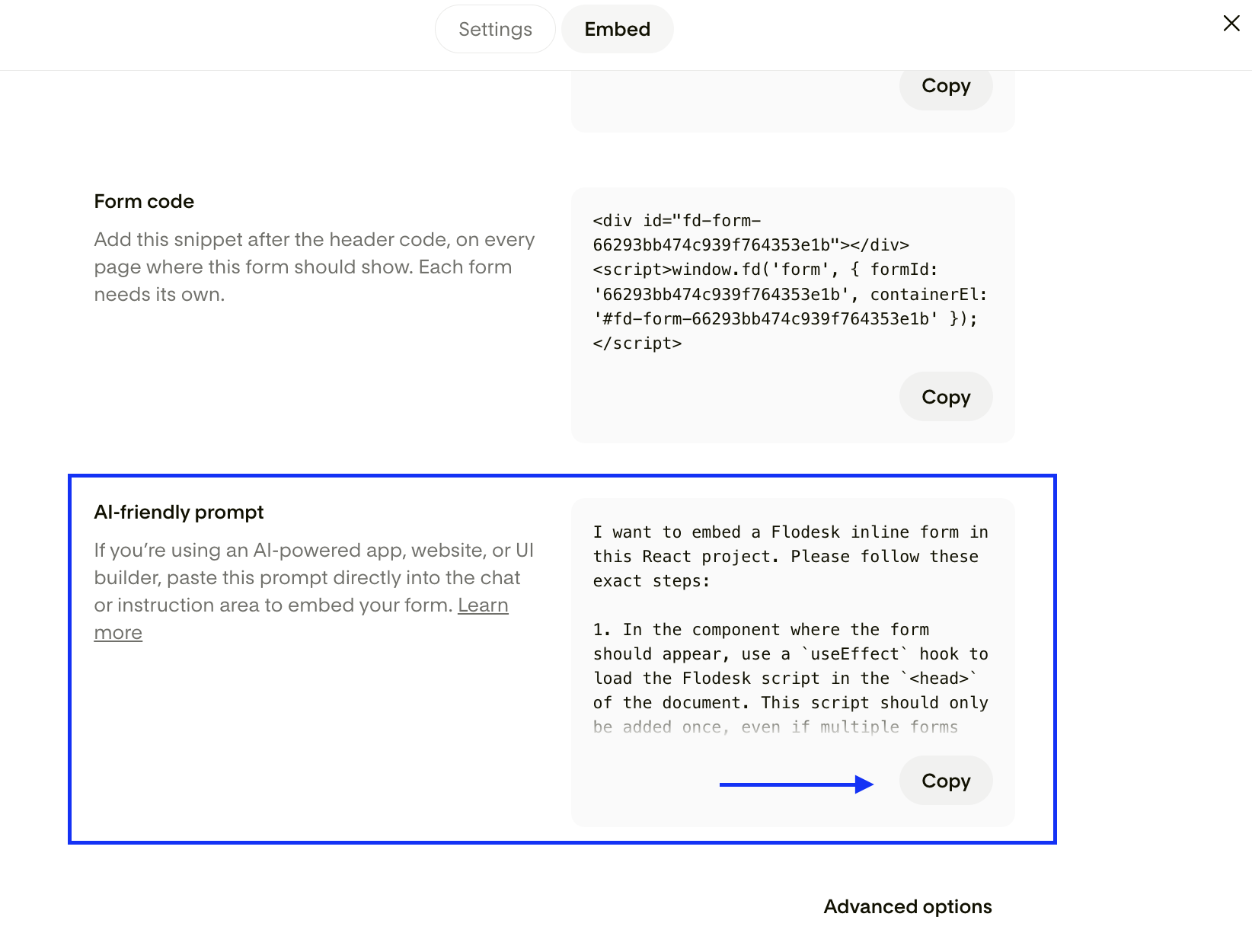
Copy the AI-friendly prompt from Embed settings.
Step 2 — Open your project in Bolt
Open your website project.
Go to the page where the form should appear.
Switch to the chat/prompt interface.
Step 3 — Paste the AI-friendly prompt
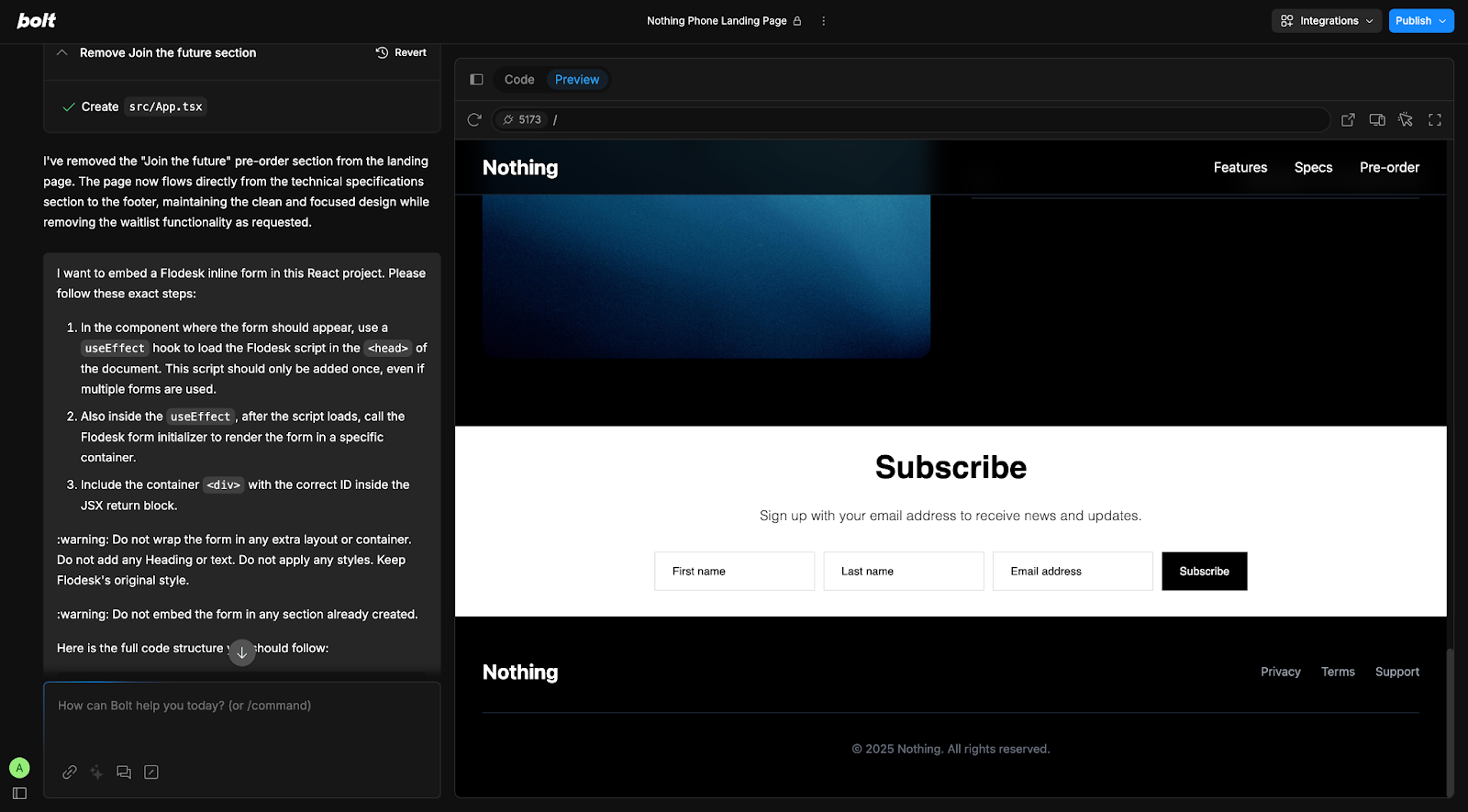
Paste the prompt into Bolt’s chat panel.
For inline forms, add placement instructions like:
“Place above the pricing section.”
Step 4 — Publish and test
Preview your site.
Adjust positioning by refining your prompt.
If the form doesn’t appear, publish and check the live page some scripts only run after publishing).
Bolt Troubleshooting
If something looks off, refine your prompt. AI builders respond best to clear instructions.
Animations like “slide down” can break the form's appearance. If that happens, ask it to remove animations from the form container.
If you embed inline forms, Bolt may insert them inside existing layout sections, distorting spacing or wrapping them in extra containers.
To fix this, add this prompt: "Please do not add this form inside an existing section. Place it independently." or “Do not match the landing style. Use Flodesk’s original style.”
Adding a Form in Lovable
Step 1 — Prepare your form in Flodesk
Create or open your popup or inline form.
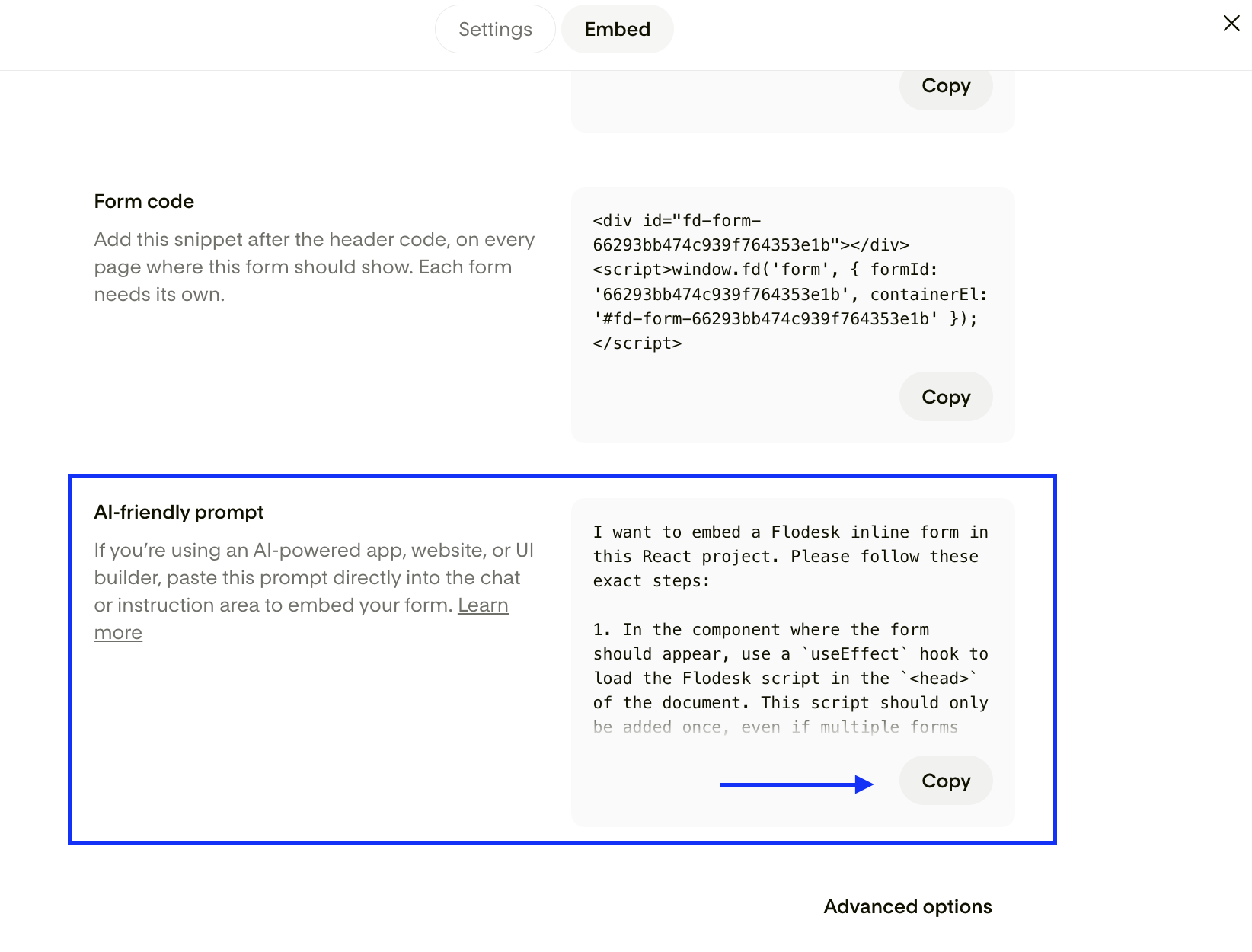
Copy the AI-friendly prompt.
Step 2 — Open your project in Lovable
Go to the Design section.
Open the page where the form should appear.
Step 3 — Paste the AI-friendly prompt
Paste the prompt into Lovable’s chat panel.
For inline forms, include placement details like:
“Place above the Testimonials section.”
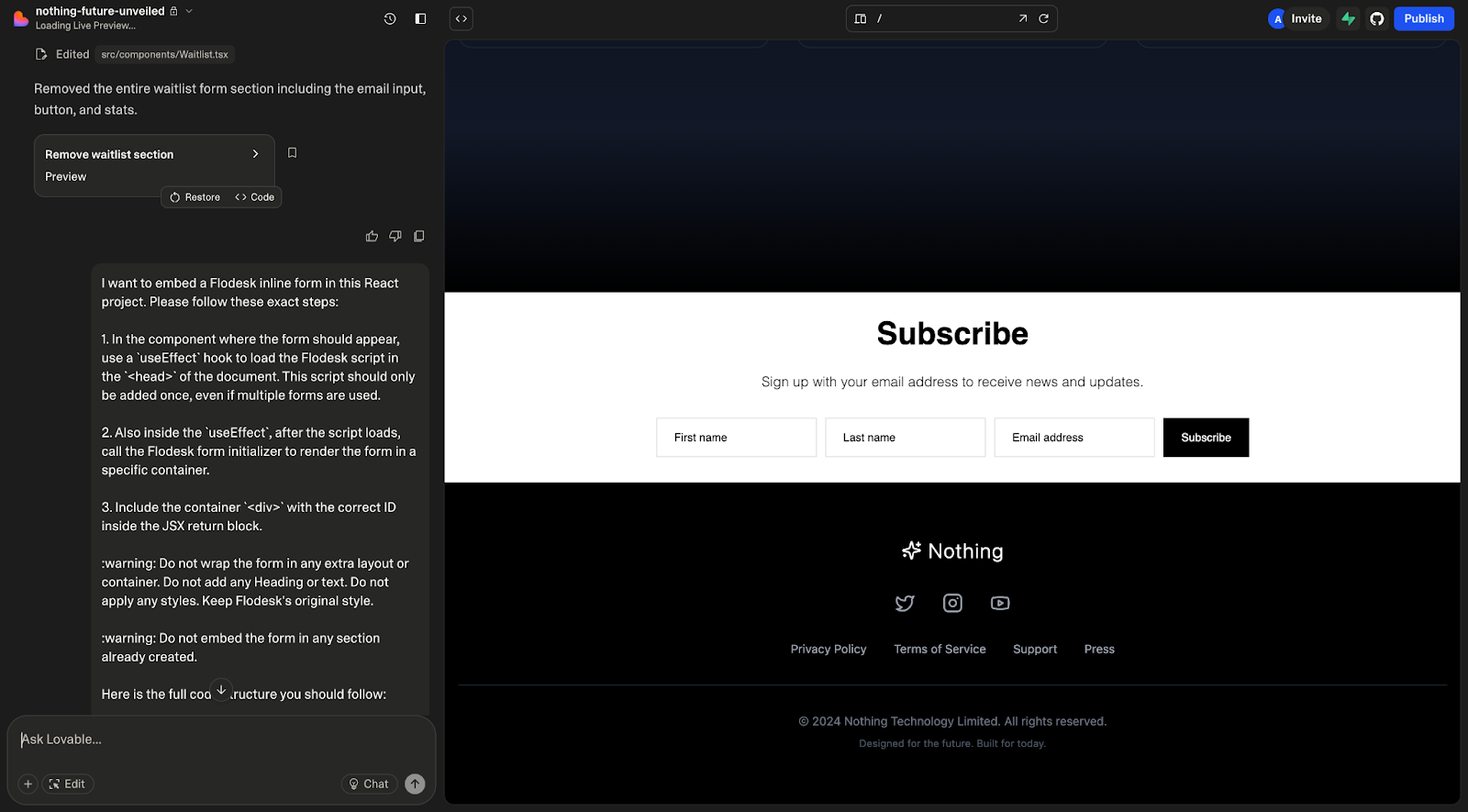
Step 4 — Publish and test
Preview the page.
Adjust placement or styling by refining your prompt.
If needed, publish to see the form live (some scripts only run after publishing).
Lovable Troubleshooting
Lovable may try to automatically style or animate the form.
Lovable sometimes tries to animate the modal automatically (e.g., with delay or fade-in effects), which may interfere with the Flodesk logic. Ask it to: “Remove automatic animation. Use Flodesk’s original embed behavior.”
First attempts may not work; Lovable sometimes adds headings or styling around the form.
To fix this, ask it to: “Remove the heading and body text. Only render the Flodesk form.”
Pro Tip: The more precise your instructions, the better AI builders will place and style your Flodesk form.
How Form Updates Work
Any design or content updates you make inside Flodesk will automatically sync to your website.
You do not need to re-embed the form after editing it.
If changes don’t appear right away:
Clear your browser cache
Refresh the live page
Republish your site
Best Practices for AI Builders
To get the best results:
Be specific about placement.
Tell the builder not to wrap the form in extra containers.
Ask it to use “Flodesk’s original style.”
Publish to test (previews aren’t always accurate).
Clear, simple instructions help AI builders place your form correctly — and help AI-powered support tools surface the right answers later.
FAQ
Can I edit the form design inside Bolt or Lovable?
No. Always edit your form in Flodesk. Changes made inside your AI builder may break the embed or prevent syncing.
Do popup forms work the same way as inline forms?
Yes. The process is the same. The only difference is that inline forms need placement instructions (for example, “Place above the footer”).
Why doesn’t my form show in preview mode?
Some AI builders don’t run external scripts in preview mode. Publish your page and check the live version.
What if the form spacing looks wrong?
Ask the AI builder to:
“Place this independently, not inside an existing section.”
“Do not wrap in additional containers.”
Can I use this method with other AI website builders?
Yes. The AI-friendly prompt works with most AI-based site builders. We’ve specifically tested it with Bolt and Lovable, but the same process applies elsewhere.
Do I need to re-embed the form after editing it?
No. Once embedded, your form automatically updates whenever you make changes in Flodesk.
If your form still isn’t behaving as expected, double-check that:
You copied the full AI-friendly prompt
The form is customized and ready in Flodesk
Your page is published live
And remember — the more precise your instructions, the better your AI builder performs.