
How to add a Flodesk opt-in form to a Canva website
Want to collect email subscribers on your Canva website? You can absolutely do that with Flodesk — you’ll just link to your form instead of embedding it.
Because Canva websites don’t support direct HTML embed code, you’ll use a Full Page Form or Link in bio Form in Flodesk. These forms are hosted by Flodesk and come with a shareable link you can add to any button, image, or text on your Canva site.
Here’s exactly how to set it up.
Before you start
Canva websites do not support embed code
You’ll need to create a Full Page Form or Link in bio Form in Flodesk
Your form must be published to generate a shareable link
Step 1: Create your form in Flodesk
Log in to your Flodesk account.
Go to Forms.
Choose either:
Full Page Form, or
Link in bio Form
These forms are hosted by Flodesk and automatically generate a unique shareable URL.
If you're not sure which to choose:
Use a Full Page Form for a clean, focused opt-in experience.
Use a Link in bio Form if you want a mini landing page with links and extra content.
Step 2: Customize your form
Before sharing your form, make sure it looks and works exactly how you want.
Here’s what to review:
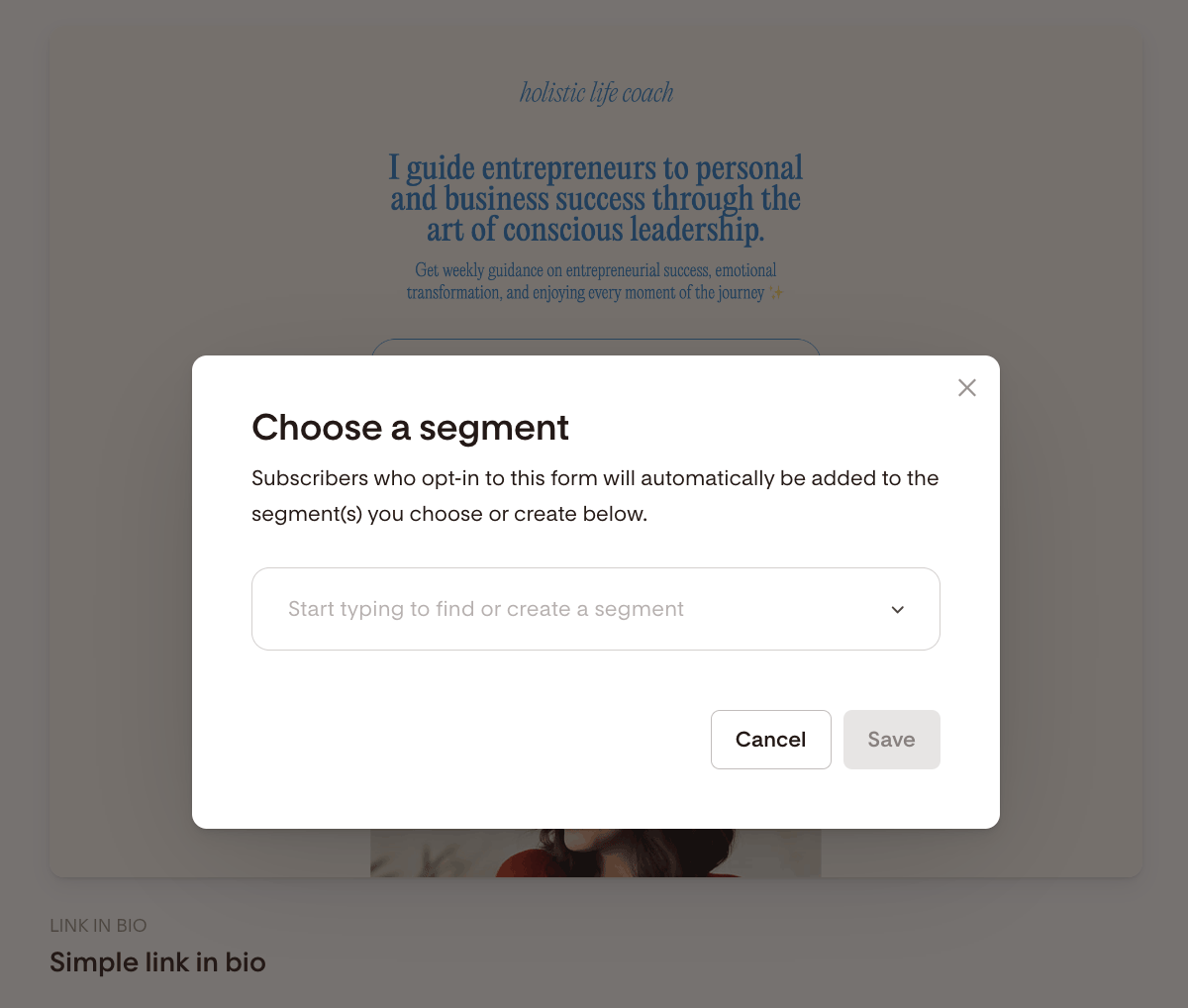
Connect it to a segment
Choose which segment new subscribers should be added to.
This ensures they receive the right emails after signing up.
Style your design
Use the design tools to:
Update colors
Adjust fonts
Add your logo
Edit text
Make sure it matches your brand.
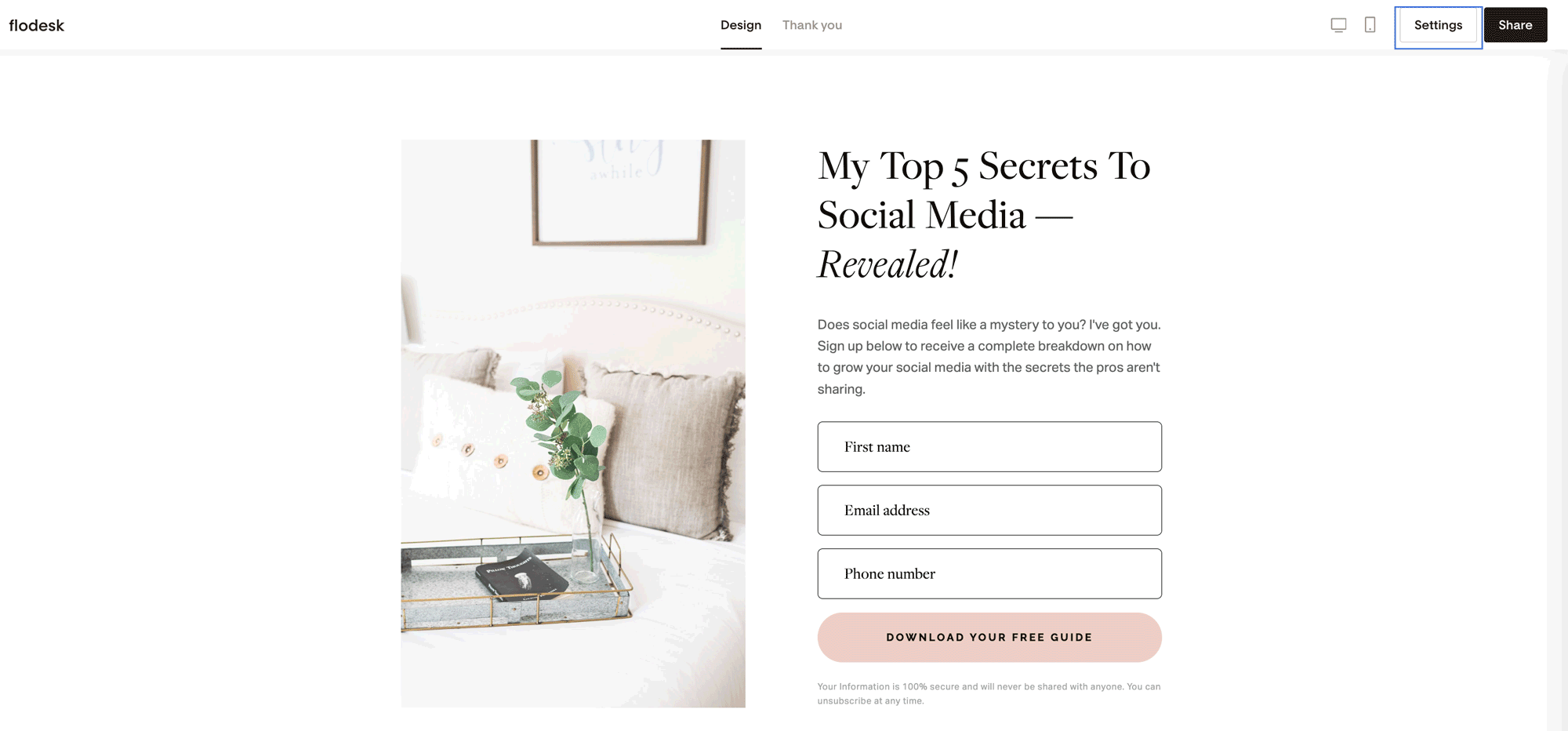
Check your form settings
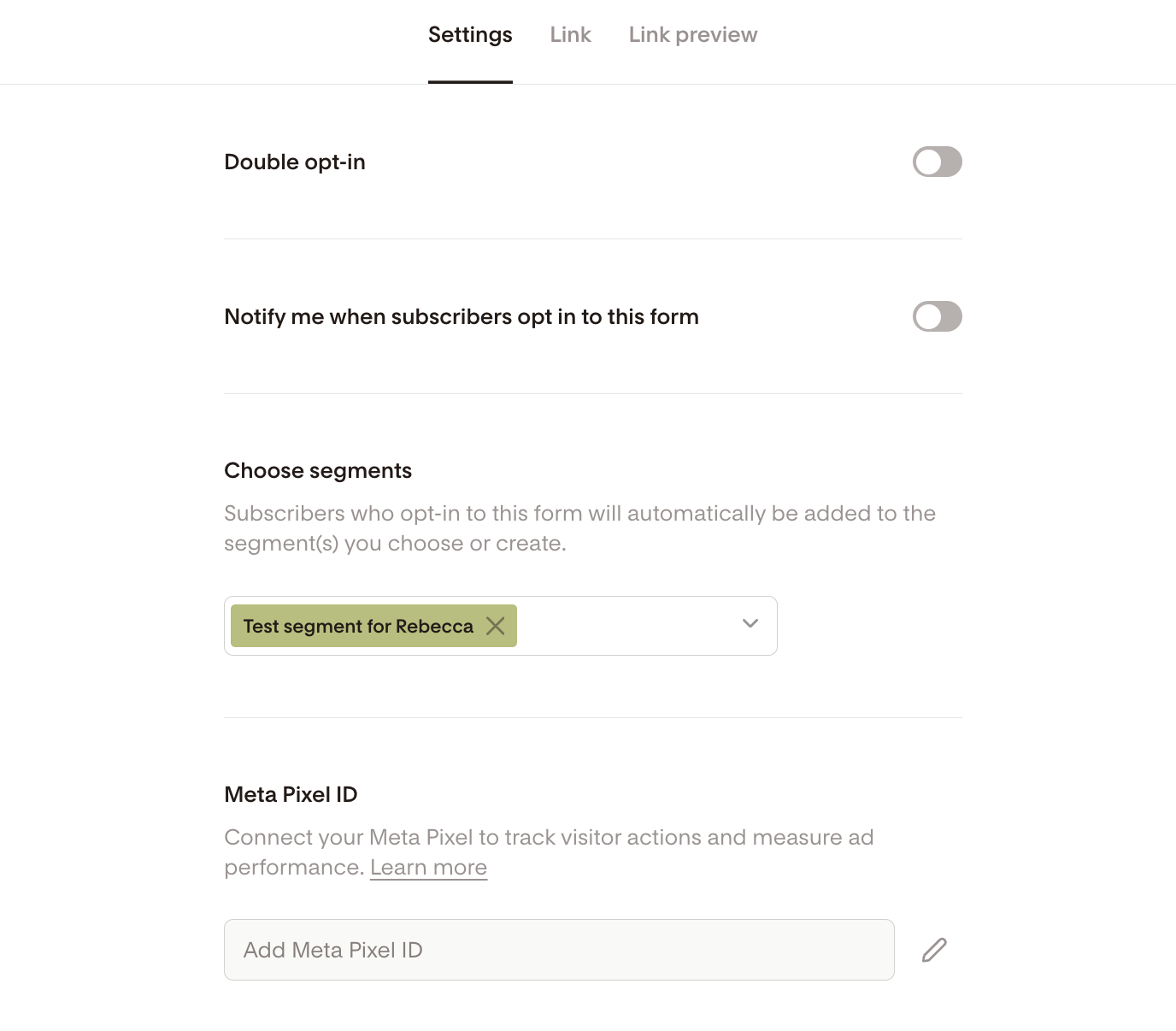
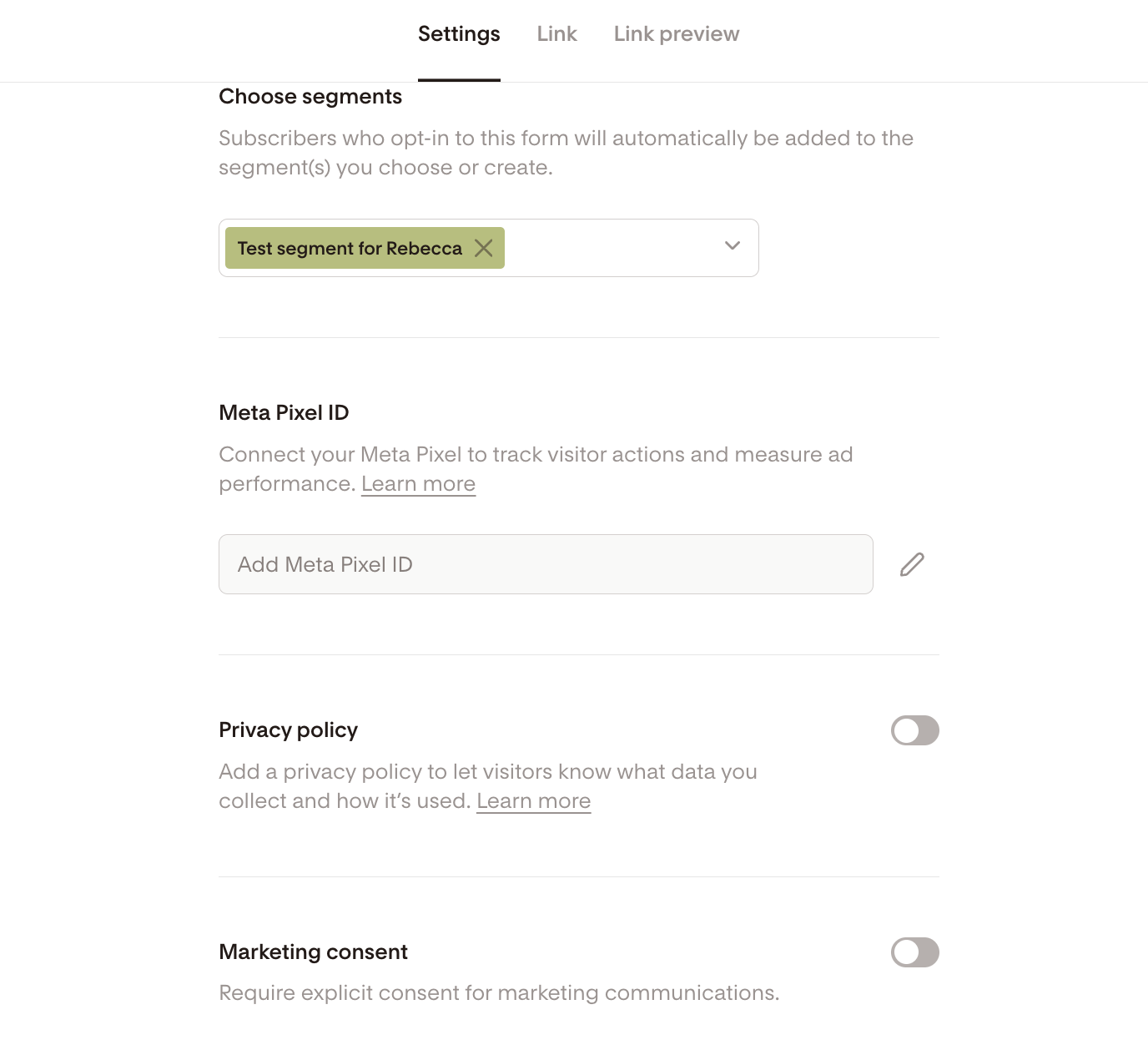
Click Settings and review:
Double opt-in (on or off)
Subscriber notifications
Connected segments
Add your Meta pixel ID
Add Privacy policy
Turn on explicit marketing consent
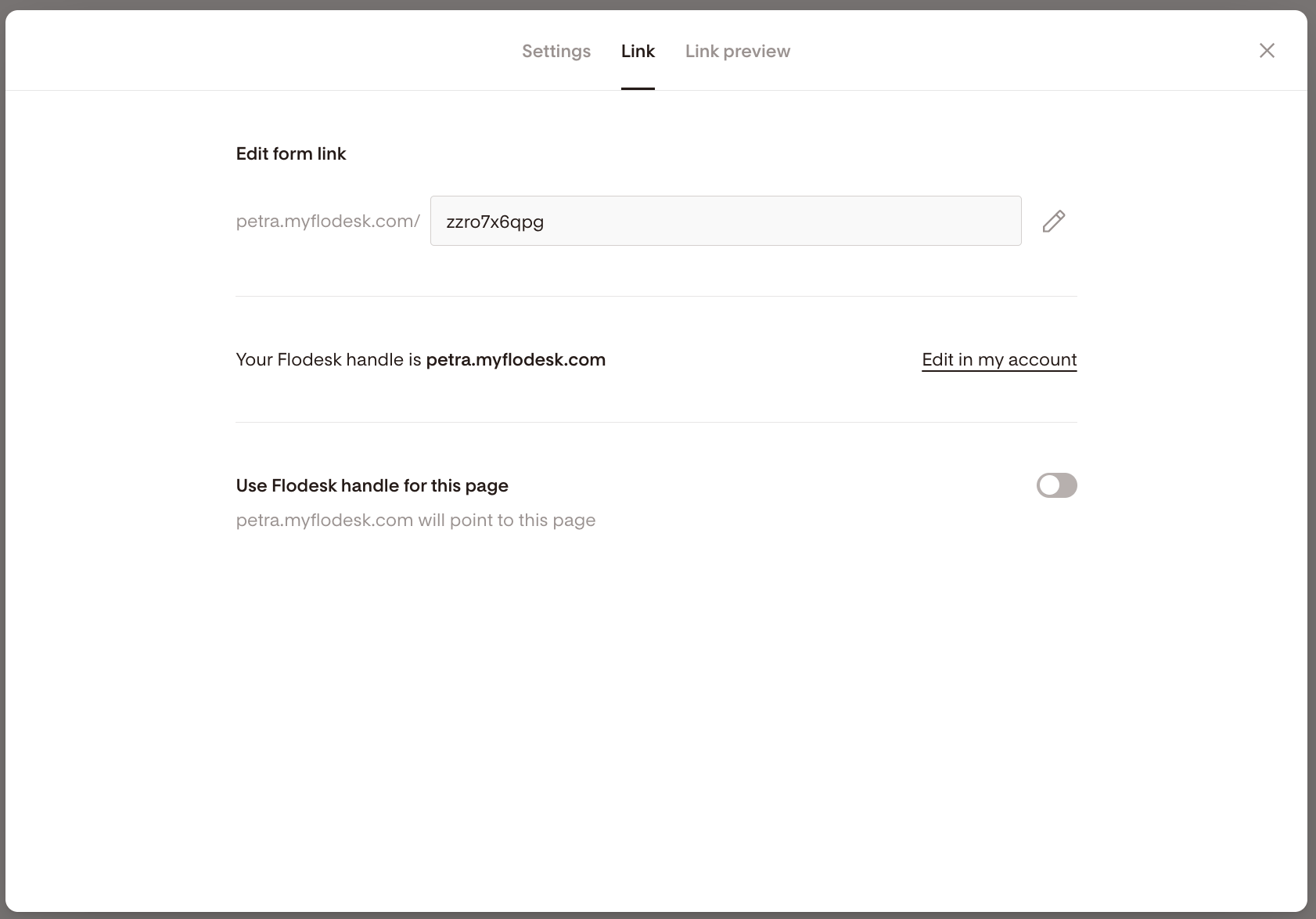
Customize your form link (optional but recommended)
Under the Link tab:
Click the pencil icon to edit the URL
Create a short, branded slug (for example:
/free-guideinstead of random characters)
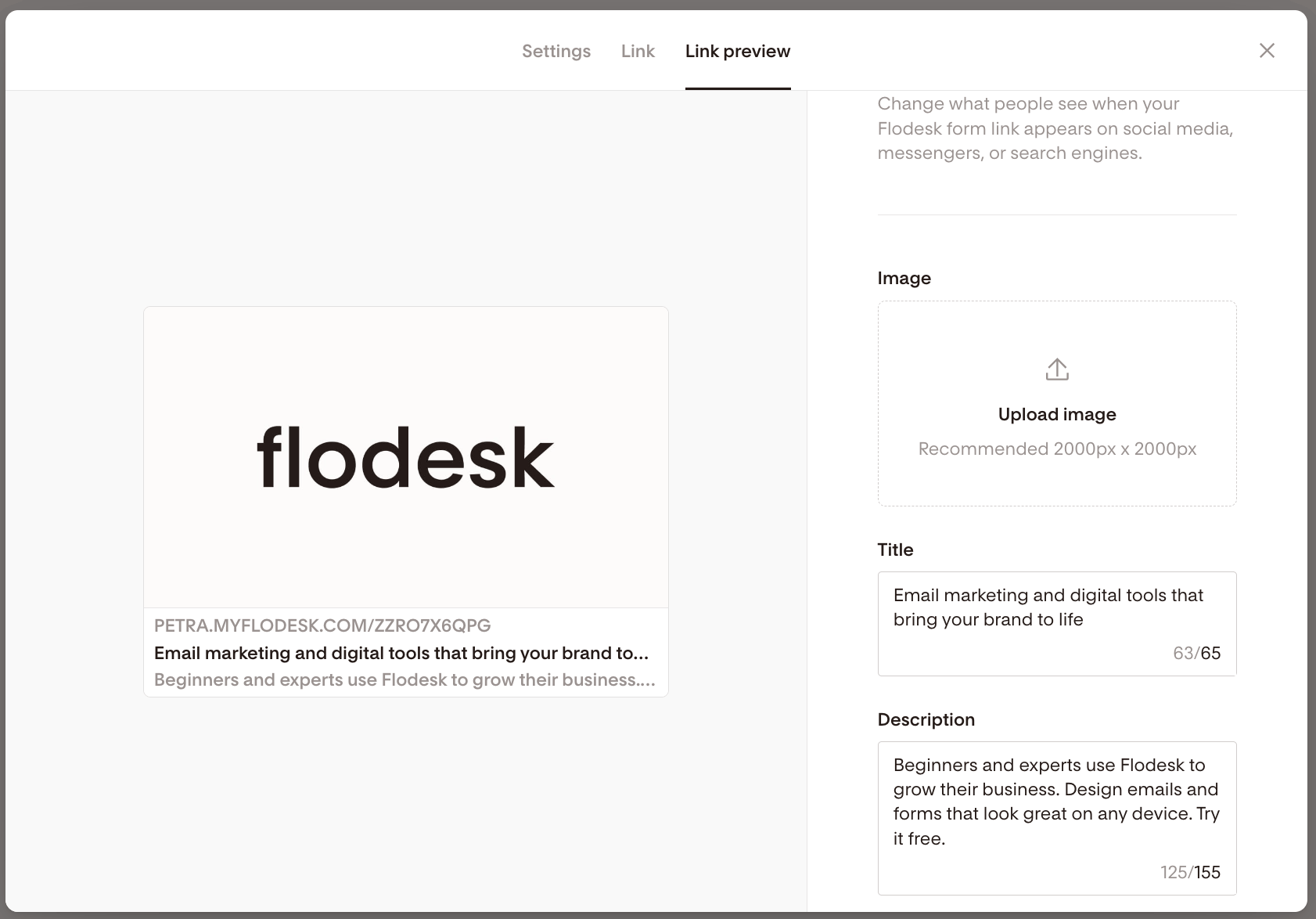
Update your link preview (optional)
In the Link preview tab, you can change:
Meta image
Meta title
Meta description
This controls what people see when your link is shared on social media or messaging apps.
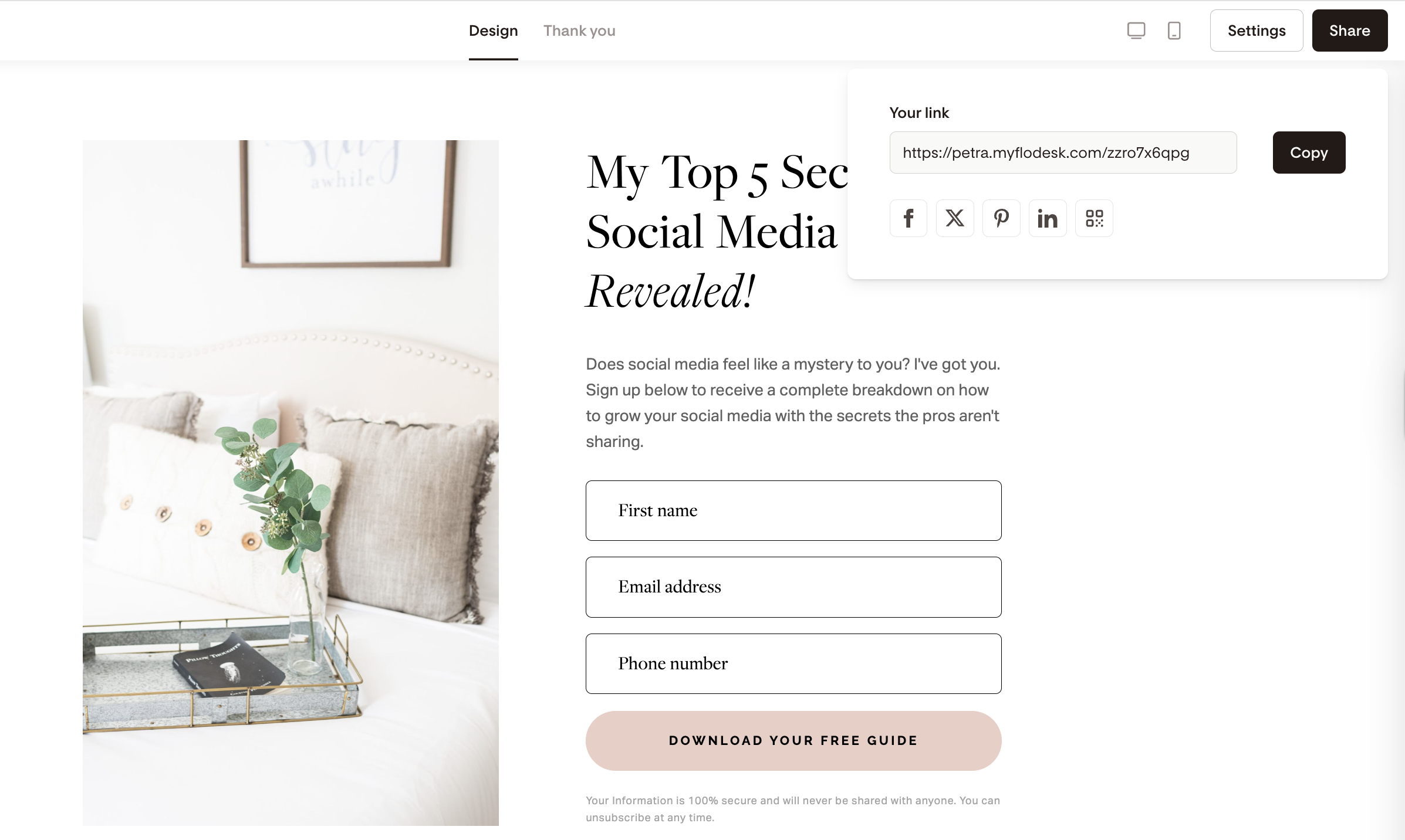
Step 3: Copy your form link
Once your form is ready:
Click Share
Click Copy to copy the form URL
This is the link you’ll add to Canva.
Step 4: Add the form link to your Canva website
Now switch over to Canva:
Open your Canva website editor.
Click on the element you want people to click (for example: a button, image, or text).
Use Canva’s Link tool (the chain icon).
Paste your Flodesk form URL.
Save and publish your site.
That’s it!
Now, when someone clicks that button or link, they’ll be taken to your Flodesk form and can subscribe there.
What this setup does (and doesn’t do)
Visitors can subscribe through your branded Flodesk form
Subscribers are added to your selected segment
You keep full control of your email list
✘ The form does not appear directly embedded on your Canva page
✘ Canva does not currently support Flodesk embed code
FAQs
Can I embed my Flodesk form directly into a Canva website?
No. Canva websites do not support HTML embed code. You must use a Full Page Form or Link in bio Form and link to it instead.
Which Flodesk form type should I use with Canva?
Use either:
Full Page Form for a simple, focused opt-in page
Link in bio Form if you want to include multiple links or additional content
Both work perfectly with Canva websites.
Will subscribers still be added to my segment?
Yes, as long as your form is connected to a segment in Flodesk. Always double-check your segment settings before publishing.
Can I customize the form URL?
Yes. In your form’s Link settings, click the pencil icon to edit the URL slug and make it shorter and more on-brand.
Can I change what shows when I share my form link on social media?
Yes. In the Link preview tab, you can update the meta image, title, and description that appear when the link is shared.
What if I want the form to feel more seamless on my Canva site?
To create a smoother experience:
Use a strong call-to-action button (“Get the Free Guide”)
Keep your branding consistent between Canva and Flodesk
Customize your form URL to match your offer
This helps the transition feel natural, even though it opens a separate page.
If your goal is to grow your email list from your Canva website, this method keeps everything simple, clean, and fully connected to your Flodesk account — no coding required.