
How to share Checkout templates with other Flodesk members
Overview
If you've built a checkout you're proud of, you can turn it into a shareable template that other Flodesk members can import directly into their accounts. This is useful for sharing with team members, sending to your audience as a resource, or offering as part of your services.
Once you generate a shareable link, anyone with it can preview and import your checkout design. Their version starts as a draft they can customize before publishing.
How to share a checkout as a template
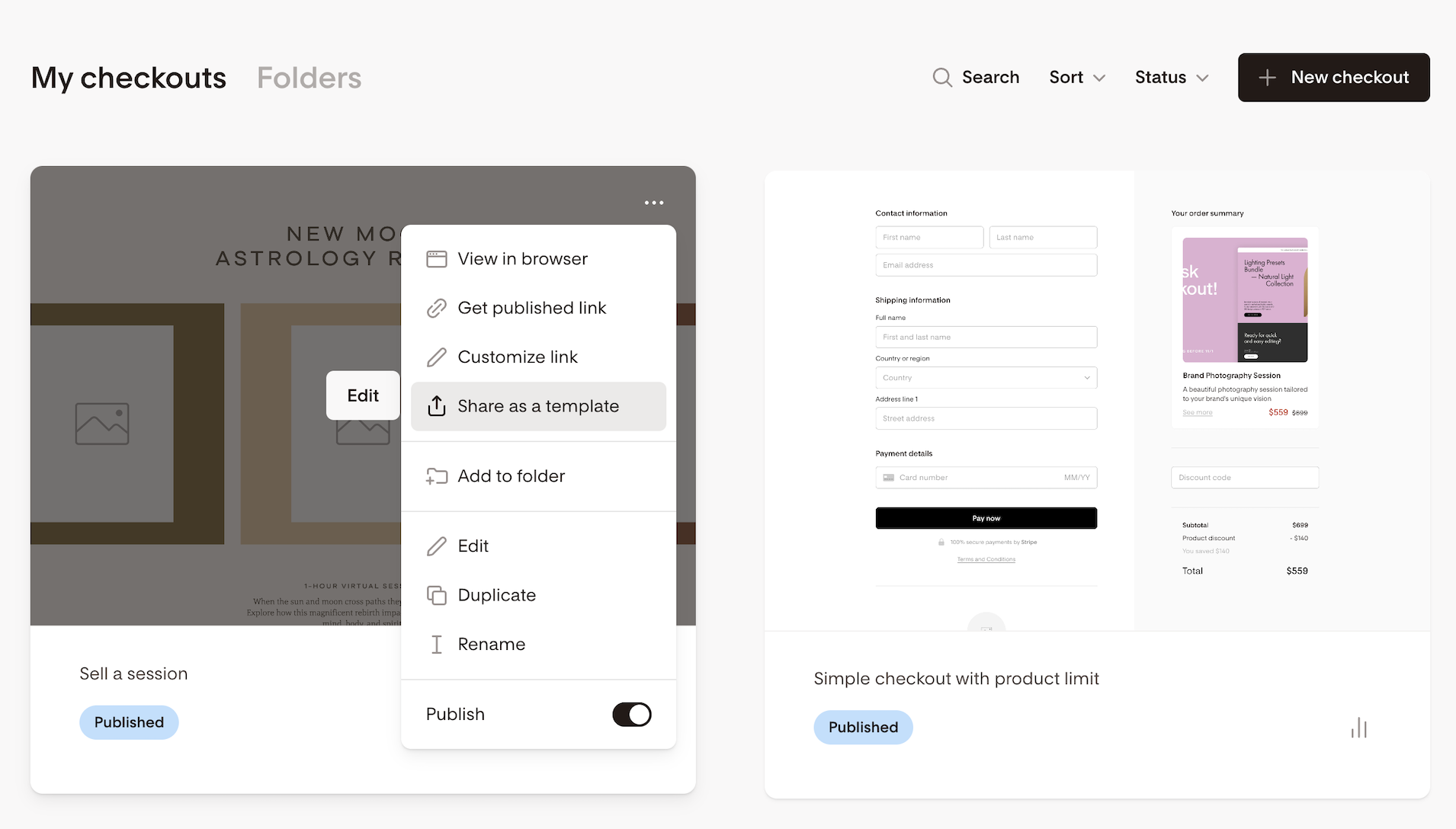
Go to your Checkouts dashboard
Hover over the checkout you want to share and click the three-dot menu (...)
Select Share as a template
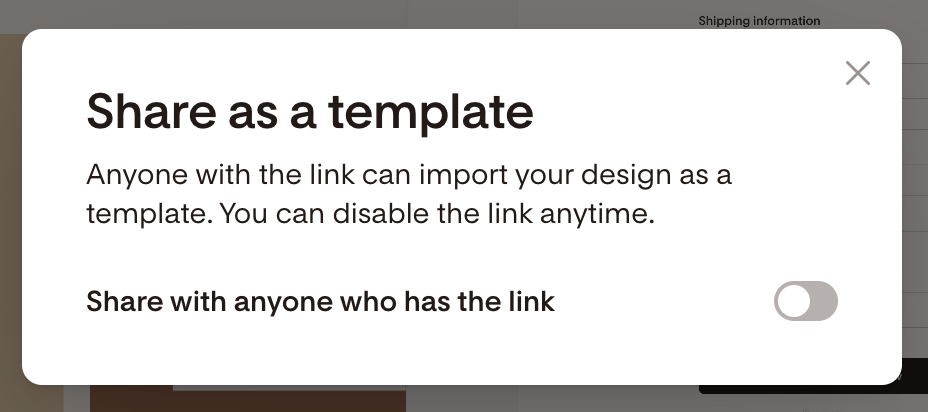
In the popup, toggle on Share with anyone who has the link
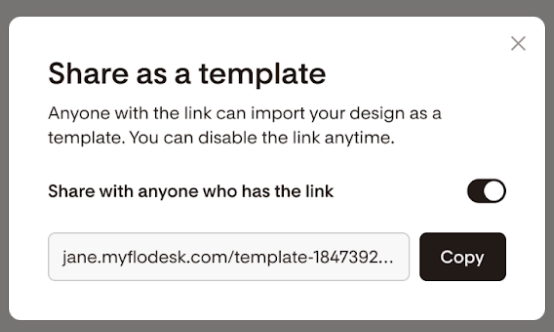
Use the built-in copy button to copy your unique URL
You can now share this link via email, social media, your website, or through your Flodesk Checkout.
How to turn off template sharing
To stop sharing a template at any time:
Hover over the checkout card and click the three-dot menu (...)
Select Share as a template
Toggle off the sharing option
If you turn sharing off and later decide to share it again, the original URL will remain the same.
What gets copied when someone imports your template
Not everything transfers when someone imports your template. Here's a breakdown of what's included and what isn't:
Sharing member | Receiving member | |
Checkout title | Checkout title | Copy of [Checkout title] |
Sales page | Sales page | All Sales page items are copied over |
Checkout | Checkout | All Checkout items are copied over |
Delivery | Delivery | All Delivery items are copied over except Download Links |
Setup | Setup includes
| All Setup settings will copy over except:
|
Checkout setup | Checkout setup includes
| These will not be copied over |
A few important notes:
Images: any images on your sales page will be imported with the template. Only use images you have the rights to share.
Custom fonts: if your template uses custom fonts, those fonts will carry over to the imported version. The recipient can edit the text but not the font weight. The font file won't be added to their account's brand fonts and won't appear in their font dropdown for use elsewhere.
Segments: any segments mapped for the opt-in segment, product segment, and upsell segment won't transfer. The member importing your template will need to create and map their own segments before publishing.
What the recipient sees when they click your link
When someone clicks your shared template link, they'll see a preview of your checkout design. They can toggle between desktop and mobile views to see how it looks on different devices.
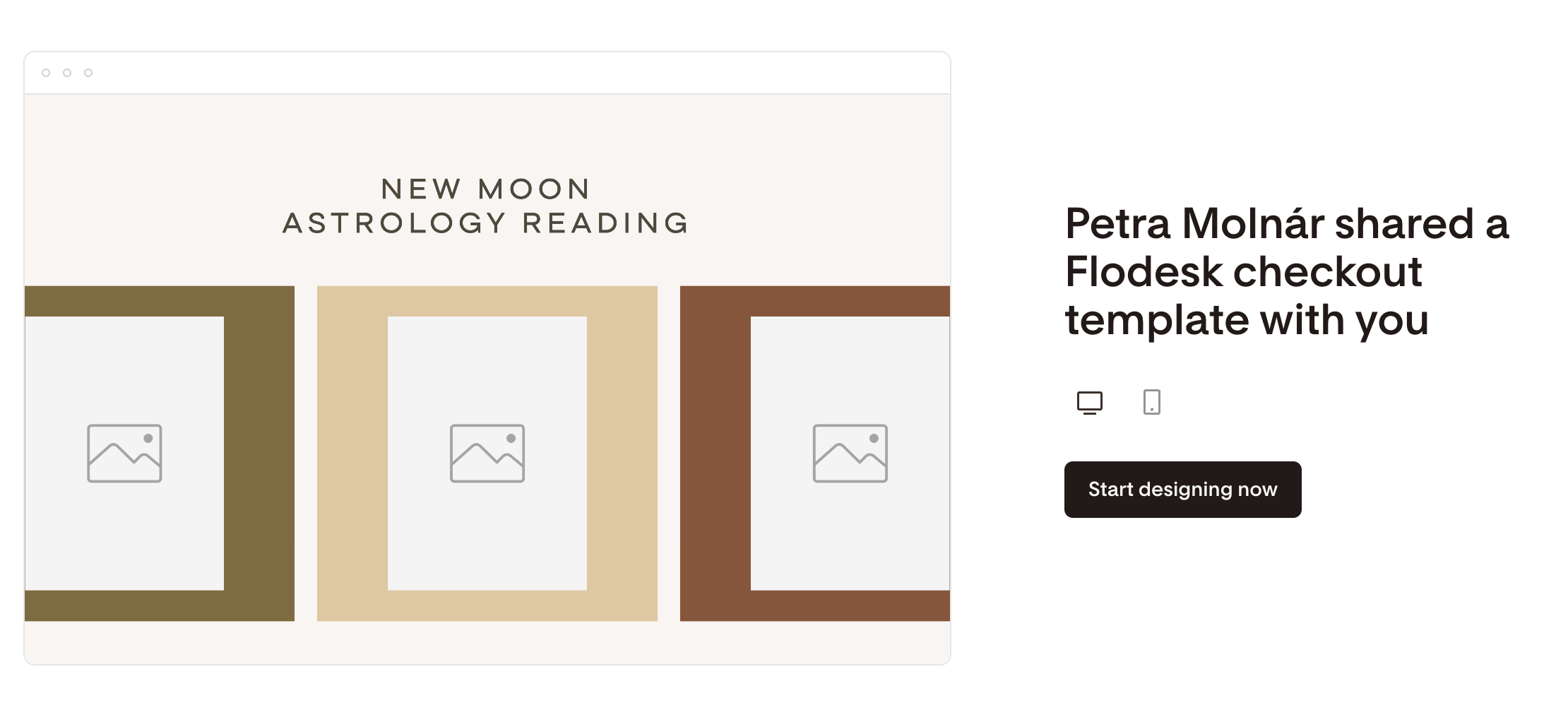
If they're already logged in to a Flodesk account, clicking Start designing now will import the template into their account as a draft.
If they don't have a Flodesk account yet, they'll be prompted to sign up first. Once they do, the template will be imported into their new account. If they sign up this way, it counts toward your affiliate commission.
How to track your template stats
Any checkout you've shared as a template will show a small globe icon on its card in your Checkouts dashboard.
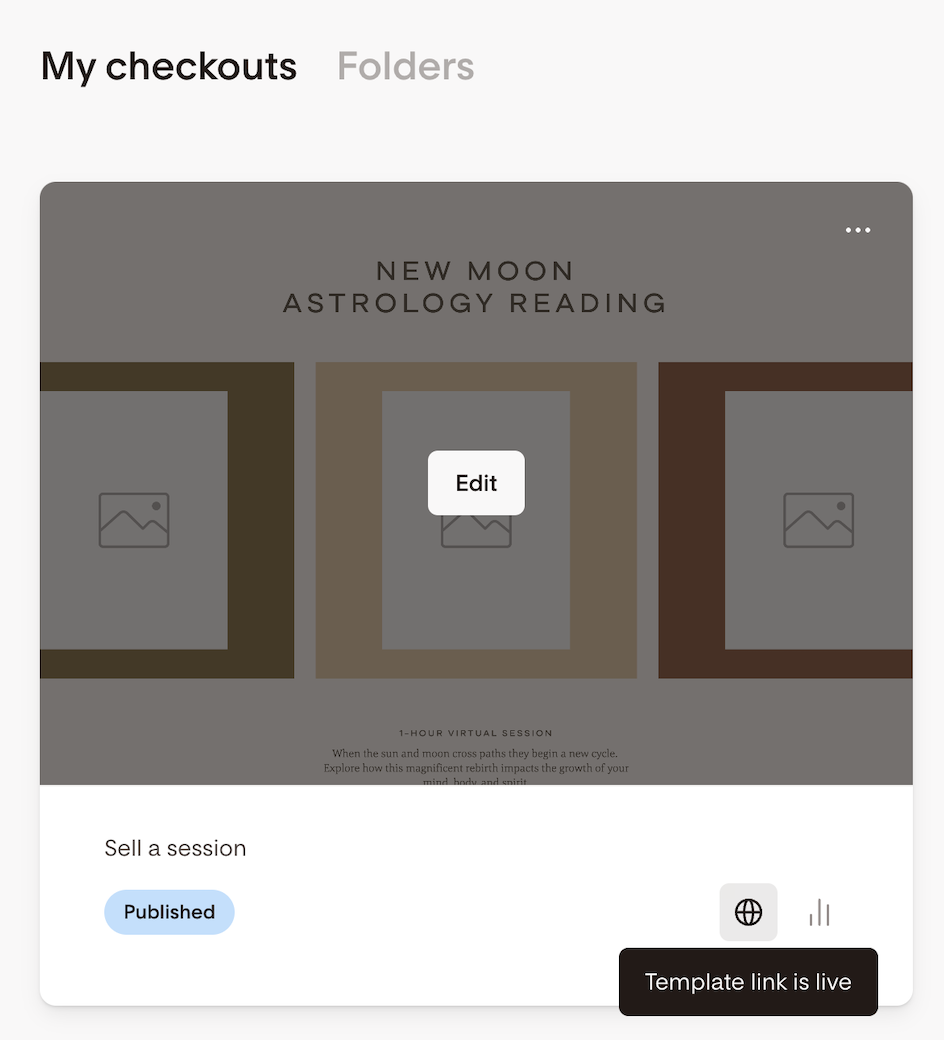
Click the icon to see:
How many people have viewed the template
How many people have used (imported) the template
Note: these are unique counts. If the same person imports a template multiple times, it still counts as one.
Editing and managing shared templates
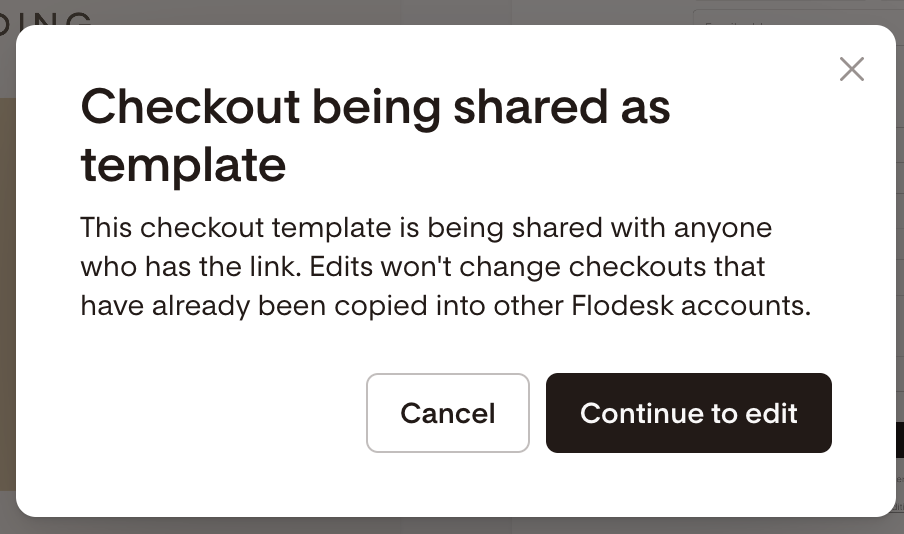
Editing a shared checkout: You can continue editing a shared checkout as usual. Any changes you make will appear under the same shared link going forward. However, edits won't apply to versions already imported by other members.
Duplicating a shared checkout: If you duplicate a checkout that's shared as a template, the new copy will have sharing turned off. It will appear as a new draft in your Checkouts dashboard.
Deleting or unpublishing a shared checkout: Deleting a shared checkout will make the link inaccessible. Anyone clicking it will see a 404 error. However, members who already imported the template will keep their copy.
Unpublishing a shared checkout doesn't automatically remove the shared link. You'll need to manually toggle off sharing if you want to stop others from accessing it.
Plan requirements
Checkout template sharing is available to members with an active paid Flodesk subscription that includes Checkout. It's not available on free trial, free tier, or Lite plans.
If your paid subscription expires, your shared template links will return a 404 error. If you renew, the links will become active again automatically.
FAQ
How do I share a Flodesk checkout as a template?
Go to your Checkouts dashboard, hover over the checkout you want to share, click the three-dot menu (...), and select Share as a template. Toggle on Share with anyone who has the link, then copy the URL and share it.
Can I share a checkout template with someone who doesn't have a Flodesk account?
Yes. When they click the link, they'll be prompted to sign up for Flodesk before importing the template. If they sign up through your link, it counts toward your affiliate commission.
What happens when someone imports my checkout template?
They get a copy of your checkout design saved as a draft in their account, titled "Copy of [your checkout title]." They can customize and publish it from there. Most design elements carry over, but segments, Stripe connection, Terms and Conditions, Privacy Policy, download links, and advanced settings won't transfer and will need to be set up separately.
Will my shared template update automatically when I edit my checkout?
Future edits to your checkout will appear under the same shared link. However, they won't affect versions already imported by other members. Those copies are independent once imported.
How do I see how many people have used my shared template?
Look for the globe icon on the checkout card in your Checkouts dashboard. Click it to see the number of unique views and imports. If someone imports the template more than once, it still counts as one.
Can I turn off template sharing after I've already shared it?
Yes. Go to the three-dot menu (...) on the checkout card, select Share as a template, and toggle off sharing. The link will become inaccessible. If you turn sharing back on later, the original URL stays the same.
What happens to shared templates if I delete my checkout?
The shared link will return a 404 error and become inaccessible to anyone trying to use it. Members who already imported the template before deletion will keep their copy unaffected.
What happens to my shared template links if my Flodesk subscription expires?
The links will return a 404 error while your subscription is inactive. If you renew your subscription, the links become active again automatically.
Do shared templates include my custom fonts?
Yes, custom fonts carry over to imported versions. The recipient can edit the text but not the font weight. The font file won't be added to their brand fonts in Flodesk and won't appear in their font dropdown for use elsewhere.
Which Flodesk plan do I need to share checkout templates?
You need an active paid Flodesk subscription that includes Checkout. Template sharing isn't available on free trial, free tier, or Lite plans.