
How to send new subscriber notifications to multiple email addresses
Overview
By default, Flodesk can send you an email notification when a new subscriber opts in through one of your forms. This notification goes to your default sending email address and only shows subscribers with an Active status.
If you want those notifications to go to more than one person or email address, you can set that up using Zapier. This article walks you through the full setup.
One thing to know before you start: this zap doesn't carry segment data from Flodesk to Zapier. The notification will include the subscriber's name and email address, but not the segment they were added to. If you need segment information in your notification, turn on subscriber notifications directly on your opt-in form in Flodesk instead.
What you'll need before you start
An active Flodesk account
A Zapier account
A connected email or communication account (Gmail, Outlook, or Slack)
How to set up multi-address subscriber notifications
Step 1: Create a new zap
Log in to Zapier and create a new zap. Give it a name so it's easy to find later.
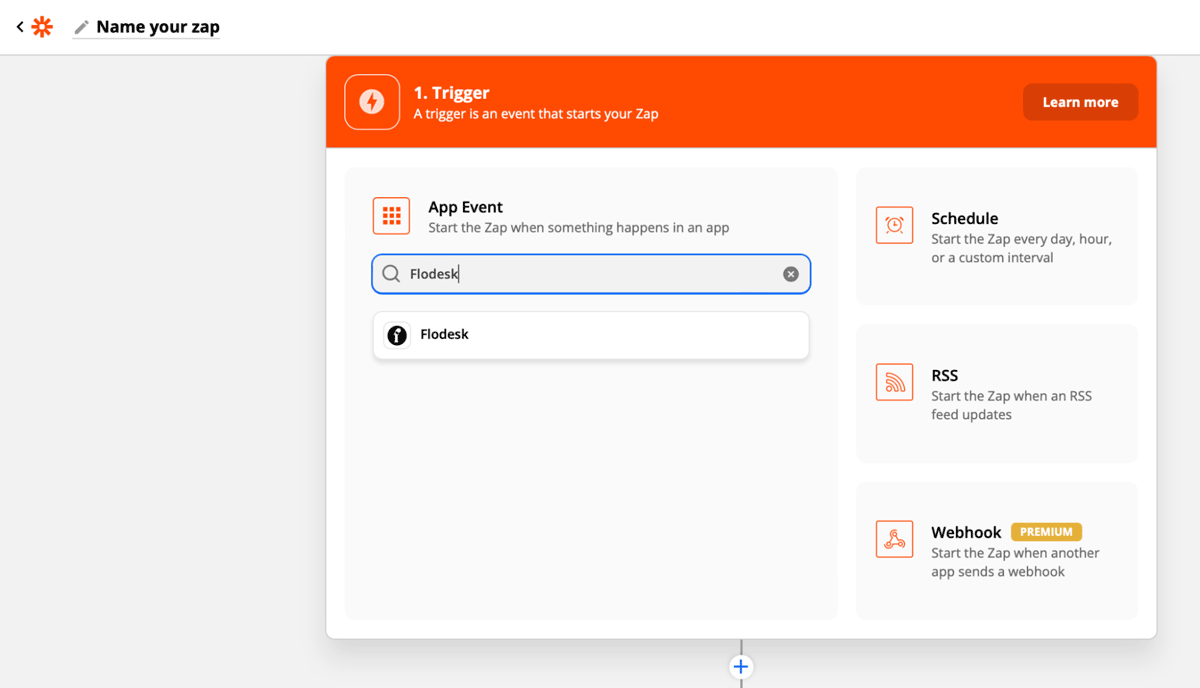
Step 2: Set Flodesk as the trigger
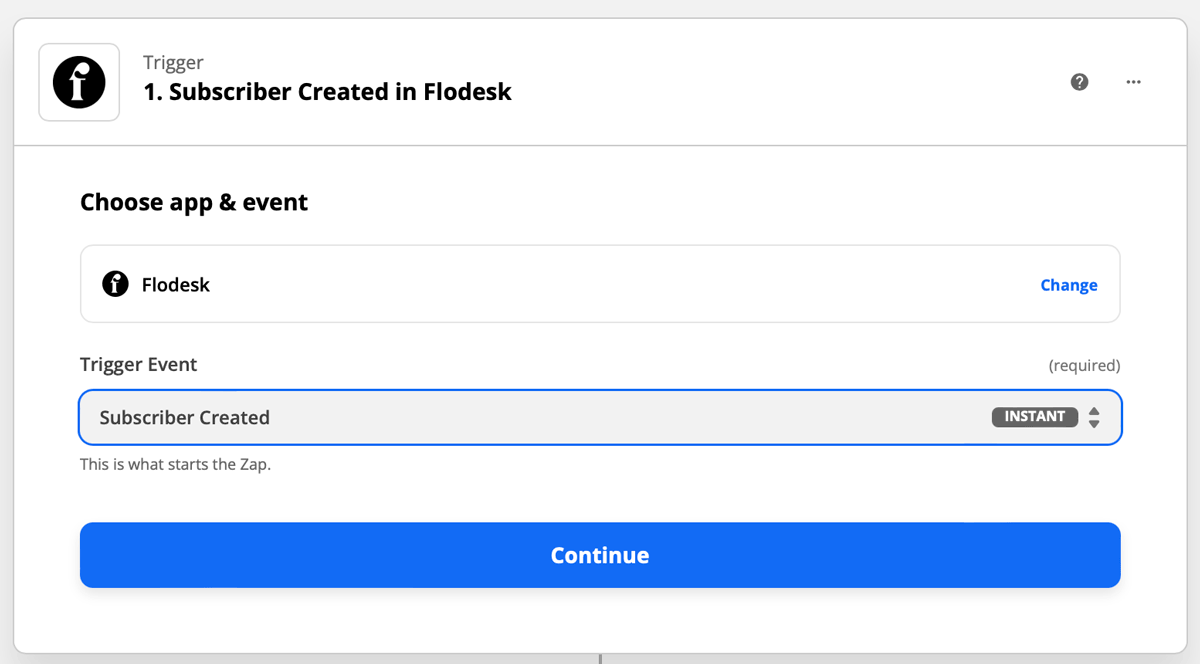
Select Flodesk as the trigger app and choose Subscriber Created as the event. This means the zap will run each time a new subscriber is added to your Flodesk account.
If you'd prefer to receive notifications when someone unsubscribes, choose Subscriber Unsubscribed as the event instead.
Step 3: Connect your Flodesk account
If this is your first time linking Flodesk and Zapier, you'll be prompted to log in to your Flodesk account. Zapier will then test the trigger to confirm it's working. This step is optional but recommended.
Step 4: Set Gmail as the action
Select Gmail as the action app (or Outlook or Slack if you prefer) and choose Send Email as the event.
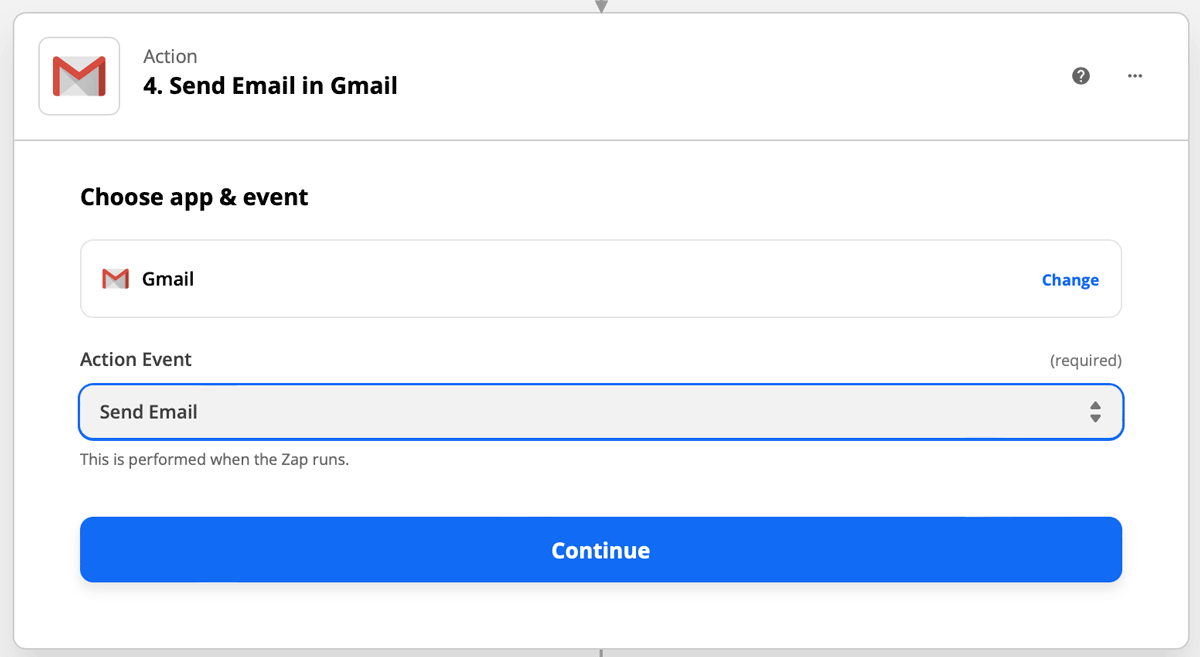
Step 5: Connect your Gmail account
If this is your first time connecting Gmail to Zapier, you'll be prompted to log in and grant access.
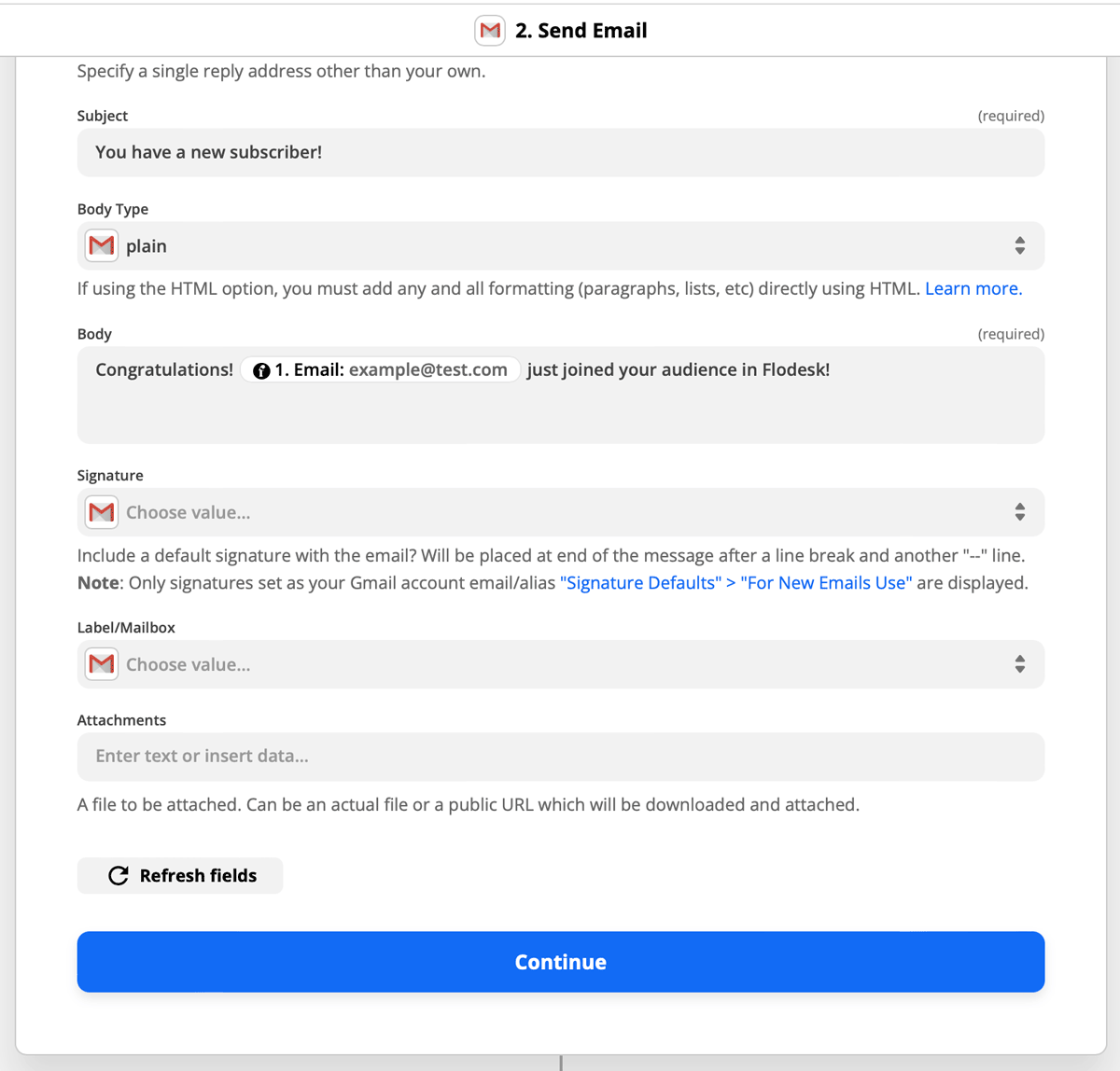
Step 6: Configure the email
Set up the notification email:
To field: add the primary email address you want to receive notifications
CC field: add any additional email addresses, separated by a comma and space (for example, hello@yourbusiness.com, team@yourbusiness.com)
Body: include at least one Flodesk data field (such as the subscriber's email address or name) so the notification shows the new subscriber's details
Note: if you don't want to receive the default Flodesk notification at your sending address in addition to this zap, you can turn that off in your opt-in form settings in Flodesk. Turning it off won't affect this zap.
Step 7: Test and turn on your zap
Run the test in Zapier to confirm everything is working correctly. Once it passes, turn the zap on so it's live.
FAQ
How do I send new subscriber notifications to more than one email address in Flodesk?
Flodesk's built-in notification only sends to one address (your default sending email). To notify multiple addresses, set up a Zapier automation with Flodesk as the trigger (Subscriber Created) and Gmail (or another email app) as the action. Add your primary address to the To field and any additional addresses to the CC field, separated by commas.
Can I include the subscriber's segment in the notification?
Not through this Zapier zap. The zap includes the subscriber's name and email address but doesn't carry segment data. If you need segment information in your notification, turn on subscriber notifications directly on your opt-in form within Flodesk. That notification will include segment details.
Can I use Outlook or Slack instead of Gmail for these notifications?
Yes. When setting up the action step in Zapier, you can choose any supported communication app, including Microsoft Outlook and Slack. The setup steps are the same: select your app, choose the Send Message or Send Email action, and add your recipient addresses.
Will turning on this Zapier notification replace my existing Flodesk subscriber notification?
No. The Zapier notification runs separately from Flodesk's built-in notification. If you want to stop receiving the default Flodesk notification at your sending address, you can turn it off in your opt-in form settings. This won't affect the zap.
Can I receive a notification when someone unsubscribes instead of when someone subscribes?
Yes. When setting up the Flodesk trigger in Zapier, choose Subscriber Unsubscribed instead of Subscriber Created. The rest of the zap setup stays the same.