
How to create and send a daily roundup email of your new subscribers
Overview
Want to know how your audience is growing without checking Flodesk every day? You can set up a Zapier automation that sends you a daily (or weekly, or monthly) email showing how many new subscribers you gained over a given period.
This article walks you through setting up a zap that delivers a subscriber count to your inbox every morning, using Flodesk, Digest by Zapier, and Gmail (or another communication app like Outlook or Slack).
What you'll need before you start
An active Flodesk account
A paid Zapier account (the Daily Digest feature requires a multi-step zap, which isn't available on Zapier's free plan)
A connected email or communication account (Gmail, Outlook, or Slack)
How to set up the automation
This zap uses one trigger and three action steps:
Trigger: Flodesk (new subscriber created)
Action 1: Digest by Zapier (collect and count subscribers)
Action 2: Delay by Zapier (hold the digest until your preferred delivery time)
Action 3: Gmail (send the email to your inbox)
Step 1: Create a new zap
Log in to Zapier and create a new zap. Give it a name so it's easy to find later.
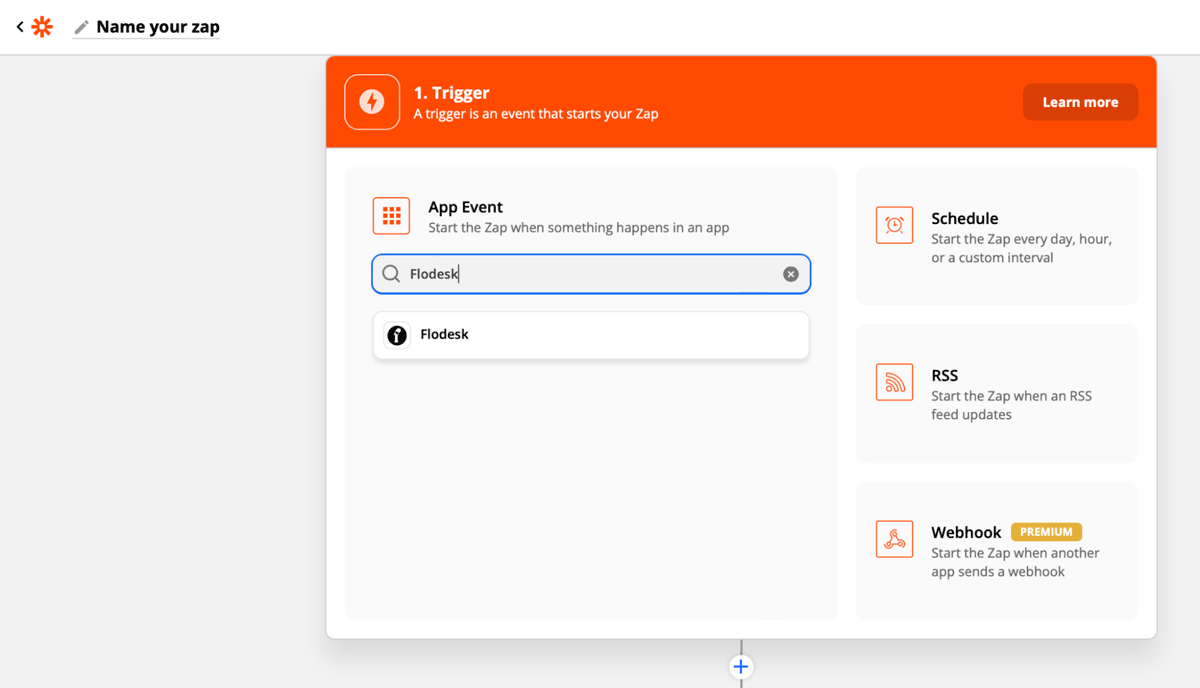
Step 2: Set Flodesk as the trigger
Select Flodesk as the trigger app and choose Subscriber Created as the event. This means the zap will run each time a new subscriber is added to your Flodesk account.
If you'd prefer to track unsubscribes instead, choose Subscriber Unsubscribed as the event.
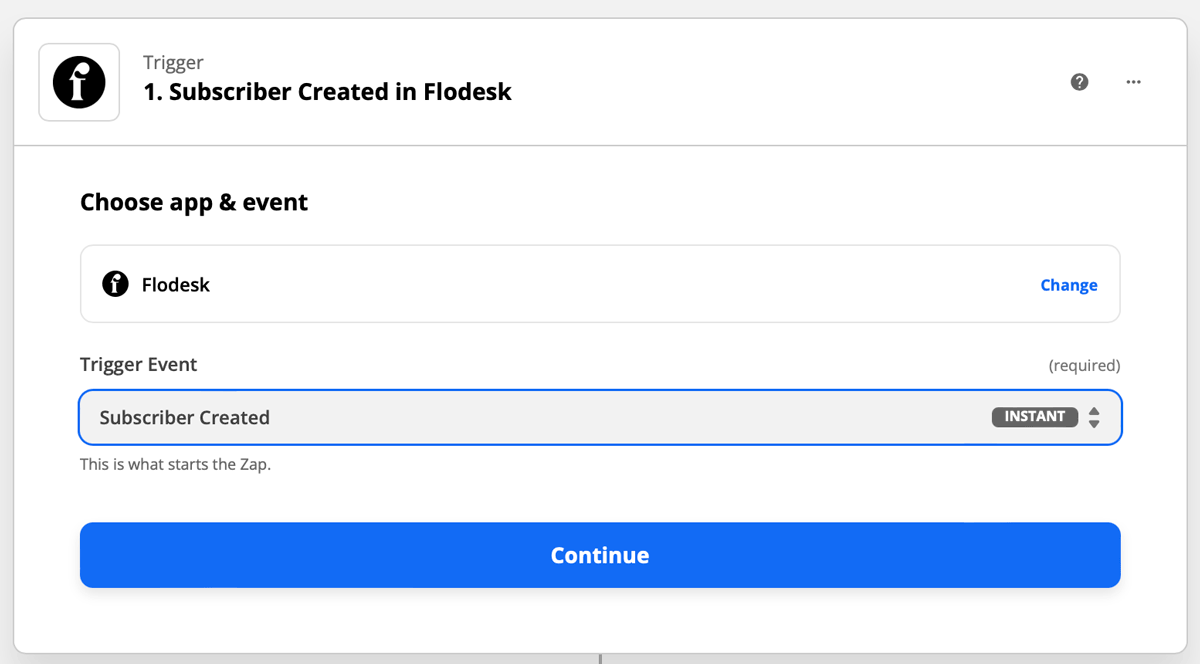
Step 3: Connect your Flodesk account
If this is your first time linking Flodesk and Zapier, you'll be prompted to log in to your Flodesk account. Zapier will then test the trigger to confirm it's working.
Step 4: Add Digest by Zapier as the first action
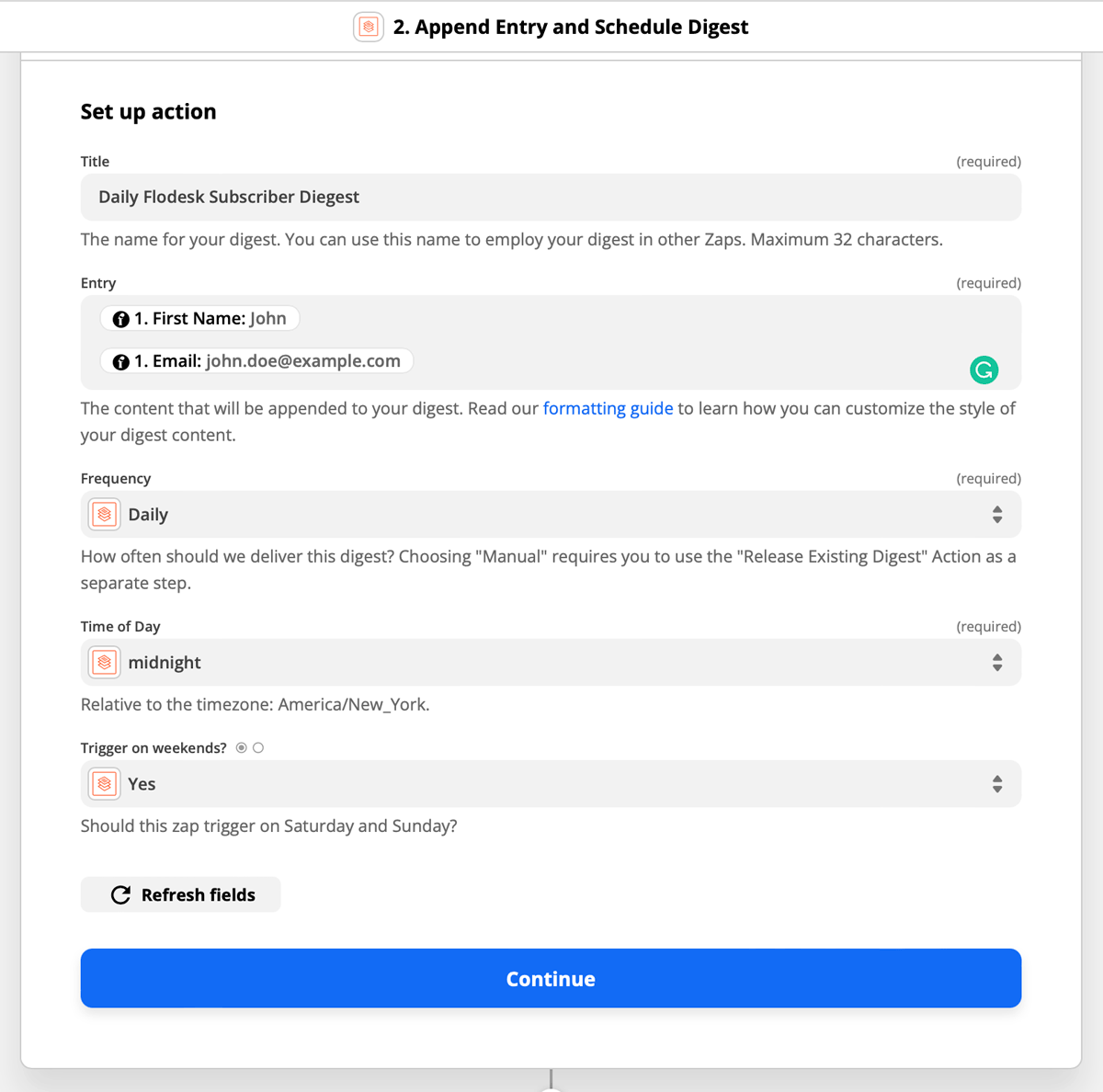
Select Digest by Zapier as the action app and choose Append Entry and Schedule Digest as the event. Then fill in the fields:
Title: the name for your digest (for example, "Daily new subscribers")
Entry: the data to include in the digest (map this to the subscriber data from the Flodesk trigger)
Frequency: how often the digest should send (daily, weekly, or monthly)
Time of day: set this to midnight so the digest counts subscribers from midnight to 11:59 pm for the previous day
Trigger on weekends: check this if you want to receive the digest on Saturdays and Sundays
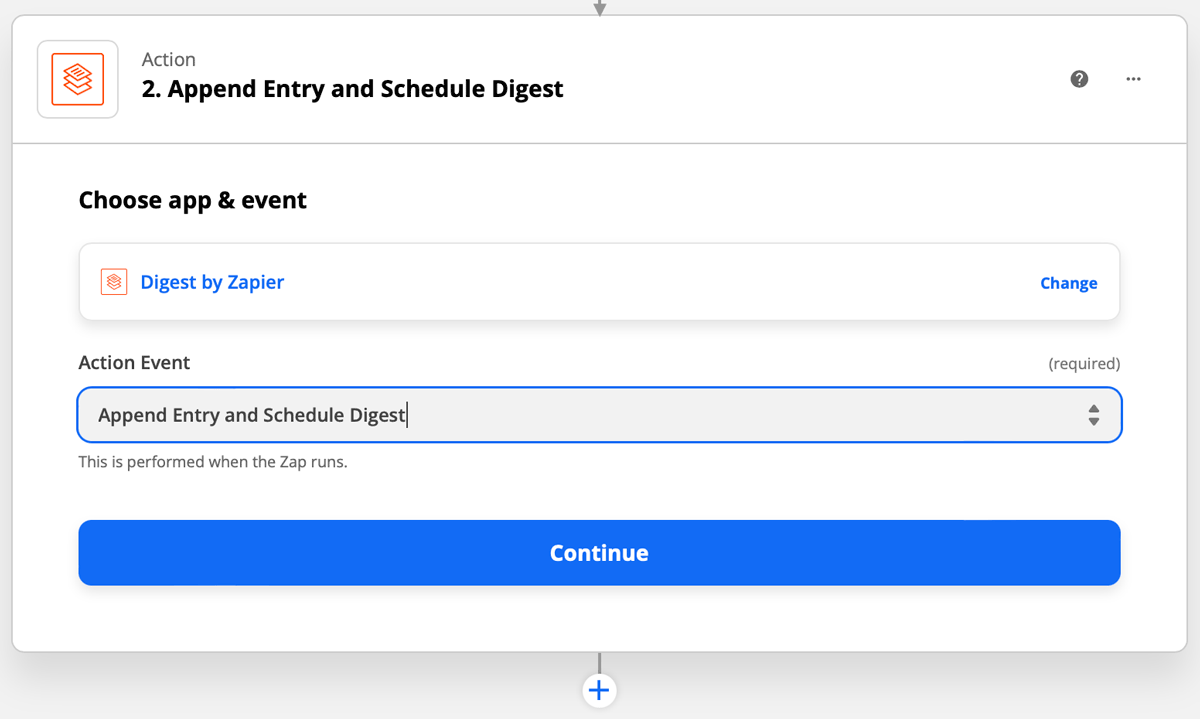
Step 5: Add Delay by Zapier as the second action
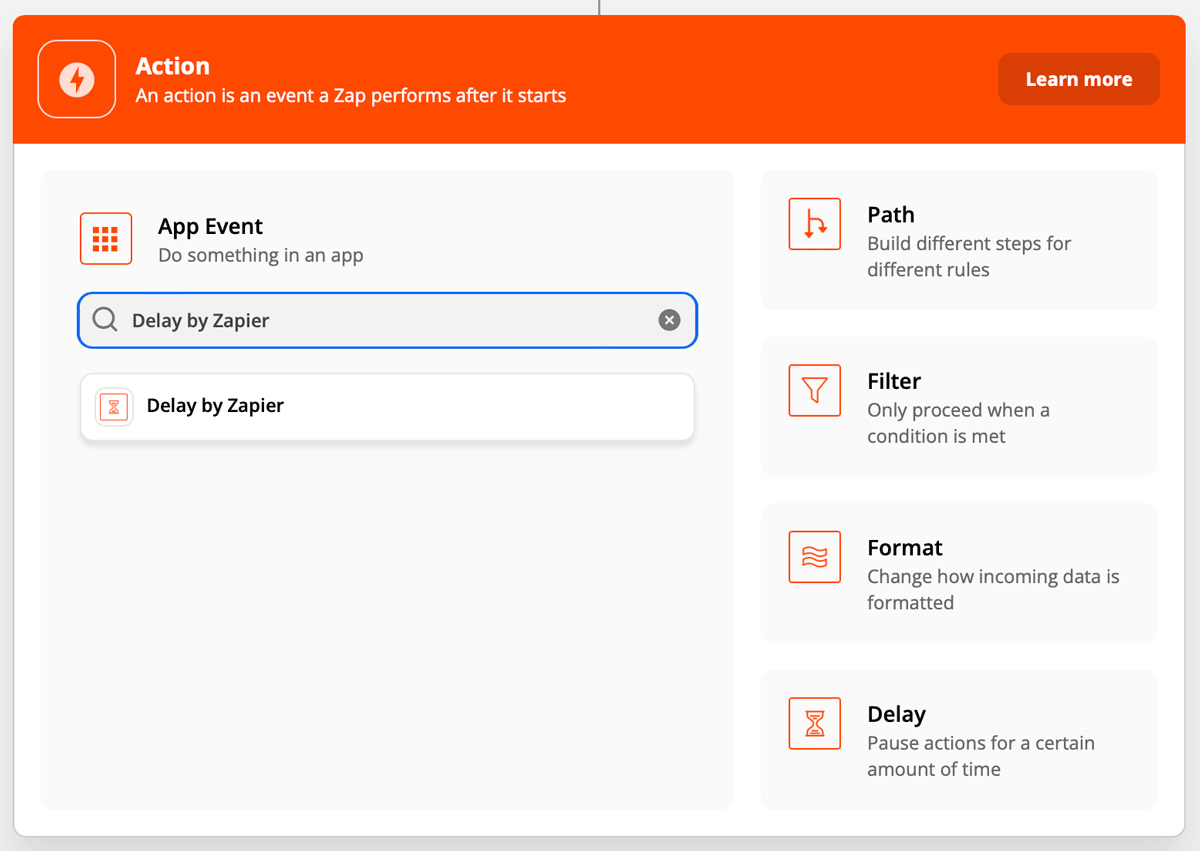
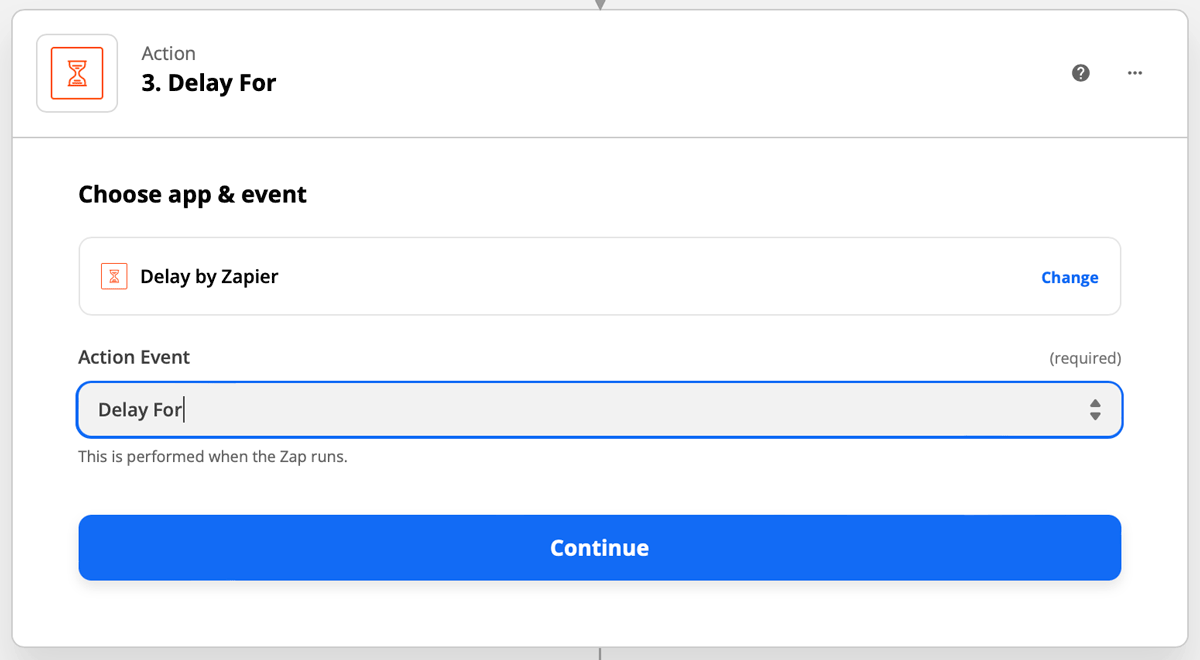
By default, the digest will send at midnight. If you'd prefer to receive it later in the morning, add a Delay by Zapieraction step and choose Delay For as the event.
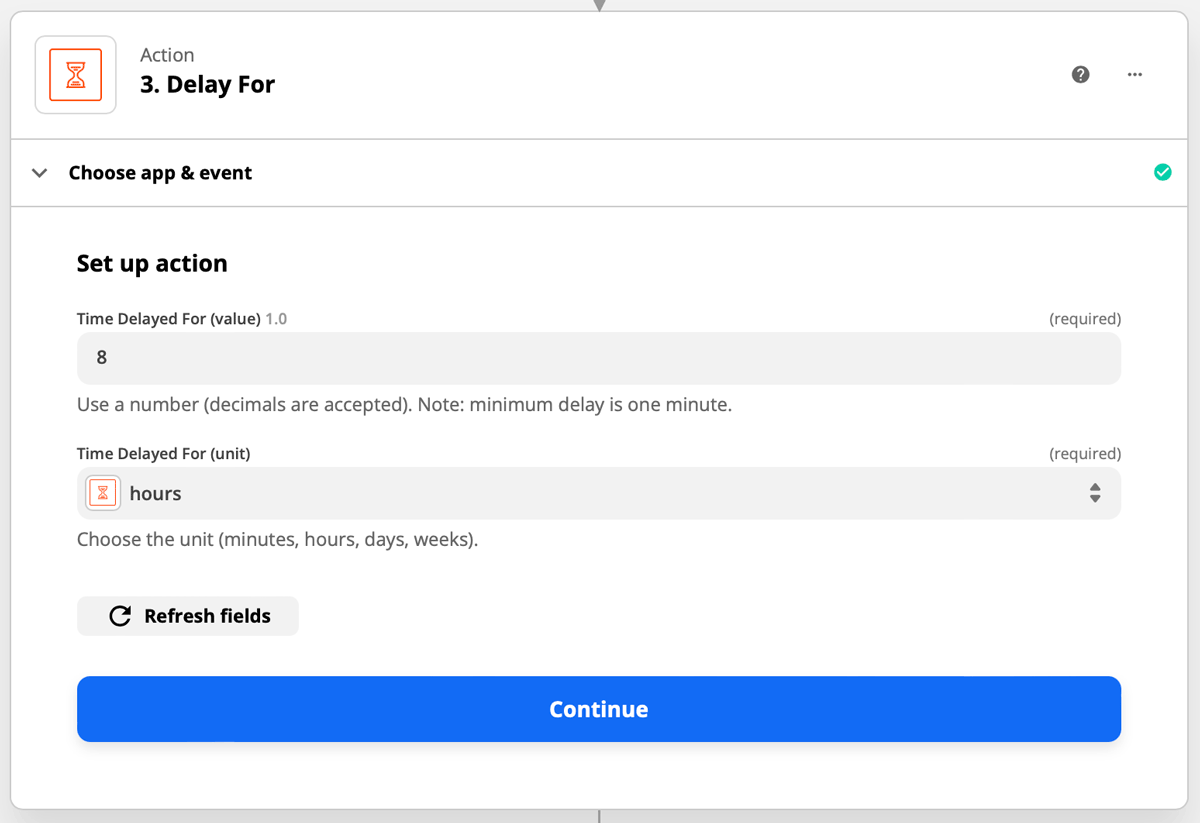
Set the delay to however many hours after midnight you want the email to arrive:
8:00 am: delay for 8 hours
1:00 pm: delay for 13 hours
2:00 pm: delay for 14 hours
If midnight delivery works for you, skip this step.
Step 6: Add Gmail as the final action
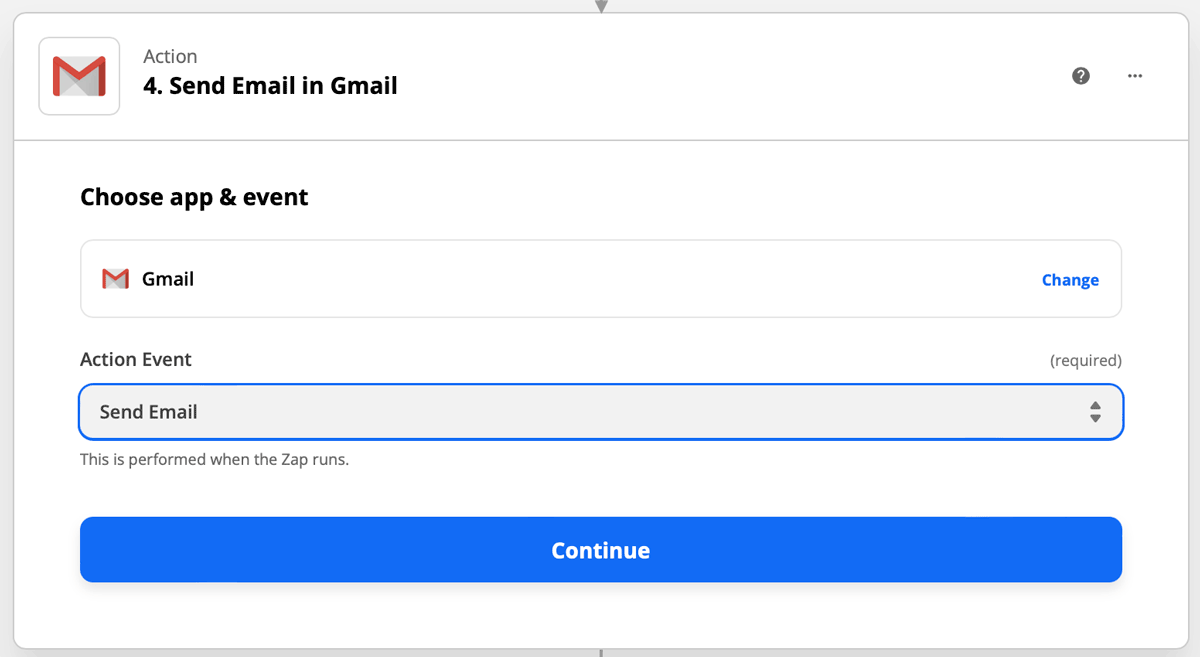
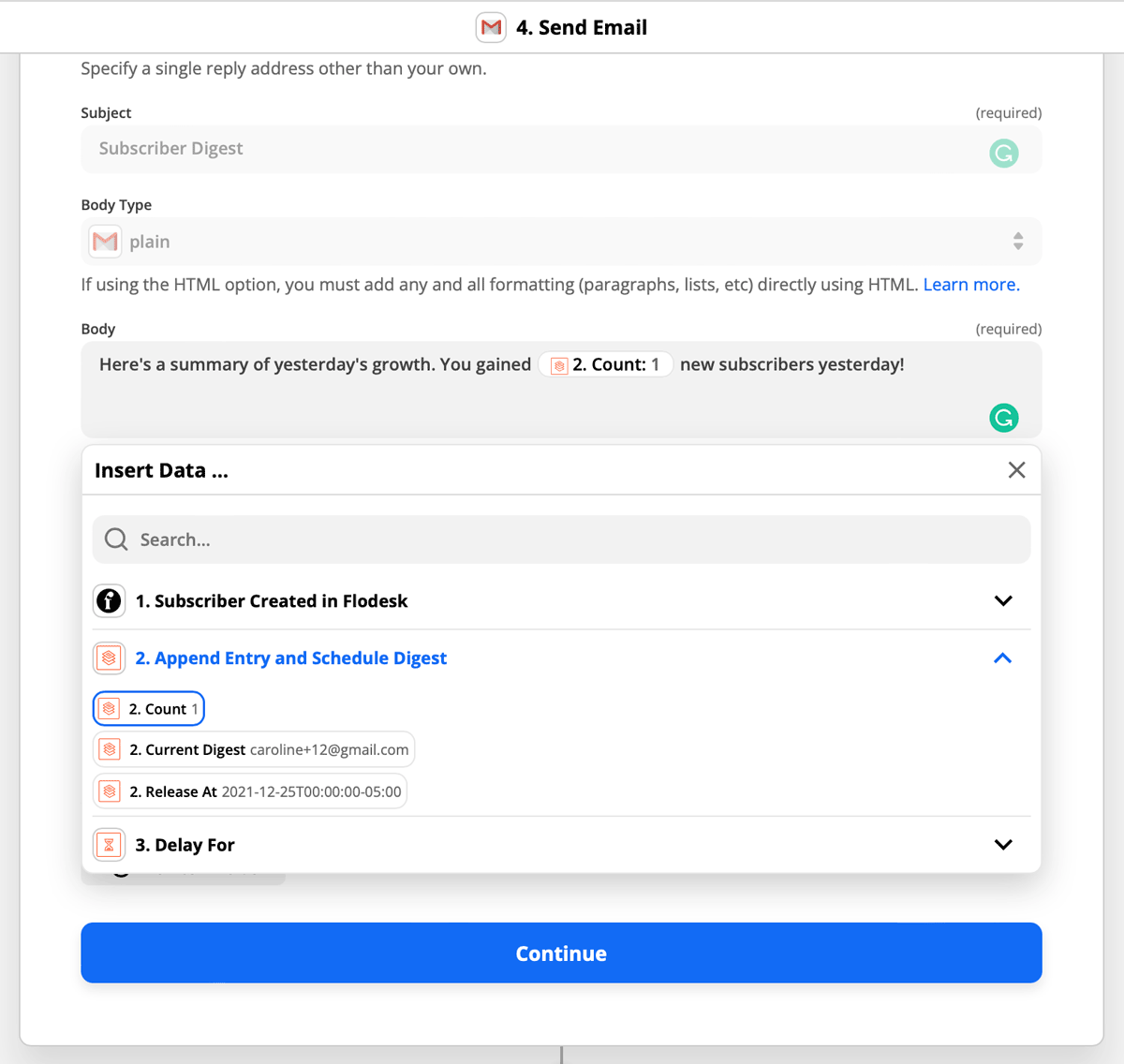
Select Gmail as the action app (or Outlook or Slack if you prefer) and choose Send Email as the event.
Connect your Gmail account if you haven't already. When setting up the email body, make sure to include the Count field from the Digest step. This is what pulls the actual subscriber number into your email.
Step 7: Test and turn on your zap
Run the test in Zapier to make sure everything is connected correctly. Once the test passes, turn the zap on so it's live.
FAQ
How do I get a daily email showing how many new subscribers I gained?
You can set this up using Zapier. Create a multi-step zap with Flodesk as the trigger (Subscriber Created), Digest by Zapier as the first action (Append Entry and Schedule Digest), an optional Delay by Zapier step to control delivery time, and Gmail (or Outlook or Slack) as the final action to send the email.
Do I need a paid Zapier account for this?
Yes. The Daily Digest feature uses a multi-step zap, which isn't available on Zapier's free plan. You'll need a paid Zapier account to set this up.
Can I receive the digest weekly or monthly instead of daily?
Yes. When setting up the Digest by Zapier action, you can choose your preferred frequency: daily, weekly, or monthly. The rest of the setup stays the same.
What time will I receive the digest email?
By default, the digest sends at midnight. To receive it later, add a Delay by Zapier step and set the delay to the number of hours after midnight you want it to arrive. For example, an 8-hour delay means delivery at 8:00 am.
Can I use Slack or Outlook instead of Gmail?
Yes. Gmail is used as the example in this article, but you can use any supported communication app in Zapier, including Microsoft Outlook and Slack. The setup is the same: just swap Gmail for your preferred app in the final action step.
Can I track unsubscribes instead of new subscribers?
Yes. When setting up the Flodesk trigger, choose Subscriber Unsubscribed instead of Subscriber Created. The rest of the zap stays the same, and you'll receive a digest showing how many subscribers left your list over the chosen time period.
Why isn't the subscriber count showing up in my digest email?
Check that the body of your Gmail action includes the Count field from the Digest by Zapier step. This is what pulls the subscriber number into the email. If it's missing, edit the Gmail action and add the Count field to the email body.