
How to remove clients from a sales workflow after they convert
Overview
Once a lead becomes a paying client, you probably don't want them to keep receiving your sales emails. There are two ways to handle this in Flodesk, depending on your setup:
Option 1 (recommended): Use Flodesk's built-in workflow exclusion feature to exclude a "clients" segment from your sales workflow. This is the simplest approach and doesn't require any third-party tools. Learn how to exclude subscribers from a workflow in Flodesk.
Option 2: Use Zapier to connect your CRM (such as HoneyBook, Dubsado, or Keap) to Flodesk, so that when a client is marked as a paying customer in your CRM, they're automatically removed from the workflow.
If you collect paying clients into a dedicated Flodesk segment, Option 1 is the quickest way to get this done. The rest of this article covers Option 2 for members who want to automate removal directly from their CRM via Zapier.
Option 1: Use Flodesk's built-in workflow exclusion (recommended)
Flodesk has a native feature that lets you exclude specific segments from entering or continuing in a workflow. If you add paying clients to a dedicated segment (for example, "Clients" or "Purchased"), you can set that segment as an exclusion on your sales workflow. Subscribers in that segment won't enter the workflow, and anyone already in it will be removed automatically when they're added to the segment.
See the full setup steps: How to exclude subscribers from a workflow in Flodesk.
Option 2: Automate removal via Zapier and your CRM
If you use a CRM like HoneyBook to manage clients and want removal to happen automatically when a payment is recorded, you can set this up with Zapier. This example uses HoneyBook, but the same approach works with Dubsado, Bonsai, Keap, and other CRMs.
Before you start, two conditions must be met for this zap to work:
The client's email address in your CRM must be the same address they used to opt in to Flodesk
The subscriber must already be in your Flodesk audience and currently active in the workflow
What you'll need:
An active Flodesk account
A Zapier account
A HoneyBook account (or another supported CRM)
At least one segment and one sales workflow in Flodesk
Step 1: Create a new zap
Log in to Zapier and create a new zap. Give it a name so it's easy to find later.
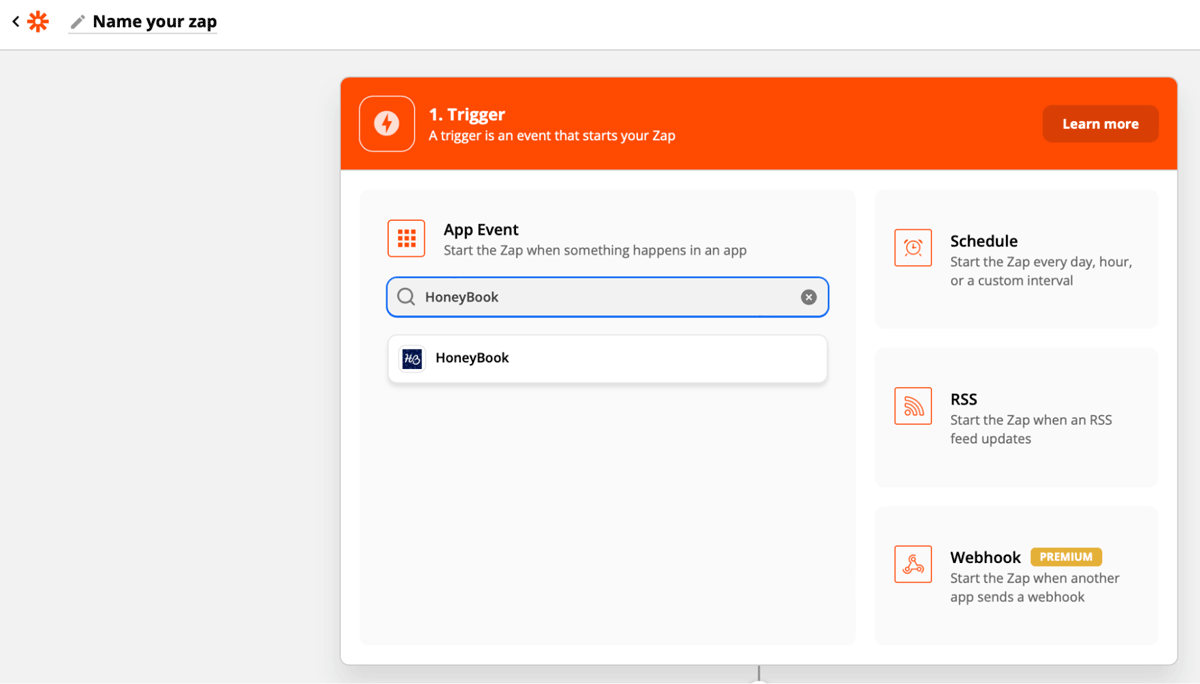
Step 2: Set HoneyBook as the trigger
Select HoneyBook as the trigger app and choose New Payment Paid as the event. This means the zap will run each time a new payment is recorded in HoneyBook.
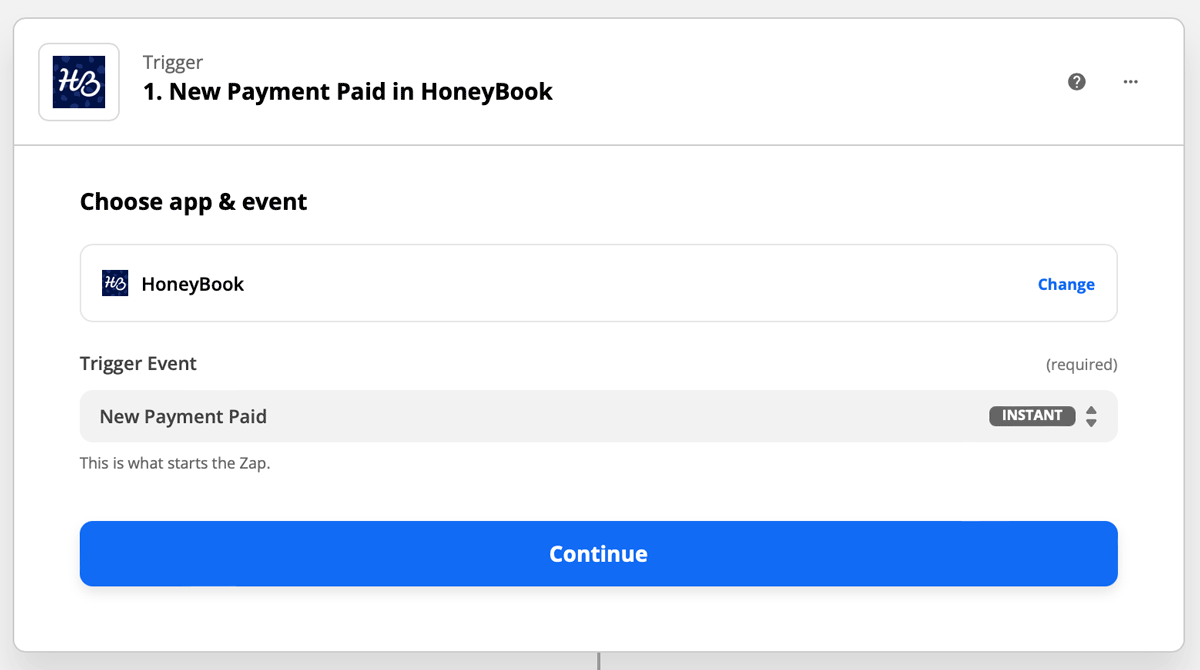
Step 3: Connect your HoneyBook account
If this is your first time connecting HoneyBook to Zapier, you'll need your HoneyBook API key. To find it:
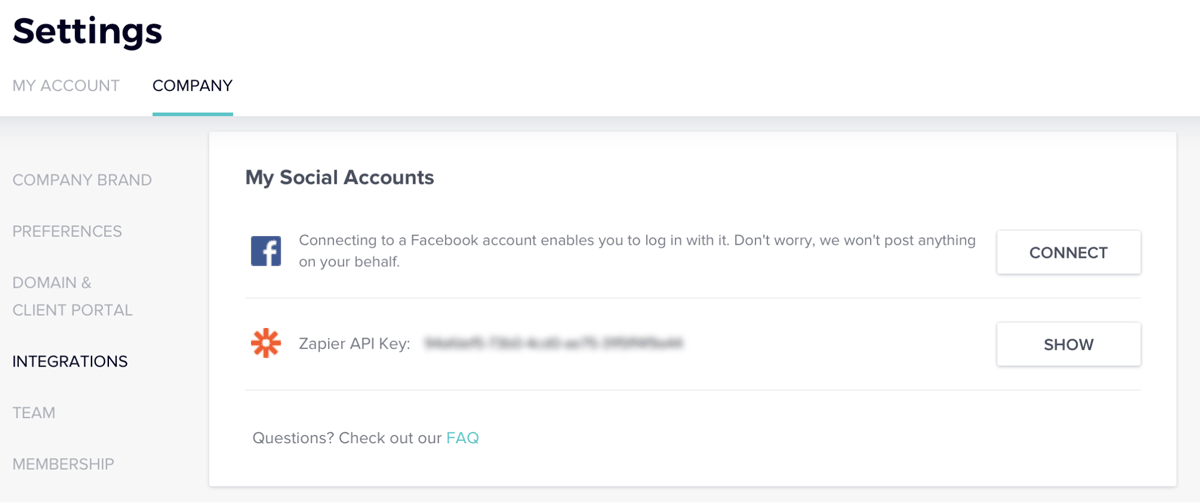
Click your profile picture in the top-right corner of HoneyBook and go to Company Settings
Click the Integrations tab
Under Social Accounts, click Show next to Zapier
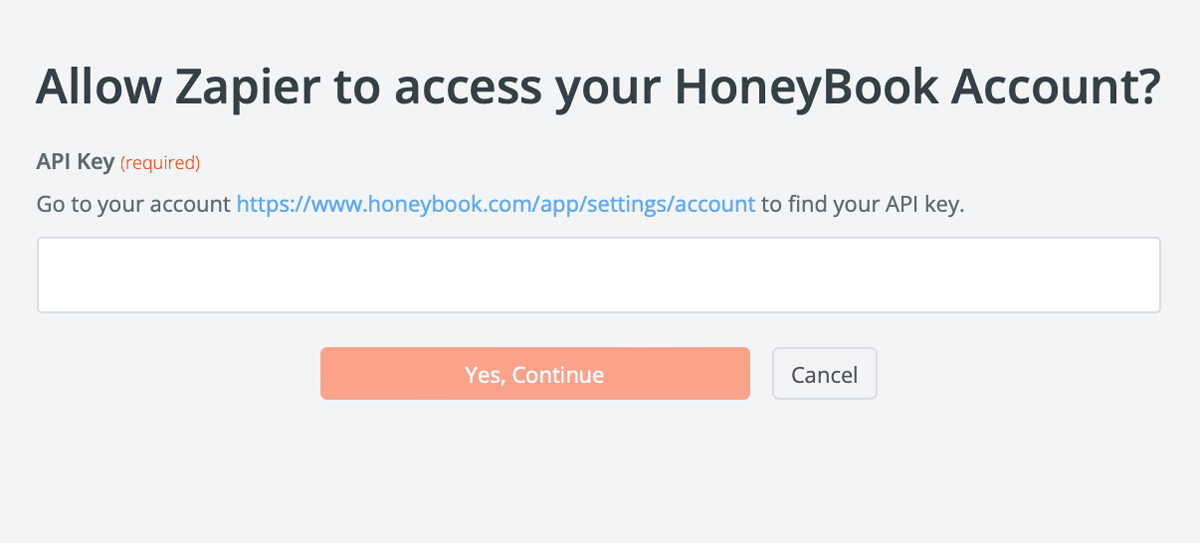
Copy the API key and paste it into Zapier
Click Yes, Continue to complete the connection
Step 4: Test the trigger
Zapier will test the trigger to confirm it's working. This step is optional but recommended.
Step 5: Set Flodesk as the action
Select Flodesk as the action app and choose Remove Existing Subscriber from Workflow as the event.
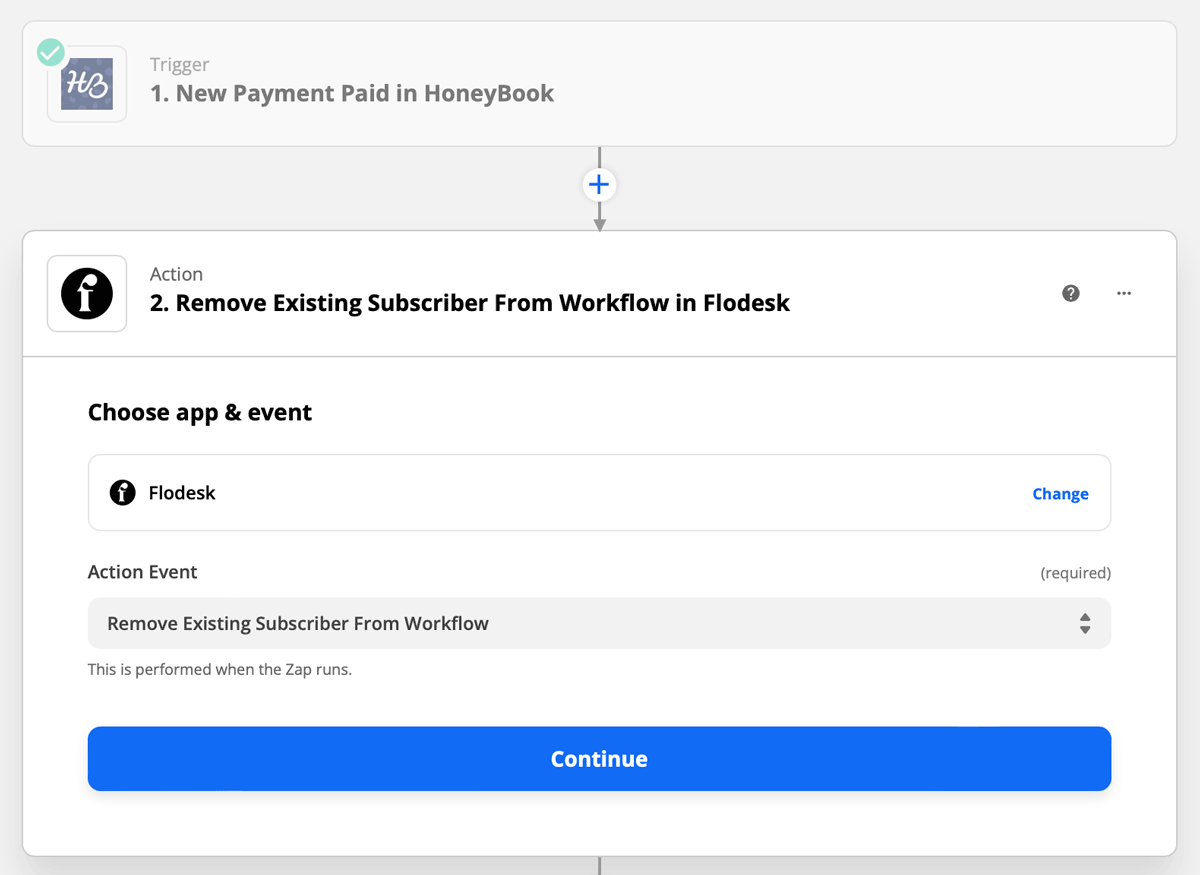
Step 6: Connect your Flodesk account
If this is your first time linking Flodesk and Zapier, you'll be prompted to log in.
Step 7: Configure the action
Map the client's email address from HoneyBook to the email field in Flodesk
Select the sales workflow you want to remove them from
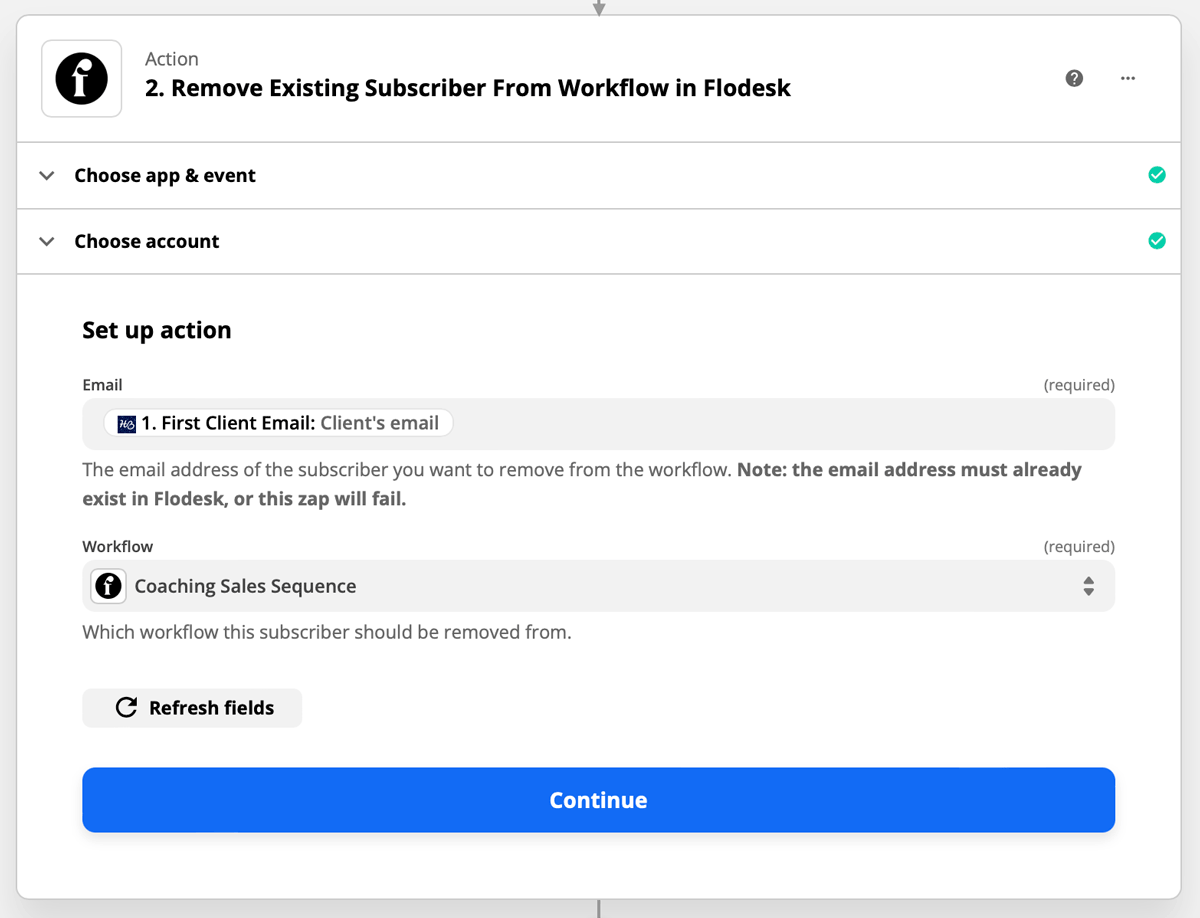
Step 8: Test and turn on your zap
Run the test in Zapier to confirm everything is working correctly. Once it passes, turn the zap on so it's live.
FAQ
What's the easiest way to stop clients from receiving sales emails in Flodesk after they convert?
The simplest approach is to use Flodesk's built-in workflow exclusion feature. Add your paying clients to a dedicated segment (such as "Clients"), then exclude that segment in your sales workflow settings. Subscribers added to that segment will be automatically removed from the workflow. No Zapier needed.
How do I set up workflow exclusions in Flodesk?
Pause your workflow, click Settings in the top-right corner of the workflow editor, and under Exclude subscribers, choose the segment you want to exclude. Save and republish. Subscribers in that segment won't enter the workflow, and anyone already in it will be removed automatically when they're added to the segment.
When should I use the Zapier method instead of the built-in exclusion feature?
The Zapier method is useful if your client management happens primarily in a CRM (like HoneyBook or Dubsado) and you want the removal to trigger automatically based on a payment event in that system, rather than managing it through Flodesk segments manually. If you're already organizing clients in a Flodesk segment, the built-in exclusion feature is the simpler choice.
Can I use a CRM other than HoneyBook for the Zapier method?
Yes. The same zap setup works with other CRM tools like Dubsado, Bonsai, and Keap. The trigger event will differ depending on your CRM, but the Flodesk action (Remove Existing Subscriber from Workflow) stays the same.
What two conditions need to be met for the Zapier removal zap to work?
The client's email address in your CRM must match the email address they used to opt in to Flodesk, and they must already be active in the workflow you're removing them from. If either condition isn't met, the zap won't remove them.
Can I also use Zapier to remove a client from a Flodesk segment?
Yes. Instead of choosing Remove Existing Subscriber from Workflow as the Flodesk action, you can choose Remove from Segment. This lets you clean up your leads segment automatically when someone converts to a client in your CRM. However, be aware that removing them from a segment will not stop them from getting the (rest of the) workflow emails if they already started the connected workflow.
If a subscriber is already halfway through a sales workflow and gets added to the excluded segment, will they be removed automatically?
Yes. Flodesk's exclusion logic applies both at entry and mid-workflow. If a subscriber is added to an excluded segment while they're already in the workflow, they'll be automatically removed from that point forward.