
How to connect WooCommerce and Flodesk via Zapier
Overview
If you run a WooCommerce store, you can connect it to Flodesk via Zapier so that customer data moves between the two platforms automatically. For example, when someone completes a purchase in your WooCommerce store, they can be added to a Flodesk segment and entered into a post-purchase sequence without any manual work.
This article walks you through the setup step by step.
Is there a direct WooCommerce integration?
Not yet. Flodesk's goal for every integration is to keep things simple and intuitive, and WooCommerce has a unique structure that makes that more complex to deliver well. A direct integration is on the radar and actively being explored, but there's no confirmed timeline for release at this time.
In the meantime, Zapier is the recommended way to connect WooCommerce and Flodesk, and it works well for most use cases.
What you'll need before you start
An active Flodesk account
A Zapier account
A WooCommerce store with at least one product
At least one segment created in Flodesk
The WooCommerce Zapier plugin, purchased from the WooCommerce.com extension store and installed and activated on your WordPress website
The WooCommerce Zapier plugin is required for this integration. It's the bridge that allows your WooCommerce store to connect to Zapier. Without it, WooCommerce won't appear as an option in Zapier.
If you plan to use this zap to trigger a Flodesk workflow, build the workflow in full before creating and testing your zap.
How to connect WooCommerce and Flodesk via Zapier
Step 1: Create a new zap
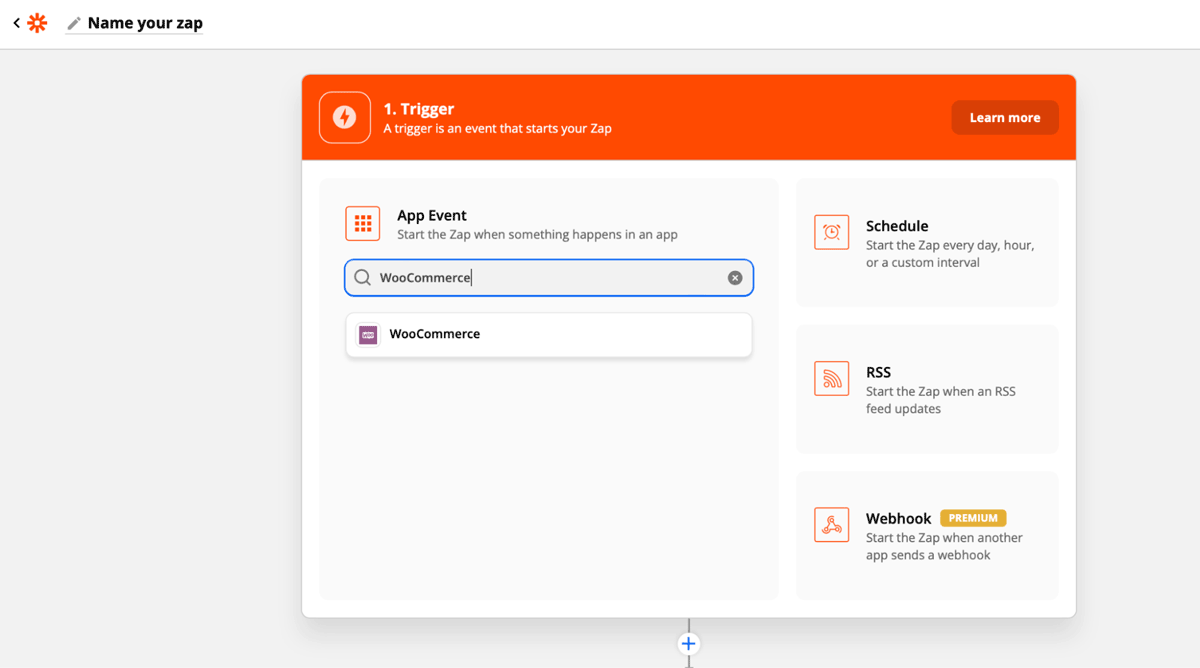
Log in to Zapier and create a new zap. Give it a name so it's easy to find later.
Step 2: Set WooCommerce as the trigger
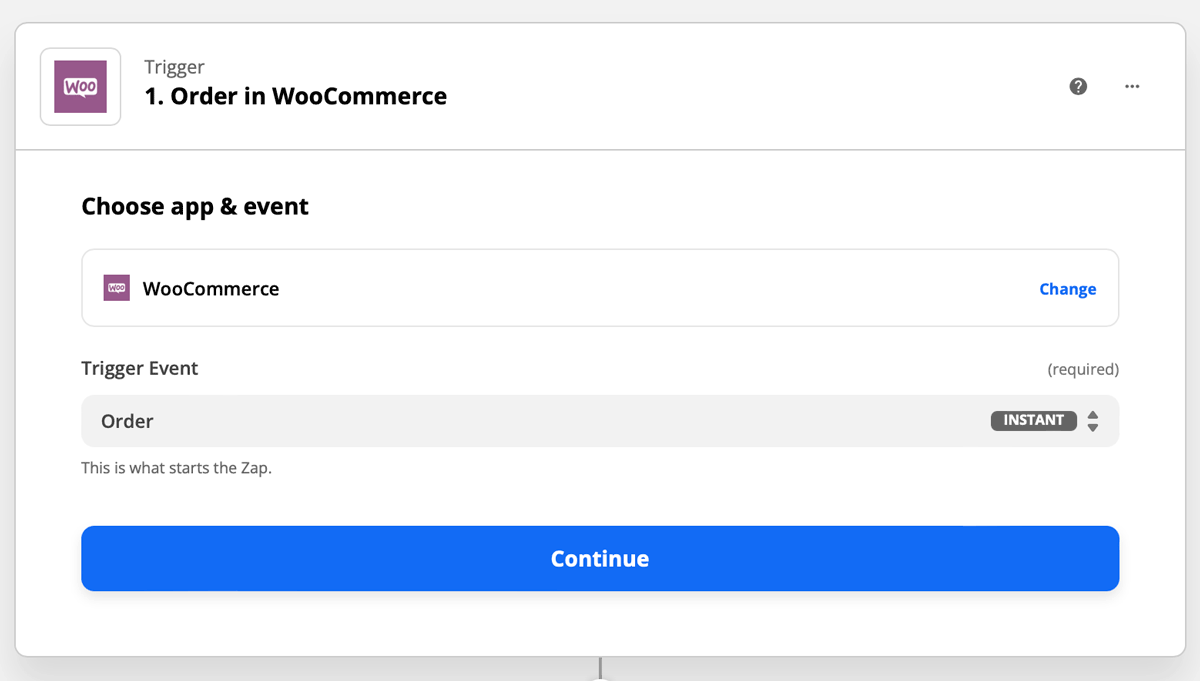
Select WooCommerce as the trigger app and choose Order as the event type. You'll customize the specific trigger in a later step.
Step 3: Connect your WooCommerce account
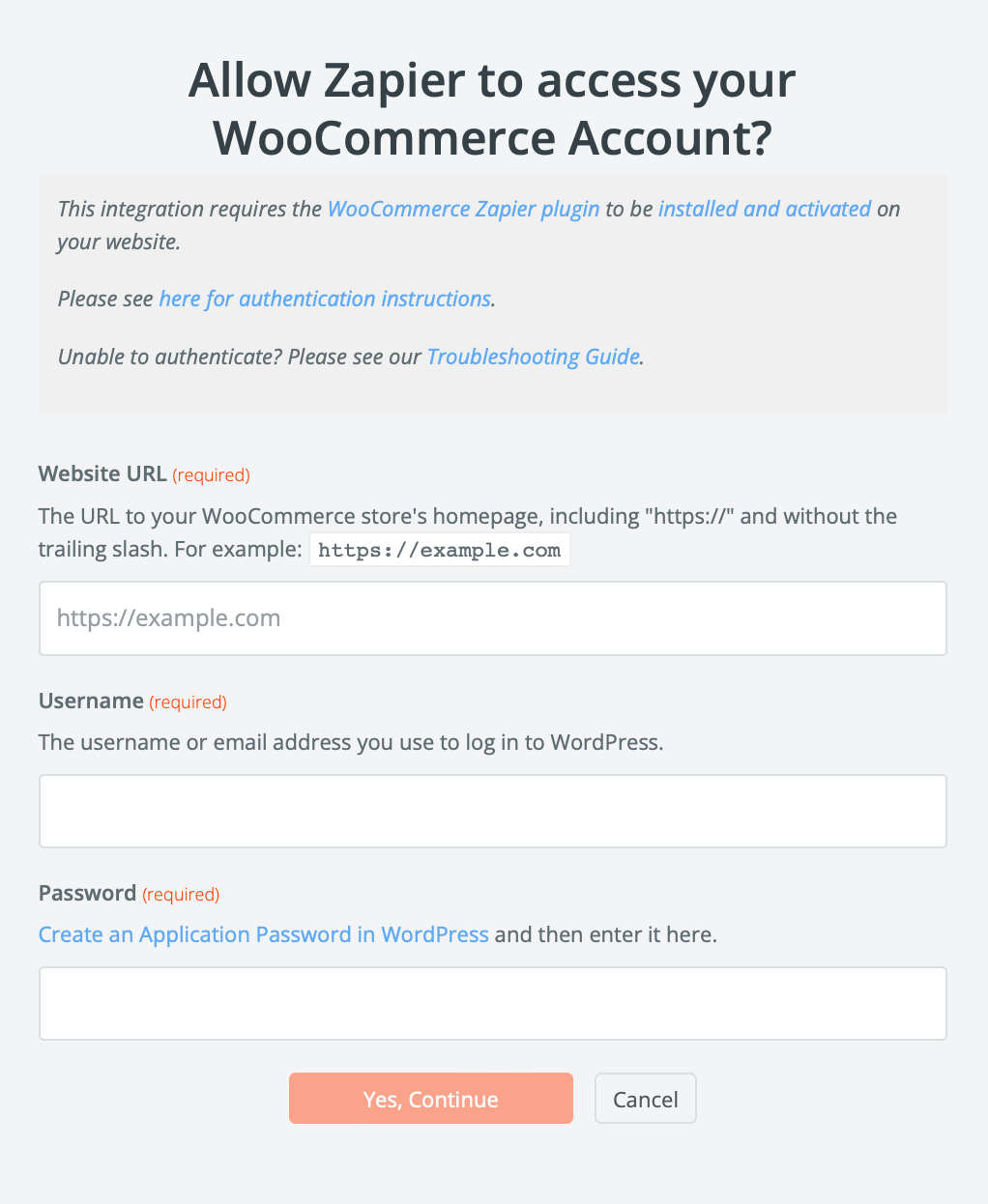
If this is your first time connecting WooCommerce to Zapier, you'll be asked to enter your website URL, username, and password. Click Yes, Continue to complete the connection.
Step 4: Customize the trigger
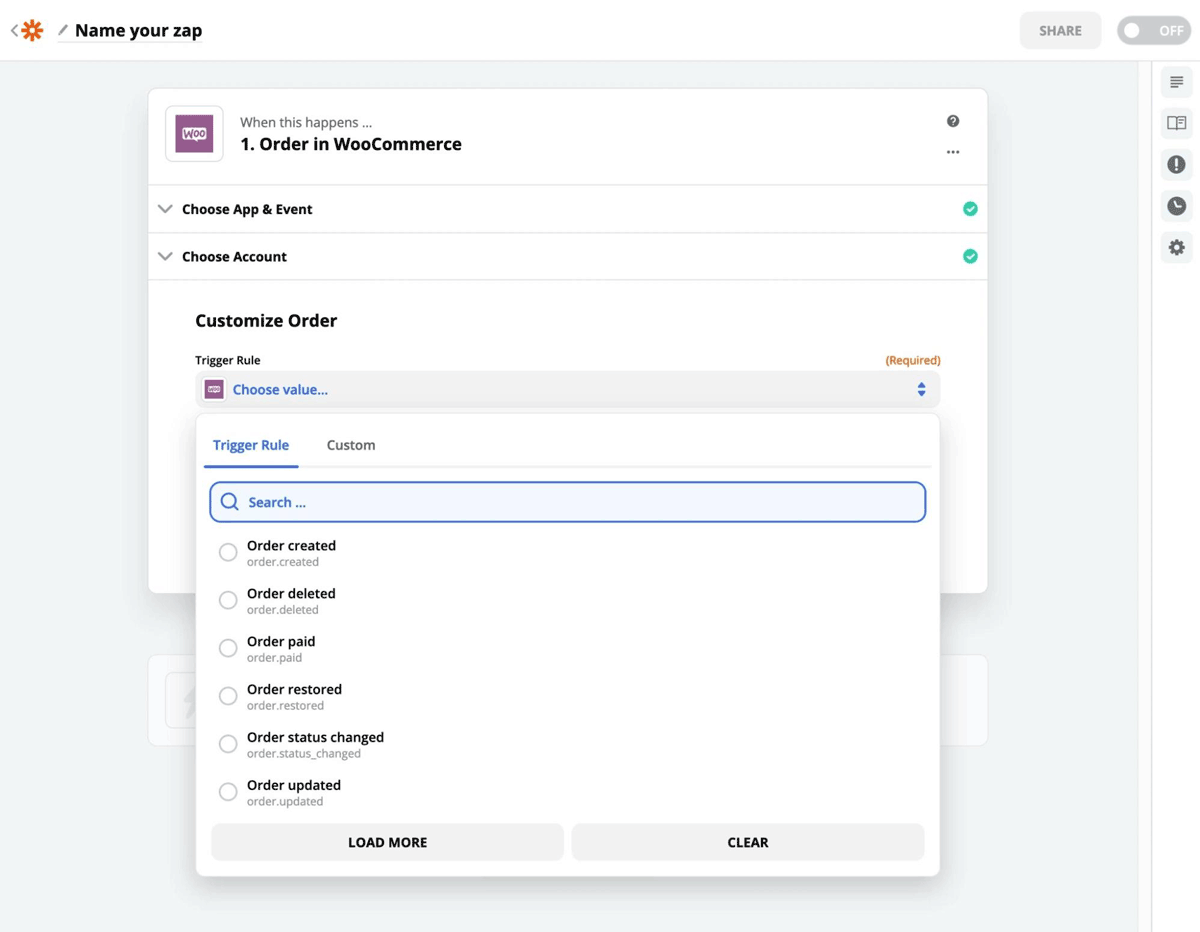
Once connected, select the specific order trigger you want to use. For this example, we're using Order Created, which means the zap will run whenever a new order is placed in your WooCommerce store.
Step 5: Test the trigger
Zapier will test the trigger to confirm it's working correctly. This step is optional but recommended.
Step 6: Set Flodesk as the action
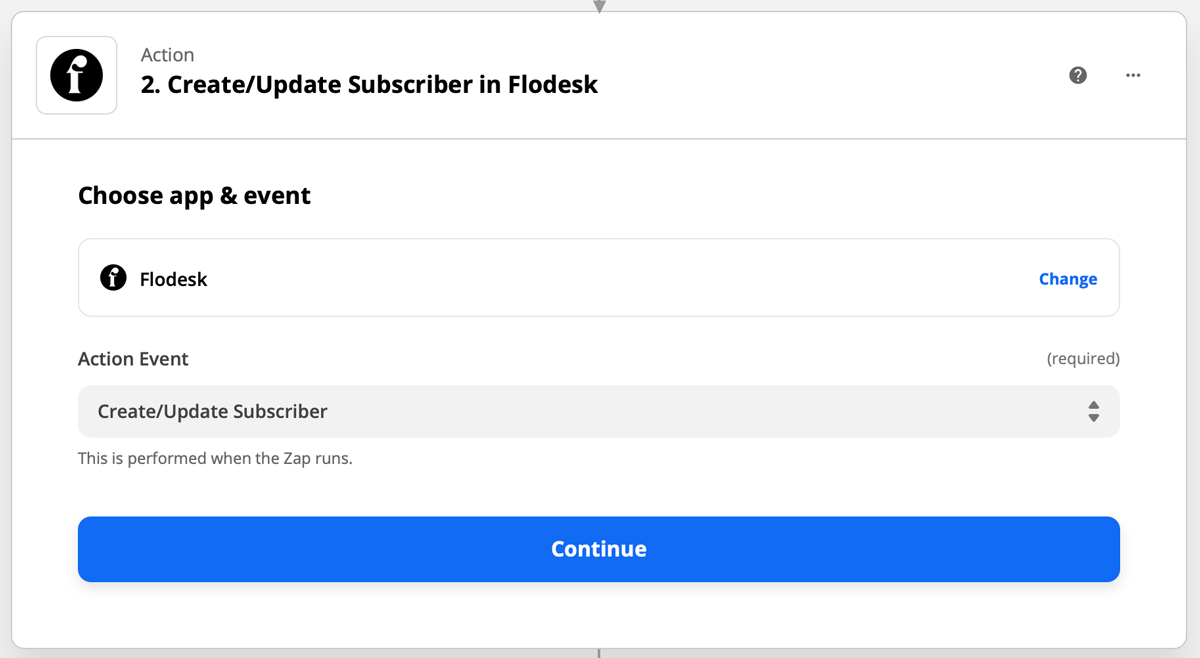
Select Flodesk as the action app and choose Create/Update Subscriber as the event. This should almost always be your first Flodesk action: subscribers need to exist in Flodesk before they can be added to segments or workflows.
Step 7: Connect your Flodesk account
If this is your first time linking Flodesk and Zapier, you'll be prompted to log in to your Flodesk account.
Step 8: Choose the segment and map the fields
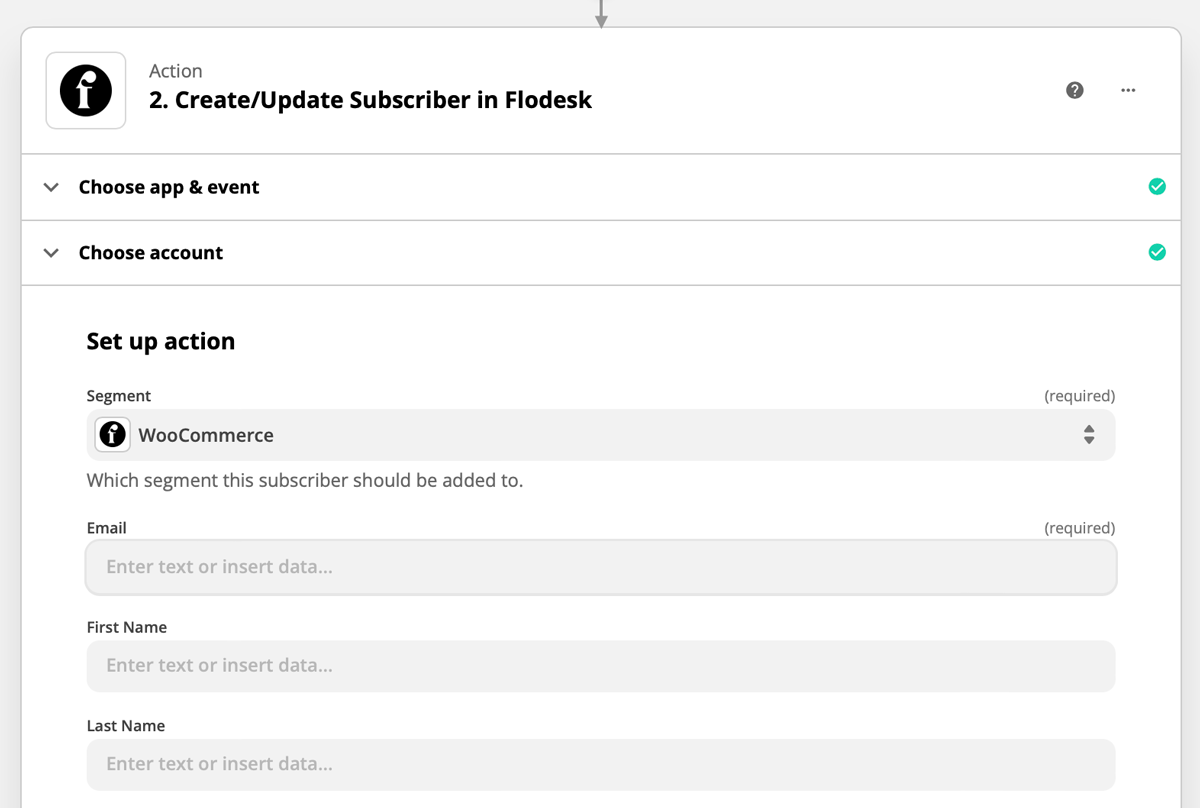
Choose the Flodesk segment you want customers added to, then map any additional data fields you'd like to carry over, such as name.
Step 9: Test your zap
Run the test in Zapier to make sure everything is connected correctly.
Step 10: Turn on your zap
Once the test passes, review the zap and turn it on so it's live.
More integration ideas
The same setup can be adapted for other WooCommerce events. Here are two other zap setups worth considering:
Trigger: Subscription created in WooCommerce / Action: Create/Update Subscriber in Flodesk Anyone who purchases a subscription can be added to a welcome sequence in Flodesk automatically.
Trigger: New customer in WooCommerce / Action: Create/Update Subscriber in Flodesk New customers can be added to a nurture sequence in Flodesk to build the relationship after their first purchase.
A note on consent
Whenever you add WooCommerce customers to your Flodesk audience, make sure they've given permission to receive email marketing from you.
FAQ
How do I connect WooCommerce to Flodesk?
You connect them using Zapier. First, purchase and install the WooCommerce Zapier plugin on your WordPress site. Then create a zap in Zapier with WooCommerce as the trigger (using Order Created or another order event) and Flodesk as the action (using Create/Update Subscriber). Map the relevant fields, choose your Flodesk segment, and turn the zap on.
Is there a direct WooCommerce integration with Flodesk?
Not yet. A direct integration is being explored, but there's no confirmed timeline. WooCommerce has a unique structure that makes it more complex to build a simple, intuitive integration. For now, Zapier is the recommended way to connect the two.
Do I need to purchase anything to connect WooCommerce to Zapier?
Yes. You'll need to purchase the WooCommerce Zapier plugin from the WooCommerce.com extension store and install and activate it on your WordPress website. This plugin is what allows WooCommerce to connect to Zapier.
What WooCommerce events can trigger a zap to Flodesk?
Common triggers include Order Created, Subscription Created, and New Customer. You can browse all available WooCommerce triggers in Zapier once the WooCommerce Zapier plugin is installed.
What Flodesk action should I use in Zapier?
Always start with Create/Update Subscriber as your first Flodesk action. Subscribers need to exist in Flodesk before they can be added to segments or workflows, so this step should come first.
Should I build my Flodesk workflow before setting up the zap?
Yes. If you plan to use the zap to trigger a Flodesk workflow, build the workflow in full before creating and testing your zap. This ensures everything is in place when you run your test.
Do I need permission to email WooCommerce customers through Flodesk?
Yes. Before adding WooCommerce customers to your Flodesk audience, make sure they've given consent to receive email marketing from you. This is important for both legal compliance and list quality.
Can I add WooCommerce subscription buyers to a Flodesk workflow?
Yes. Set up a zap with Subscription Created in WooCommerce as the trigger and Create/Update Subscriber in Flodesk as the action. From there, you can add the subscriber to a segment that triggers a welcome sequence workflow in Flodesk.
What do I need before I can connect WooCommerce and Flodesk via Zapier?
You'll need an active Flodesk account, a Zapier account, a WooCommerce store with at least one product, the WooCommerce Zapier plugin installed on your WordPress site, and at least one segment already created in Flodesk.