
How to customize your opt-in form to any language you like
Want your opt-in form in Spanish, German, French, Portuguese—or any other language? You can translate almost every piece of text on your form so it feels natural and familiar to your audience.
Flodesk does not automatically translate your forms, but you can manually customize all visible text to match your subscribers’ language.
This works for all form types:
Popup forms
Inline forms
Full page forms
Link in bio forms
Let’s walk through how to do it.
What you can (and can’t) translate
You can customize:
Field display names (Email, First name, Last name)
Button text
Headlines and body text
Custom fields
Success message text
Important:
Email, First name, and Last name are default fields. You cannot change how they are mapped in your Flodesk account.
But you can change how their names appear on your form (the display name).
This means your data stays correctly organized behind the scenes—even if the visible label is in another language.
How to change your form language
Step 1: Open your form editor
Go to your Forms dashboard and open the form you’d like to translate.
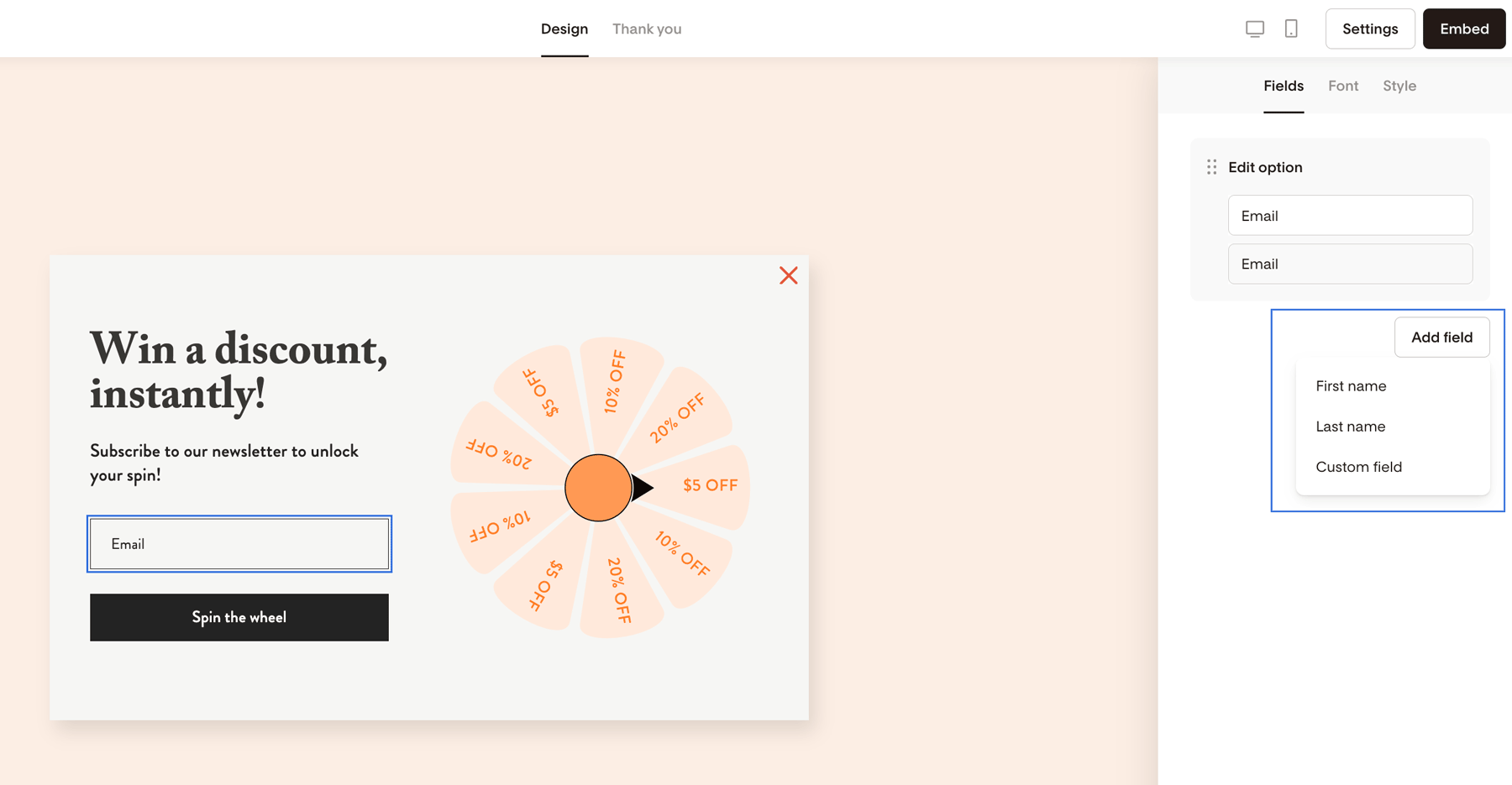
Click directly on any form field in the main preview area.
Then, on the right sidebar under the Fields tab, click the Add field button to add First name and Last name to your form.
Step 2: Rearrange or require fields (optional)
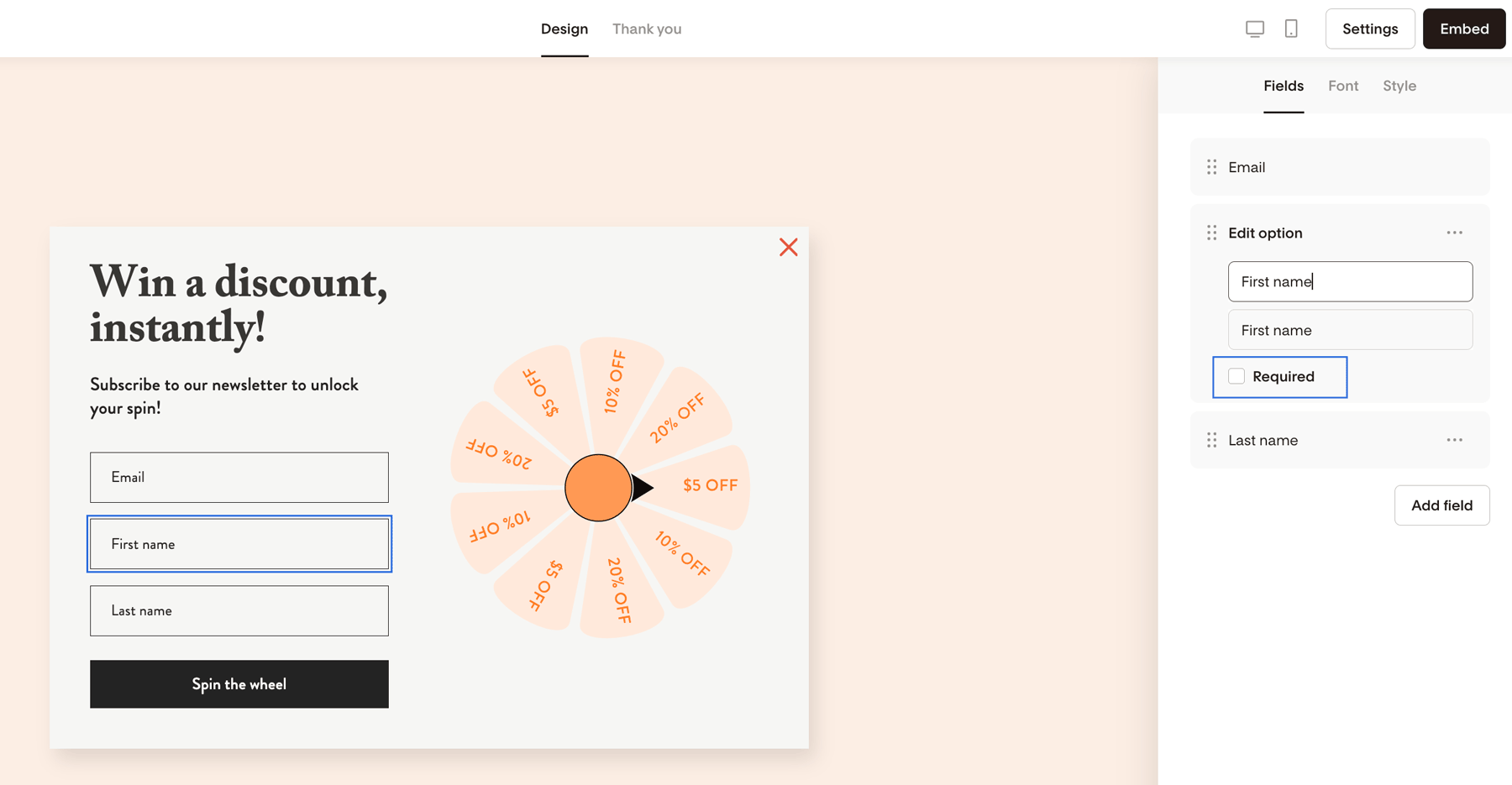
You can:
Drag and drop fields to reorder them
Mark fields as Required
Tip: If you’d like, you can add an asterisk (*) to required fields to match common formatting in your language.
Step 3: Edit the field display name
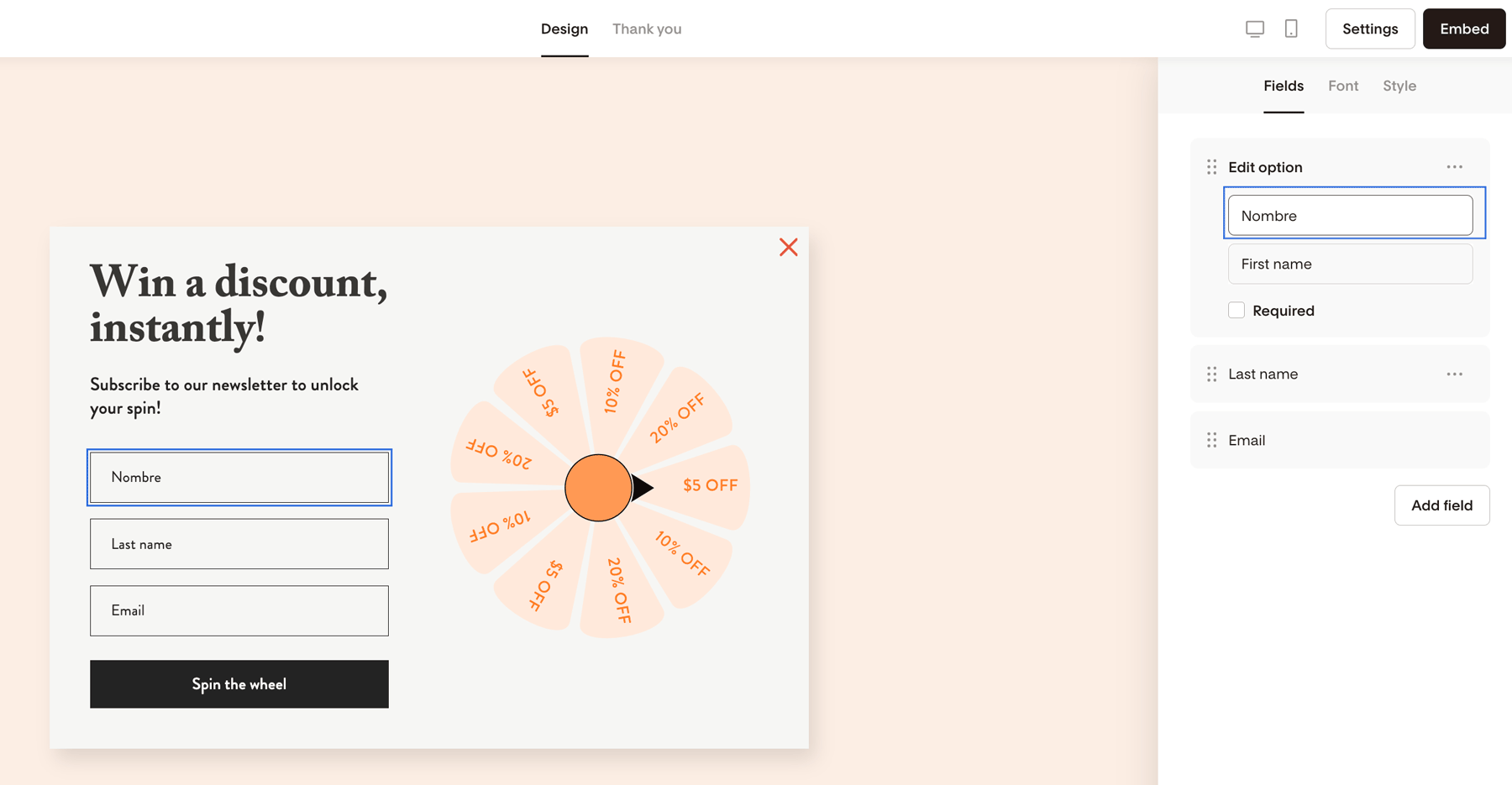
On the right sidebar under the Fields tab, you’ll see the field settings.
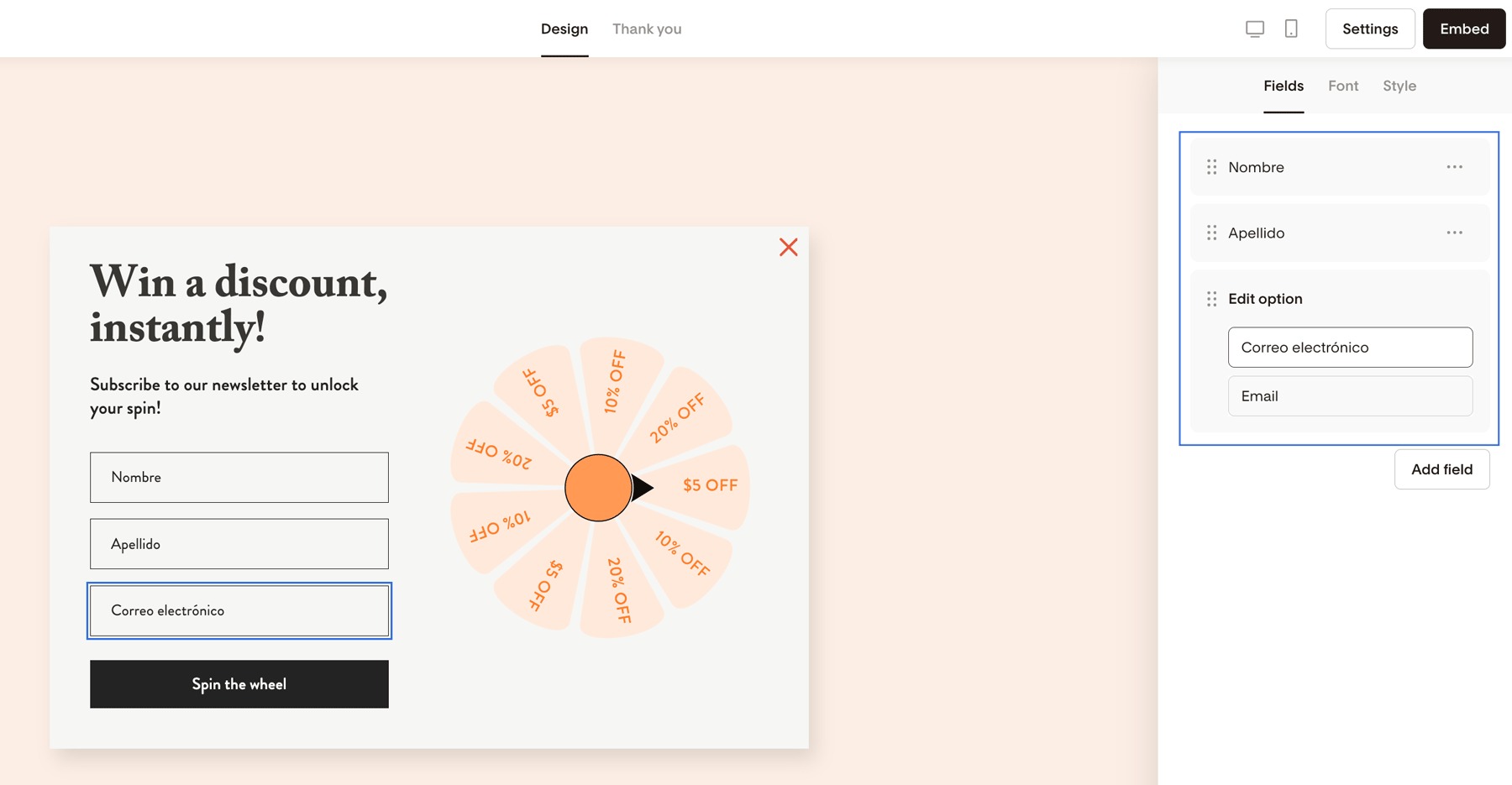
Click into the Display name field and replace the text with your translated version.
Example:
First name → Nombre
Last name → Apellido
Email → Correo electrónico
You can do this for any visible field.
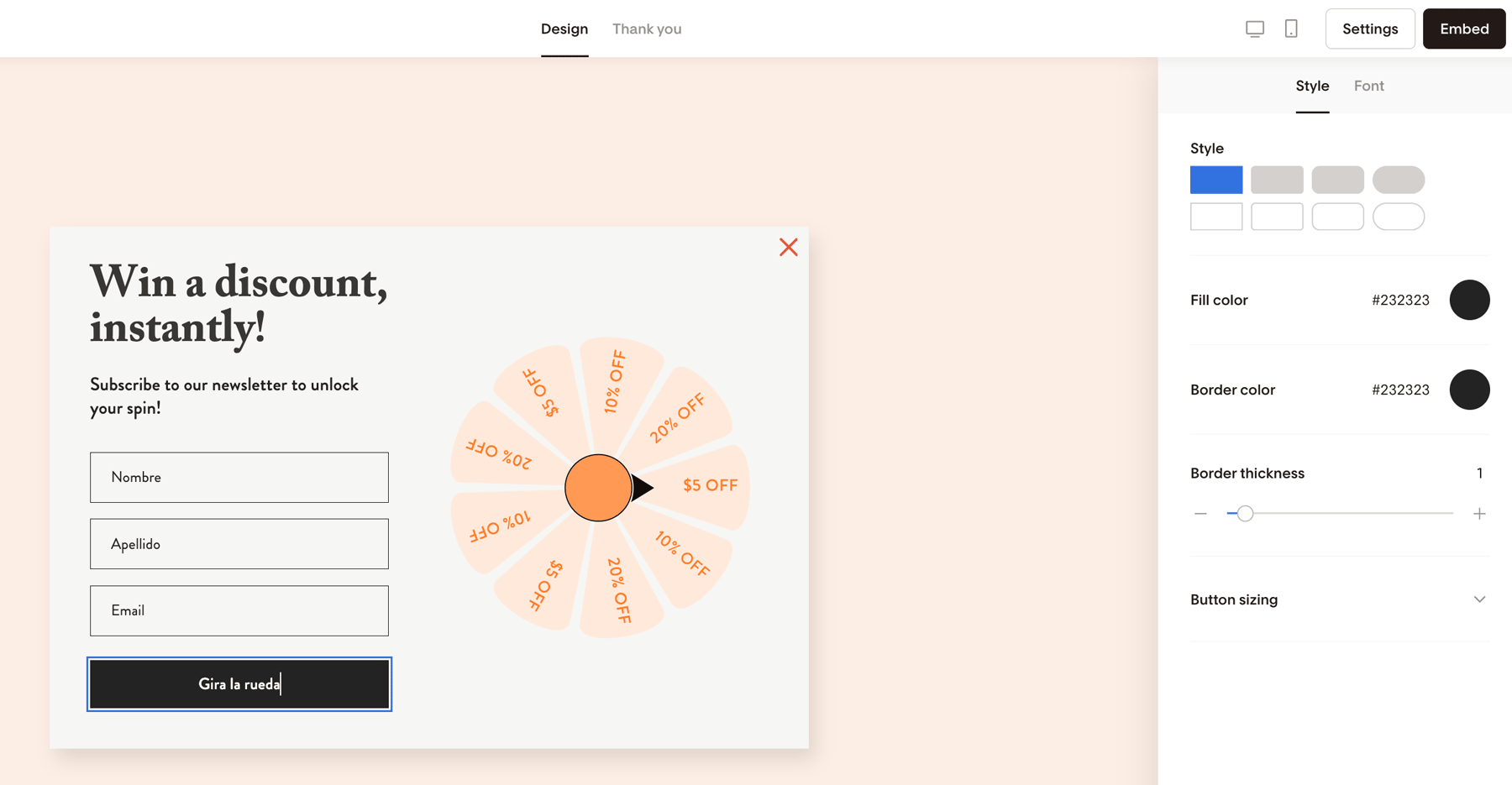
Step 4: Translate the button text
To edit the button:
Click the button text directly on the form.
Click again to highlight it.
Type your translated version.
Example:
“Sign up” → “Inscribirse”
“Join now” → “Jetzt anmelden”
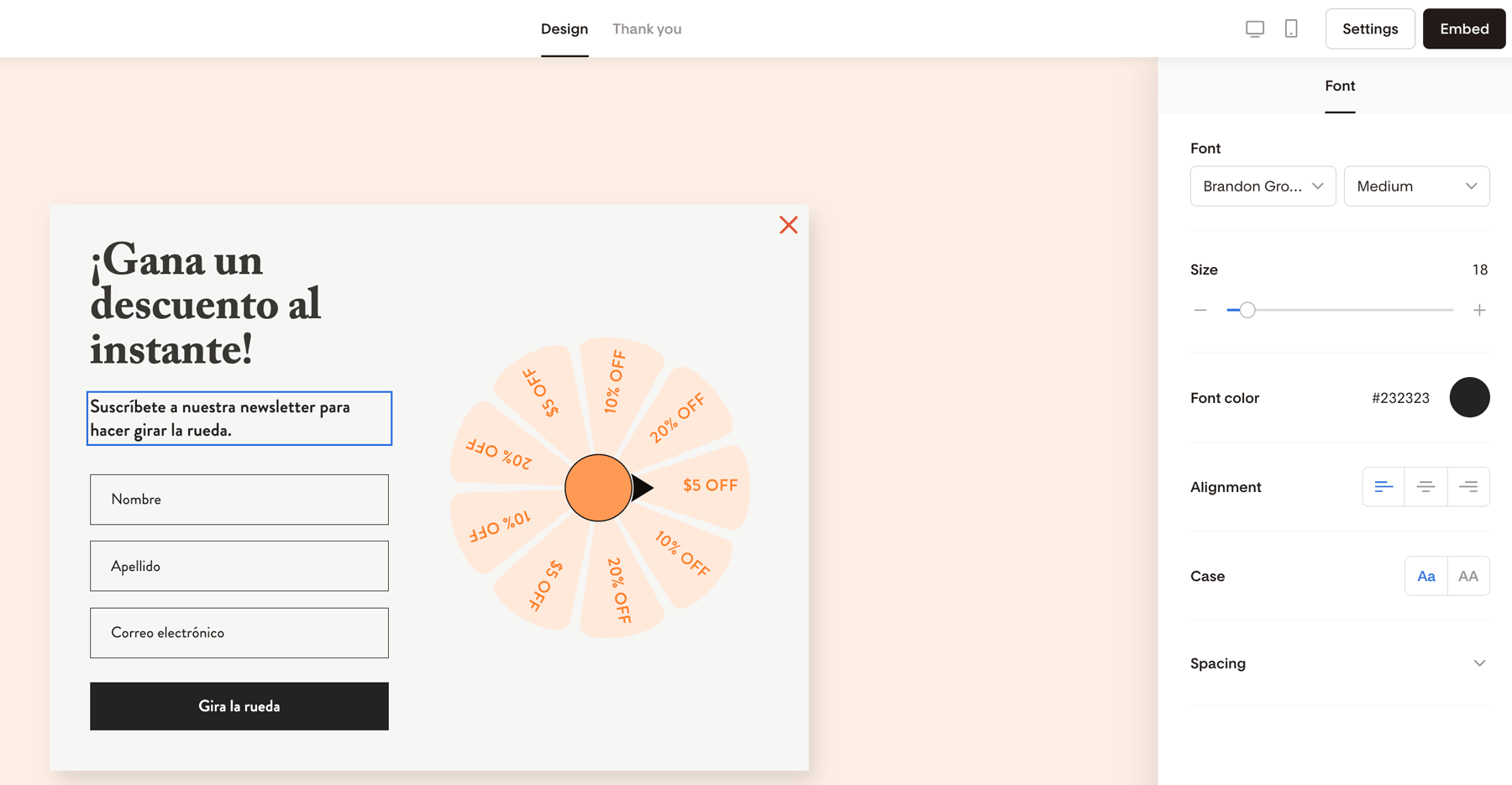
Step 5: Translate headlines and body text
Click into any text block on your form and replace it with your translated copy.
Make sure to:
Keep instructions clear and simple
Double-check spelling and accents
Ensure your tone matches your brand
Step 6: Add custom fields in any language (optional)
You can also create Custom fields to collect additional information like:
Birth month
Location
Favorite color
Custom fields can be labeled in any language you choose.
Best practices for multilingual forms
To keep your form clear:
Use simple, commonly searched words in that language
Avoid slang or regional phrases unless that’s your specific audience
Keep instructions short and direct
Double-check that required fields are clearly marked
If you serve multiple languages, consider creating separate forms for each language so the full experience feels consistent.
Summary
You can translate nearly every visible part of your opt-in form by editing the display names and text directly in the form builder.
Default fields stay properly mapped behind the scenes
You control how they appear to subscribers
No extra tools or integrations required
This makes it easy to connect with your audience in the language they feel most comfortable using.
FAQ
Does Flodesk automatically translate my form?
No. You manually edit and translate the text inside the form builder.
Can I change the Email field to another language?
Yes. You can change how “Email” appears on the form (for example, “Correo electrónico”), but the system still stores it correctly as an email field in your account.
Can I translate popup, inline, full page, and link in bio forms?
Yes. All form types can be customized to any language.
Can I change error messages to another language?
Standard system validation messages may remain in the default language (English). To fully control messaging, keep your instructions clear within the form text itself.
Should I create one form per language?
If you serve different language audiences, creating a separate form for each language is usually the cleanest and most user-friendly approach.
Will translating fields affect my segments or workflows?
No. Changing the display name does not affect how fields are mapped in your Flodesk account. Your segments and workflows will continue working normally.
If you’re building for a global audience, translating your form is one of the easiest ways to increase trust—and conversions.