
How to share opt-in form templates with other Flodesk members
Create once. Share anywhere.
If you’ve designed a beautiful, high-converting opt-in form, you can turn it into a shareable template for other Flodesk members in just a few clicks.
You might want to share a form template to:
Share it with your team
Gift it to your audience
Include it inside a course or membership
Sell it as part of your design services
Earn affiliate commission when new members sign up through your link
Here’s exactly how it works.
Before you start
You must have an active paid Flodesk subscription. Template sharing is not available on a free trial or free tier plan.
When someone imports your template, they get the design, not your backend settings (more on that below).
How to share an opt-in form as a template
Go to your Forms dashboard.
Hover over the form you’d like to share.
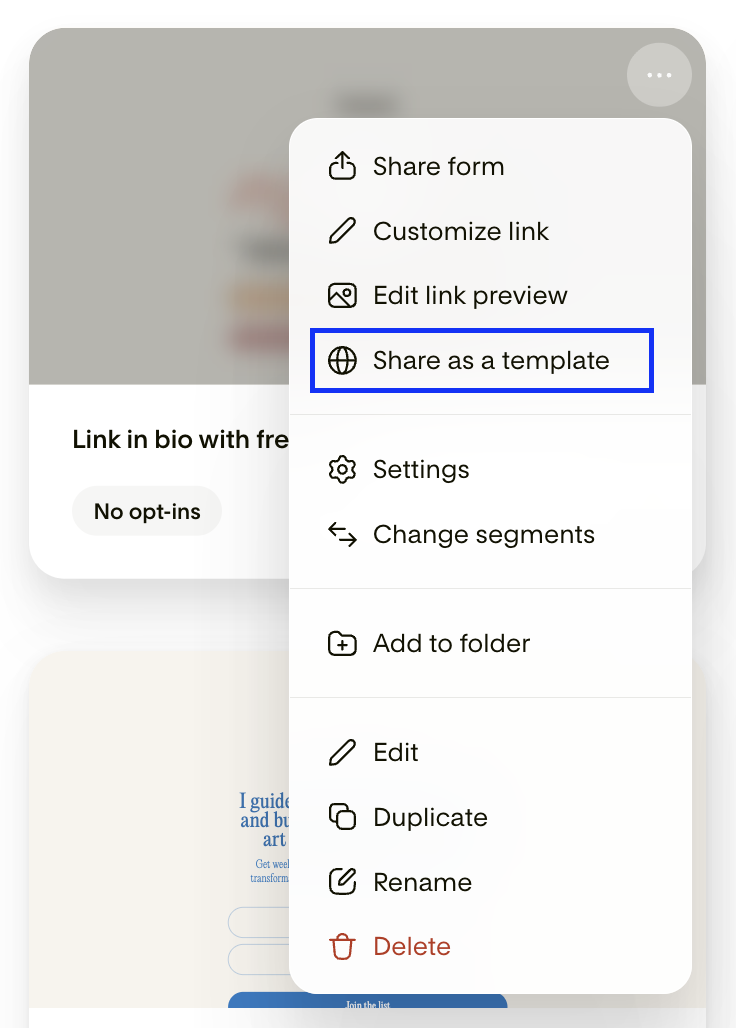
Click the three dots (…) on the form card.
Select “Share as a template.”
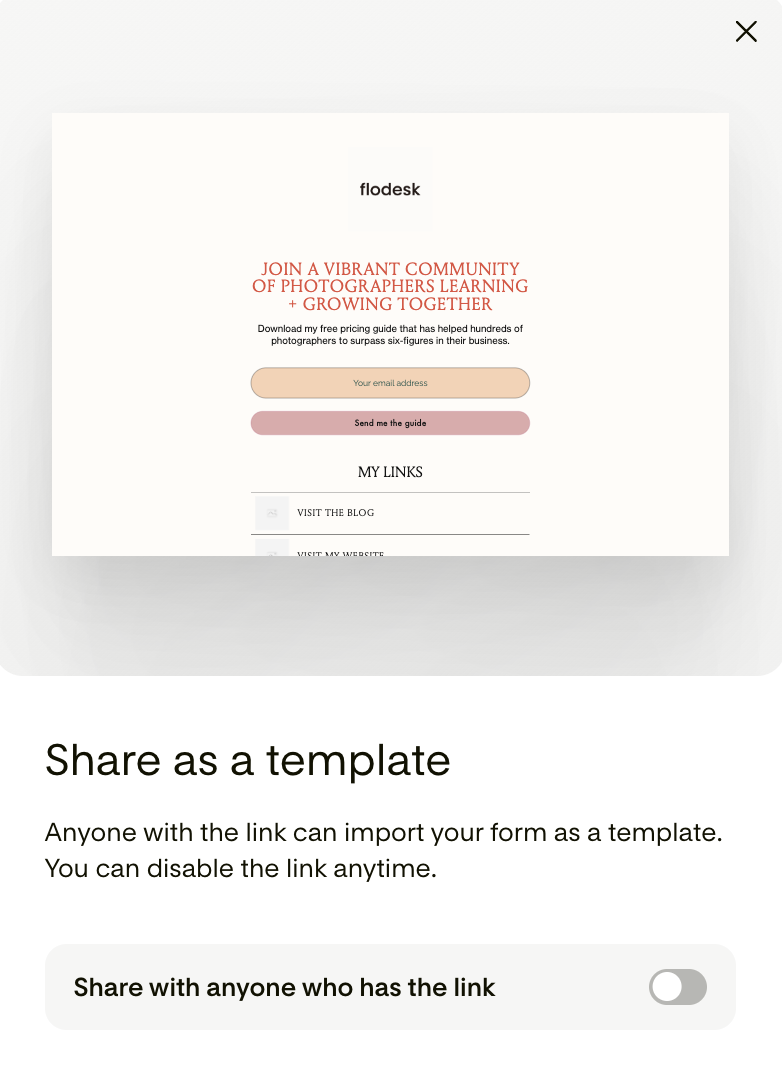
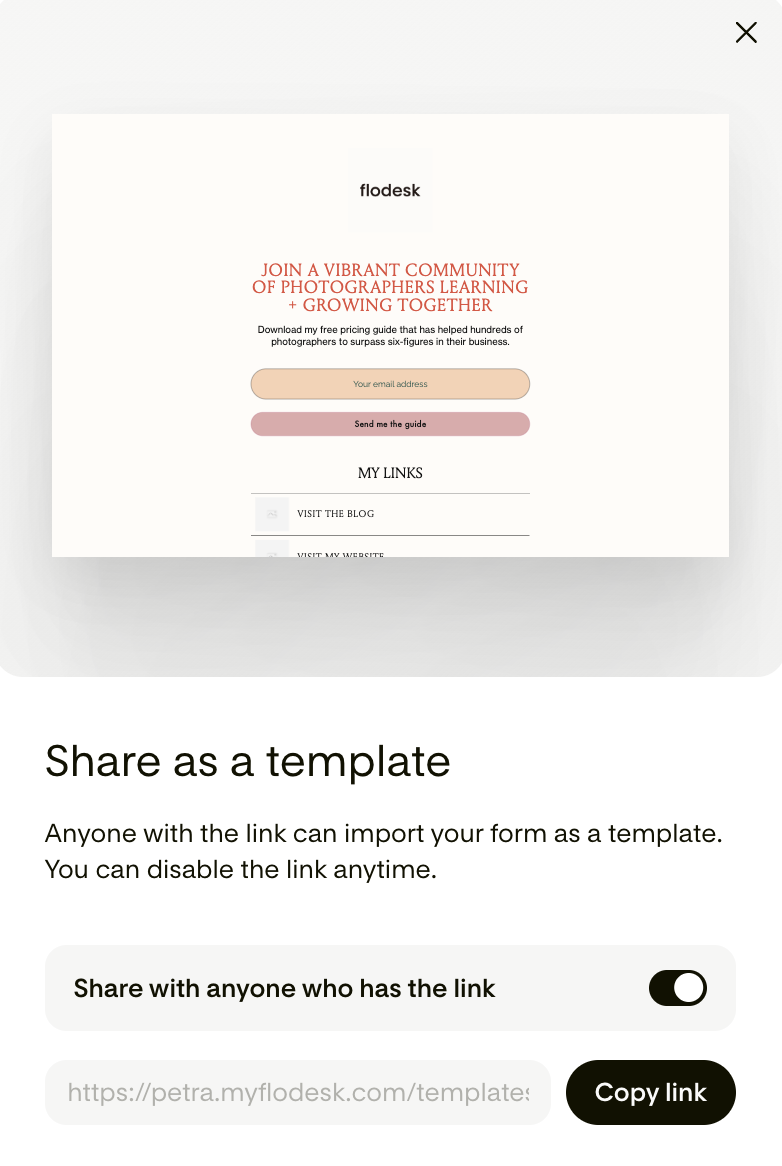
Toggle on “Share with anyone who has the link.”
Copy your unique share URL using the built-in copy button.
You can now share that link via:
Email
Social media
Your website
A course portal
Flodesk Checkout
Anyone with the link can preview and import your template into their own Flodesk account.
What happens when someone clicks your template link?
When someone opens your link:
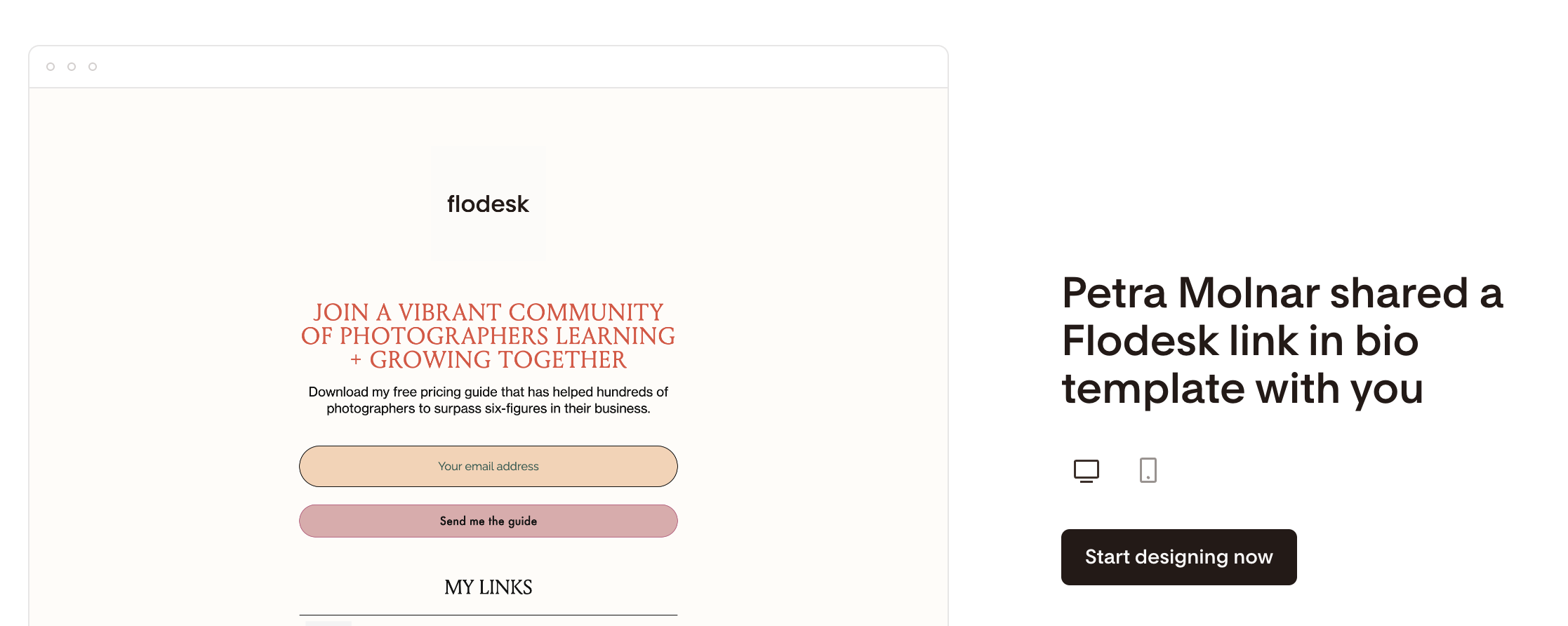
They’ll see a preview of your form.
They can toggle between desktop and mobile views.
If they’re logged into Flodesk and click “Start designing now,” the template will be imported into their account.
If they don’t have a Flodesk account yet, they’ll be prompted to sign up first.
If someone signs up through your template link, it counts toward your affiliate commission.
How to turn off template sharing
You can stop sharing at any time:
Hover over the form in your Forms dashboard.
Click the three dots (…).
Select “Share as a template.”
Toggle sharing off.
Important:
The share link stays the same if you turn sharing back on later.
If you delete the form, the link will show a 404 error.
If your paid subscription expires, the link will temporarily stop working.
If you renew your subscription, the link becomes active again.
How to tell which forms are shared
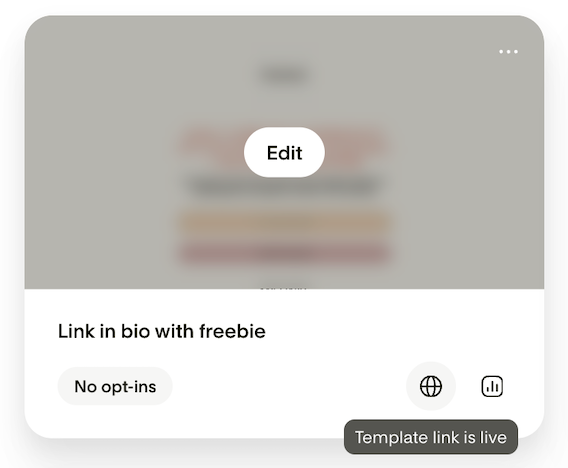
Any form you’ve shared as a template will show a small globe icon on the form card.
Click the globe icon to see:
How many people viewed the template
How many people used (imported) the template
These numbers are unique users. If someone imports the template multiple times, it counts as one person.
Can you edit a shared form?
Yes.
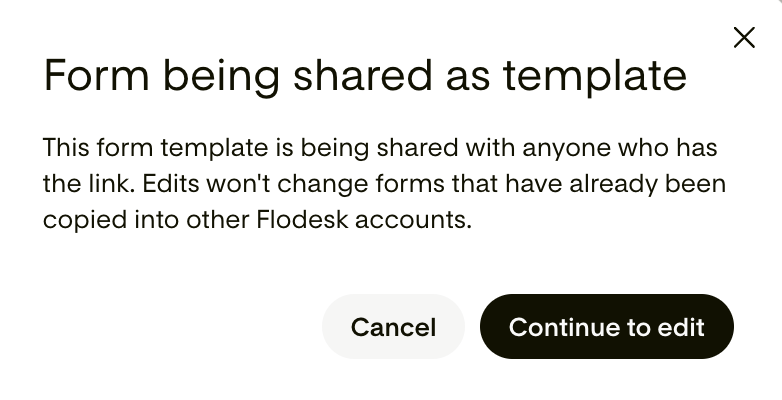
If you edit your original form:
The changes will appear in the shared link preview.
Future imports will include your updates.
However:
Changes will not affect copies already imported into someone else’s account.
What happens if you duplicate a shared form?
If you duplicate a shared form:
The new copy will have sharing turned off.
It acts like a brand-new draft form.
Important limitations to understand
When someone imports your template, they get the design, but not all backend connections.
Here’s what transfers and what doesn’t:
1. Images
Images in your form will be imported with the template. Only use images you have the legal right to share.
2. Custom fonts
If you used a custom font:
The imported template will still display that font.
The importing member can edit the text.
They cannot change the font weight.
The font file will not be added to their Brand Fonts under Account settings > Brand fonts.
The font will not appear in their general font dropdown.
3. Main form segment (“Choose a segment”)
Your selected segment does not transfer.
Instead:
A new form segment is automatically generated in their account.
4. Preference options
If your form includes preferences:
The preference names transfer.
The connected segments do not.
The importing member must:
Create their own segments.
Map each preference option to a segment before publishing.
5. Custom form fields
If your form includes custom fields:
The field names transfer.
The backend data fields do not.
The importing member must:
Create corresponding data fields.
Map them properly before publishing.
I was asked to upgrade my plan. Why?
Template sharing is only available to members with an active paid subscription.
If you're on:
A free trial
A free plan
You’ll need to upgrade to enable template sharing.
FAQs
Can I share a form template with someone who isn’t a Flodesk member?
Yes. They’ll be prompted to sign up first. After creating their account, the template will be imported as a draft.
Do my segments transfer with the template?
No. Segments do not transfer. A new form segment will be created automatically, and preference segments must be recreated and mapped.
Do custom fields transfer automatically?
No. Only the field names transfer. The importing member must create and connect backend data fields before publishing.
If I update my form, will it update for everyone who already imported it?
No. Updates only apply to the shared template link and future imports. Existing copies stay the same.
Can I reuse the same share link later?
Yes. If you turn sharing off and back on again, the same link will still work.
What happens if I delete the original form?
The link will stop working and show a 404 error. However, anyone who already imported the template will still keep their copy.
Will I earn affiliate commission if someone signs up through my template link?
Yes. If someone creates a Flodesk account after clicking your template link, it counts toward your affiliate program.
Can I see how many people used my template?
Yes. Click the globe icon on the form card to view unique views and unique uses.