
How to add the same inline form multiple times to a webpage
A special thanks to Ingrid Urena of Atelier 21 for the use of her images and video in this tutorial.
Want to display the same inline form more than once on a single webpage? You can absolutely do that. You just need to make a small tweak to the embed code for each additional copy.
Good news:
You do not need to change anything if you’re embedding the same form on different pages of your website.
You do need to modify the code if you’re placing the same inline form multiple times on one single page.
Let’s walk through it step by step.
Before you start
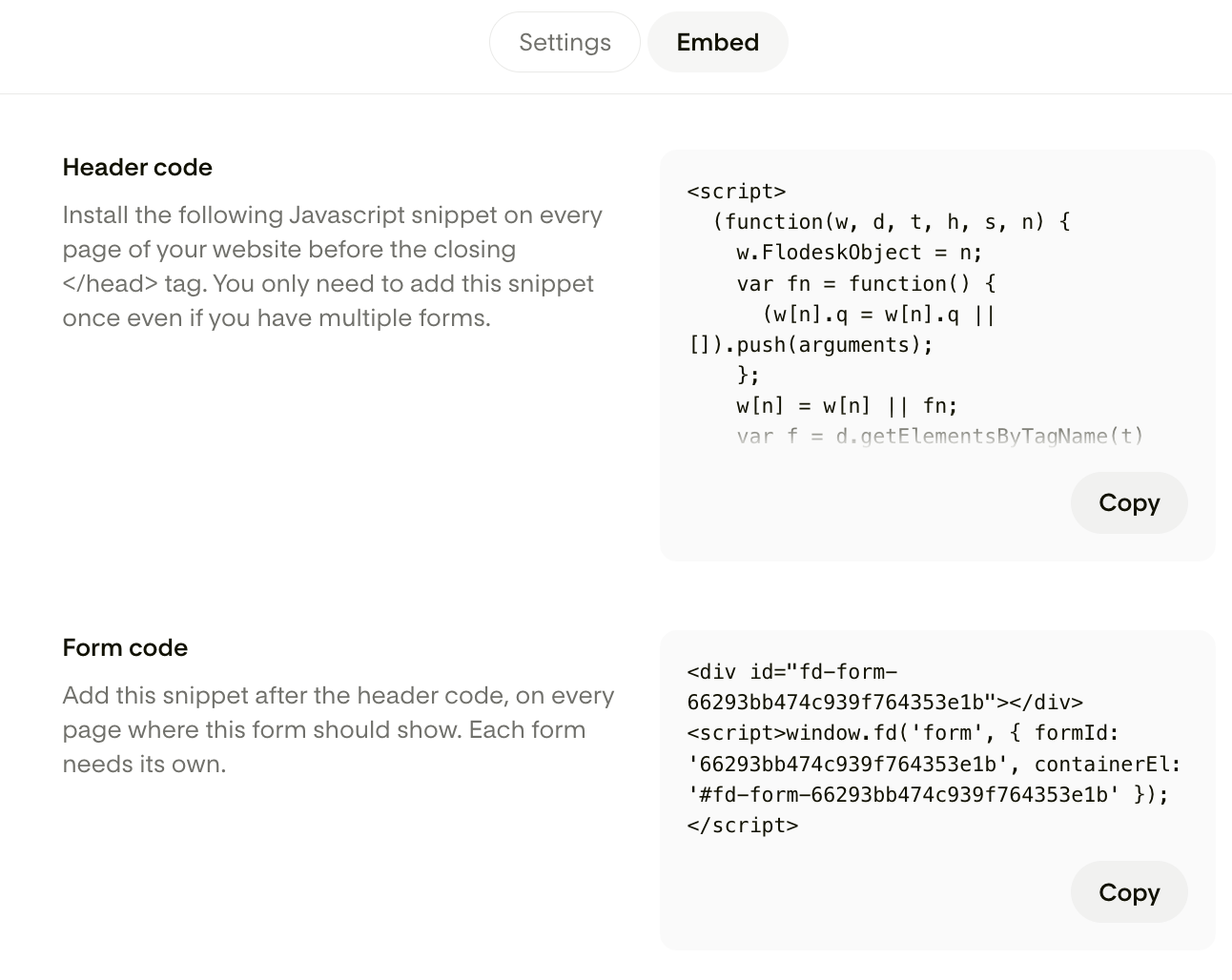
When adding your inline form to a page for the first time, embed it exactly as Flodesk provides it. No edits needed.
You’ll only adjust the code when adding the second, third, or fourth copy of that same form to the same webpage.
Step 1: Add your first inline form normally
Copy the form code from Flodesk.
Paste it into your webpage where you’d like the form to appear.
Do not edit anything.
That’s it for the first one.
Step 2: Paste the code again for the second form
Now, paste the same form code again wherever you want the second copy to appear on the same page.
This is where we make a small edit.
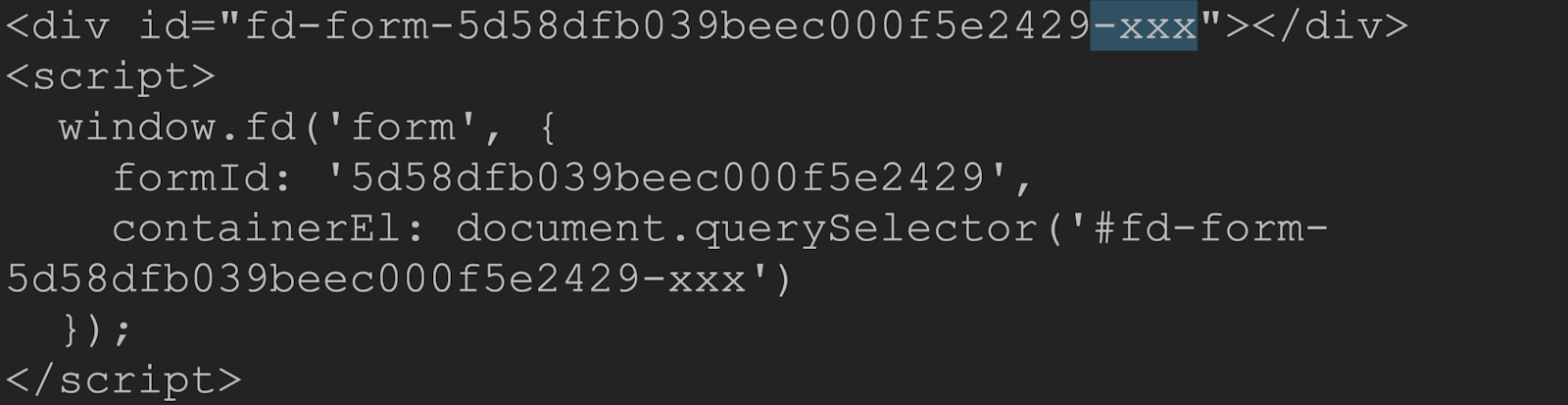
Step 3: Update the Div ID (Line 1)
At the top of the form code, you’ll see a Div ID that contains your Form ID.
You’ll need to:
Add a dash
-Add a short, unique string of characters after the dash
For example:
form-123456→form-123456-1form-123456→form-123456-abc
Important:
Include the dash
Keep the extra characters short
Do not remove the ending quotation mark
Each form on the page must have its own slightly different ID.
Step 4: Update the Form ID in the ContainerEl section
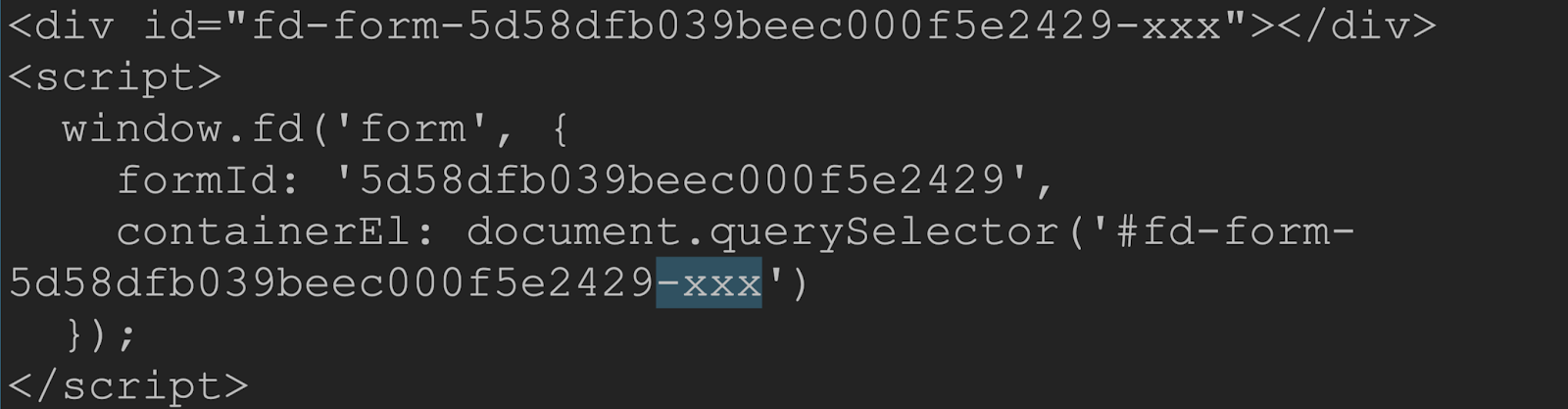
Scroll down in the code to the section labeled ContainerEl (usually around line 5).
You’ll see the same Form ID again.
Repeat exactly what you did in Step 3 so that the dash and strings match the Form ID in the Div ID on line 1.
See the image below as a reference:
Step 5: Repeat for additional copies
If you want to add the same form again on the same page:
Paste the original form code again
Add a new unique dash + short string
Make sure both the Div ID and ContainerEl match
Example:
Third form:
form-123456-2Fourth form:
form-123456-3
You can add as many copies as you like, as long as each one has a unique variation.
Why this is necessary
Each embedded form needs a unique container ID so your webpage knows where to render it. If two forms use the exact same ID on the same page, the browser gets confused and the form may not display correctly.
This small tweak keeps everything running smoothly.
Prefer a visual walkthrough?
You can also watch Ingrid Urena’s helpful video tutorial here:
FAQs
Can I use the same inline form on multiple different pages?
Yes. If the form is on different pages of your website, you do not need to edit the code at all. You only modify the code when embedding the same form multiple times on one single page.
What happens if I don’t change the ID?
If two forms on the same page use the exact same ID, one or more of them may not display properly. Each embedded form on the same page must have a unique variation of the ID.
Do I need to create a new form in Flodesk for each placement?
No. You can use the same inline form. You’re only adjusting the embed code slightly for each additional copy on the page.
How many times can I add the same inline form to a page?
There’s no fixed limit. You can add as many as you’d like, as long as each one has a unique dash + short string added to both the Div ID and the ContainerEl reference.
Do I need to modify the embed script itself?
No. Only update:
The Div ID (top of the code)
The matching Form ID in the ContainerEl section
Leave everything else exactly as provided.
If your form still isn’t displaying correctly after making these edits, double-check that:
The dash was added
The unique string is short
Both ID references match exactly
The closing quotation marks are still in place
Small typos are usually the culprit.