
Zapier features and troubleshooting for Flodesk
Overview
Zapier lets you connect Flodesk to thousands of other apps so data moves between them automatically. Once you've got the basics of Zapier set up, a few built-in features can help you build more advanced connections, like routing subscribers into different segments based on their behavior or adding a time delay between actions.
This article covers the most useful Zapier features for Flodesk integrations and how to fix the most common issues if something isn't working.
Key Zapier features
Single-step vs. multi-step zaps
Every zap has at least one trigger (the event that starts the zap) and one action (what happens as a result). That's a single-step zap.
A multi-step zap includes more than one action, or uses advanced features like Filters, Paths, or Searches.
Single-step zap: use when everyone from one app should go into a single Flodesk segment. For example, students who opt in on a course landing page can all be added to one segment.
Multi-step zap: use when subscribers need to be sorted based on specific behaviors. For example, quiz takers can be filtered into different segments based on their results.
Filters by Zapier
Filters let you set conditions that must be met before a zap continues. If the condition isn't met, the zap stops and no action is taken.
A practical example: if you're connecting a quiz builder like Typeform to Flodesk, a filter can make sure subscribers are only added to a specific segment when they get a particular quiz result.
A couple of things to keep in mind:
Some filters are case-sensitive (for example, "Exactly matches")
Others are not case-sensitive (for example, "Contains" or "Is in list")
Setting up the zap with a filter would look like this:
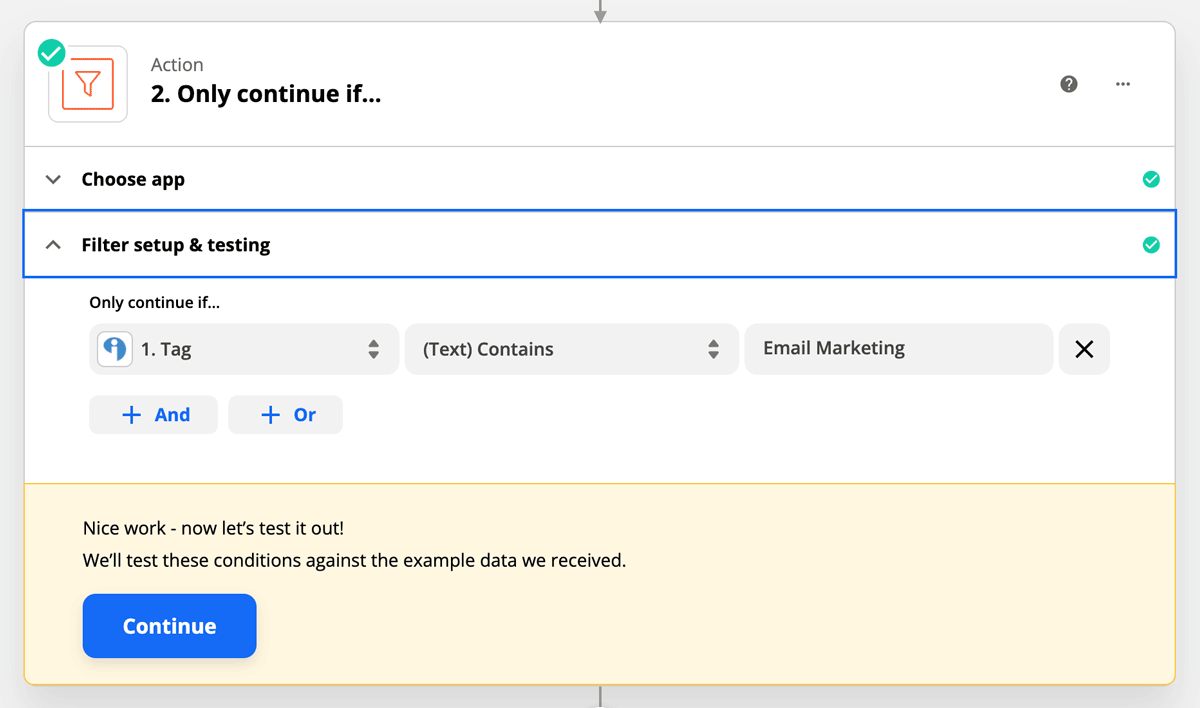
Paths by Zapier
Paths work similarly to Filters but let you create multiple branches within a single zap, so different conditions lead to different actions.
A practical example: when connecting a Typeform quiz to Flodesk, Paths can route subscribers into different segments based on their quiz responses. Each possible result follows its own path.
A few things to know before using Paths:
A zap must have at least two paths to work
Paths must be the last step in a zap
Paths require a Professional plan or higher in Zapier
Delay by Zapier
The Delay feature lets you add a waiting period before the next action in a zap runs.
A practical example: instead of receiving a notification about new subscribers at midnight, you can use Delay to hold the action until 9:00 AM.
One important note: if you make any changes to your zap while a delay is in progress (adding, changing, or removing actions), the zap won't continue once the delay ends. Learn more about troubleshooting Delay by Zapier in this article.
Troubleshooting common issues
"No user found" error when connecting to Flodesk
If you see this error while connecting Zapier to Flodesk, check that your email address is entered in all lowercase letters on the Flodesk login screen.
For example, use caroline@flodesk.com rather than Caroline@Flodesk.com.
Workflow email not triggered after a zap runs
If your zap runs but a Flodesk workflow email isn't sent, check these two things:
The test email is already in the trigger segment: if you're testing with an email address that's already in the segment, it won't trigger the workflow. Use a different email address or create a new segment to test with.
Segment mismatch: make sure the zap is adding subscribers to the same segment that triggers your workflow in Flodesk. If they don't match, the workflow won't start.
Still not working?
If you've checked the above and the zap still isn't running correctly, here are a few next steps:
Review Zapier's guide to common issues and how to troubleshoot them in this guide.
Contact Zapier support. Their team is responsive and handles integration-specific questions.
Find a Zapier expert in their directory if you'd prefer to have someone set things up for you.
FAQ
What's the difference between a single-step and a multi-step zap?
A single-step zap has one trigger and one action. A multi-step zap includes more than one action, or uses advanced features like Filters, Paths, or Searches. Use a multi-step zap when you need to sort or route subscribers based on their behavior.
What is a Filter in Zapier and when should I use it?
A Filter is a condition that must be met for a zap to continue. If the condition isn't met, the zap stops. Use a Filter when you only want certain subscribers added to a specific Flodesk segment, for example, when subscribers get a particular quiz result.
What is the difference between Filters and Paths in Zapier?
Filters let you set one condition that either allows or stops a zap. Paths let you create multiple branches within a single zap, so different conditions lead to different actions. Paths require a Professional Zapier plan or higher and must be the last step in a zap.
I'm getting a "No user found" error when connecting Zapier to Flodesk. What should I do?
Make sure your email address is typed in all lowercase letters on the Flodesk login screen. For example, use caroline@flodesk.com rather than Caroline@Flodesk.com. This is a common cause of that error.
My zap ran, but I didn't receive a workflow email in Flodesk. Why?
There are two common causes. First, if you're testing with an email address already in the trigger segment, the workflow won't fire. Try testing with a different email address or a new segment. Second, check that the zap is adding subscribers to the exact same segment that triggers your Flodesk workflow. A mismatch between the two will prevent the workflow from starting.
What does the Delay feature in Zapier do?
Delay lets you add a waiting period before the next action in a zap runs. For example, you could delay a notification about new subscribers until 9:00 AM instead of it firing at midnight. Keep in mind that if you edit the zap while a delay is active, the zap won't continue once the delay ends.
Can Zapier support help me troubleshoot my Flodesk integration?
Yes. Zapier's support team handles integration-specific questions and is a good resource if your zap isn't working as expected. You can also find a Zapier expert in their directory if you'd prefer hands-on help setting things up.
Does Flodesk support help with Zapier integrations? A: The Flodesk support team can help with questions about Flodesk's native features and settings. For Zapier-specific issues, Zapier's own support team and documentation are the best resources.