
How to connect Typeform and Flodesk via Zapier
Overview
If you use Typeform to run quizzes, surveys, or forms, you can connect it to Flodesk via Zapier so that new respondents are automatically added to your Flodesk audience as subscribers. No manual importing needed.
There are two ways to set this up, depending on your goal:
Option 1: Add everyone who completes the quiz to a single segment (good for sending a welcome sequence to all respondents)
Option 2: Add respondents to different segments based on their quiz result (good for sending targeted follow-ups based on their answers)
Both options are covered below.
What you'll need before you start
An active Flodesk account
A Zapier account
A Typeform account
At least one published Typeform quiz or form (it must be published to appear in Zapier)
At least one segment created in Flodesk
Option 1: Add all quiz respondents to one segment
Use this option when you want every quiz respondent to go into the same Flodesk segment, regardless of their answers.
Step 1: Create a new zap in Zapier
Log in to Zapier and create a new zap. Give it a name so it's easy to identify later.
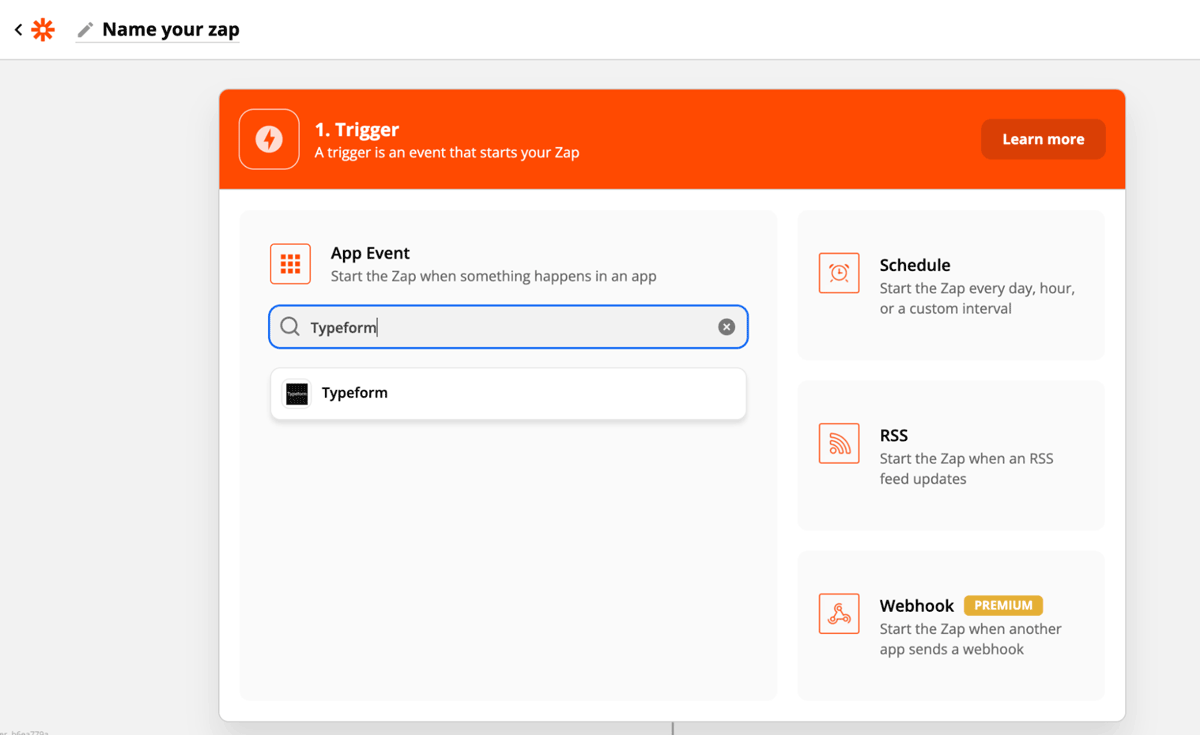
Step 2: Set Typeform as the trigger
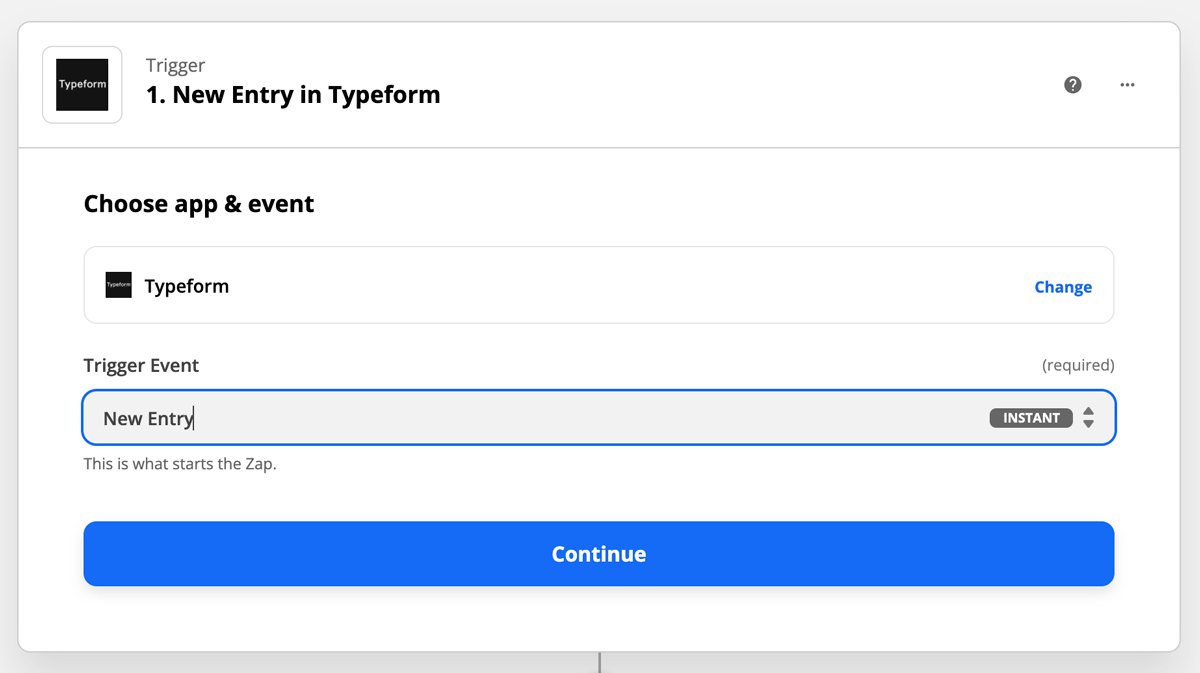
Select Typeform as the trigger app and choose New Entry as the event. This means the zap will run each time someone submits your form.
Connect your Typeform account if you haven't already. If prompted for an API key, you can find it on the My Account page in Typeform.
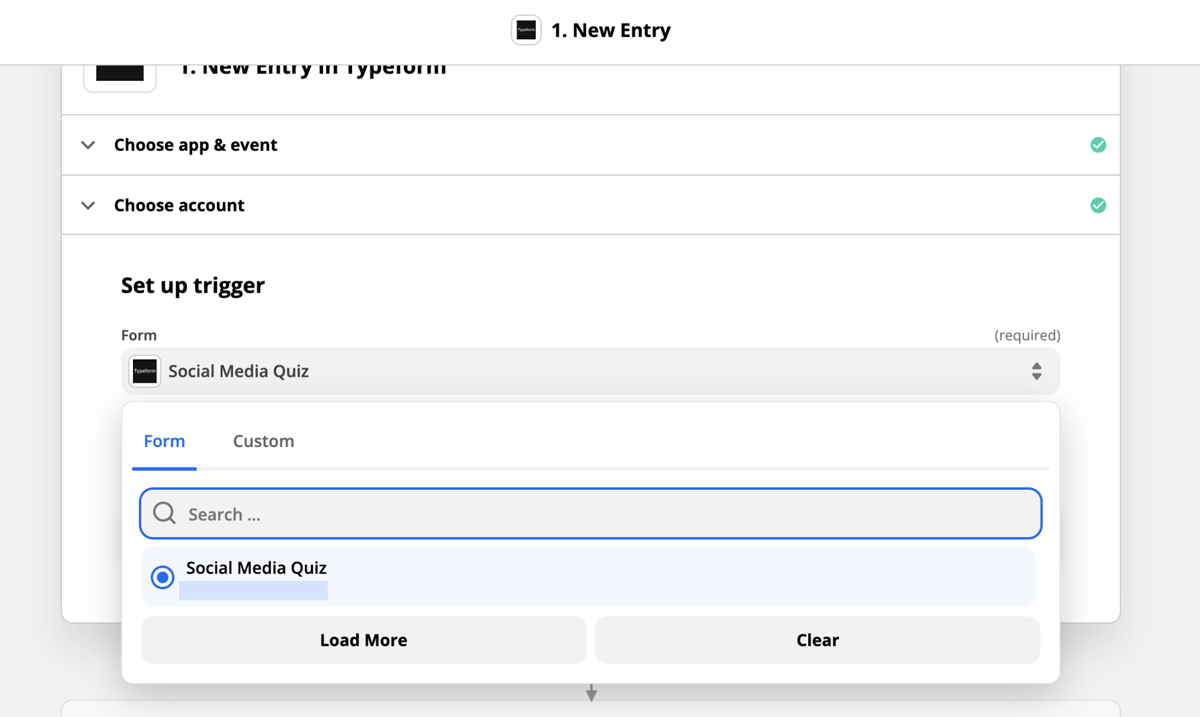
Once connected, select your quiz from the Form dropdown. Zapier will test the trigger to confirm it's working.
Step 3: Set Flodesk as the action
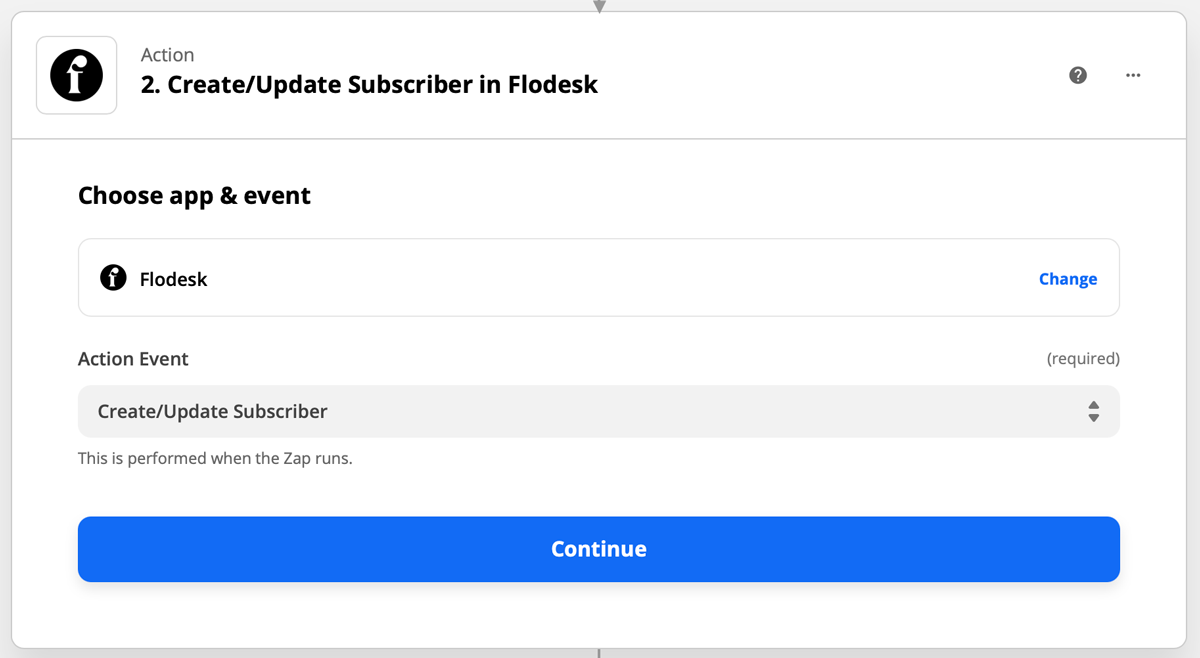
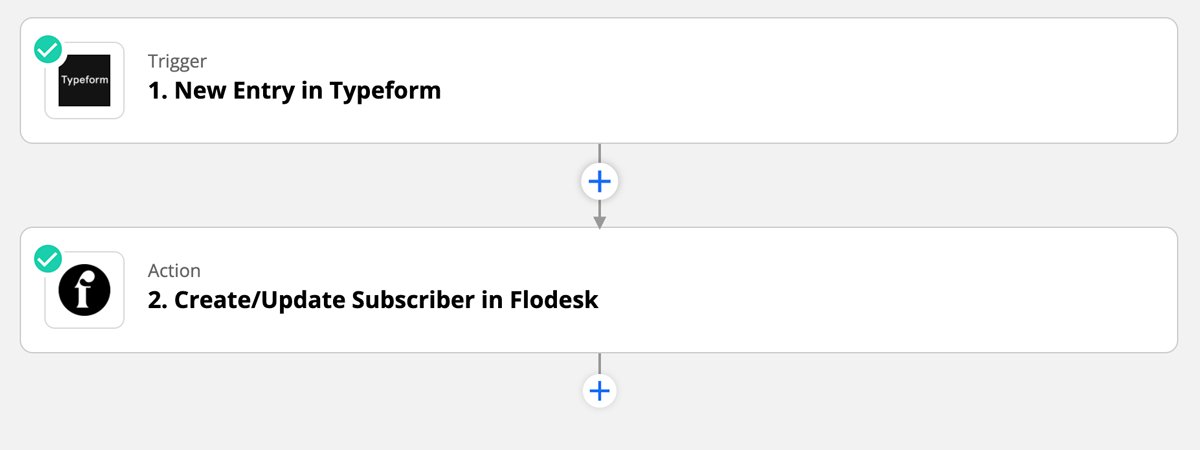
Select Flodesk as the action app and choose Create/Update Subscriber as the event. This step is important: subscribers need to exist in Flodesk before they can be added to segments or workflows, so this should always be your first Flodesk action.
Connect your Flodesk account if this is your first time linking the two.
Step 4: Choose the segment and map the fields
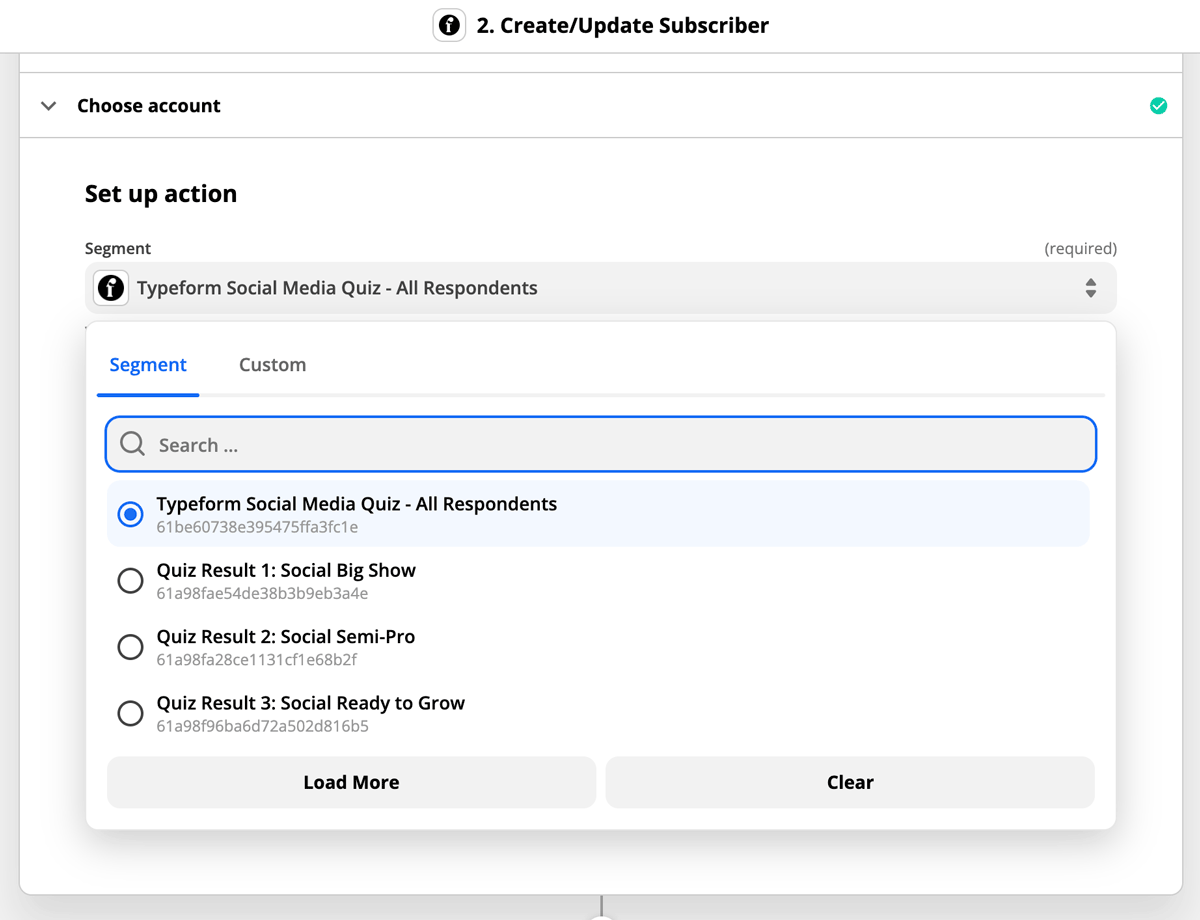
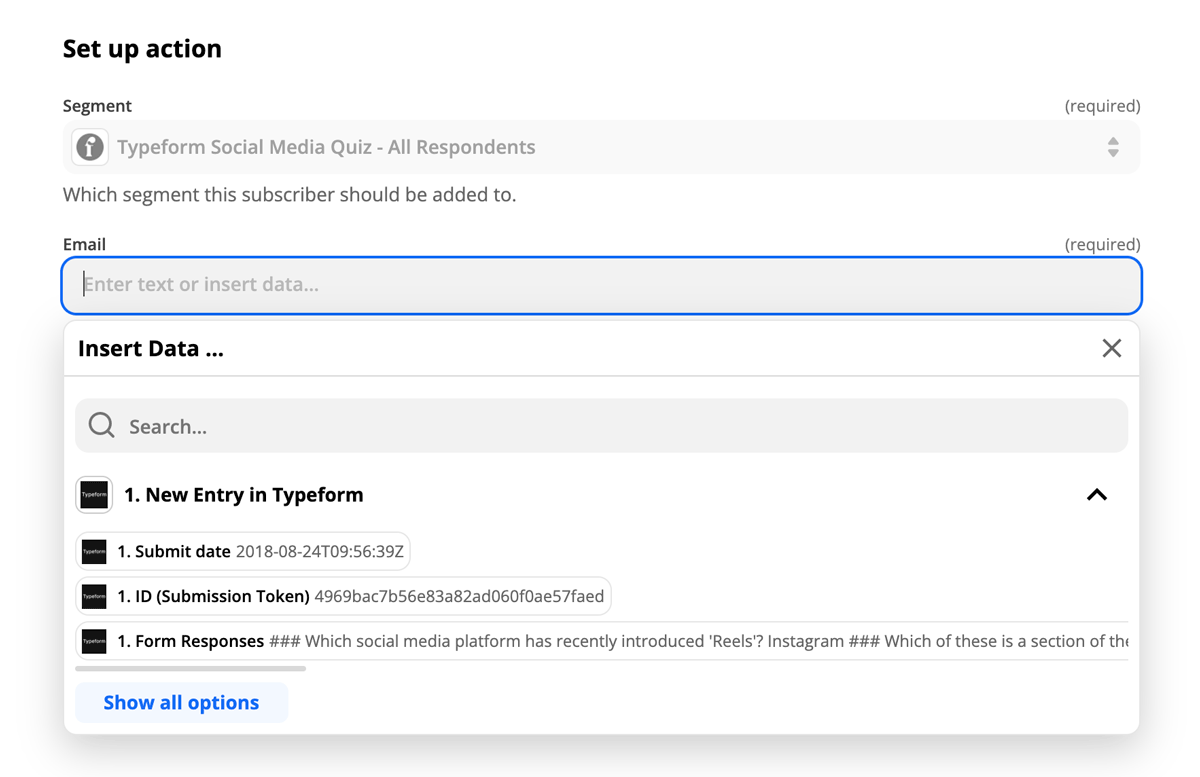
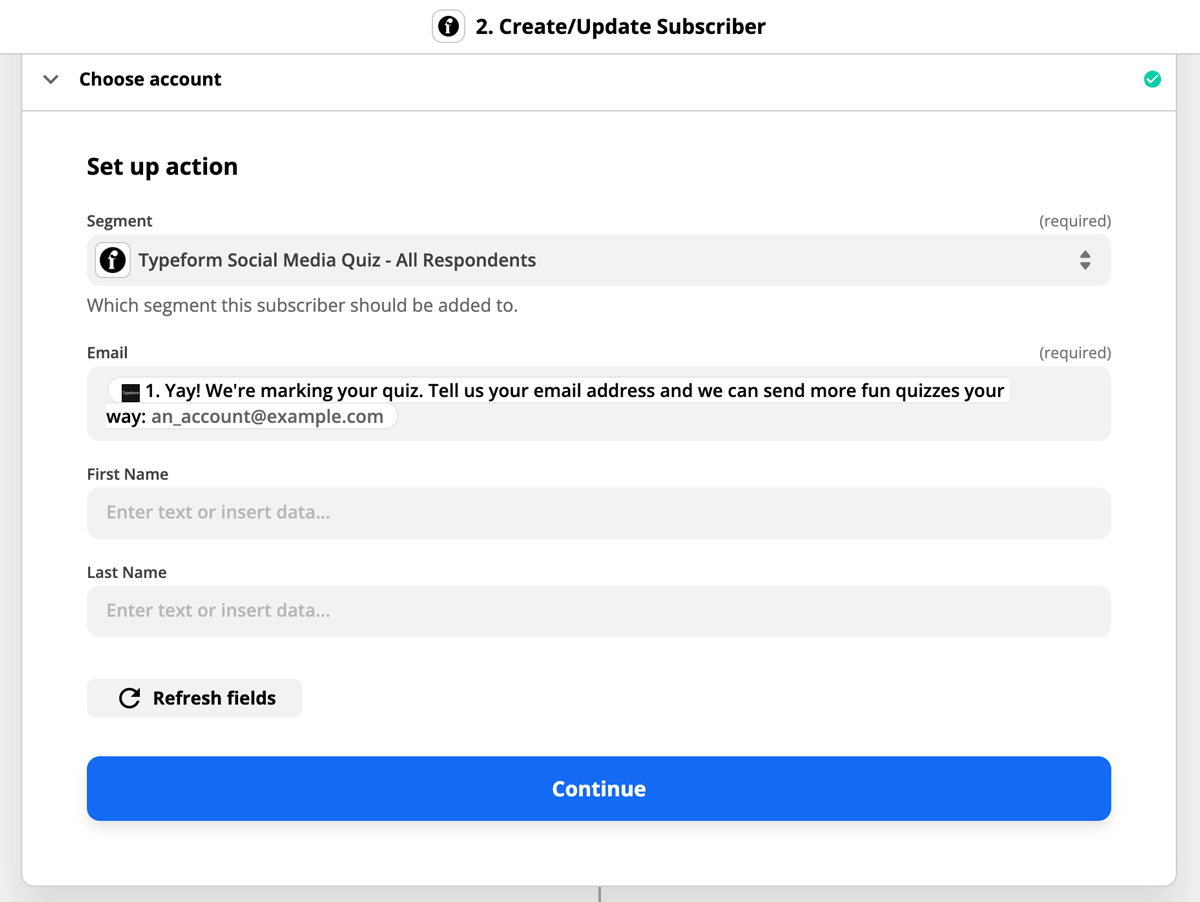
Choose the Flodesk segment you want respondents added to, then map the email field in Zapier to the email field from Typeform. This is how the subscriber's email address gets passed to Flodesk.
Since email is often collected near the end of a Typeform quiz, the email field may appear toward the bottom of the dropdown list. If you don't see it, click Show all options.
You can also map any additional data fields you'd like to carry over, such as name.
Step 5: Enable double opt-in (recommended)
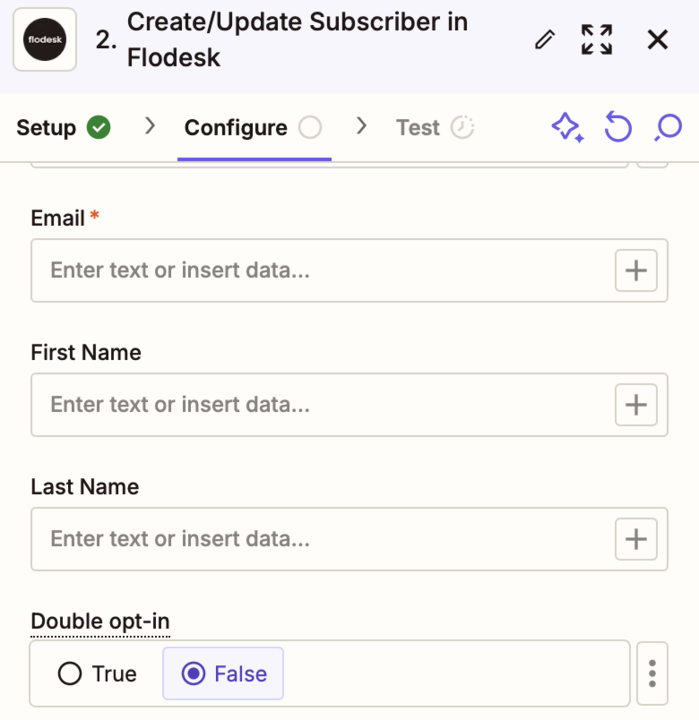
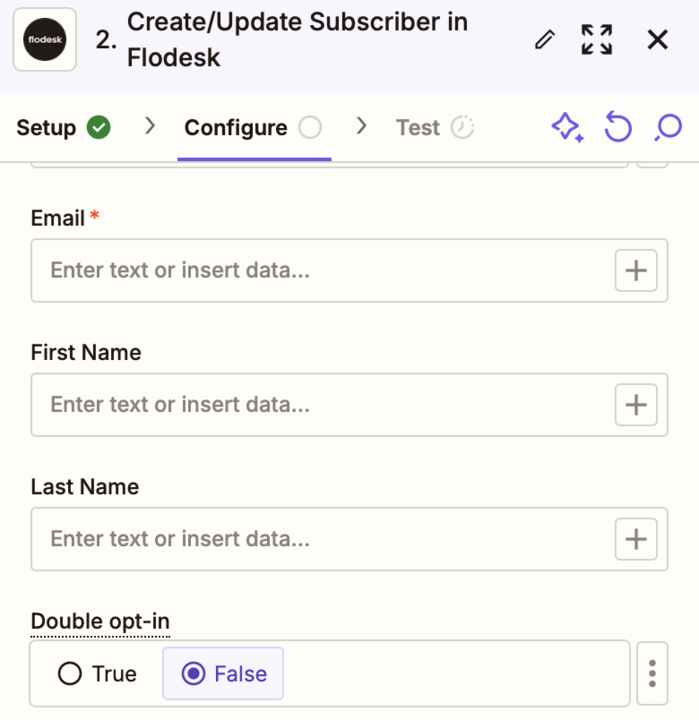
For an added layer of consent, turn on double opt-in (click True) so that only subscribers who confirm they want to join your list will be added to Flodesk.
Step 6: Test and turn on the zap
Run the test in Zapier. Once it passes, turn the zap on so it's live.
Option 2: Add respondents to different segments based on quiz results
Use this option when you want to send targeted follow-ups based on how someone answered the quiz.
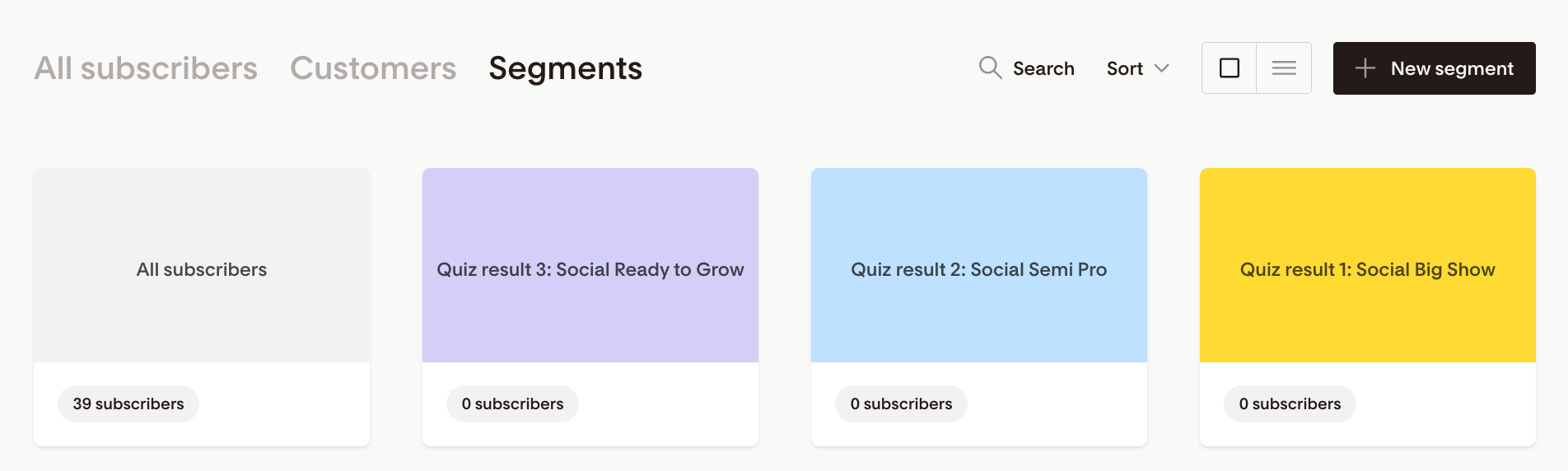
Before you start: create a segment for each quiz result
In Flodesk, create a separate segment for each possible quiz result. Name each segment after its corresponding quiz result. This makes it much easier to match them up in Zapier later.
Step 1: Create a new zap in Zapier
Log in to Zapier and create a new zap. Give it a name so it's easy to identify later.
Step 2: Set Typeform as the trigger
Select Typeform as the trigger app and choose New Entry as the event. This means the zap will run each time someone submits your form.
Connect your Typeform account if you haven't already. If prompted for an API key, you can find it on the My Account page in Typeform.
Once connected, select your quiz from the Form dropdown. Zapier will test the trigger to confirm it's working.
Step 3: Set Flodesk as the action
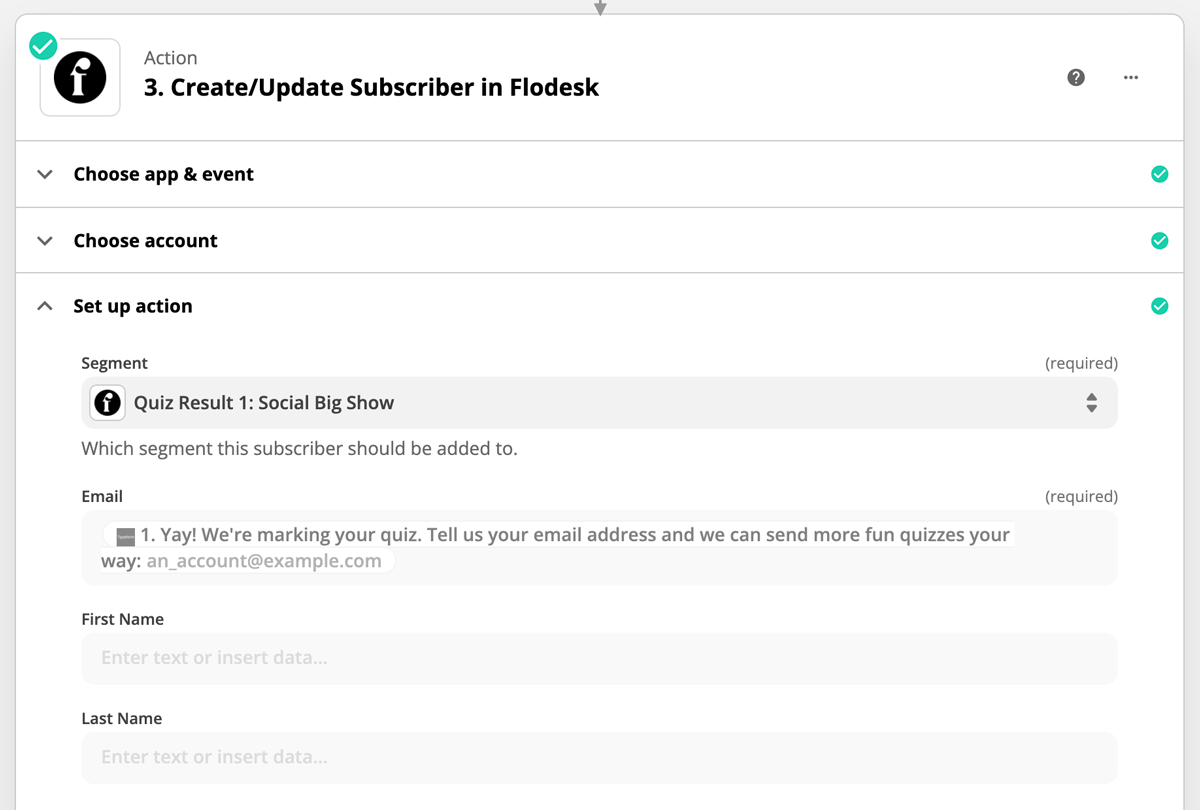
Select Flodesk as the action app and choose Create/Update Subscriber as the event. Connect your Flodesk account if this is your first time linking the two.
Step 4: Map the fields
Map the email field in Zapier to the email field from Typeform. If you don't see the email field in the dropdown, click Show all options. You can also map any additional fields you'd like to carry over, such as name.
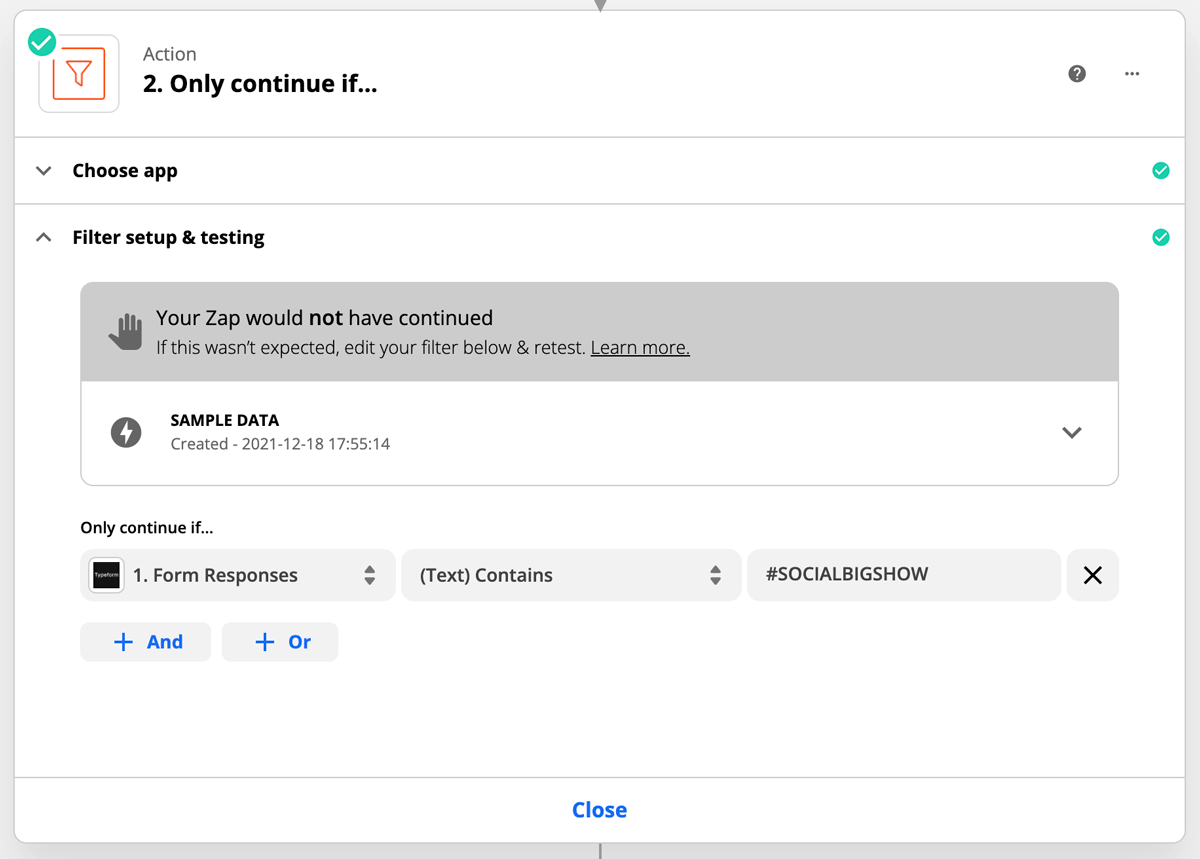
Step 5: Add a Filter step between Typeform and Flodesk
Click the + icon between the Typeform and Flodesk steps in your zap. Select Filter from the list of options.
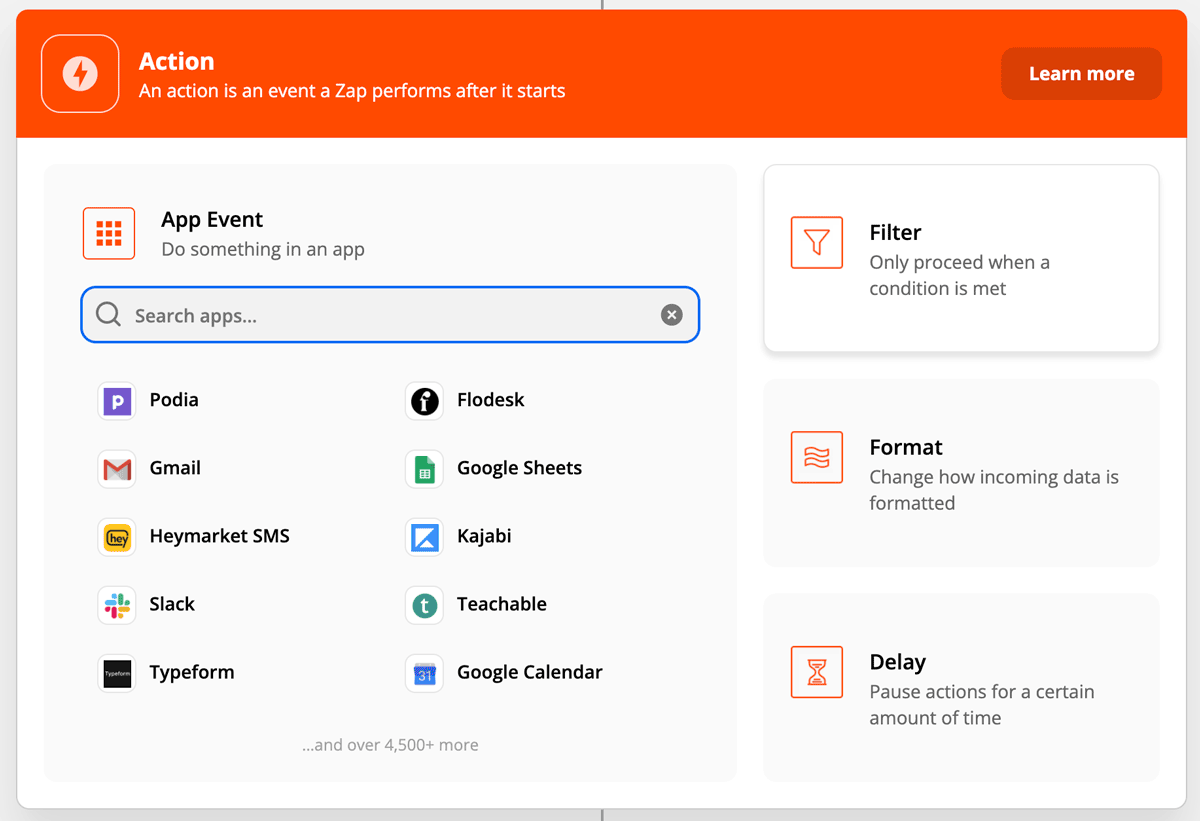
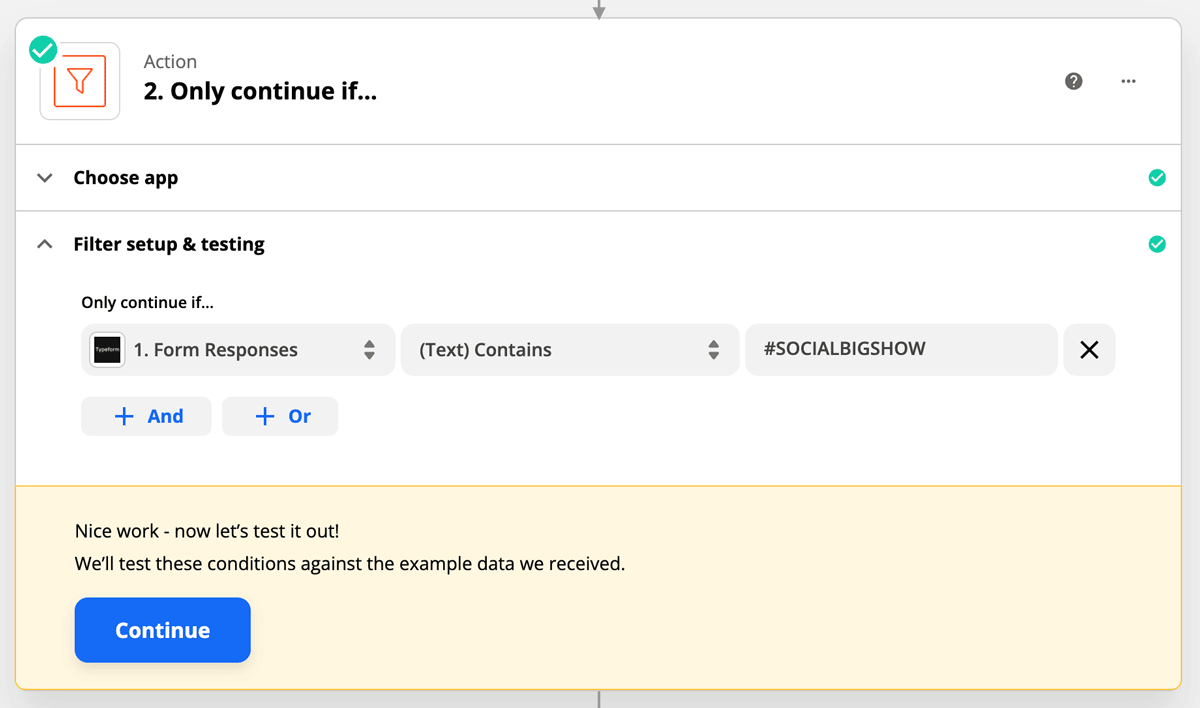
The Filter tells Zapier to only continue to Flodesk when a specific condition is met. Fill in the filter fields like this:
Field: Form responses
Condition: (Text) Contains
Value: the name of the quiz result you're targeting (Since one of our quiz results is #SocialBigShow, we will manually type that in the Value field.)
Step 6: Test the filter
Click Continue to test. Zapier may say the zap would not have continued. This is expected when using test data. The filter will only work correctly when a real respondent completes the live quiz.
Step 7: Set up the Flodesk action for that quiz result
In the Action step, select Create/Update Subscriber and choose the Flodesk segment that matches this specific quiz result.
Step 8: Repeat for each quiz result
Repeat steps 5 to 7 for each of your remaining quiz results. You can do this as a multi-step zap (all results in one zap) or create a separate zap for each result. Either approach works.
A note on consent
Whenever you add quiz respondents to your Flodesk audience, make sure your Typeform quiz clearly tells people that providing their email address opts them in to receive email marketing from you. Enabling double opt-in is a good way to add a second layer of confirmation.
FAQ
How do I connect Typeform to Flodesk?
You connect them using Zapier. Create a zap with Typeform as the trigger (using New Entry as the event) and Flodesk as the action (using Create/Update Subscriber). Map the email field from Typeform to Flodesk, choose your segment, and turn the zap on.
Can I add Typeform respondents to different Flodesk segments based on their quiz results?
Yes. Add a Filter step between the Typeform trigger and Flodesk action in your zap. Set the filter to check for a specific quiz result, then connect it to the matching Flodesk segment. Repeat this for each quiz result you want to segment by.
What Flodesk action should I use in Zapier?
Always start with Create/Update Subscriber as your first Flodesk action. Subscribers need to exist in Flodesk before they can be added to segments or workflows, so this step should come before anything else.
My Typeform quiz isn't appearing in Zapier. What should I do?
The quiz must be published in Typeform before it will appear in Zapier. If it's published and still not showing, try refreshing the dropdown or reconnecting your Typeform account in Zapier.
I can't find the email field in the Zapier dropdown. What should I do?
Since email is often collected near the end of a Typeform quiz, it may appear toward the bottom of the list. If you still can't see it, click Show all options in the dropdown to display every available data field.
Should I enable double opt-in when connecting Typeform to Flodesk?
Yes. Double opt-in adds a confirmation step so that only subscribers who actively confirm they want to join your list will be added to Flodesk. You can enable it in the Flodesk action step within Zapier.
Do I need one zap or multiple zaps to segment by quiz result?
Either works. You can set up a multi-step zap with multiple Filter and Action steps (one for each quiz result), or create a separate zap for each result. The multi-step approach keeps everything in one place, while separate zaps can be easier to troubleshoot individually.
What do I need before I can connect Typeform and Flodesk via Zapier?
You'll need an active Flodesk account, a Zapier account, a Typeform account, at least one published Typeform quiz or form, and at least one segment already created in Flodesk.