
About API Keys
Overview
An API key is what gives an external app permission to connect to your Flodesk account and sync data automatically. If you're working with a developer or setting up a custom integration, you'll need to generate an API key in Flodesk to get started.
This article explains what API keys are, how to create and manage them, and how to keep them secure.
Note: connecting apps via an API requires coding knowledge or a developer. For the full list of available API requests and webhooks, see the Flodesk API documentation.
Who can use API keys
API keys are available to paid Flodesk members only. They're not available on trial or free plan accounts.
What is an API key?
An API (application programming interface) is a way for different apps to communicate and share data with each other. An API key is a unique code that confirms the connecting system is authorized to interact with your Flodesk account.
A practical example: if you want your WordPress website's sign-up form to automatically send new subscribers to Flodesk, you'd connect them using an API key. The key tells Flodesk that the request is coming from a trusted source.
How to keep your API keys secure
API keys grant full access to your Flodesk account, so treat them like a password. A few good habits to follow:
Give each integration its own key. If one key is ever compromised, you can revoke it without disrupting your other integrations.
Add a descriptive label to each key so you always know which key belongs to which app.
Don't share keys publicly, such as in screenshots, videos, or help documents.
Don't send a key by email. If your email account were ever hacked, the key could give someone else access to your Flodesk account.
If you need to share access, generate a new key and label it clearly so you know which one to revoke if needed.
How to create an API key
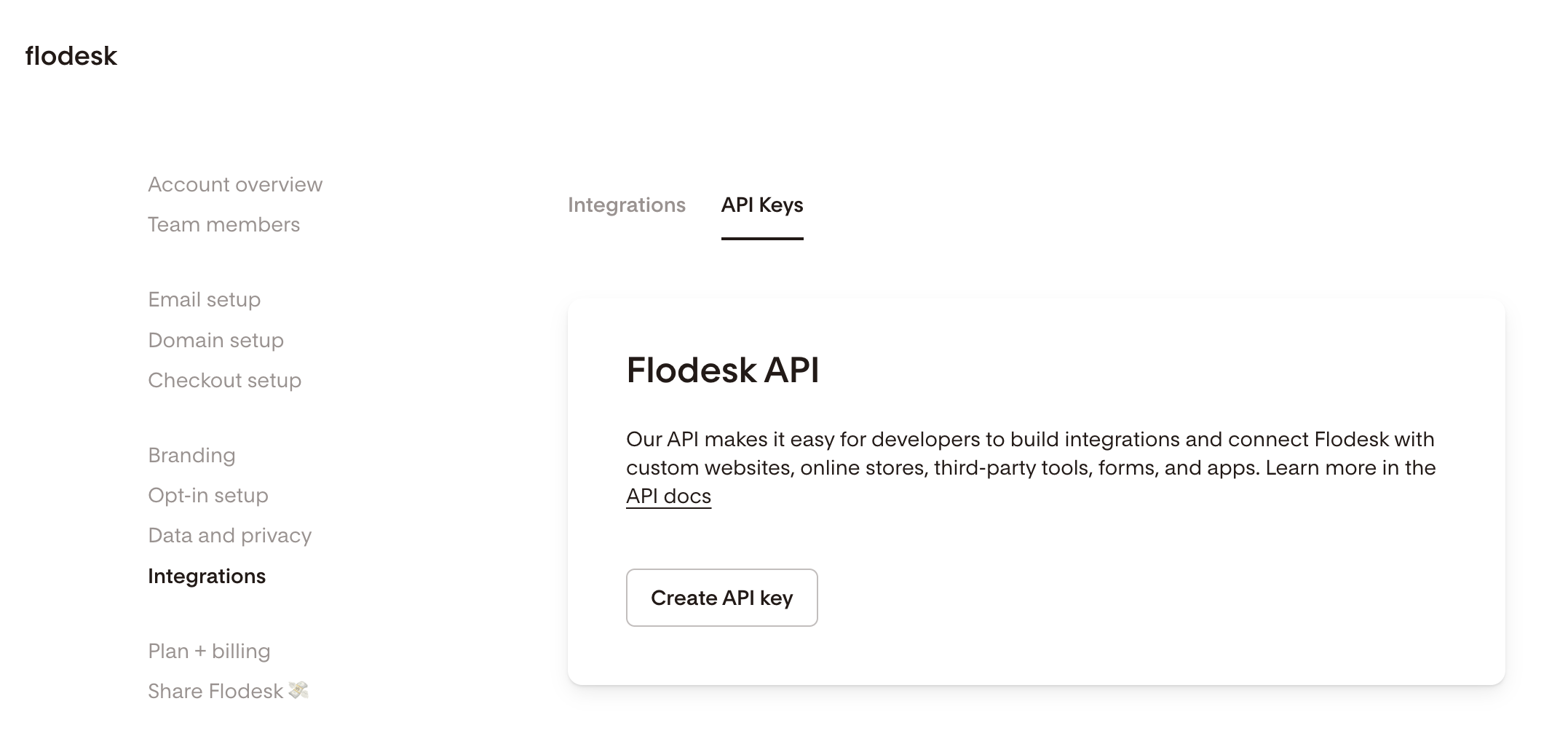
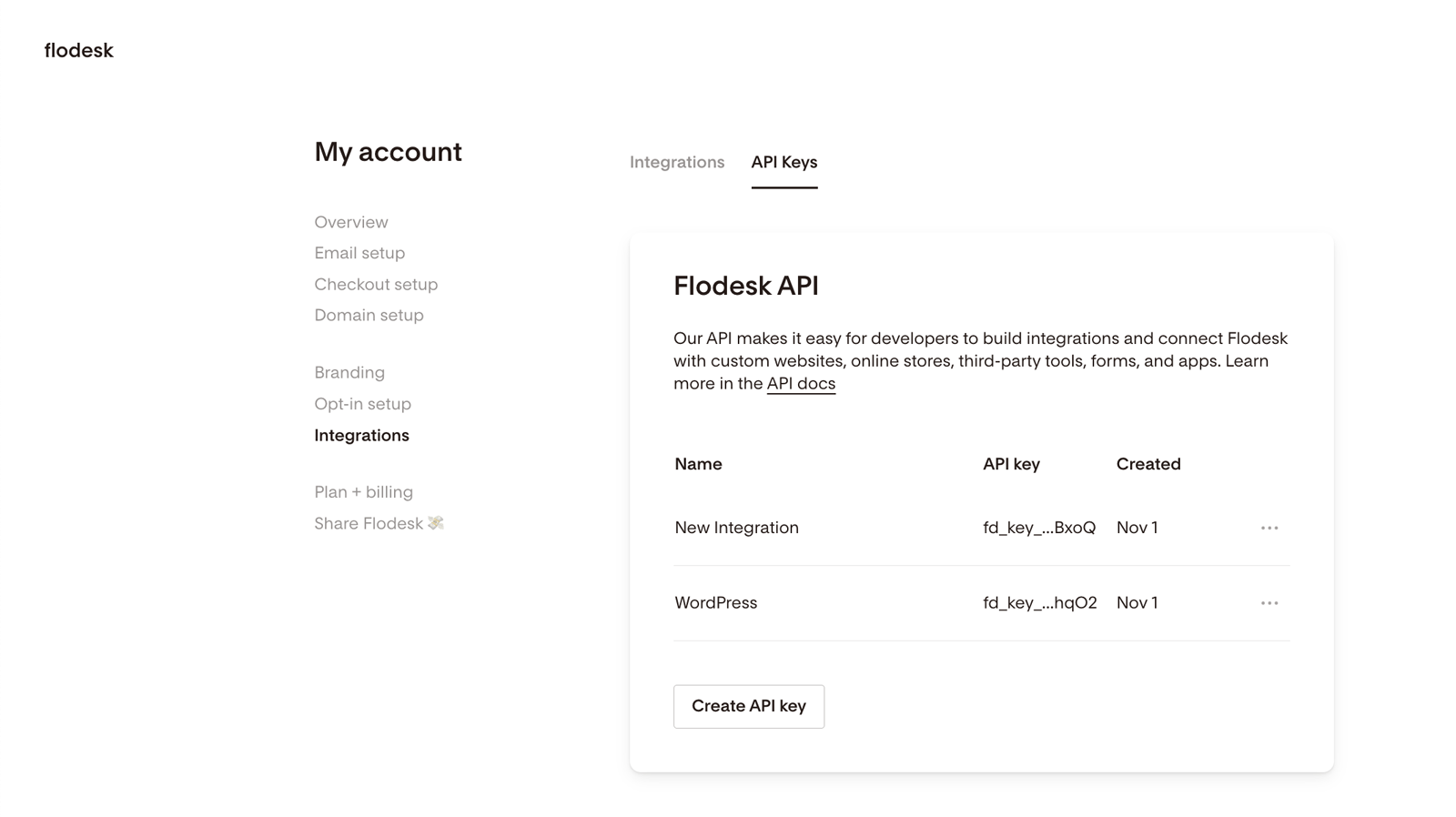
Go to My Account > Integrations > API keys and click Create API key
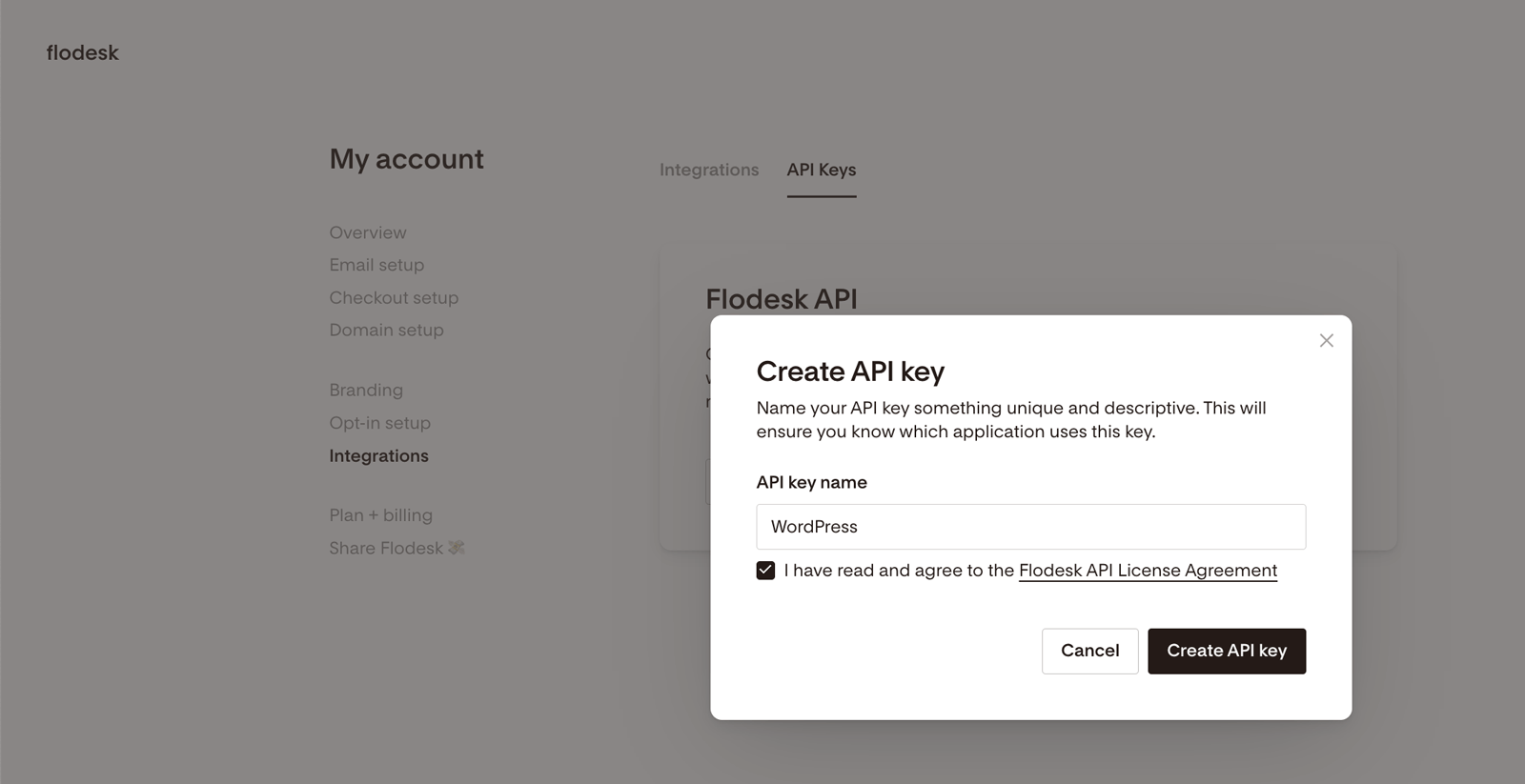
Add a descriptive label so you know which app this key is for (for example, "WordPress" or "Custom checkout form")
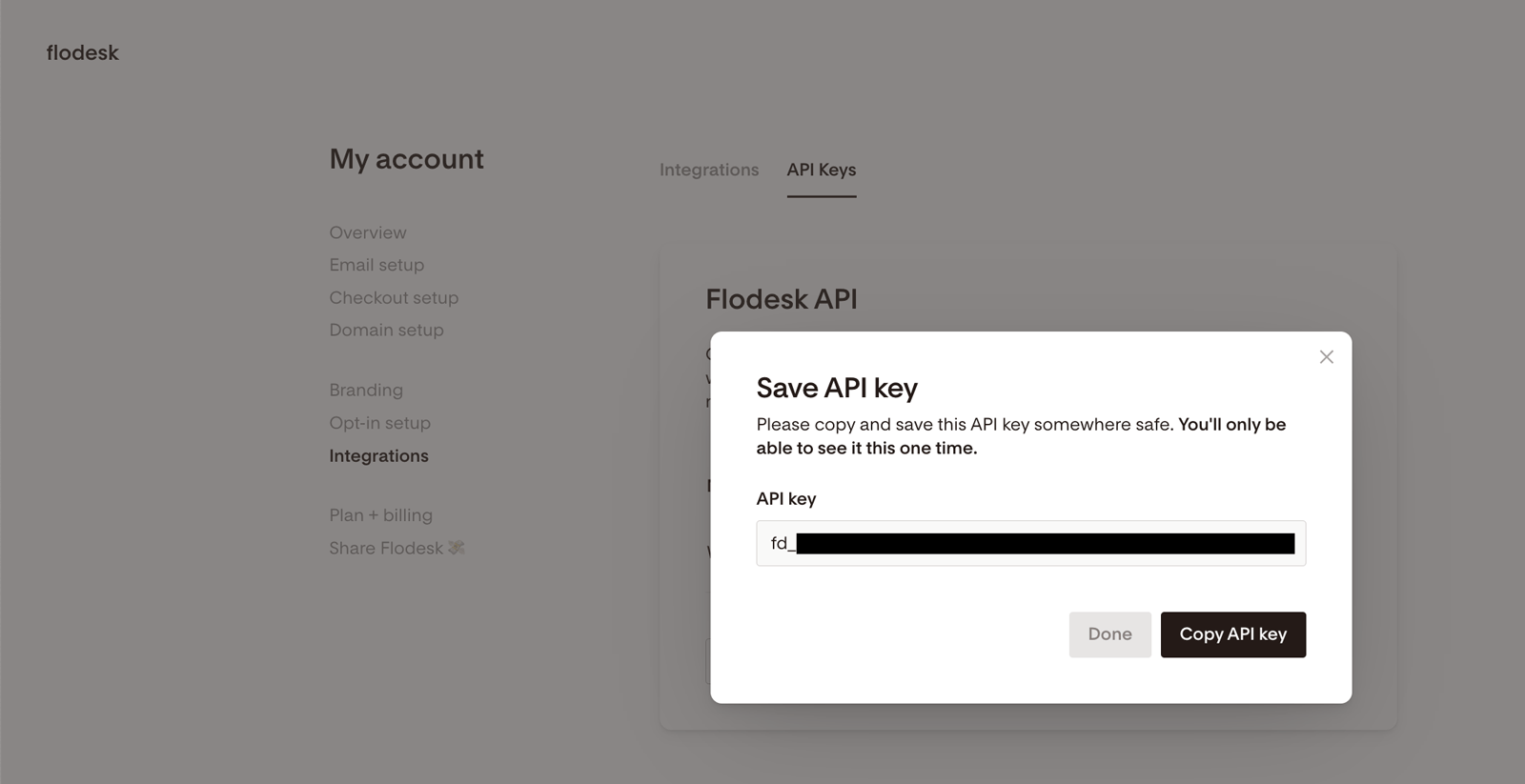
Click Create API key. A unique key will appear. Click Copy API key to copy it and save it somewhere secure.
Important: you'll only be able to see the full key once. If you don't copy it now, you'll need to generate a new one.
Click Done to return to the API keys screen
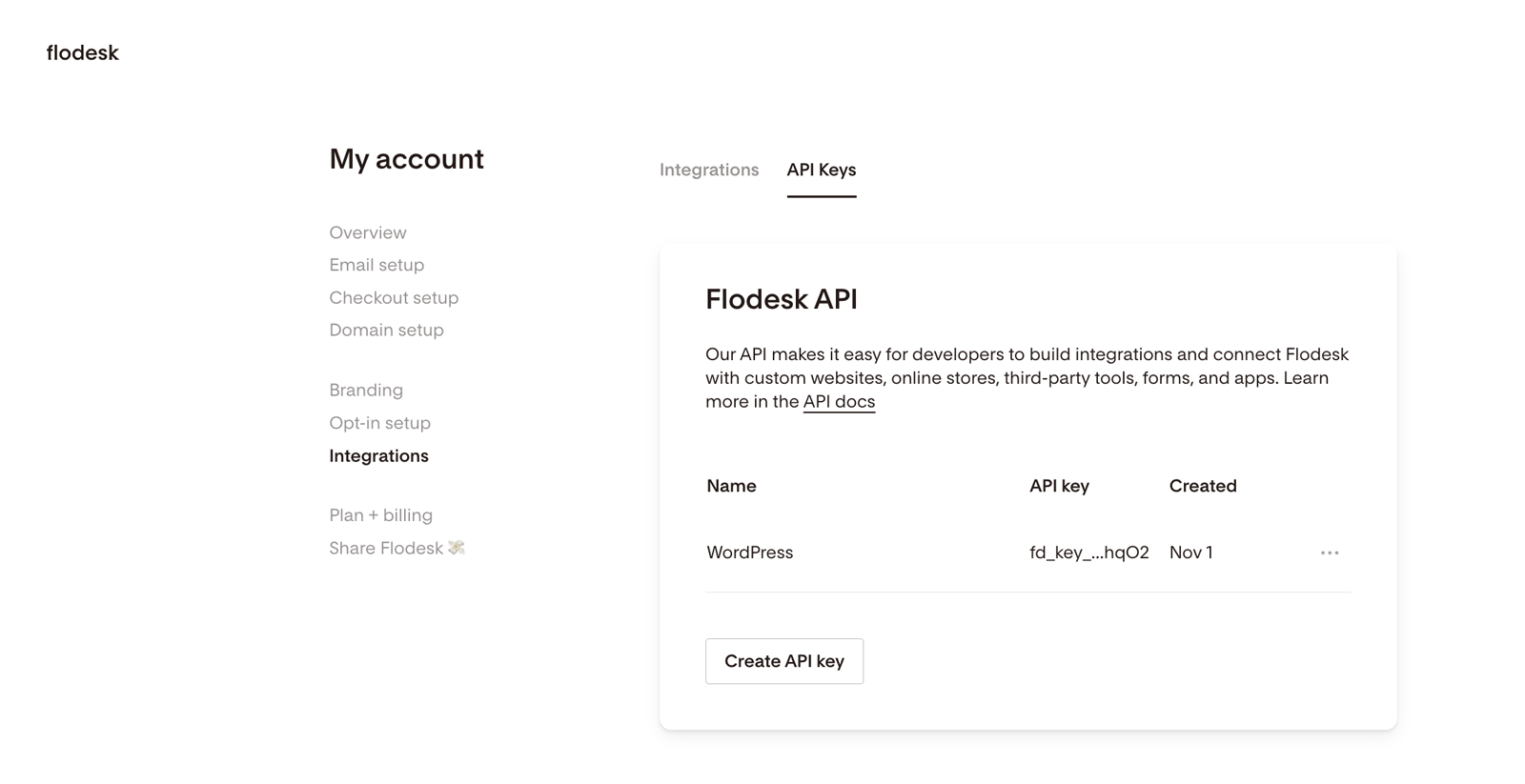
Repeat these steps to create a separate key for each integration you set up.
How to revoke an API key
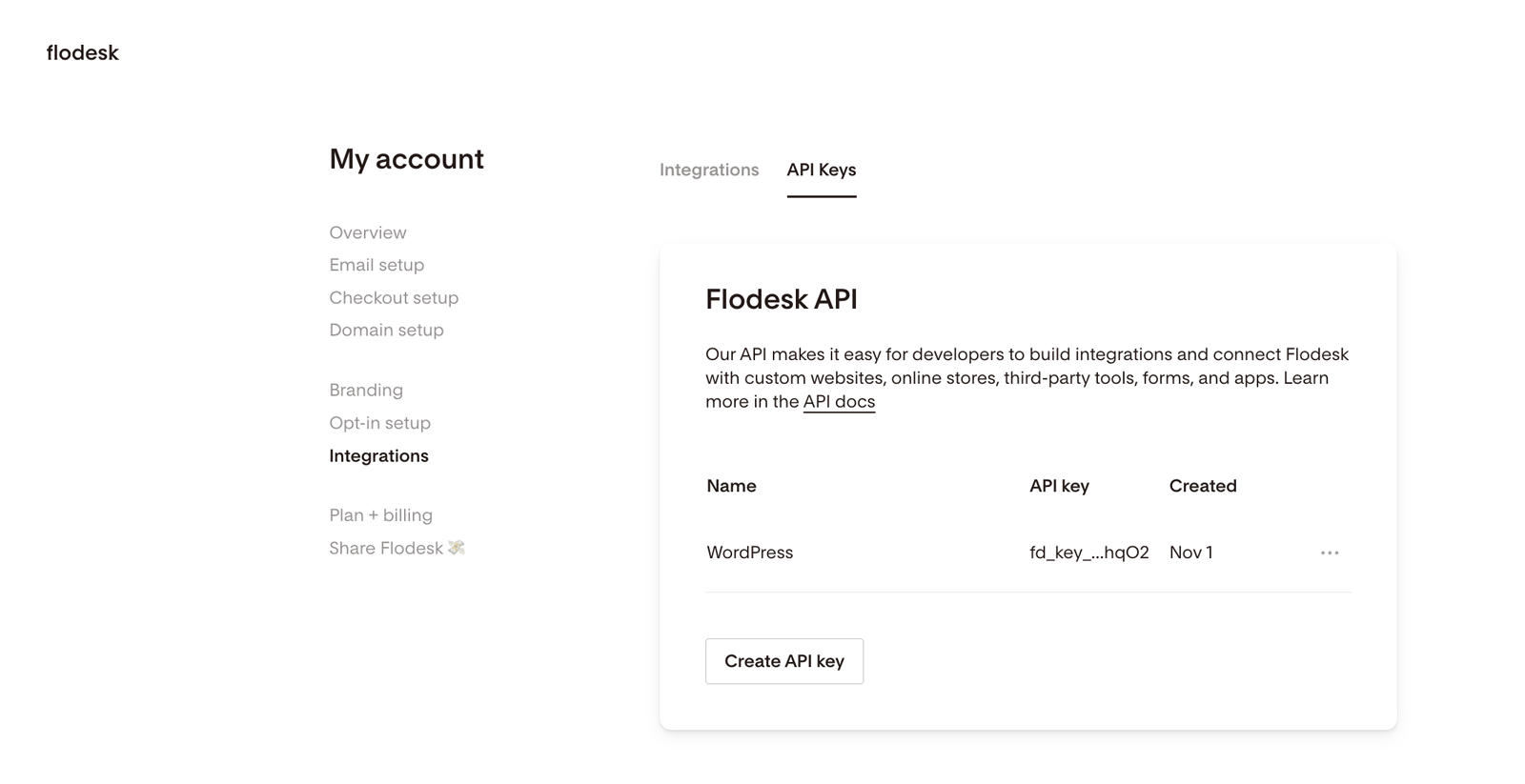
If a key has been compromised, or you no longer need a particular integration, you can revoke the key to remove its access to your Flodesk account.
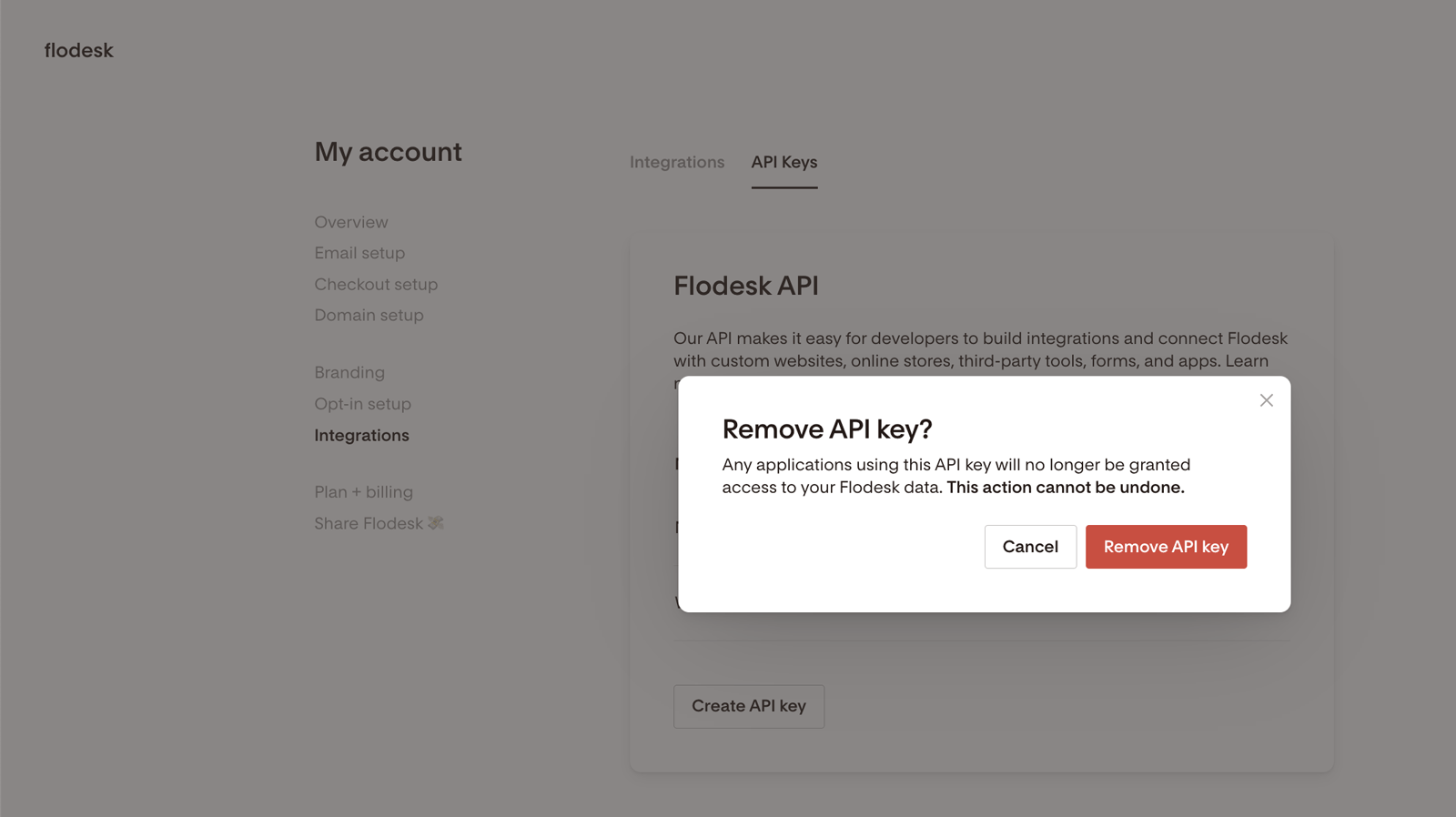
Note: revoking a key can't be undone. Any app using that key will immediately lose access to your Flodesk data. If you need to restore access, you'll need to generate a new key and update the integration to use it.
Go to My Account > Integrations > API keys
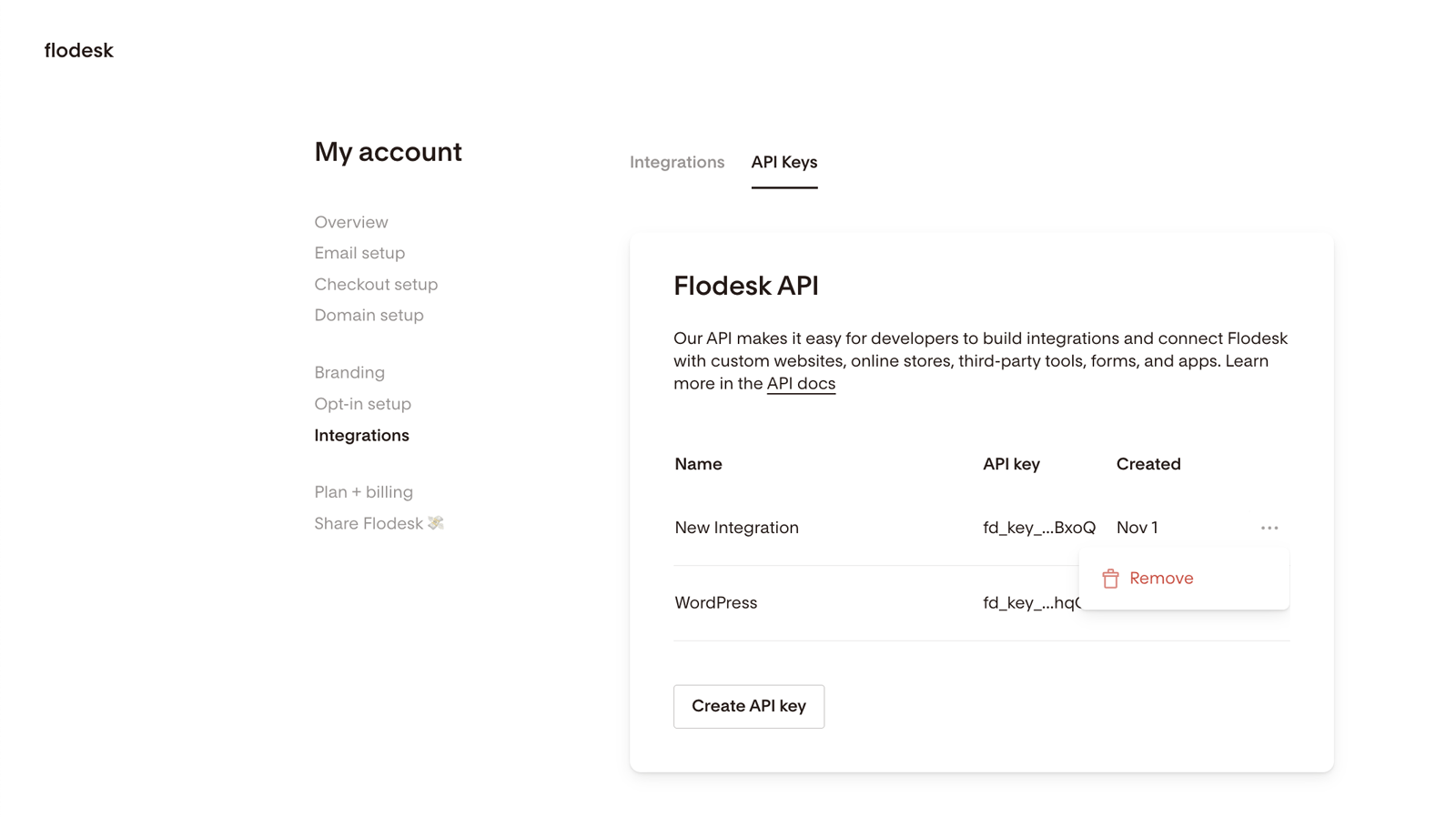
Click the three-dot menu (...) next to the key you want to remove and select Remove
Click Revoke API key to confirm
Support limitations
The Flodesk support team can help with questions about native integrations like Shopify and Instagram. For custom API setups or third-party integrations, support isn't available. The Flodesk API documentation is the best resource for technical guidance on those.
FAQ
What is an API key in Flodesk?
An API key is a unique code that gives an external app permission to connect to your Flodesk account. It's used to set up custom integrations that automatically sync subscriber data between Flodesk and other tools or systems.
Who can use API keys in Flodesk?
API keys are available to paid Flodesk members only. They're not available on trial or free plan accounts.
How do I create an API key in Flodesk?
Go to My Account > Integrations > API keys and click Create API key. Add a descriptive label, then click Create API key again. Copy the key and save it somewhere secure. You'll only be able to see it once. Click Done when you're finished.
Why can I only see my API key once?
For security reasons, Flodesk only displays the full API key at the moment it's created. Once you close that screen, it won't be shown again. If you didn't copy it, you'll need to revoke the old key and generate a new one.
How do I revoke an API key in Flodesk?
Go to My Account > Integrations > API keys, click the three-dot menu (...) next to the key you want to remove, and select Remove. Confirm by clicking Revoke API key. This can't be undone. Any app using that key will immediately lose access to your Flodesk account.
What happens when I revoke an API key?
The key is permanently deactivated and any app using it will lose access to your Flodesk data immediately. You can't reactivate a revoked key. If you need to restore access, generate a new key and update the integration to use it.
Why should I give each integration its own API key?
Having a separate key for each integration means that if one key is ever compromised, you can revoke just that key without disrupting your other integrations. It also makes it easier to identify which key belongs to which app.
Is it safe to share my API key?
No. Your API key grants full access to your Flodesk account, so treat it like a password. Don't share it in screenshots, videos, documents, or emails. If you need to give someone else access, generate a separate key for them so you can revoke it independently if needed.
Do I need coding knowledge to use the Flodesk API?
Yes. Connecting apps via the API is an advanced process that requires coding knowledge or a developer. If you're not comfortable with code, Flodesk's integrations with Zapier and Pabbly Connect are a no-code alternative for connecting Flodesk to other tools.
Can Flodesk support help me set up an API integration?
The Flodesk support team can help with native integrations like Shopify and Instagram, but doesn't provide support for custom API setups or third-party integrations. The Flodesk API documentation (https://developers.flodesk.com/) is the best resource for technical guidance.