
How to connect Grow by Mediavine and Flodesk
Overview
Grow by Mediavine is a suite of tools for content creators and publishers. With the direct Flodesk integration, you can connect Grow Subscribe forms, Exclusive Content widgets, Print Pass, SmartLock, and Subscribe Action Pack to your Flodesk account, without needing Zapier.
Once the integration is set up, you can also use Grow Email Connect links in your Flodesk emails, which automatically adds Mediavine tracking identifiers to your URLs so you don't have to create those links manually.
This article covers both the initial connection and how to configure each feature.
What you'll need before you start
An active Grow by Mediavine account with at least one Subscribe form
An active Flodesk account
At least one segment created in Flodesk
How to connect Grow by Mediavine and Flodesk
Step 1: Create a segment in Flodesk for your Grow subscribers
Before connecting the two accounts, create the segment (or segments) in Flodesk where you want Grow subscribers to be added. Go to Audience > Segments and click + New segment.
Step 2: Go to Integrations in Flodesk
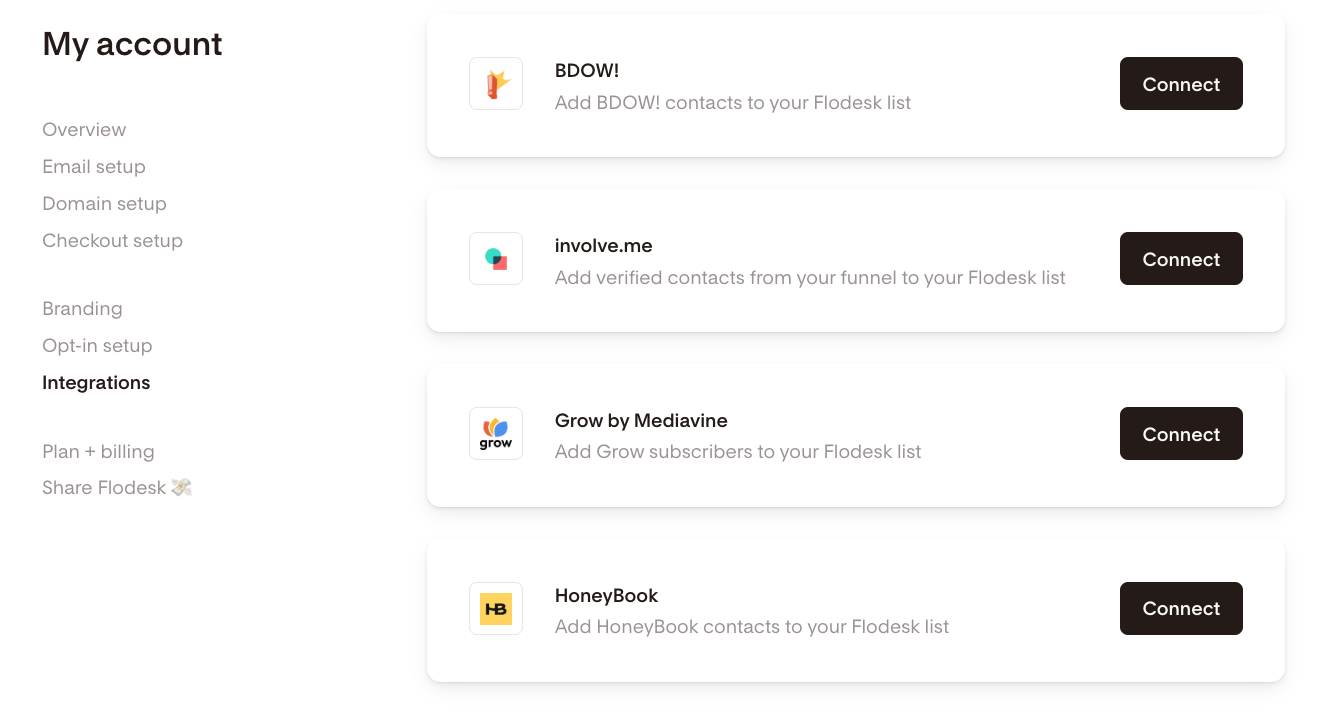
In your Flodesk account, go to My Account > Integrations and click Connect on the Grow by Mediavine card.
Step 3: Log in to Grow
If you already have a Grow Publisher's Portal account, sign in. If not, you can sign up for a new account at this step.
Step 4: Connect Flodesk from within Grow
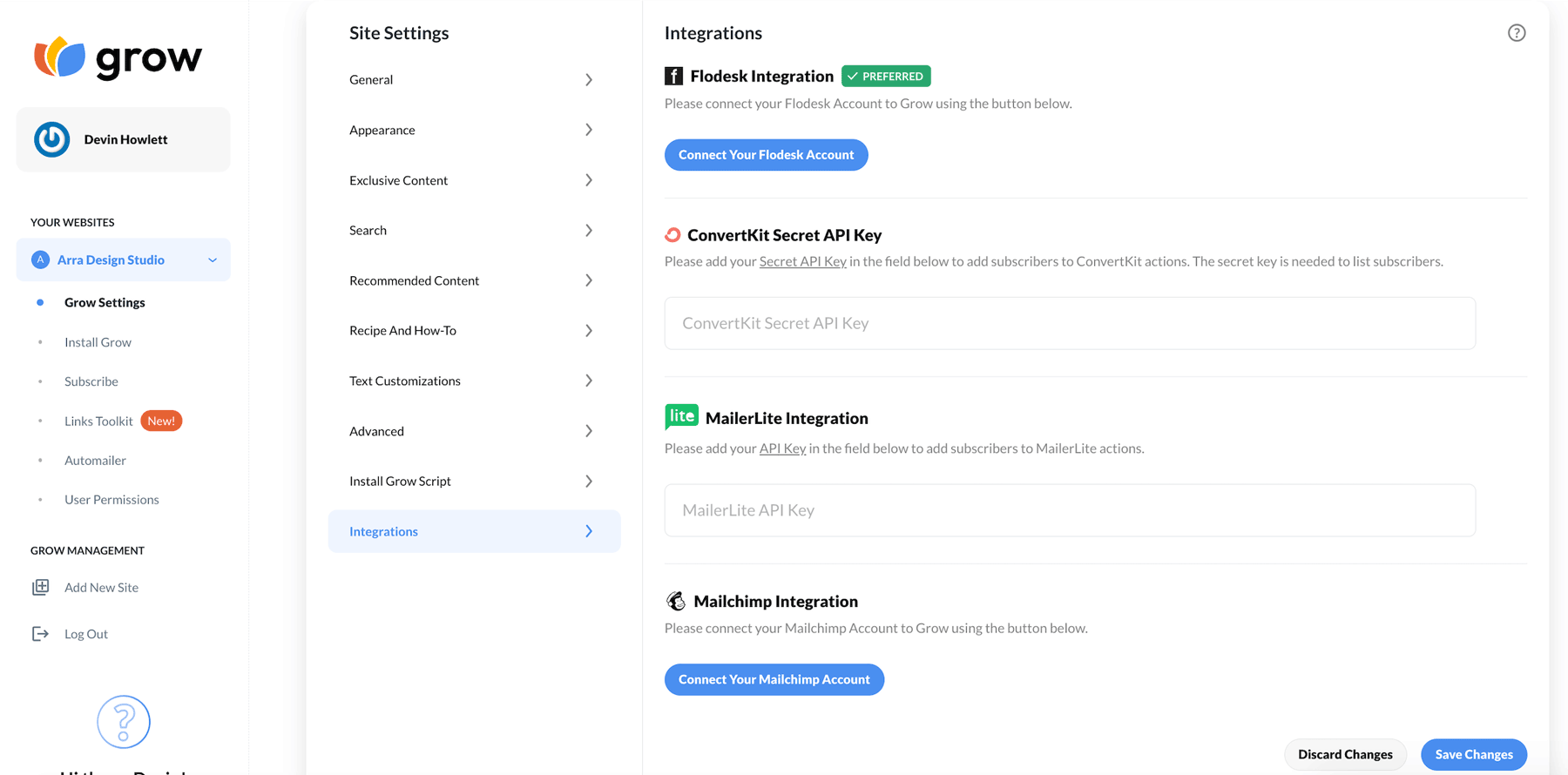
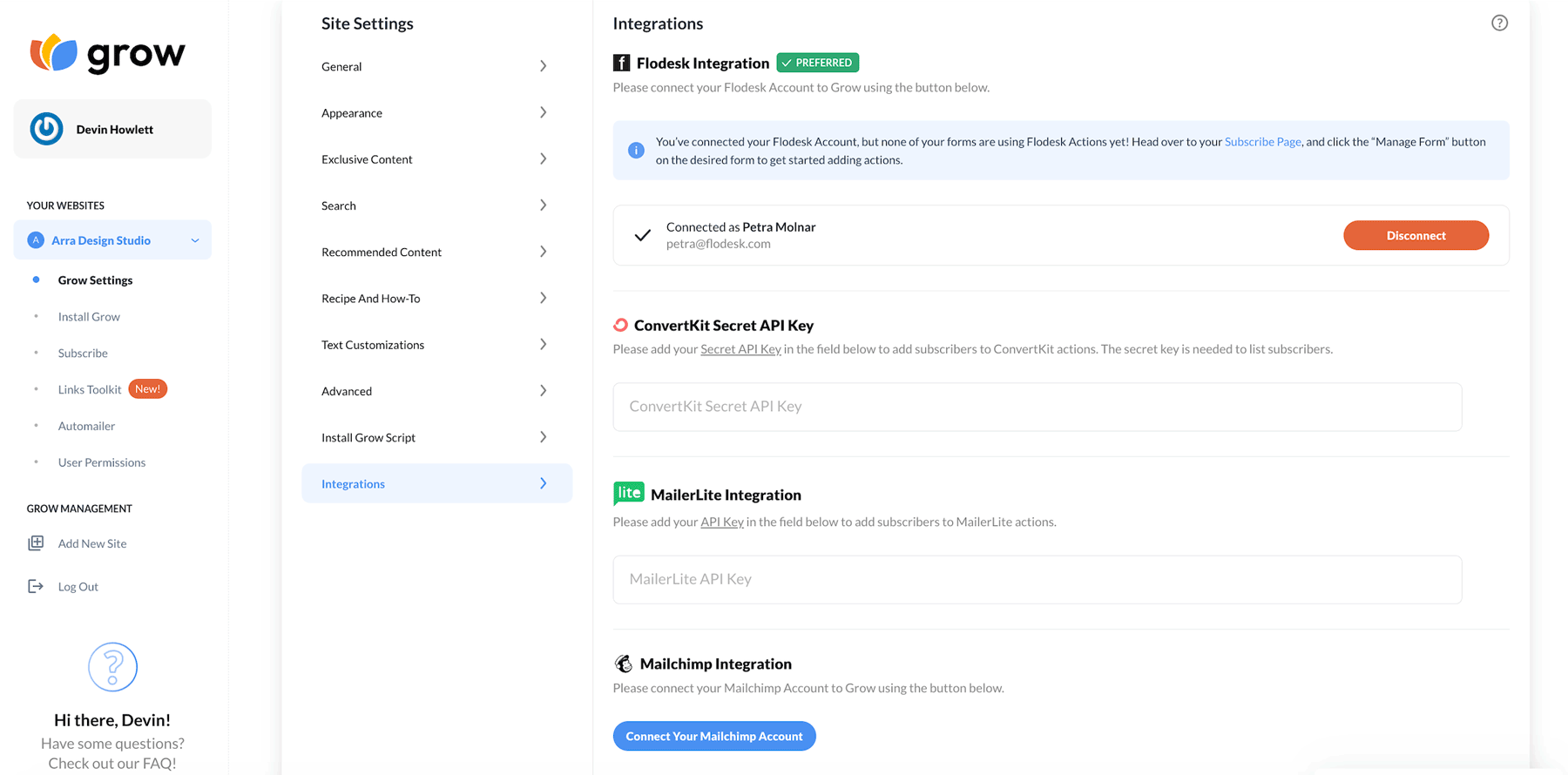
Once you're logged in to Grow, navigate to Grow Publisher Portal > Grow Settings > Integrations. Scroll down to the Flodesk integration section and click Connect Your Flodesk Account.
Step 5: Log in to Flodesk and authorize the connection
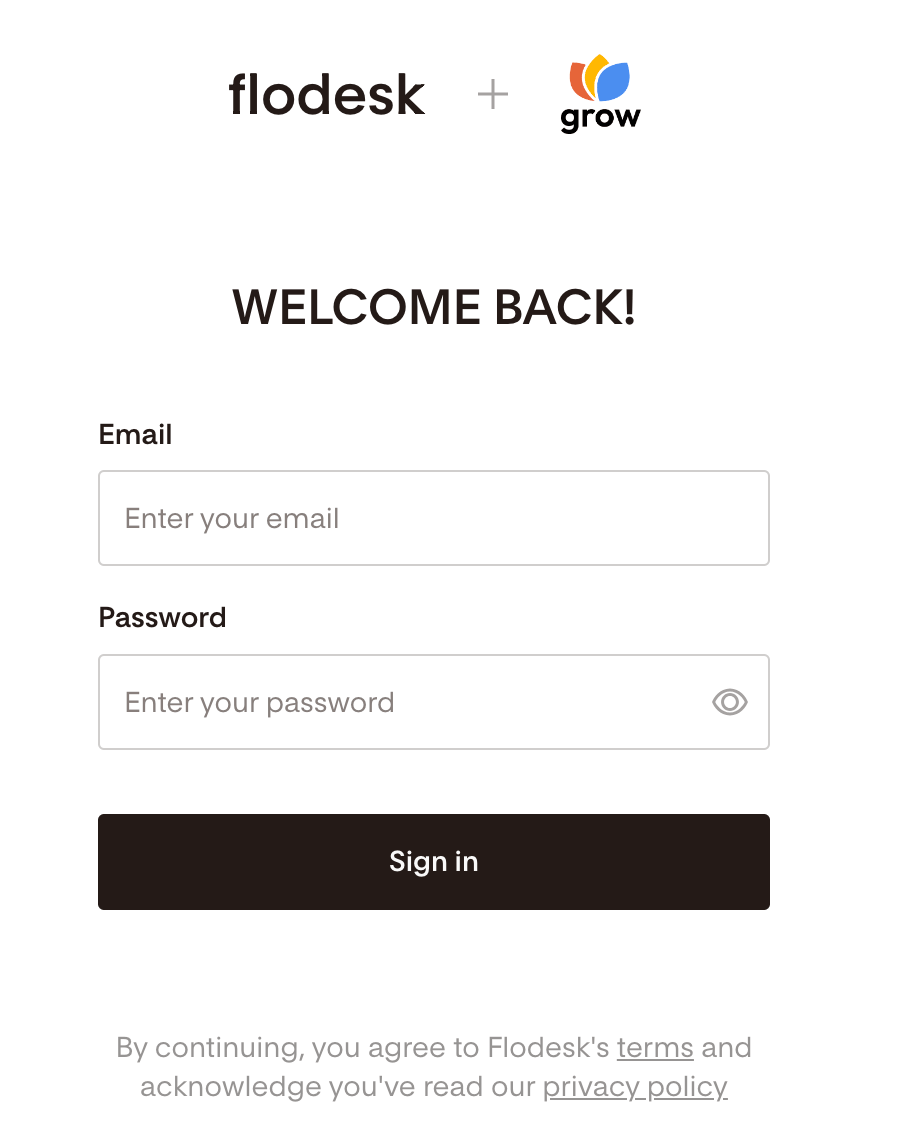
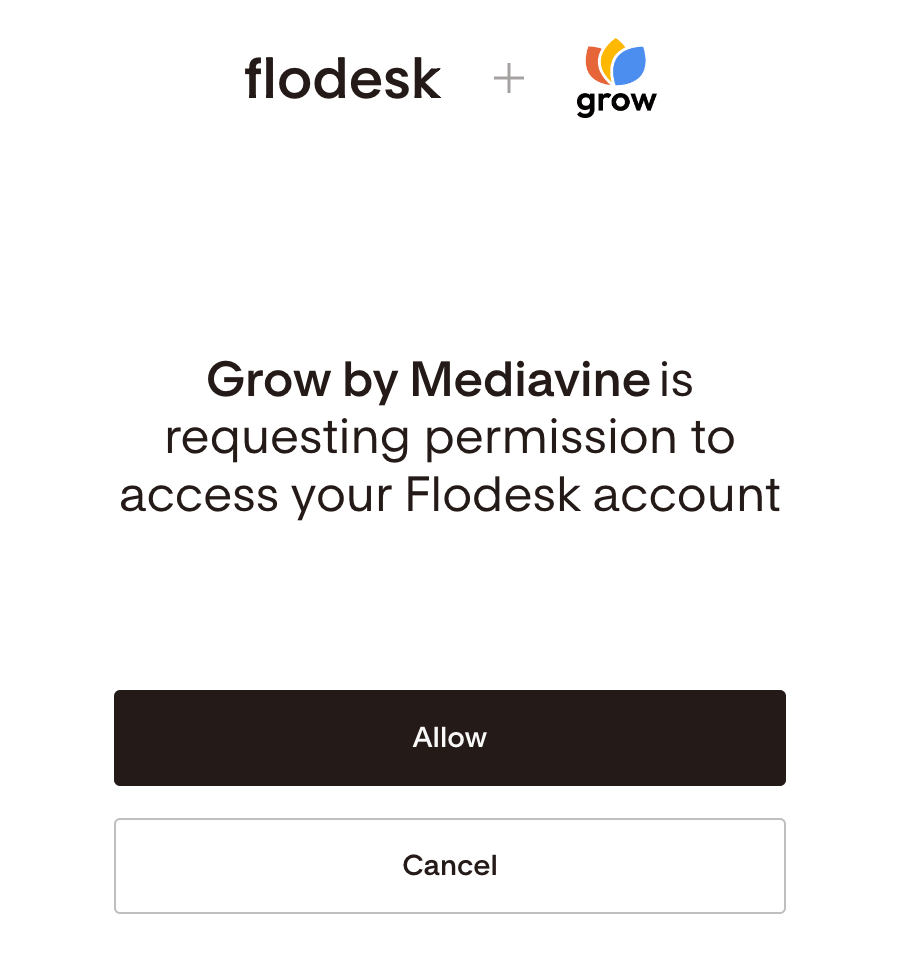
Sign in to your Flodesk account when prompted, then click Allow to authorize Grow by Mediavine to access your Flodesk account.
Step 6: Save your changes in Grow
Back in the Grow Publisher Portal Integrations tab, you'll see your Flodesk account is now connected. Scroll to the bottom of the page and click Save Changes.
How to assign a Flodesk segment to your Grow Subscribe forms
Connecting the accounts doesn't automatically assign a segment to your Grow Subscribe forms. You'll need to configure each form separately.
Step 7: Go to Subscribe forms
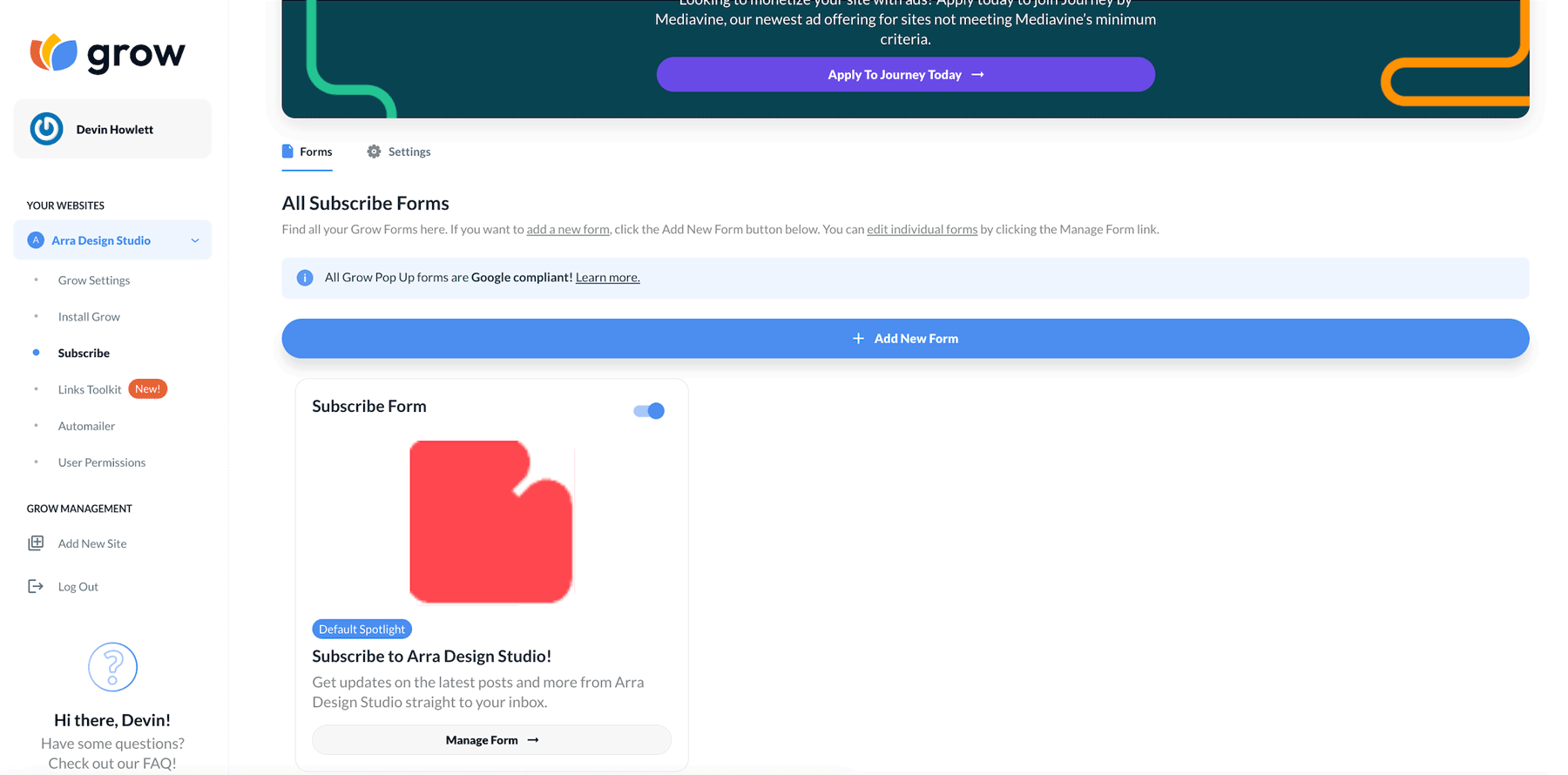
In Grow, go to Subscribe > Forms and click Manage Form on the form you want to connect to Flodesk.
Step 8: Add a form action
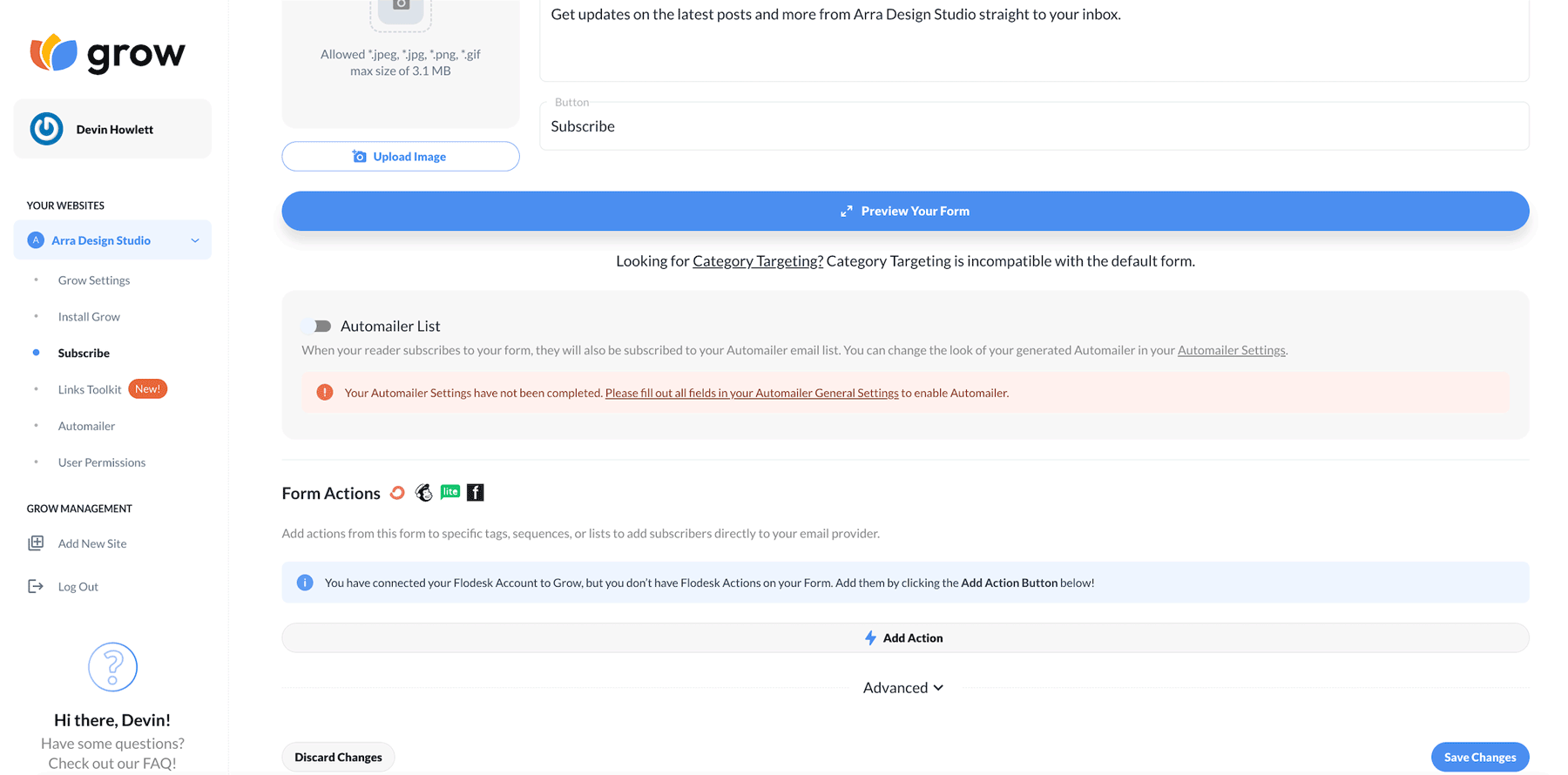
Scroll down to the Form Actions section on the form's settings page and click Add Action.
Step 9: Select the Flodesk segment
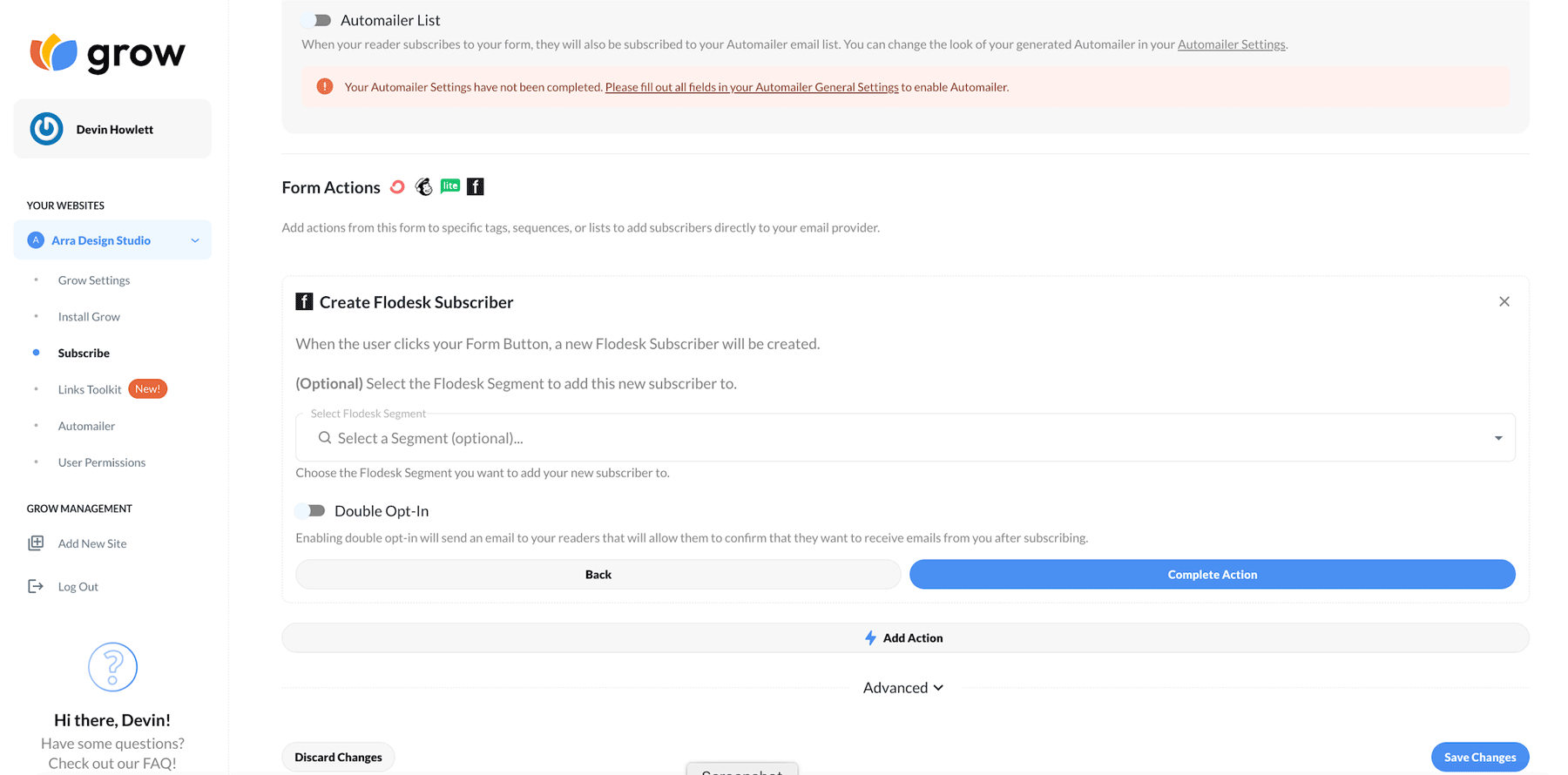
Click Create New Flodesk Subscriber, then use the dropdown to select the Flodesk segment you want subscribers from this form added to.
You can also enable Double opt-in here, which will send subscribers a confirmation email from Flodesk before they're added to your list. If you plan to use double opt-in, make sure you've already edited and customized the double opt-in confirmation email and thank you page in Flodesk before enabling it.
Step 10: Save the form action
Click Complete Action, then click Save Changes in the bottom-right corner.
Repeat steps 7 to 10 for each Grow Subscribe form on your site. Each form needs its own form action to ensure all Grow subscribers are sent to Flodesk.
How to use Grow Email Connect links in your Flodesk emails
Once the Grow by Mediavine integration is active, a new option called Use Grow Email Connect will appear when you add links to your Flodesk emails.
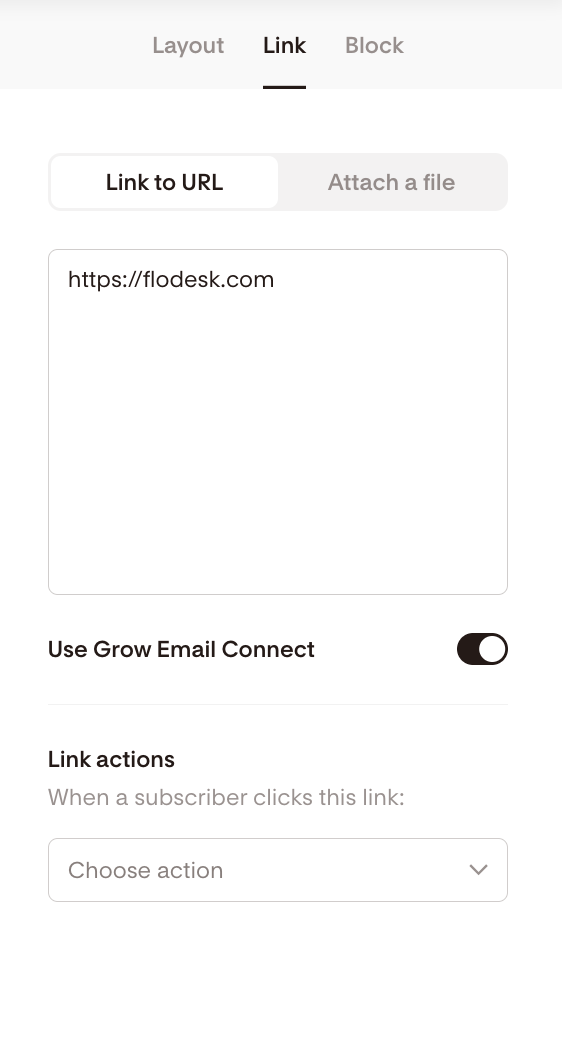
Adding a Grow Email Connect link to a button or block
When adding a link, toggle on Use Grow Email Connect. Flodesk will automatically convert the URL to a Mediavine tracking link (grow.me) that includes the subscriber's email address and Mediavine's tracking identifiers. No manual link creation needed.
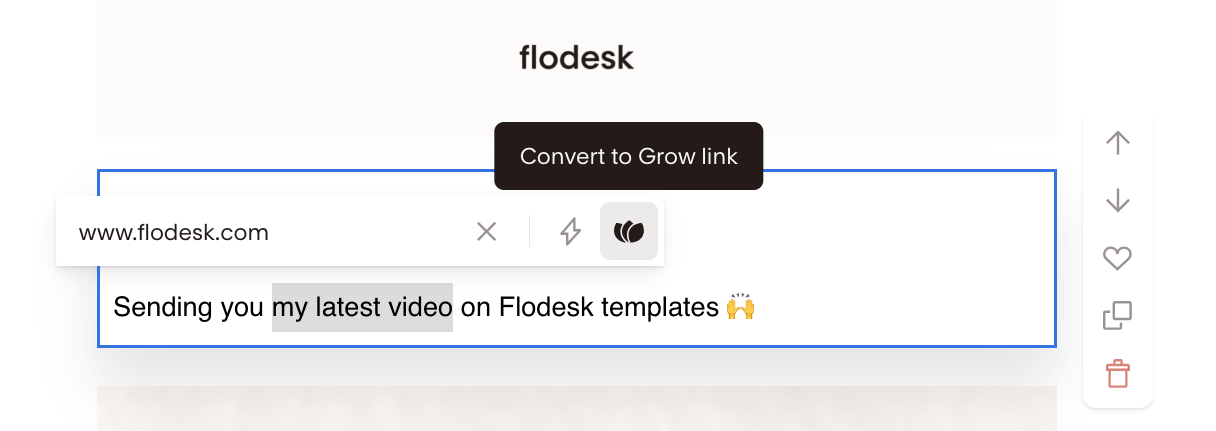
Converting a text hyperlink to a Grow link
Highlight the text you want to link, enter a valid URL, and you'll see the Grow icon appear. Click it to convert the link to a Grow Email Connect link.
FAQ
How do I connect Grow by Mediavine to Flodesk?
In your Flodesk account, go to My Account > Integrations and click Connect on the Grow by Mediavine card. Then in Grow, navigate to Grow Publisher Portal > Grow Settings > Integrations, scroll to the Flodesk section, and click Connect Your Flodesk Account. Log in to Flodesk when prompted, click Allow, and save your changes in Grow.
Do I need Zapier to connect Grow by Mediavine and Flodesk?
No. Grow by Mediavine and Flodesk have a direct integration, so Zapier or Pabbly Connect isn't needed.
After connecting Grow and Flodesk, will my Subscribe form subscribers be added to Flodesk automatically?
Not until you've set up a form action for each Subscribe form. Go to Subscribe > Forms in Grow, click Manage Form, and add a Create New Flodesk Subscriber action with the Flodesk segment you want subscribers added to. Save the changes. Once that's done, new subscribers will sync automatically.
Can I assign different Flodesk segments to different Grow Subscribe forms?
Yes. Form actions are set at the individual form level in Grow, so you can route subscribers from different forms to different Flodesk segments. Manage each form separately and choose the segment that fits.
Do I need to add form actions to every Grow Subscribe form on my site?
Yes. Each form needs its own form action configured in Grow. If a form doesn't have an action set up, subscribers from that form won't be sent to Flodesk.
Should I enable double opt-in when setting up the Grow form action?
Yes. Double opt-in requires subscribers to confirm they want to join your list before being added to Flodesk. If you enable it, make sure you've customized the double opt-in confirmation email and thank you page in Flodesk first so it matches your brand.
What is a Grow Email Connect link and how do I use it in Flodesk?
Grow Email Connect links are URLs that include Mediavine tracking identifiers and your subscriber's email address. Once the Grow integration is active, you'll see a Use Grow Email Connect toggle when adding links to your Flodesk emails. Turn it on and Flodesk will convert the link automatically. You can also highlight text in your email, enter a URL, and click the Grow icon that appears to convert it to a Grow link.
What Grow features work with the Flodesk integration?
The integration supports Grow Subscribe forms, Exclusive Content widgets, Print Pass, SmartLock, and Subscribe Action Pack.
Do I need to create a Flodesk segment before connecting Grow?
It's a good idea to create your segments first so they're ready to select when you set up form actions in Grow. You can create segments by going to Audience > Segments in your Flodesk account.