
How to connect Marvelous and Flodesk
Overview
Marvelous is a platform for creators who sell online courses, memberships, communities, and coaching programs. With the direct Flodesk integration, you can automatically add students and leads to your Flodesk audience when they purchase a product or register for an event in Marvelous.
This article walks you through connecting the two accounts and setting up segment rules for products and events.
What you'll need before you start
An active Marvelous account with at least one published product
An active Flodesk account
At least one segment created in Flodesk
How to connect Marvelous and Flodesk
Step 1: Create a segment in Flodesk for your Marvelous students
Before connecting the two accounts, create the segment (or segments) in Flodesk where you want your Marvelous students to be added. Go to Audience > Segments to create a new segment.
Step 2: Go to Integrations in Flodesk
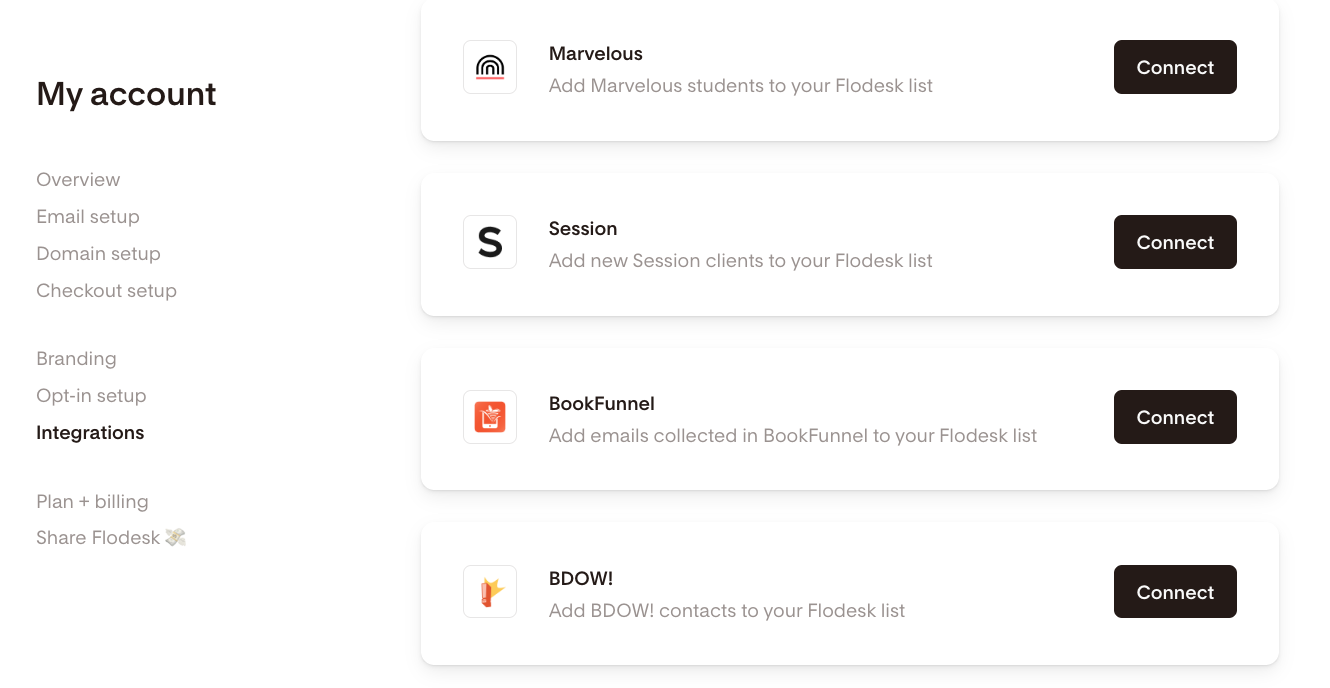
In your Flodesk account, go to My Account > Integrations and click Connect on the Marvelous card.
Step 3: Log in to Marvelous
If you already have a Marvelous account, sign in. If not, you can sign up for a new account at this step.
Step 4: Go to Integrations in Marvelous
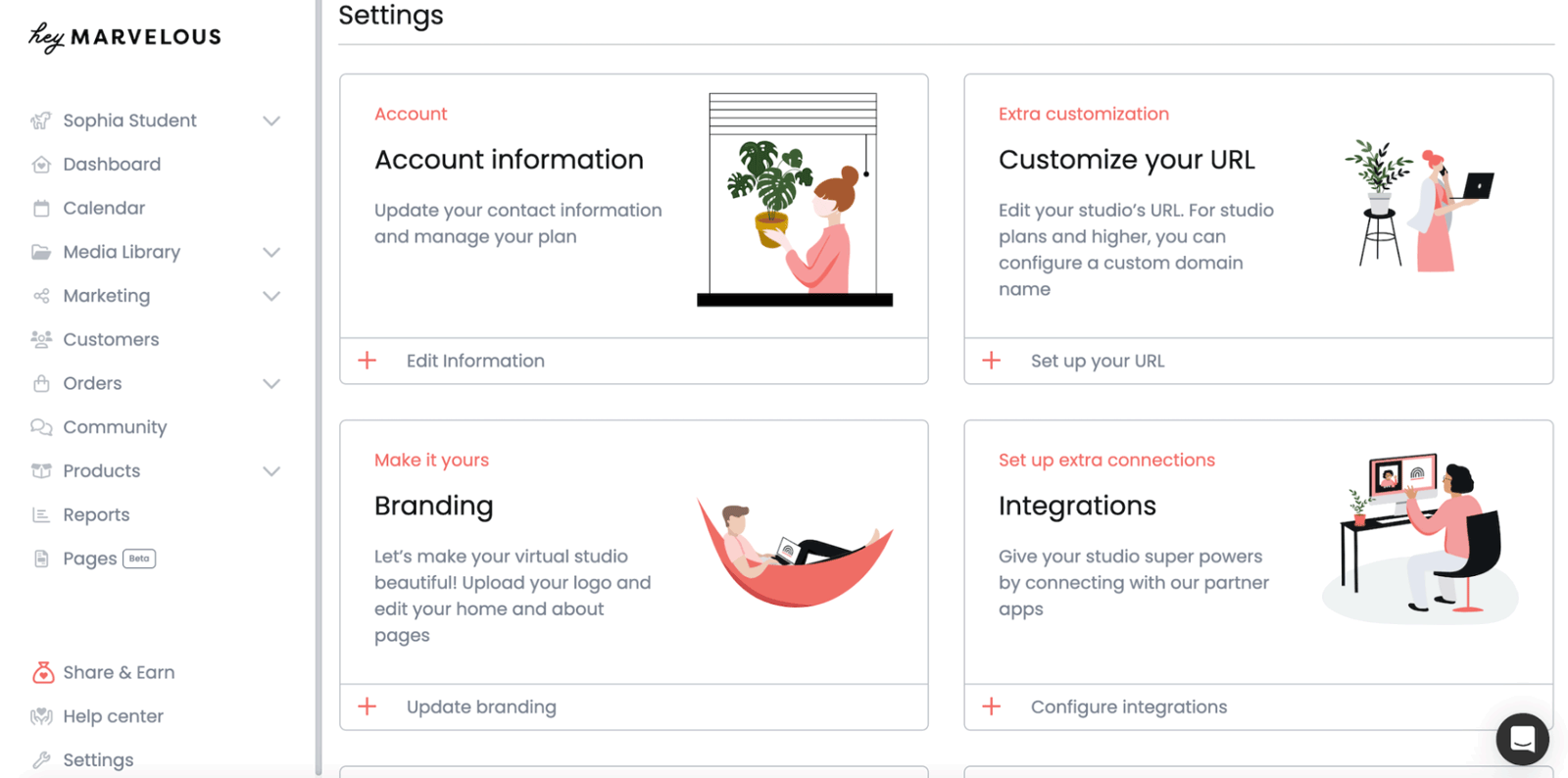
Once you're logged in to Marvelous, go to Settings > Integrations.
Step 5: Select Flodesk
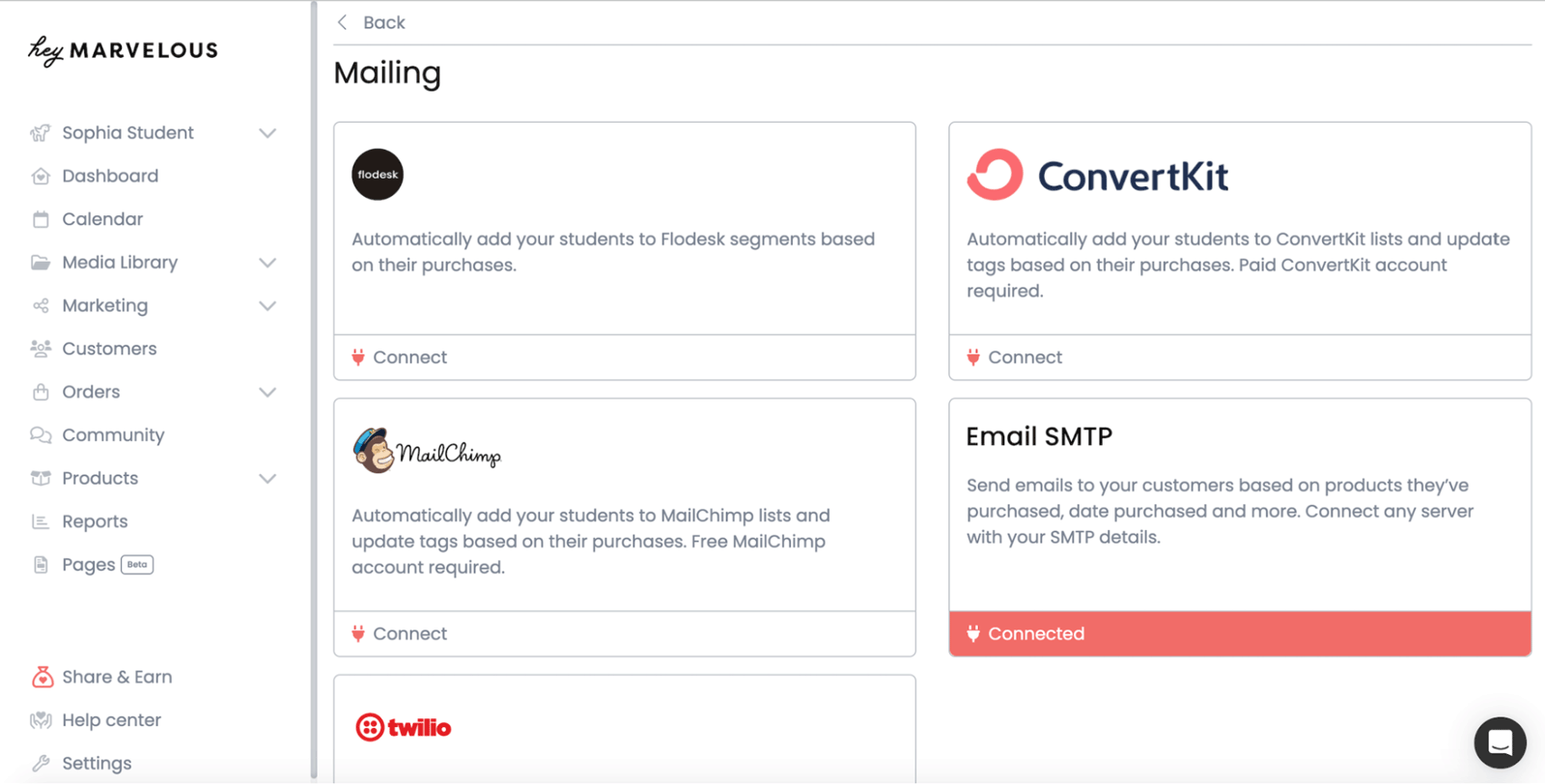
Scroll down to the Mailing section and select Flodesk from the list of available apps.
Step 6: Connect Flodesk
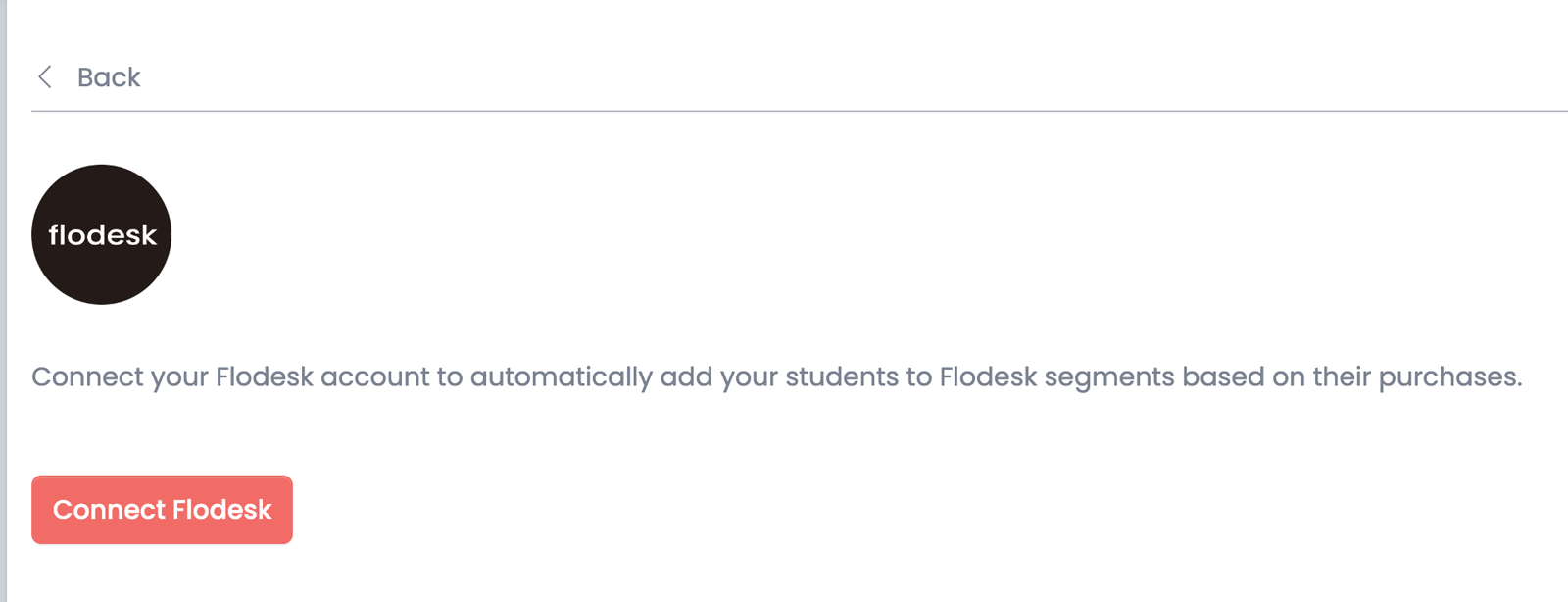
Click Connect Flodesk.
Step 7: Authorize the connection
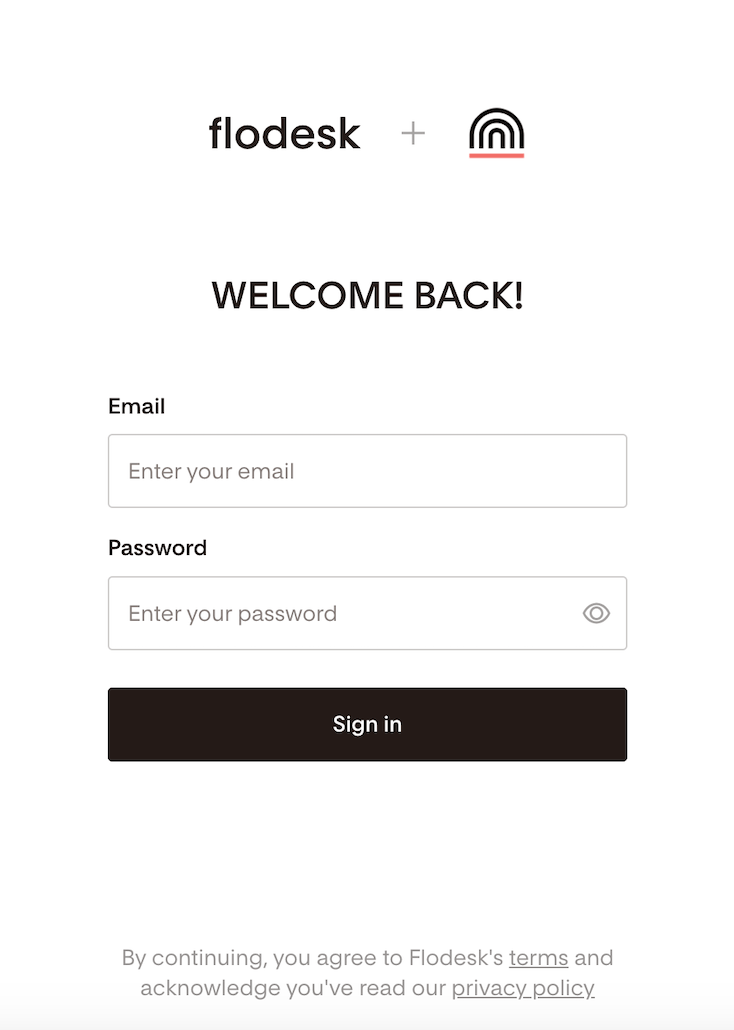
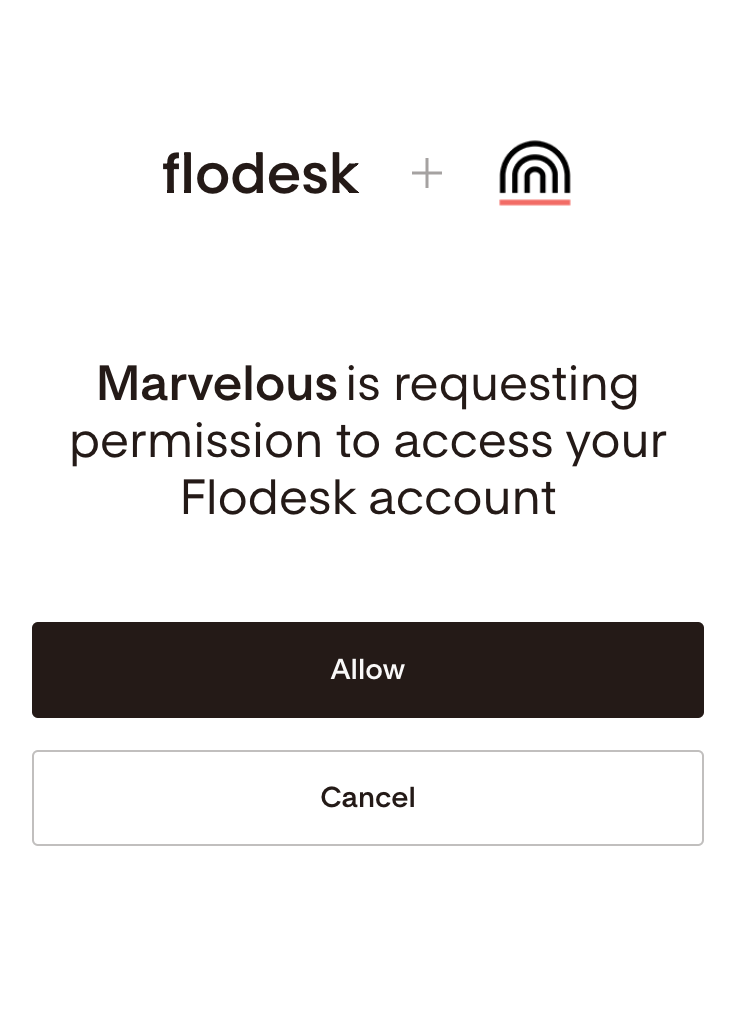
You'll be prompted to log in to your Flodesk account. Once logged in, click Allow to authorize Marvelous to access your Flodesk account.
Step 8: Configure your settings
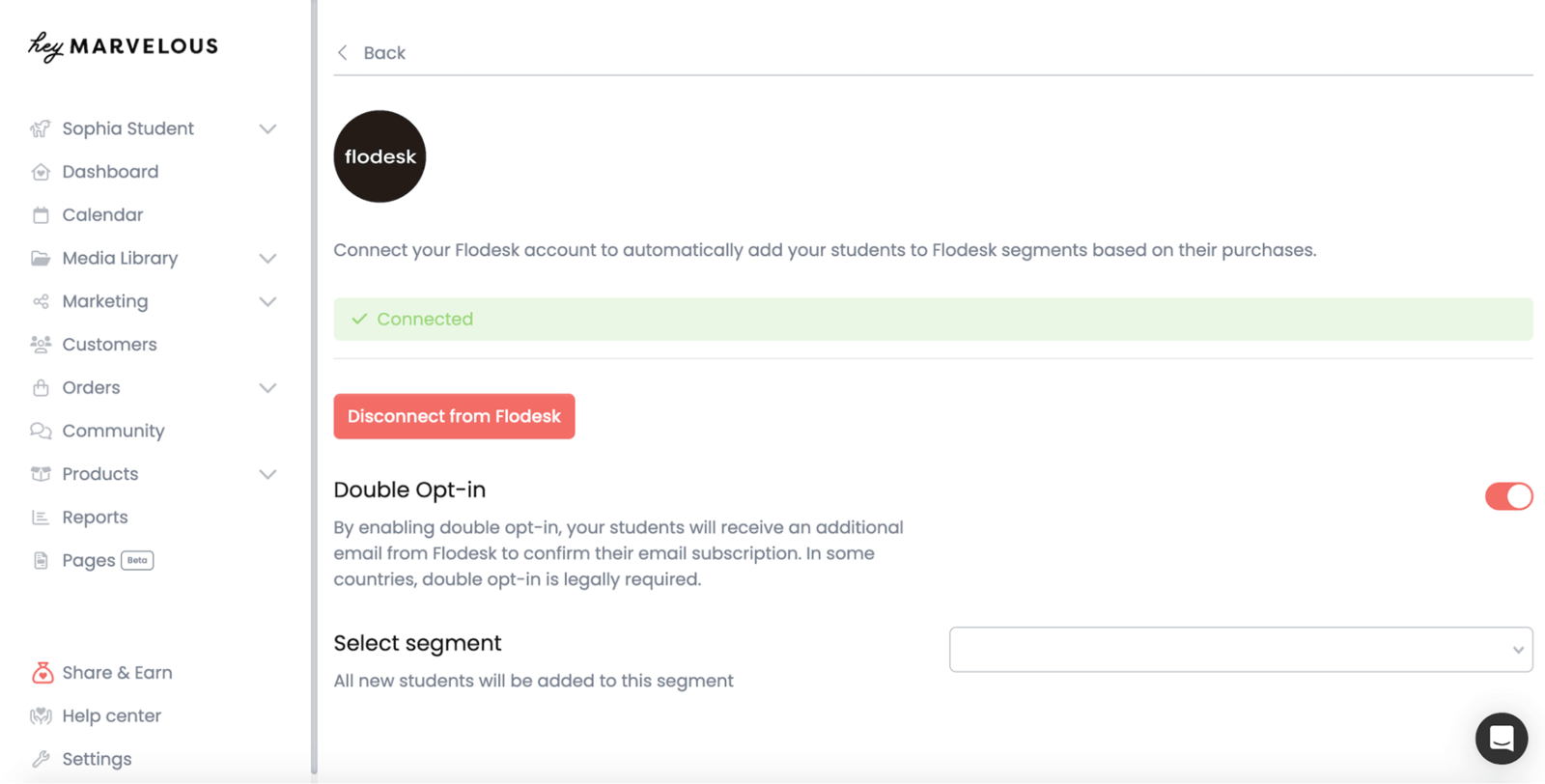
Once connected, you can:
Enable double opt-in so that students confirm their intent before being added to your list
Select a main Flodesk segment for all Marvelous students to be added to (or leave this blank if you'd rather assign segments at the product level)
Note: if you turn on double opt-in in Marvelous, make sure to edit and customize the double opt-in confirmation email and thank you page in Flodesk so it matches your brand.
How to add customers of a specific product to a Flodesk segment
You can assign a dedicated Flodesk segment to each product in Marvelous, so that customers are automatically sorted by what they purchased.
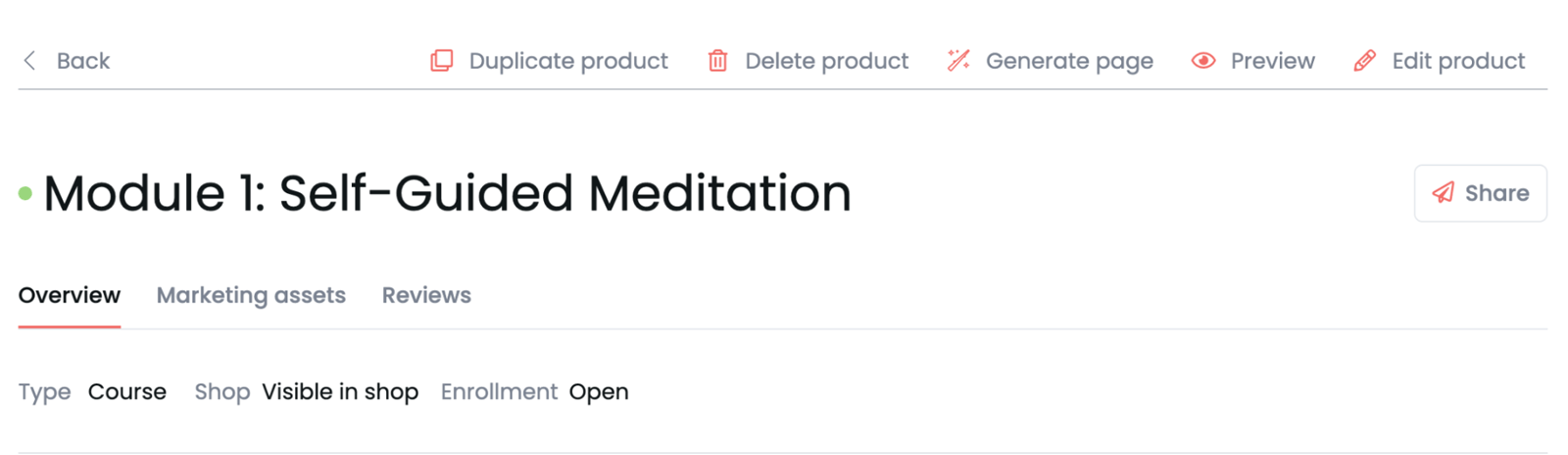
In Marvelous, click Edit product on the product you want to configure
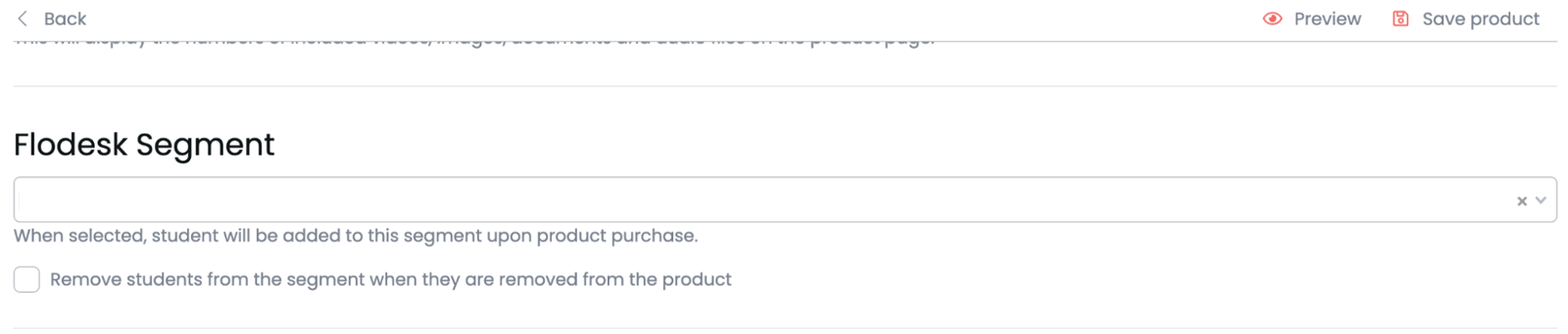
Go to the Summary tab and scroll down to the Flodesk segment section
Select the Flodesk segment you want customers of this product added to
Toggle on or off the option to remove students from the segment if they're removed from the product in Marvelous (for example, if they cancel or lose access)
Click Save product
How to add lead capture event registrants to a specific Flodesk segment
If you run free lead capture events on your Marvelous calendar, you can automatically add registrants to a Flodesk segment when they sign up.
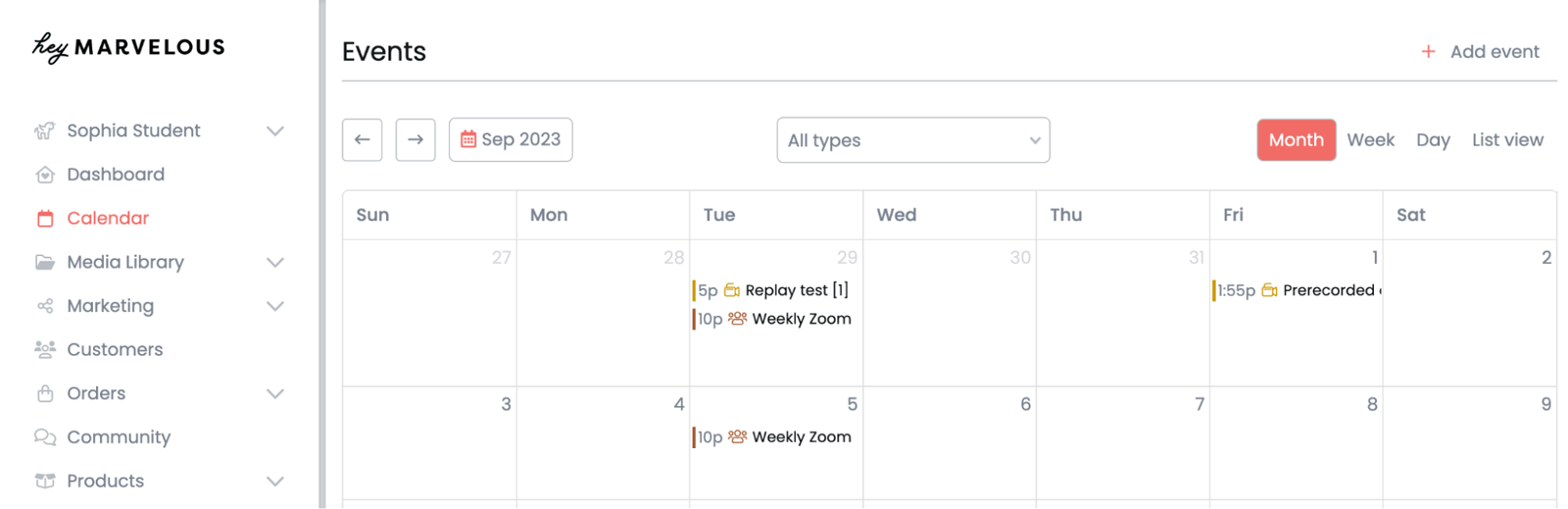
In Marvelous, click Add event and fill in the event details
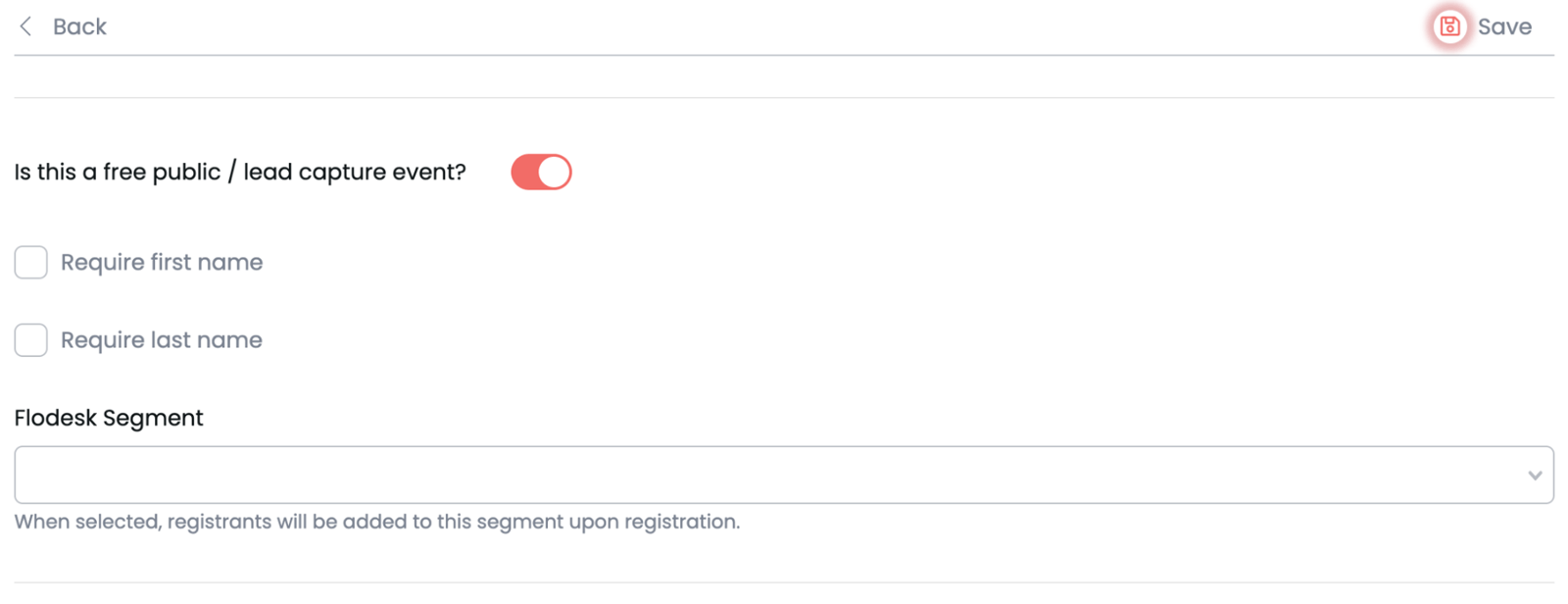
Toggle on Is this a free public / lead capture event?
Choose whether you want to require registrants to provide their first and last name
Select the Flodesk segment you want registrants added to upon registration
Click Save
FAQ
How do I connect Marvelous to Flodesk?
In your Flodesk account, go to My Account > Integrations and click Connect on the Marvelous card. Then, in Marvelous, go to Settings > Integrations, scroll to the Mailing section, select Flodesk, and click Connect Flodesk. Log in to Flodesk when prompted and click Allow to authorize the connection.
Can I add students from different Marvelous products to different Flodesk segments?
Yes. In Marvelous, click Edit product on each product, go to the Summary tab, scroll to the Flodesk segment section, and select the segment you want customers of that product added to. This lets you keep your audience organized by what each person purchased.
What happens if a student is removed from a product in Marvelous?
When setting up the segment for a product, you can toggle on the option to remove students from the Flodesk segment if they're removed from the product in Marvelous. This is useful if you want your segments to reflect current customers only.
Can I add event registrants to a Flodesk segment automatically?
Yes. When creating a free lead capture event in Marvelous, you can select a Flodesk segment to add registrants to when they sign up. Go to Add event, toggle on Is this a free public / lead capture event?, and choose the segment.
Should I enable double opt-in when connecting Marvelous to Flodesk? Yes, we recommend enabling the double opt-in. Double opt-in adds a confirmation step so that only students who actively confirm they want to join your list will be added. If you turn it on in Marvelous, make sure to customize the double opt-in confirmation email and thank you page in Flodesk so it matches your brand.
Do I need to create a Flodesk segment before connecting Marvelous?
It's a good idea to create the segments you need first so they're ready to select when you configure the integration. You can create segments by going to Audience > Segments in your Flodesk account.
Will my existing Marvelous students be added to Flodesk after I connect the accounts?
No. The integration only applies to new students and registrants who join after the connection is set up. Existing students won't be synced automatically.
Do I need to have a published product in Marvelous before connecting to Flodesk?
Yes. You'll need at least one published product in your Marvelous account before setting up the integration.