
How to connect BDOW! and Flodesk
Overview
BDOW! (formerly SUMO) is a tool for creating opt-in forms and pop-ups for your website, including A/B testing capabilities. With the direct Flodesk integration, subscribers who fill out your BDOW! forms can be automatically added to your Flodesk audience and sorted into the right segment, without any manual importing.
This article walks you through connecting the two accounts and configuring which Flodesk segment your BDOW! subscribers are added to.
What you'll need before you start
An active BDOW! account with at least one opt-in form
An active Flodesk account
At least one segment created in Flodesk
How to connect BDOW! and Flodesk
Step 1: Create a segment in Flodesk for your BDOW! subscribers
Before connecting the two accounts, create the segment (or segments) in Flodesk where you want subscribers from your BDOW! forms to be added. Go to Audience > Segments to create a new segment.
Step 2: Go to Integrations in Flodesk
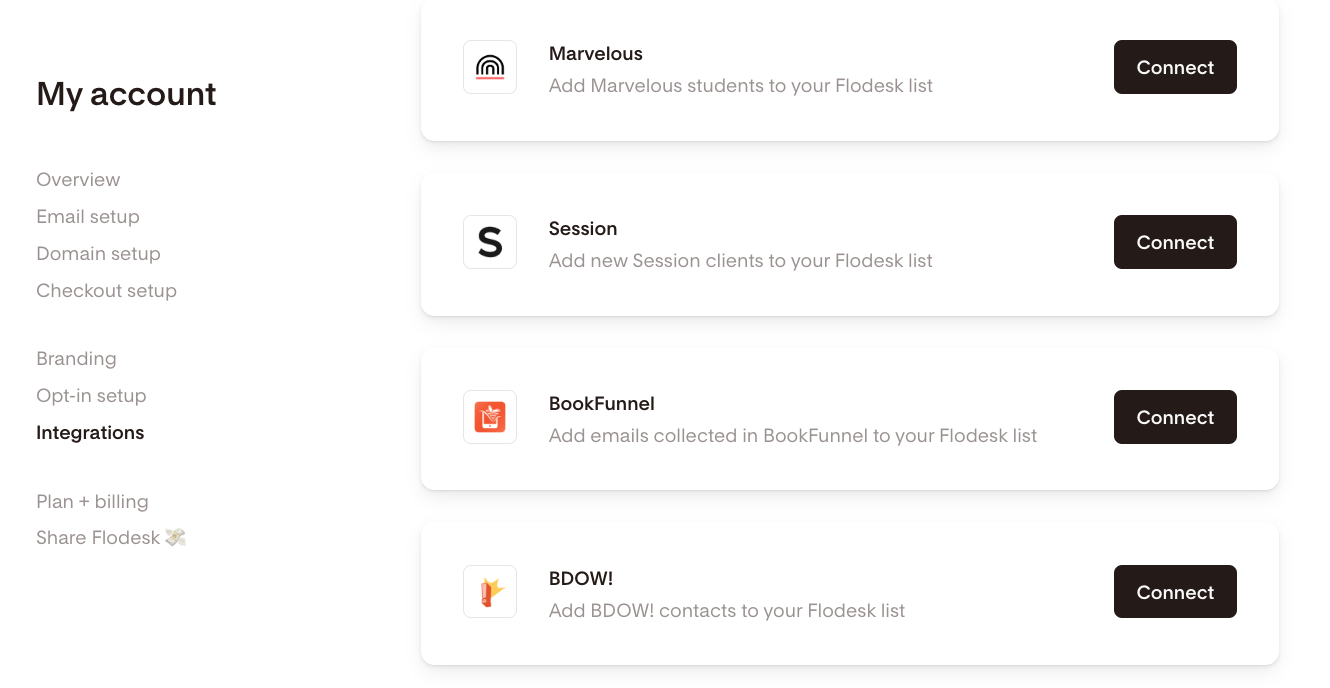
In your Flodesk account, go to My Account > Integrations and click Connect on the BDOW! card.
Step 3: Log in to BDOW!
If you already have a BDOW! account, sign in. If not, you can sign up for a new account at this step.
Step 4: Create or edit a form in BDOW!
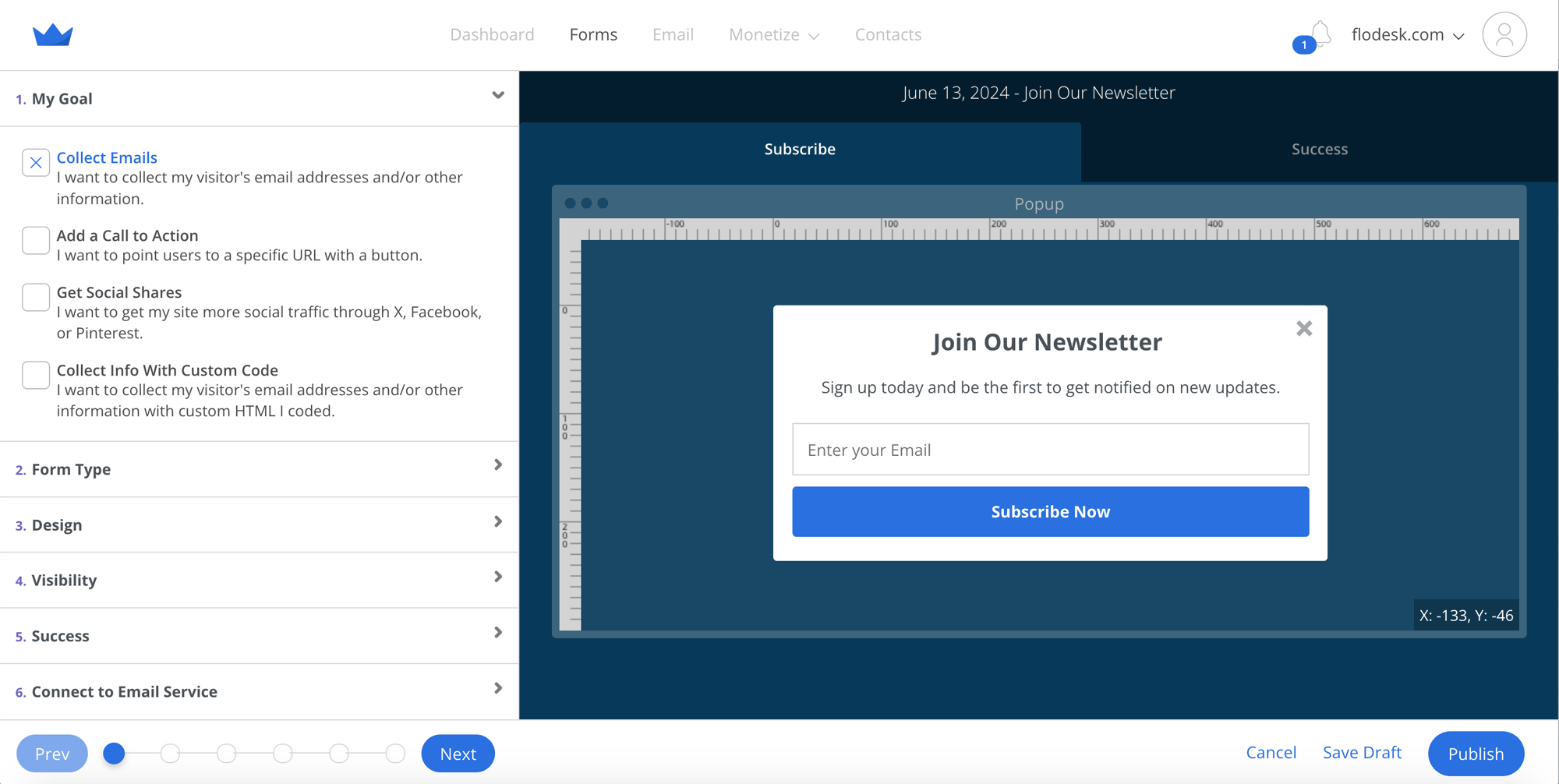
In your BDOW! account, go to Forms and create a new form to collect emails. Once you've finished editing the form, click the Connect to Email Service section.
Step 5: Select Flodesk
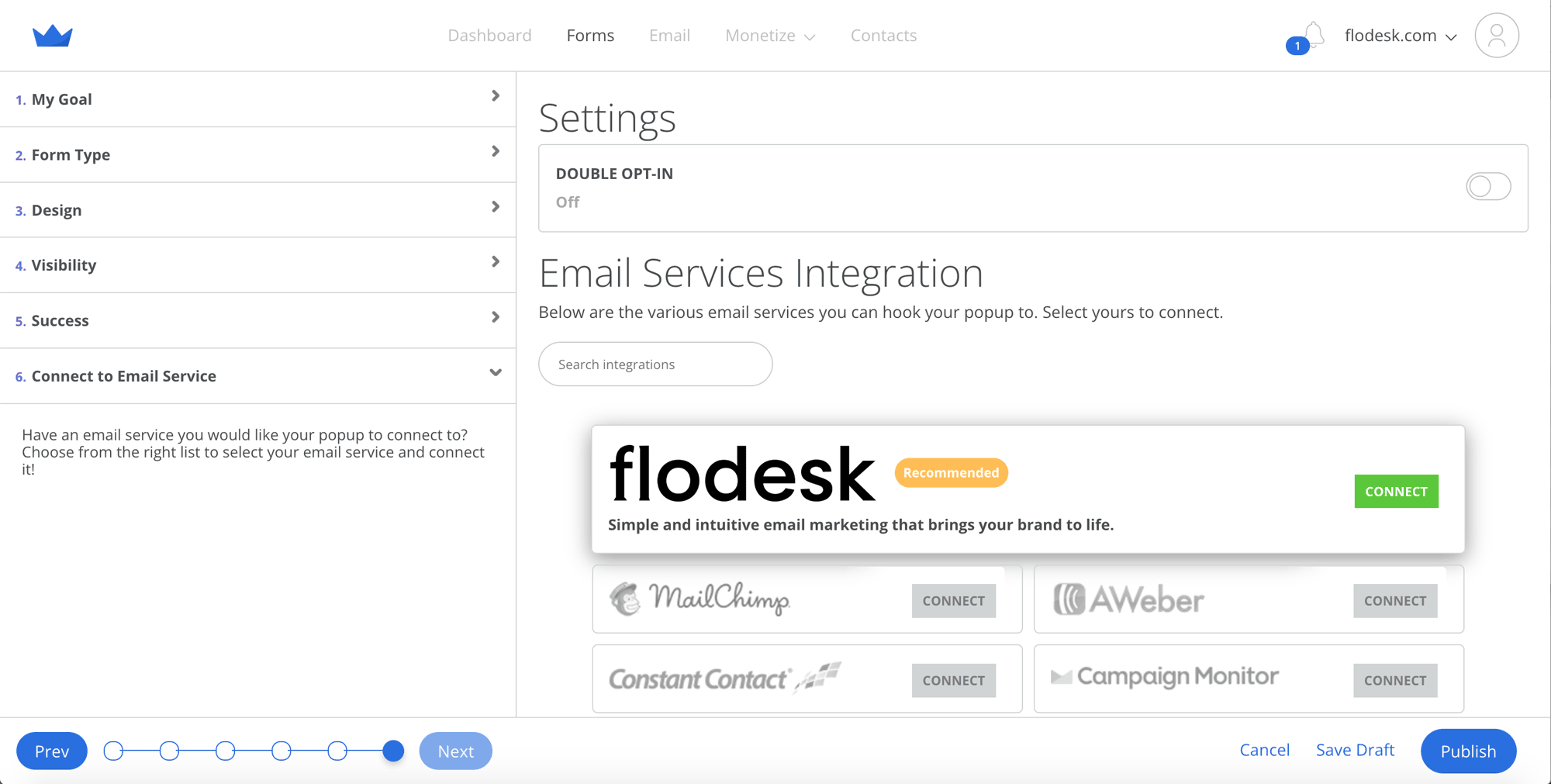
On the next screen, find Flodesk under Email Services Integration and click Connect.
Step 6: Authorize the connection
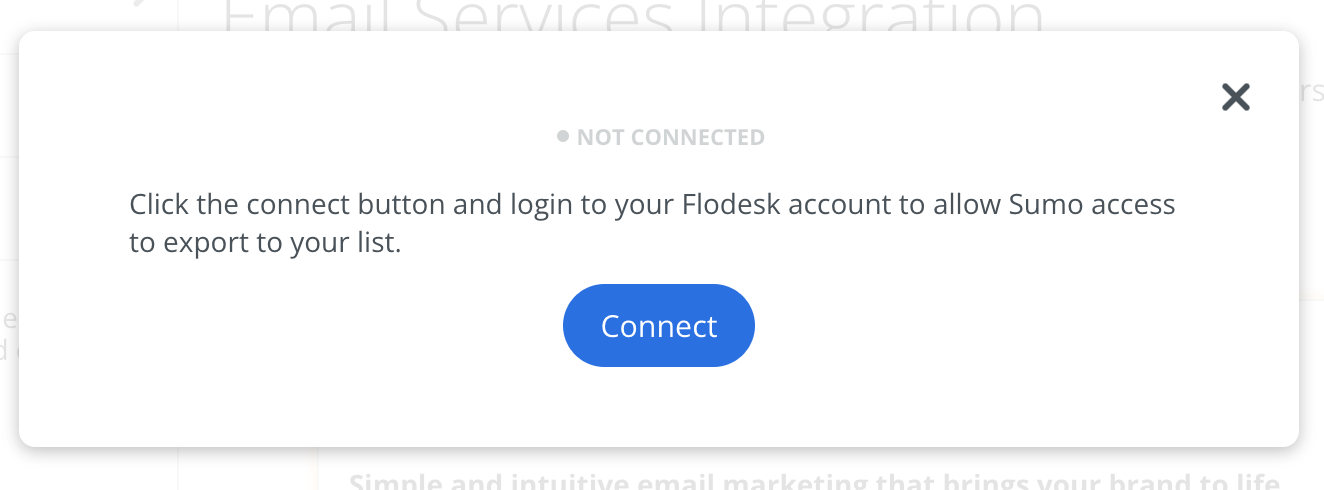
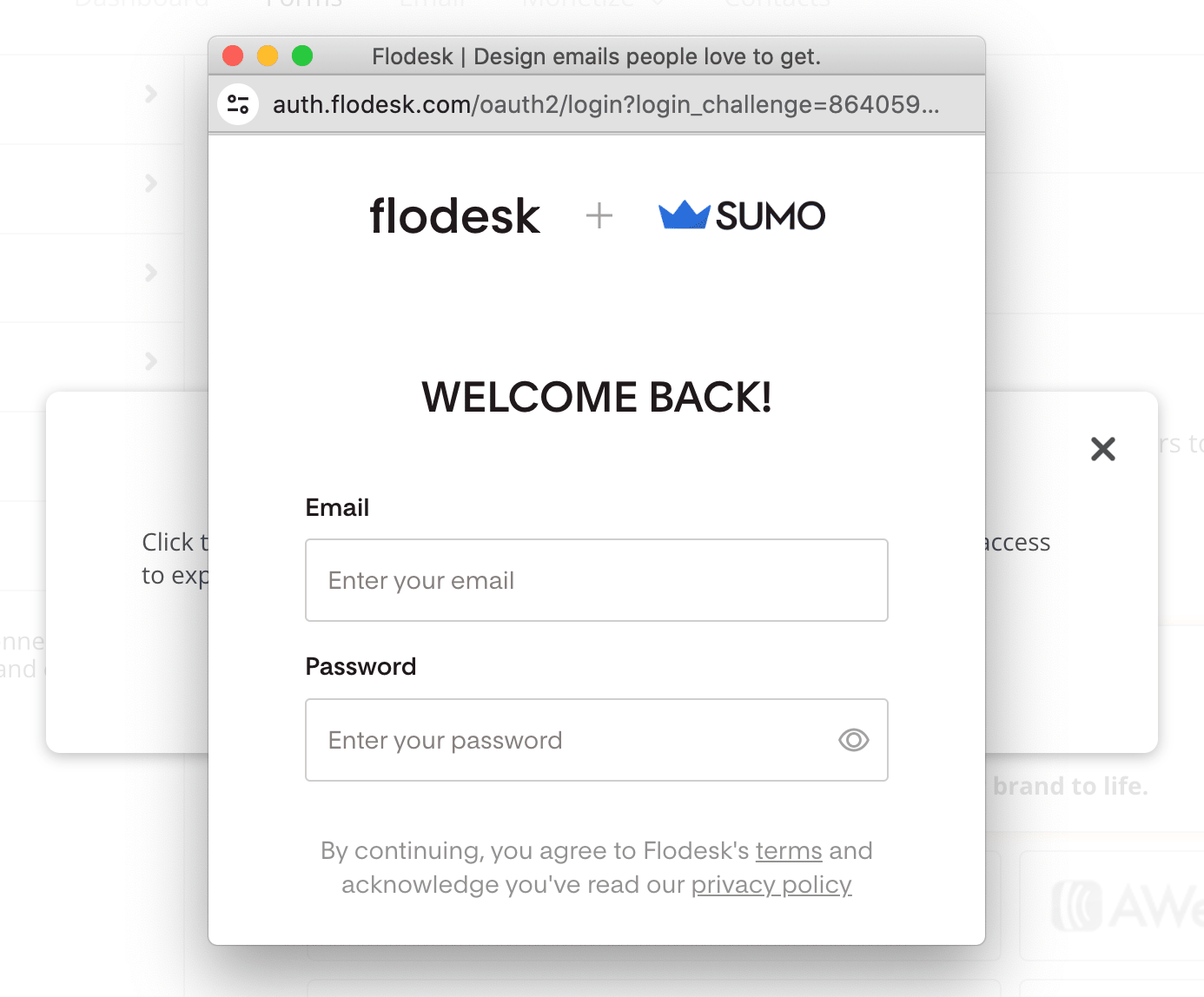
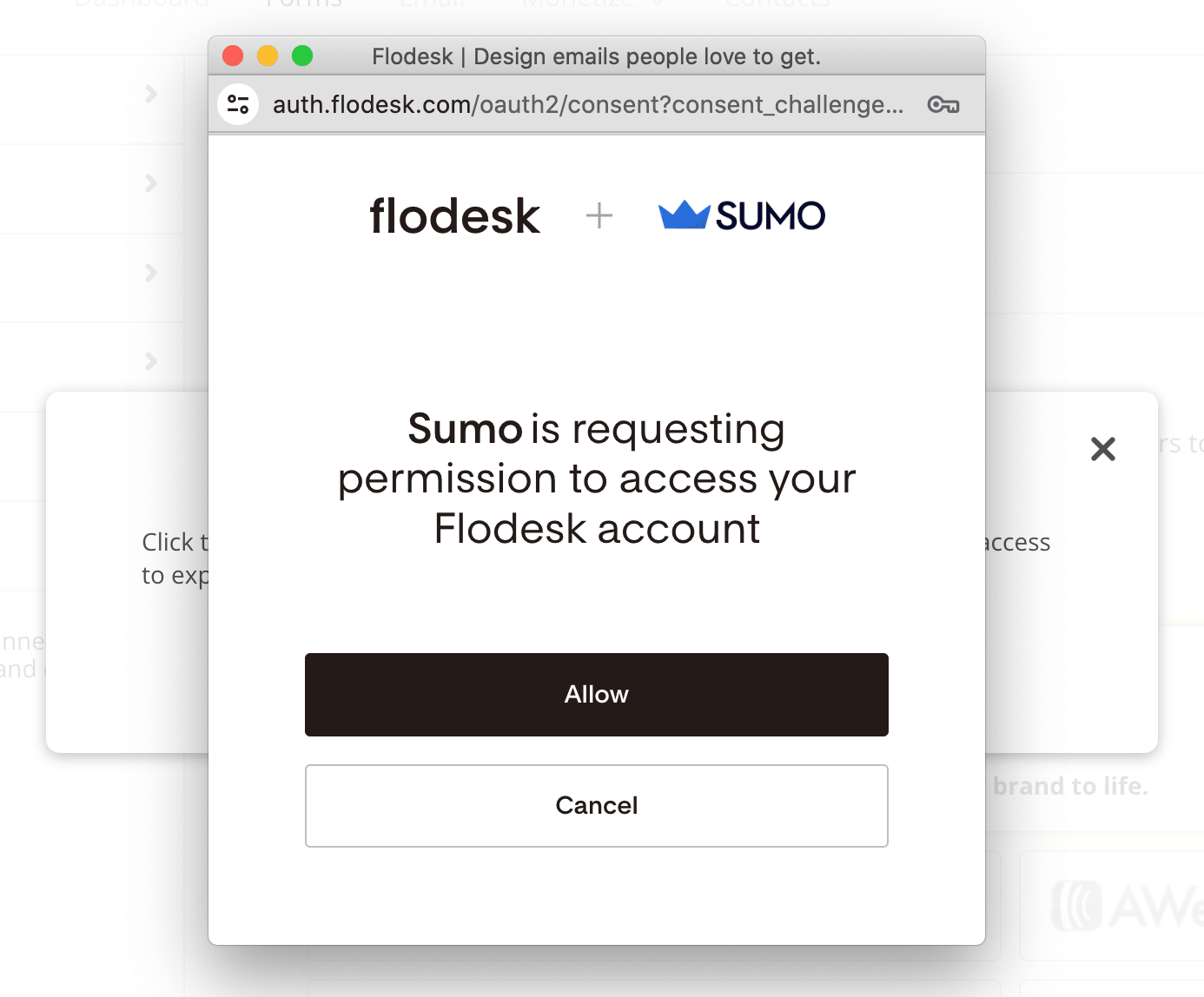
Click the Connect button and log in to your Flodesk account. Then click Allow to authorize BDOW! to access your Flodesk account.
Step 7: Choose your segment and configure settings
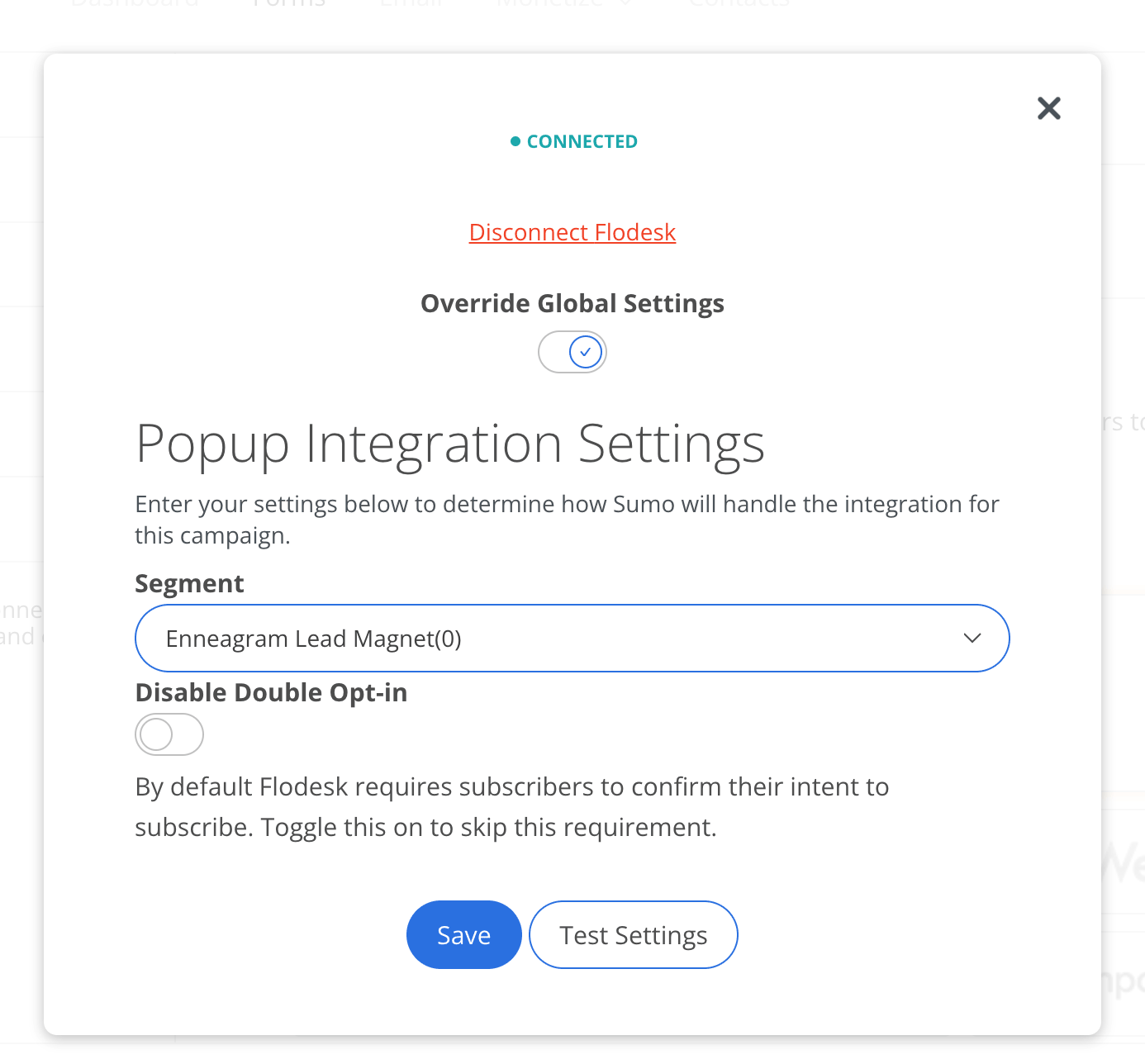
Once Flodesk is connected, use the dropdown to select the Flodesk segment you want subscribers opting in through this form to be added to.
Keep double opt-in enabled, since Flodesk requires subscribers to confirm their intent before being added to your list. If you haven't already, edit and customize your double opt-in confirmation email and thank you page in Flodesk so it matches your brand.
Use the Test settings button to confirm everything is working correctly, then click Save.
FAQ
\How do I connect BDOW! to Flodesk?
In your Flodesk account, go to My Account > Integrations and click Connect on the BDOW! card. Then in BDOW!, go to Forms, open the form you want to connect, and click Connect to Email Service. Select Flodesk, log in to your Flodesk account when prompted, and click Allow to authorize the connection.
Can I choose which Flodesk segment BDOW! subscribers are added to?
Yes. After connecting Flodesk in BDOW!, use the dropdown menu to select the Flodesk segment you want subscribers added to for that specific form. You can assign different segments to different forms if needed.
Should I keep double opt-in enabled when connecting BDOW! to Flodesk?
Yes. Flodesk requires subscribers to confirm their intent before being added to your list, so double opt-in should stay enabled. Make sure to customize the double opt-in confirmation email and thank you page in Flodesk so it matches your brand before going live.
Do I need to create a Flodesk segment before connecting BDOW!?
It's a good idea to create the segments you need first so they're ready to select when you configure the form connection in BDOW!. You can create segments by going to Audience > Segments in your Flodesk account.
Can I connect multiple BDOW! forms to different Flodesk segments?
Yes. You set up the Flodesk connection at the individual form level in BDOW!, so you can assign a different Flodesk segment to each form. Repeat the connection steps for each form you want to link.
Will my existing BDOW! subscribers be added to Flodesk after I connect the accounts?
No. The integration only applies to new subscribers who fill out your BDOW! forms after the connection is set up. Existing subscribers won't be synced automatically.