
How to limit product quantity and availability in Flodesk Checkout
Overview
Flodesk Checkout lets you control how many units of a product are available and how long an offer runs. You can limit by quantity, by time, or both. This is useful for ticketed events, physical merchandise, workshop seats, or any offer with a cap on availability.
You can also set up a waitlist so visitors who miss out can still sign up and be added to a Flodesk segment automatically.
How to access the product limit settings
Open your Checkout in Flodesk
Click the Setup button in the top-right corner
Select the Product tab
How to limit product quantity
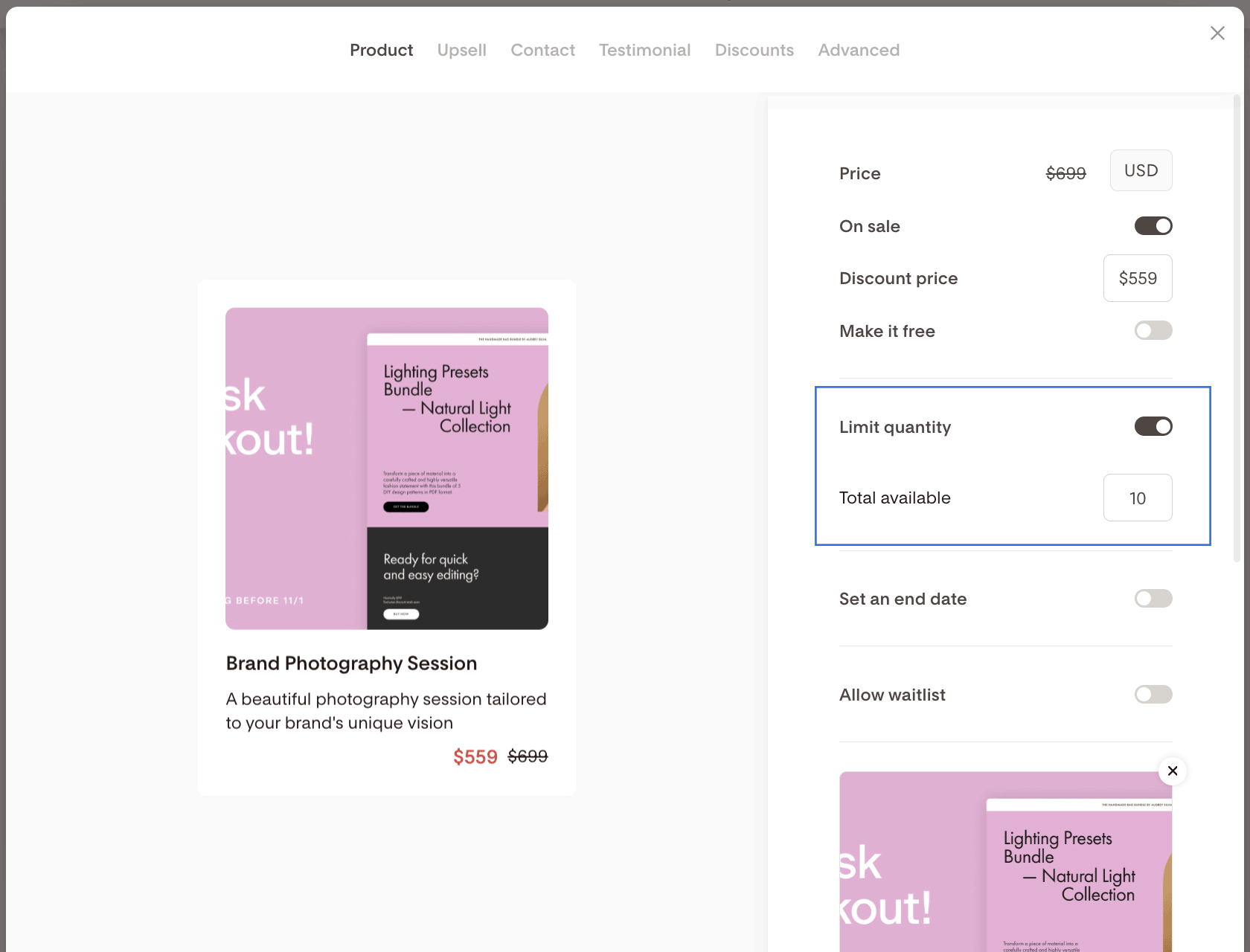
In the Product tab, toggle on Limit quantity
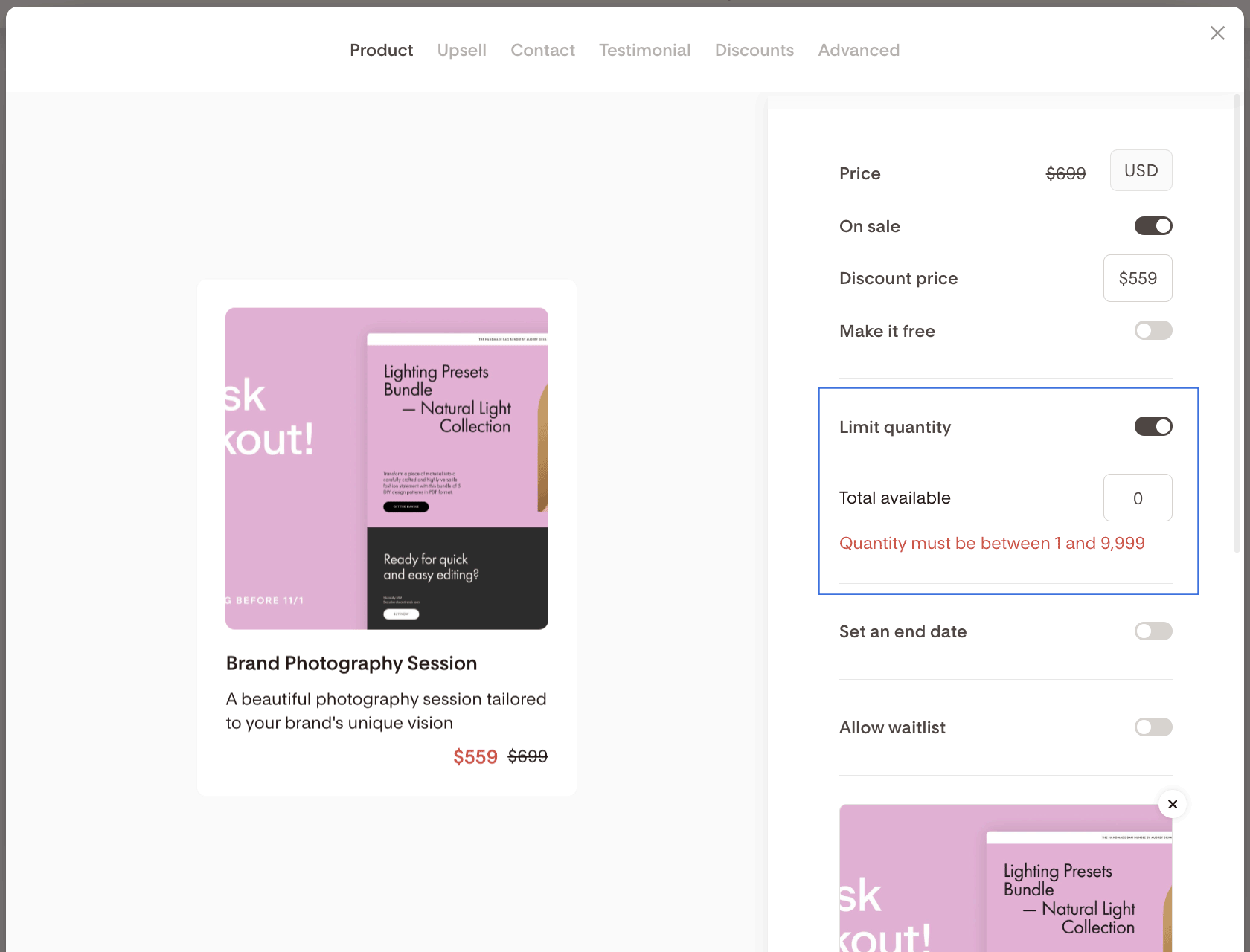
Enter the maximum number of units available for purchase (between 1 and 9,999)
The quantity saves automatically when you click away from the field.
Important: your changes will only take effect once you publish the checkout.
How to set a sale end date
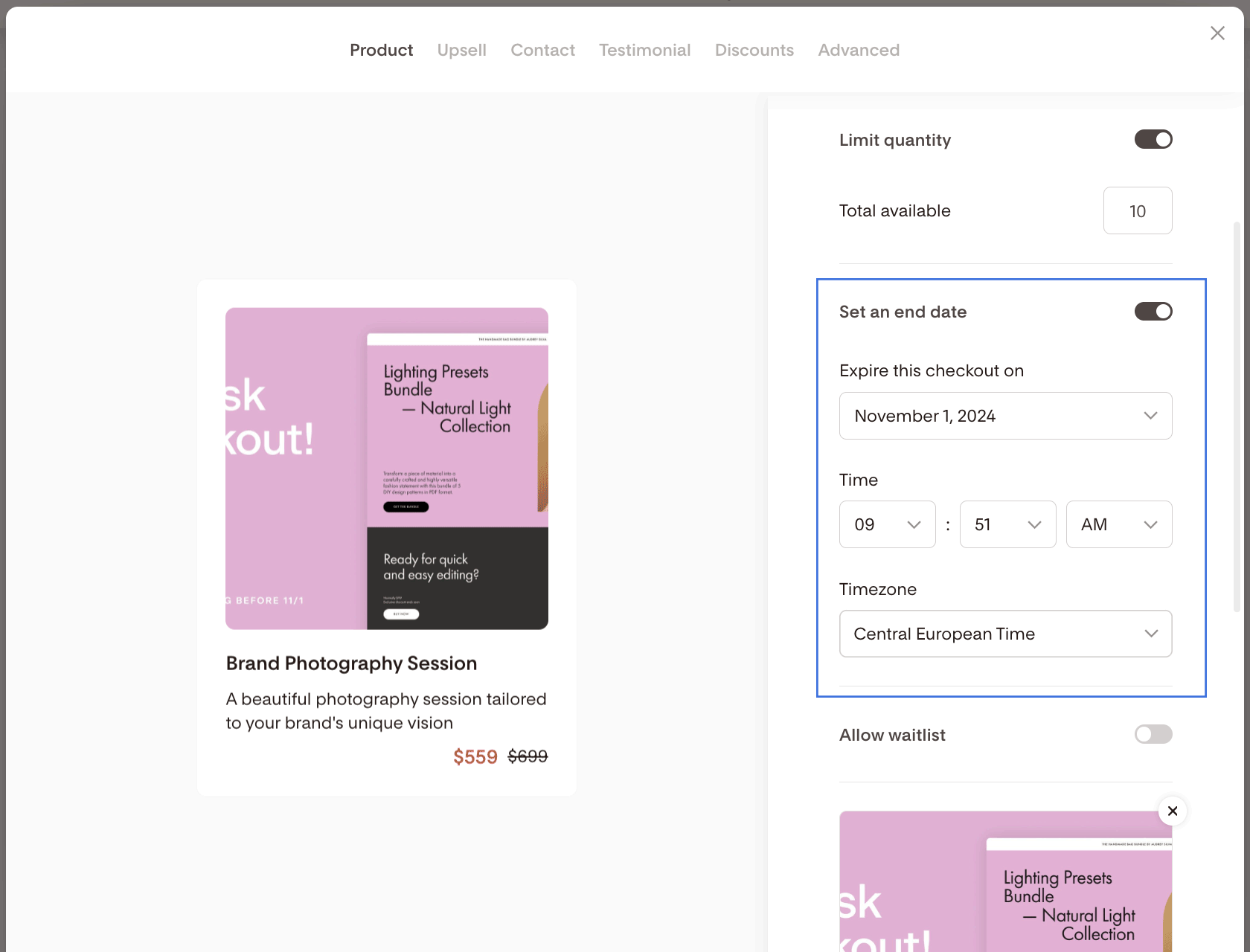
In the Product tab, toggle on Set an end date
Choose the date, time, and timezone when you want the offer to end
You can set an end date without setting a quantity limit, and vice versa. The end date saves automatically when you click away from the field.
Important: your changes will only take effect once you publish the checkout.
How to set up a waitlist
When you turn on either Limit quantity or Set an end date (or both), a Allow waitlist toggle becomes available. Turning this on lets visitors sign up for your waitlist after the product sells out or the offer expires.
To set up the waitlist:
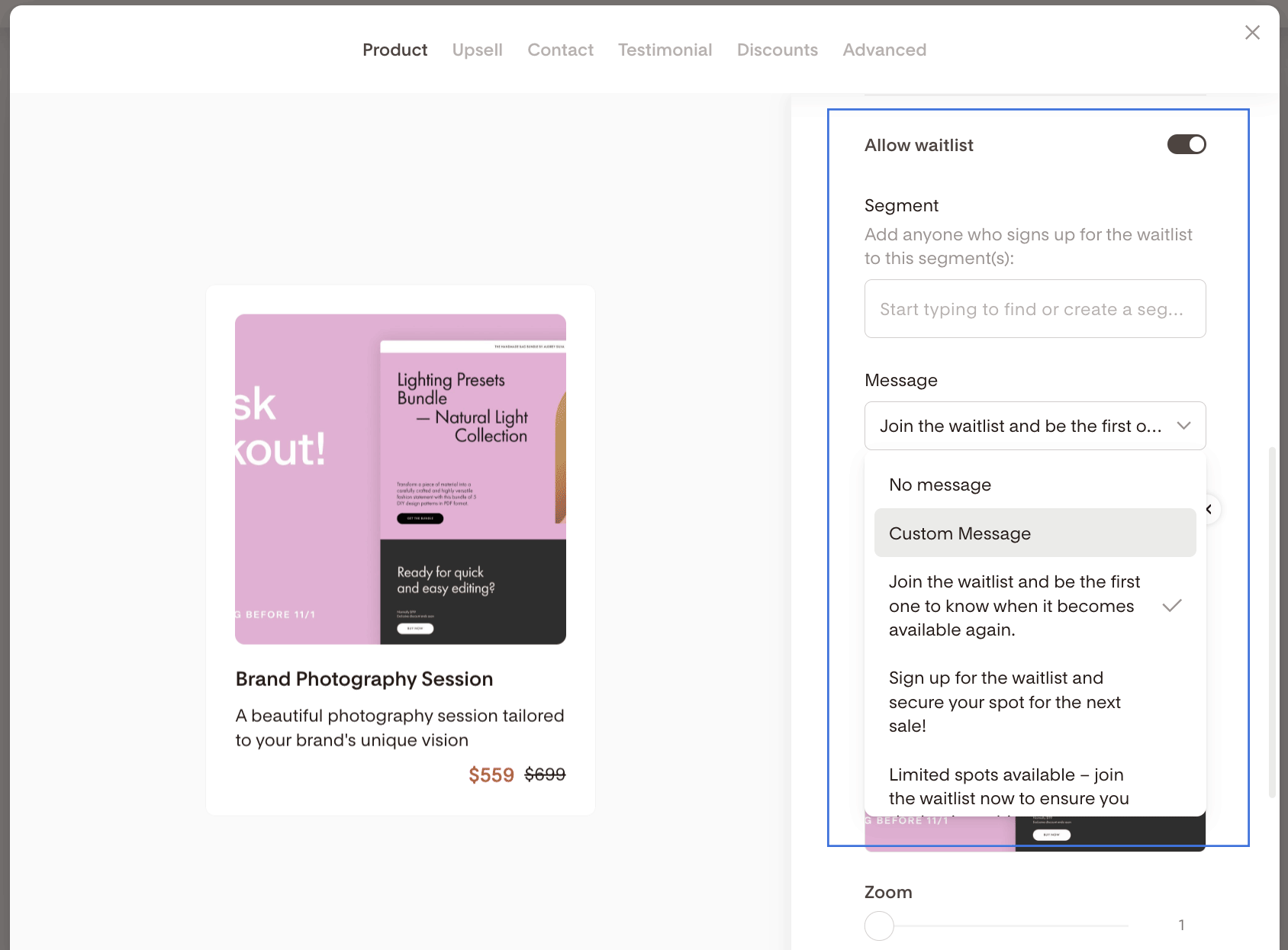
Toggle on Allow waitlist
Select a Waitlist segment where waitlist sign-ups should be added. If no segment is selected, sign-ups will be added to your All Subscribers segment by default.
Add a Waitlist message that visitors will see when the product is no longer available. If you choose a custom message, it has a maximum of 100 characters.
What buyers see when a product is sold out or expired
Once the product quantity runs out or the sale end date passes, the checkout page changes automatically:
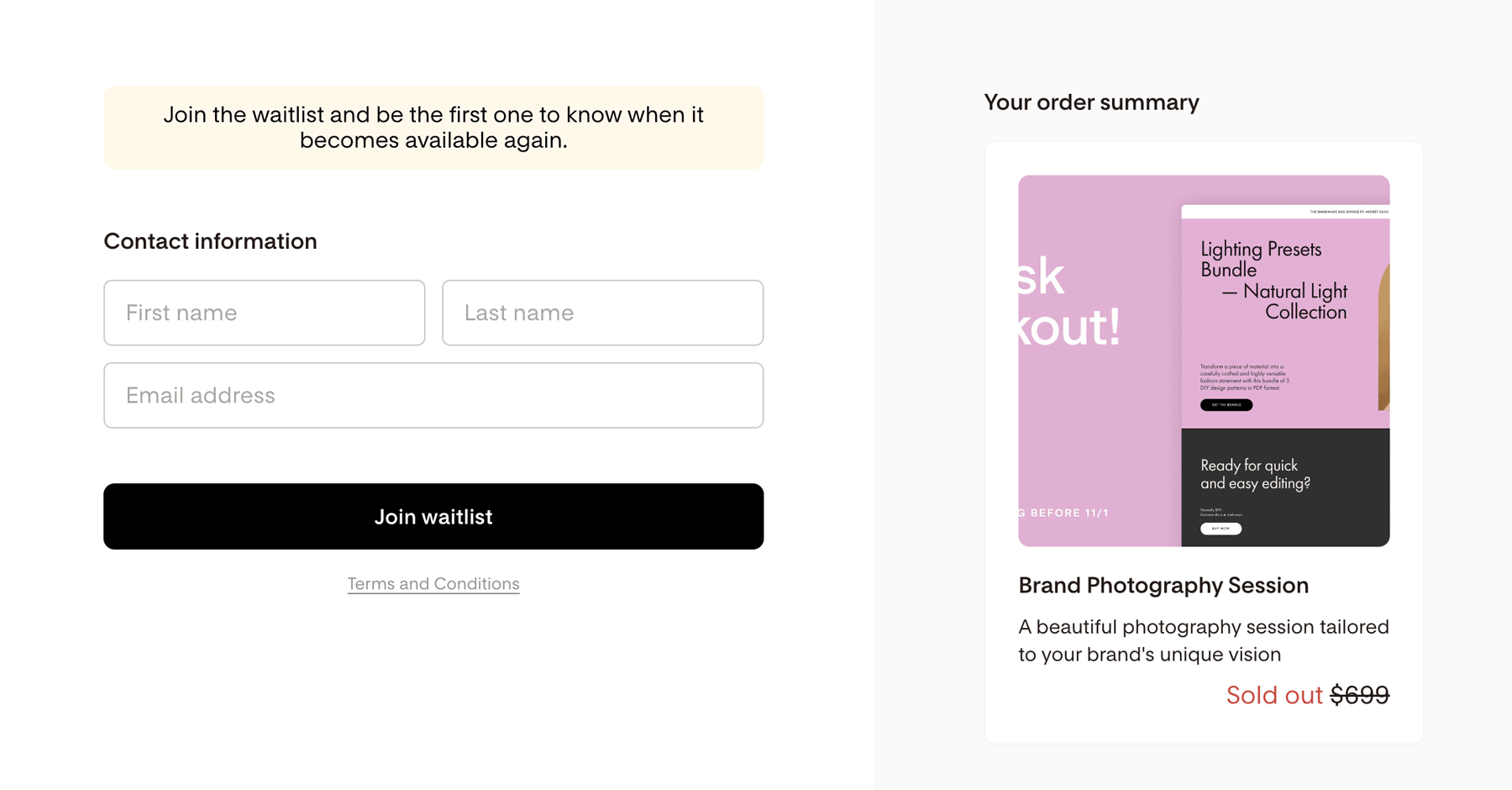
The product price shows a strikethrough with "Sold out" displayed next to it
The original price is shown (not the discounted price, if applicable)
The upsell card disappears
The payment fields and Terms and Conditions checkbox are hidden (the T&C link remains)
What happens next depends on whether you set up a waitlist:
If you didn't set up a waitlist: The Pay button changes to a grayed-out "Sold out" button with no action attached.
If you set up a waitlist: The Pay button changes to "Join waitlist." When a visitor fills in their details and clicks it, they're added to your waitlist segment. The contact information block then shows: "Thanks for joining the waitlist."
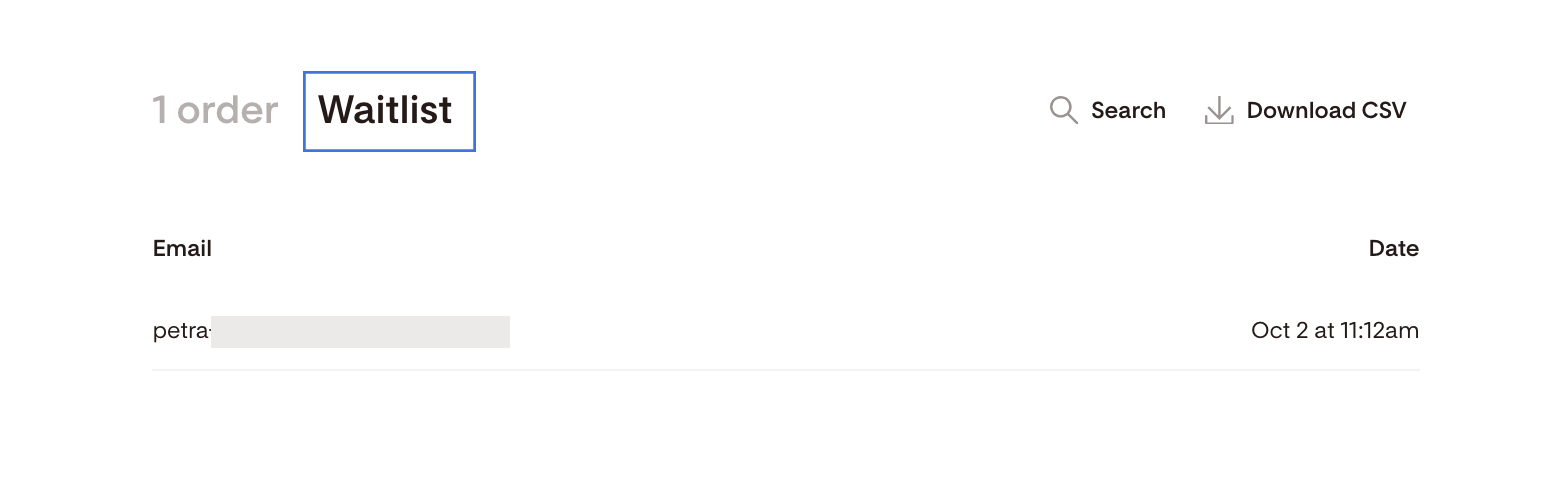
Under the individual checkout report, waitlist sign-ups appear on the Waitlist tab.
If two buyers try to purchase the last unit at the same time: The buyer whose payment comes in second will see the message: "Sorry, this product just sold out. Please refresh this page for further options." Depending on your setup, they'll also have the option to join the waitlist.
What happens when you duplicate a checkout with product limits
When you duplicate a checkout that has product limits set up, here's what carries over:
Setting | What copies over |
|---|---|
Limit quantity toggle | Copies current toggle status and total available quantity |
Set an end date toggle | Copies current toggle status. End date defaults to one month from the duplication date, using your account timezone. |
Allow waitlist toggle | Copies current toggle status, selected segment, and waitlist message |
FAQ
How do I limit how many people can buy my product in Flodesk Checkout?
Open your Checkout in Flodesk, click the Setup button in the top-right corner, and select the Product tab. Toggle on Limit quantity and enter a number between 1 and 9,999. Publish the checkout for the limit to take effect.
Can I set an expiry date for my offer in Flodesk Checkout?
Yes. In the Product tab, toggle on Set an end date and choose the date, time, and timezone when you want the offer to end. You can use this on its own or alongside a quantity limit.
What happens to my checkout page when the product sells out or the offer expires?
The checkout page updates automatically. The product price shows a strikethrough with "Sold out" next to it, and the payment fields disappear. If you set up a waitlist, the Pay button changes to a Join waitlist button. If you didn't, it becomes a grayed-out Sold out button with no action.
How do I set up a waitlist for sold-out products?
Turn on either Limit quantity or Set an end date in the Product tab, then toggle on Allow waitlist. Choose the Flodesk segment where waitlist sign-ups should go, and optionally add a custom message (up to 100 characters). Visitors who sign up will be added to that segment automatically.
What segment are waitlist sign-ups added to if I don't choose one?
If no waitlist segment is selected, sign-ups are added to your All Subscribers segment by default. It's a good idea to specify a dedicated waitlist segment so you can follow up with those contacts separately.
Where can I see who signed up for my waitlist?
Go to the individual checkout report page in Flodesk. Waitlist sign-ups appear on the Waitlist tab.
What if two buyers try to purchase the last available unit at the same time?
The buyer whose payment processes second will see a message letting them know the product just sold out. Depending on your checkout setup, they'll also have the option to join the waitlist.
If I duplicate a checkout with product limits, do the settings carry over?
Most settings carry over, including the quantity limit, waitlist toggle, segment, and message. The end date defaults to one month from the date you duplicate the checkout (using your account timezone) rather than copying the original end date exactly.
Do my product limit changes take effect immediately?
No. Changes to product limits only take effect once you publish the checkout. Make sure to publish after making any updates.