
How to add a countdown timer to your Flodesk Checkout sales page
Overview
A countdown timer is a straightforward way to create urgency on your sales page for limited-time offers. In Flodesk Checkout, you can add a countdown timer block to your sales page, set it to count down to a specific date and time, and customize it to match your brand.
How to add a countdown timer block
In your Flodesk account, open an existing checkout or create a new one
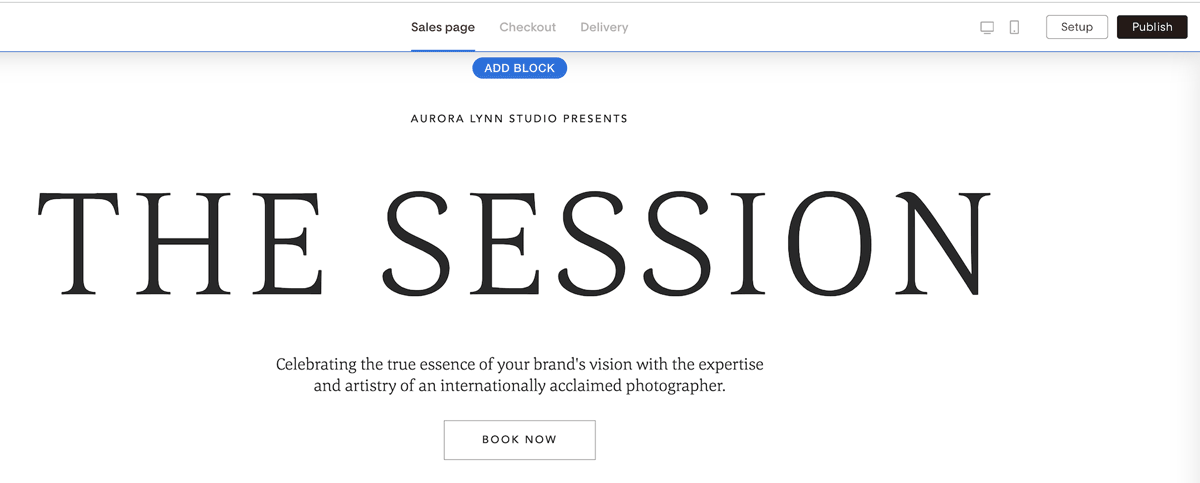
In the sales page builder, click Add block
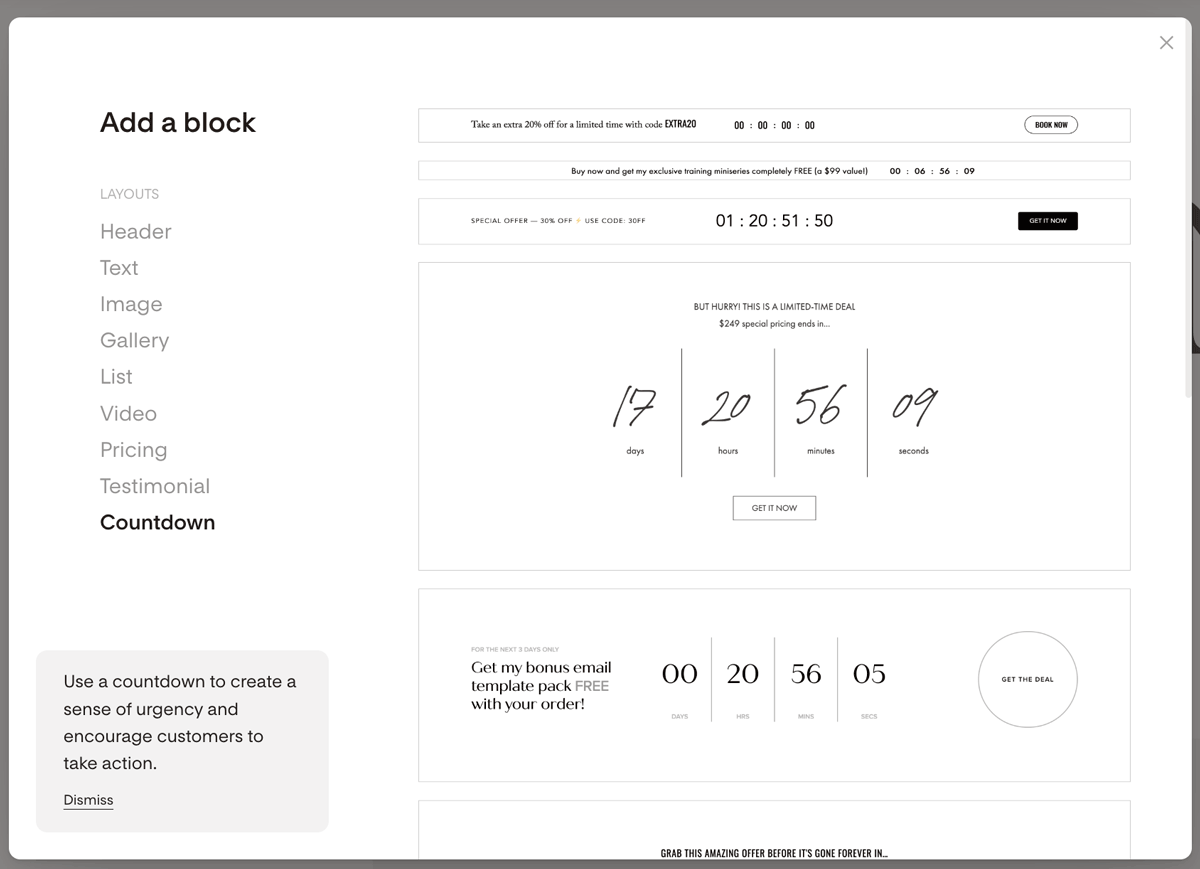
In the block menu, select the Countdown category
Choose a countdown timer template: banner style or standard
How to set the countdown end date and time
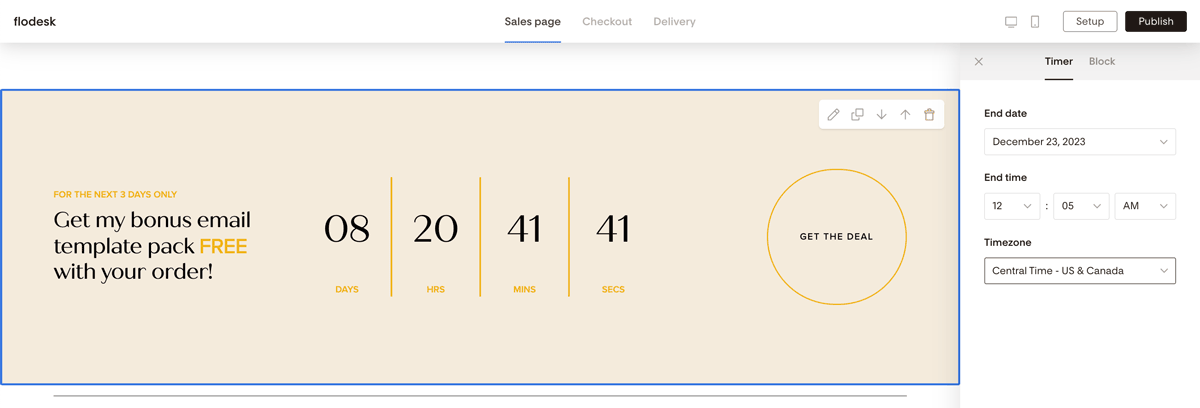
Click on the countdown timer block you just added
Go to the Timer tab
Use the dropdowns to set the end date, end time, and timezone you want the timer to count down to
Note: the countdown timer can display a maximum of two digits for each unit (days, hours, minutes, seconds), which means the furthest end date you can set is 99 days in the future.
How to customize the countdown timer
Show or hide sections
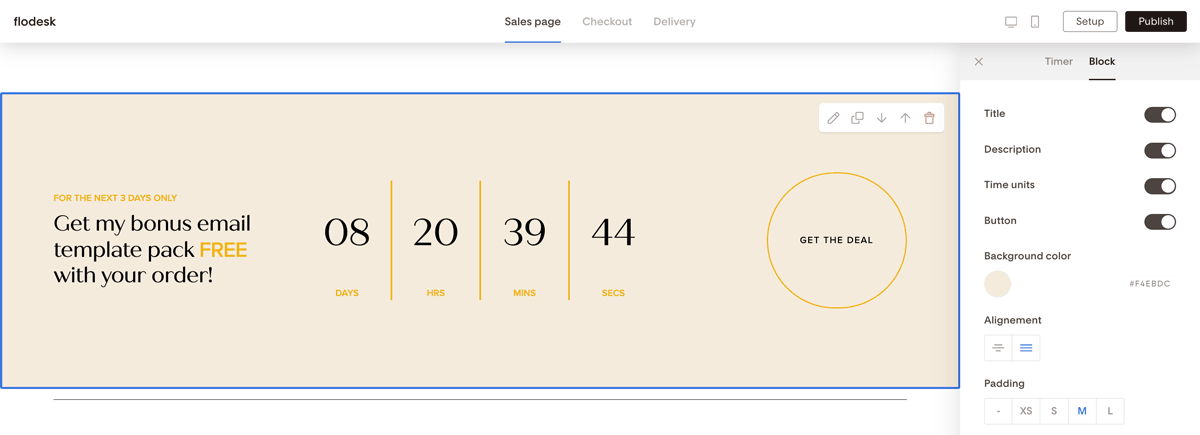
Click the Block tab to control which elements appear on the timer block. You can toggle each of these on or off:
Title
Description
Time units
Button
Background and spacing
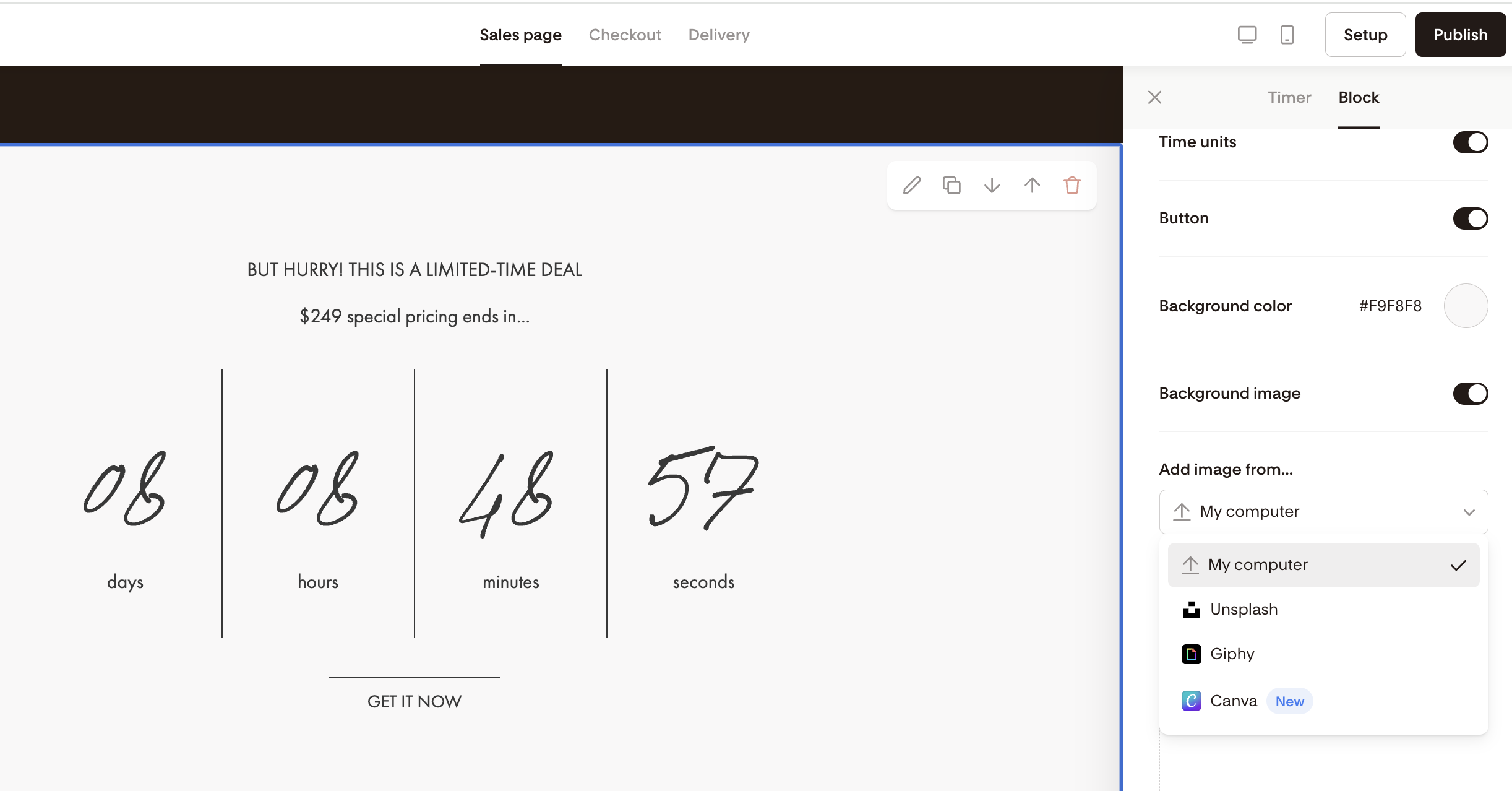
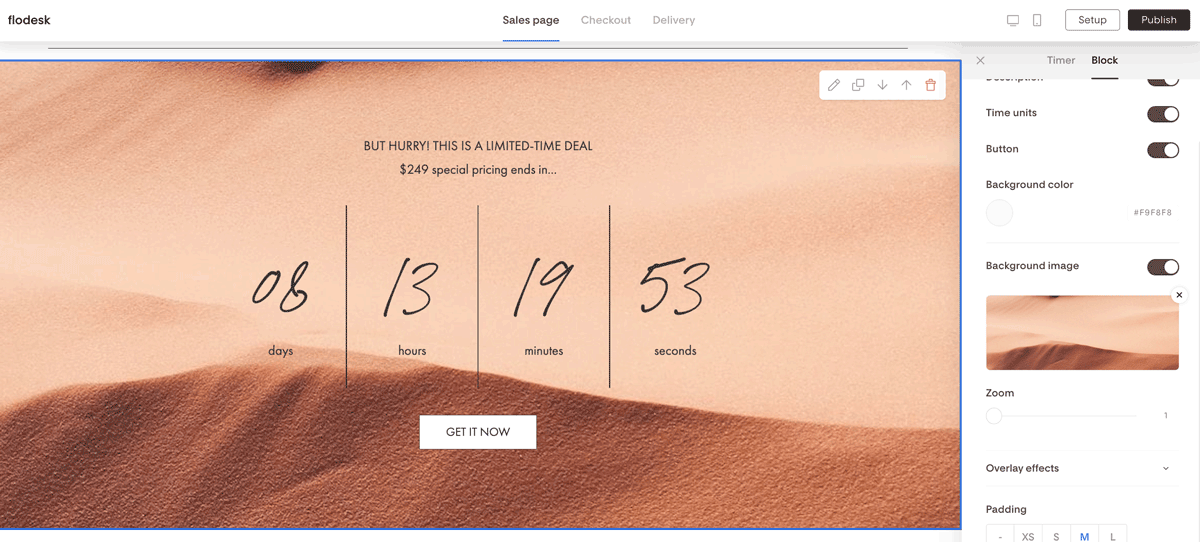
Also under the Block tab, you can adjust the block's background color, spacing, and padding. Some countdown templates also support a background image. You can upload your own image or choose one from Unsplash, Giphy or your connected Canva account.
Fonts and colors
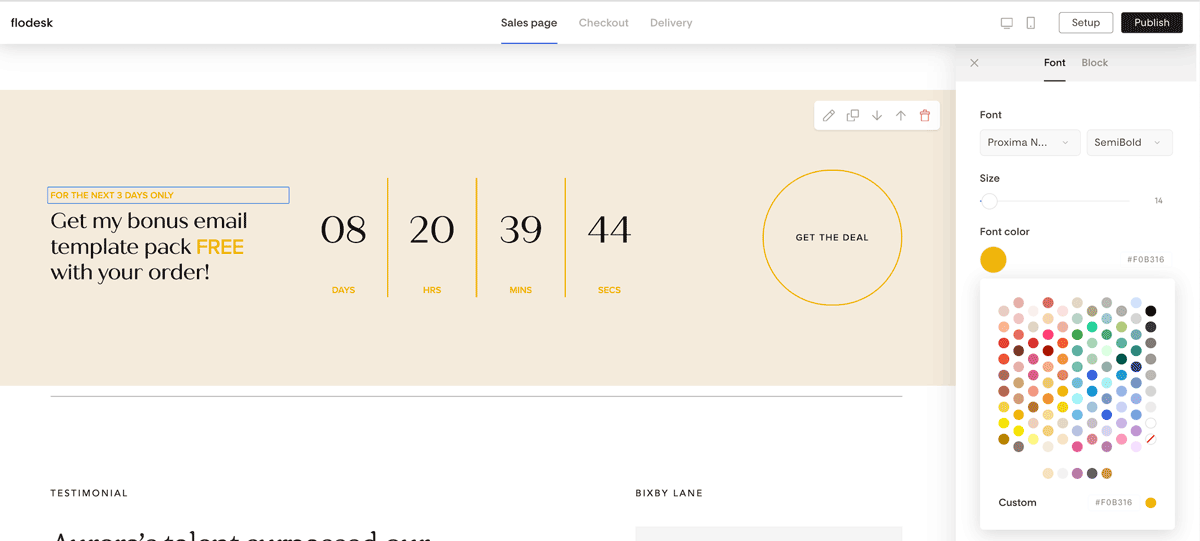
Click on any text element within the timer to access font type, size, and color options.
Timer box styling
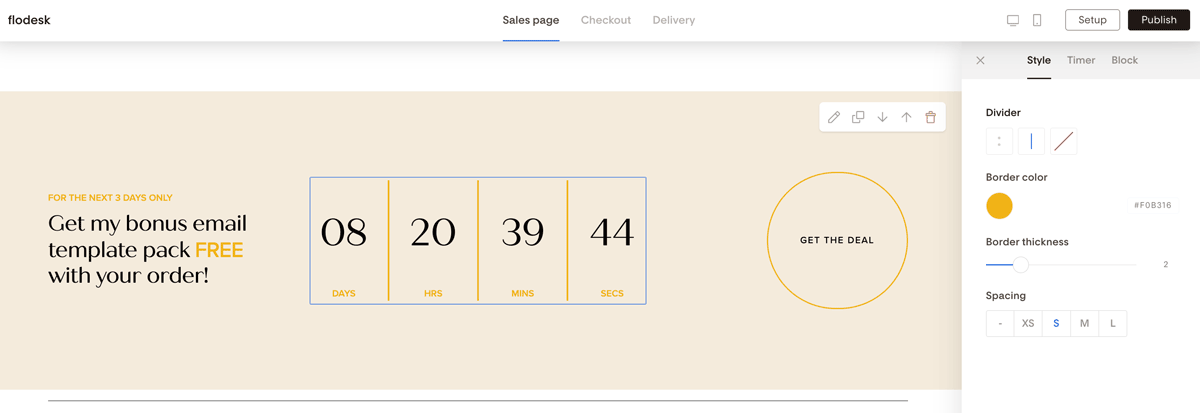
Click directly on the countdown box to access additional styling options for the divider between time units.
Button styling
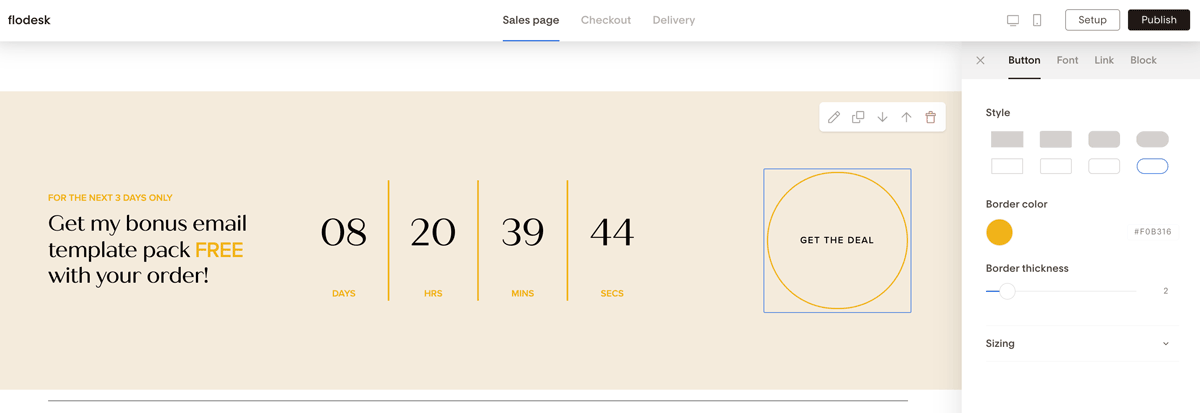
Click the button element to customize the button shape, fill color, border color, border thickness, font type, size, and color.
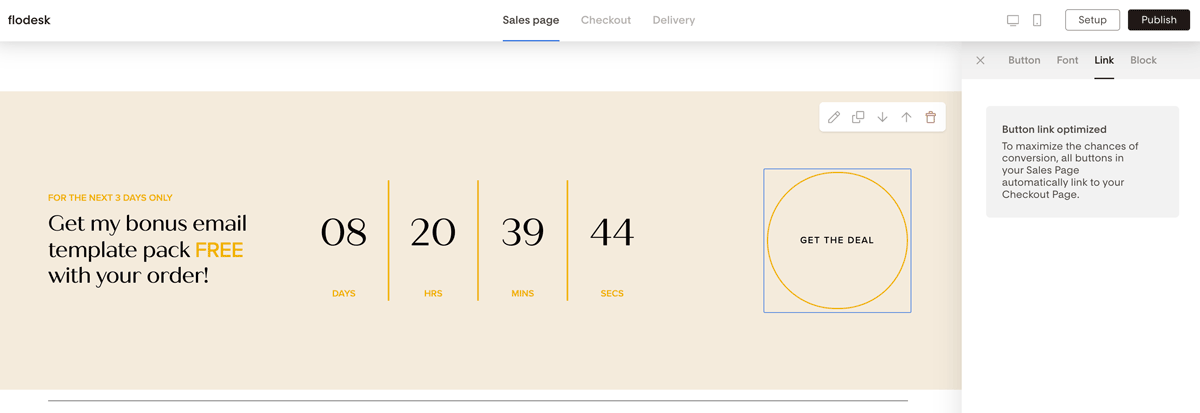
Note: the countdown timer button link can't be edited. All buttons on your sales page, including the countdown timer button, automatically link to your checkout page. This is by design, to keep buyers moving toward purchase.
FAQ
How do I add a countdown timer to my Flodesk Checkout sales page?
In the sales page builder, click Add block, select the Countdown category, and choose a template (banner or standard). Then click the Timer tab to set your end date, end time, and timezone.
What's the maximum time I can set for a countdown timer?
The countdown timer can display up to two digits per unit (days, hours, minutes, seconds), so the maximum end date you can set is 99 days in the future.
Can I change what the countdown timer button links to?
No. The countdown timer button automatically links to your checkout page and can't be changed. All buttons on your sales page are set up this way to keep the path to purchase as direct as possible.
Can I add a background image to my countdown timer block?
Yes, on some countdown timer templates. Under the Block tab, look for the background image option. You can upload your own image or choose one from Unsplash, Giphy or your connected Canva account.
Can I hide parts of the countdown timer, like the title or button?
Yes. Under the Block tab, you can toggle the title, description, time units, and button on or off individually to show only what you need.
Can I use a countdown timer for evergreen offers, or only limited-time promotions?
The countdown timer counts down to a fixed date and time, so it's best suited for limited-time offers with a real end date. Once the timer reaches zero, it will display all zeros. There's no option to reset it automatically for each new visitor.